
- Intune scope tags enable delegated and role-based administration.
- Admins can only see and manage tagged devices, apps, and policies.
- The Global Administrator role is not required for daily Intune tasks.
- Use Intune RBAC roles to follow the least-privilege principle.
- Scope tags provide granular control, improved security, and operational separation.
Intune scope tags help you delegate administrative access by providing a filtered view of securable objects in the Intune admin center. Using scope tags, you can ensure that administrators only see and manage the devices, policies, apps, and profiles assigned to them, enabling role-based administration, improved security, and better operational separation within Microsoft Intune.
Microsoft Entra ID Global Administrators are not required to perform all Intune administrative tasks.
Instead, it is recommended to minimise the assignment of Global Administrator roles within your organisation and use Intune-specific role-based access control (RBAC) roles wherever possible.
Scope tags are an Intune feature that allows administrators to set a tag (essentially a feature) on any content in Intune, such as apps, profiles, devices, and more. This permits them to manage only resources assigned with a specific tag.
The Intune team has done excellent work by integrating scope tag capabilities into Intune role-based access control (RBAC). These features provide granular delegation and improved administrative control.

Table of Contents
Intune RBAC Implementation – Tips
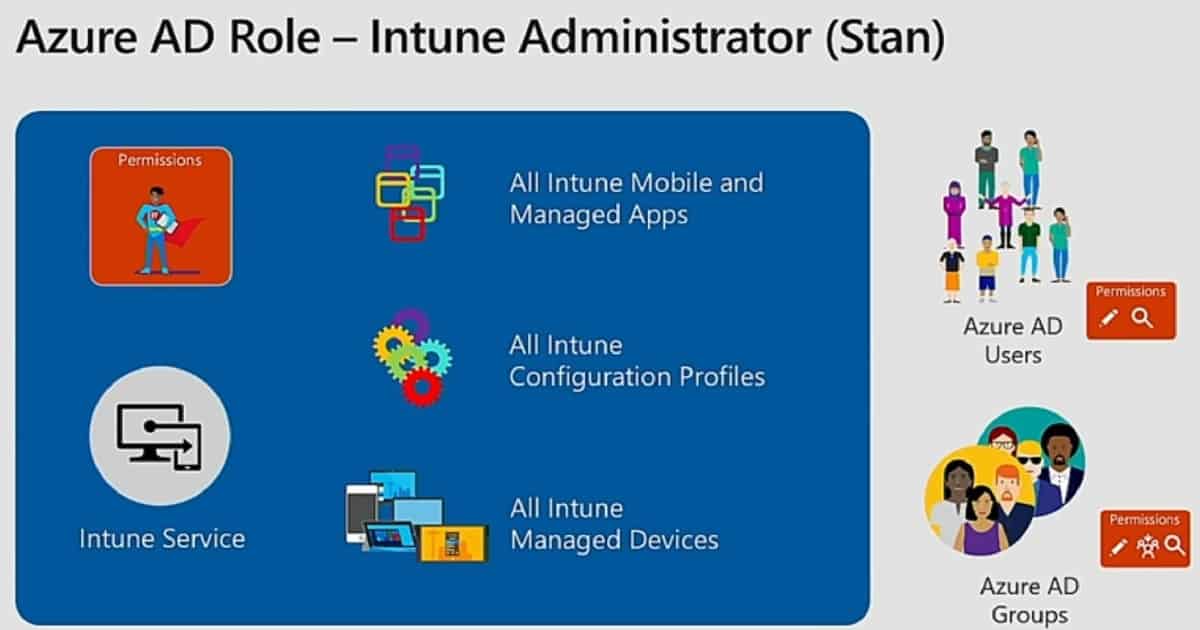
You should avoid assigning the Azure AD Intune Administrator or Global Administrator roles to every Intune operations team because these directory roles grant broad permissions that you cannot limit using Intune RBAC roles. Instead, create normal user accounts in Azure AD for your Intune operations teams, and then grant them only the Intune RBAC roles, scope groups, and scope tags they need to perform their specific tasks.
While you can have a small number of Intune Administrators in Azure AD with full Intune access, remember that directory roles like Intune Administrator or Global Administrator provide global permissions for Intune that cannot be reduced by Intune RBAC settings RBAC in the Intune admin center only applies to custom and built-in Intune roles and scope assignments. Using the least-privilege model helps improve security and operational control.
- Intune Role-Based Administration RBAC
- Intune Read the Only Experience to Create Read-Only Operators]
Video Guide – How to Implement Intune RBAC
The following video guide explains how to implement role-based access control (RBAC) in Microsoft Intune, covering key concepts such as roles, scope tags, and scope groups to help you delegate administrative access securely and effectively.
What are Intune Scope Tags?
Use Intune scope tags to give administrative users a filtered view of securable objects. Scope tags are filtering options provided in Intune to facilitate admin tasks. These object types support scope tags and can be scoped for visibility in Intune RBAC.
- Configuration Profiles (all platforms)
- Compliance Policies (all platforms)
- Update Rings / Device Update Policies
- Compliance Notifications
- Managed Devices (devices visible in Intune)
- App Management Objects (e.g., apps that support tagging)
- Endpoint Security Policies (e.g., Antivirus, Firewall, etc.)
- Scripts and Win32 App Deployments (object types that allow tag assignment)
- Device Control & Endpoint Protection Policies (scope tag supported in properties)
What are Scope Groups and Member Group Users?
Scope tags control what an Intune administrator can see and manage within the Intune admin center. Scope tags are not assigned directly to users; instead, they are applied to Intune objects such as policies, profiles, apps, and devices, and are then referenced during Intune role assignments.
An important concept to remember is that an administrator can only assign or use scope tags that are already included in their own role assignment, ensuring controlled visibility and enforcing least-privilege access in Intune administration.
- Go to https://intune.microsoft.com
- Sign in with an account that has Intune Administrator or Global Administrator permissions
- Select Tenant administration > Click Roles > Choose Scope tags
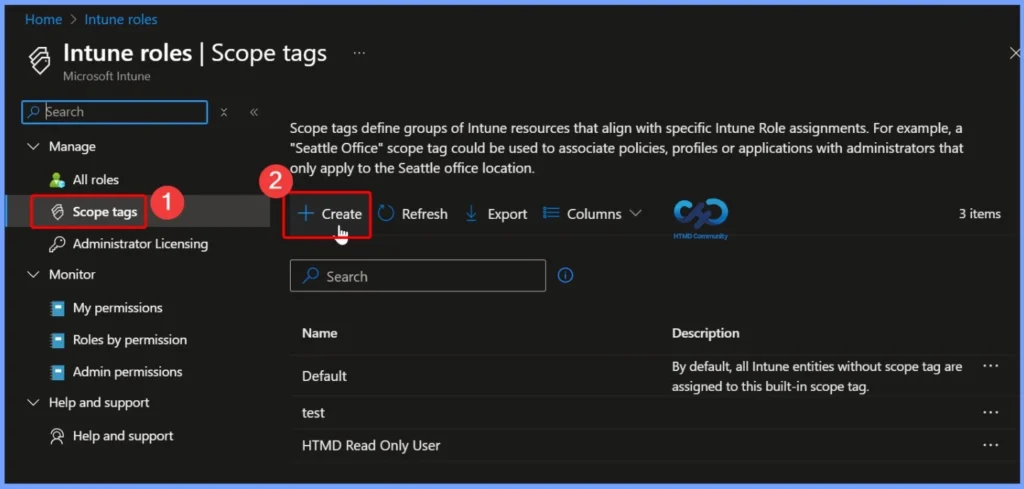
- Create a New Scope Tag by Click + Create
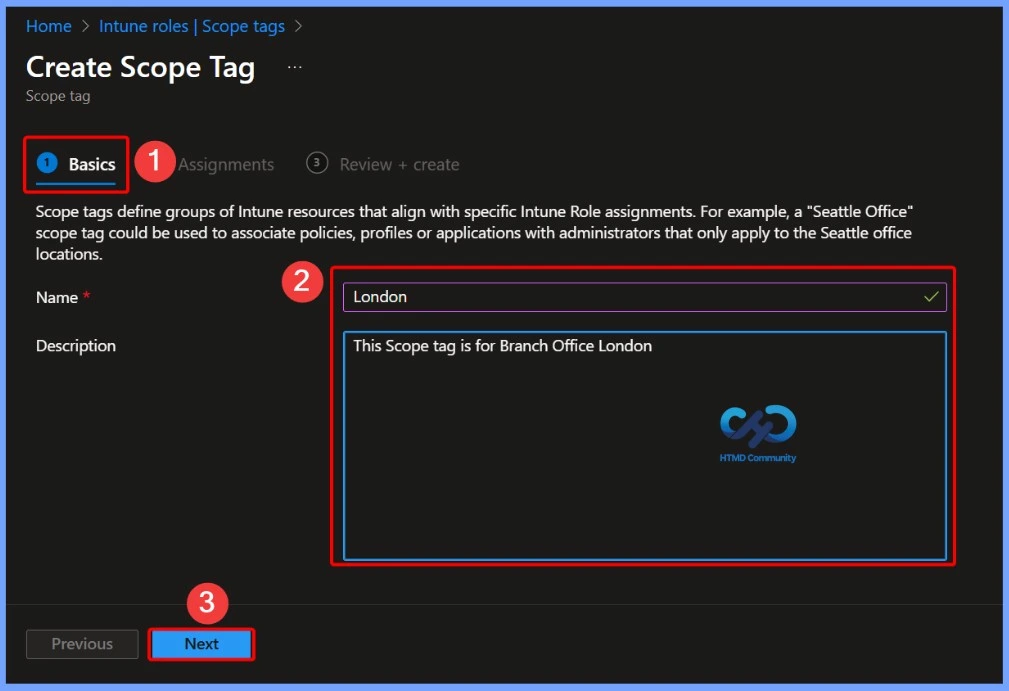
- Provide the following details:
- Name – Enter a meaningful name (for example, London)
- Description – Optional, but recommended – This scope tag is for the branch office in London
- Click Create
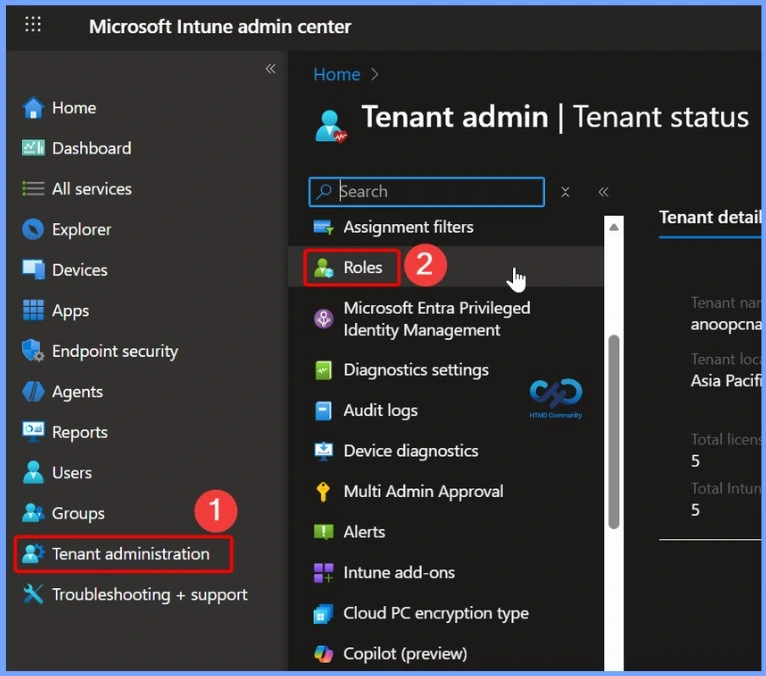
Create a New Scope Tag
To create a new scope tag, click + Create on the Scope tags page in the Intune admin center. Scope tags define groups of Intune resources that align with specific Intune Role assignments. For example, a
“Seattle Office” scope tag could be used to associate policies, profiles or applications with administrators that only apply to the Seattle office location.
Create and Save a New Intune Scope Tag
Provide a meaningful name and an optional description to clearly identify the purpose of the scope tag, then select Create to save it. The newly created scope tag can later be assigned to Intune objects and referenced in role assignments to control administrative visibility and access.
- Name – London
- Description – This scope tag is for the Branch Office London
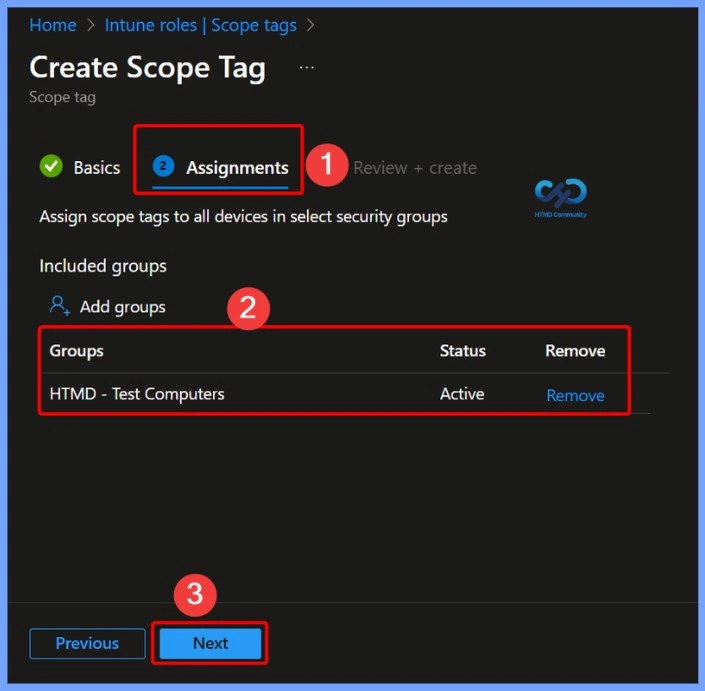
Assign Sope Tags to All Devices in Select Security Groups
Assign scope tags to All Devices or to devices in selected security groups to control which Intune administrators can view and manage those devices. By applying scope tags at the device level, you ensure that only admins whose role assignments include the same scope tags can access and perform actions on those devices.
- Here, we select the HTMD Test Computers group.
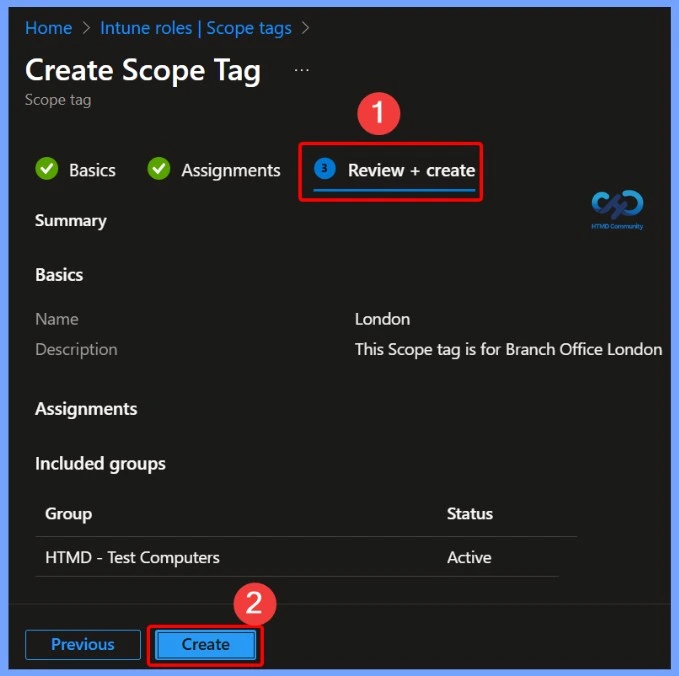
Review and Create a Scope Tag
After providing a meaningful name and an optional description for the scope tag, you reach the Review + Create page. This step allows you to verify the details of the scope tag before finalising it. Once you confirm that the name and description are correct, click Create to save the scope tag.
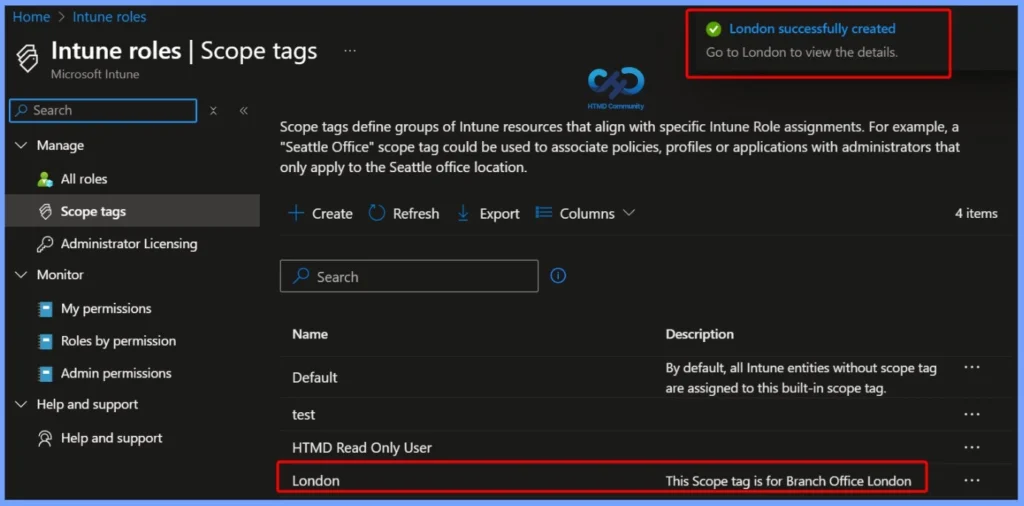
Scope Tag Creation Successful
In the screenshot below, you can see that the London scope tag has been created successfully. A notification message confirms this action, displaying “London successfully created“, indicating that the scope tag is now available to be assigned to Intune objects and referenced in role assignments for controlled administrative access.
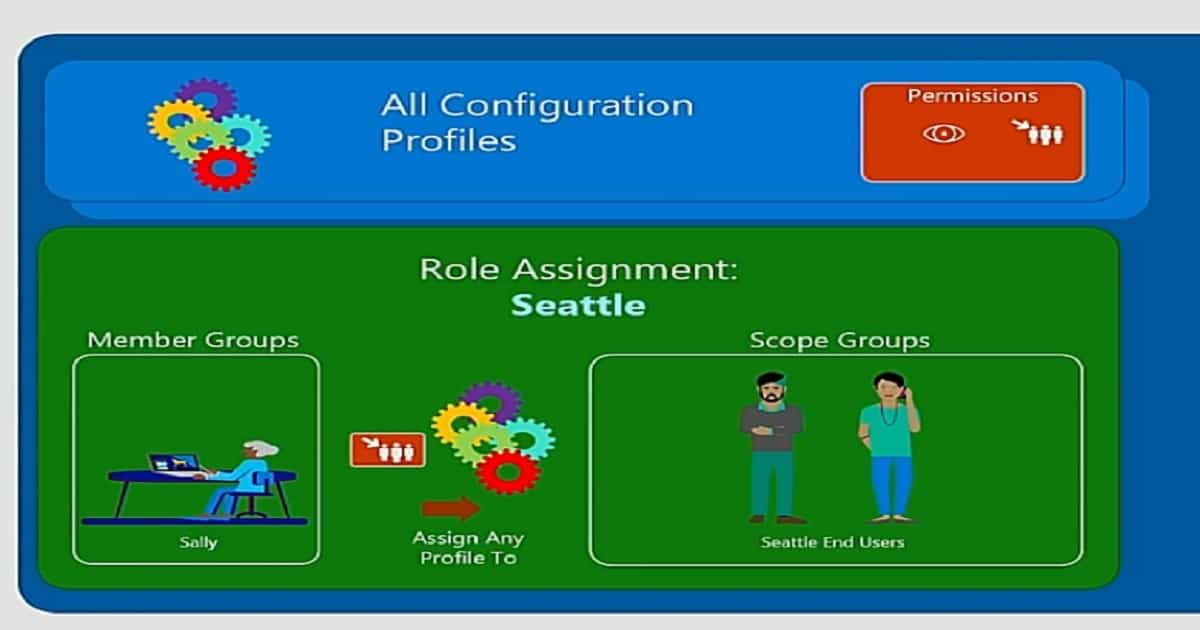
How to Assign an Intune Scope Tag to an Admin Role
This section will learn how to assign an Intune scope tag to an Intune Admin role. As I mentioned in the second paragraph of this post, try to reduce Intune FULL admins for your tenant by assigning segregated Intune admin roles. I also explained this in the previous post
Using the following method, you can assign an Intune Admin role to an admin. Also, you can assign access only to a particular group of users/devices using Intune Scope tags.
[Related Posts – Intune Role-Based Administration RBAC and Intune Read the Only Experience to Create Read-Only Operators]
- Ensure you have created the Security Scope Tags mentioned in the above section.
- Log in to the Azure Portal and Navigate to the Intune Blade
- Select Role and then select a Built-in or custom Intune admin role (For example – Policy and Profile Manager, School Administrator, Help Desk Operator, Application Manager, Read-Only Operator, or Intune Role Administrator )
- Select Assignments, and select the +Assign button to create a new assignment. In the new assignment, you will define all the details about Scope Tags, Scope Groups, and Member Group users.
- Enter the Assignment name and Description. I have given the Assignment name Mumbai Admins. You can provide an appropriate name. The description: This is the role assignment for Mumbai Admins. This admin shall have access to Mumbai location-related objects and groups.
- Click the Members (Groups) option and select Azure AD Group for Intune Admins, who will be assigned to Intune roles, scope tags, and scope groups. In my scenario, I have selected the AAD group created for Mumbai Intune Admins.
- Their admins will manage all deployments related to the Mumbai location. Member Group users are the administrators assigned to this role.
- Click Scope (Groups). In this role assignment, Administrators (the group you selected in STEP #6 above) can target policies, applications, or small tasks to these Scope Groups.
- You can select Scope to All Users & All Devices if you want the admin group to manage all devices and users in your organisation.
- Click on Select Groups to Include to select a specific AzureAD Group for a set of users or devices if these Intune admins are part of a particular location or business unit.
- Follow the steps mentioned in the pic. Administrators in this Role Assignment can target policies, applications, or small tasks to these Scope Groups.
- Click on Scope (Tags) and click on +Add. Ensure you have completed the above “How to Create Intune Scope Tags?” section. Select Intune Security Scope “Mumbai.” Click on the button. Click on OK.
- Click OK to complete the Role Assignment process and close the blade.
[Related Posts – Intune Role-Based Administration RBAC and Intune Read the Only Experience to Create Read-Only Operators]
How to Change the Intune Scope Tags of Devices
In this section, you will learn how to change the scope tag of Intune objects. I recommend reading the above paragraph, where I explain Intune objects and which are securable Intune objects. You can change the Intune Scope Tag for all securable Intune objects. More details are available in the Intune Securable Object section above.
To change the scope tags of devices in Intune, sign in to the Intune admin center with an account that has the necessary RBAC permissions. Navigate to Devices and then select All Devices. Choose the device on which you want to set or update the scope tag.
- Click on +Add to search Scope (Tags). I have used Scope (Tags) for Mumbai
- Click on the OK, OK, and Save buttons to close all the blades and complete the process
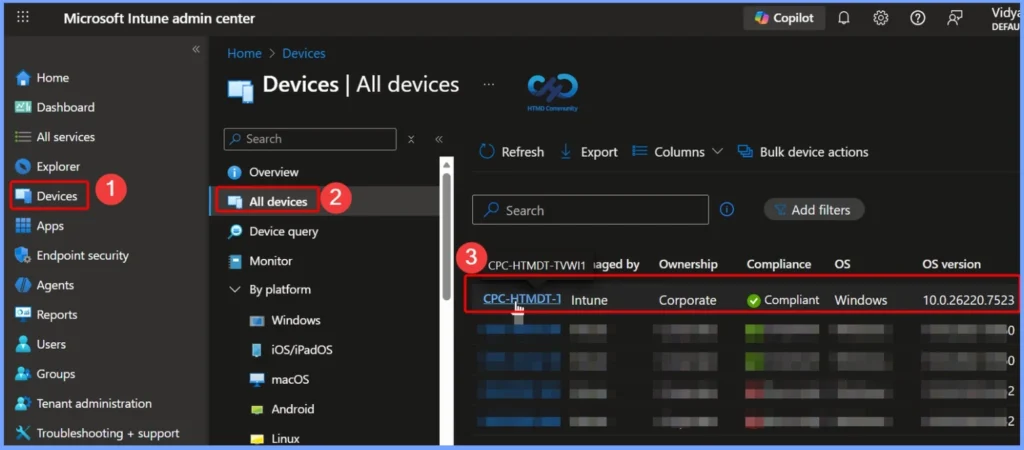
Set Scope Tags on the Selected Device
After opening the device details, go to the Properties section of the device. Click on Scope (Tags) to assign or update the scope tag for that device. This allows you to control which Intune administrators can view and manage the device based on their role assignments and associated scope tags.
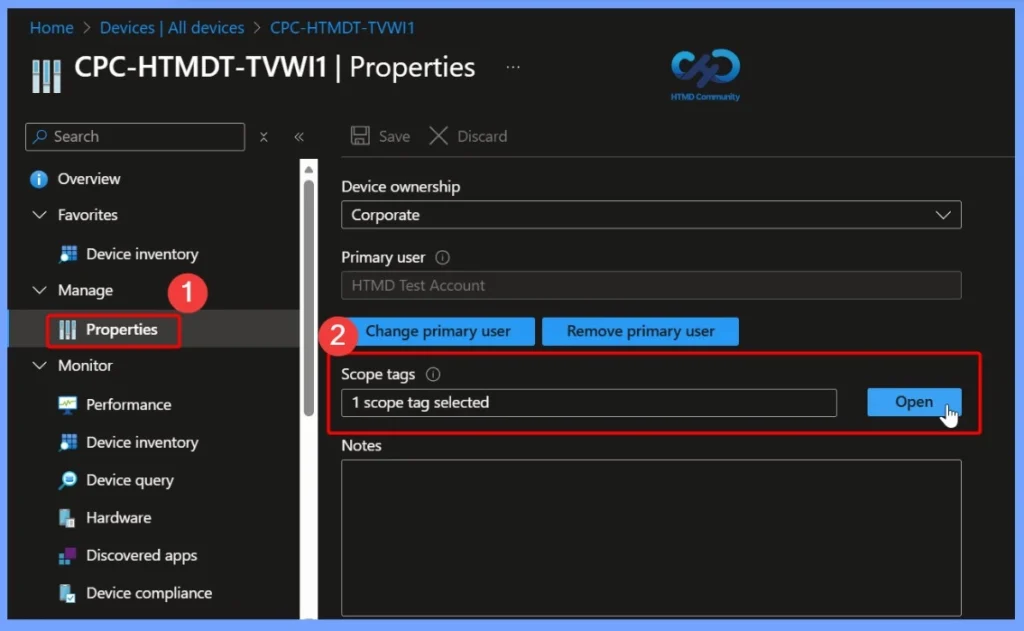
Select and Assign the Scope Tag
In the Select tags window, search for the scope tag that you have already created. Once selected, the scope tag appears in the “Selected scope tags” section. After confirming the selection, click Select to assign the scope tag to the device.
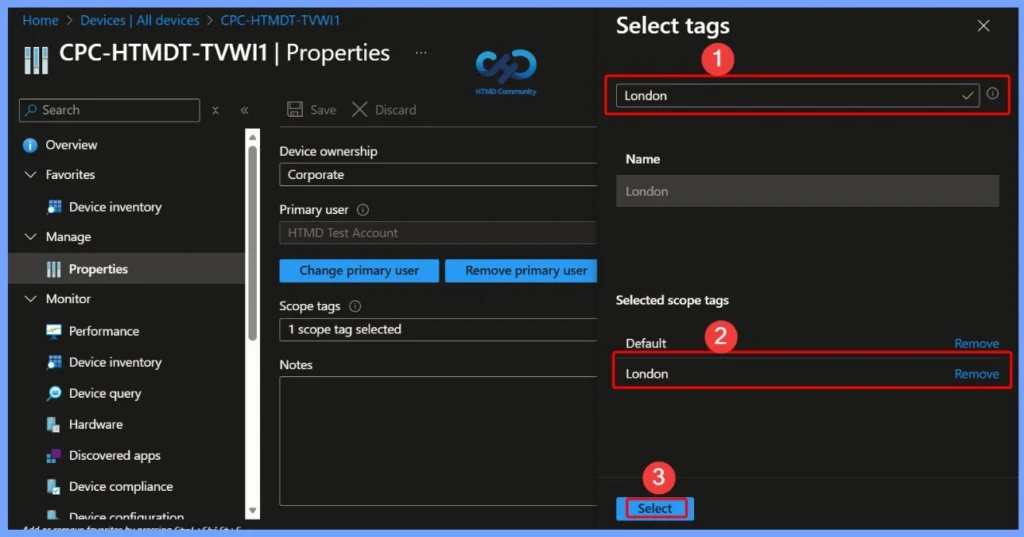
Automation of Intune Scope Tags for All Intune Objects
There is also an automated way to change the Intune scope tags of all the supported objects. This has been explained in the Ignite session I referred to in the post. The Intune PowerShell module can be used to automate Intune Scope Tags for existing objects.
Download the Intune PowerShell module.
Resources
Join the LinkedIn Page and Telegram group to get the latest step-by-step guides and news updates. Join our Meetup Page to participate in User group meetings. Also, join the WhatsApp Community to get the latest news on Microsoft Technologies. We are there on Reddit as well.
Author
Anoop C Nair is a Microsoft MVP! He is a Device Management Admin with more than 20 years of experience (calculation done in 2021) in IT. He is a Blogger, Speaker, and Local User Group HTMD Community leader. His primary focus is on Device Management technologies like SCCM 2012, Current Branch, and Intune. He writes about ConfigMgr, Windows 11, Windows 10, Azure AD, Microsoft Intune, Windows 365, AVD, etc.
Is there any information on how to use powershell to automate or batch assign scope tags to devices?
Hi John M, here there is an example of how to use Powershell to automate scope tags assignment for devices.
https://github.com/microsoftgraph/powershell-intune-samples/blob/master/RBAC/RBAC_ScopeTags_DeviceAssign.ps1
Regards,
Since the Roles option is no longer available in the new EM console do you have any update on doin this in the new console