
Hey, let’s discuss how to Enable File Selection Dialogs in Edge Browser for Local File Interactions using Intune Policy. The File Selection Dialog policy controls how the file selection window appears and works across all devices in the organisation. It ensures a consistent layout and process, making it easier for employees to find, open, and save files quickly.
This policy helps the organisation maintain an organised workflow. Employees can work more efficiently without wasting time searching for files or dealing with confusing layouts. It also reduces mistakes when saving or opening files, which improves overall productivity.
Another benefit is data protection. By showing only approved folders or storage locations, the policy prevents accidental access to sensitive information. This helps the organisation maintain confidentiality and follow compliance requirements.
The importance of this policy lies in its ability to combine efficiency and security. It streamlines daily work, safeguards important data, and ensures that file handling is consistent across the entire organisation leading to smoother operations and stronger information protection.

Table of Contents
What are the Advantages of Enabling File Selection Dialog Policy using Intune?
Enabling the File Selection Dialog policy using Intune gives an organisation control over how users browse, open, and save files. It ensures a consistent experience across all devices, improves efficiency, and helps protect sensitive data by allowing access only to approved locations.
1. Creates a uniform file browsing experience for all users
2. Saves time by making file access faster and simpler
3. Reduces errors when opening or saving files
4. Restricts access to only approved folders or storage locations
5. Helps protect sensitive data and maintain compliance
6. Supports organised and efficient workflows across the organisation
Enable File Selection Dialogs in Edge Browser for Local File Interactions using Intune Policy
After enabling the File Selection Dialog policy, file browsing becomes consistent across all devices. Employees can quickly find, open, and save files, while only approved folders or locations are shown. This reduces mistakes and keeps daily file handling more organised and efficient.
The security benefits include preventing access to sensitive or restricted folders, reducing the risk of data leaks, and ensuring files are stored in secure locations. It also supports compliance with data protection policies and minimises the chances of unauthorised file use.
- Allow or Block Users to Open Files using DirectInvoke Protocol Policy in Edge Browser using M365 Admin Center
- Enable or Disable Folder Locations in File Explorer using Intune Policy
- Enable Disable Graph Recent Items in File Explorer Policy using Intune
Create a Profile
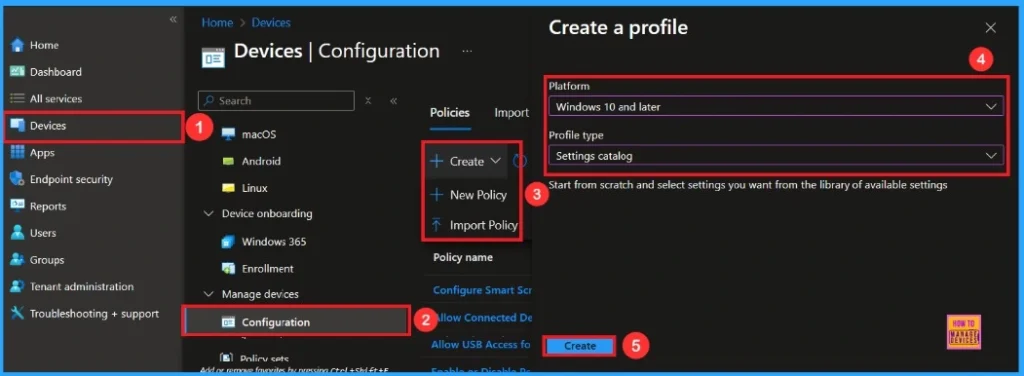
First, log in to the Microsoft Intune admin center. Then, navigate to Devices. Under Devices, go to Configuration. In the Configuration section, you’ll see an option to create a New Policy. Click on that. A new window will appear titled Create Profile. In this section, you need to set the platform to Windows 10 and later, and choose the Profile Type as Settings Catalog. Then, click Create to proceed.
Basic Step
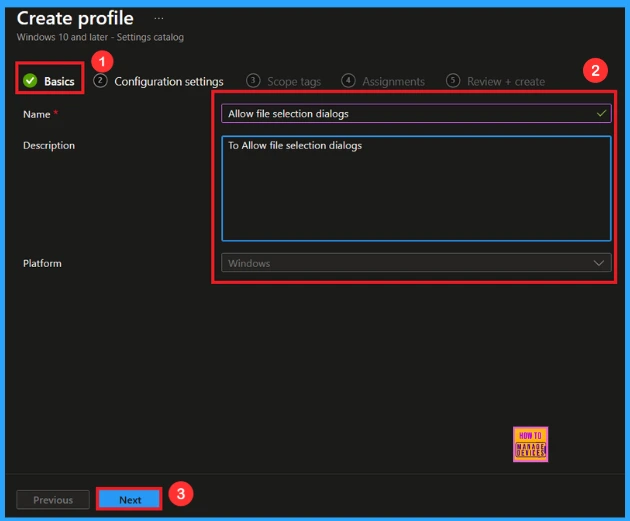
After creating profile, your next step is to fill in the basic details. These usually include the name, description, platform information. we can add the name (e.g Allow File Selection Dialogs) of the policy and give a brief description (e.g To Allow File Selection Dialogs). Click Next to continue.
Configuration Settings
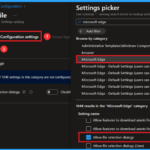
In this tab, you will see an option to Add Settings. Click on it. Once you click, a new window called Settings Picker will appear. In the Settings Picker window, you need to select the Microsoft Edge category. Under this category, select Allow File Selection Dialogs.
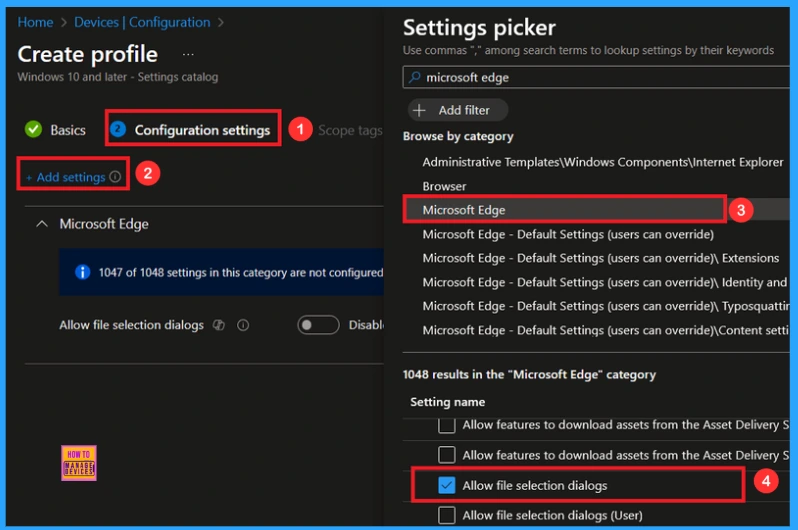
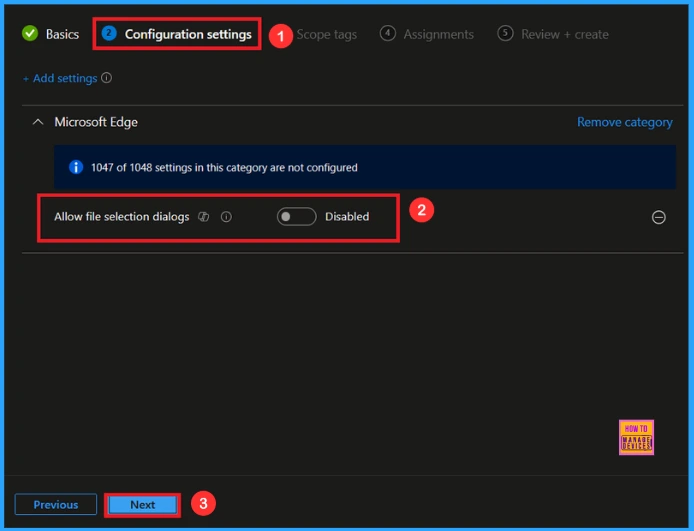
You can close the Settings Picker window. Once you close it, you’ll return to the Configuration Settings page. Here, you’ll notice that the policy is set to Enable or Disable by default. If you want to continue with this setting, click Next to proceed.
Enable File Selection Dialogs
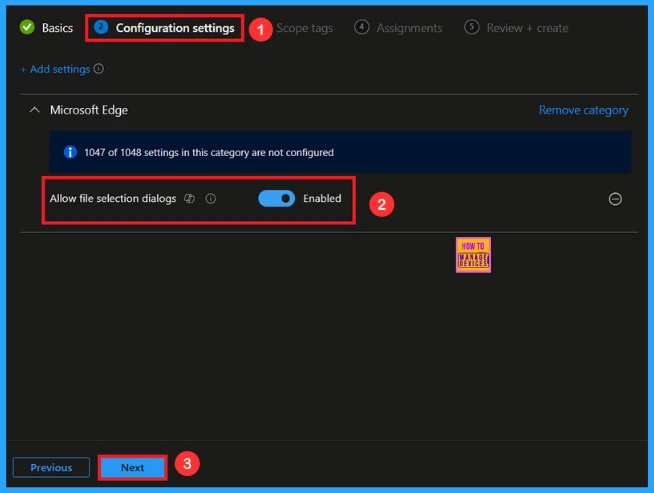
If you want to Enable this policy, look for the toggle switch next to the Allow File Selection Dialogs setting. By default, this toggle is set to Disable. To Enable the policy, you have to move the toggle from left to right.
Scope Tag
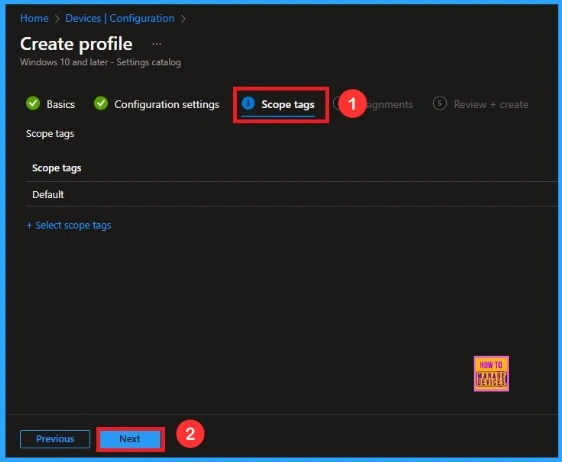
A scope tag is used to assign policies to specific groups within an organisation. The scope tag is not mandatory, so you can skip this section. Click Next if they’re not required for your setup.
Assignments
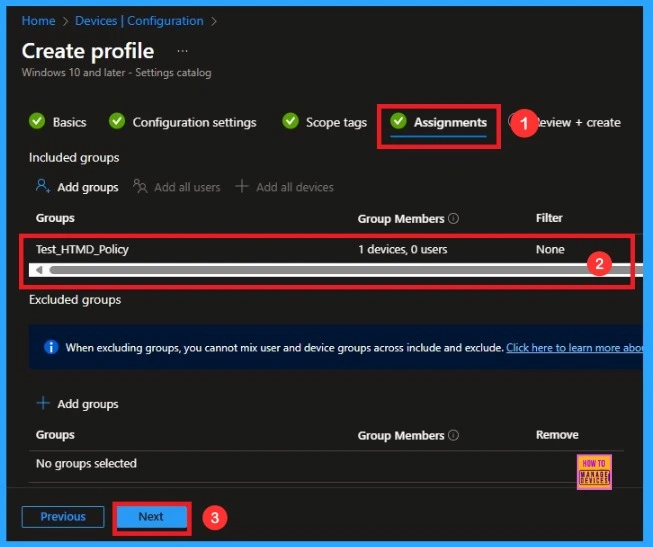
Here, you will see an option called Add Groups under the Include Groups section. Click on it. When you click, a list of available groups will appear. You can search for the group you want (e.g Test_HTMD_Policy). Then click the Next button.
Final Step
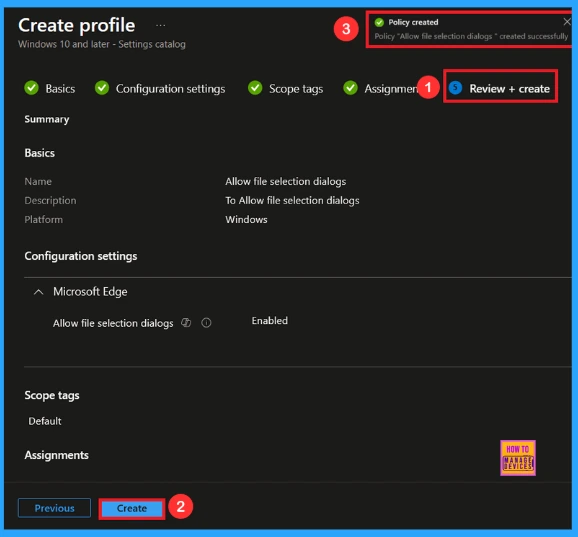
In this section, you can see a summary of everything you entered in the previous steps, such as basic details, configuration settings, assignment details, and more. If you want to change or edit anything, you can easily go back to the previous section.
Click Create to finish, and a message will confirm that Allow File Selection Dialog Created Successfully.
Monitoring Status
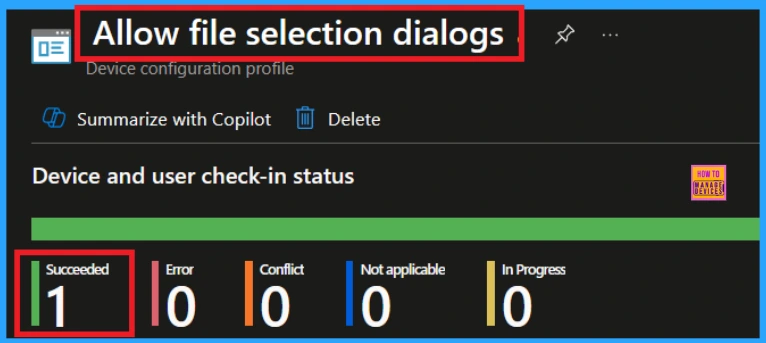
To view a policy’s status, go to Devices > Configuration in the Intune portal, select the policy (like Allow File Selection Dialogs), and check that the status shows Succeeded (1). Use manual sync in the Company Portal to speed up the process.
Client-Side Verification
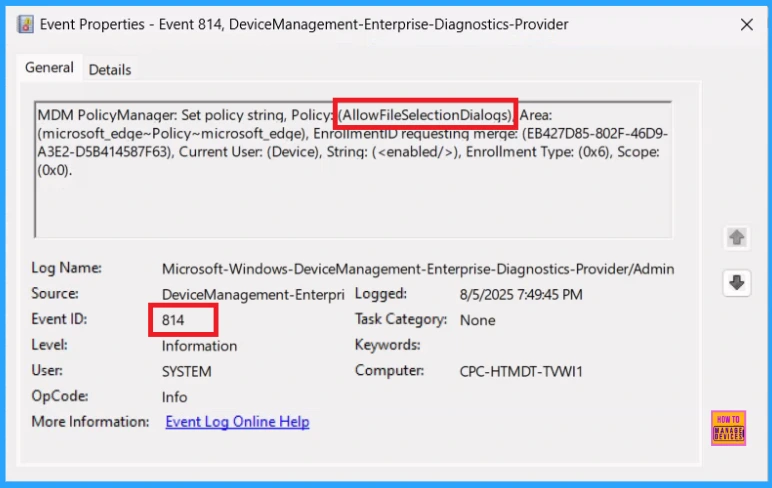
To confirm whether the policy is successful or not, you can use the Event Viewer. First, open Event Viewer and navigate to Applications and Services Logs > Microsoft > Windows > Device Management > Enterprise Diagnostic Provider > Admin. Use Filter Current Log and search the Event ID 814.
MDM PolicyManager: Set policy string, Policy: (AllowFileSelectionDialoqs) Area:
(microsoft_edqe~Policy~microsoft_edqe), EnrollmentiD requestinq merqe: (EB427D85-802F-46D9-
A3E2-D5B414587F63), Current User: (Device), Strinq: (), Enrollment Type: (0x6), Scope:
(0x0).
How to Remove a Group from File Selection Dialogs Policy
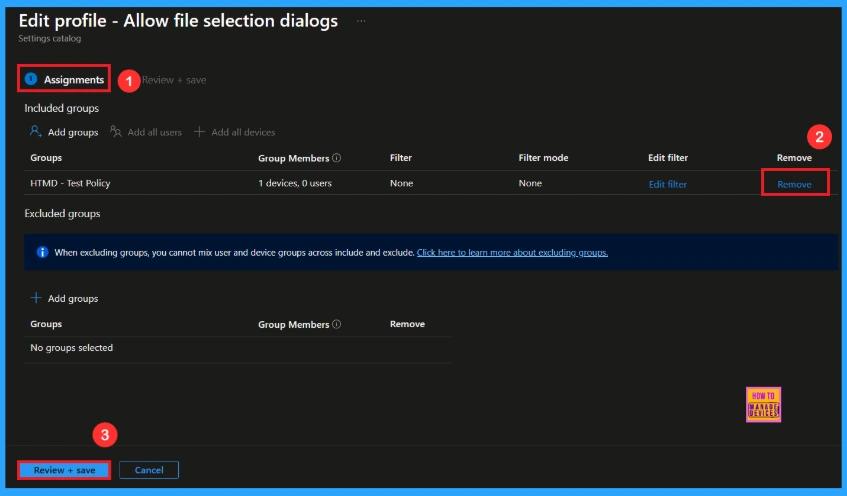
After creating the policy, if you want to remove the specific group that you previously selected, you can easily do that. First, go to Devices > Configuration policies. In the Configuration policy section, search and select the policy(Allow File Seletion Dialog). In the Assignment section, you will find an Edit option and click on it. Then, click the Remove option and Review+ Save button.
For detailed information, you can refer to our previous post – Learn How to Delete or Remove App Assignment from Intune using by Step-by-Step Guide.
How to Delete File Selection Dialogs Policy from Intune Portal
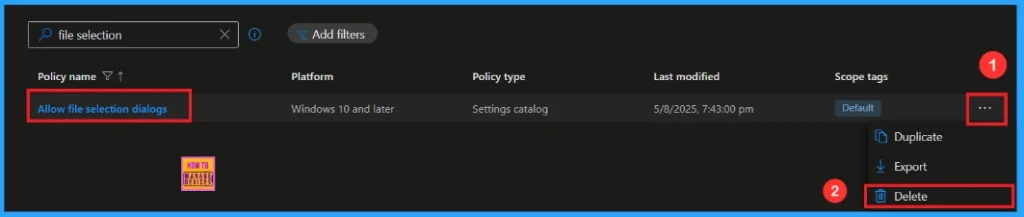
If you want to delete this policy for any reason, you can easily do so. First, search for the policy name in the configuration section. When you find the policy name, you will see a 3-dot menu next to it. Click on the 3 dots, then click the Delete button.
For detailed information, you can refer to our previous post – How to Delete Allow Clipboard History Policy in Intune Step by Step Guide.
End Result
The file selection dialog policy is used to allow or block users from opening the file picker to choose files.
It is used to control file access and sharing within apps or websites. It is used to enhance data security by preventing unauthorized file uploads or downloads.
Note: The result of this policy is not reflected in the Edge settings.
Steps
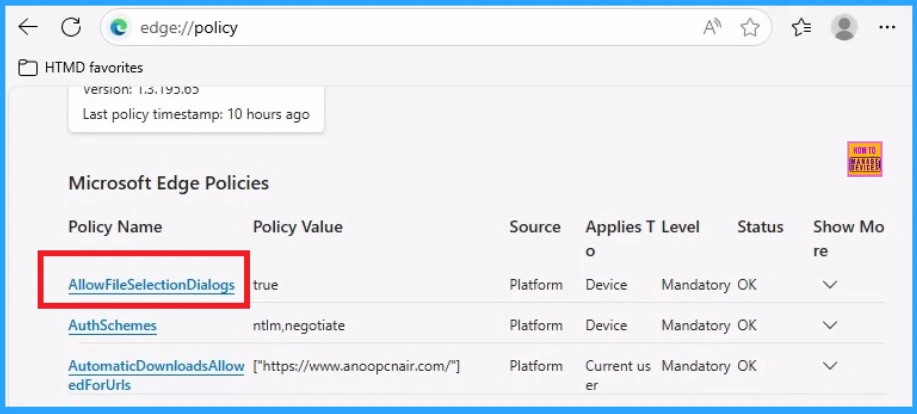
- Open the Edge Browser on Client device >open the new tab
- Search edge://policy/ then click Enter button
- All the policies we have applied in Edge will be shown as a list, and from that list, we can select the policy we need.
| Policy Name | Policy Value | Source | Applies T Level | Status |
|---|---|---|---|---|
| AllowFileSelectionsDialogs | True | Platform | Device | Mandatory OK |
Need Further Assistance or Have Technical Questions?
Join the LinkedIn Page and Telegram group to get the latest step-by-step guides and news updates. Join our Meetup Page to participate in User group meetings. Also, Join the WhatsApp Community to get the latest news on Microsoft Technologies. We are there on Reddit as well.
Author
Anoop C Nair has been Microsoft MVP from 2015 onwards for 10 consecutive years! He is a Workplace Solution Architect with more than 22+ years of experience in Workplace technologies. He is also a Blogger, Speaker, and Local User Group Community leader. His primary focus is on Device Management technologies like SCCM and Intune. He writes about technologies like Intune, SCCM, Windows, Cloud PC, Windows, Entra, Microsoft Security, Career, etc.