
Today we are discussing on How Autopilot Device Preparation Improves Windows 365 Cloud PC Readiness. Autopilot device preparation for Windows 365 provides an easy, automated way to set up Cloud PCs with the right apps, configurations, and security policies. This ensures every Cloud PC starts in a consistent and reliable state, reducing manual work for IT admins.
When this capability is available in public preview, organizations can begin exploring how it improves their Cloud PC deployment. Because this works with all Windows 365 licenses, more companies can use it to speed up Cloud PC provisioning. By connecting device preparation to Windows 365, many setup tasks that normally happen after provisioning are now done automatically. This makes the experience smoother and helps users get started faster.
Using preparation policies also helps companies keep a consistent and secure process across all Cloud PCs. It reduces mistakes, ensures every device gets the same setup, and gives IT teams better control over the apps and settings applied during provisioning. When admins create or edit a Windows 365 provisioning policy, they can attach an Autopilot device preparation policy.
This policy decides which Intune apps and scripts will automatically install on each Cloud PC. This is useful because it ensures that important business apps like security tools, productivity apps, or setup scripts are installed before the user even signs in.

Table of Contents
How Autopilot Device Preparation Improves Windows 365 Cloud PC Readiness
Admins can also choose how long Windows 365 should wait for apps and scripts to install. If everything isn’t finished before the time runs out, the preparation step is got failed. Autopilot Device Preparation (AP-DP) is now available in public preview for Windows 365 Enterprise and Frontline Cloud PCs, and it makes Cloud PC setup much easier. Earlier, Cloud PCs were marked as ready even when apps were still installing, and admins had no control.
- How to Create Entra Joined Azure Network Connection for Windows 365 Cloud PCs in Intune
- How to Deprovision Windows 365 Cloud PC in Intune When they are in Grace Period Status
- How to Create Autopilot Device Preparation Policy for Windows 365 Frontline Devices using Intune
| How AP-DP Helps |
|---|
| Integrates AP-DP policies into Windows 365 provisionin |
| Installs essential Intune apps and scripts before sign-in |
| Option to block sign-in until workloads complete |
| Removes need for custom/golden images |
| Provides visibility with CPC and AP-DP reports |
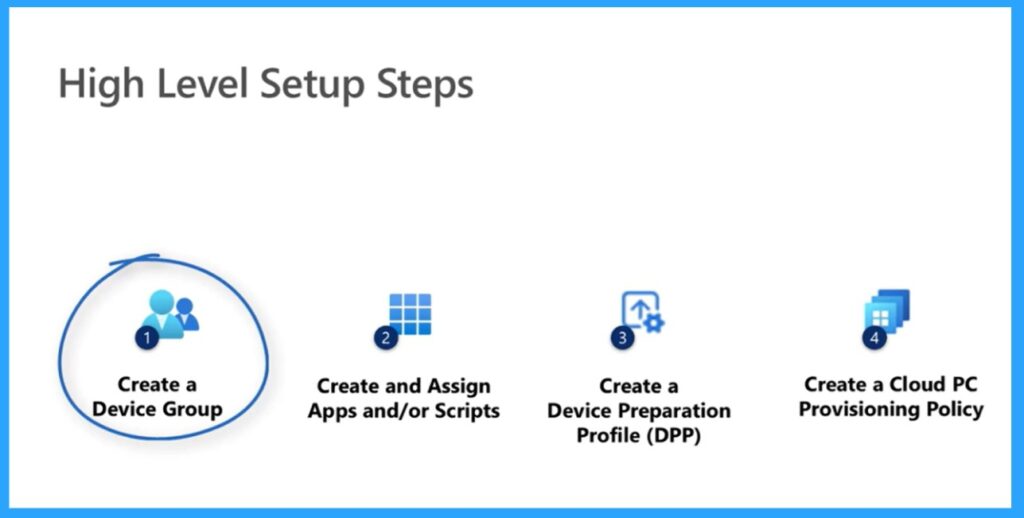
Create Device Group
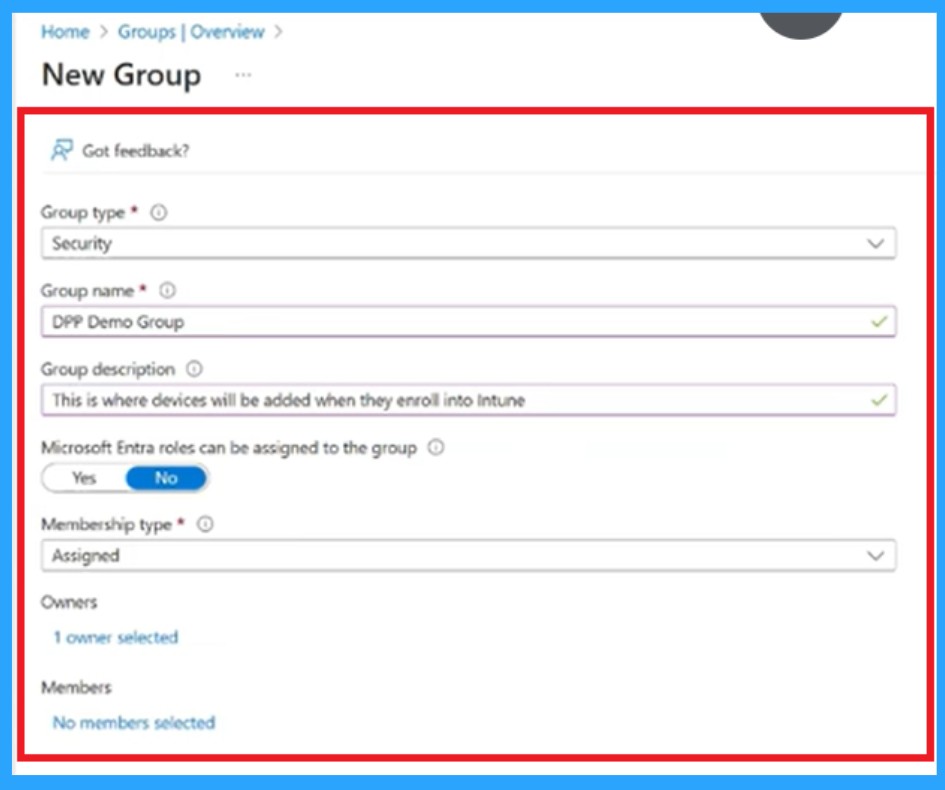
The first step is to create a device group in Intune or Entra ID. This group acts like a container that will hold all the Cloud PCs you want to prepare with Autopilot. By placing devices in this group, you make sure they all receive the same apps, settings, and scripts during setup. It also keeps things organized because you can easily manage which devices belong to which department.
- First you can create a New Group
- This group will hold the Cloud PCs you want to prepare.
- It’s like making a folder where all your devices will be added automatically.
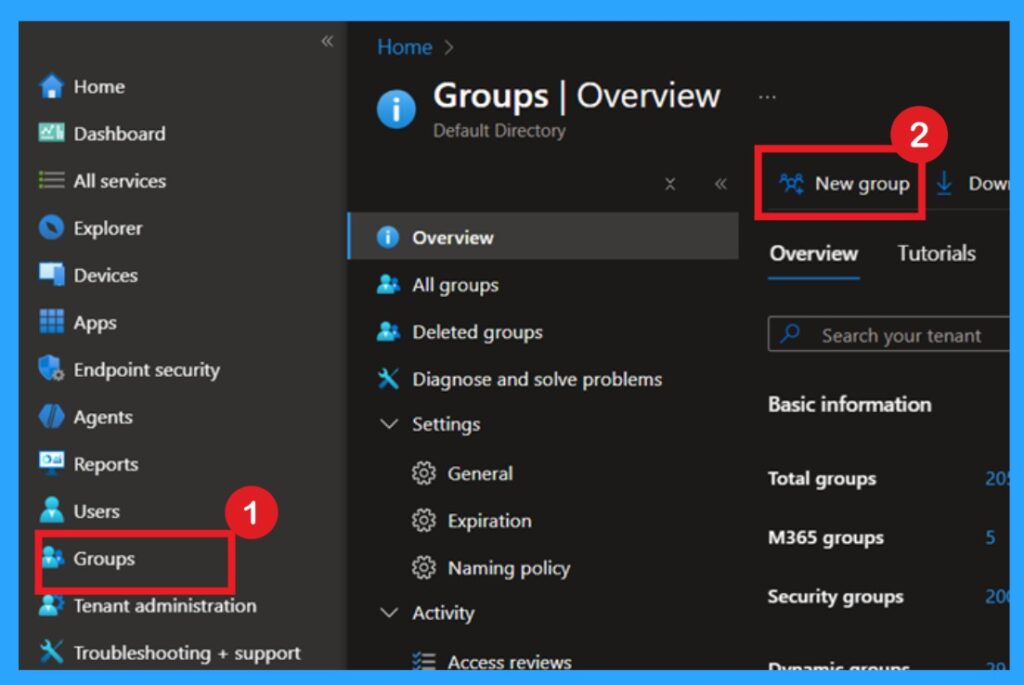
First, you choose the Group type as Security, which is the standard type used for managing devices. Then you enter a Group name, in this case “DPP Demo Group,” so you can easily identify the group later. You also add a short description explaining the purpose of the group.
Create and Assign Apps or Scripts
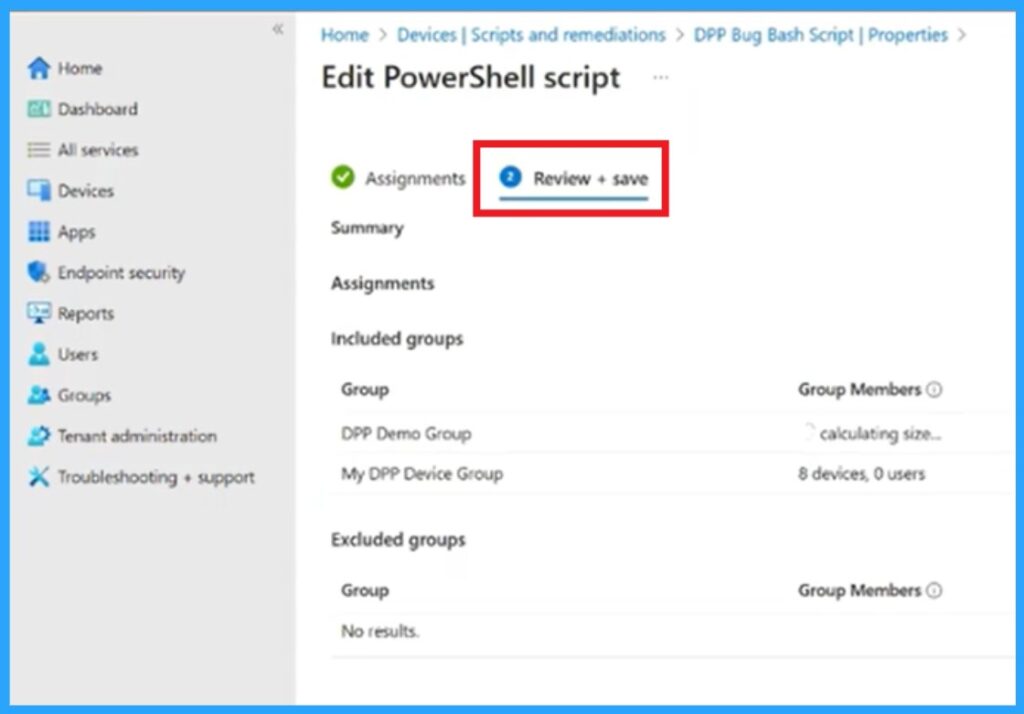
After setting up the device group, the next step is selecting the apps and scripts you want to install on every Cloud PC. These can include essential in Microsoft 365, antivirus tools, VPN software, or custom scripts that configure settings. Once you add these apps and scripts in Intune, assign them to the device group you created. This ensures the apps automatically install during Cloud PC provisioning.
Create a Device Preparation Profile (DPP)
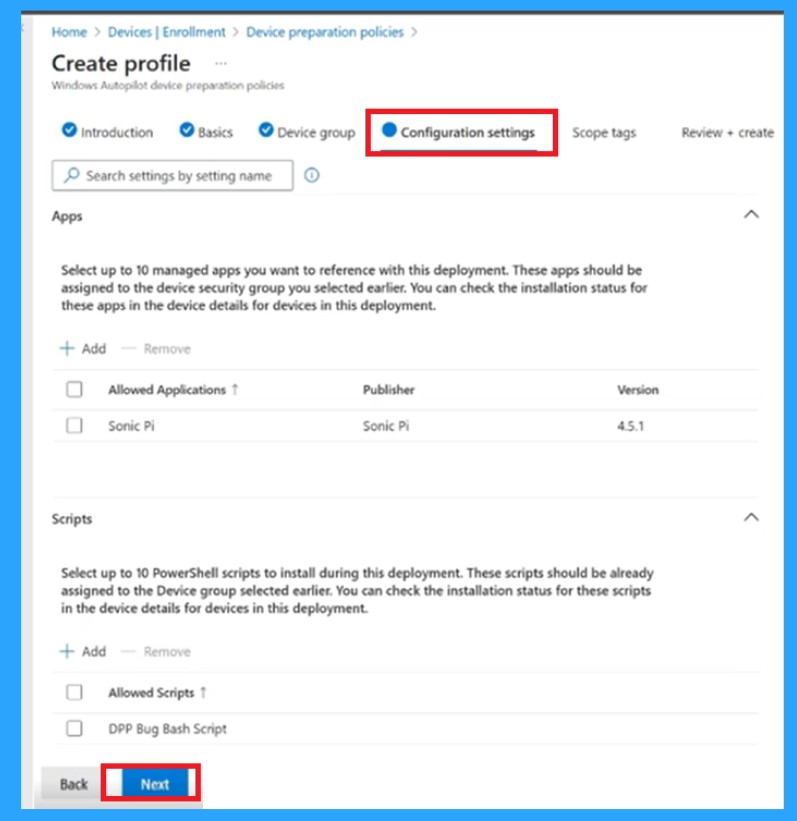
The Device Preparation Profile (DPP) allows Autopilot how to prepare each Cloud PC. In this profile, you define which apps must install, whether installation must be completed before a user sign in, and how long Autopilot should wait before setup as failed. The bellow image is from Create a Device Preparation Profile (DPP) setup.
- The DPP gives you control over the quality of the Cloud PC setup.
- It ensures machines are fully ready and secure, instead of letting users log in too early and face missing apps.
- This profile becomes the important that connects Intune, Autopilot, and Windows 365.
Create a Cloud PC Provisioning Policy
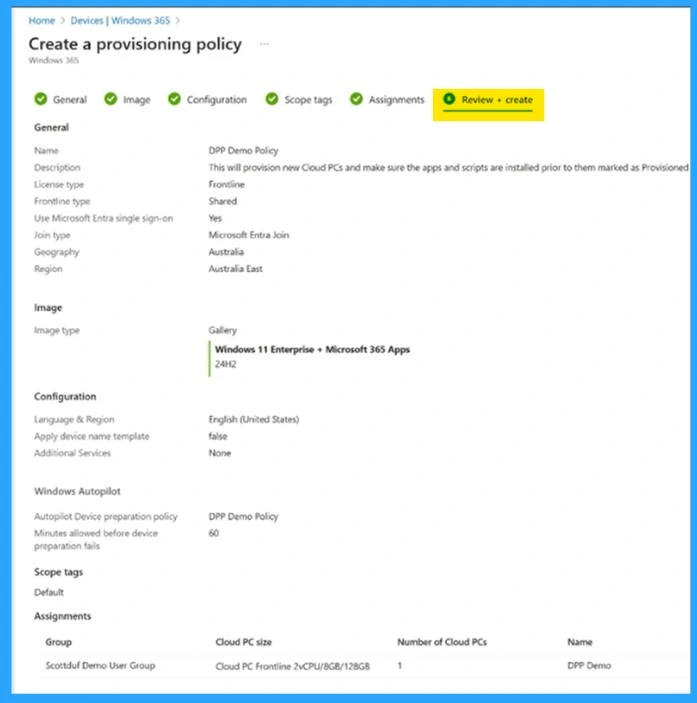
The final step is to create a Cloud PC provisioning policy in the Windows 365 admin portal. This policy controls how Cloud PCs are created and such as which region they use, which network settings apply, and how users are assigned. When creating the provisioning policy, you link the Device Preparation Profile to it.
- This allows Windows 365 to run your app installations and preparation steps during Cloud PC setup.
- Once linked, every Cloud PC built using this policy will automatically install your apps and follow your preparation rules, giving users a, ready-to-use device.
Need Further Assistance or Have Technical Questions?
Join the LinkedIn Page and Telegram group to get the step-by-step guides and news updates. Join our Meetup Page to participate in User group meetings. Also, Join the WhatsApp Community to get the latest news on Microsoft Technologies. We are there on Reddit as well.
Author
Anoop C Nair has been Microsoft MVP for 10 consecutive years from 2015 onwards. He is a Workplace Solution Architect with more than 22+ years of experience in Workplace technologies. He is a Blogger, Speaker, and Local User Group Community leader. His primary focus is on Device Management technologies like SCCM and Intune. He writes about technologies like Intune, SCCM, Windows, Cloud PC, Windows, Entra, Microsoft Security, Career, etc.