
Key Takeaways
- This policy controls whether Windows can detect application installers that need administrator permission.
- When Enabled, Windows stops the installation and asks for admin credentials before continuing.
- This prevents silent or hidden software installations that could change system settings.
- Even if a user trusts an application, this policy adds one more security check before system-level changes happen.
Today we are discussing How to Prevent Unauthorized App Installations in Windows Devices using Intune policy. This policy focuses on how Windows handles application installations that need higher permission. In many environments, users run software daily, and not all software needs admin access.
Table of Contents
Table of Contents
How to Prevent Unauthorized App Installations in Windows Devices using Intune Policy
This policy becomes more important because it ensures Windows actively looks for installer packages that require elevation. When enabled, the system does not allow these installers to run silently. For organizations, this policy reduces the risk of unwanted software entering the environment. It helps control what gets installed on company devices and prevents users from accidentally approving harmful installs.
In enterprise, most users work with standard user accounts to reduce risk. This helps limit damage if something goes wrong, but it also means installation behavior must be closely managed. Without proper detection, software can attempt to install components that require higher privileges without the user fully understanding the impact.
- How to Set Deadline for Automatic Installation of Quality Updates on Windows Devices using Intune
- How to Track Windows Security Patch Installation Details using Intune Inventory
- How to Stop Automatic Driver Installation in Windows11
Start Creating a New Configuration Profile
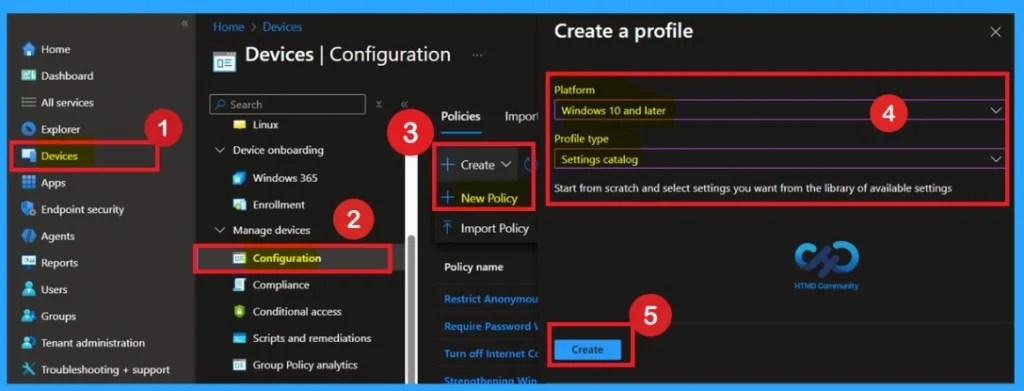
Sign in to the Microsoft Intune Admin Center using your admin account. From the left menu, go to Devices and then select Configuration profiles. Click on Create profile to start a new policy. Choose Windows 10 and later as the platform. Select Settings catalog as the profile type, since it allows you to configure detailed security settings like User Account Control.

Application installation is one of the most common ways malwares enter a system. Attackers often hide harmful components inside trusted or familiar programs. This makes installation detection a key security control, especially when users are not expected to install software easily.
- Once selected, click Create to move to the Basics page.
Enter Policy Name and Description Through Basics Page
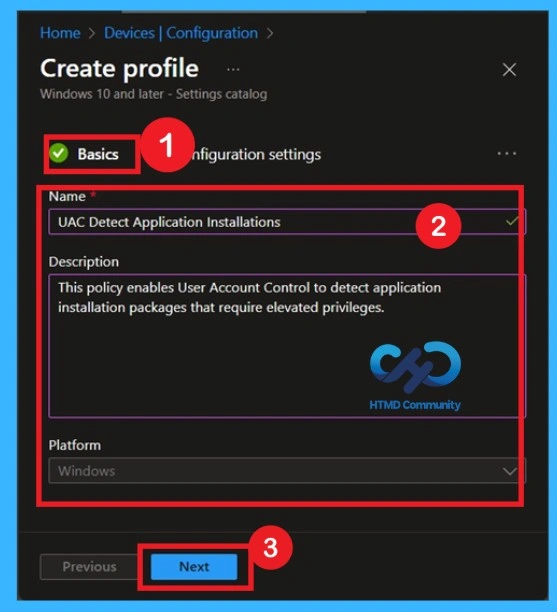
On the Basics page, you must give the policy a clear and meaningful name. In the Name field, enter something like UAC Detect Application Installations so it is easy to identify later. In the Description field, explain what the policy does in simple words, such as enabling User Account Control to detect installers that need admin rights. This description helps other admins understand the purpose of the policy.
- Confirm that the Platform shows Windows, then click Next to continue.
Open Configuration Settings and Add a Setting
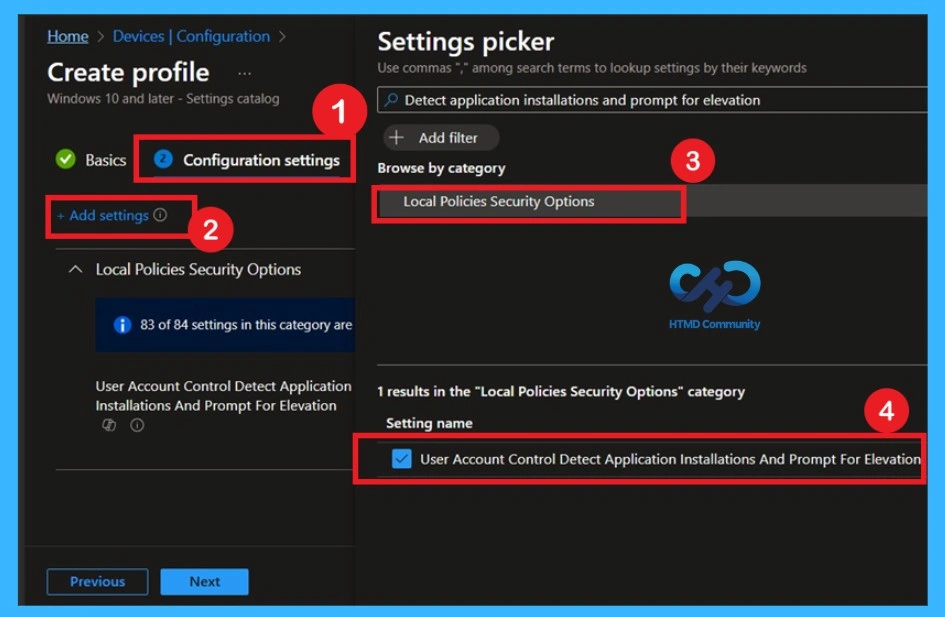
Now you are on the Configuration settings page. Click on Add settings to open the Settings picker. This is where you choose the exact Windows security setting you want to control. In the search box, type Detect application installations and prompt for elevation to quickly find the policy. You can also browse by category if needed, but search is faster and easier.
- Once you see the correct setting, select it to add it to the profile.
Understanding the Default State Before Changing
After adding the setting, you will see User Account Control: Detect Application Installations and Prompt for Elevation listed under Local Policies Security Options. This policy is disabled by default, if this is disabled that means, Application installation packages are not detected and prompted for elevation.
Enterprises that are running standard user desktops and use delegated installation technologies such as Group Policy Software Installation or Systems Management Server (SMS) should disable this policy setting.
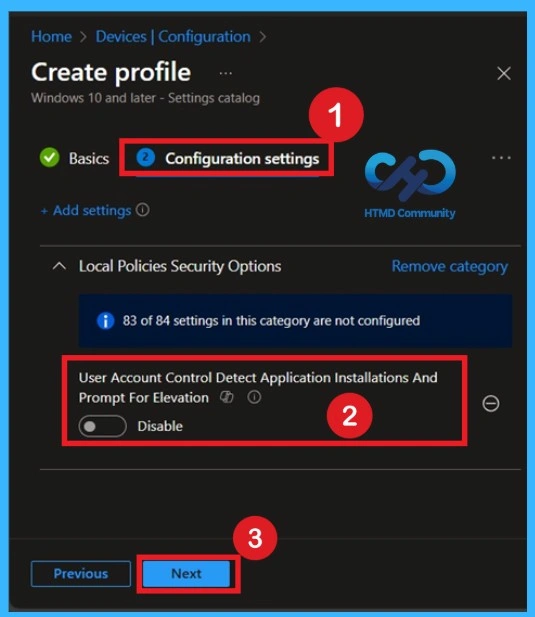
Activate the Policy by CIS Suggestion
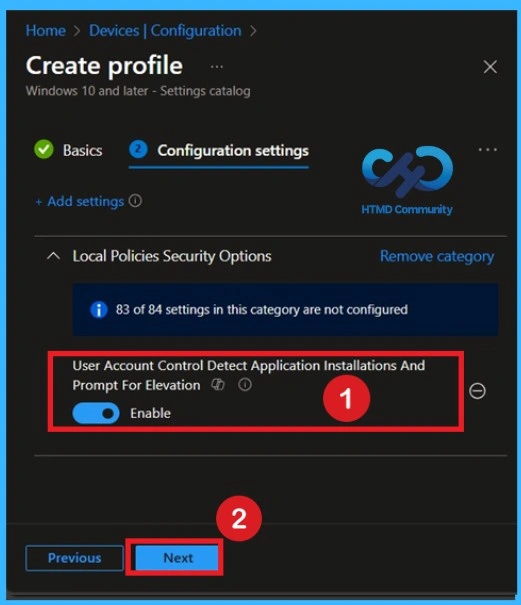
In CIS suggestions this policy should be enabled because, when an application installation package is detected that requires elevation of privilege, the user is prompted to enter an administrative username and password. If the user enters valid credentials, the operation continues with the applicable privilege.
- For enabling the policy, you can toggle the pane left to the right.
- Click on the Next.
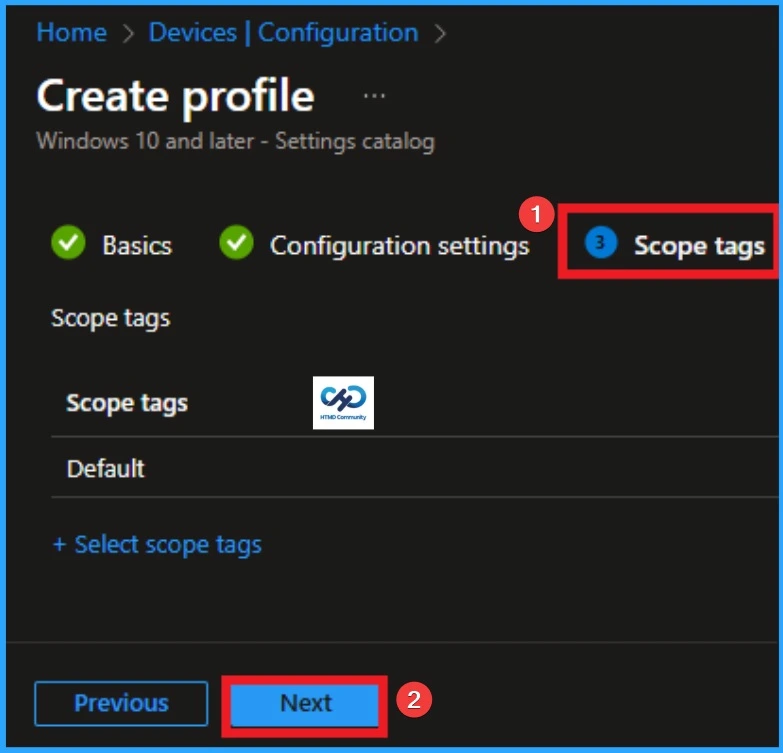
Importance of Scope tags
The Scope tags page helps control who can see or manage this policy in Intune. If your organization uses scope tags, select the appropriate tag based on your admin role or department. Scope tags are useful in large environments with multiple IT teams. If your organization does not use scope tags, you can leave this section.
- Here I Skip this Section
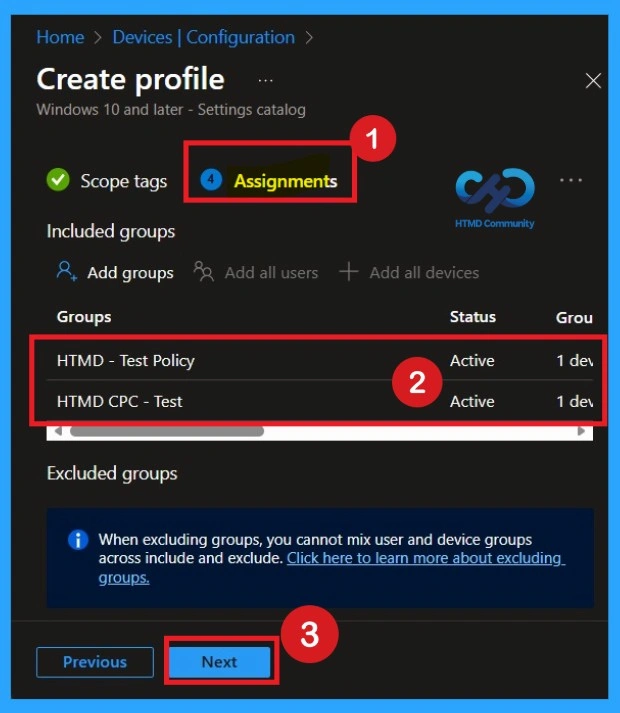
What is the Role of Assignments
On the Assignments page, decide which devices or users should receive this policy. Under Included groups, select the required device groups or user groups. Assigning the policy ensures it applies only to the systems. Avoid assigning it to test or excluded devices unless required. Once assignments are completed, click Next to proceed.
- You can choose one or more Groups for assignments.
Review and Create the Policy
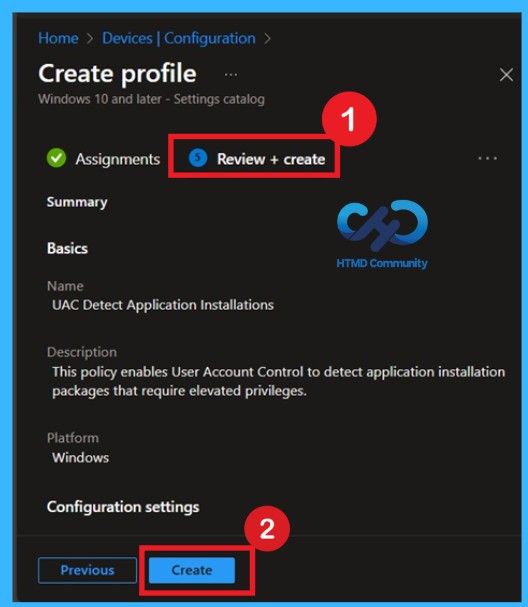
The Review + create page shows a full summary of the policy. Carefully review the Name, Description, Platform, and Configuration settings. Confirm that the UAC detection setting is set to Enabled as required by CIS Level 1 guidance. This step helps avoid mistakes before deployment. If everything looks correct, click Create to deploy the policy.
Monitoring Status After the Policy Creation
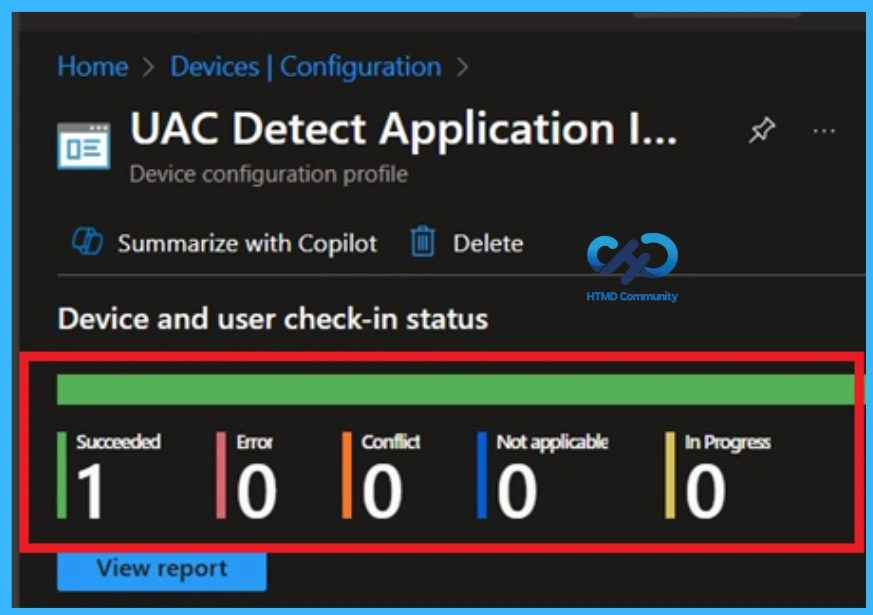
After creating the policy, it is very important to check whether it is working as expected. The main goal is to make sure the policy is correctly applied to the devices or user groups where it was deployed. Intune Provides
a feature called Monitoring status to help with this. This option shows the current deployment status of the policy and whether it was successfully applied.
You can do this by going to Devices > Configuration profiles, searching for the policy name, and opening it. The monitoring status shows whether the policy deployment is successful, failed, or not applicable. If the policy is assigned to one group, you will see the result based on that group.
- If it is assigned to multiple groups, the success status depends on the number of devices or users in those groups, helping you confirm the policy is working as expected.
Client-Side Verification Through Event Viewer
Always Remember, receiving a success message during policy deployment doesn’t necessarily confirm that the policy is actively applied or functioning as intended on the client device. To ensure the policy has been successfully configured, it’s important to verify through the Event Viewer. You can do this by filtering for Event ID 813 or 814, which will help you quickly locate logs.
- To access these logs, open Event Viewer by going to Start > Event Viewer, then navigate through the left pane to Application and Services Logs > Microsoft > Windows >Device Management-Enterprise-Diagnostics-Provider > Admin.
Remove a Group from an Intune Policy
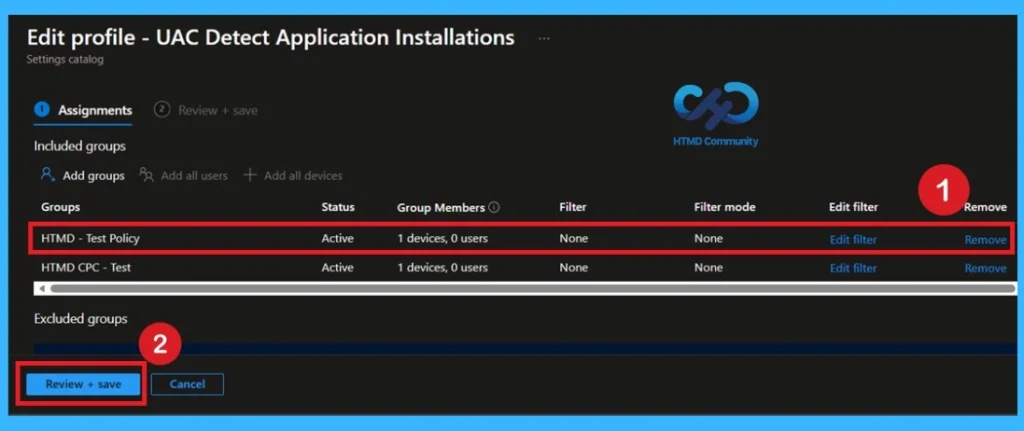
To remove a group from a policy, first open the Microsoft Intune Admin Center and sign in. From the left menu, go to Devices and then open Configuration profiles. Find the policy you want to change and click on it. Open the Assignments section and choose Edit. Remove the group that should no longer receive this policy and save the changes. After this, the policy will stop applying to devices.
- Removing a group only stops the policy for that group, but the policy still exists.
To get more detailed information, you can refer to our previous post – Learn How to Delete or Remove App Assignment from Intune using by Step-by-Step Guide.
Delete an Intune Policy Completely
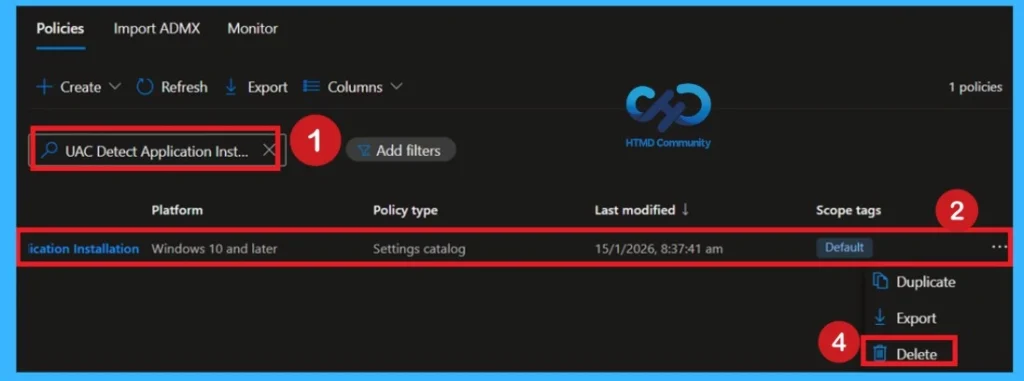
If the policy is no longer needed, you can delete it fully from Intune. Sign in to the Microsoft Intune Admin Center and go to Devices > Configuration profiles. Locate the policy you want to remove and open it. Click the three-dot menu in the top corner and select Delete. The policy is now permanently removed and will not affect any devices.
For detailed information, you can refer to our previous post – How to Delete Allow Clipboard History Policy in Intune Step by Step Guide.
Windows CSP Details
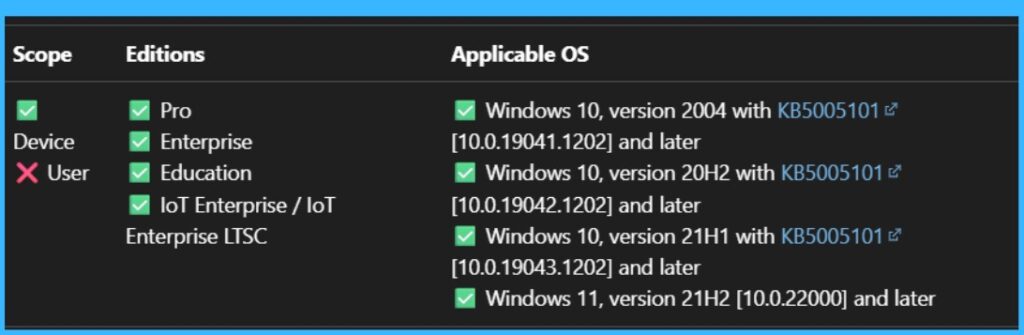
This Policy CSP Details are very important to know more about the Policy. Windows devices handle elevation prompts during application installations. This policy applies at the device level (not user level) and is supported across Pro, Enterprise, Education, and IoT Enterprise editions, starting from Windows 10 version 1709 (10.0.16299).
- Configurable via Intune or other MDMs, this device level policy applies to Windows 10 version 1709 and later across Pro, Enterprise, Education, and IoT editions.
- It accepts integer values are
1to enable (default) and 0 to disable and supports Add, Delete, Get, and Replace operations - The below you can see the CSP Path.
./Device/Vendor/MSFT/Policy/Config/LocalPoliciesSecurityOptions/UserAccountControl_DetectApplicationInstallationsAndPromptForElevation
| Property name | Property value |
|---|---|
| Format | int |
| Access Type | Add, Delete, Get, Replace |
| Default Value | 3 |
Need Further Assistance or Have Technical Questions?
Join the LinkedIn Page and Telegram group to get the latest step-by-step guides and news updates. Join our Meetup Page to participate in User group meetings. Also, Join the WhatsApp Community to get the latest news on Microsoft Technologies. We are there on Reddit as well.
Author
Anoop C Nair has been Microsoft MVP from 2015 onwards for 10 consecutive years! He is a Workplace Solution Architect with more than 22+ years of experience in Workplace technologies. He is also a Blogger, Speaker, and Local User Group Community leader. His primary focus is on Device Management technologies like SCCM and Intune. He writes about technologies like Intune, SCCM, Windows, Cloud PC, Windows, Entra, Microsoft Security, Career, etc.
I really appreciate the detailed guide on preventing unauthorized app installations using Intune! It’s super helpful for managing device security. I wonder, have you considered discussing how these policies might interact with user experience? Balancing security and usability can be tricky! By the way, I found some interesting insights on a similar topic at sprunki game. Thanks again for sharing your expertise!
Thanks for the practical article. The points were helpful for readers comparing options and planning the next step. Ref czzshz.