
Key Takeaways
- Windows 365 Enterprise now supports Autopilot Device Preparation
- Apps, scripts, and settings can install before user login
- Admins can control provisioning time outs and failure behavior
- Device Preparation status can now be monitored in Intune
In this post, Windows 365 Enterprise Now Supports Intune Autopilot Device Preparation Before User Sign-In. Microsoft has introduced a new update that brings Windows Autopilot Device Preparation support to Windows 365 Enterprise Cloud PCs. The feature was previously available for Windows 365 Frontline and Flex and is now expanding to Enterprise environments.
Table of Contents
Table of Contents
Windows 365 Enterprise Now Supports Intune Autopilot Device Preparation Before User Sign-In
With this update, organizations can automatically install important Intune applications, scripts, and settings during the Cloud PC provisioning process. This helps IT admins make sure devices are properly configured before users sign in for the first time.
The new integration improves the overall Cloud PC deployment experience by combining Windows 365 provisioning with Intune’s automated setup capabilities. Microsoft says the feature is also available for Windows 365 Flex Shared mode, Dedicated mode, and is currently in public preview for Windows 365 Reserve licenses.
- How to Create Entra Joined Azure Network Connection for Windows 365 Cloud PCs in Intune
- How to Deprovision Windows 365 Cloud PC in Intune When they are in Grace Period Status
- How to Create Autopilot Device Preparation Policy for Windows 365 Frontline Devices using Intune
- Manage Microsoft Cloud Authentication Settings for Google Chrome using Intune
What’s New in this Update
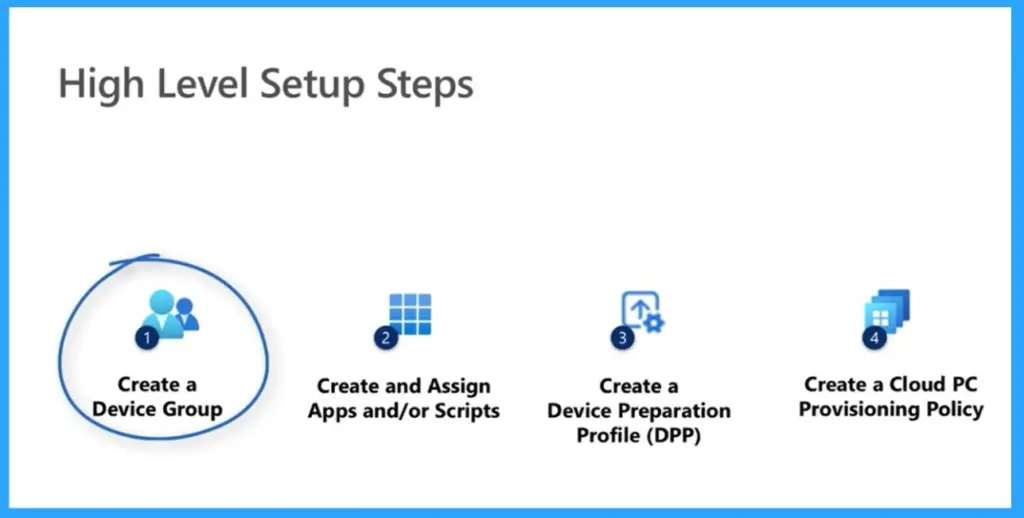
Microsoft now allows IT admins to link an Autopilot Device Preparation policy directly to a Windows 365 provisioning policy. During provisioning, Intune automatically deploys selected apps, scripts, and configurations to the Cloud PC before the user accesses it. This creates a more complete out-of-box experience for employees and reduces the need for manual setup after login.

- During the Windows 365 Cloud PC provisioning process, administrators can now attach an Autopilot Device Preparation policy that automatically installs system applications, applies configuration scripts, and prepares device settings before the user signs in.
| The new functionality supports |
|---|
| Windows 365 Enterprise |
| Windows 365 Flex Shared mode |
| Windows 365 Flex Dedicated mode |
| Windows 365 Reserve licenses (Public Preview) |
Better Control During Provisioning
With this update, IT administrators can now decide how long Windows 365 should wait for Intune applications, scripts, and settings to install during the provisioning process. If the installation process takes too long or fails, admins can choose whether users should still be allowed to access the Cloud PC or be blocked until provisioning is successfully completed. Cloud PCs can either be marked as Provisioned with warnings or “Failed” based on the selected option.
- This new capability gives organizations more control over deployment quality and helps ensure users receive properly configured Cloud PCs before first sign-in.
Need Further Assistance or Have Technical Questions?
Join the LinkedIn Page and Telegram group to get the latest step-by-step guides and news updates. Join our Meetup Page to participate in User group meetings. Also, join the WhatsApp Community and the WhatsApp channel to get the latest news on Microsoft Technologies. We are there on Reddit as well
Author
Anoop C Nair has been Microsoft MVP for 10 consecutive years from 2015 onwards. He is a Workplace Solution Architect with more than 22+ years of experience in Workplace technologies. He is a Blogger, Speaker, and Local User Group Community leader. His primary focus is on Device Management technologies like SCCM and Intune. He writes about technologies like Intune, SCCM, Windows, Cloud PC, Windows, Entra, Microsoft Security, Career, etc.