

How to Configure Account Protection Area Visibility in Windows Security using Intune Policy. This policy setting controls whether the Account Protection area is visible to users in Windows Defender Security Centre (Windows Security).
By configuring this setting, administrators can decide whether end users should be allowed to view the Account protection section in the Windows Security app, helping to manage the level of control and visibility users have over account-related security features.
This policy helps administrators maintain better control over the security experience on managed devices. By hiding the Account protection section, admins can prevent end users from viewing or attempting to change sensitive account-related security settings that are already enforced through Intune. This ensures that organisational security policies remain consistent and are not accidentally altered by users.
This policy also improves the overall user experience and support efficiency. Removing unnecessary or restricted security options reduces confusion for end users and minimises help desk tickets related to settings they are not permitted to modify.

Table of Contents
How to Configure Account Protection Area Visibility in Windows Security using Intune Policy
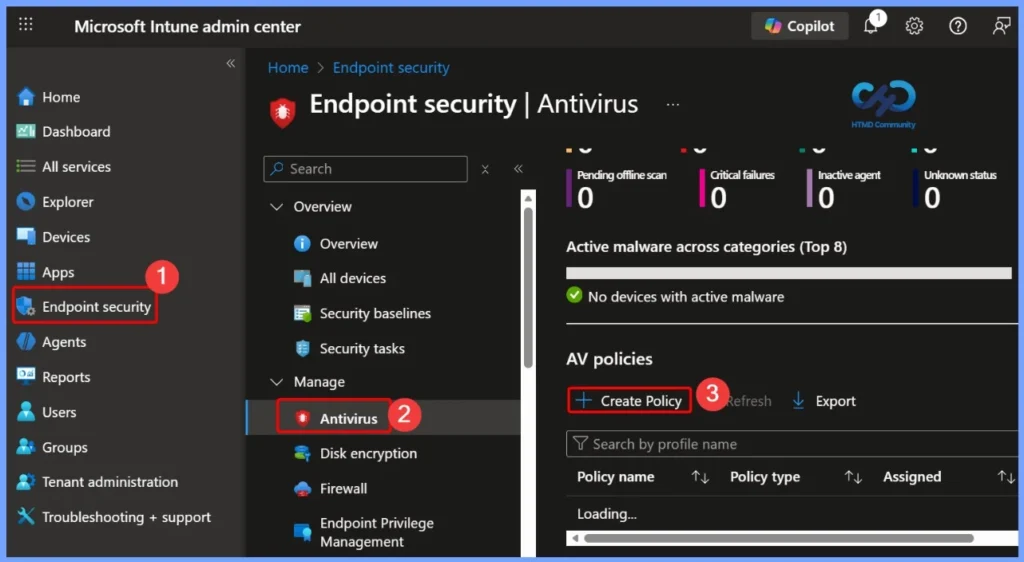
You can easily configure the visibility of the account protection area in the Windows security policy. Sign in to the Microsoft Intune admin center, then from the left navigation pane select Endpoint security. Under Endpoint security, choose Antivirus and click + Create to begin creating a new policy.
- How to Block Users from Account Details on the Sign-In Policy using Intune
- Hide Change Account Settings Using Intune
- How to Show or Hide Switch Account Option in Windows Start Menu using Intune Policy
Enter Basic Details such as the Platform and Profile Type
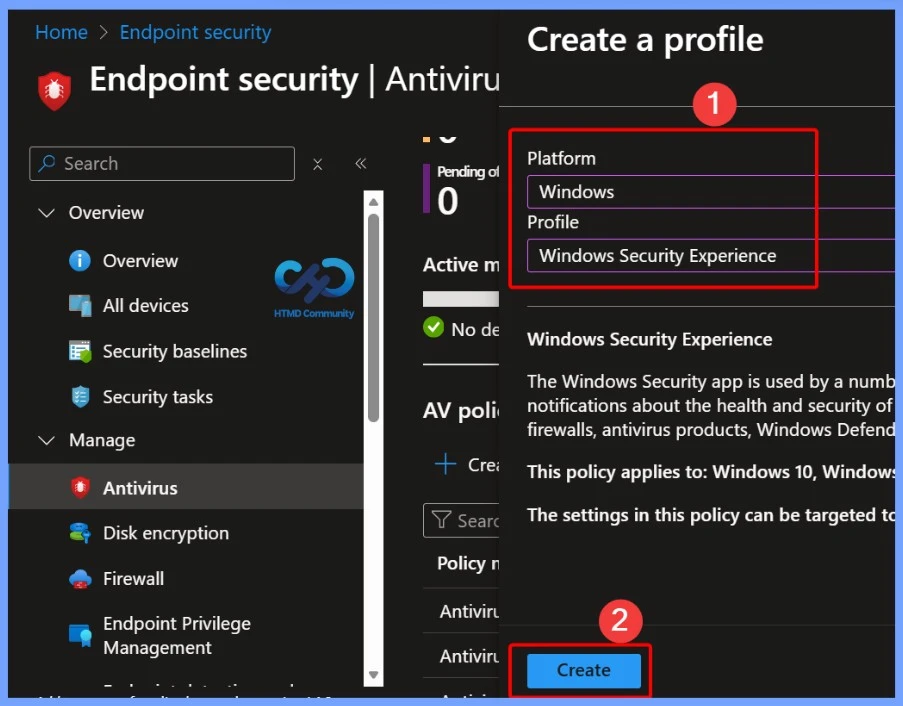
After clicking the + Create policy button, the Create a profile window will appear. Here, you need to enter basic details such as the platform and profile type. Select Windows as the platform and choose Windows Security experience as the profile to continue.
Enter the Basic Details of the Policy
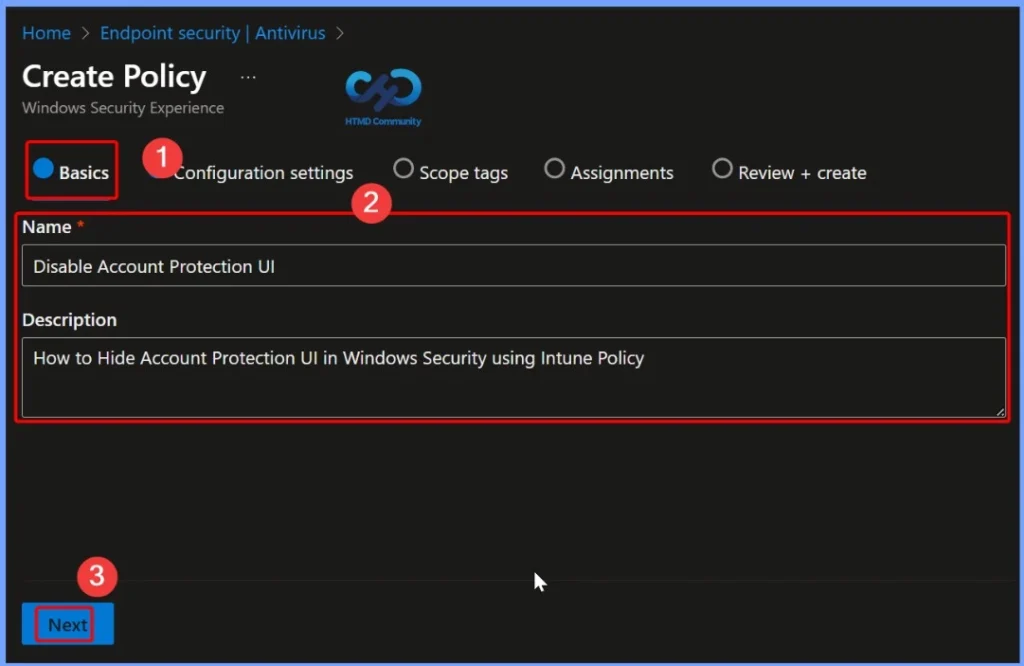
Here, you need to enter the basic details of the policy, such as the name and description. Set the policy name as Disable Account Protection UI and add the description as “How to hide the Account Protection UI in Windows Security using Intune policy.”
Disable Account Protection UI Policy
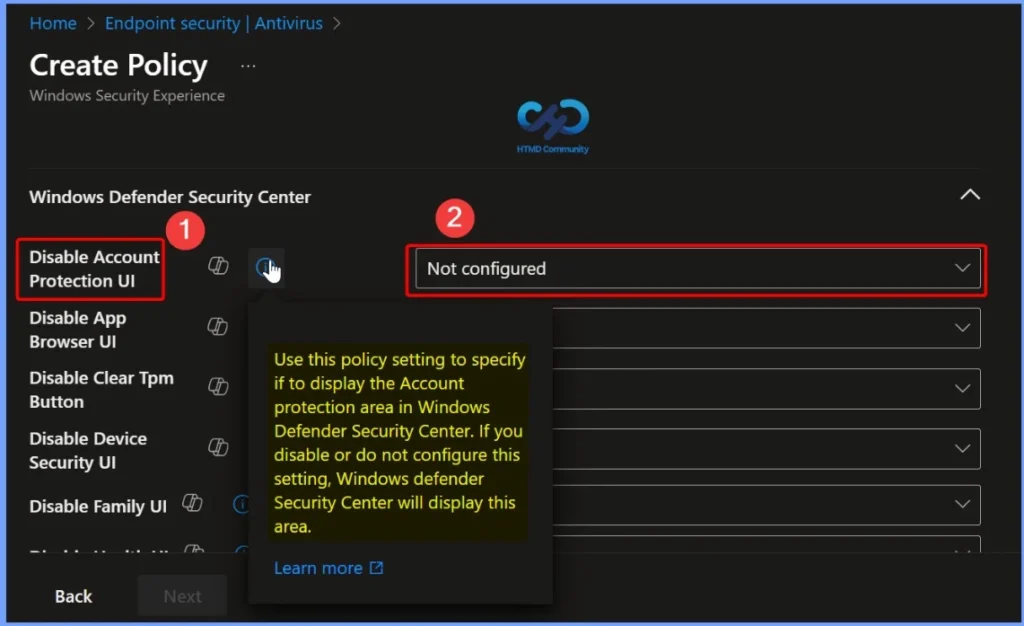
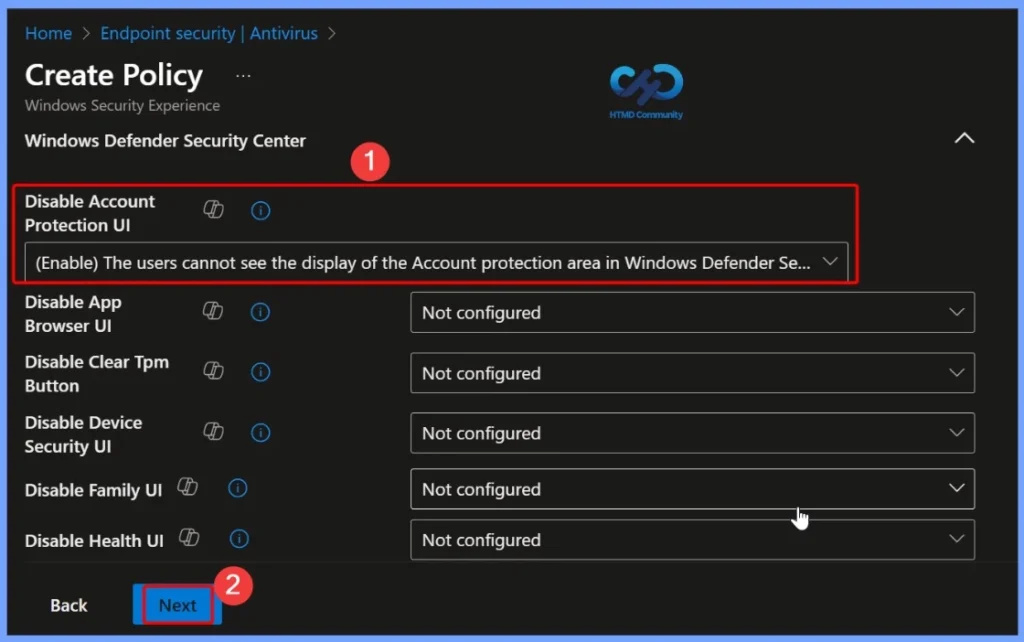
If this policy is disabled or not configured, the Account Protection area will be displayed by default in the Windows Defender Security Center. To hide this section from users, the policy must be enabled, which removes the Account protection area from view while keeping the underlying security protections active and managed by the organisation.
Use this policy setting to specify if to display the Account protection area in Windows Defender Security Center. If you disable or do not configure this setting, Windows defender Security Center will display this area.
Enable The Users cannot See the Display of the Account Protection Area in Windows Defender Security Updates
When this setting is enabled, users will not be able to see the Account protection area in Windows Defender Security Center. This hides the Account protection section from the Windows Security app, ensuring that account-related security settings remain managed only by administrators.
Scope Tags – Account Protection Area Visibility Policy
Scope tags allow administrators to control who can view and manage this policy in the Intune admin center. By assigning appropriate scope tags, you can limit policy visibility to specific IT teams or roles, ensuring better administrative separation and access control.

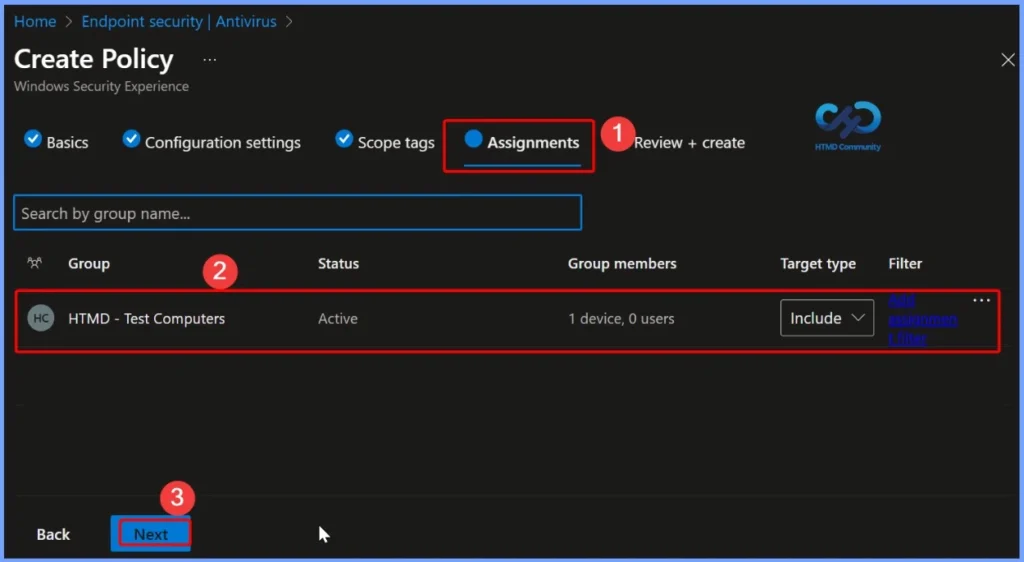
Assignments – Account Protection Area Visibility Policy
After configuring the policy settings, assign the Account Protection Area Visibility policy to the required device or user groups in Microsoft Intune. This ensures the policy is applied only to the intended Windows 10 and Windows 11 devices.
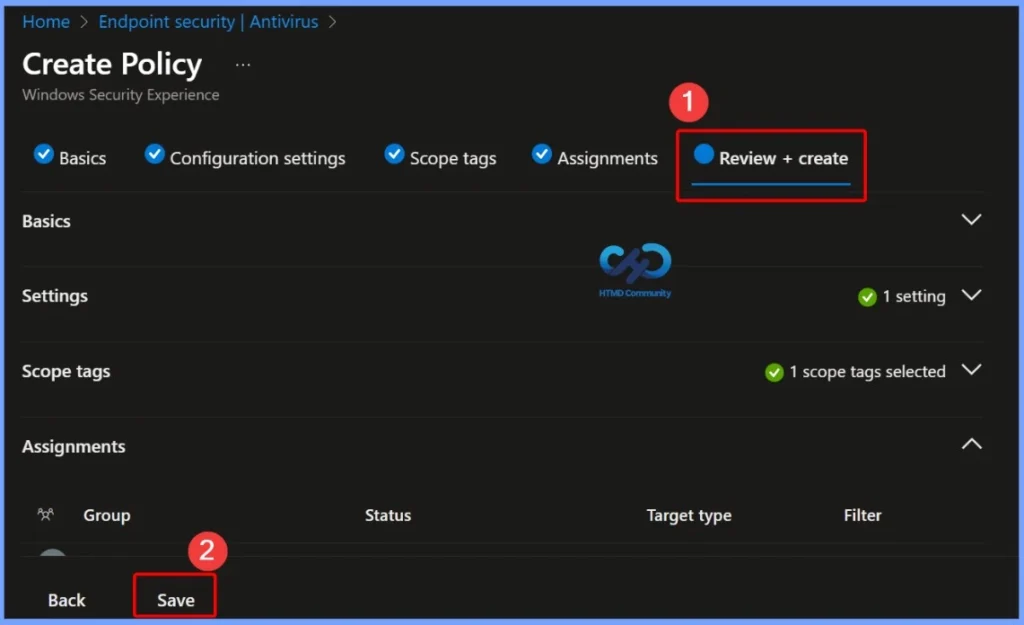
Verify All the Configured Settings
In the Review + Create section, verify all the configured settings, including the policy name, description, platform, profile type, assignments, and scope tags. Once you confirm that everything is correct, click Create to save the policy and deploy it to the assigned devices.
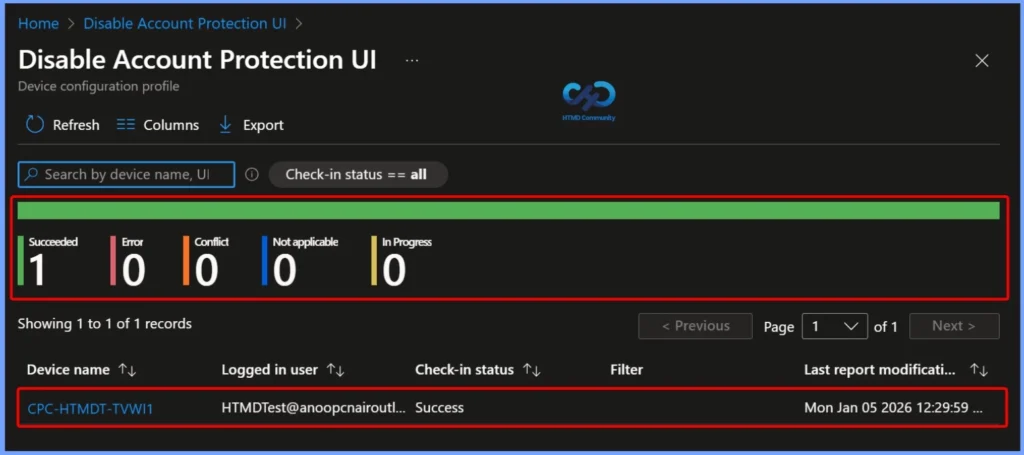
Deployment Status of the “Disable Account Protection UI” Configuration Profile in the Microsoft Intune
This image shows the policy deployment status of the “Disable Account Protection UI” configuration profile in the Microsoft Intune admin center. At the top, you can see the overall status summary, which indicates that the policy has been successfully applied. The Succeeded count is 1, while Error, Conflict, Not applicable, and In progress all show 0, confirming that there are no issues with the deployment.
| Policy Details | Description |
|---|---|
| Policy Name | Disable Account Protection UI |
| Device Name | CPC-HTMDT-TVW11 |
| Check-in Status | Success |
| Policy Deployment State | Succeeded |
Windows CSP Details
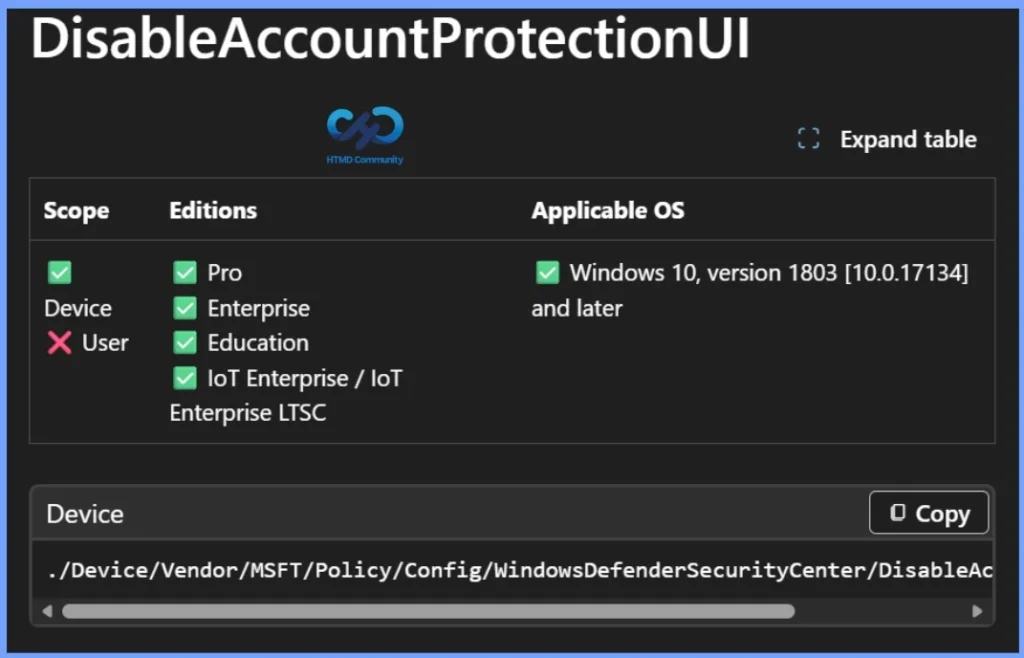
The policy is applied at the device level, not the user level, which means it affects the entire device regardless of which user signs in. The policy supports multiple Windows editions, including Pro, Enterprise, Education, and IoT Enterprise / IoT Enterprise LTSC.
- It is applicable to Windows 10 version 1803 (build 10.0.17134) and later, ensuring broad compatibility across modern Windows 10 and Windows 11 devices managed through Intune.
- Path ./Device/Vendor/MSFT/Policy/Config/WindowsDefenderSecurityCenter/DisableAccountProtectionUI
| Property name | Property value |
|---|---|
| Format | int |
| Access Type | Add, Delete, Get, Replace |
| Default Value | 0 |
Client Side Verification
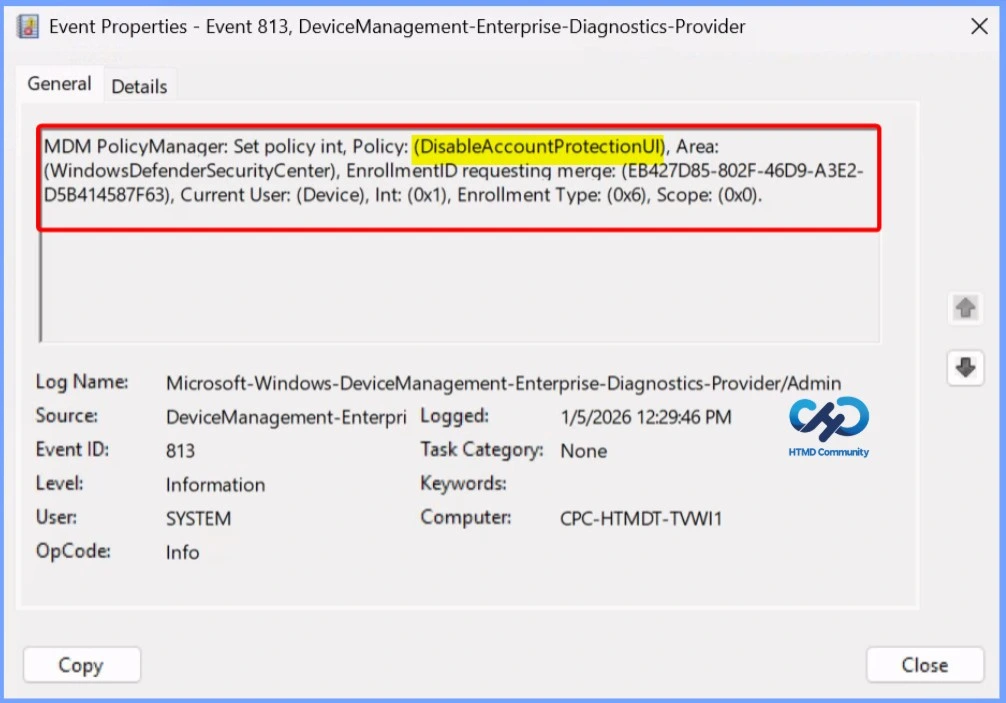
This log entry indicates that the MDM PolicyManager has successfully applied the DisableAccountProtectionUI policy to the device through Microsoft Intune. The policy belongs to the WindowsDefenderSecurityCenter area and is processed at the device scope, not the user scope. The Int value (0x1) confirms that the policy is enabled, which means the Account Protection UI is hidden in Windows Security.
Need Further Assistance or Have Technical Questions?
Join the LinkedIn Page and Telegram group to get the latest step-by-step guides and news updates. Join our Meetup Page to participate in User group meetings. Also, Join the WhatsApp Community to get the latest news on Microsoft Technologies. We are there on Reddit as well.
Author
Anoop C Nair has been Microsoft MVP for 10 consecutive years from 2015 onwards. He is a Workplace Solution Architect with more than 22+ years of experience in Workplace technologies. He is a Blogger, Speaker, and Local User Group Community leader. His primary focus is on Device Management technologies like SCCM and Intune. He writes about technologies like Intune, SCCM, Windows, Cloud PC, Windows, Entra, Microsoft Security, Career, etc.