

Key Takeaways
- The setting is under Connected Devices in iOS/iPadOS restrictions.
- Turning on Block pairing with Apple Watch stops users from pairing a watch on supervised devices.
- If pairing is blocked, any already paired watch is unpaired and erased.
- Force Apple Watch wrist detection makes sure wrist detection is on for notifications to work.
Hey, let’s discuss about how to Managing Apple Watch Pairing on Supervised iOS Devices using Intune. This setting is located under Connected Devices in iOS/iPadOS device restrictions. The main option, Block pairing with Apple Watch, controls whether users can pair an Apple Watch with their device. Setting it to Yes prevents pairing on supervised devices enrolled through Automated Device Enrollment, while leaving it Not configured allows pairing according to standard iOS behavior.
Table of Contents
Table of Contents
Managing Apple Watch Pairing on Supervised iOS Devices using Intune
If this setting is turned off, Apple Watch pairing is blocked, and any watch that is already paired will be unpaired and fully erased. This option requires a supervised device and is available on iOS 9 and later.
- Block DeepSeek on iOS or iPadOS using Intune Blocked App Bundle IDs Policy
- Entra Conditional Access is Central to Secure Microsoft 365 – A Brief Analysis
- Best 50 Apple iOS Device Management Interview Questions and Answers
How to Create a Profile
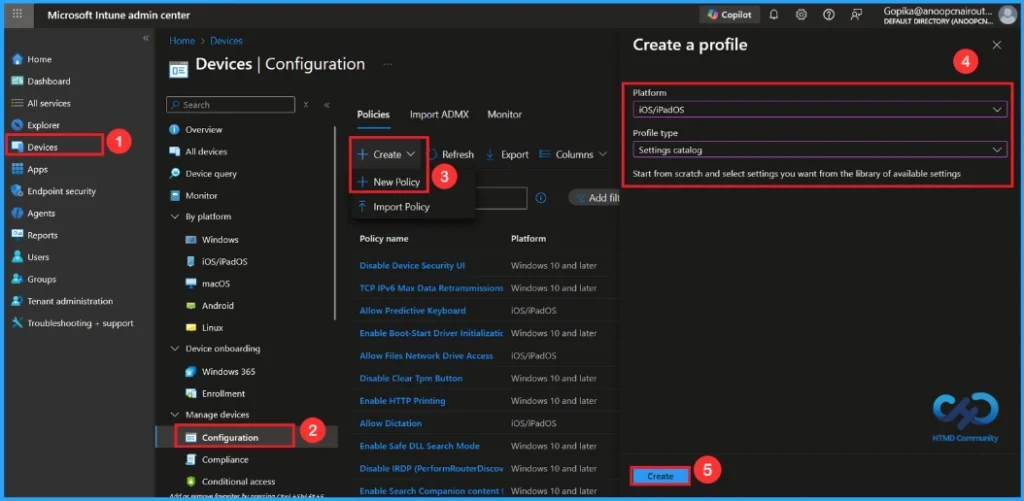
Let’s see how this policy can be deployed through the Microsoft Intune Admin Center. First, go to the Devices section. In Devices, select Configurations. In Configurations, click on the Create policy option. Next, fill in the Platform and Profile type details in the Create profile window.
- Set Platform to iOS/iPadOS and set Profile type to Settings catalog.
- Then click Create.
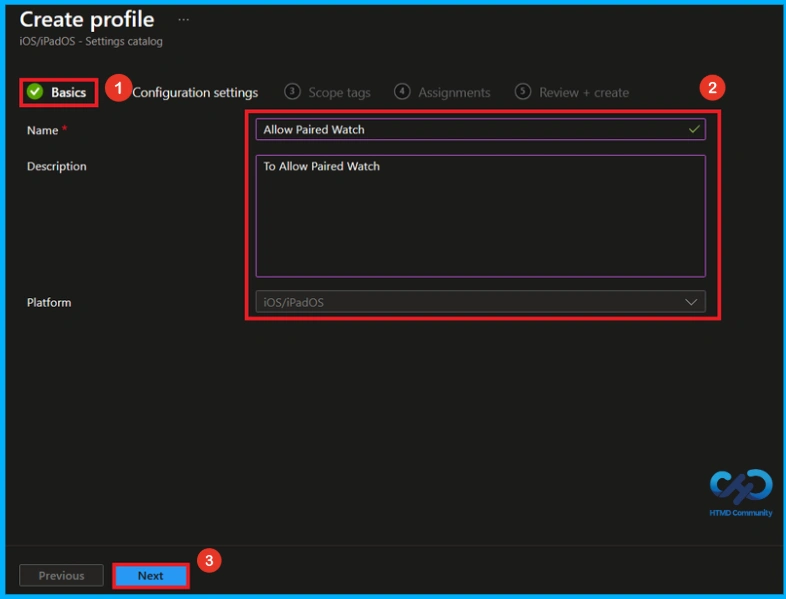
Basic Tag for Name and Description
The Basic details are very important here you have to enter the basic details such as name(Allow Paired Watch) and description. The Description is mandatory, but you can enter the description to understand the policy later. Click Next to continue.

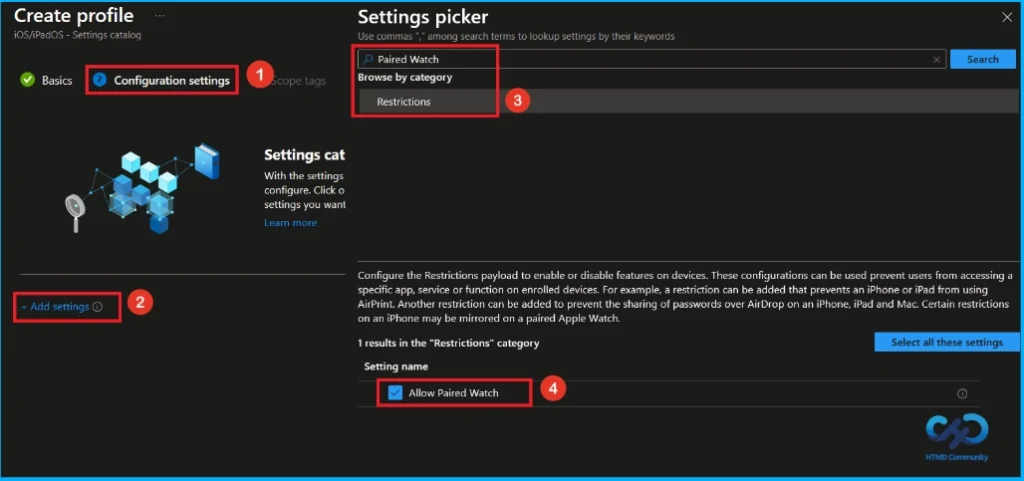
Configure Paired Watch Policy
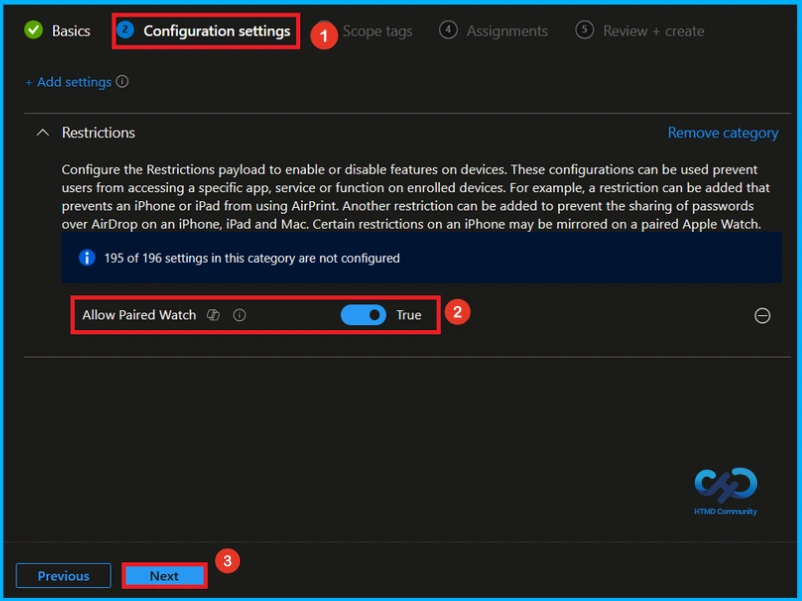
Now, let’s see how to configure this setting in the Settings picker. First, click on Add settings. This opens the Settings picker window. In the search box, type Restrictions and select the setting as Allow Paired Watch.
By default, you should understand that a policy can be either enabled or disabled. In this case, the policy is Disabled by default. If you want to keep it in the disabled mode, you have to click Next to continue.
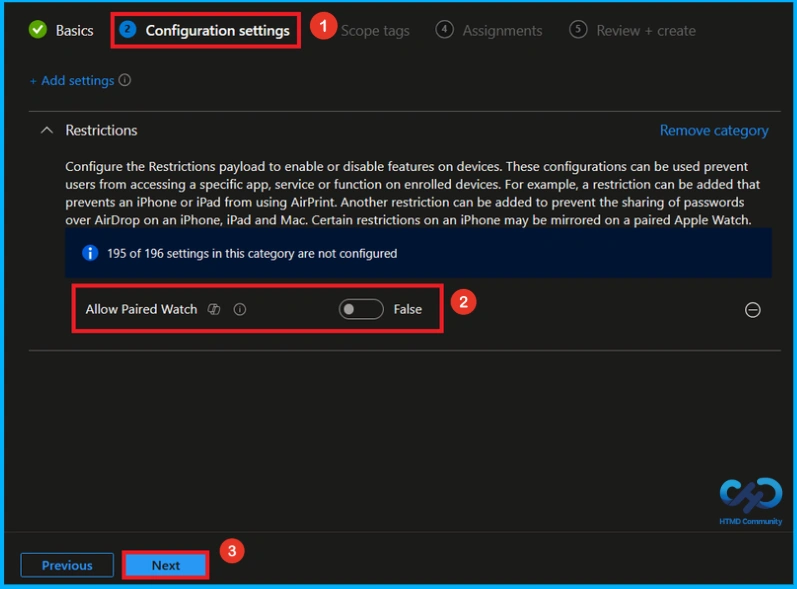
Enable Paired Watch Policy
The next step is enabling the policy. This is very simple to do. By default, the policy is set to disabled. To enable it, move the toggle switch from left to right. Once you do this, the policy status changes to enabled. Click Next to Proceed.
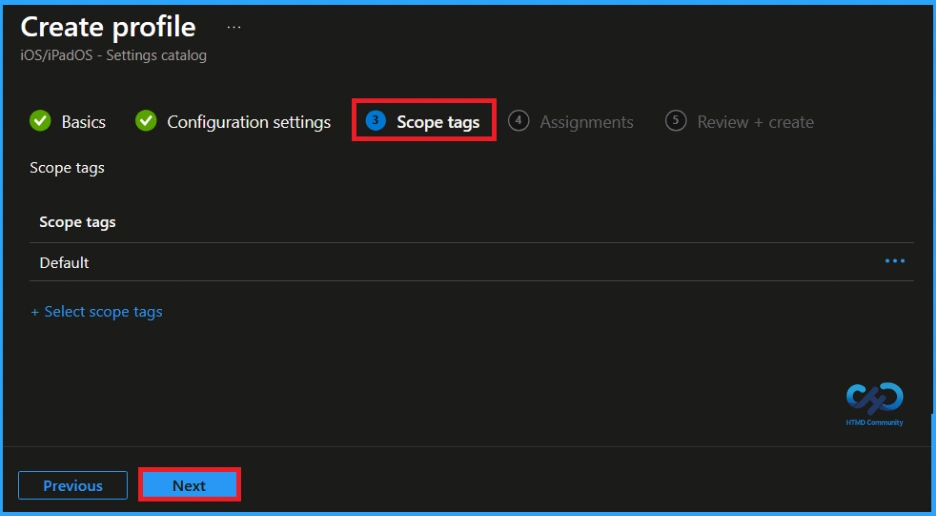
What is Scope Tag
Now you are on the Scope tags section. Scope tags are used to assign policies to specific admin groups for better management and filtering. If needed, you can add a scope tag here. However, for this policy, I chose to skip this section.
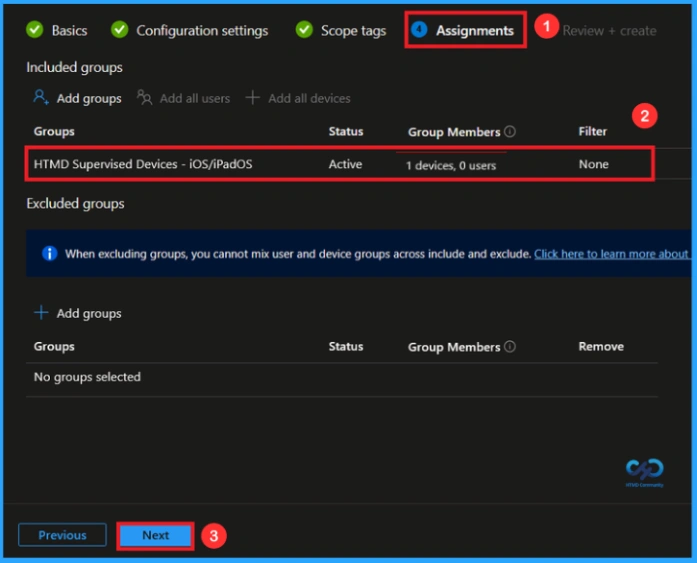
Assignment Tab
Next, you’ll reach the Assignments section, which is a very important step. This is where you decide which user or device groups should receive the policy. In this case, I selected the specific group(HTMD Supervised Devices – iOS/iPadOS). After selecting the group, click Next to continue.
Final Step of Policy Creation
In this step, you will see a summary of all the details, including Basics, Configuration Settings, Assignments, and more. You can review all the information, and if anything needs to be changed, you can go back to the previous steps and edit them easily. In the Review + Create section, you will see a Create button. After clicking Create, you can see a notification “Allow Paired Watch created successfully”.

Monitoring Status After Policy Creation
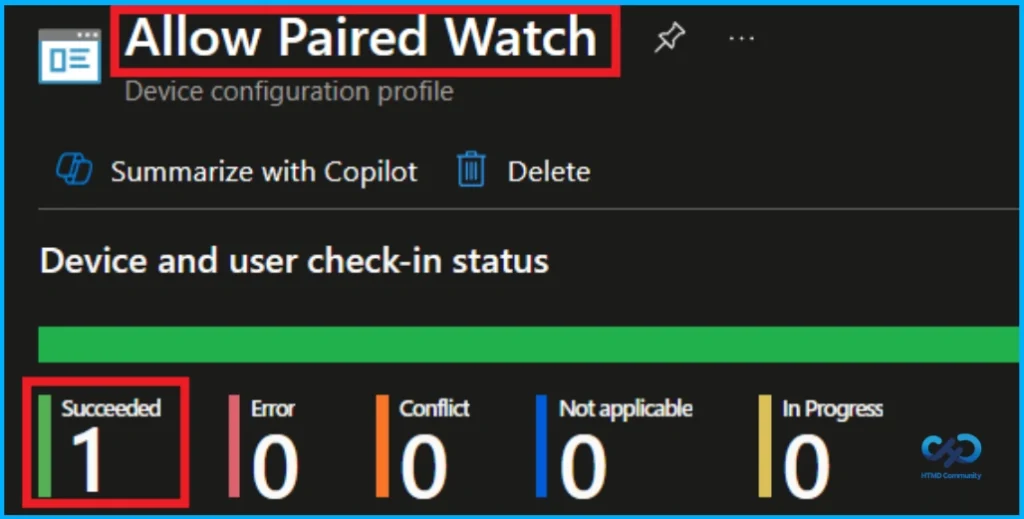
In the Device and User Check-In Status section for the Allow image playground policy, you can see the deployment results. The status shows Succeeded(1) meaning one device or user has successfully received and applied the policy.
How to Remove Assigned Group from Paired Watch Policy
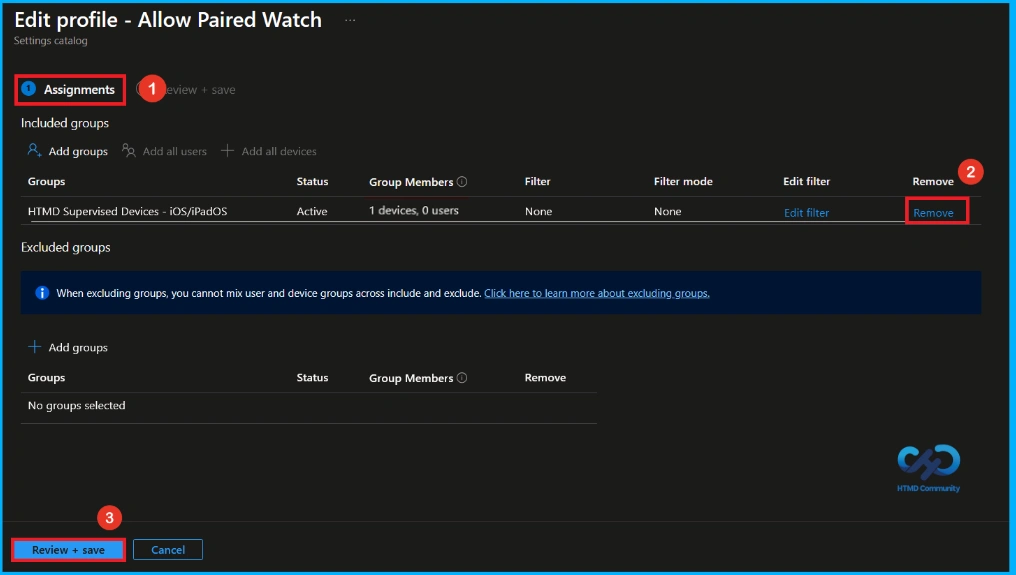
Start by navigating to the Monitoring status page via Devices > Configuration. Search for the policy by name and click on it to open its monitoring details. Scroll down to the Assignments section and click Edit. This will take you back to the policy’s assignment settings. From here, you can remove the group you no longer want the policy to apply to.
For detailed information, you can refer to our previous post – Learn How to Delete or Remove App Assignment from Intune using by Step-by-Step Guide.
How to Delete Paired Watch from Intune
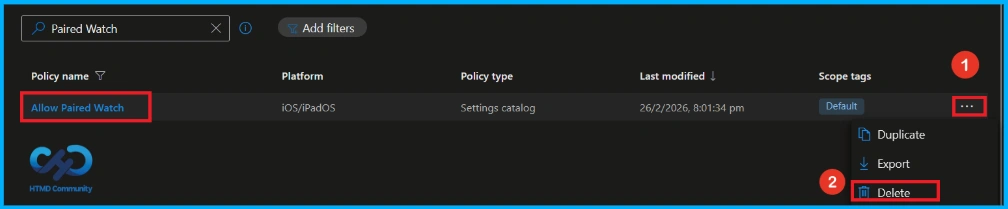
To delete a policy in Intune first sign in to the Microsoft Intune Admin Center. Navigate to Devices and then select Configuration. Locate and select the specific policy you want to delete. Once you’re on the policy details page, click the 3 -dot menu in the top right corner and choose Delete from the available options.
For more information, you can refer to our previous post – How to Delete Allow Clipboard History Policy in Intune Step by Step Guide.
Need Further Assistance or Have Technical Questions?
Join the LinkedIn Page and Telegram group to get the latest step-by-step guides and news updates. Join our Meetup Page to participate in User group meetings. Also, Join the WhatsApp Community and WhatsApp Channel to get the latest news on Microsoft Technologies. We are there on Reddit as well.
Author
Anoop C Nair has been Microsoft MVP from 2015 onwards for 10 consecutive years! He is a Workplace Solution Architect with more than 22+ years of experience in Workplace technologies. He is also a Blogger, Speaker, and Local User Group Community leader. His primary focus is on Device Management technologies like SCCM and Intune. He writes about technologies like Intune, SCCM, Windows, Cloud PC, Windows, Entra, Microsoft Security, Career, etc