
Let’s discuss how to Block Mail Privacy Protection on iOS Devices using Intune Policy. Mail Privacy Protection is a feature in Apple devices that keeps your email activity private. It stops email senders from seeing when you open their emails or finding your location through your IP address.
This helps protect your privacy and reduces the amount of tracking done by marketing emails. In companies where iPhones or iPads are managed by IT using Intune or other tools, the IT team can decide whether Mail Privacy Protection should be turned on or off.
They can set a rule that controls this feature for all work devices. Some organizations may turn it off if they need to track email activity for security or business reasons. Mail Privacy Protection on iOS devices helps IT admins by giving them better control over email security and user privacy. When this feature is enabled, it prevents email senders from tracking the device’s location and the user’s email activity.
This reduces the risk of targeted attacks, phishing attempts, and unwanted tracking through emails. IT admins can enforce this setting using Intune or other MDM tools to ensure all managed devices follow the same privacy standards. Overall, it helps protect company data, maintain compliance, and improve user security across the organization.

Table of Contents
Block Mail Privacy Protection on iOS Devices using Intune Policy
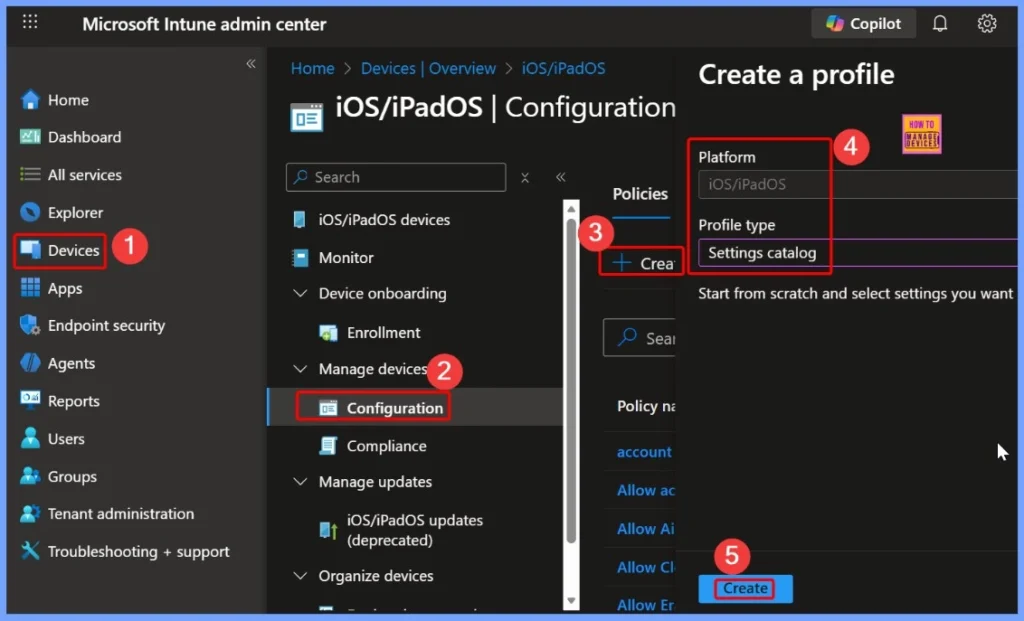
To configure this policy, start by signing in to the Microsoft Intune Admin Center. Once signed in, navigate to Devices, and under the Devices section, select the device type (such as Windows, iOS, etc.) and go to the Configuration tab. Here, you will find a + Create option. Clicking on it will present two choices: New policy and Import policy.
- Steps to create a new policy:
- Select New policy, which opens a window titled Create a profile.
- Enter the required details for Platform and Profile type.
- After filling in the information, click Create to finish the setup.
- How iOS Supervision Controls VPN Configuration for Better Security
- Unknown Caller? Outlook for iOS and the BYOD Challenge
- Enforce Zero-Trust TLS Certificate Enforcement Policies for iOS in Intune
Configure Basic Settings for Mail Privacy Protection in Intune
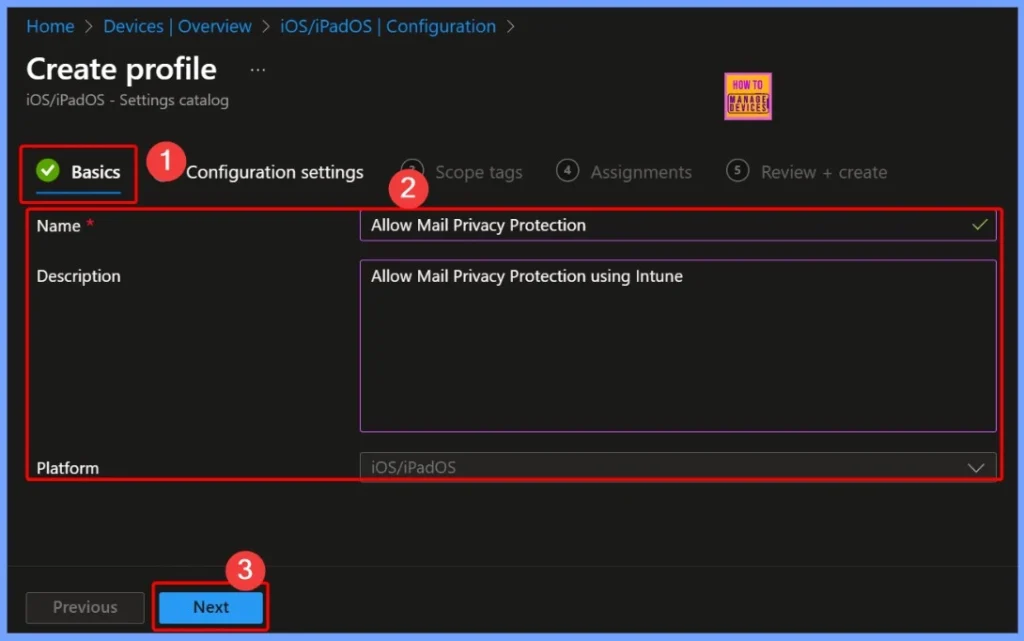
In the Basics settings tab of Intune, you start by providing a Name and Description for the policy, which helps identify its purpose. Next, configure the Allow Mail Privacy Protection option to control whether this feature is enabled on managed devices. For this policy, select Allow Mail Privacy Protection using Intune to let users have the feature active.
- Finally, choose the Platform as iOS/iPadOS, since this setting applies only to Apple devices running these operating systems.
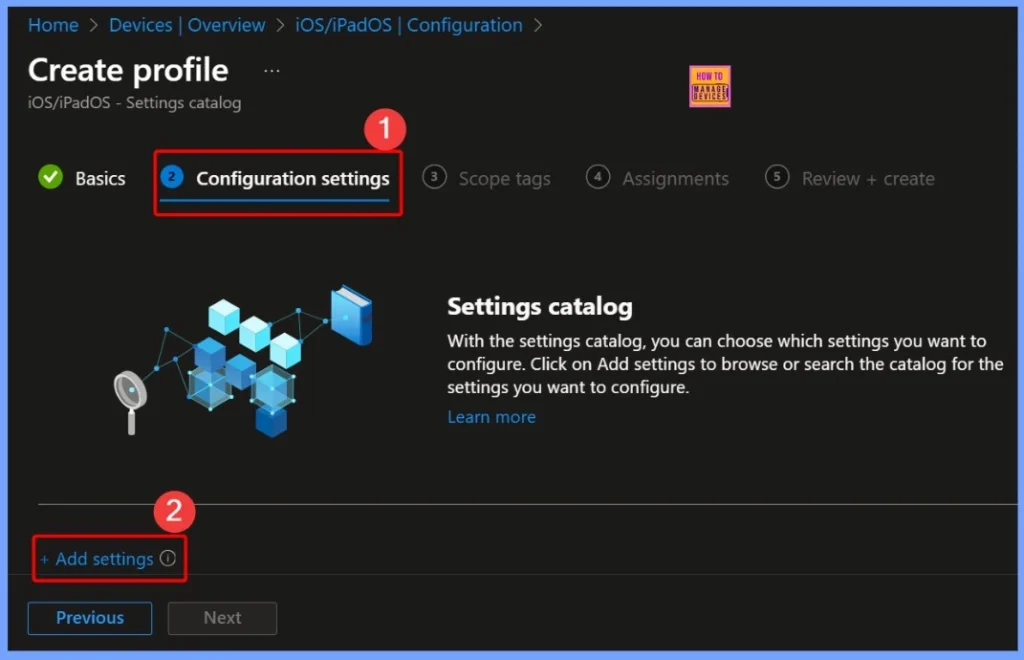
Using the +Add Settings Option in Intune Configuration
On the Configuration settings page, you will see a +Add settings hyperlink. Clicking this hyperlink opens the Settings Picker window, which allows you to browse and select the specific configuration options you want to include in your policy.
Search and Select Allow Mail Privacy Protection Setting
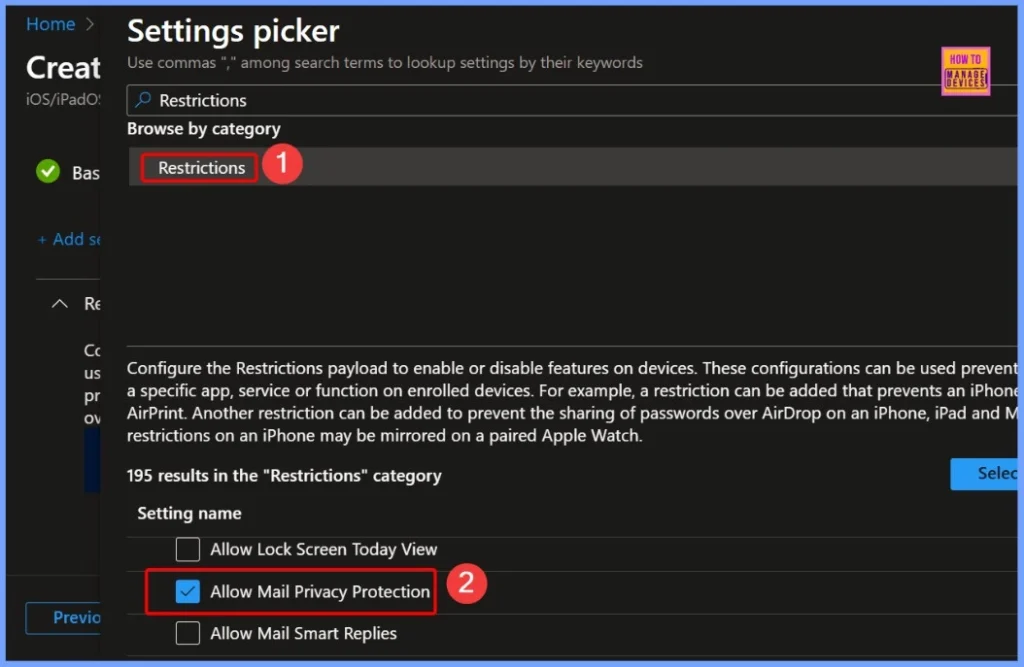
In the Settings Picker window, use the search box to type the keyword Restrictions, which will display 195 results. From these results, locate and select Allow Mail Privacy Protection. You can easily enable this setting by clicking the square box next to it, ensuring it is included in your Intune policy for the managed devices.
Default Status of Allow Mail Privacy Protection
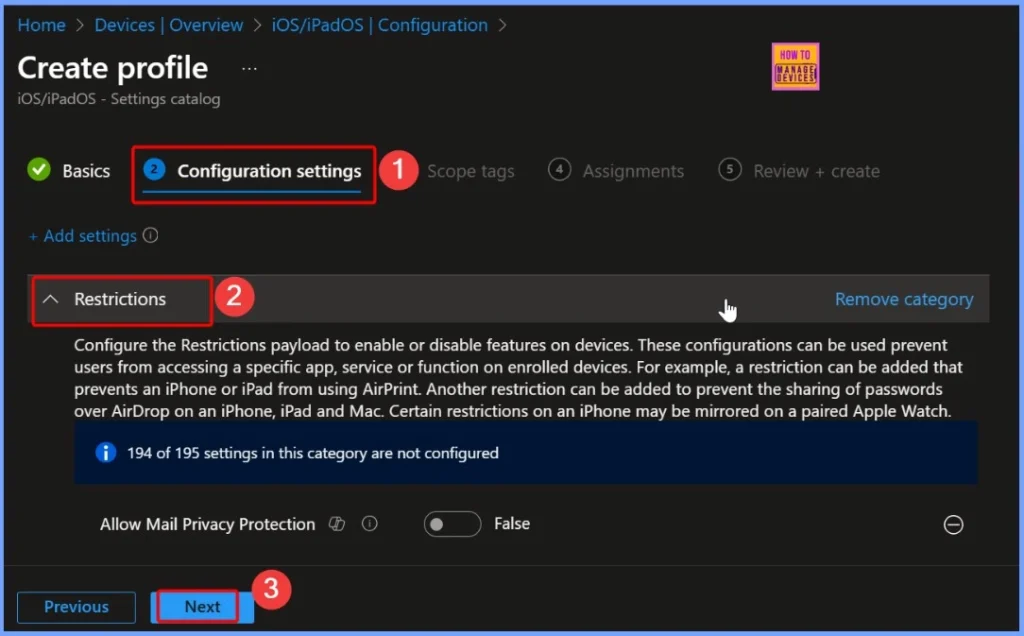
By default, the Allow Mail Privacy Protection setting is set to True. The Mail Privacy Protection is automatically enabled on iOS and iPadOS devices unless an administrator specifically changes the setting. With this default value, users’ email activity remains private, helping to protect their data from tracking by senders.
Disable Mail Privacy Protection on iOS Devices
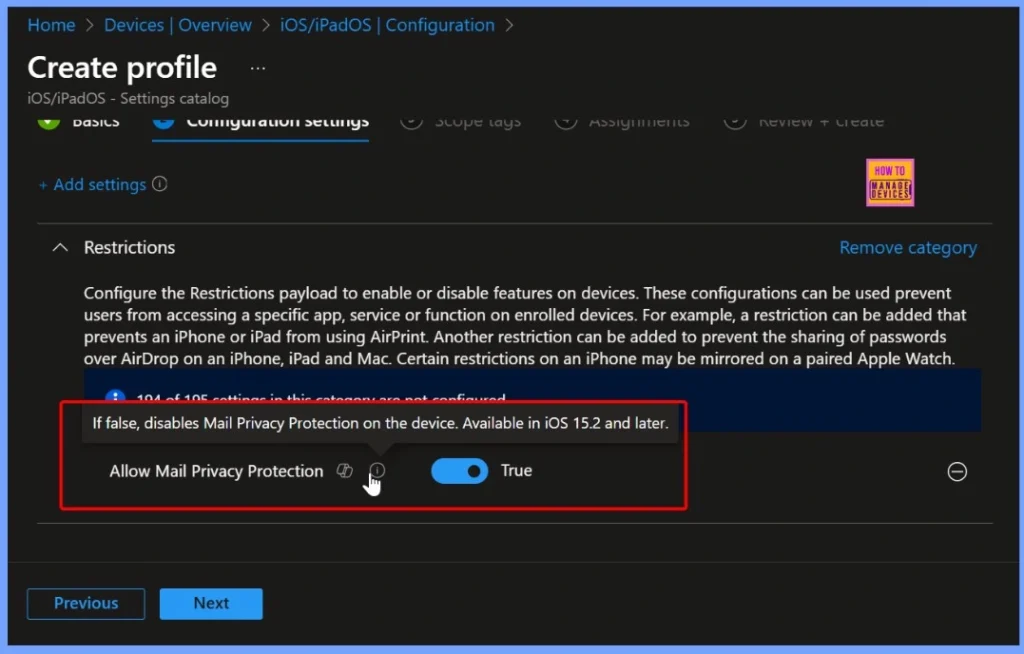
If the Allow Mail Privacy Protection setting is set to False, it disables Mail Privacy Protection on the device. This allows email senders to track when messages are opened and can reveal the device’s IP address. This configuration is available on devices running iOS 15.2 and later and can be enforced through Intune to control email privacy settings on managed Apple devices.
Assign Scope Tags for Allow Mail Privacy Protection
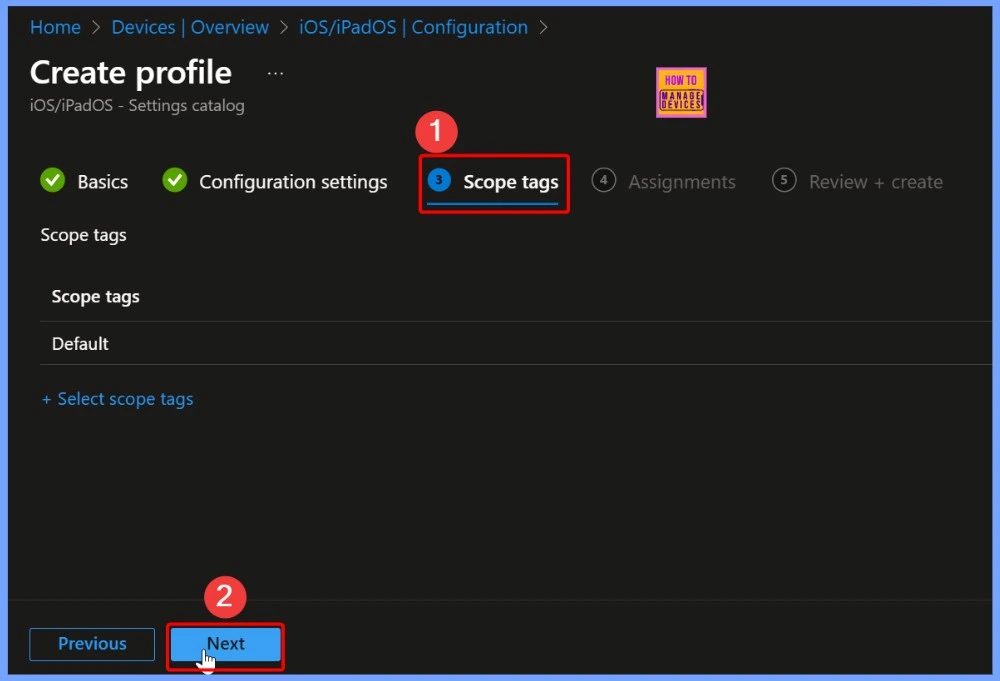
For the Allow Mail Privacy Protection policy, you can assign relevant scope tags to define access and management permissions. This ensures that only the designated teams or administrators have the ability to view or modify the policy, improving security and organization within your Intune environment.
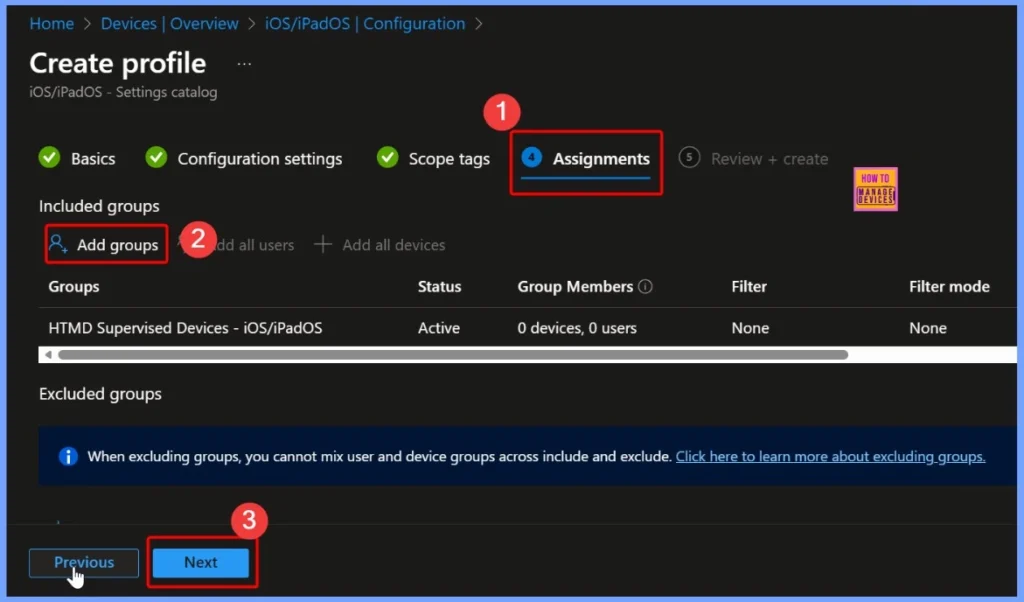
Assignments for Allow Mail Privacy Protection Policy
In Intune, the Assignments section determines which devices or users will receive the Allow Mail Privacy Protection policy. Here, administrators can target specific groups, such as all iOS/iPadOS devices, certain departments, or security groups, to ensure the policy is applied only to the intended audience.
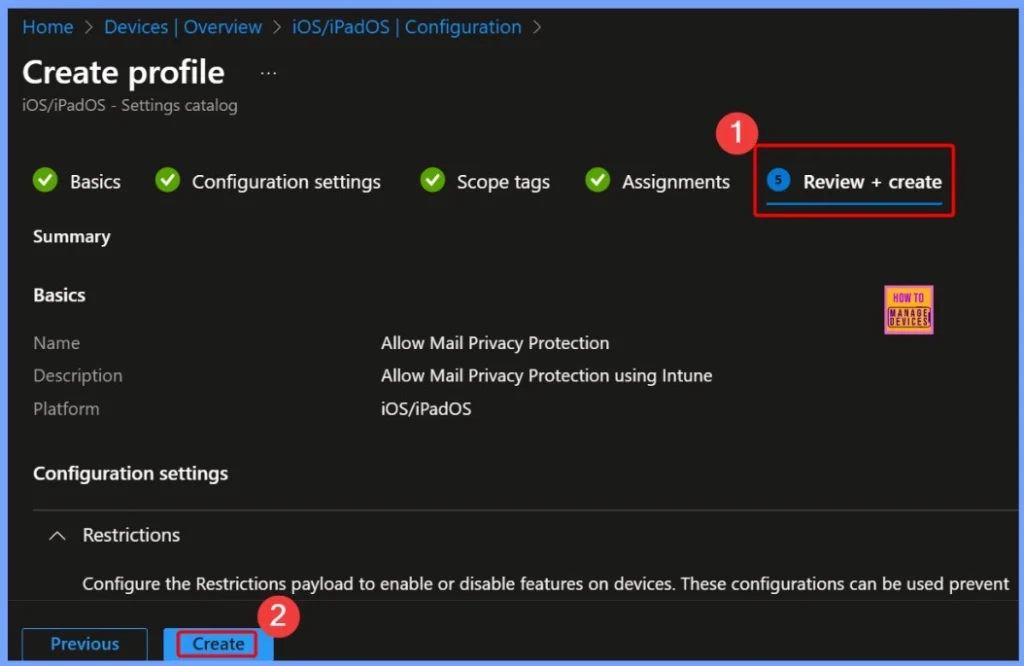
Review and Create Allow Mail Privacy Protection Policy
In the Review + Create step of Intune, administrators can verify all the settings configured for the Allow Mail Privacy Protection policy before deployment. This includes checking the policy name, description, platform, selected settings, scope tags, and assignments.
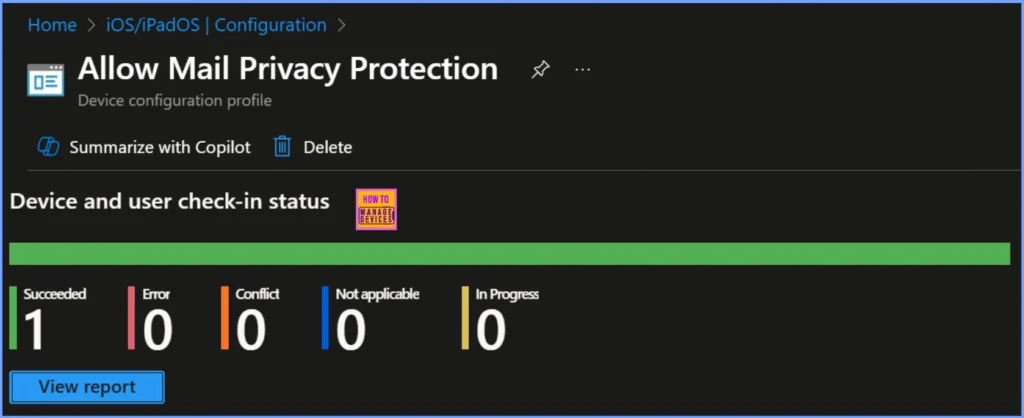
Device and User Check-In Status for Policy Deployment
After deploying the Allow Mail Privacy Protection policy, Intune provides a check-in status to show how the policy has been applied. In this example, the status shows Succeeded: 1, indicating that one device or user successfully received and applied the policy.
Need Further Assistance or Have Technical Questions?
Join the LinkedIn Page and Telegram group to get the latest step-by-step guides and news updates. Join our Meetup Page to participate in User group meetings. Also, Join the WhatsApp Community to get the latest news on Microsoft Technologies. We are there on Reddit as well.
Author
Anoop C Nair has been Microsoft MVP for 10 consecutive years from 2015 onwards. He is a Workplace Solution Architect with more than 22+ years of experience in Workplace technologies. He is a Blogger, Speaker, and Local User Group Community leader. His primary focus is on Device Management technologies like SCCM and Intune. He writes about technologies like Intune, SCCM, Windows, Cloud PC, Windows, Entra, Microsoft Security, Career, etc.