
Key Takeaways:
- Manage the Windows Remote Management (WinRM) client uses Basic authentication.
- Helps to Achieve Zero-Trust Security for Organization
- Protecting the identity and credentials of administrators and automated systems
- It eliminating insecure, legacy authentication methods that can expose user credentials.
Let’s discuss How to Disable WinRM Basic Authentication and Achieve Zero-Trust Security using Intune. Basic authentication is less robust than other authentication methods available in WinRM because credentials including passwords are transmitted in plain text.
An attacker who is able to capture packets on the network where WinRM is running may be able to determine the credentials used for accessing remote hosts via WinRM. If the WinRM connection uses the HTTP transport (default port 5985), the username and password are transmitted over the network in plain text (unencrypted).
Organizations must carefully weigh the security risks of plain-text credentials against the need for compatibility with legacy or non-standard systems. Disabling this setting is the standard security best practice and is often a requirement in hardening guidelines.
It eliminates the risk of transmitting credentials in plain text over the network when the WinRM client connects over HTTP. An attacker performing a packet capture (sniffing) could easily steal the credentials, leading to a system compromise.

Table of Contents
Table of Contents
How to Disable WinRM Basic Authentication and Achieve Zero-Trust Security using Intune
In a large, domain-joined environment using PowerShell Remoting (which uses WinRM) to manage hundreds of servers, this ensures that connections are secured using Kerberos. If Basic authentication were allowed, an administrator could inadvertently use an insecure client configuration, exposing highly privileged admin credentials to network sniffers.
- Secure Windows Devices with BitLocker Startup Authentication using Intune
- Protect Sensitive Data in Transit with Network Level Authentication using Intune Policy
- Intune Policies Blocking Edge Browser Callback during SSO Authentication on Android Work Profile
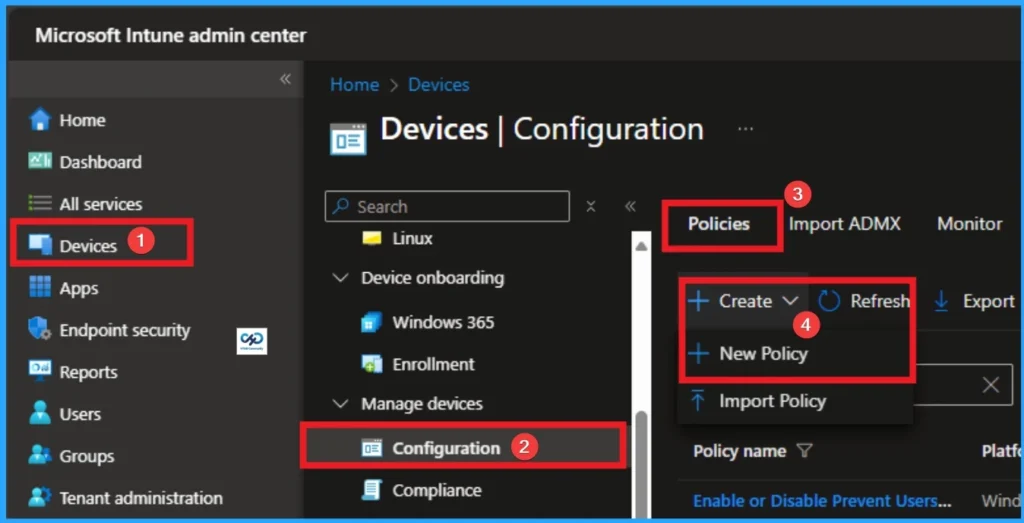
How to Start Policy Creation
As an Admin, you can quickly configure this policy on your organisation. To start the Policy Creation, open the Microsoft Intune Admin center. Then go to Devices > Configuration >+ Create > +New Policy.
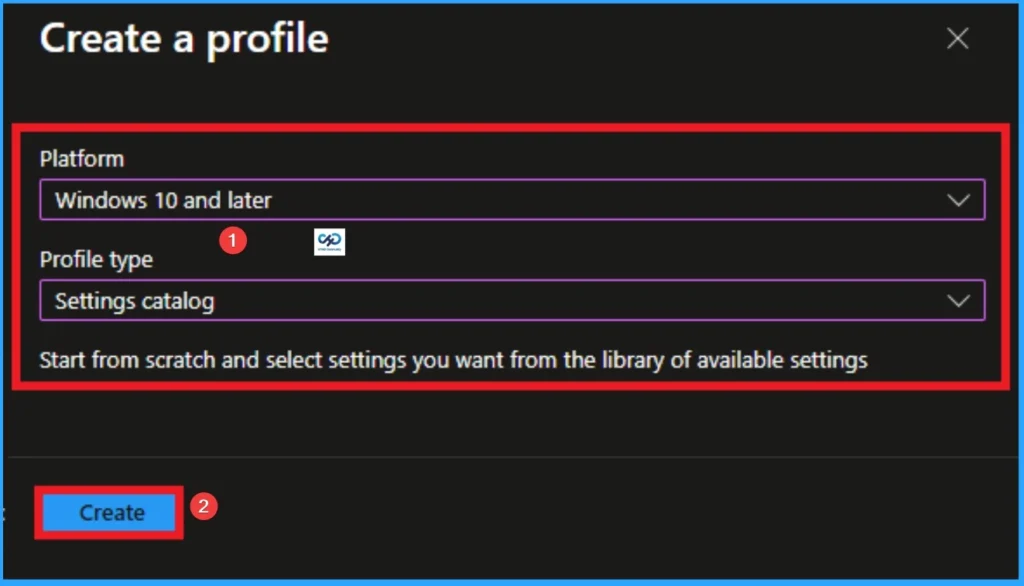
Profile Creation
Profile creation is the necessary step that helps you to assign the policy to appropriate platform and Profile. Here I would like to configure the policy to Windows 10 and later platform and settings catalog profile. Then click on the Create button.
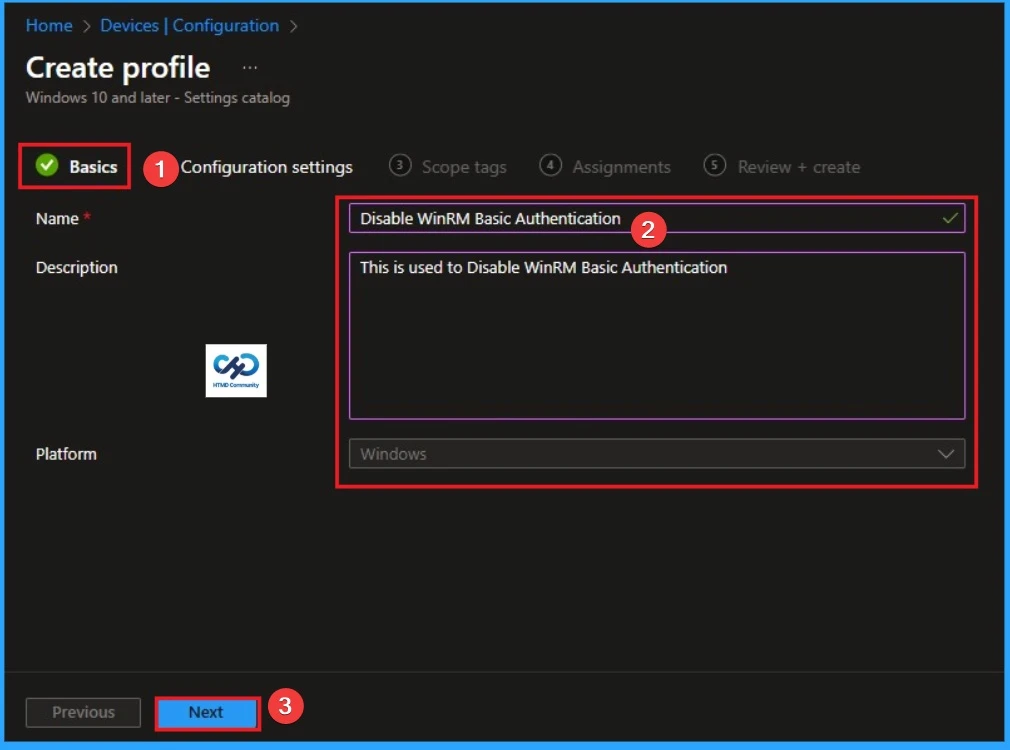
Basic Tab
Naming the policy is the primary step that help admins to identify the policy later. This is important and necessary step that allows you to know the purpose of the policy. Here is Name is mandatory and description is optional. After adding this click on the Next button.
Configure WinRM Basic Authentication
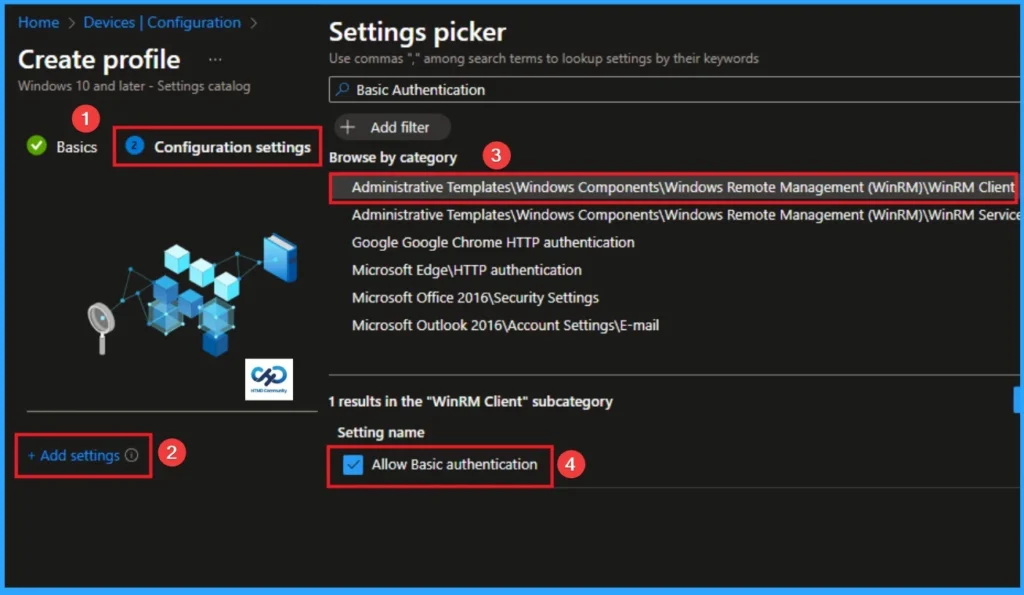
With Settings Picker, you can use the Configuration Settings Tab. On this tab, you can click on the +Add Settings hyperlink to get the Settings Picker. The settings picker shows huge number of settings. Here, I would like to select the settings by browsing by Category. I choose System. Then, I choose Administrative Templates\Windows Components\Windows Remote Management (WinRM)\WinRM Client\Allow Basic authentication.
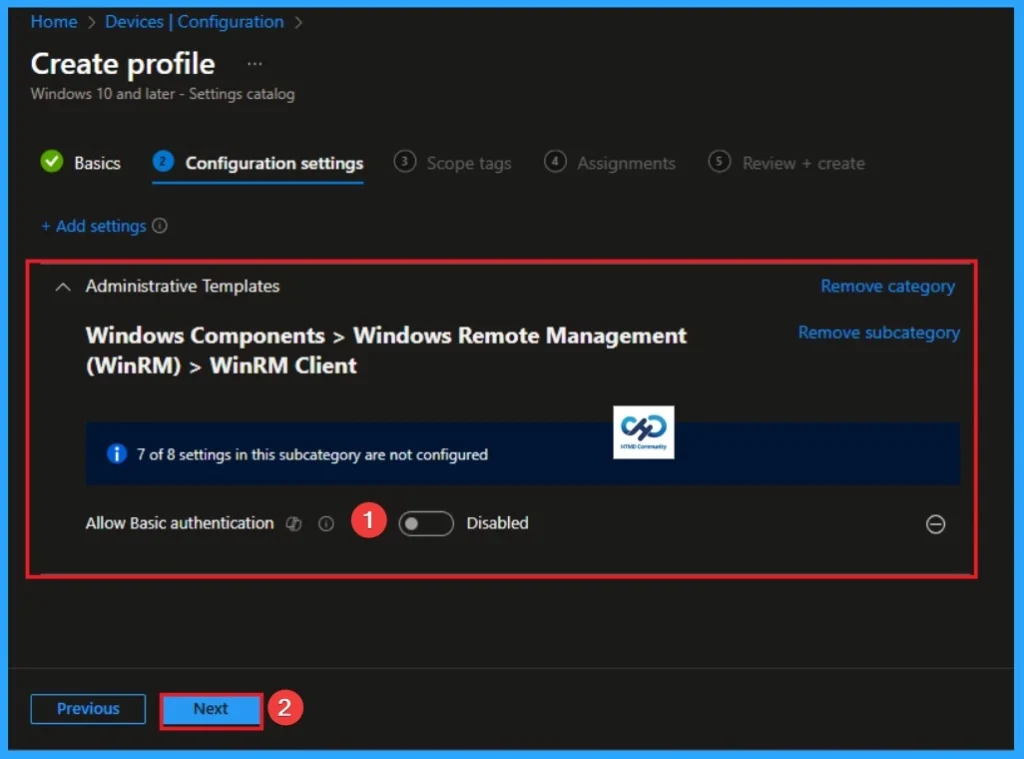
Block WinRM Basic Authentication
If you disable or don’t configure this policy setting, the WinRM client doesn’t use Basic authentication. Click on the Next button to continue.
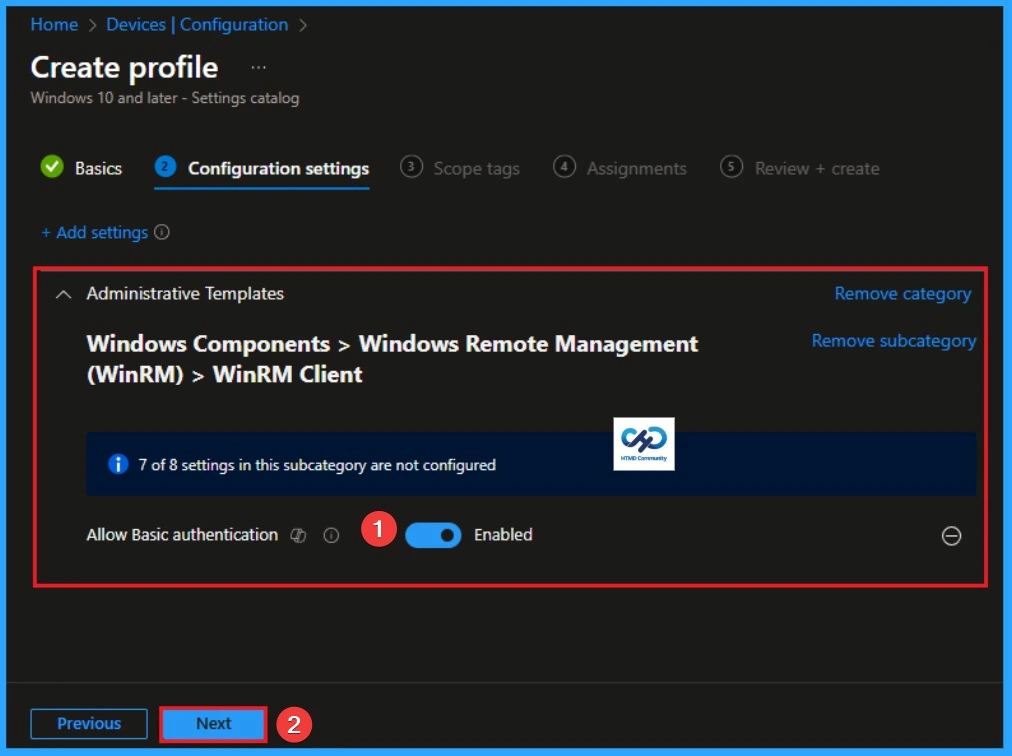
Allow WinRM Basic Authentication
If you enable this policy setting, the WinRM client uses Basic authentication. If WinRM is configured to use HTTP transport, the user name and password are sent over the network as clear text.
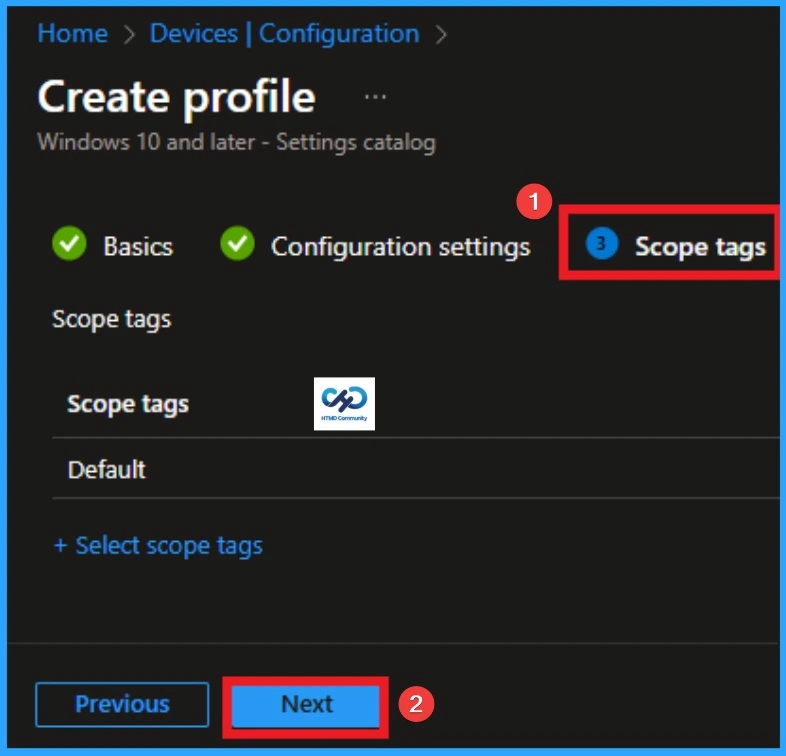
Scope Tags
With scope tags, you create a restriction to the visibility of the Read Aloud feature in Microsoft Edge. It helps to organise resources as well. Here, I would like to skip this section, because it is not mandatory. Click on the Next button
Assignments Tab for Selecting Group
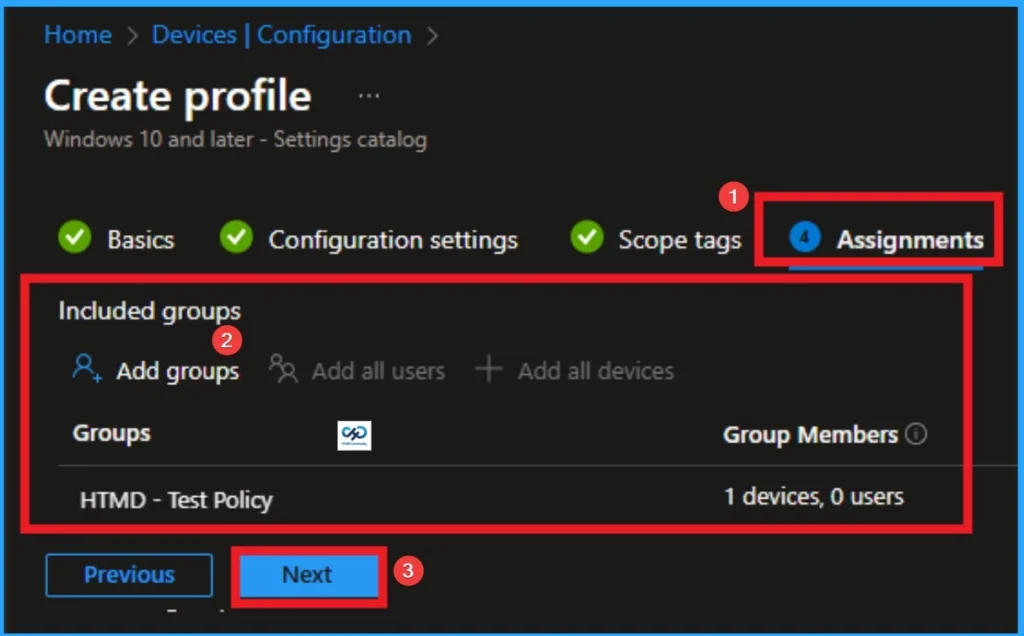
To assign the policy to specific groups, you can use the Assignment Tab. Here I click, +Add groups option under Included groups. I choose a group from the list of groups and click on the Select button. Again, I click on the Select button to continue.
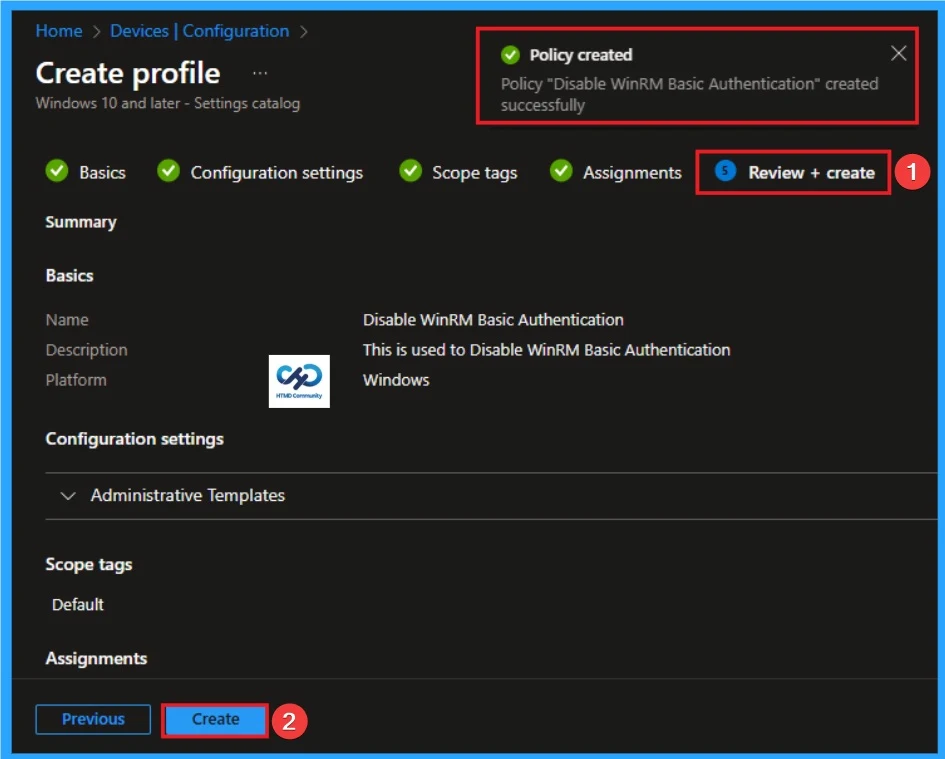
Review + Create Tab
Before completing the policy creation, you can review each tab to avoid misconfiguration or policy failure. After verifying all the details, click on the Create Button. After creating the policy, you will get a success message.
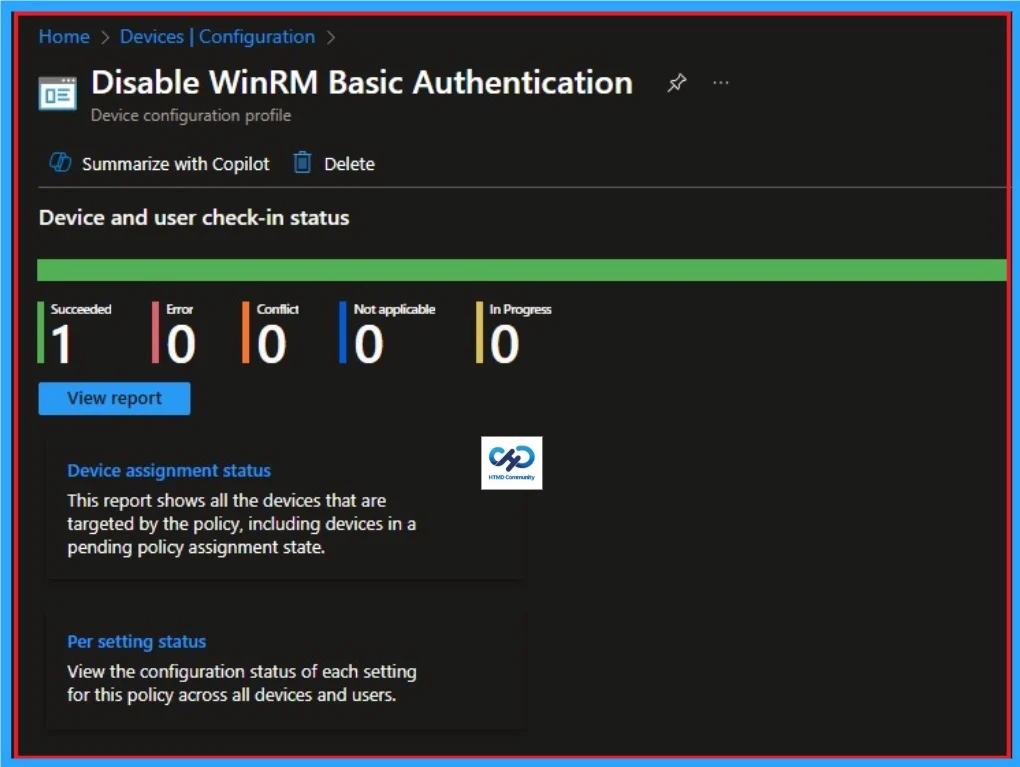
Monitoring Status
The Monitoring Status page shows whether the policy has succeeded or not. To quickly configure the policy and take advantage of the policy sync the assigned device on Company Portal. Open the Intune Portal. Go to Devices > Configuration > Search for the Policy. Here, the policy shows as successful.
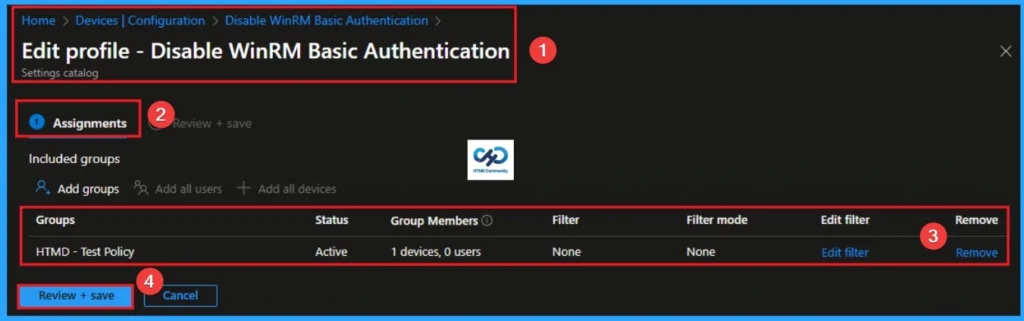
Removing the Assigned Group from WinRM Basic Authentication Settings
If you want to remove the Assigned group from the policy, it is possible from the Intune Portal. To do this, open the Policy on Intune Portal and edit the Assignments tab and the Remove Policy.
To get more detailed information, you can refer to our previous post – Learn How to Delete or Remove App Assignment from Intune using by Step-by-Step Guide.
How to Delete WinRM Basic Authentication
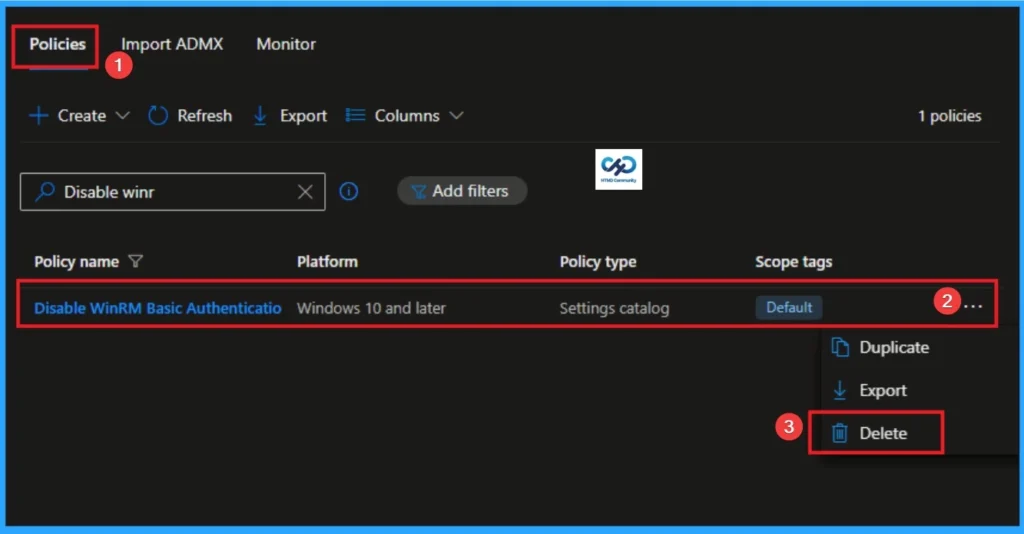
You can easily delete the Policy from the Intune Portal. From the Configuration section, you can delete the policy. It will completely remove it from the client devices.
For detailed information, you can refer to our previous post – How to Delete Allow Clipboard History Policy in Intune Step by Step Guide.
Windows CSP Details
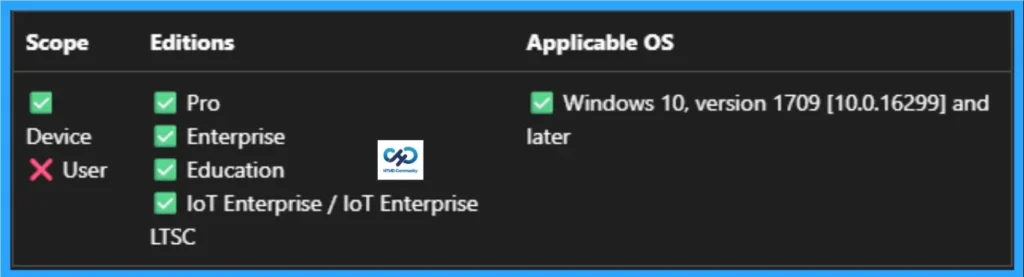
This policy setting allows you to manage whether the Windows Remote Management (WinRM) client uses Basic authentication. This policy is applicable for Windows 10, version 1709 [10.0.16299] and later. The following table shows the ADMX mapping.
| Name | Value |
|---|---|
| Name | AllowBasic_2 |
| Friendly Name | Allow Basic authentication |
| Location | Computer Configuration |
| Path | Windows Components > Windows Remote Management (WinRM) > WinRM Client |
| Registry Key Name | Software\Policies\Microsoft\Windows\WinRM\Client |
| Registry Value Name | AllowBasic |
| ADMX File Name | WindowsRemoteManagement.admx |
Need Further Assistance or Have Technical Questions?
Join the LinkedIn Page and Telegram group to get the step-by-step guides and news updates. Join our Meetup Page to participate in User group meetings. Also, Join the WhatsApp Community to get the latest news on Microsoft Technologies. We are there on Reddit as well.
Author
Anoop C Nair has been Microsoft MVP for 10 consecutive years from 2015 onwards. He is a Workplace Solution Architect with more than 22+ years of experience in Workplace technologies. He is a Blogger, Speaker, and Local User Group Community leader. His primary focus is on Device Management technologies like SCCM and Intune. He writes about technologies like Intune, SCCM, Windows, Cloud PC, Windows, Entra, Microsoft Security, Career, etc.