
Today we are discussing Managing Disconnected Remote Desktop Sessions for Security and Resource Optimization Using Intune Policy. This is an important policy that helps organizations manage how Remote Desktop sessions behave when a user disconnects. Many people work remotely and sometimes forget to sign out properly, leaving sessions open in the background.
These idle sessions may look harmless, but over time they can create performance issues and security concerns if they are not handled correctly. When a disconnected session stays active, it continues to use system resources such as memory and CPU. If many users do this, the server can become slow or unstable. This is why organizations need a rule that automatically removes old, disconnected sessions.
It keeps the system clean and ensures that resources are always available for users who need to connect. Another challenge is that disconnected sessions may still be running with old credentials, which can cause account lockouts when passwords change. These idle sessions can also create opportunities for misuse if someone manages to access them.
Because of this, having a strict time limit for disconnected sessions becomes an important part of maintaining overall security. This policy, called “Set time limit for disconnected sessions,” controls how long a system should keep a Remote Desktop session alive after the user disconnects. The CIS recommendation is to set this value to Enabled with a time of 1 minute.

Table of Contents
Managing Disconnected Remote Desktop Sessions for Security and Resource Optimization Using Intune Policy
Enabling this policy, the system automatically ends any disconnected session after one minute. This prevents inactive sessions from staying open for long periods, which helps avoid resource consumption and reduces the possibility of an attacker taking advantage of an idle connection.
Create a Profile
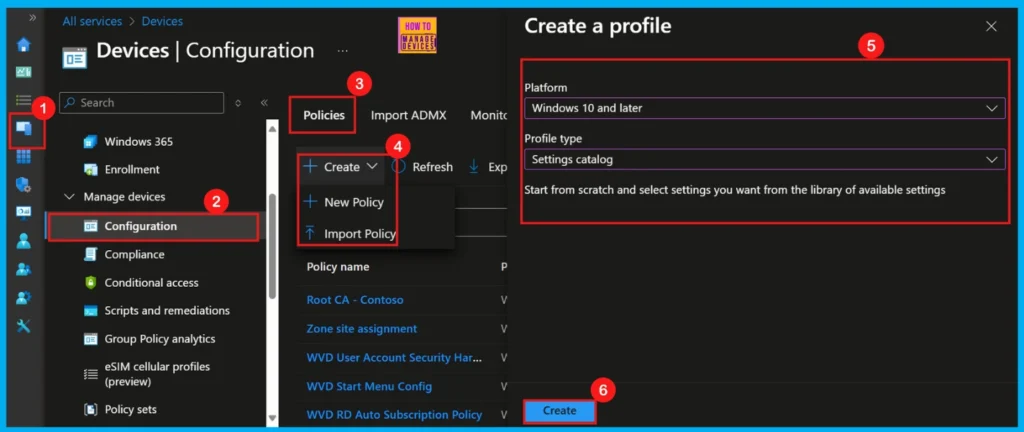
To begin deploying this policy, open the Intune portal and then go to Devices > Configuration > +Create >+ New Policy. Choosing Platform and Profile is the next step after selecting new policy. It is very necessary step to effectively configure the policy to appropriate platform. You select the platform, usually Windows 10 and later, and then choose the Settings Catalog as profile type.
- 4 New Intune Windows Firewall Logging Configuration Policies
- Ways to Allow an App through Windows Defender Firewall
- Check Firewall Policy Reports from Intune
Basics Section
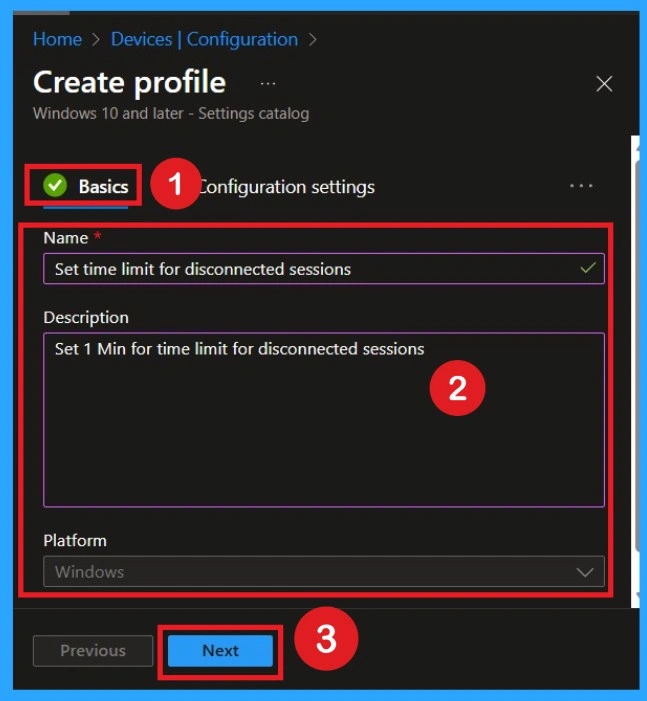
On the Basics page, enter a simple and meaningful name for the policy so your IT admins can instantly understand what it does. You can also write a short description that explains the purpose, such as “Set 1 Min for time limit for disconnected sessions.” This helps maintain clarity when multiple policies exist.
Adding a description also helps new IT admins understand why this policy was created. It becomes easier to identify in logs, monitoring, and documentation because the name and description clearly reflect the function of the policy.
Understanding the Configuration
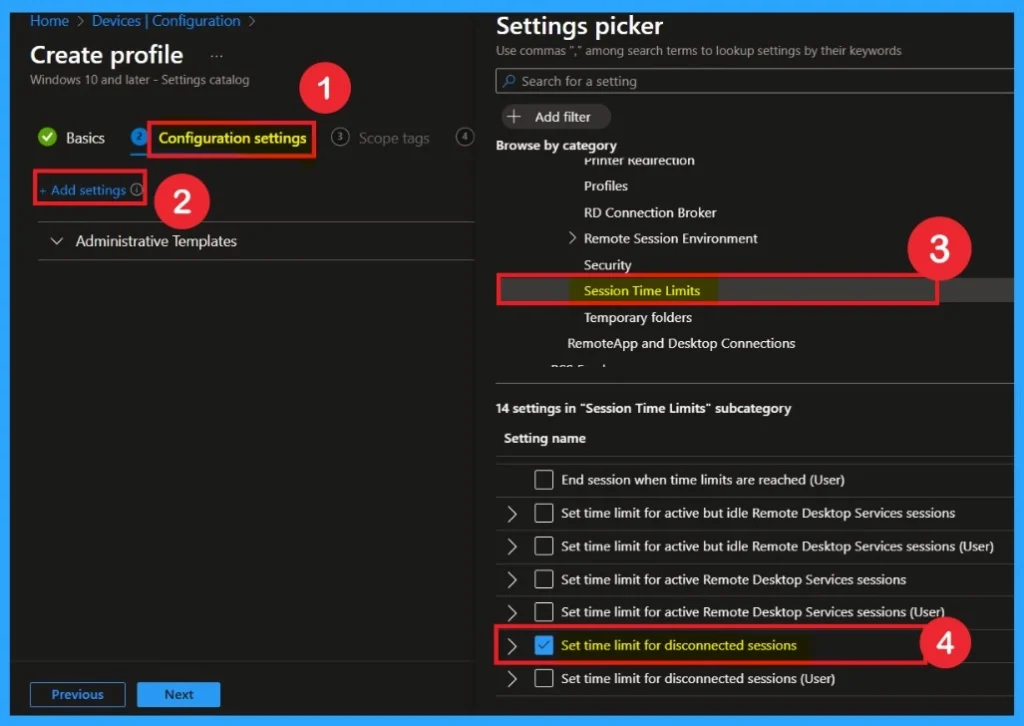
This is where you search for the specific policy you want to enforce. It contains 100 of settings, so knowing the correct category helps you find the option quickly. By understanding that this policy relates to Remote Desktop Session Time Limits, you can navigate directly to the correct place. For that follow this” Administrative Templates > Windows Components > Remote Desktop Services > Remote Desktop Session Host > Session Time Limits > Set time limit for disconnected sessions”.
- Select Set time limit for disconnected sessions
Applying the Configuration Setting
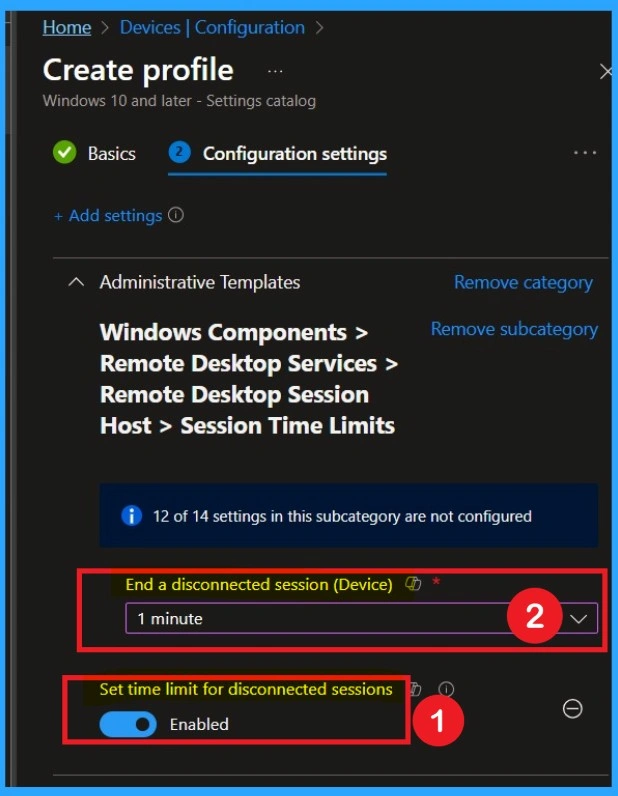
After selecting the policy, you have to enable the policy of Set time limit for disconnected sessions. This setting ensures that when a user disconnects, the session will not stay running forever on the system. After you choose 1 minute, the system will automatically close those disconnected sessions, save memory and avoid unnecessary running sessions.
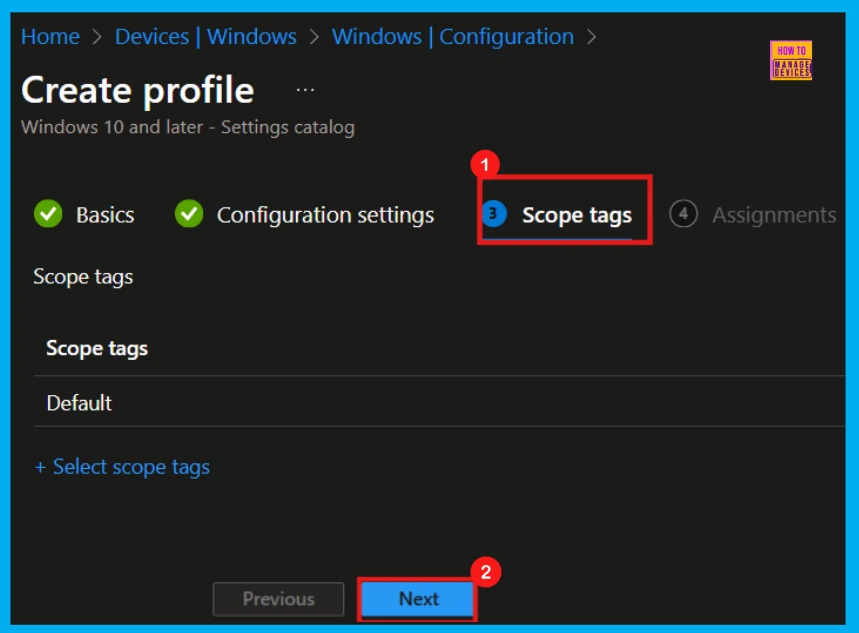
Scope Tags
If your organization doesn’t use scope tags, you can skip this step. Leaving it empty does not affect how the policy works on devices. It only controls who can see and manage the policy inside the Intune admin centre. So, here I skip this section.
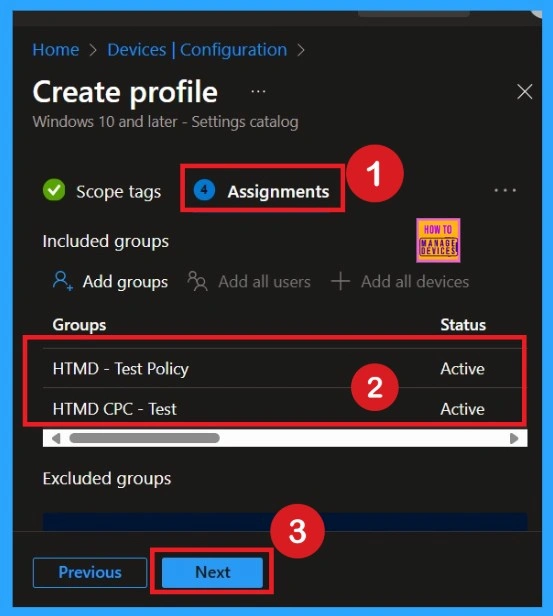
Assignments
On the Assignments section, we can specify which users or devices get this policy. Under Include Groups, click Add Groups and select the group from tnhe given list. The chosen group will then appear in the assignments section.
- After the group selection, click Next to proceed.
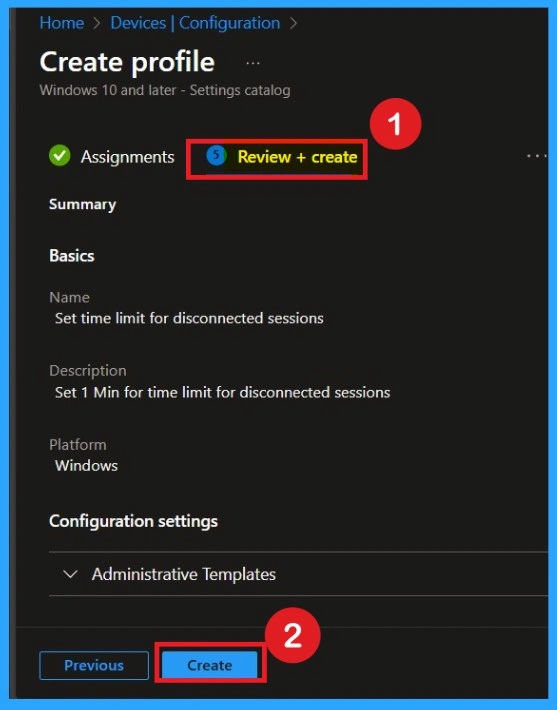
Review + Create
On the Review + Create page, check all settings, names, and assignments. This ensures everything is correct before the policy goes live. Reviewing helps find mistakes like assigning the wrong group or forgetting the 1-minute value. When everything looks accurate, click Create. Intune will then publish the policy and begin delivering it to the assigned devices. This completes the creation process and activates the deployment cycle.
Monitoring Status
After the policy is deployed, you can monitor its progress in the Monitor tab. This section shows how many devices successfully received the policy, which ones are pending, and whether any have errors. It helps IT admins verify that the policy is working as expected.

End User Result
End users will not see any notification or special message. However, their disconnected Remote Desktop sessions will automatically close after 1 minute. This happens silently in the background without disturbing their work.
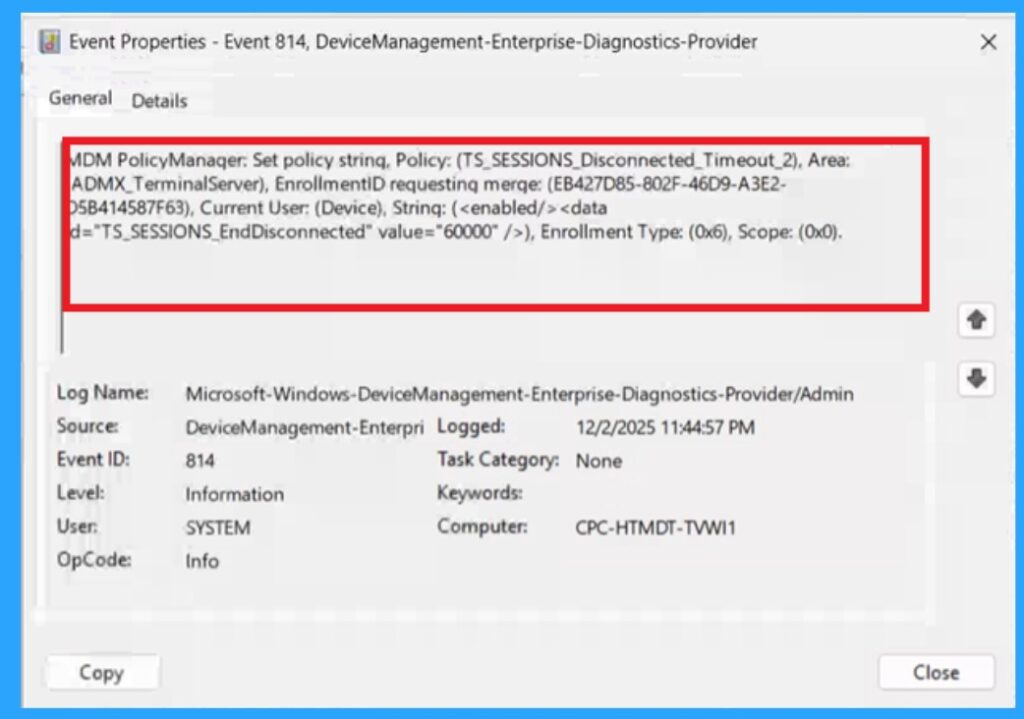
You can check the client side and verify the policy status. Open the Client device and open the Event Viewer. Go to Start > Event Viewer. Navigate to Logs: In the left pane, go to Application and Services Logs > Microsoft > Windows > Device Management-Enterprise-Diagnostics-Provider > Admin.
| Policy Details |
|---|
| MDM PolicyManager: Set policy strinq, Policy: (TS_SESSIONS_Disconnected_Timeout_2), Area: ADMX_TerminalServer), EnrollmentiD requesting merqe: (EB427D85-802F-46D9-A3E2- 5B414587F63), Current User: (Device), Strinq: (), Enrollment Type: (0x6), Scope: (0x0). |
Deleting the Policy Permanently
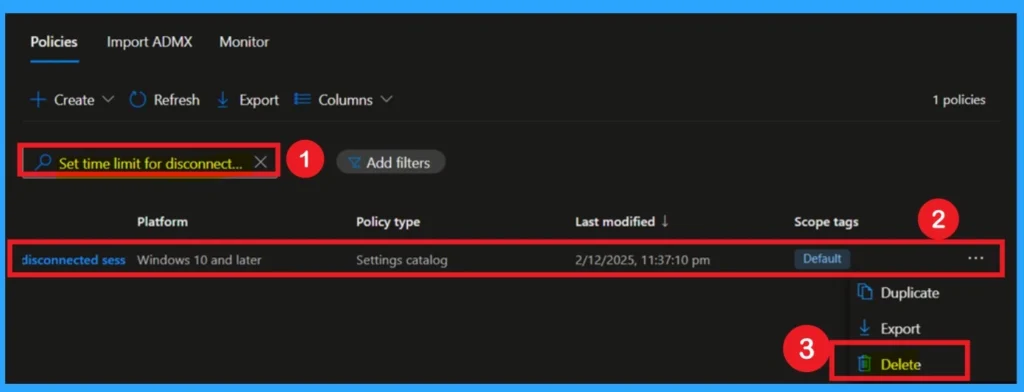
If the policy is no longer needed, you can delete it permanently from Intune. Open the policy, click the Delete option, and confirm the deletion. This removes the configuration completely from the portal. After deletion, the policy will no longer apply to any devices, and it will be from all admin views.
- Go to Devices > Configuration profiles, then select the policy you wish to delete. On the policy details page, click the three-dot menu and choose Delete from the given option. The following screenshot provided for reference.
For more information, you can refer to our previous post – How to Delete Allow Clipboard History Policy in Intune Step by Step Guide.
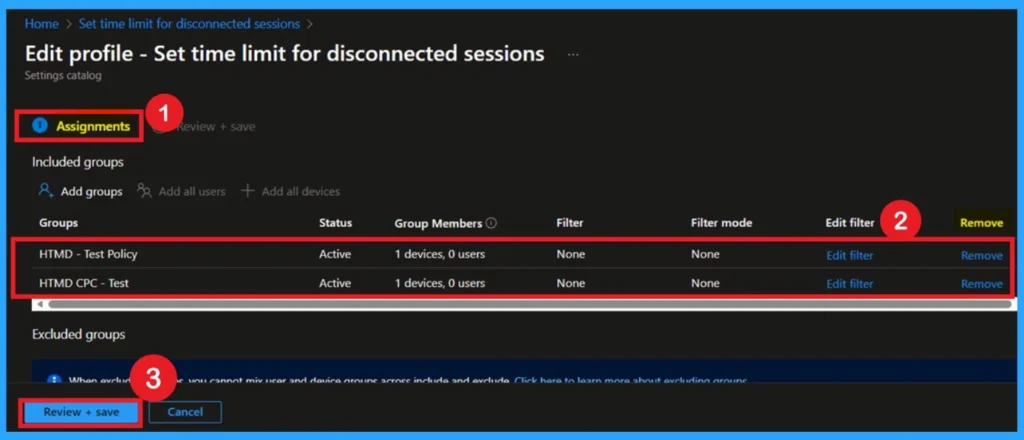
Removing Assigned Groups
We can easily remove groups from a policy. Just open the policy from the Configuration section , then click the Edit button on the Assignments. From there, click the Remove button to unassign the policy from the desired groups.
For detailed information, you can refer to our previous post – Learn How to Delete or Remove App Assignment from Intune using by Step-by-Step Guide.
Need Further Assistance or Have Technical Questions?
Join the LinkedIn Page and Telegram group to get the latest step-by-step guides and news updates. Join our Meetup Page to participate in User group meetings. Also, Join the WhatsApp Community to get the latest news on Microsoft Technologies. We are there on Reddit as well.
Author
Anoop C Nair has been Microsoft MVP for 10 consecutive years from 2015 onwards. He is a Workplace Solution Architect with more than 22+ years of experience in Workplace technologies. He is a Blogger, Speaker, and Local User Group Community leader. His primary focus is on Device Management technologies like SCCM and Intune. He writes about technologies like Intune, SCCM, Windows, Cloud PC, Windows, Entra, Microsoft Security, Career, etc.