

Key Takeaways
- Setting this policy to false removes the Trust Enterprise Developer option from device settings.
- Users cannot install apps that use universal provisioning profiles.
- MDM-managed enterprise apps are not affected by this restriction.
- Any previously granted trust to enterprise developers remains unchanged.
- The setting is supported on iOS 9 and later devices.
Hey, let’s discuss about How to Control Enterprise App Trust on iOS Devices using Intune. If this setting is set to false, the Trust Enterprise Developer option is removed from Settings > General > Profiles & Device Management. As a result, users are prevented from installing apps that rely on universal provisioning profiles, helping organizations reduce the risk of unauthorized or unmanaged apps being installed on the device.
Table of Contents
Table of Contents
How to Control Enterprise App Trust on iOS Devices using Intune
This restriction does not affect enterprise apps that are distributed and trusted through MDM, and it also does not remove any trust that was already granted in the past. Devices that already trust an enterprise developer will continue to function normally. This setting is supported on iOS 9 and later, making it useful for organizations that want tighter control over app installation.
- Improving Windows Application Security by Controlling DLL Search Order using Intune Policy
- How to Enable Zero Trust macOS Management with Intune Platform SSO and Cloud Managed Admin Passwords
- Block Untrusted Executables to Prevent Ransomware Attacks using Intune ASR Rule
How to Create a Policy
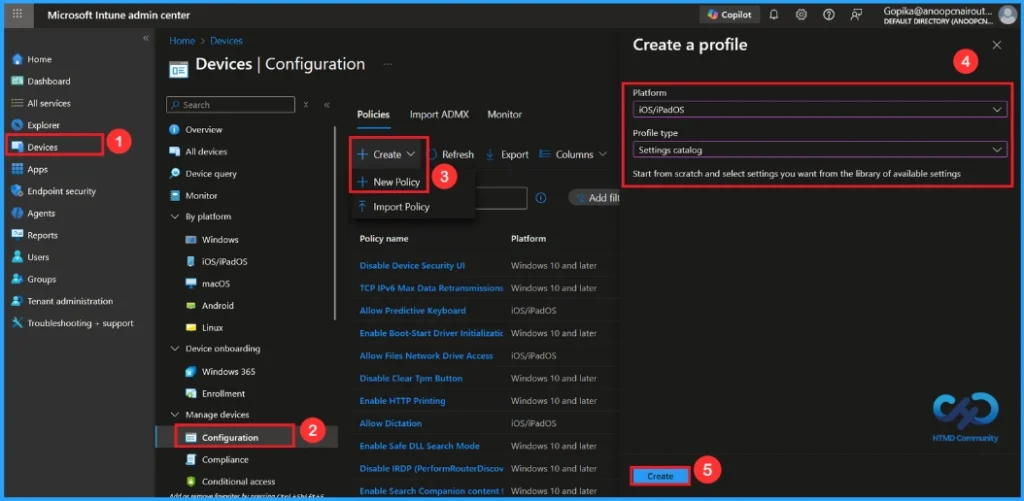
Using simple steps, you can easily complete the policy creation. Open the Intune admin center. Go to Devices > Configuration > Policies> + Create > + New policy. After that, you will get a profile window to select the platform and profile type. Click on the create button.
| Platform | Profile type |
|---|---|
| iOS/iPadOS | Settings Catalog |
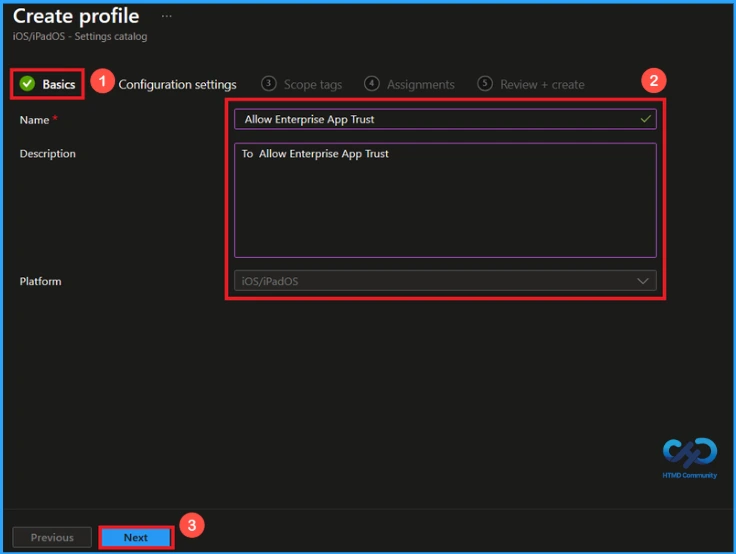
Basic Tab for Name and Description
On this tab, you have to give a name(Allow Enterprise App Trust) for the policy that you want to create. The name field is mandatory. Without giving a name, you can’t create a policy on the basic tab. You can also describe the policy, which description is not mandatory. Click on the next button.

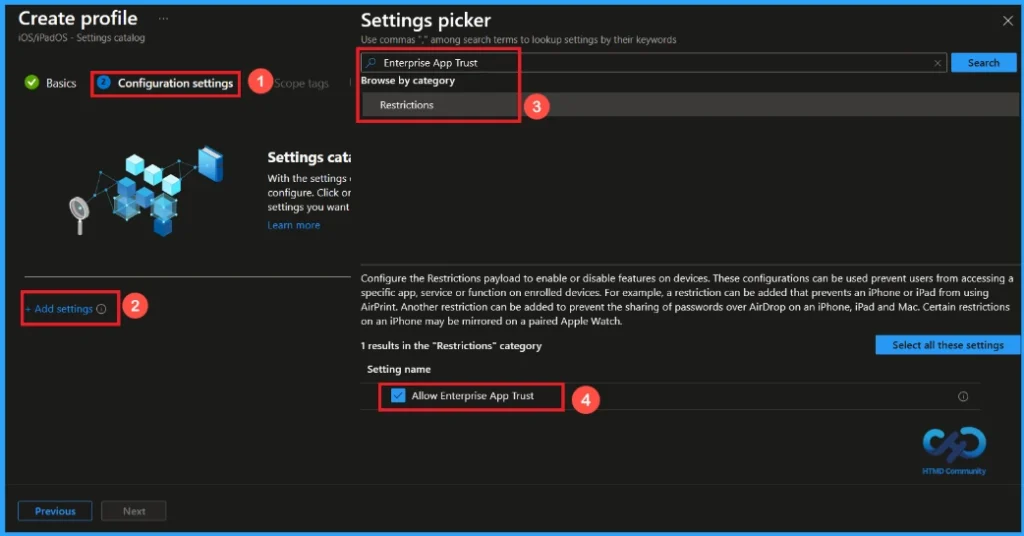
Configure Enterprise App Trust Policy
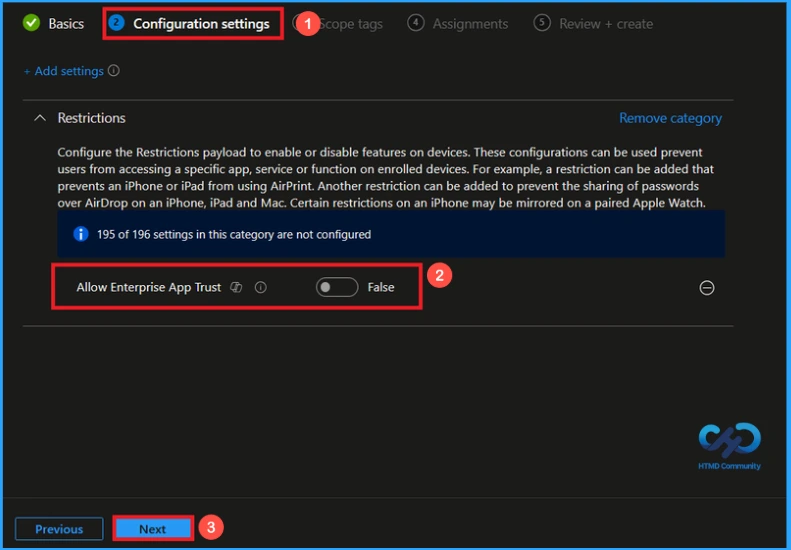
The configuration tab allows you to select specific policy settings to manage your organisation’s devices. On this page, we click on the + Add Settings hyperlink. Then you will get a settings picker that will show different types of categories to select specific settings. Here, I choose to Restrictions the category and select the Allow Enterprise App Trust.
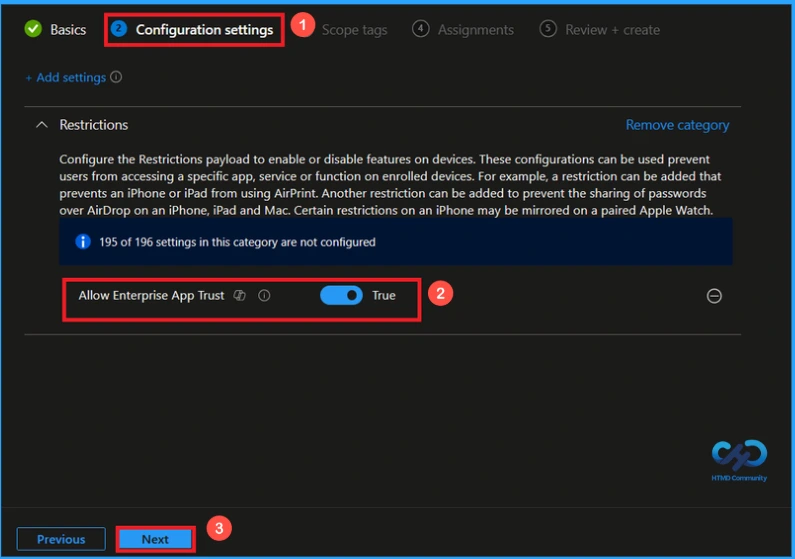
Once you have selected Enterprise App Trust policy, and closed the Settings picker. You will see it on the Configuration page. Here we have only two settings True or False. By default, Enterprise App Trust policy will be set to Enable. Click Next to continue.
Disable Enterprise App Trust Policy
If we disable or not configure this policy, you can disable the Enterprise App Trust Policy by toggling the switch from right to left. Then, click the Next button to proceed.
What is Scope Tag
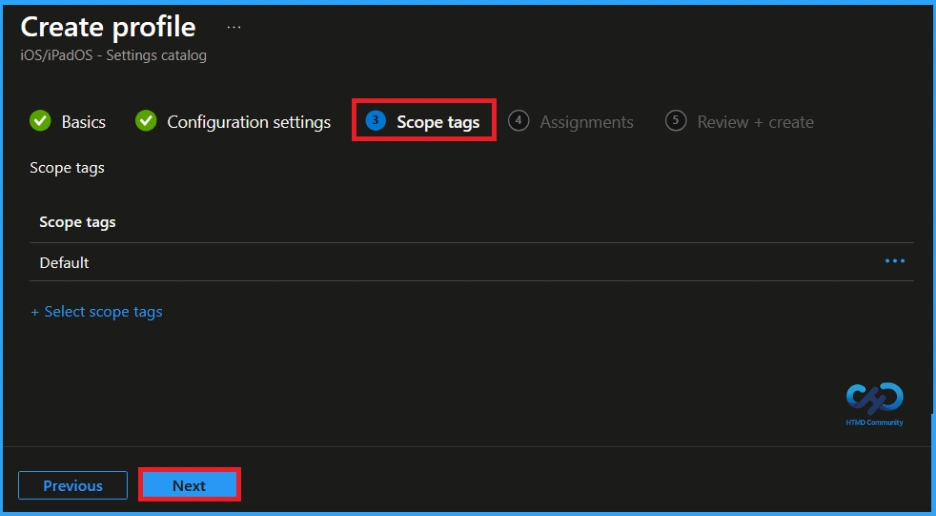
In Intune, Scope Tags are used to control who can view and modify a policy. The scope tag is not mandatory, so you can skip this section. It functions as a tool for organisation and access management, but assigning it is optional. Click Next if they’re not required for your setup.
Assignment Tab to Assign Group
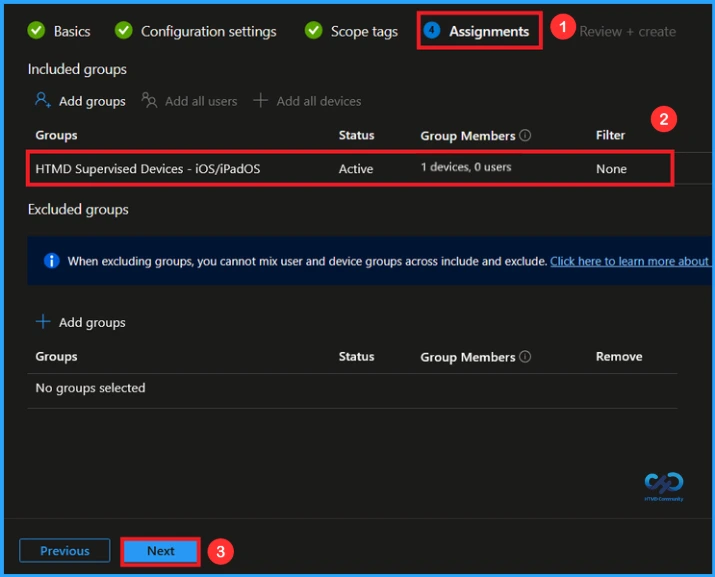
In the Assignments tab, you choose the users or devices that will receive the policy by clicking Add Group under Include Group, select the group that you want to target (HTMD Supervised Device – iOS/iPadOS) and then click Next to continue.
Review + Create Tab
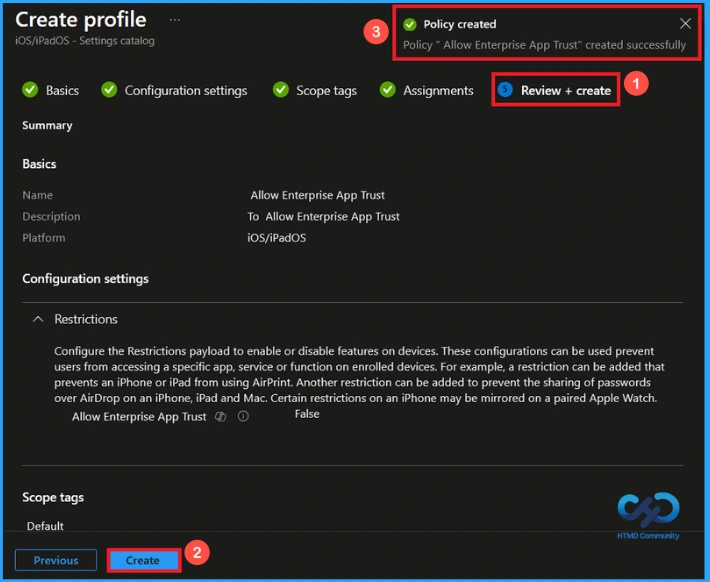
At the final Review + Create step, we see a summary of all configured settings for the new profile; after reviewing the details and making any necessary changes by clicking Previous. We click Create to finish, and a notification confirms that the “Allow Enterprise App Trust created successfully”.
Monitoring Status After Policy Creation
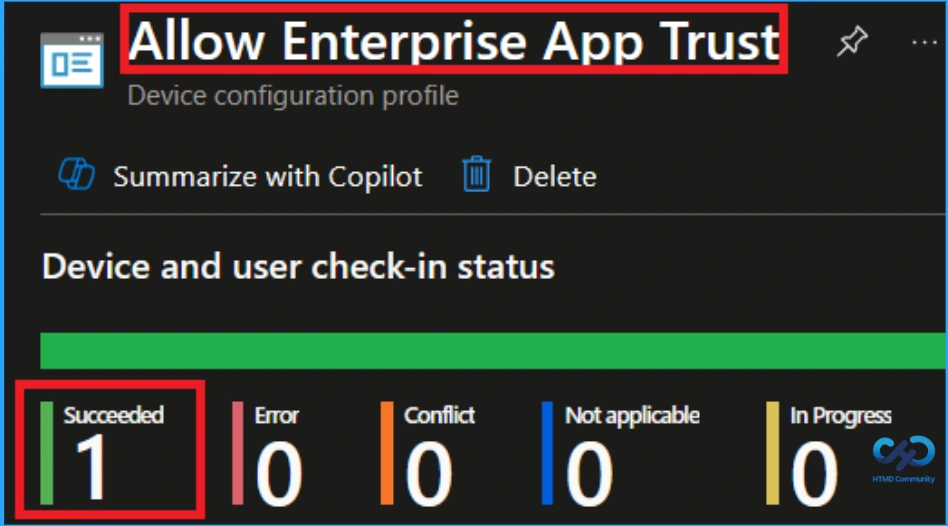
To view a policy’s status, go to Devices > Configuration in the Intune portal, select the policy(Allow Enterprise App Trust) and check that the status shows Succeeded. Use manual sync in the Company Portal to speed up the process.
How to Remove Assigned Group from Enterprise App Trust Policy
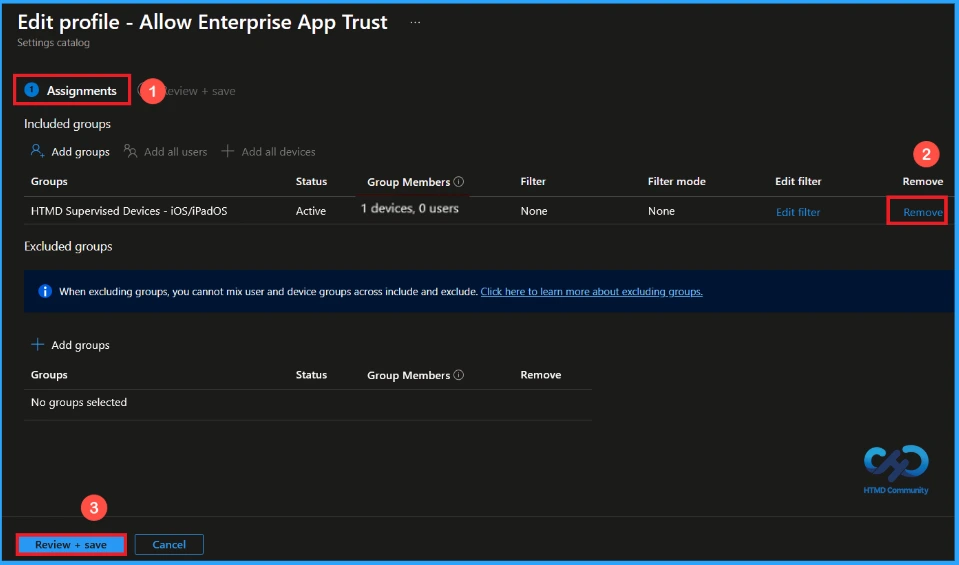
Sometimes, we need to remove a group from a policy assignment for security updates. Open the policy from the Configuration tab and click on the Edit button on the Assignment tab. Click on the Remove button on this section to remove the policy. Click Review + Save after making the change.
For detailed information, you can refer to our previous post – Learn How to Delete or Remove App Assignment from Intune using by Step-by-Step Guide.
How to Delete Enterprise App Trust Policy from Intune
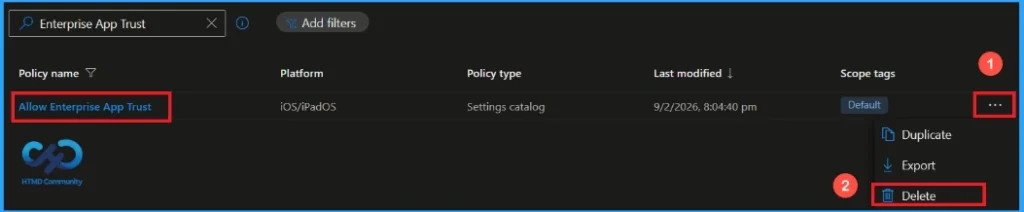
To delete an Intune policy for security or operational reasons. It is simple to do. I will demonstrate how to delete an Intune policy through the Allow Enterprise App Trust Policy. Click the three dots, then click the Delete option.
For detailed information, you can refer to our previous post – Learn How to Delete or Remove App Assignment from Intune using by Step-by-Step Guide.
Need Further Assistance or Have Technical Questions?
Join the LinkedIn Page and Telegram group to get the step-by-step guides and news updates. Join our Meetup Page to participate in User group meetings. Also, Join the WhatsApp Community and WhatsApp Channel to get the latest news on Microsoft Technologies. We are there on Reddit as well.
Author
Anoop C Nair has been Microsoft MVP from 2015 onwards for 10 consecutive years! He is a Workplace Solution Architect with more than 22+ years of experience in Workplace technologies. He is also a Blogger, Speaker, and Local User Group Community leader. His primary focus is on Device Management technologies like SCCM and Intune. He writes about technologies like Intune, SCCM, Windows, Cloud PC, Windows, Entra, Microsoft Security, Career, etc.