
Key Takeaways:
- A Windows security feature that enforces integrity checks when accessing files via UNC paths.
- UNC paths are widely used for accessing shared resources (like SYSVOL and NETLOGON).
- UNC paths are widely used for accessing shared resources (like SYSVOL and NETLOGON).
- Strengthens enterprise defenses against credential theft and lateral movement attacks.
Let’s discuss Mastering Hardened UNC Paths in Windows to Stop Man-in-the-Middle Attacks Cold using Intune. This policy setting configures secure access to UNC paths. If you enable this policy, Windows only allows access to the specified UNC paths after fulfilling additional security requirements.
Hardened UNC Paths is a critical security feature in Windows designed to protect your systems from “Man-in-the-Middle” (MiTM) attacks when accessing network shares. Essentially, it ensures that when your computer connects to a server especially for vital tasks like downloading Group Policy.
It is actually talking to the correct server and that the data hasn’t been tampered with along the way. Before this feature (introduced via security update MS15-011), a client computer would often blindly trust a server’s identity when accessing a network share.

When you “harden” a path, you are telling the Windows Multiple UNC Provider (MUP) to enforce specific security requirements before allowing a connection. Without this, an attacker can’t sit between a workstation and a server, intercept a request for a file (like a login script), and replace it with a malicious one.
Table of Contents
Mastering Hardened UNC Paths in Windows to Stop Man-in-the-Middle Attacks Cold using Intune
Let me explain the applicability of this policy with an Example. A user at a coffee shop connects to a fake Wi-Fi network. Their laptop tries to run a login script from the company’s \Contoso\NETLOGON share via VPN.
- How to Prevent Malware Spread and Remote Attacks by Blocking PsExec and WMI with Intune ASR Rule
- Block Untrusted Executables to Prevent Ransomware Attacks using Intune ASR Rule
- How to Delete Attack Surface Reduction ASR Policy from Microsoft Intune
Sign in with Intune Portal
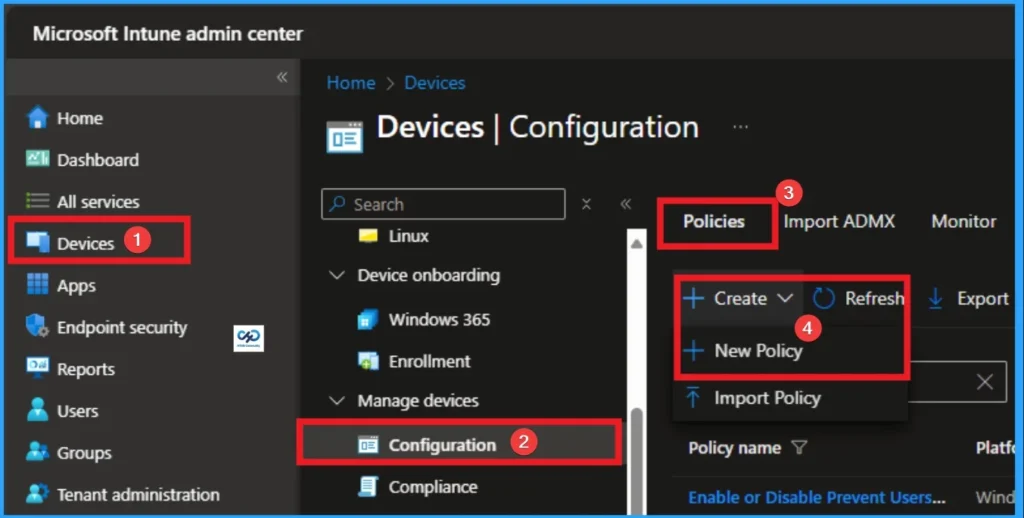
To configure, Hardened UNC Paths in Windows, you have to sign with Intune Portal with your credentials. Navigate to Devices > Configuration > + Create > New Policy.
Create Profile
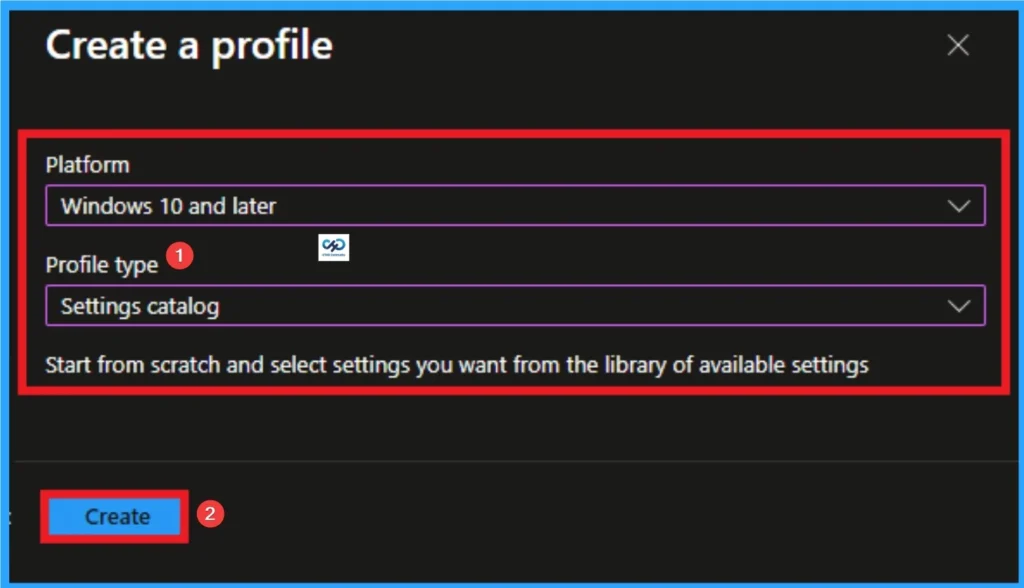
Creating Profile is the next step after clicking on Create button. On this step you can choose platform and profile type. Here I would like to configure the policy to Windows 10 and later platform and settings catalog profile. Then click on the Create button.
Beginning Step
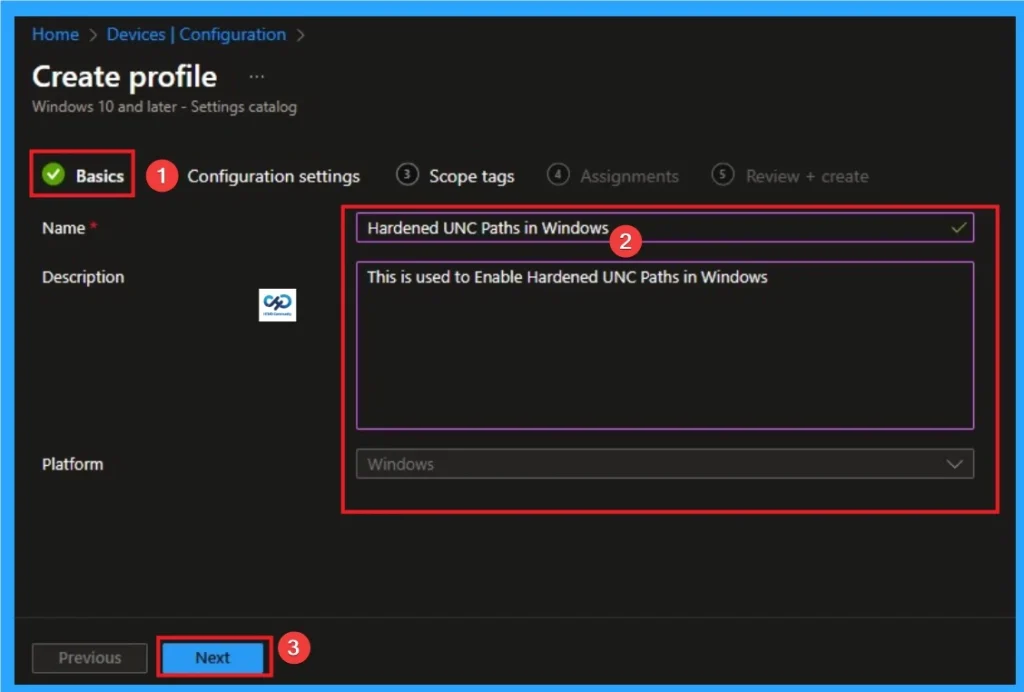
Basic Tab is the first tab that used to add Name and Description for the policy. This is very important step that gives an identity for your policy. Here Name is Mandatory and Description is optional. After adding this, click on the Next button.
Configuration Tab for Selecting Setting
Configuration tab is the crucial step that helps you to choose a settings from different categories available on Microsoft Intune portal. Click on the +Add settings on the Configuration Settings tab. Then choose the Administrative Templates\Network\Network Provider\Hardened UNC Paths.
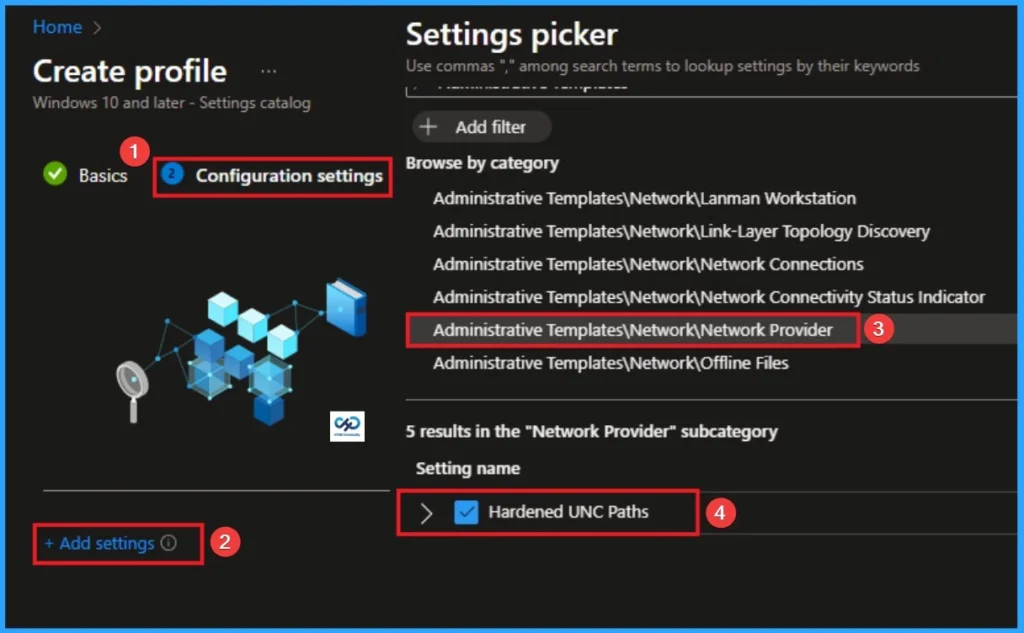
Disable Hardened UNC Paths
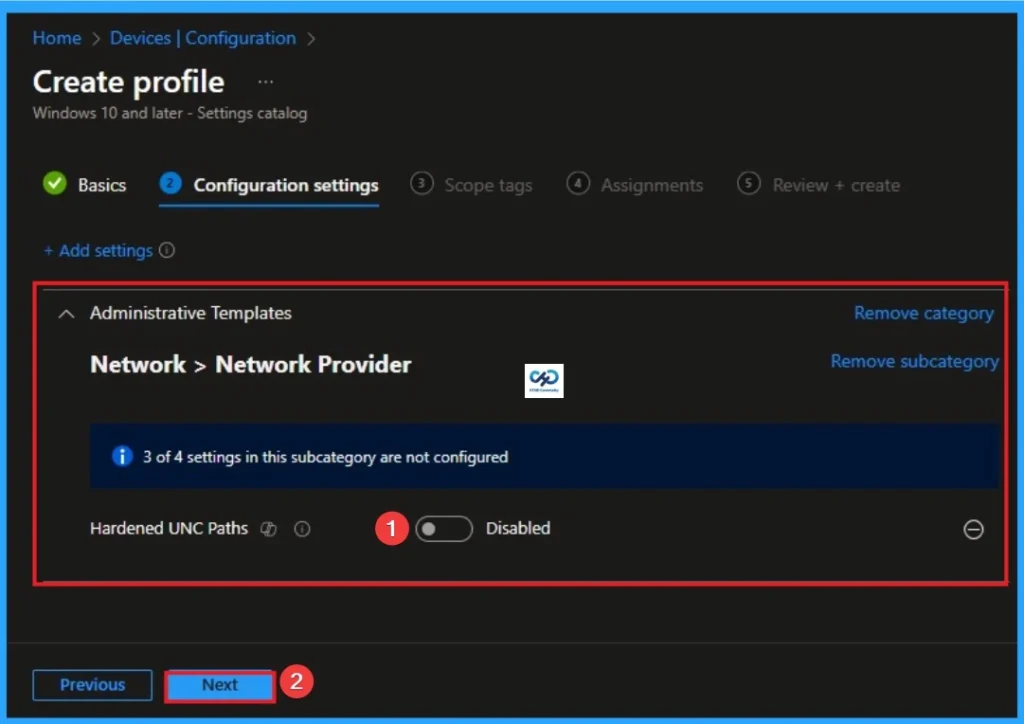
In extremely high-latency satellite environments, the extra “handshakes” required for authentication can occasionally cause slight delays, though this is rare on modern hardware. So you can Disable this policy.
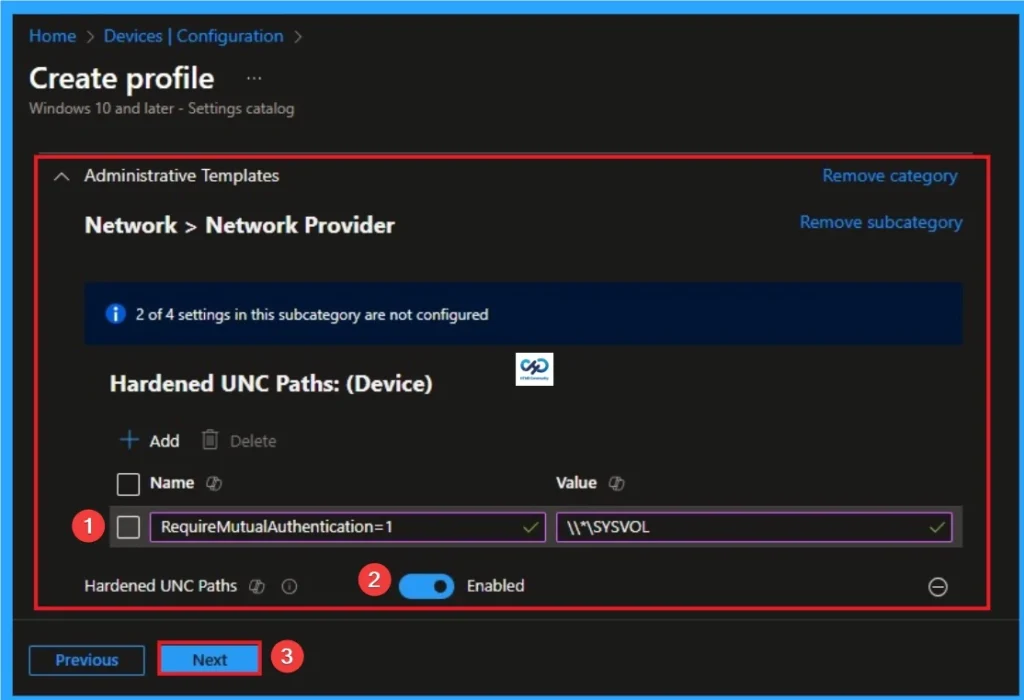
Enable Hardened UNC Paths
Frameworks like NIST, CIS, and HIPAA often require “SMB Signing” and “Mutual Authentication” for sensitive data transit. So you can Enable Hardened UNC Paths.
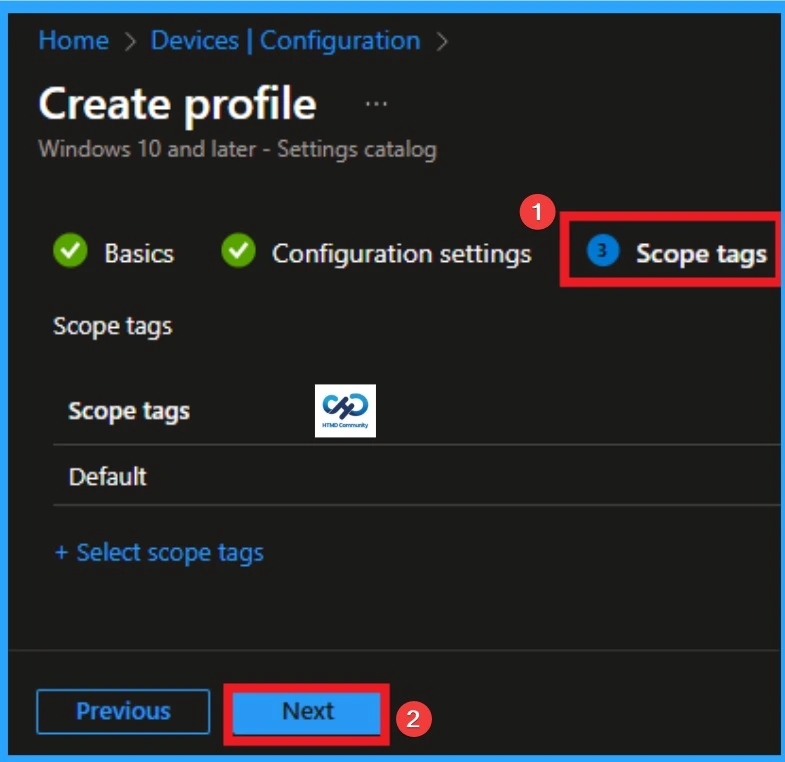
Scope Tags
The next section is the Scope tag and which is not a compulsory step. It helps to assign this policy to a defined group of users or devices. Here, I skip the section and click on the next button.
Assignments
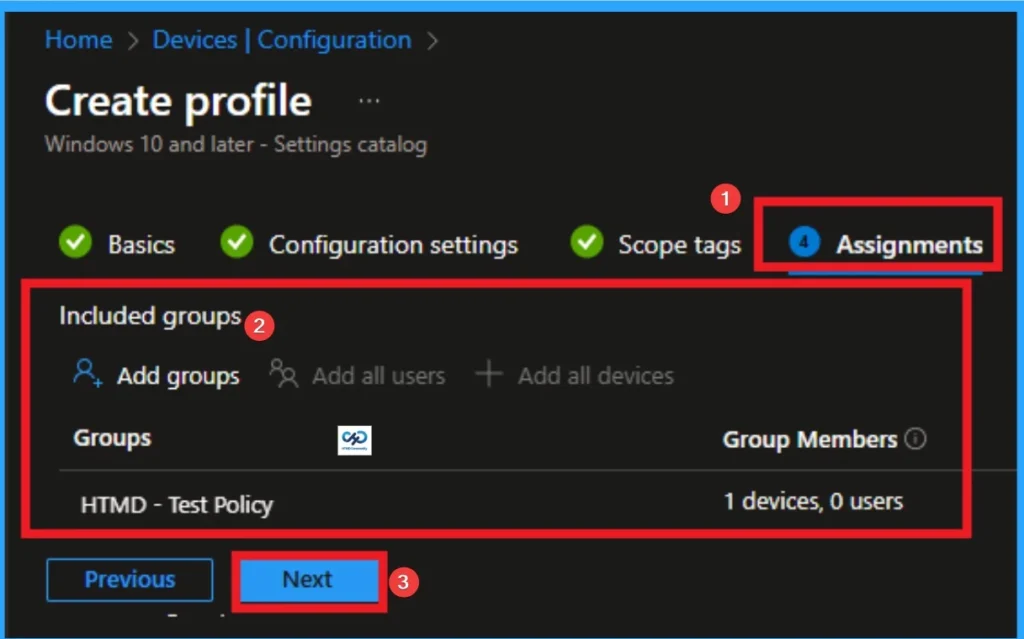
The next step is Assignments. In this section, you can specify which group the policy should be applied to. Our aim is to deploy this policy to a specific group; this step is essential. Look for the Add Groups option under the Include Groups section and click on it.
- After selecting the group, click Next to proceed to the next step.
- A list of available groups will appear and select the group you want to target.
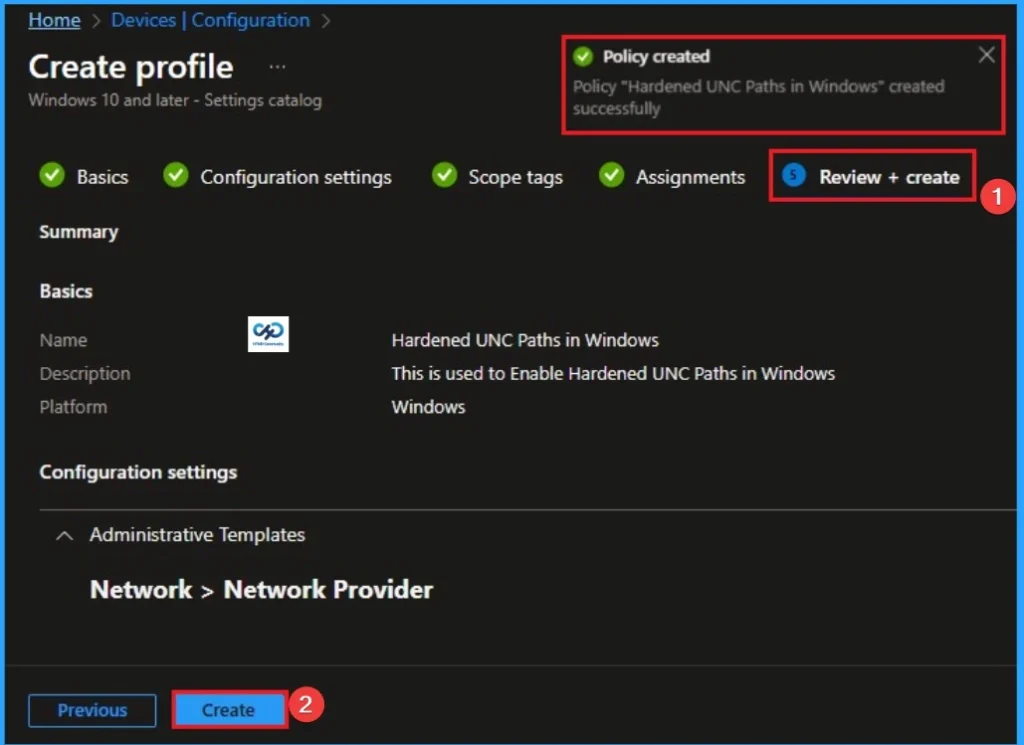
Review + Create in Policy Creation
After the Assignments step, you’ll reach the final tab called Review + Create. In this section, you can see a summary of everything you enter in the previous steps such as details configuration assignment details etc. If you don’t need to change anything, just click on the Review + Create.
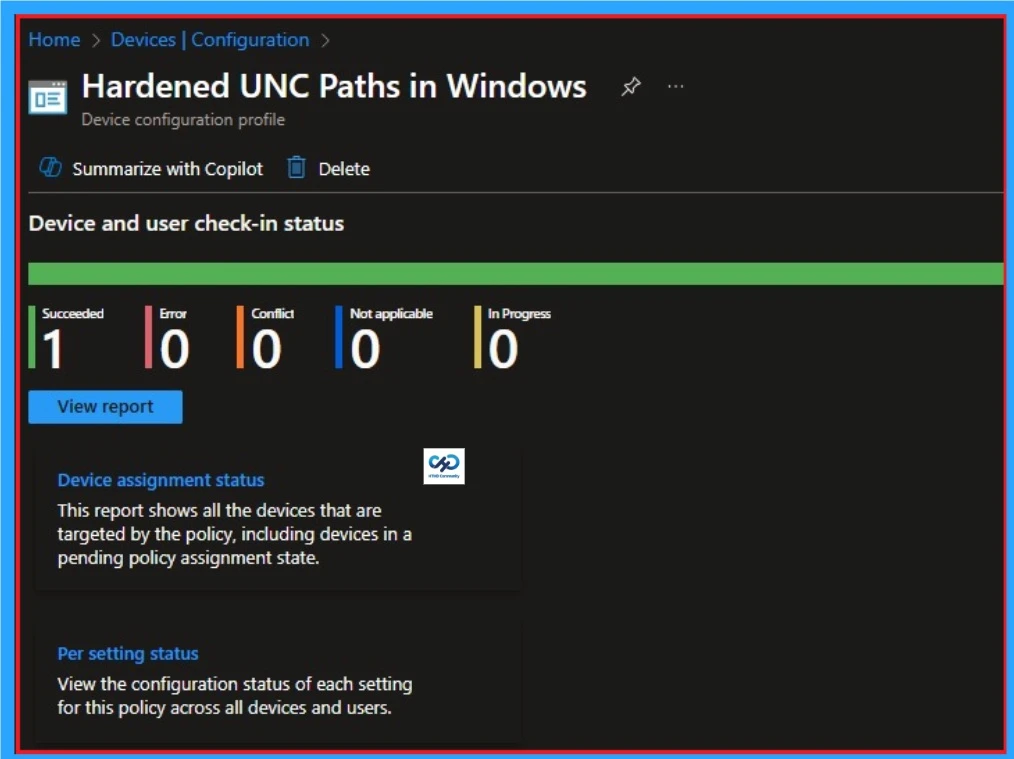
Device and User Check in Status
After creating a policy, we have to monitor that whether the policy was created successfully or not. To check this, you can either wait for up to 8 hours for the policy to apply automatically, or you can reduce the waiting time by manually syncing the policy through the Company Portal.
- It will show is this error successfully deployed or not.
- After syncing, you can check the policy’s status through the Intune Portal.
- To do this, go to Devices > Configuration Profiles.
- In the Configuration policy section, search for the name of the policy you created.
- Then you can get the details below from that Policy
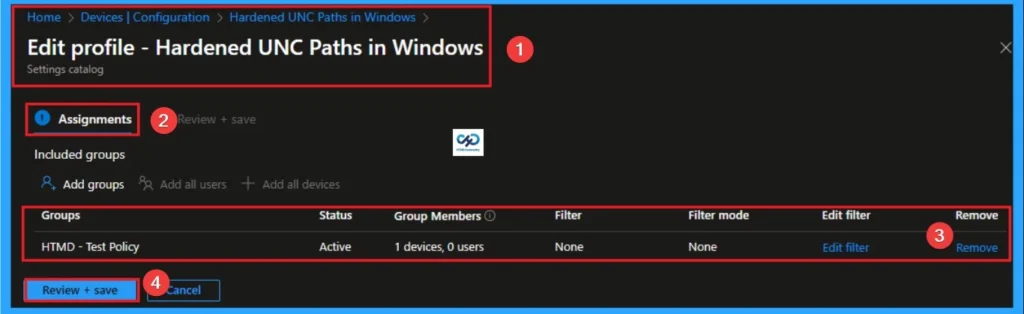
Removing the Assigned Group from Hardened UNC Paths Policy Settings
If you want to remove the Assigned group from the policy, it is possible from the Intune Portal. To do this, open the Policy on Intune Portal and edit the Assignments tab and the Remove Policy.
To get more detailed information, you can refer to our previous post – Learn How to Delete or Remove App Assignment from Intune using by Step-by-Step Guide.
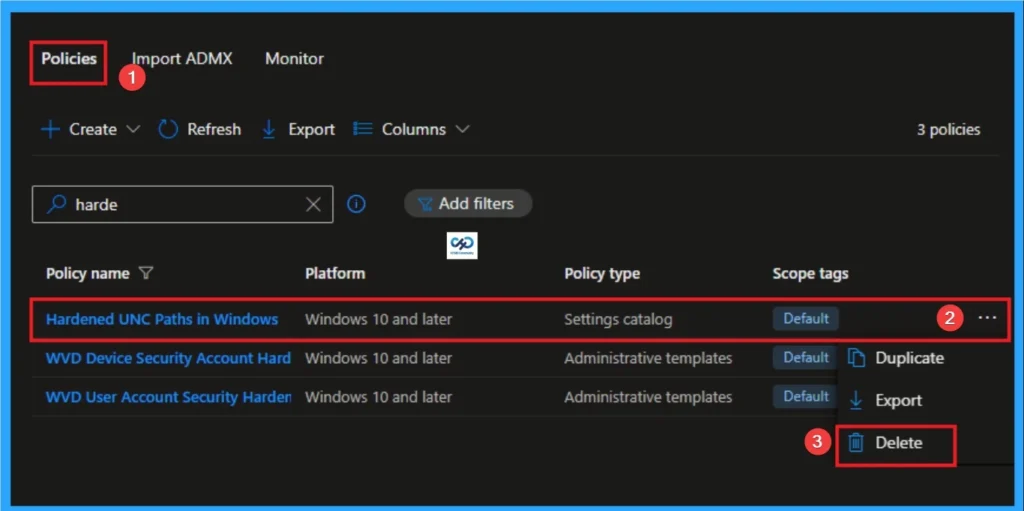
How to Delete Hardened UNC Paths Policy
You can easily delete the Policy from the Intune Portal. From the Configuration section, you can delete the policy. It will completely remove it from the client devices.
For detailed information, you can refer to our previous post – How to Delete Allow Clipboard History Policy in Intune Step by Step Guide.
CSP Details
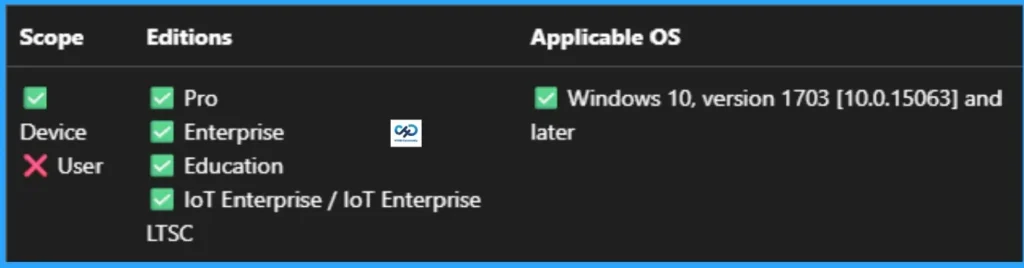
This policy setting configures secure access to UNC paths. This policy is applicable for Windows 10, version 1703 [10.0.15063] and later. The following are the ADMX mapping.
| Name | Value |
|---|---|
| Name | Pol_HardenedPaths |
| Friendly Name | Hardened UNC Paths |
| Location | Computer Configuration |
| Path | Network > Network Provider |
| Registry Key Name | Software\Policies\Microsoft\Windows\NetworkProvider\HardenedPaths |
| ADMX File Name | NetworkProvider.admx |
Need Further Assistance or Have Technical Questions?
Join the LinkedIn Page and Telegram group to get the latest step-by-step guides and news updates. Join our Meetup Page to participate in User group meetings. Also, Join the WhatsApp Community to get the latest news on Microsoft Technologies. We are there on Reddit as well.
Author
Anoop C Nair has been Microsoft MVP from 2015 onwards for 10 consecutive years! He is a Workplace Solution Architect with more than 22+ years of experience in Workplace technologies. He is also a Blogger, Speaker, and Local User Group Community leader. His primary focus is on Device Management technologies like SCCM and Intune. He writes about technologies like Intune, SCCM, Windows, Cloud PC, Windows, Entra, Microsoft Security, Career, etc.