
Key Takeaways
- Device registration in Entra ID does not guarantee Intune enrollment without proper MDM configuration.
- The device is not receiving MDM enrollment details, so Intune enrollment never starts.
- Without MDM enrollment, the device stays SCCM-only, and co-management won’t activate.
- Proper user sign-in, MDM scope, GPO auto-enrollment, and valid tokens (PRT) are required for successful enrollment.
Hybrid Entra ID Joined Device not Enrolling to Intune and Stuck in SCCM Only Mode! The device is successfully connected to Microsoft Entra ID, it is visible in the cloud and recognised by your organisation. However, it is not enrolled in Microsoft Intune, which is required for managing the device. The device is registered but not managed. Because it is not enrolled in Intune, it does not receive any apps, settings, or security policies.
Table of Content
Table of Contents
Hybrid Entra ID Joined Device not Enrolling to Intune and Stuck in SCCM Only Mode
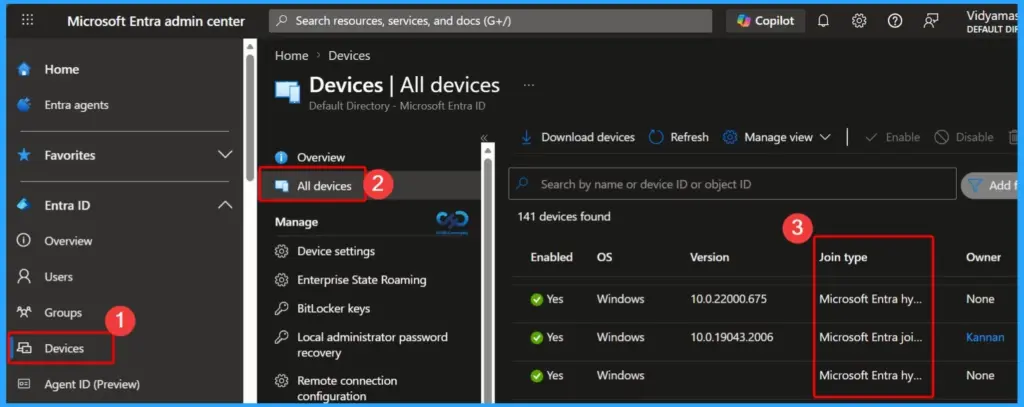
A windows device completes Hybrid Azure AD Join and is registered in Entra ID, but it does not proceed with Intune enrollment. The device is joined and recognized, but the automatic MDM enrollment step is not completed, preventing the device from being managed through Intune.
This issue has been discussed in the Microsoft Tech Community, where several users reported that devices successfully complete Hybrid Entra ID join but fail to proceed with Microsoft Intune enrollment.
- Faster Work Environment Recovery with Windows First Sign-In Restore for Entra and Hybrid Devices
- Troubleshoot and Fix Issue in Duplicate Device Records in Entra ID During Autopilot Hybrid Join
- Free Entra Training Videos | Start Learning Entra ID Azure AD
Result – Hybrid Entra ID Join Without Intune Enrollment
The device is successfully registered and visible in Microsoft Entra ID, but it does not appear in Microsoft Intune, indicating that MDM enrollment has not taken place. As a result, the Intune Management Extension is not installed, and the device continues to be managed only through SCCM. Co-management is never initiated because enrollment is incomplete.

The CoManagementHandler.log confirms this state with the entry: “EnrollmentUrl = (null) Device is not MDM enrolled yet. All workloads are managed by SCCM.”
Hybrid Setup with Co-Management Enabled
The issue occurs in a hybrid environment where devices are joined to on-premises Active Directory and registered in Microsoft Entra ID, with management workloads expected to transition to Microsoft Intune. Co-management is enabled using SCCM, and users are properly licensed with Microsoft 365.
| Environment Details |
|---|
| Windows 10 / Windows 11 devices |
| Hybrid Azure AD Join (on-prem AD + Entra ID) |
| On-premises Active Directory integrated with MECM (Cloud Attach / Co-management enabled) |
| Microsoft 365 E3 license assigned (includes Intune) |
| Device connected to a corporate trusted network |
Troubleshooting Steps
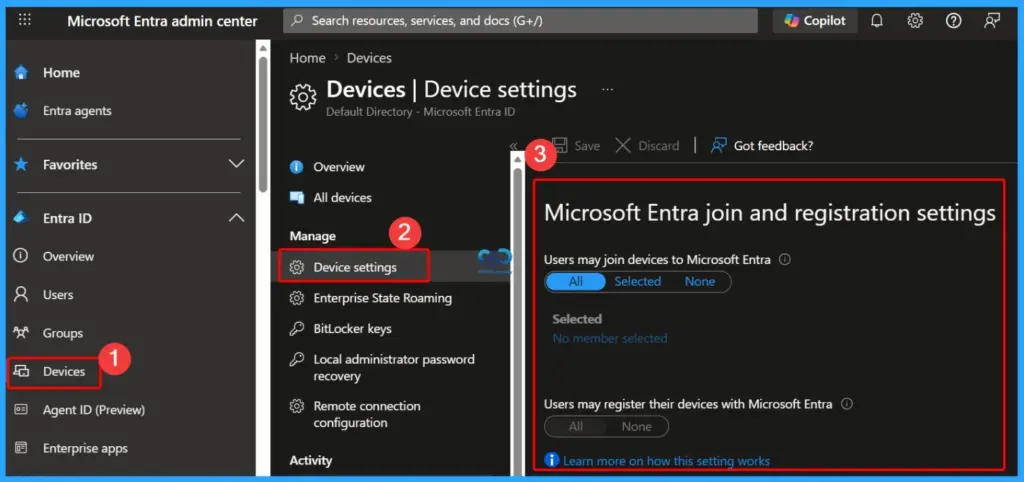
It is important to verify that the device is properly joined to Microsoft Entra ID and confirmed that the MDM URLs are correctly configured. The MDM user scope is set to All, and enrollment restrictions in Microsoft Intune allow Windows devices. I also ensured that the user has a valid Intune license assigned.
Additionally, we identified a Conditional Access policy targeting “Register or join devices” and updated it to exclude Microsoft Intune Enrollment to avoid blocking the enrollment process. After allowing time for policy replication, we retried the enrollment using the command deviceenroller.exe /c /AutoEnrollMDM, but the issue persists.
Updating the Conditional Access Policy to Exclude
After updating the Conditional Access policy to exclude Microsoft Intune Enrollment, the device still does not proceed with enrollment into Microsoft Intune. Although the device is successfully joined and visible in Microsoft Entra ID, the automatic MDM enrollment step is not being triggered, leaving the device unmanaged by Intune.
Cause to the Issue
The cause of the issue is that the GPO is not applying correctly, a missing Primary Refresh Token (PRT), or the auto-enrollment scheduled task is not being created. Due to these factors, the device never triggers the MDM enrollment process and therefore does not reach the Microsoft Intune enrollment stage, even though it is successfully joined to Microsoft Entra ID.
Workaround
Since the device is successfully Hybrid joined to Microsoft Entra ID but never reaches Microsoft Intune, and EnrollmentUrl = null, the problem is clearly happening before the MDM enrollment process starts. The empty GPO folders and missing IME strongly indicate that the enrollment trigger is not being initiated.
- Try the Following Workarounds
- Validate Primary Refresh Token (PRT)
- Run: dsregcmd /status
- Ensure:
- AzureAdPrt = YES
- If NO > sign out and sign back in, or reset work account
- Check Auto MDM Enrollment Scheduled Task
- Go to:
- Task Scheduler > Microsoft > Windows > EnterpriseMgmt
- If no tasks exist > GPO is not applying or not triggering
- Go to:
- Fix Group Policy Application Issue
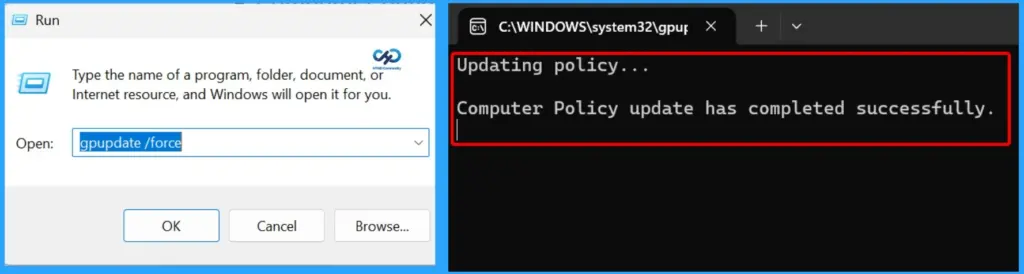
- Run:
- gpupdate /force
- gpresult /h report.html
- Review if the MDM enrollment GPO is actually applied
- Empty GroupPolicy\User folder = user GPO not processing
- Run:
- Check User vs Computer GPO Scope
- Ensure the policy is applied under:
- Computer Configuration (recommended for auto enrollment)
- Also verify security filtering (Authenticated Users / correct group)
- Ensure the policy is applied under:
- Verify Network & DC Connectivity
- Device must contact Domain Controller at logon
- Run:
- nltest /dsgetdc:yourdomain
- If DC is unreachable > GPO will fail silently
- Force Recreate Enrollment Trigger
- Delete existing enrollment registry keys:
- HKLM\SOFTWARE\Microsoft\Enrollments
- HKLM\SOFTWARE\Microsoft\Enrollments\Status
- Reboot device and run:
- deviceenroller.exe /c /AutoEnrollMDM
- Delete existing enrollment registry keys:
- Check SCP Configuration
- Ensure Service Connection Point is correctly configured for Hybrid Join
- Missing/incorrect SCP can block enrollment URL discovery
- Review Event Logs
- Path:
- Event Viewer > Applications and Services Logs >
- Microsoft > Windows > DeviceManagement-Enterprise-Diagnostics-Provider
- Path:
- Look for errors related to:
- Auto enrollment trigger
- MDM URL discovery
- Test with New User Profile
- Log in with another licensed user
- Helps confirm if issue is user-profile related
- Last Option – Rejoin Device
- Leave domain > Rejoin > Trigger Hybrid Join again
- Then test enrollment immediately after login
- Verify MDM User Scope
- Ensure it is set to All or includes the required users
- Path: Intune > Device enrollment > Enrollment restrictions
- Check Auto-Enrollment GPO
- Enable: “Enable automatic MDM enrollment using default Azure AD credentials”
- Ensure it is applied to the correct OU
- If missing > enrollment will never start
- Validate Licensing
- Confirm user has valid Intune license (M365 E3/E5 or standalone)
- No license = no enrollment
- Review Conditional Access Policies
- Excluding Microsoft Intune Enrollment is correct
- Also verify no other Conditional Access policies are blocking silently
- Check Co-Management Configuration
- Validate setup in SCCM
- Ensure workloads are moved to Intune where required
- Validate Primary Refresh Token (PRT)
Need Further Assistance or Have Technical Questions?
Join the LinkedIn Page and Telegram group to get the latest step-by-step guides and news updates. Join our Meetup Page to participate in User group meetings. Also, Join the WhatsApp Community and WhatsApp Channel to get the latest news on Microsoft Technologies. We are there on Reddit as well.
Author
Anoop C Nair has been Microsoft MVP from 2015 onwards for 10 consecutive years! He is a Workplace Solution Architect with more than 22+ years of experience in Workplace technologies. He is also a Blogger, Speaker, and Local User Group Community leader. His primary focus is on Device Management technologies like SCCM and Intune. He writes about technologies like Intune, SCCM, Windows, Cloud PC, Windows, Entra, Microsoft Security, Career, etc