
Key Takeaways
- This policy provides strong control over AI image generation on iOS devices.
- It works effectively on supervised iOS devices.
- When the policy is enabled, AI image generation is blocked.
- When the policy is disabled, users can use image generation features normally.
- Intune helps administrators easily manage and monitor this policy.
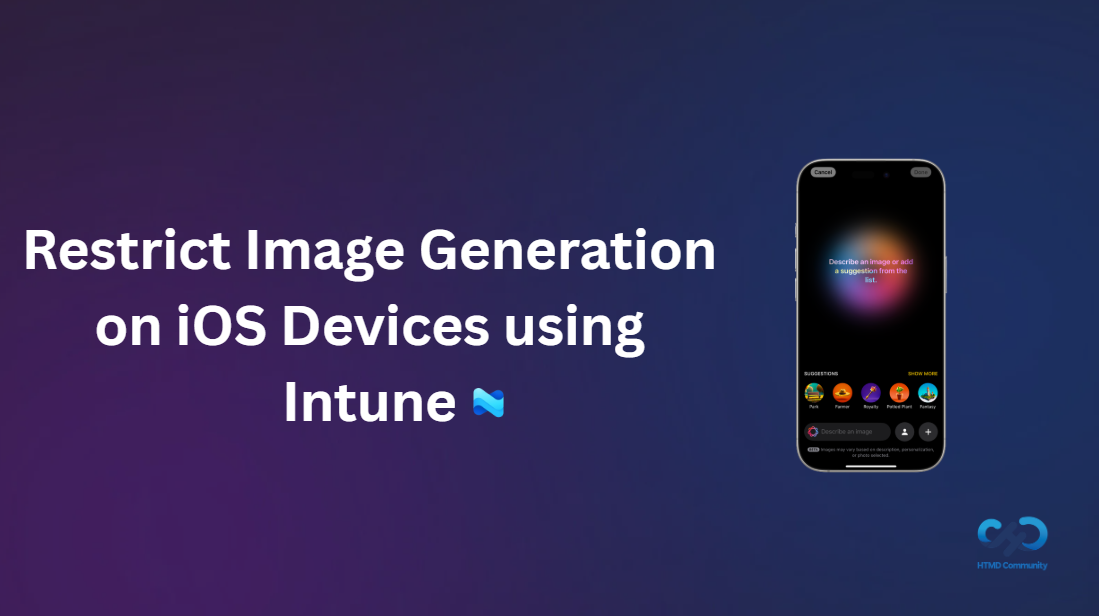
Hey, let’s discuss about Restrict Image Generation on iOS Devices using Intune. This policy helps organizations control image generation features on iOS devices. Image generation tools can create pictures using AI, which may not always be safe for work or company data. By using this policy, admins can decide whether these features should be allowed or blocked on managed devices.
When this policy is enabled, image generation is restricted on iOS devices that are managed through Intune. This means users cannot create Restrict Image Generation using supported apps or system features. It helps prevent misuse and reduces the risk of inappropriate or sensitive content being created on company devices.
This policy is useful for companies that want to maintain professional use of devices. Blocking image generation helps ensure devices are used only for work-related tasks. It also supports company rules around data protection and responsible use of technology.
The policy is especially important in environments like schools, offices, and regulated industries. It helps administrators maintain better control over how advanced features are used. This reduces distractions and keeps users focused on approved activities.

Table of Contents
Restrict Image Generation on iOS Devices using Intune
This policy improves device security and compliance. It gives IT teams more control over iOS devices and ensures company standards are followed. Using Intune to manage this policy makes it easy to apply and monitor across all enrolled devices.
- MS Paint Image Creator Feature to Create Images using AI
- Enable Disable Print PDF as Image Default using Intune Security Policy
- Create AI Images from Microsoft Edge
How this Helps Supervised Devices
This policy is very helpful for supervised iOS devices because supervised devices allow stronger controls from Intune. When image generation is blocked on supervised devices, administrators can fully prevent users from accessing AI image creation features. This ensures the device is used only for approved purposes, especially in company owned or school owned devices. It also improves security, reduces misuse, and makes sure organizational rules are strictly enforced.
Create a Profile
Let’s see how this policy can be deployed through the Microsoft Intune Admin Center. First, go to the Devices section. In Devices, select Configurations. In Configurations, click on the Create policy option. Next, fill in the Platform and Profile type details in the Create profile window.
- Set Platform to iOS/iPadOS and set Profile type to Settings catalog.
- Then click Create.

Basic Step
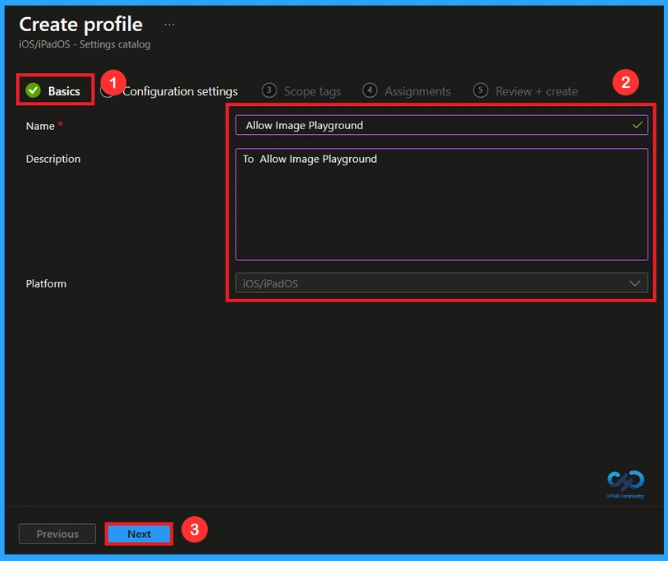
The Basic details are very important here you have to enter the basic details such as name and description. The Description is mandatory, but you can enter the description to understand the policy later. Click Next to continue.
Configuration Settings
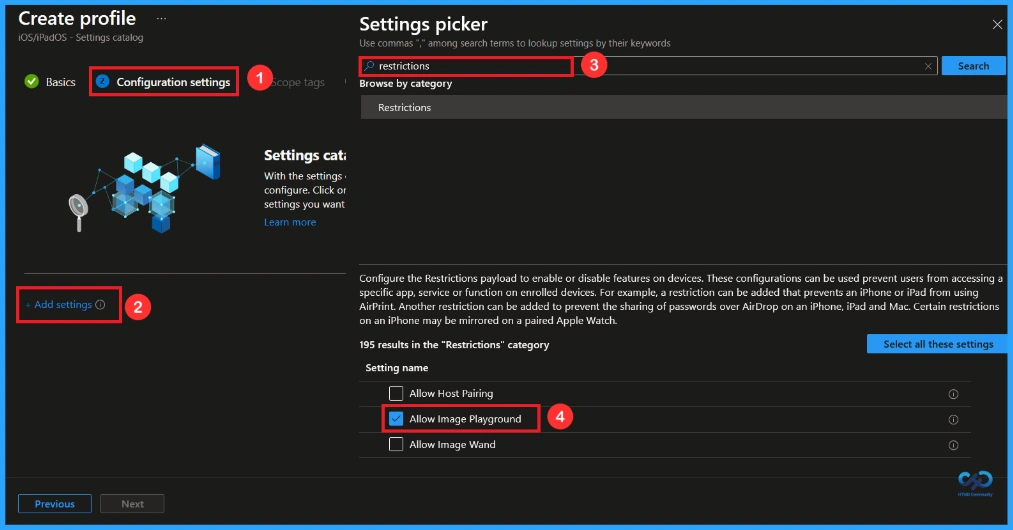
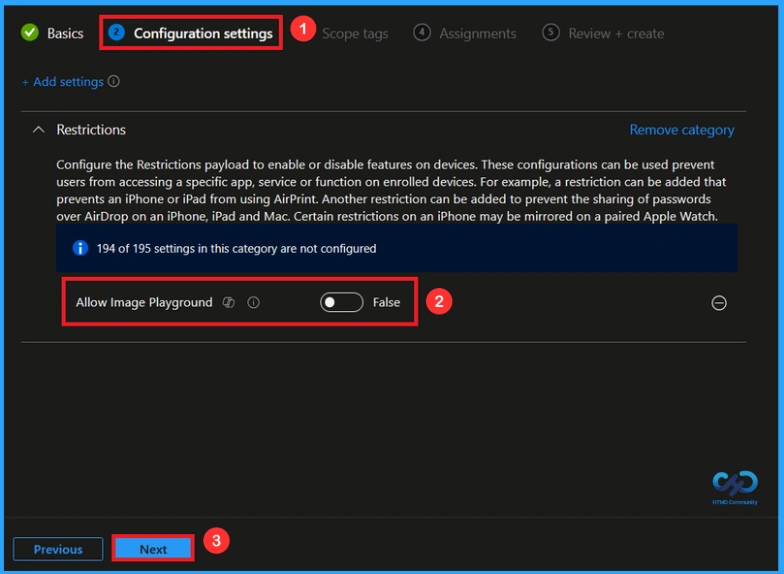
Now, let’s see how to configure this setting in the Settings picker. First, click on Add settings. This opens the Settings picker window. In the search box, type Restrictions and select the setting as Allow image playground.
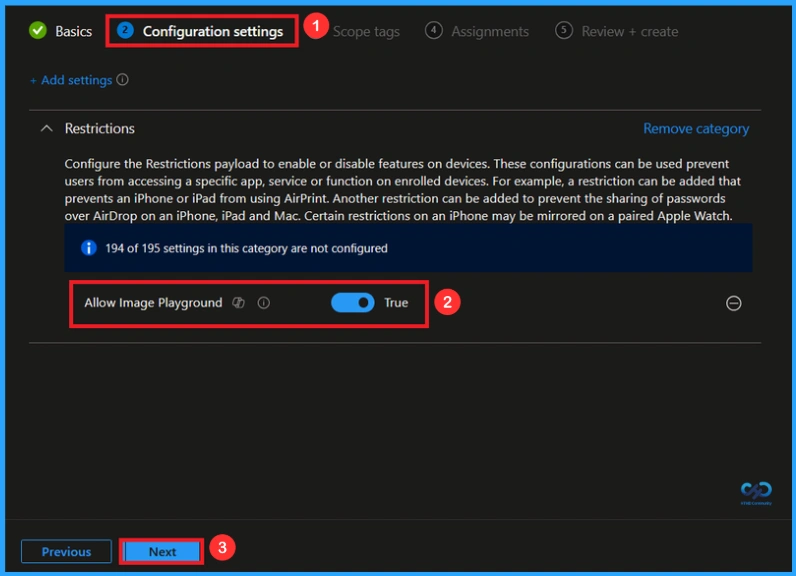
By default, you should understand that a policy can be either enabled or disabled. In this case, the policy is enabled by default. If you want to keep it in the enabled mode, you have to click Next to continue.
Disable Image Playground Policy
The next step is disabling the policy. This is very simple to do. By default, the policy is set to enabled. To disable it, move the toggle switch from right to left. Once you do this, the policy status changes to Disabled. Click Next to Proceed.
Scope Tag
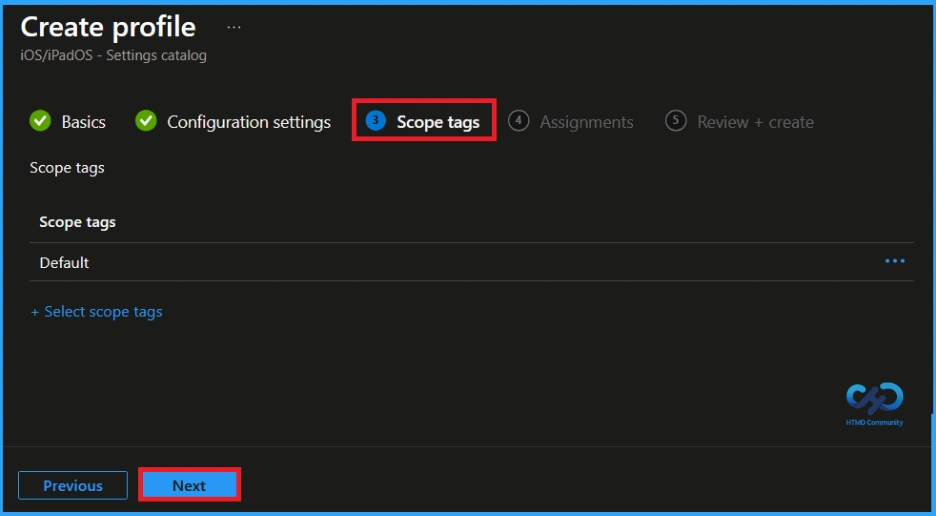
Now you are on the Scope tags section. Scope tags are used to assign policies to specific admin groups for better management and filtering. If needed, you can add a scope tag here. However, for this policy, I chose to skip this section.
Assignments
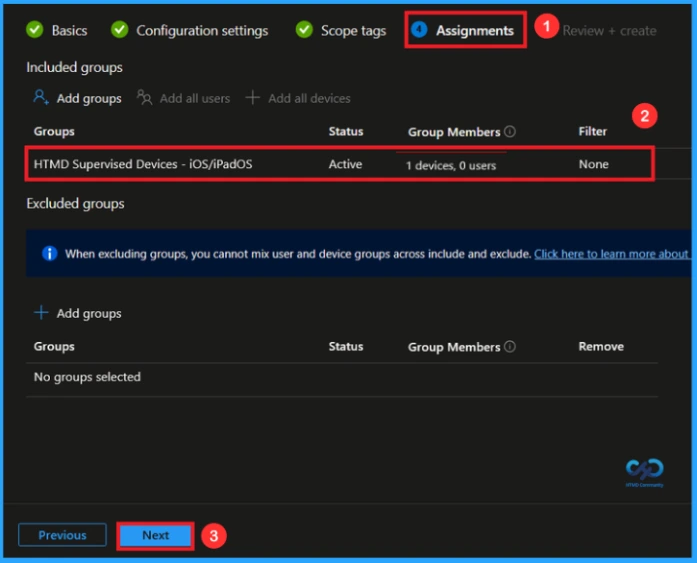
Next, you’ll reach the Assignments section, which is a very important step. This is where you decide which user or device groups should receive the policy. In this case, I selected the specific group(HTMD Supervised Devices – iOS/iPadOS). After selecting the group, click Next to continue.
Final Step
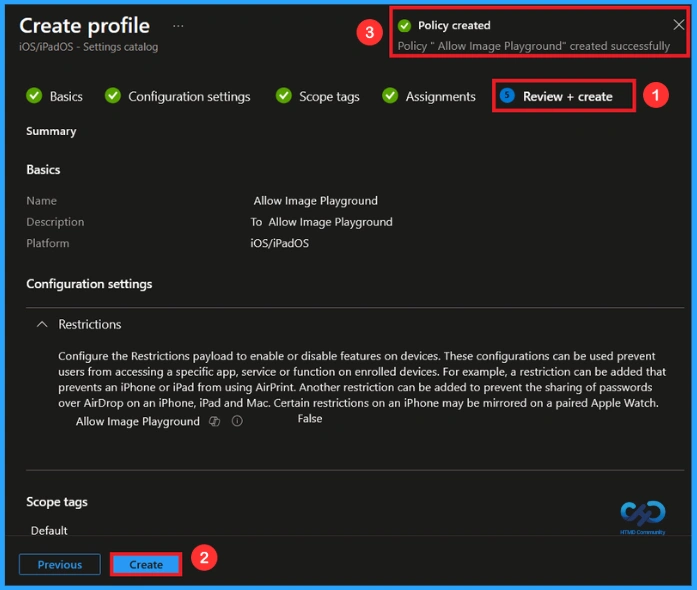
In this step, you will see a summary of all the details, including Basics, Configuration Settings, Assignments, and more. You can review all the information, and if anything needs to be changed, you can go back to the previous steps and edit them easily. In the Review + Create section, you will see a Create button. After clicking Create, you can see a notification “Allow image playground created successfully”.
Monitoring Status
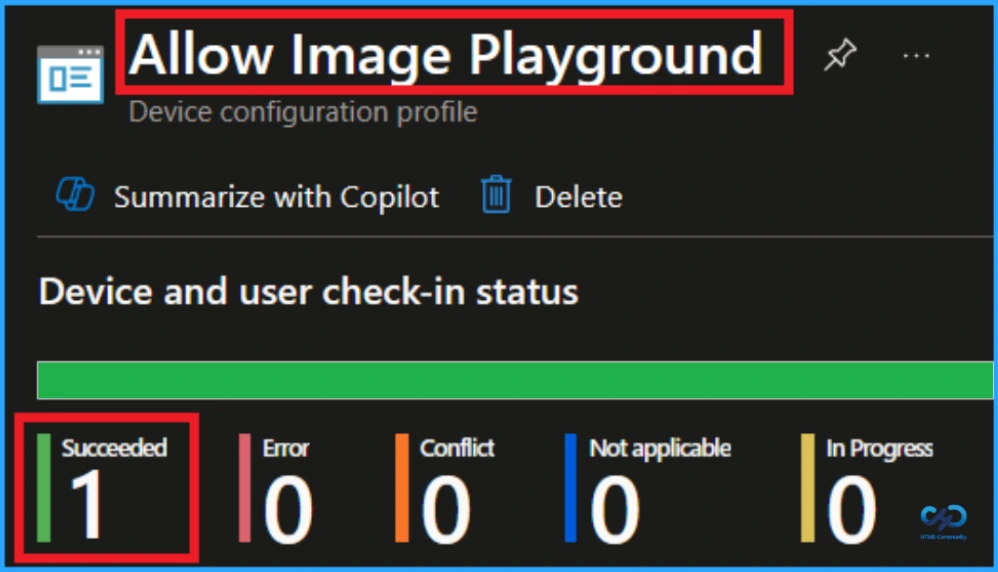
In the Device and User Check-In Status section for the Allow image playground policy, you can see the deployment results. The status shows Succeeded(1) meaning one device or user has successfully received and applied the policy.
How to Check on End User Device
On the end user’s iOS device, open the Settings app and go to General. Tap VPN & Device Management and select the MDM profile installed by Intune. Inside the profile details, users can see the restrictions applied to the device. If image generation is blocked, related AI image creation features or options will not be available or will be disabled in supported apps, confirming that the policy is applied successfully.
How to Remove Assigned Group from this Policy
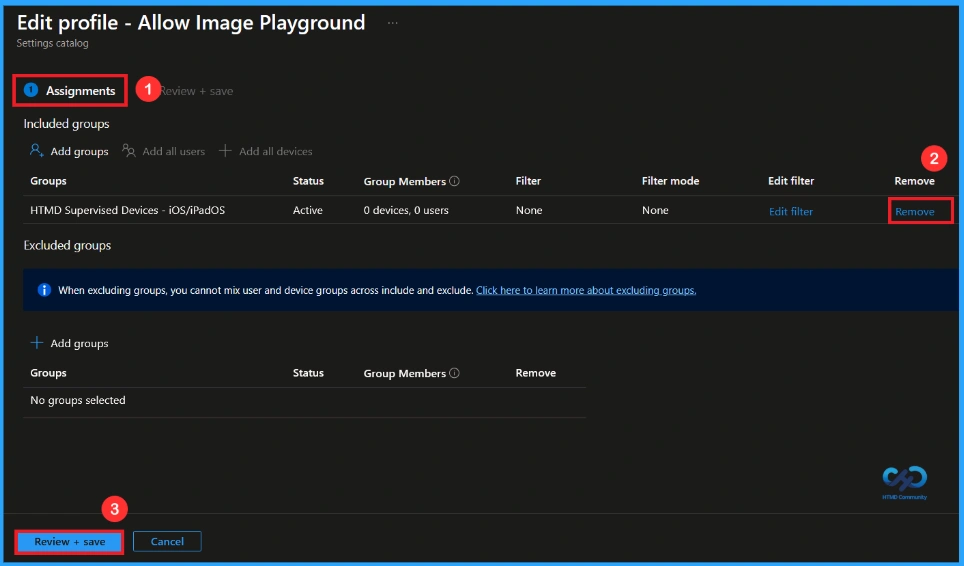
Start by navigating to the Monitoring status page via Devices > Configuration. Search for the policy by name and click on it to open its monitoring details. Scroll down to the Assignments section and click Edit. This will take you back to the policy’s assignment settings. From here, you can remove the group you no longer want the policy to apply to.
For detailed information, you can refer to our previous post – Learn How to Delete or Remove App Assignment from Intune using by Step-by-Step Guide.
How to Delete this Policy from Intune
To delete a policy in Intune first sign in to the Microsoft Intune Admin Center. Navigate to Devices and then select Configuration. Locate and select the specific policy you want to delete. Once you’re on the policy details page, click the 3 -dot menu in the top right corner and choose Delete from the available options.
For more information, you can refer to our previous post – How to Delete Allow Clipboard History Policy in Intune Step by Step Guide.

Need Further Assistance or Have Technical Questions?
Join the LinkedIn Page and Telegram group to get the latest step-by-step guides and news updates. Join our Meetup Page to participate in User group meetings. Also, join the WhatsApp Community to get the latest news on Microsoft Technologies. We are there on Reddit as well.
Author
Anoop C Nair has been Microsoft MVP for 10 consecutive years from 2015 onwards. He is a Workplace Solution Architect with more than 22+ years of experience in Workplace technologies. He is a Blogger, Speaker, and Local User Group Community leader. His primary focus is on Device Management technologies like SCCM and Intune. He writes about technologies like Intune, SCCM, Windows, Cloud PC, Windows, Entra, Microsoft Security, Career, etc.