
Key Takeaways:
- Microsoft Edge for Business profiles now support Intune App Protection Policies
- Protection for agency-managed Windows PCs Available on Public Preview
- Policies in Microsoft Entra can enforce APP at the profile level
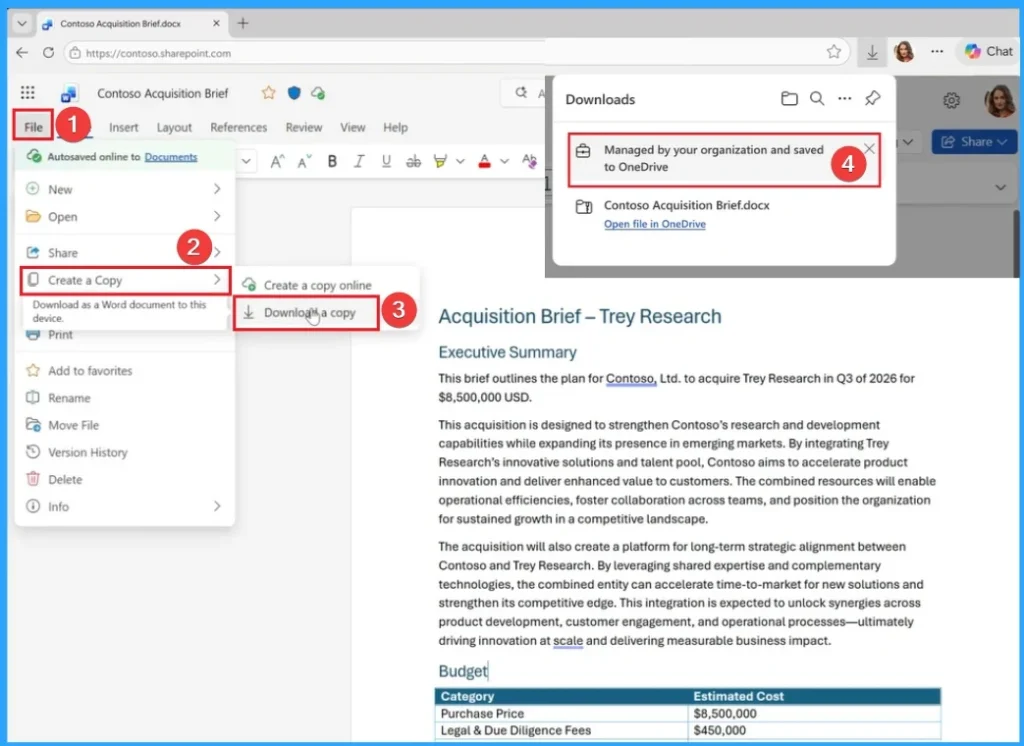
- Admins can configure rules such as restricting copy/paste, redirecting downloads to OneDrive for Business
Let’s discuss about Intune Dual Management: How to Manage Data on Contractors Already Managed Devices using Intune and Edge for Business. Microsoft introduced a new feature called protection for agency-managed Windows PCs in Edge for Business.
Table of Contents
Table of Contents
Intune Dual Management: How to Manage Data on Contractors Already Managed Devices using Intune and Edge for Business
Microsoft Edge for Business now extends Intune app protection policies (APP) to the Edge for Business work profile on Windows PCs managed by another organization. This new feature is now available on Public Preview.
This new feature is designed to helps organizations to protect work contractors do in the browser, while respecting existing device ownership and management boundaries.
| Key Capabilities |
|---|
| Browser-level protection through the Edge work profile |
| Tenant-scoped controls within Edge for Business |
- How to use Entra Require App Protection Policy in Conditional Access for Secure Access
- Monitor Intune App Protection Policy Status
- Auto Rollout of Conditional Access Policy from Microsoft Entra ID Coming Soon
How to Enable Protection for Agency-Managed Windows PCs in Edge for Business
You can easily access the rotection for agency-managed Windows PCs in Edge for Business feature with few steps. First you must Ensure users are running the latest Edge for Business version, which supports work profiles with APP.

Steps in Entra Portal
Go to Microsoft Entra admin center. Sign in with Global Administrator or Security Administrator rights. Navigate to Protection > Conditional Access > Policies. Create a new policy targeting
- Cloud apps > Select Microsoft Edge.
- Users/groups (e.g., contractors, partner orgs).
- Under Grant controls, choose Require app protection policy instead of requiring full device compliance.
User Sign‑In Flow
Then users can open the edge for business and sign in with their work account. The updated Entra registration flow ensures, No unintended device enrollment happens (important for agency‑managed PCs), nly the profile is registered.
Steps in Intune Portal
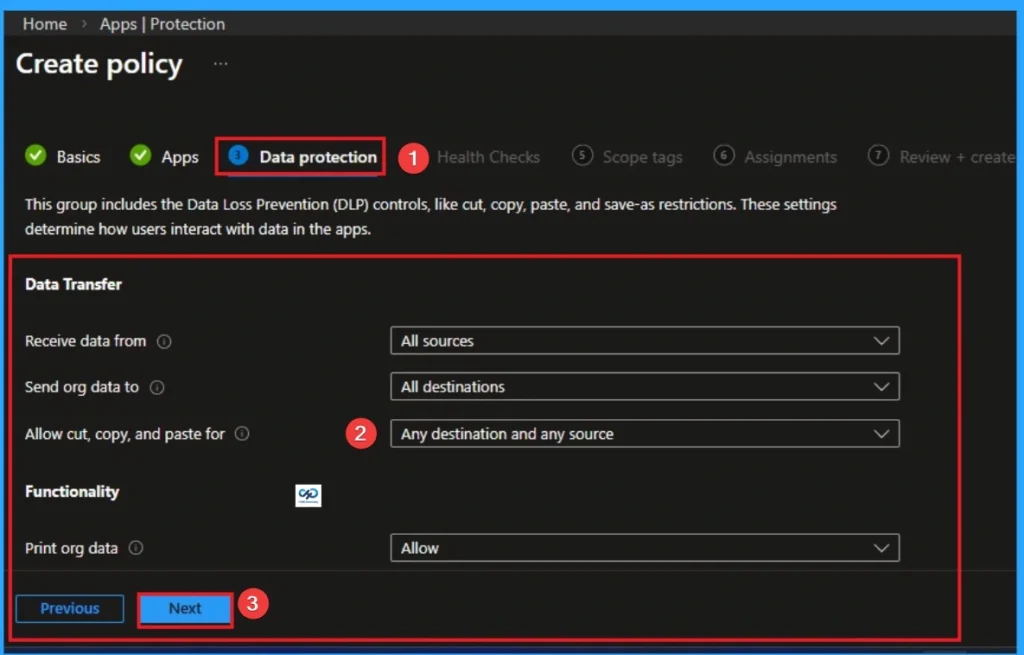
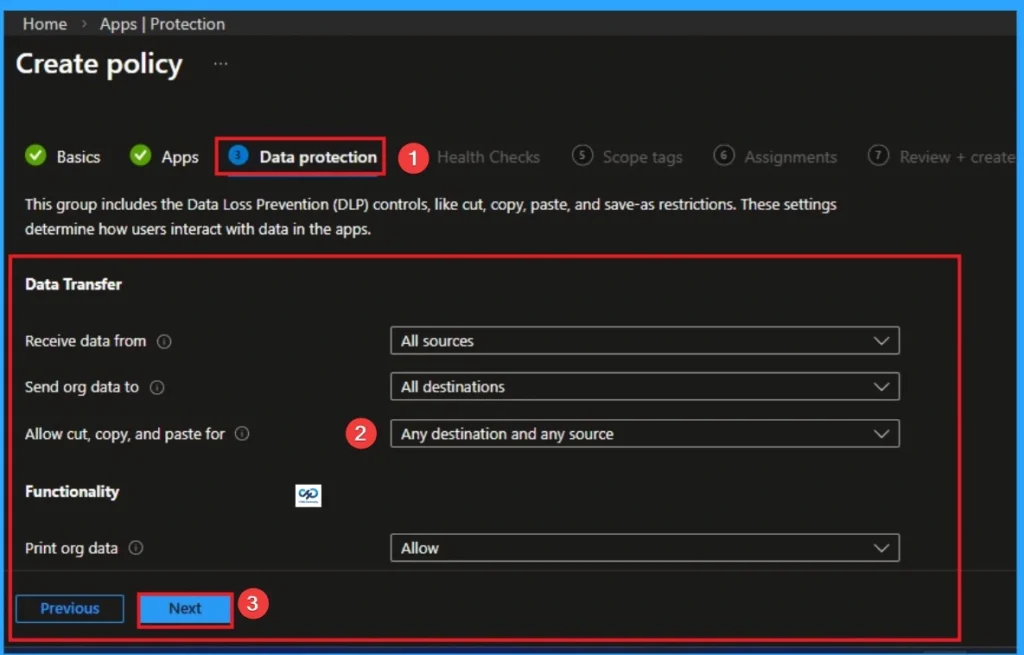
In Intune, create an App Protection Policy for Microsoft Edge and then Define rules. Look at the below list to know the rules.
- Restrict copy/paste between work and personal profiles
- Redirect downloads to OneDrive for Business
- Enforce encryption and conditional access boundaries
Add Microsoft Purview DLP (Optional)
In Entra, go to Data Loss Prevention (DLP). Apply inline rules to block sensitive actions (uploads, downloads, printing) inside the Edge work profile.
Need Further Assistance or Have Technical Questions?
Join the LinkedIn Page and Telegram group to get the step-by-step guides and news updates. Join our Meetup Page to participate in User group meetings. Also, Join the WhatsApp Community and WhatsApp Channel to get the latest news on Microsoft Technologies. We are there on Reddit as well.
Author
Anoop C Nair has been Microsoft MVP for 10 consecutive years from 2015 onwards. He is a Workplace Solution Architect with more than 22+ years of experience in Workplace technologies. He is a Blogger, Speaker, and Local User Group Community leader. His primary focus is on Device Management technologies like SCCM and Intune. He writes about technologies like Intune, SCCM, Windows, Cloud PC, Windows, Entra, Microsoft Security, Career, etc.