
In this post we are discussing Reducing Security Risks by Restricting Anonymous Access Using Intune Policy. In a Windows computer, some system resources like shared folders and named pipes are used so that computers and services can communicate with each other. In the past, Windows allowed some of these resources to be accessed without a username or password.
This type of access is called anonymous or null session access. While it was useful earlier, it is not safe for today’s security needs. Anonymous access can be misused by attackers to collect information from a computer. Even without logging in, they may try to see shared resources or system details. This makes the system more open to security threats.
Because of this risk, modern Windows systems are designed to limit what anonymous users can access. This security setting controls how anonymous access works on a device. When it is enabled, the system allows anonymous users to access only the specific shares and named pipes that are clearly allowed by the administrator.
This helps the system follow a least access approach, where only what is necessary is allowed. This policy is important because it blocks a common method used by attackers to explore a network. Without anonymous access, it becomes much harder for them to find user accounts, services, or shared folders. This simple restriction adds an extra layer of protection without affecting normal users.

Table of Contents
Reducing Security Risks by Restricting Anonymous Access Using Intune Policy
The setting works quietly in the background by applying a system-level rule. It uses a built-in Windows control that makes sure the restriction stays active even after restarts. Since this behavior is already the default in modern Windows versions, enabling it does not disturb regular work or applications.
For organizations, this policy helps keep systems safer and Employees continue to work as usual, while the system automatically blocks unnecessary anonymous connections.
- Benefits of OneDrive Hide Deleted Files Reminder using Intune Policy
- Prevent users from Moving their Windows Known Folders to OneDrive
- Enable Removable Drive Locations Policy in Windows for Indexing Control using Intune
Create Profile
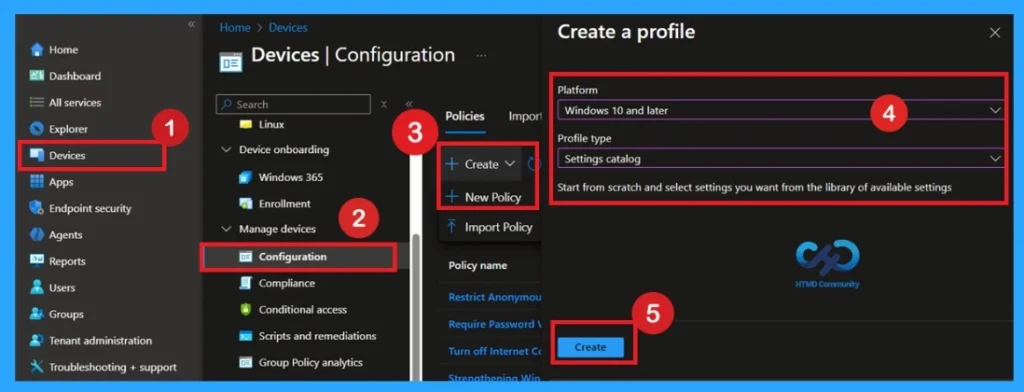
Now, let’s see how this policy can be deployed through the Microsoft Intune Admin Center. First, go to the Devices section. In Devices, select Configurations. In Configurations, click on the + Create policy option. Next, fill in the Platform and Profile type details in the Create profile window.
- Set Platform to Windows 10 and later and set Profile type to Settings catalog.
- Then click Create.
What are Basics
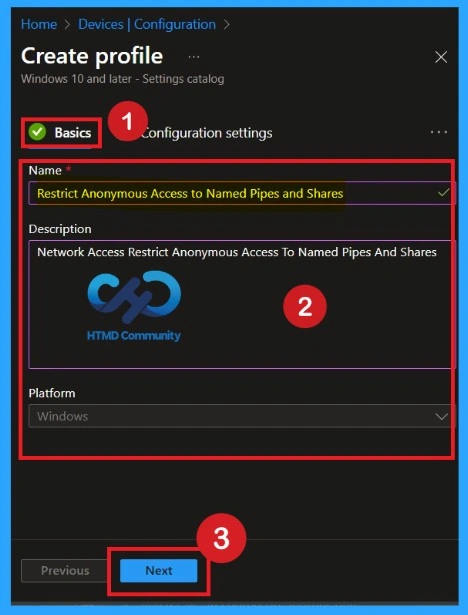
The Basic details are very important here you have to enter the basic details such as name and description. The Description is mandatory, but you can enter the description to understand the policy later. The platform is already selected as Windows so you don’t need to do anything.
- Click on Next.
How to Deal with Configurations Settings Picker
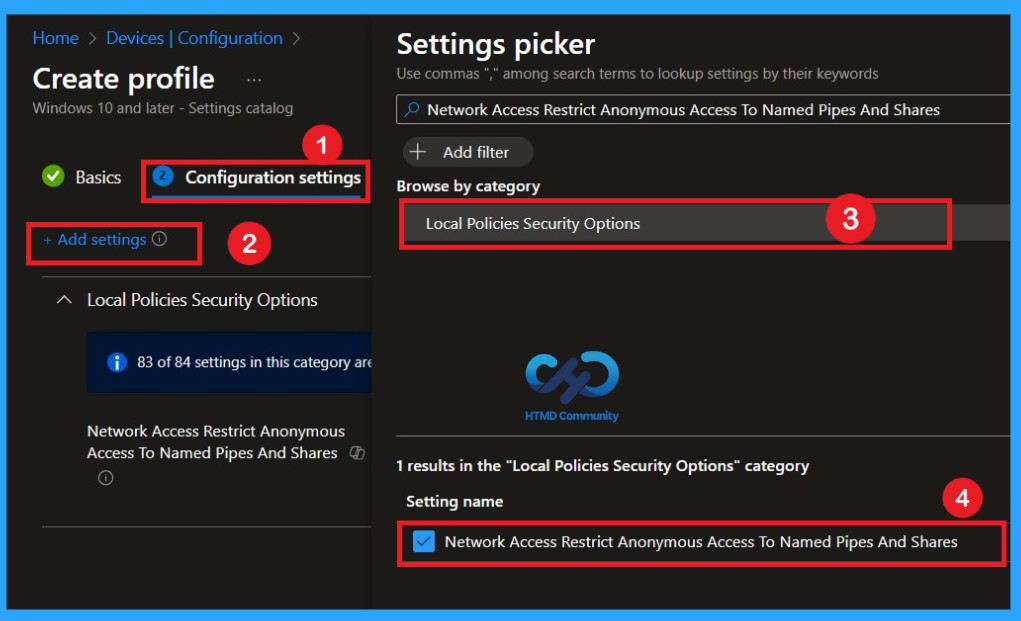
Now, let’s see how to configure this setting in the Settings picker. First, click on Add settings. This opens the Settings picker window. In the search box, type Network access Restrict anonymous access to named pipes and shares. From the results, select the Local Policies Security Options category. Then choose the policy Network access: Restrict anonymous access to named pipes and shares. Once the policy is selected, close the Settings picker window to return to the configuration page.
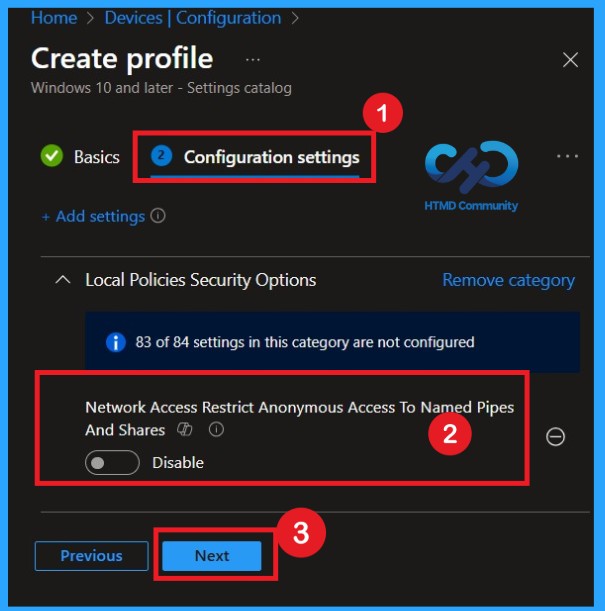
Disable the Policy
By default, you should understand that a policy can be either enabled or disabled. In this case, the policy is disabled by default. If you want to keep it in the disabled mode, you have to click Next to continue.
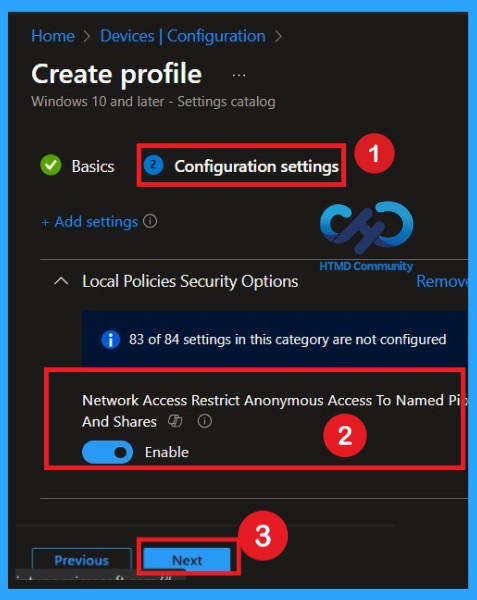
Enable the Policy
The next and most important step is enabling the policy. This is very simple to do. By default, the policy is set to Disabled. To enable it, move the toggle switch from left to right. Once you do this, the policy status changes to Enabled, as recommended in the CIS documentation.
- Enabling this policy helps create a more secure environment.
- After enabling the setting, click Next to continue.
What is Scope Tag
Now you are on the Scope tags section. Scope tags are used to assign policies to specific admin groups for better management and filtering. If needed, you can add a scope tag here. However, for this policy, I chose to skip this section.

Importance of Assignments
Next, you’ll reach the Assignments section, which is a very important step. This is where you decide which user or device groups should receive the policy. In this case, I selected the specific group I wanted to apply the policy to. After selecting the group, click Next to continue.

Review + Create
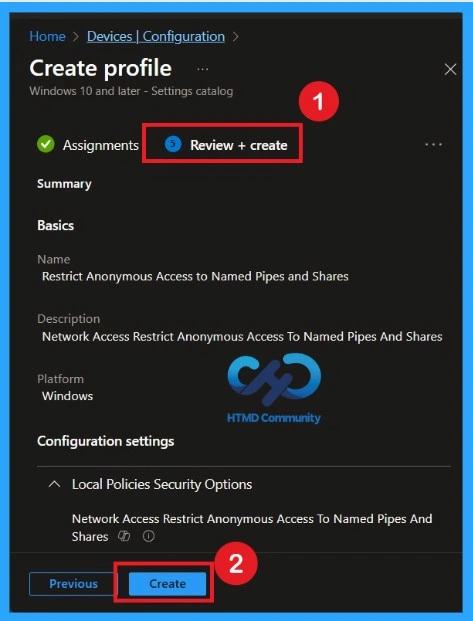
Review + Create is the final stage of policy creation. In this step, you will see a summary of all the details, including Basics, Configuration Settings, Assignments, and more. You can review all the information, and if anything needs to be changed, you can go back to the previous steps and edit them easily. In the Review + Create section, you will see a Create button.
Monitoring Status
After the policy is created, the main concern is whether it has been successfully deployed. Typically, it can take up to 8 hours for the policy to apply. This is the minimum waiting period. However, you can manually sync the policy through the Company Portal, which helps to apply the policy more quickly. To check if the policy has been successfully deployed.
- In the Configuration Policies list, look for the policy you created.
- Click on the policy to view its deployment status and detail
- Sign into the Microsoft Intune Admin Center.
- Navigate to Devices > Configuration Policies.
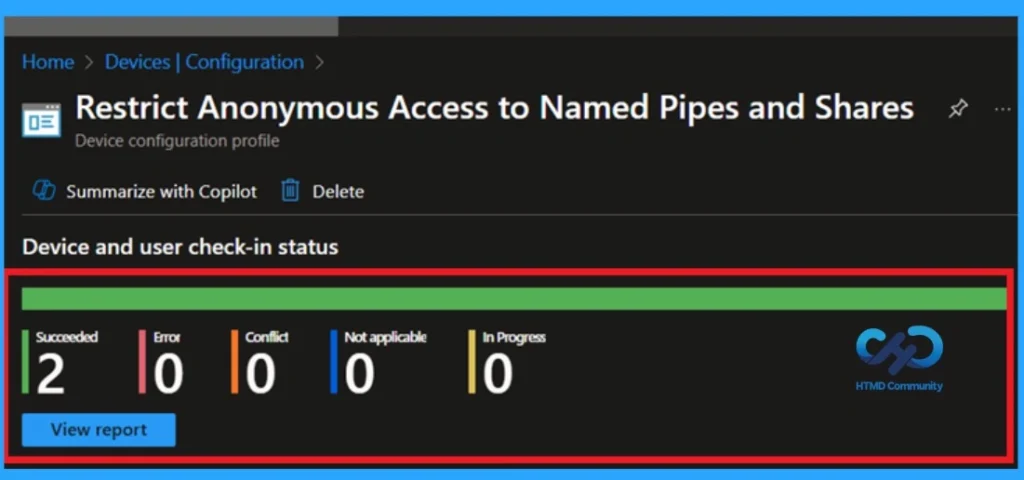
Delete the Policy
To delete a policy in MS Intune first sign in to the Microsoft Intune Admin Center. Navigate to Devices and then select Configuration. Locate and select the specific policy you want to remove. Once you’re on the policy details page, click the 3 -dot menu in the top right corner and choose Delete from the available options.
For more information, you can refer to our previous post – How to Delete Allow Clipboard History Policy in Intune Step by Step Guide.
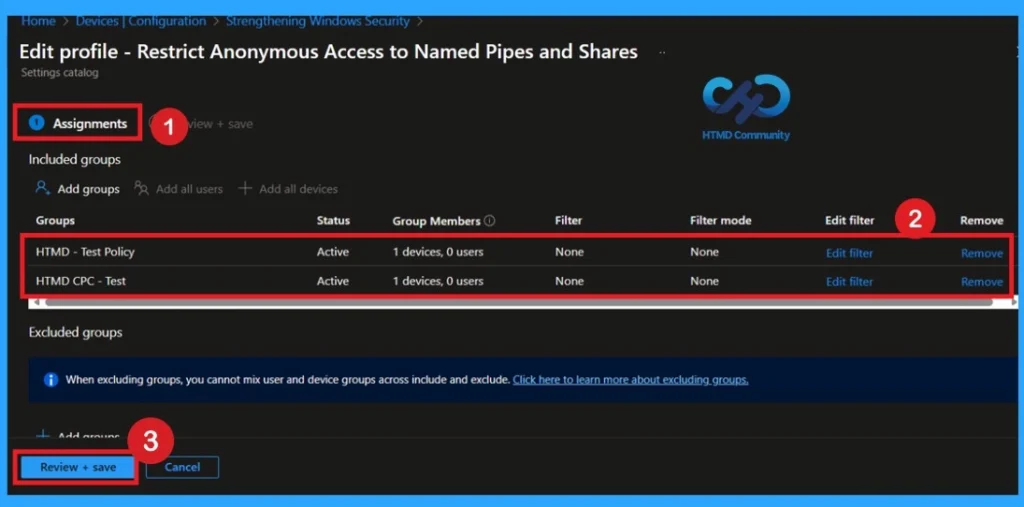
How to Remove Policy Group
Start by navigating to the Monitoring status page via Devices > Configuration. Search for the policy by name and click on it to open its monitoring details. Scroll down to the Assignments section and click Edit. This will take you back to the policy’s assignment settings.
- From here, you can remove the group you no longer want the policy to apply to.
For detailed information, you can refer to our previous post – Learn How to Delete or Remove App Assignment from Intune using by Step-by-Step Guide.
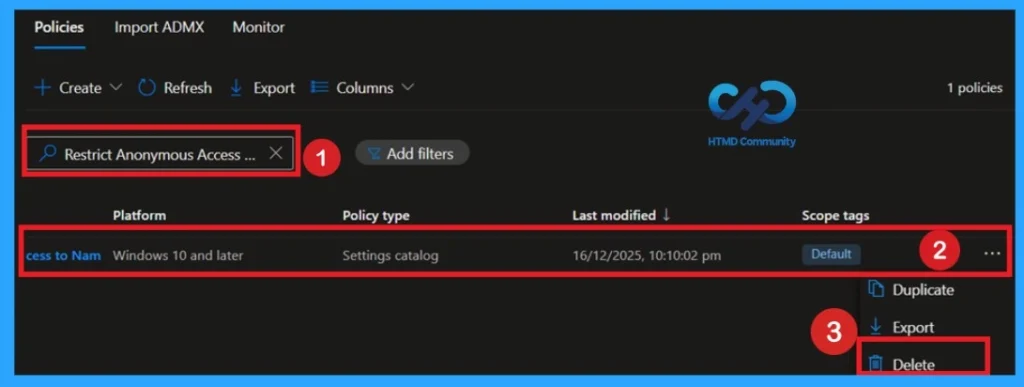
Need Further Assistance or Have Technical Questions?
Join the LinkedIn Page and Telegram group to get the latest step-by-step guides and news updates. Join our Meetup Page to participate in User group meetings. Also, join the WhatsApp Community to get the latest news on Microsoft Technologies. We are there on Reddit as well.
Author
Anoop C Nair has been Microsoft MVP for 10 consecutive years from 2015 onwards. He is a Workplace Solution Architect with more than 22+ years of experience in Workplace technologies. He is a Blogger, Speaker, and Local User Group Community leader. His primary focus is on Device Management technologies like SCCM and Intune. He writes about technologies like Intune, SCCM, Windows, Cloud PC, Windows, Entra, Microsoft Security, Career, etc.