
Key Takeaways
- Enabling Safe DLL (Dynamic link Library) Search Mode ensures Windows checks trusted system locations first, reducing the risk of DLL hijacking attacks.
- Programs load DLL files only when needed, instead of storing all code inside the app.
- This saves disk space and improves system efficiency.
- Windows uses DLLs for basic tasks like opening files, showing windows, or connecting to networks.
- Because many programs depend on DLLs, loading the wrong DLL can be dangerous.
Here, in this post we are discussing Improving Windows Application Security by Controlling DLL Search Order Using Intune Policy. Safe DLL Search Mode is a Windows security setting that controls how the system looks for files called DLLs when an application runs.
DLL files help programs work properly, but if Windows searches for them in unsafe locations first, there is a risk that a harmful file could be loaded instead of the correct one. This policy helps make sure Windows looks in safe and trusted locations before checking other places.
Normally, Windows can search for DLL files either in the system folders or in the folder from which the program is started. If the current folder is checked first, a hacker could place a fake or modified DLL file there without the user knowing. When the program runs, it may load that harmful file. Safe DLL Search Mode avoids this risk by checking trusted system paths first.
In simple terms, this setting helps protect users from accidentally running harmful code that hides along with normal files. Many users download files from email, websites, or USB drives, and they may not realize those files can carry hidden threats. This policy reduces the chance of such threats causing damage.

Table of Contents
Improving Windows Application Security by Controlling DLL Search Order using Intune Policy
This setting is especially important because many attacks use a method called DLL hijacking. In this type of attack, a fake DLL file is placed where Windows will find it easily. If Safe DLL Search Mode is enabled, Windows is never taking a fake file, and it helps to making the attack fail.
- Enable Lock Screen Control Center on iOS using Intune Device Restrictions Policy
- Turn off App Notifications On The Lock Screen Policy using Intune
- Control System Lock Screen Policy for Users with Intune
Create Profile
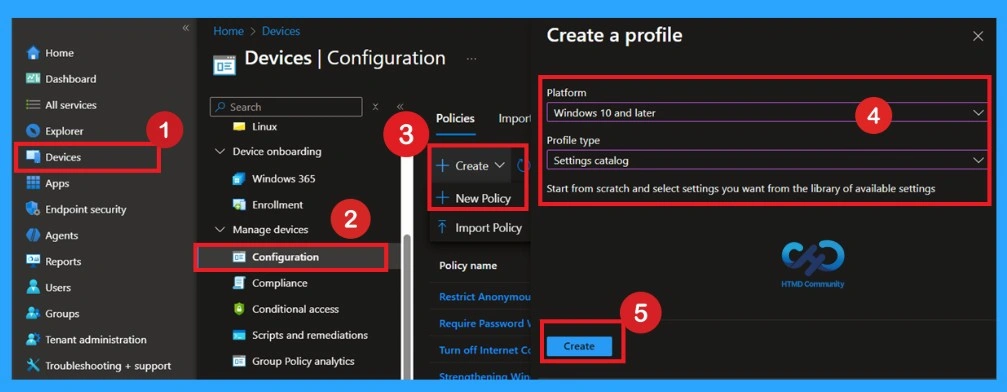
To begin, open Microsoft Intune and sign in with your administrator credentials. Once logged in, navigate to the Devices section and select Configuration Profiles. In this section, click on the + Create Policy option to create a new configuration profile.
- A new window titled Create a Profile will appear.
- Here, you need to provide some basic details: for the Platform, select Windows 10 and later, and for the Profile Type, choose Settings Catalog.
- After selecting these options, proceed to create the profile.
Importance of Basics Information in a Policy
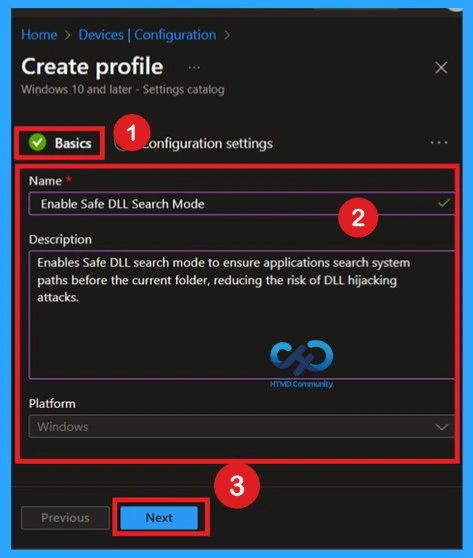
Now, we all know what the Basic tab means for us. If you don’t, it simply refers to the first step in the policy creation process, where you provide the basic details of your policy. In this section, you need to enter important information such as the Name and Description of the policy.
- You can give the policy any name that helps you easily identify it later in the future.
Configuration Settings for DLL Search Policy
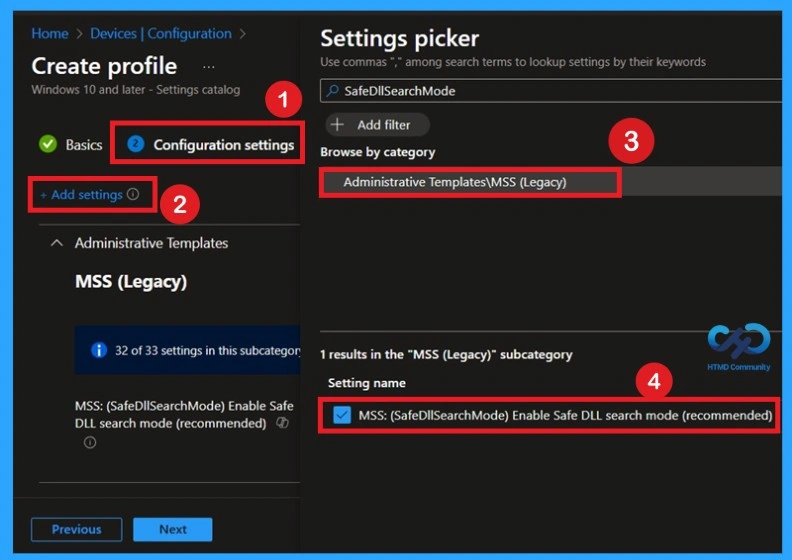
The next step is Configuration settings. Here, click on + Add settings to open the settings selection window. In the search box, type Safe DLL search mode. From the results, select Administrative Templates. Under Administrative Templates, choose MSS Legacy. In this section, you will find the policy settings such as MSS: Safe DLL search mode or Enable Safe DLL search mode. Select the required policy, configure it as needed, and save the settings.
Disabled Policy Mode
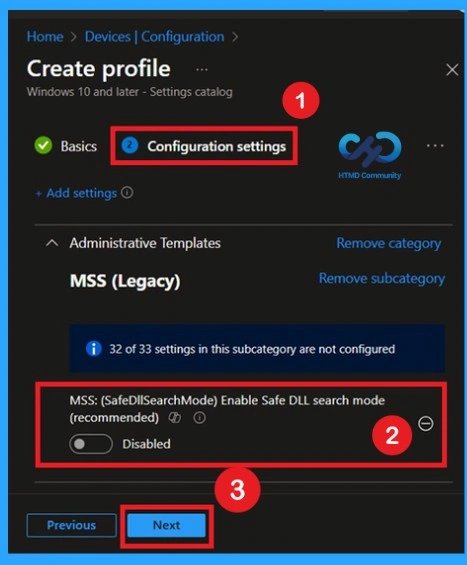
After selecting the policy, you can now close the Settings Picker window. You will return to the Configuration Settings page, where you can see that the policy is currently set to Disabled by default. If you want to proceed without making any changes, simply click Next to continue.
Activate the Policy as CIS Recommendation
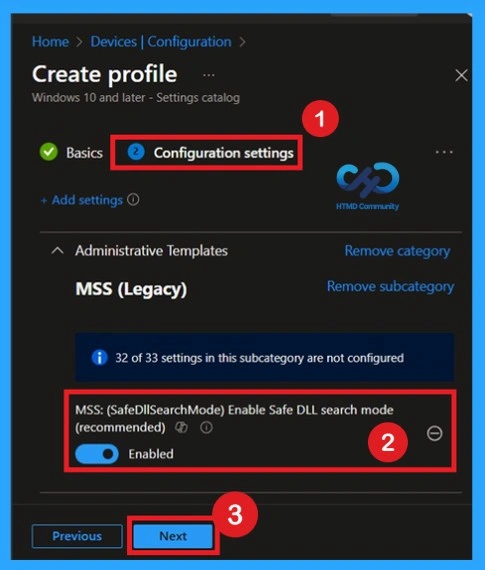
According to CIS recommendations, this policy must be enabled, so we need to turn it on. To do this, toggle the switch from left to right. Once enabled, the toggle turns blue, which confirms that the policy is active. After enabling the policy, click Next to proceed.
Scope Tags – Why is it important to Policy Creation
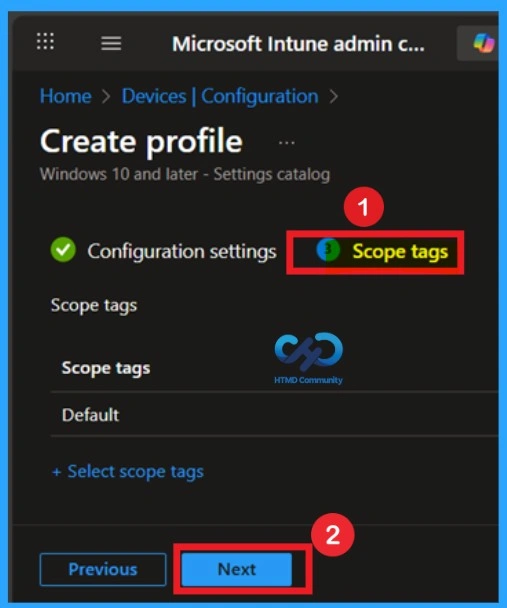
By using scope tags, you can give control to which admin can see and manage specific settings. This is not a mandatory setting, so you can skip this. Here, I skip these settings and click on the Next button to continue.
Assign this Policy to Specific Groups
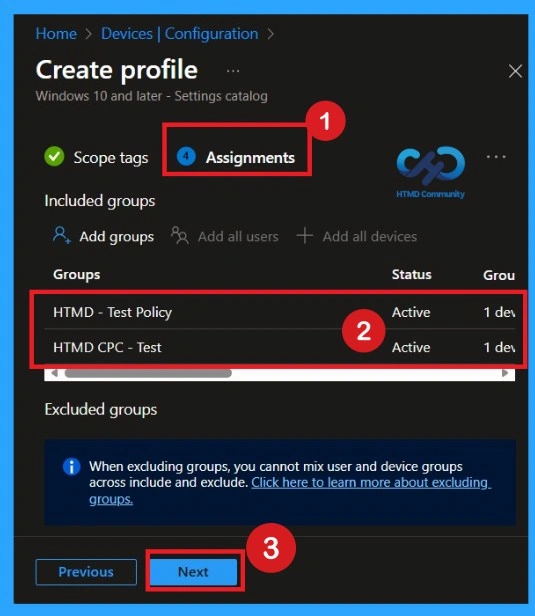
To assign the policy to specific groups you can use Assignment Tab. Here I click, +Add groups option under Included groups. I choose a group from the list of groups and Click on the Select button. Again, I click on the Select button to continue.
Final Step of Policy Creation
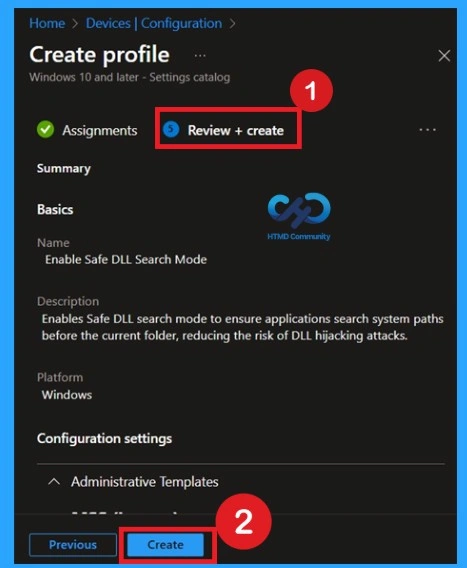
To complete the policy creation, you can review all the policy details on the Review + create tab. It helps to avoid mistakes and successfully configure the policy. After verifying all the details click on the Create Button. After creating the policy, you will get success message.
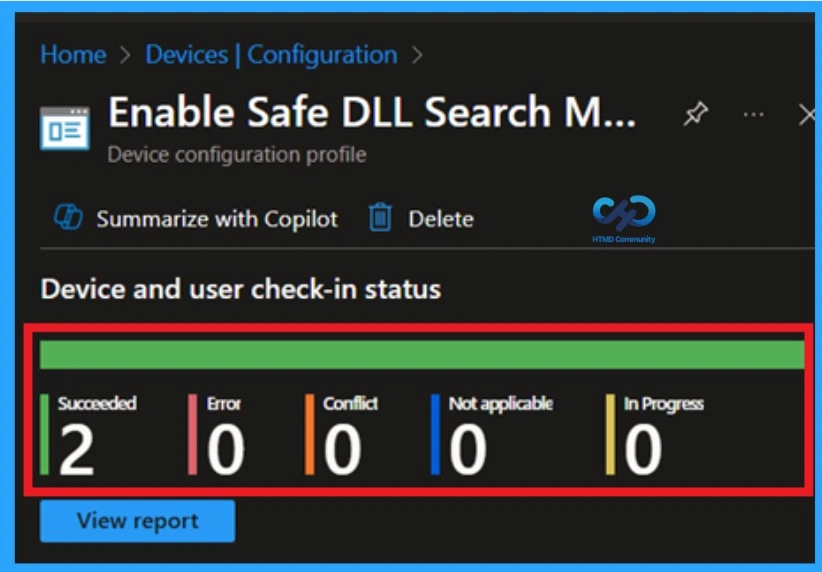
Monitoring Status to Confirm the Policy Deployed Successfully
The Monitoring Status page shows whether the policy has succeeded or not. To quickly configure the policy and take advantage of the policy sync, the device on the Company Portal, Open the Intune Portal. Go to Devices > Configuration > Search for the Policy. Here, the policy shows as successful.
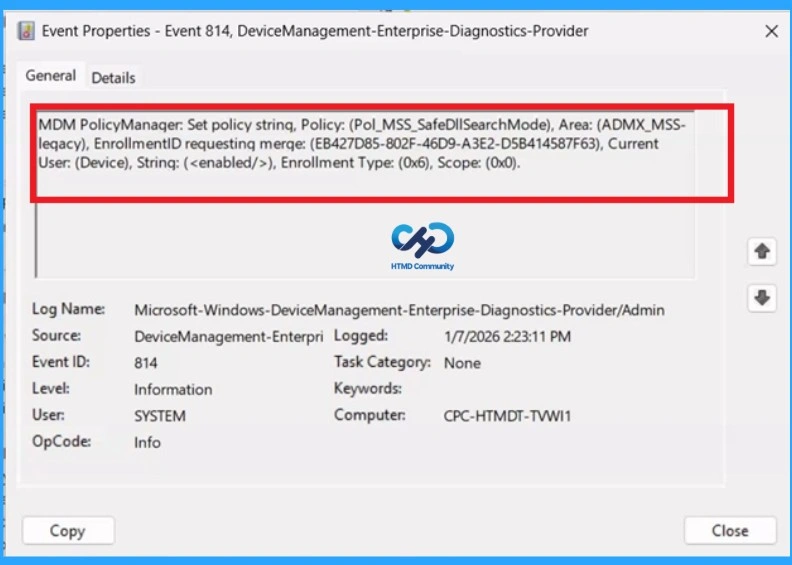
Client Side Verification with Event Viewer
If you get success message, that doesn’t mean you will get the policy advantages. To verify the policy successfully configured to client device check the Event Viewer. Filter for Event ID 813 or 814: This will help you quickly find the relevant logs.
- Open Event Viewer: Go to Start > Event Viewer.
- Navigate to Logs: In the left pane, go to Application and Services Logs > Microsoft> Windows > DeviceManagement-Enterprise-Diagnostics-Provider > Admin.
| Policy Details |
|---|
| MDM PolicyManaqer: Set policy string, Policy: (Pol_MSS_SafeDlISearchMode), Area: (ADMX_MSS- leqacy), EnrollmentID requestinq merqe: (EB427D85-802F-46D9-A3E2-D5B414587F63), Current User: (Device), Strinq: (), Enrollment Type: (0x6), Scope: (0x0). |
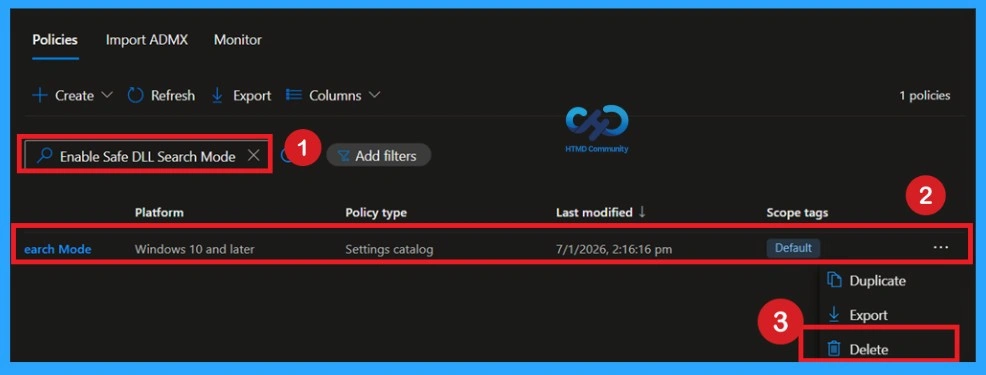
How to Delete the Policy that You Created
To delete a policy in Intune first sign in to the MS Intune Navigate to Devices and then select Configuration. Locate and select the specific policy you want to remove. Once you’re on the policy details page, click the three -dot menu in the top right corner and choose Delete from the available options.
For detailed information, you can refer to our previous post – How to Delete Allow Clipboard History Policy in Intune Step by Step Guide.
How to Remove Assigned Groups from this Policy
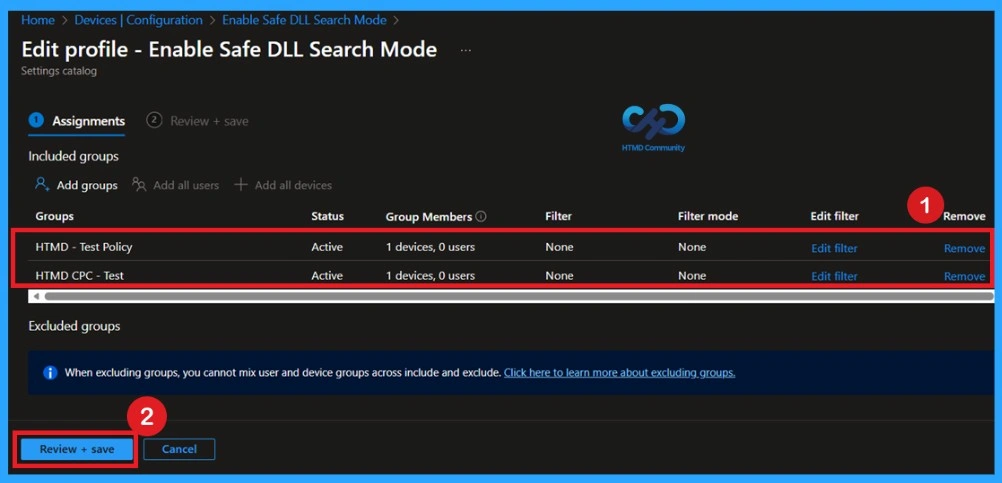
If you want to remove the specific group that you previously selected, you can easily do that. First, go to Devices > Configuration policies. In the Configuration policy section, search and select the policy. In the Assignment section, you will find an Edit option and click Remove option. Then, click the Review+ Save option.
For detailed information, you can refer to our previous post – Learn How to Delete or Remove App Assignment from Intune using by Step-by-Step Guide.
Windows CSP Details
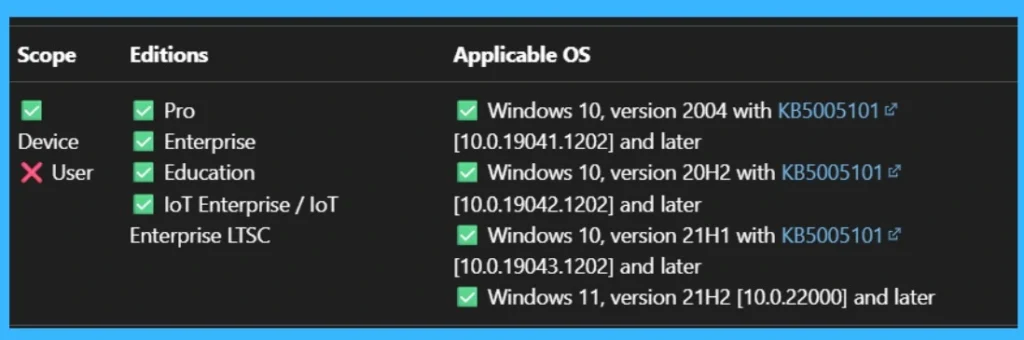
The Pol_MSS_SafeDllSearchMode policy is a security configuration available through Intune and other MDM platforms that enables Safe DLL Search Mode on Windows devices. The policy applies at the device level and is supported across Windows 10 (versions 2004, 20H2, 21H1, 21H2) and Windows 11 (version 21H2), provided the system has the required KB5005101 update.
- The below path refers to the location within the MDM policy configuration framework where the Safe DLL Search Mode policy is defined and applied.
./Device/Vendor/MSFT/Policy/Config/ADMX_MSS-legacy/Pol_MSS_SafeDllSearchMode
Need Further Assistance or Have Technical Questions?
Join the LinkedIn Page and Telegram group to get the latest step-by-step guides and news updates. Join our Meetup Page to participate in User group meetings. Also, Join the WhatsApp Community to get the latest news on Microsoft Technologies. We are there on Reddit as well.
Author
Anoop C Nair has been Microsoft MVP from 2015 onwards for 10 consecutive years! He is a Workplace Solution Architect with more than 22+ years of experience in Workplace technologies. He is also a Blogger, Speaker, and Local User Group Community leader. His primary focus is on Device Management technologies like SCCM and Intune. He writes about technologies like Intune, SCCM, Windows, Cloud PC, Windows, Entra, Microsoft Security, Career, etc.