
Key Takeaways
- The Turn off Program Compatibility Assistant policy is an active and supported device-based setting in modern Windows.
- It allows administrators to disable the Program Compatibility Assistant (PCA), which normally detects and suggests fixes for application compatibility issues.
- Disabling or not configuring the policy keeps PCA enabled by default.
- This policy is best suited for enterprise environments where applications are already tested, and compatibility prompts are not required.
In this post we are discussing Turn Off Program Compatibility Assistant Configuration using Intune policy. The Turn off Program Compatibility Assistant policy is a device-based setting available under Computer Configuration in Windows. This policy allows administrators to control whether the Program Compatibility Assistant (PCA) feature runs on managed devices. PCA is responsible for detecting compatibility issues in applications and suggesting fixes to ensure older programs work correctly on newer versions of Windows.
Table of Contents
Table of Contents
Turn Off Program Compatibility Assistant Configuration using Intune policy
This policy is actively supported and can be configured using Microsoft Intune through Settings Catalog. While the policy originally existed in Group Policy, it is now widely used in cloud-managed environments to provide consistent configuration across enterprise devices.
- Enable Lock Screen Control Center on iOS using Intune Device Restrictions Policy
- Turn off App Notifications On The Lock Screen Policy using Intune
- Control System Lock Screen Policy for Users with Intune
Policy Creation
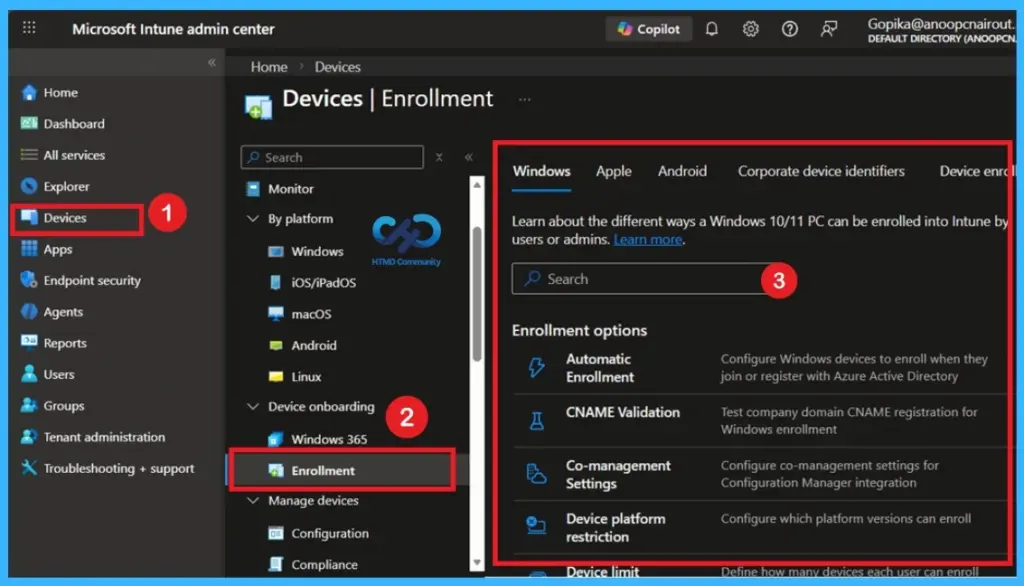
To begin, open Microsoft Intune and sign in with your administrator credentials. Once logged in, navigate to the Devices section and select Configuration Profiles. In this section, click on the + Create Policy option to create a new configuration profile
- A new window titled Create a Profile will appear.
- Here, you need to provide some basic details: for the Platform, select Windows 10 and later, and for the Profile Type, choose Settings Catalog.
- After selecting these options, proceed to create the profile.
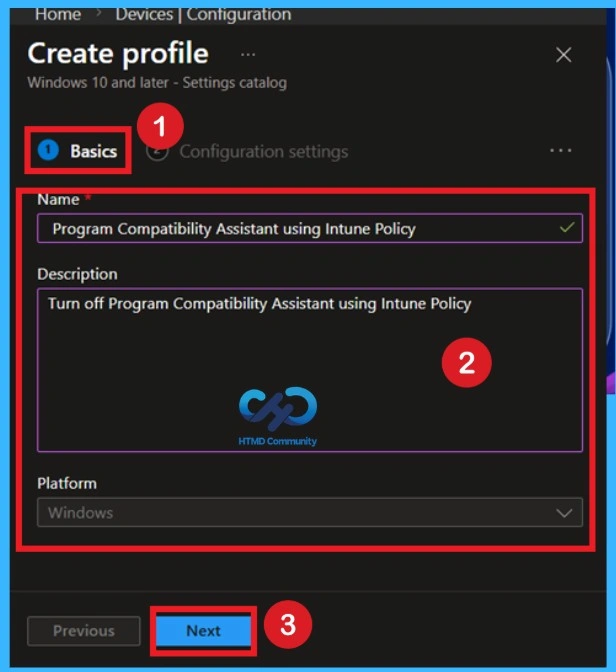
Importance of Basics Information in a Policy
Now, we all know what the Basic tab means for us. If you don’t, it simply refers to the first step in the policy creation process, where you provide the basic details of your policy. In this section, you need to enter important information such as the Name and Description of the policy. You can give the policy any name that helps you easily identify it later in the future.

Configuration Settings
In the Configuration settings section, click on Add settings, then search for Turn off Program Compatibility Assistant. Locate the setting under Windows Components > Application Compatibility and add it to your profile for configuration.
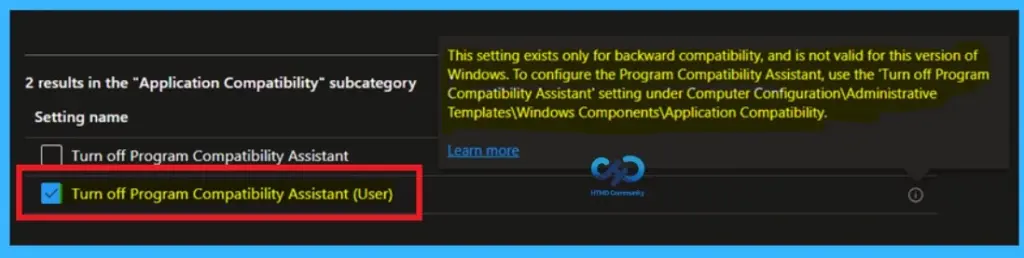
- Here 2 options are available, and we have to choose Turn Off Program Compatibility Assistant for device not for user.
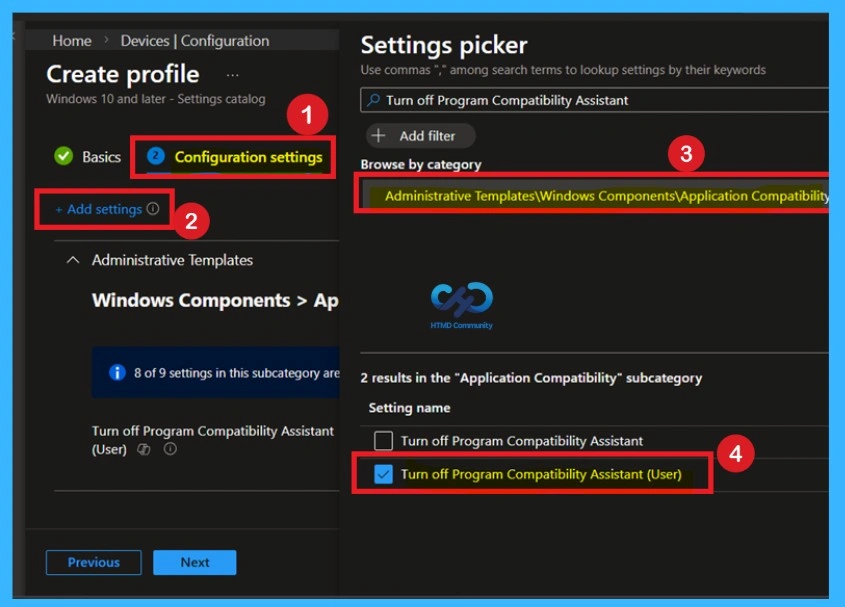
Turn Off Program Compatibility Assistant for User – Not Valid for this Version
With recent updates, the user-based version of this policy has been deprecated, and the device-based configuration is now the recommended and supported approach. Enabling this policy disables compatibility prompts and related background processes, making it useful in controlled environments where application compatibility is already validated.
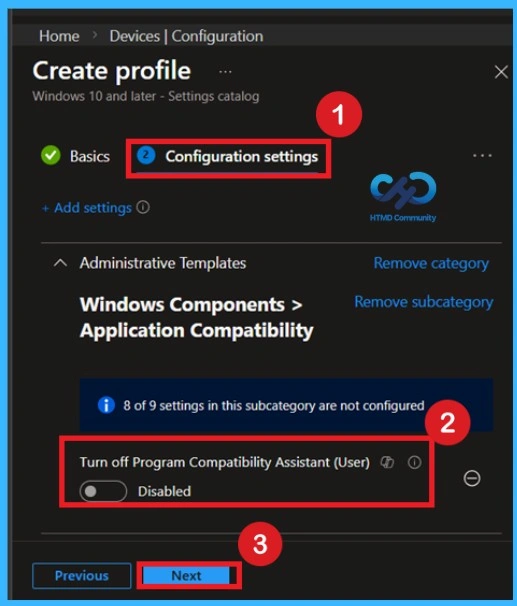
Default State of the Policy
By default, this policy is set to Not Configured, which means the Program Compatibility Assistant (PCA) remains enabled on devices. If you disable or do not configure this policy setting, the PCA will be turned on. To configure the diagnostic settings for the PCA, go to System>Troubleshooting and Diagnostics>Application Compatibility Diagnostics.
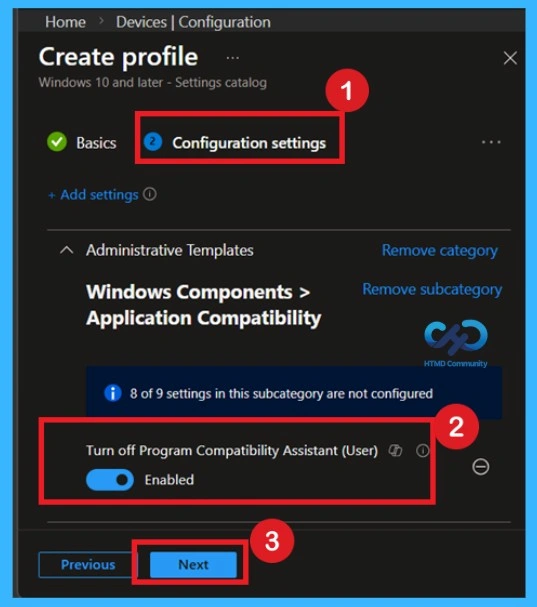
Enable Policy
If you enable this policy setting, the PCA will be turned off. The user will not be presented with solutions to known compatibility issues when running applications. Turning off the PCA can be useful for system administrators who require better performance and are already aware of application compatibility issues. To activate the policy, set it to Enabled, which will turn off PCA and stop compatibility notifications and background detection processes.
- Now click on the Next.
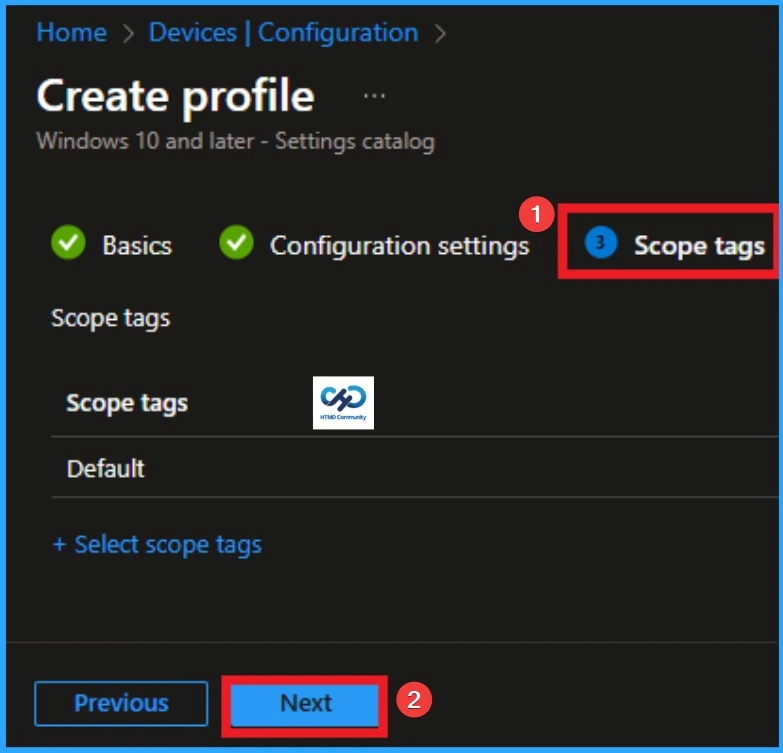
Scope Tags – Why is it important to Policy Creation
By using scope tags, you can give control to which admin can see and manage specific settings. This is not a mandatory setting, so you can skip this. Here, I skip these settings and click on the Next button to continue.
Assign this Policy to Specific Groups
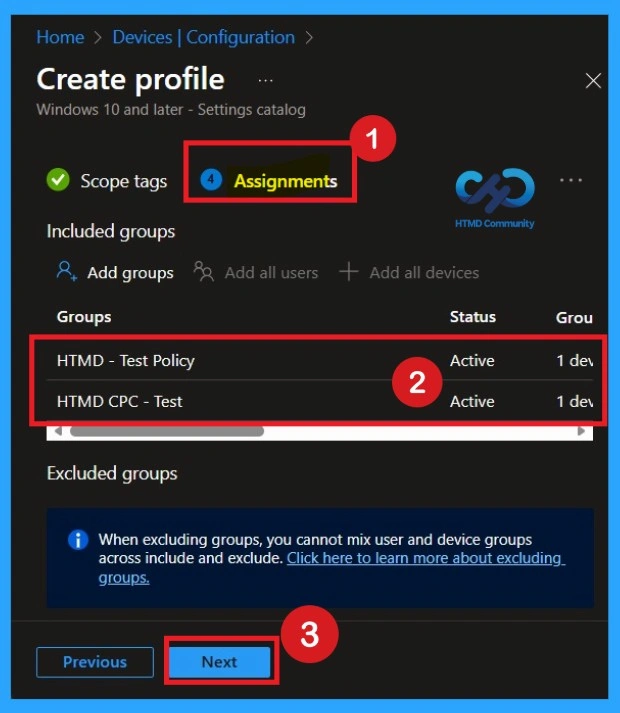
To assign the policy to specific groups you can use Assignment Tab. Here I click, +Add groups option under Included groups. I choose a group from the list of groups and Click on the Select button. Again, I click on the Select button to continue.
Final Step of Policy Creation
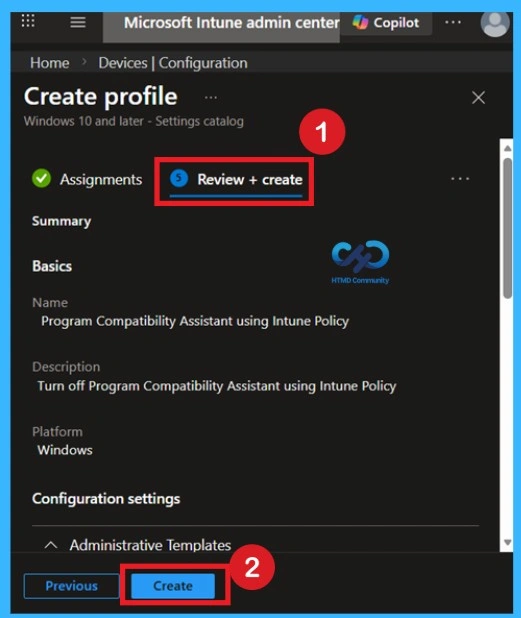
To complete the policy creation, you can review all the policy details on the Review + create tab. It helps to avoid mistakes and successfully configure the policy. After verifying all the details click on the Create Button. After creating the policy, you will get success message.
Monitoring Status After the Policy Creation
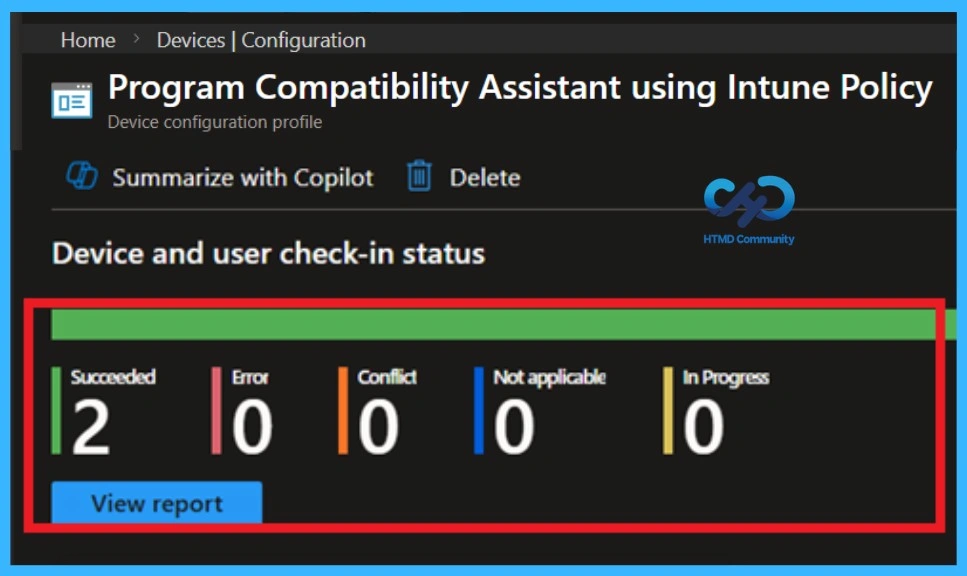
After creating the policy, it is very important to check whether it is working as expected. The main goal is to make sure the policy is correctly applied to the devices or user groups where it was deployed. Intune Provides
a feature called Monitoring status to help with this. This option shows the current deployment status of the policy and whether it was successfully applied.
Client-Side Verification Through Event Viewer
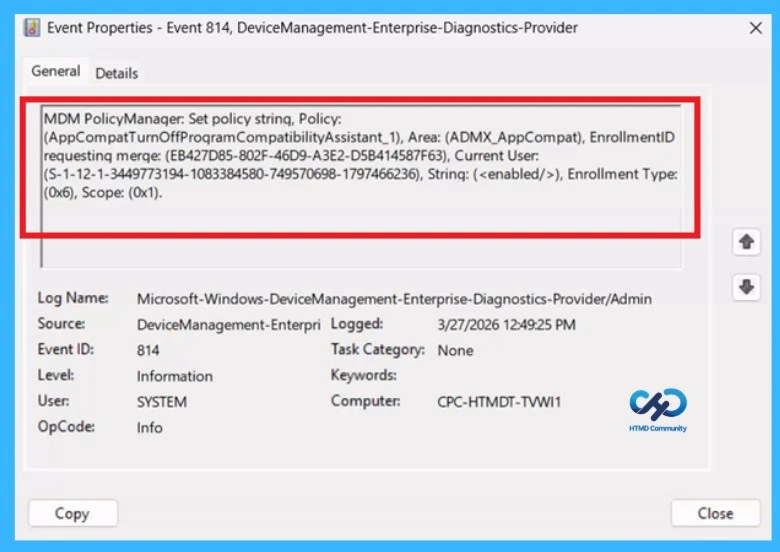
Always Remember, receiving a success message during policy deployment doesn’t necessarily confirm that the policy is actively applied or functioning as intended on the client device. To ensure the policy has been successfully configured, it’s important to verify through the Event Viewer. You can do this by filtering for Event ID 813 or 814, which will help you quickly locate logs.
| Policy Details |
|---|
| MDM PolicyManager: Set policy string, Policy: (AppCompatTurnOffProqramCompatibilityAssistant_1), Area: (ADMX_AppCompat), EnrollmentIDrequestinq merqe: (EB427D85-802F-46D9-A3E2-D5B414587F63), Current User:(S-1-12-1-3449773194-1083384580-749570698-1797466236), Strinq: (), Enrollment Type: (0x6), Scope: (0x1). |
Remove a Group from an Intune Policy
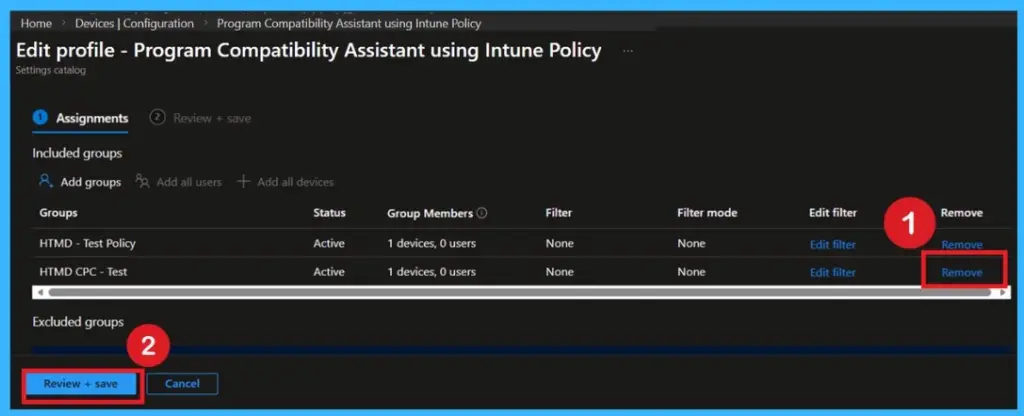
To remove a group from a policy, first open the Microsoft Intune Admin Center and sign in. From the left menu, go to Devices and then open Configuration profiles. Find the policy you want to change and click on it. Open the Assignments section and choose Edit. Remove the group that should no longer receive this policy and save the changes. After this, the policy will stop applying to devices.
For detailed information, you can refer to our previous post – Learn How to Delete or Remove App Assignment from Intune using by Step-by-Step Guide.
How to Delete the Policy that You Created
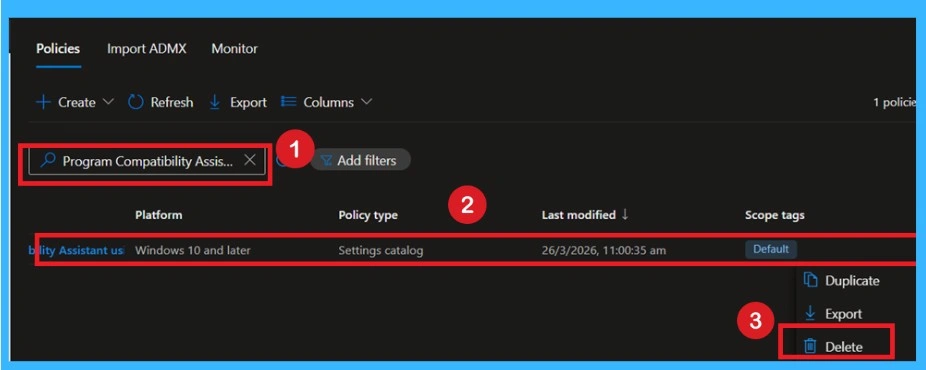
To delete a policy in Intune first sign in to the MS Intune Navigate to Devices and then select Configuration. Locate and select the specific policy you want to remove. Once you’re on the policy details page, click the 3-dot menu in the top right corner and choose Delete from the available option.
For detailed information, you can refer to our previous post – How to Delete Allow Clipboard History Policy in Intune Step by Step Guide.
Need Further Assistance or Have Technical Questions?
Join the LinkedIn Page and Telegram group to get the latest step-by-step guides and news updates. Join our Meetup Page to participate in User group meetings. Also, join the WhatsApp Community and the Whatsapp channel to get the latest news on Microsoft Technologies. We are there on Reddit as well.
Author
Anoop C Nair is a Workplace Technology solution architect with 25+ years of experience. Microsoft Certified Trainer. Microsoft MVP from 2015 onwards for consecutive 11+ years! He is a blogger, Speaker, and Founder of HTMD Community and HTMD Conference. His main focus is on Device Management technologies like Intune, Windows, and Cloud PC. He writes about technologies like Intune, SCCM, Windows, Cloud PC, Entra, and Microsoft Security.