
Key Takeaways
- Narrator in Windows 11 can use AI to describe images, charts, and graphs.
- It helps blind and low-vision users understand what is shown on the screen.
- Press Narrator key + Ctrl + D to get a description.
- It works on Copilot+ PCs now, with more device support coming soon.
Hey, let’s discuss about Windows 11 Narrator Expands AI-Powered Image Descriptions Beyond Copilot+ PCs. On Windows 11, the Narrator feature can now generate image descriptions using AI without requiring a local AI model. Previously limited to Copilot+ PCs, the system will now use Copilot to analyze and provide image descriptions, making the feature more widely accessible.
Table of Contents
Table of Contents
Windows 11 Narrator Expands AI-Powered Image Descriptions Beyond Copilot+ PCs
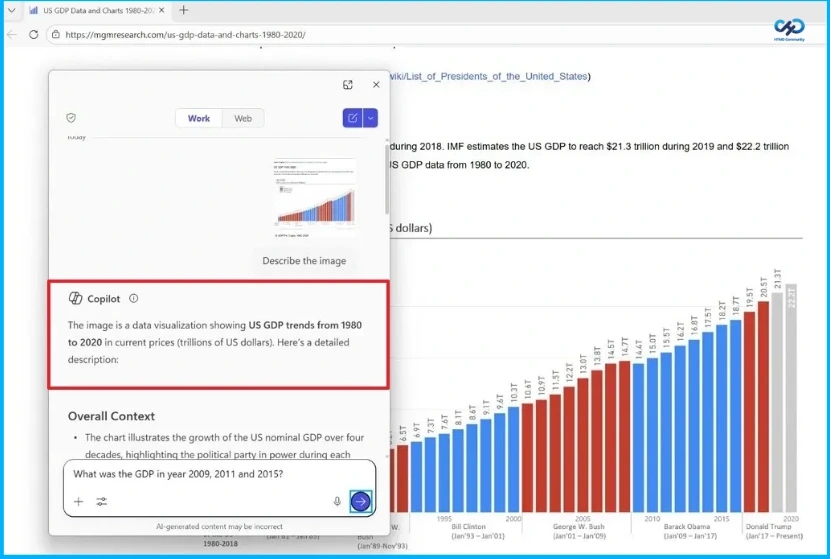
Microsoft has updated the Narrator feature in Windows 11 to use artificial intelligence for providing detailed descriptions of images, charts, and graphs. This enhancement aims to improve accessibility for blind and low-vision users, who often face challenges with visuals that lack proper alt text. Users can generate comprehensive descriptions including details about people, objects, colors, text, and numbers by pressing Narrator key + Ctrl + D. For instance, when viewing a graph of stock prices, Narrator will describe the trend and key details over the specified time period.
Currently, the feature is available on Copilot+ PCs, with support for AMD and Intel systems expected soon. When first using the image descriptions, the required models are downloaded automatically, and users can monitor progress via Settings > Windows Update. Once configured, images and graphs can be navigated in scan mode using the G or Shift + G commands, allowing users to focus on particular elements of the visual content.
| Shortcut | Use |
|---|---|
| Narrator key + Ctrl + D | To describe the focused image |
| Narrator key + Ctrl + S | To describe the full screen |
- Restrict Image Generation on iOS Devices using Intune
- Stop Windows AI Data Leakage Secure your Network by Blocking Image Creator using Intune
- How to Resolve Windows 365 Provisioning Policy Unsupported Image Status in Intune
Two Ways to Start and Stop Narrator
To launch Narrator in Windows, press the Windows logo key + Ctrl + Enter, and press the same keys again to turn it off. The Windows logo key is usually located on the bottom row of the keyboard, next to the Alt key. To open Narrator settings, press the Windows logo key + Ctrl + N, then turn on the toggle next to “Use Narrator”.

Narrator key
You can choose what modifier key to use in Narrator commands. By default, both the Caps Lock and Insert keys act as the Narrator key, and either can be used in any command that requires it. The Narrator key is referred to as “Narrator” in commands, and it can be changed in Narrator settings.
Need Further Assistance or Have Technical Questions?
Join the LinkedIn Page and Telegram group to get the latest step-by-step guides and news updates. Join our Meetup Page to participate in User group meetings. Also, join the WhatsApp Community and the Whatsapp channel to get the latest news on Microsoft Technologies. We are there on Reddit as well.
Author
Anoop C Nair is a Workplace Technology solution architect with 25+ years of experience. Microsoft Certified Trainer. Microsoft MVP from 2015 onwards for consecutive 11+ years! He is a blogger, Speaker, and Founder of HTMD Community and HTMD Conference. His main focus is on Device Management technologies like Intune, Windows, and Cloud PC. He writes about technologies like Intune, SCCM, Windows, Cloud PC, Entra, and Microsoft Security.