
- A new security feature designed to eliminate common print vulnerabilities in Windows environments.
- Provides centralized management and compliance reporting for enterprise environments.
- Protects against man-in-the-middle attacks and unauthorized access to print data.
- Ideal for organizations handling sensitive documents (finance, healthcare, government).
Let’s discuss How to Enable Windows Protected Print to Eliminate Print Vulnerabilities using Intune. The “Configure Windows Protected Print” policy is a modern security setting introduced to overhaul the Windows print system. It transitions Windows from a legacy, driver-heavy architecture to a “driverless” model based on modern standards.
As you know that, Windows Protected Print (WPP) is a security-hardened printing platform that exclusively uses the modern Windows print stack. Instead of relying on various third-party drivers (v3 or v4) provided by manufacturers, it uses the Internet Printing Protocol (IPP) and only supports Mopria-certified printers.
By enabling Windows Protected Print, Windows blocks the installation of third-party printer drivers. It uninstalls all existing non-compliant printers and drivers, replacing them with a native Microsoft IPP Class Driver.
Printing has historically been a massive security hole. WPP was specifically designed to stop exploits like PrintNightmare. By removing third-party drivers, you remove the code that attackers often use to gain SYSTEM-level access.

Table of Contents
How to Enable Windows Protected Print to Eliminate Print Vulnerabilities using Intune
WPP enables advanced hardware-based protections like Control Flow Guard (CFG) and blocks the creation of “child processes,” preventing malicious code from spawning new threats from the print queue.
IT admins no longer need to package, deploy, or update hundreds of different drivers for different printer models. The native IPP driver “just works” with all modern printers.
- How to Prevent Mapping of Client Printers in Remote Desktop Services Sessions using Intune
- Control Least Privilege App Container Sandbox for Printing Services in Edge Browser using Intune
- Enable Restrict Background Graphics Printing Mode for MS Edge using Intune Policy
How to Configure Policy from Intune Portal
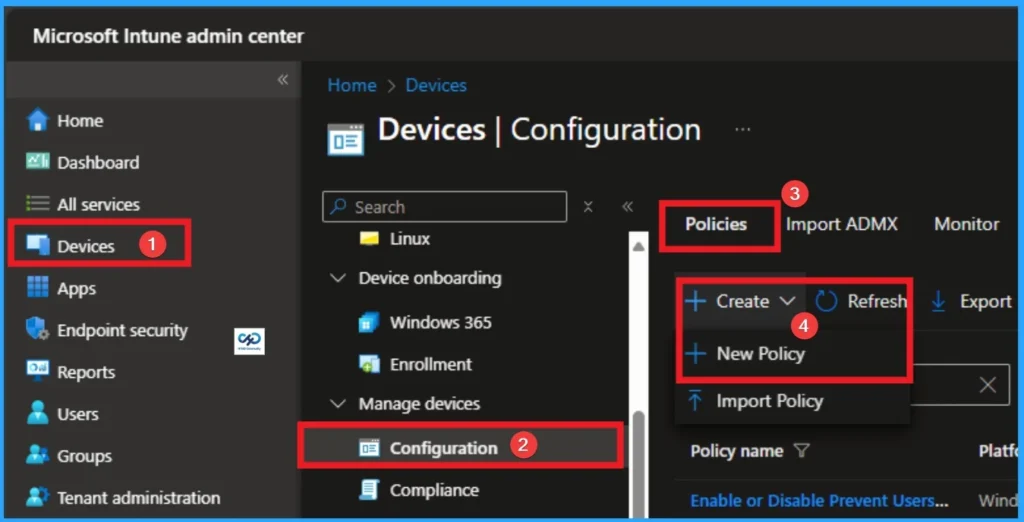
You can easily Configure, Windows Protected Print with in the Intune Portal. For this you have to sign with Intune Portal with your credentials. Navigate to Devices > Configuration > + Create > New Policy.
Profile Creation
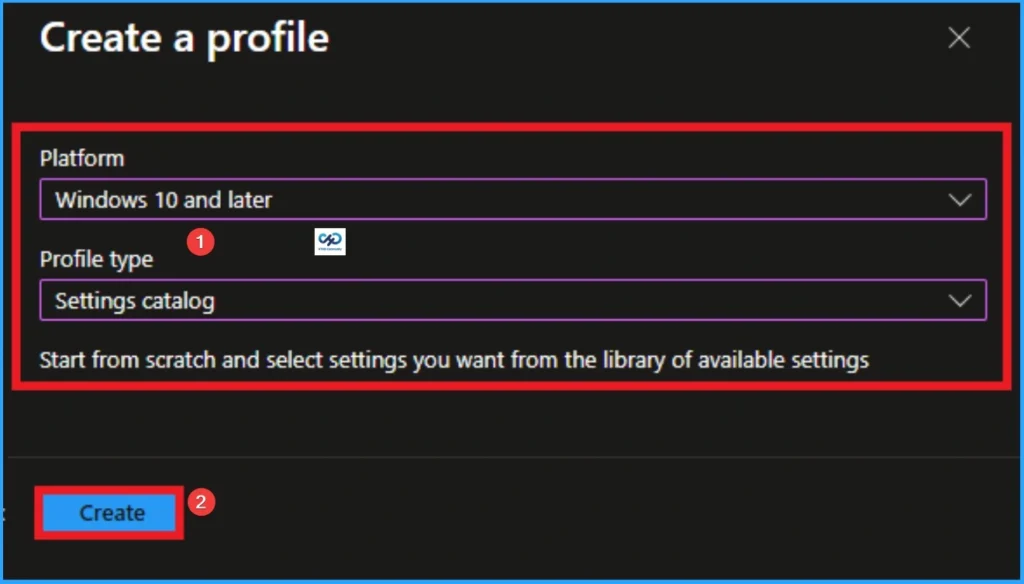
Creating Profile is the next step after clicking on Create button. On this step you can choose platform and profile type. Here I would like to configure the policy to Windows 10 and later platform and settings catalog profile. Then click on the Create button.
Beginning Step
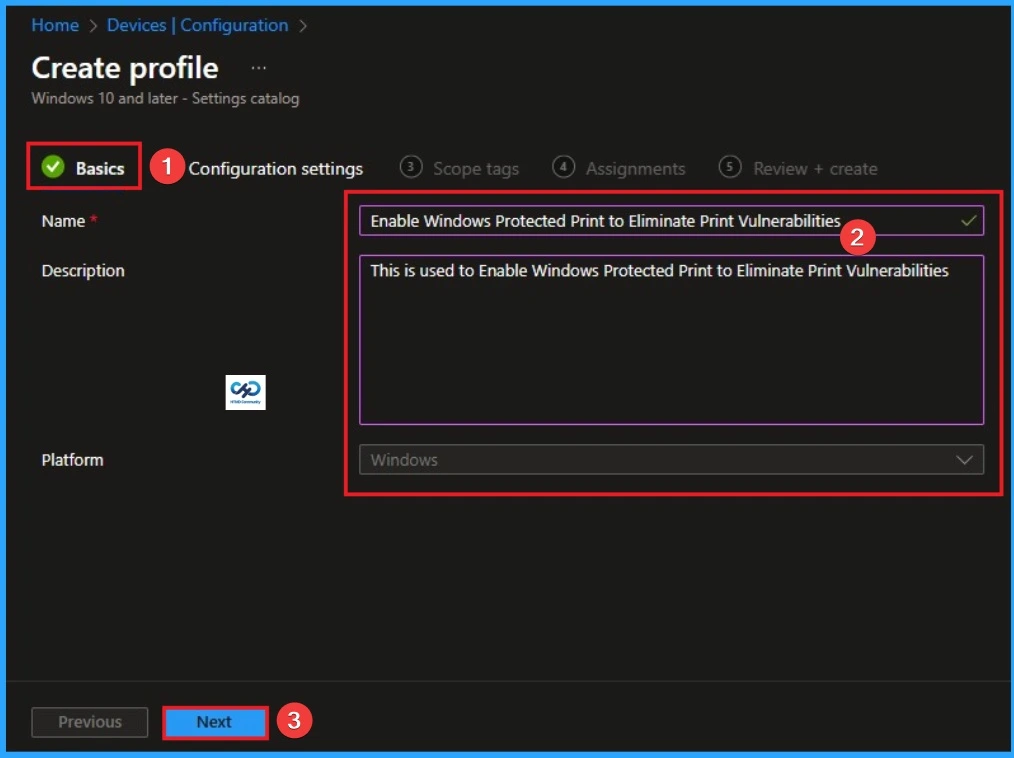
Basic Tab is the first tab that used to add Name and Description for the policy. This is very important step that gives an identity for your policy. Here Name is Mandatory and Description is optional. After adding this, click on the Next button.
Configuration Tab for Selecting Setting
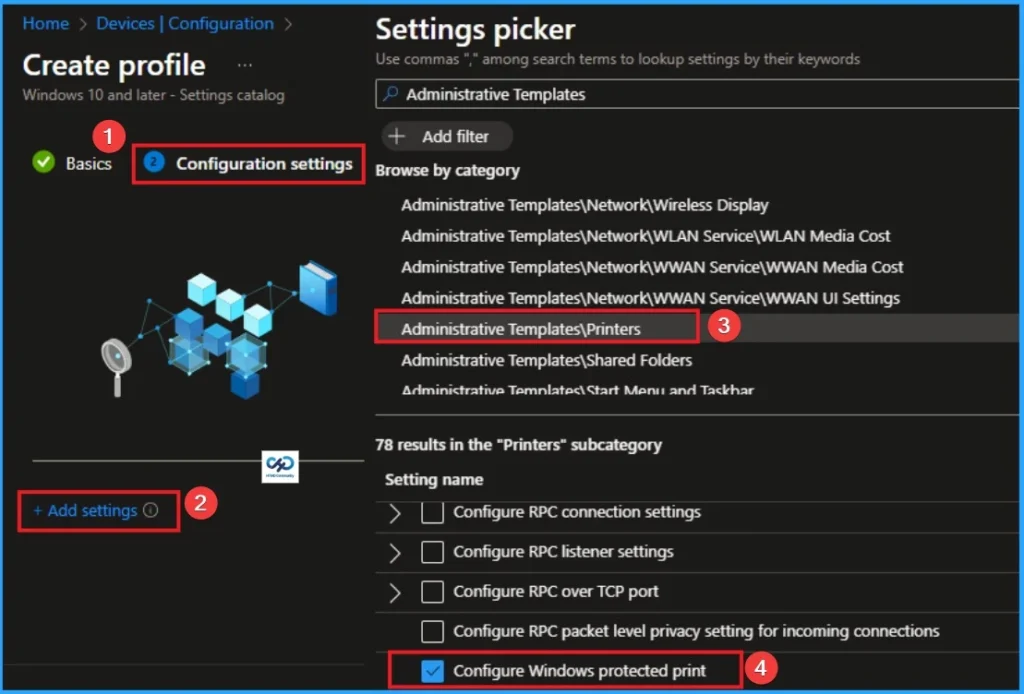
Configuration tab is the crucial step that helps you to choose a settings from different categories available on Microsoft Intune portal. Click on the +Add settings on the Configuration Settings tab. Then choose the Administrative Templates\Printers\Configure Windows protected print.
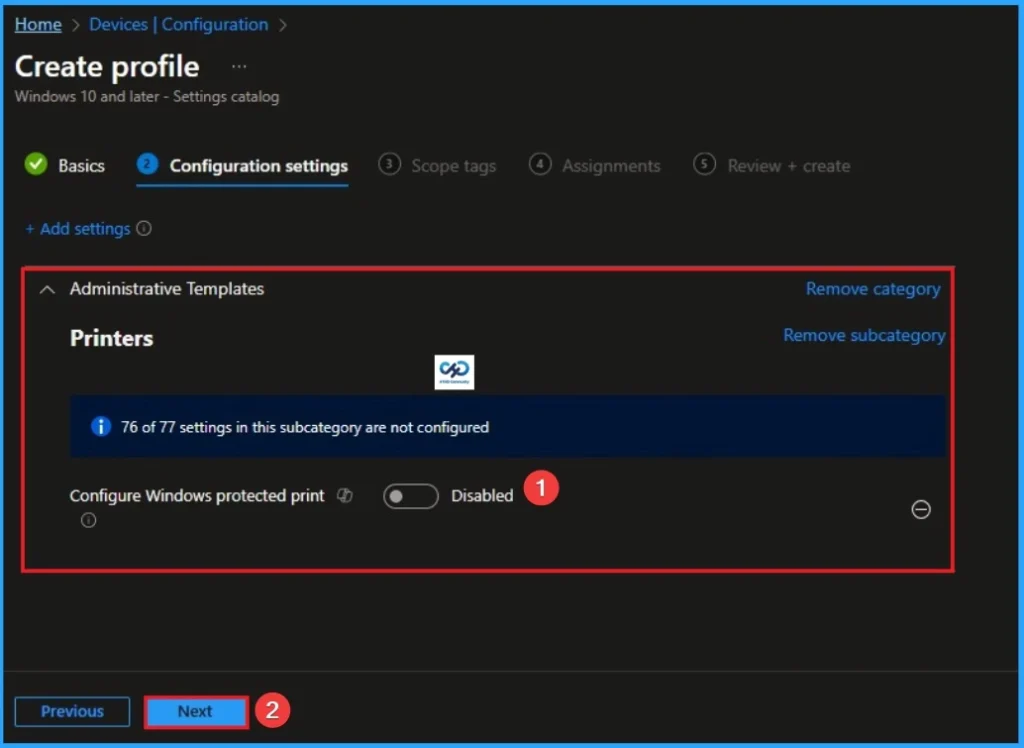
Disable Windows Protected Print
If you disable this setting or don’t configure it, there aren’t any restrictions on the print drivers that can be installed or print functionality. Click on the Next button to continue.
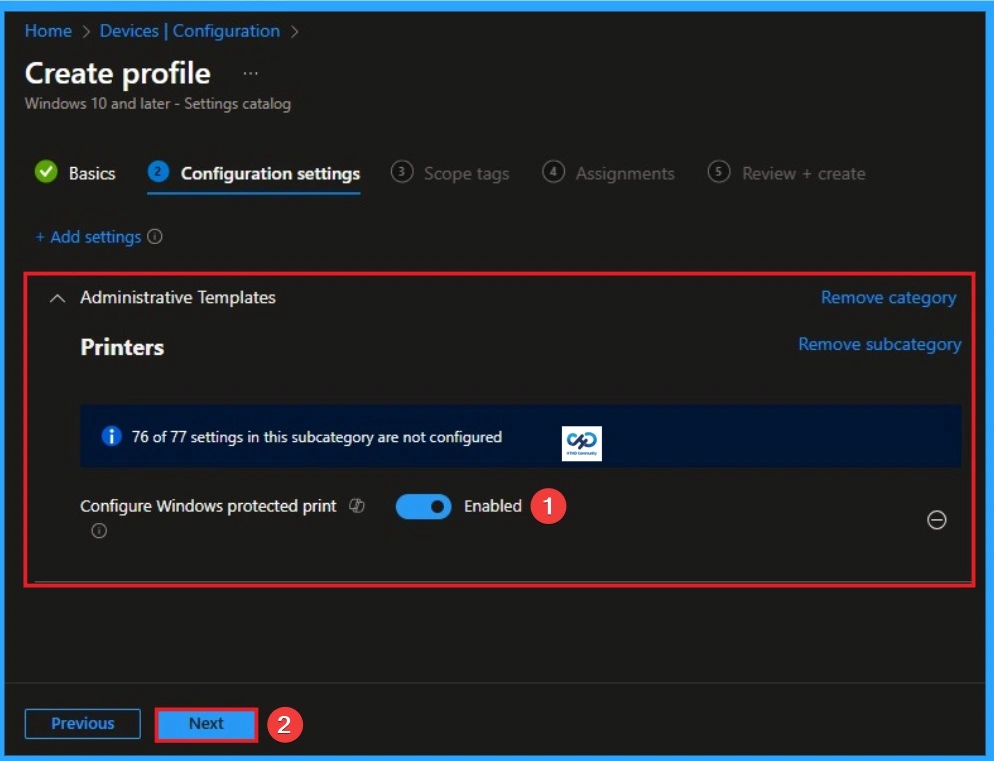
Enable Windows Protected Print
If you disable this setting or don’t configure it, there aren’t any restrictions on the print drivers that can be installed or print functionality. Click on the Next button to continue.
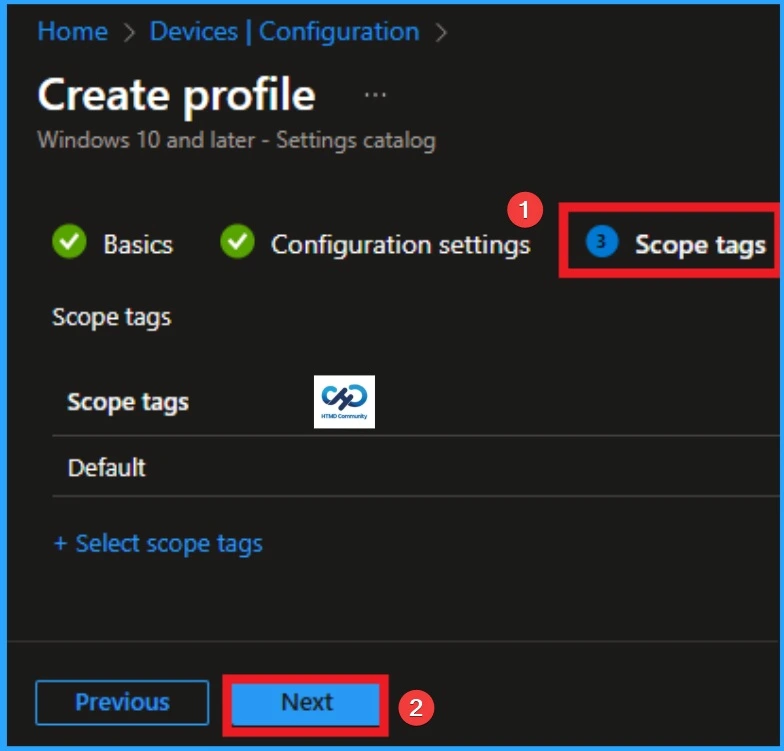
Scope Tags
The next section is the Scope tag and which is not a compulsory step. It helps to assign this policy to a defined group of users or devices. Here, I skip the section and click on the next button.
Assignments
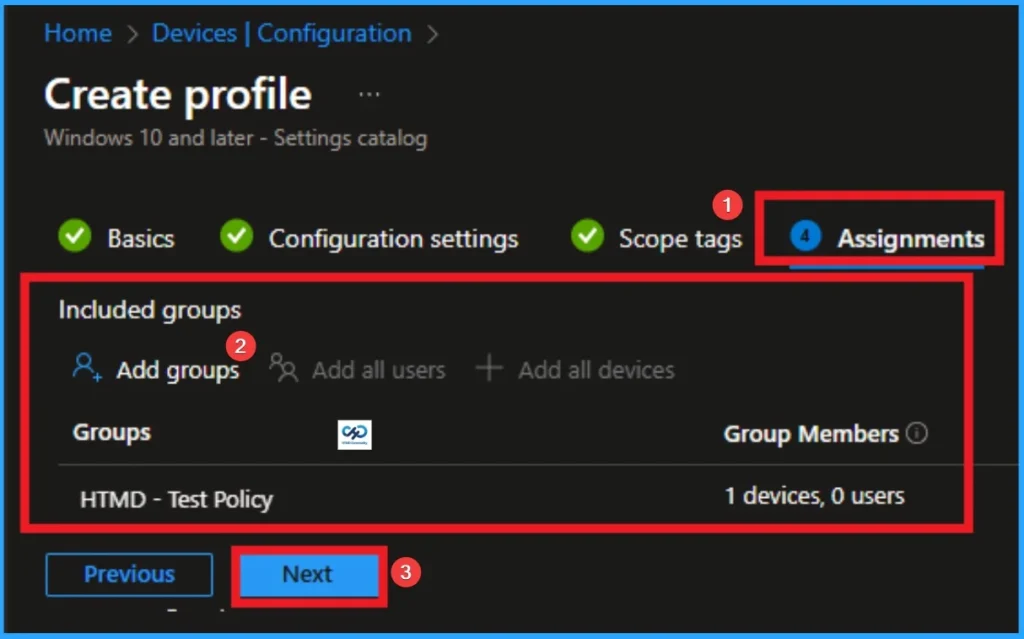
The next step is Assignments. In this section, you can specify which group the policy should be applied to. Our aim is to deploy this policy to a specific group; this step is essential. Look for the Add Groups option under the Include Groups section and click on it.
Review + Create Tab
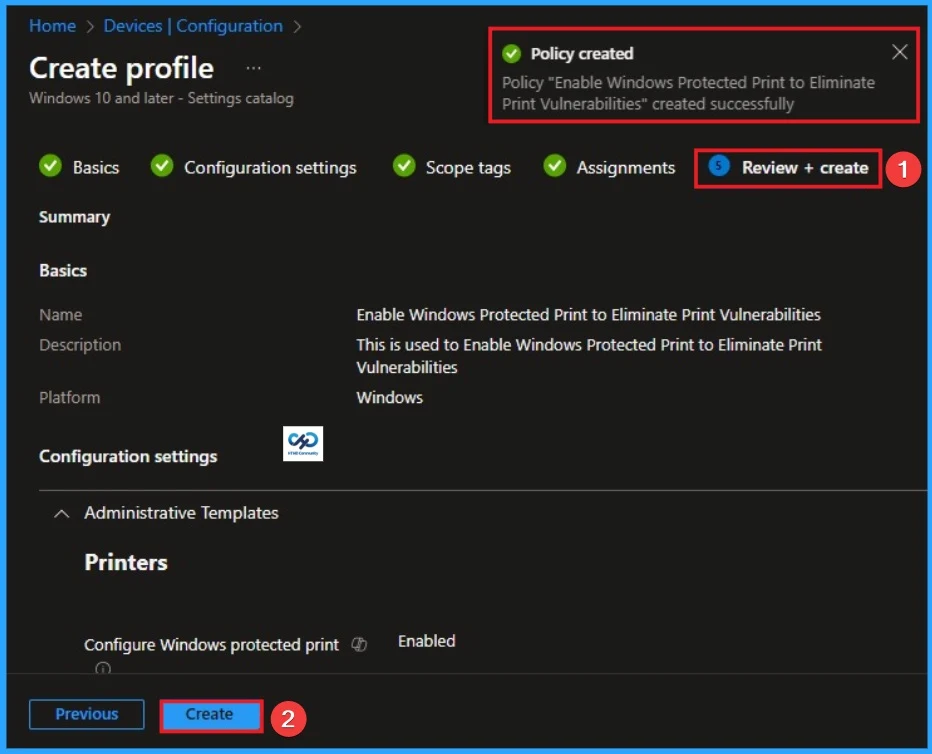
Before completing the policy creation, you can review each tab to avoid misconfiguration or policy failure. After verifying all the details, click on the Create Button. After creating the policy, you will get a success message.
Monitoring Status
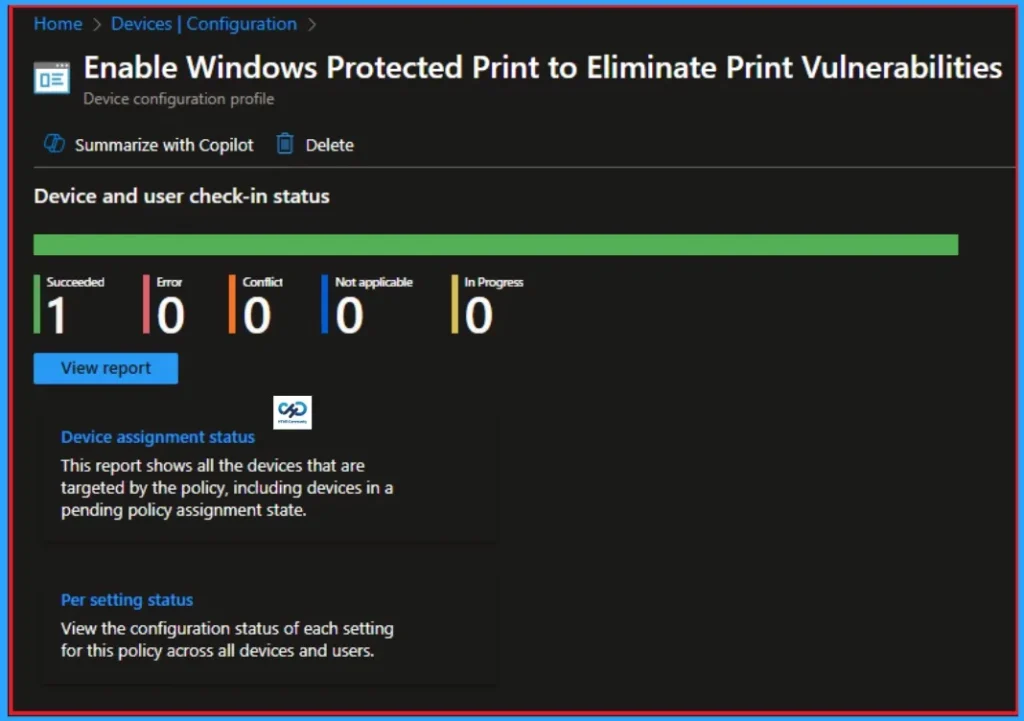
The Monitoring Status page shows whether the policy has succeeded or not. To quickly configure the policy and take advantage of the policy sync the assigned device on Company Portal. Open the Intune Portal. Go to Devices > Configuration > Search for the Policy. Here, the policy shows as successful.
Event Viewer Details
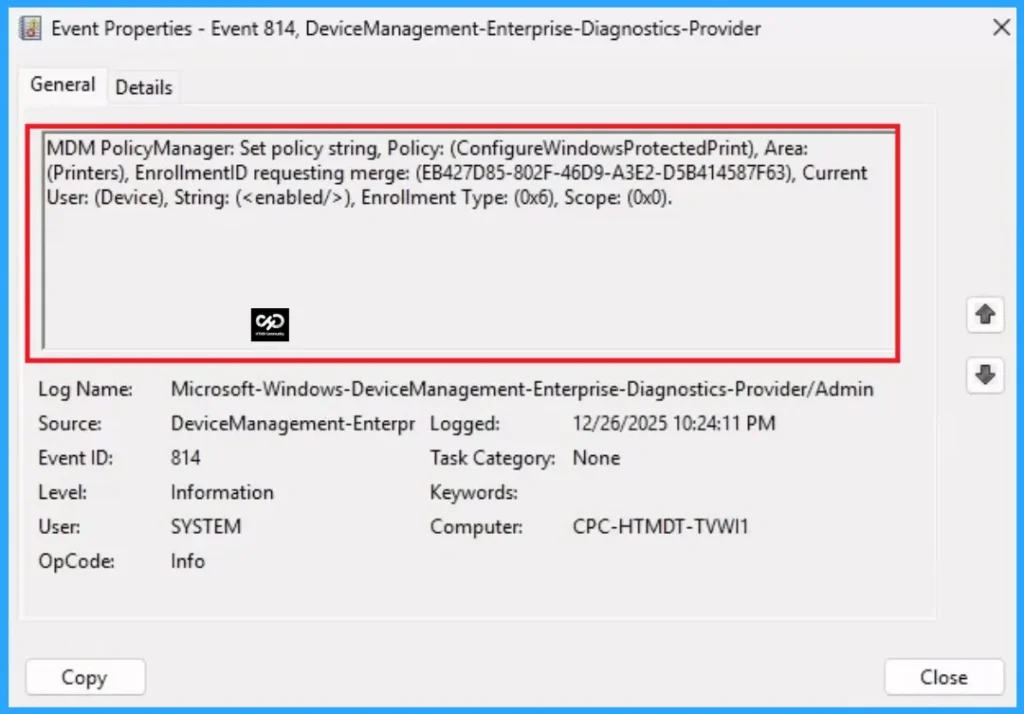
Event Viewer helps you check the client side and verify the policy status. Open the Client device and open the Event Viewer. Go to Start > Event Viewer. Navigate to Logs: In the left pane, go to Application and Services Logs > Microsoft > Windows > DeviceManagement-Enterprise-Diagnostics-Provider > Admin.
| Event ID Details |
|---|
| MDM PolicyManager: Set policy string, Policy: (ConfigureWindowsProtectedPrint), Area: (Printers), EnrollmentID requesting merge: (EB427D85-802F-46D9-A3E2-D5B414587F63), Current User: (Device), String: (), Enrollment Type: (0x6), Scope: (0x0). |
Removing the Assigned Group from Windows Protected Print Settings
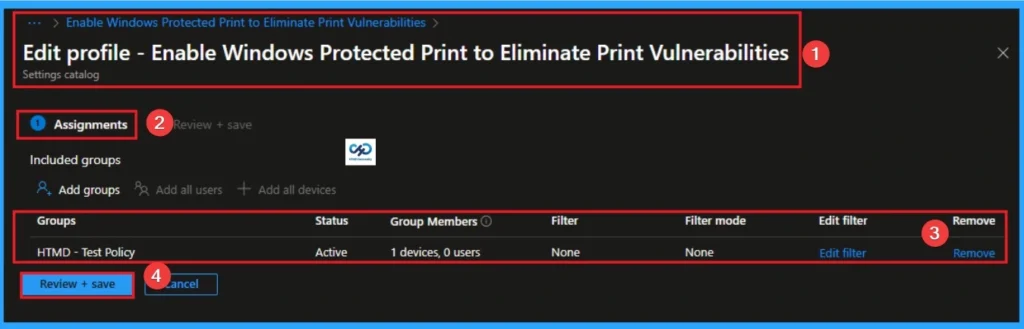
If you want to remove the Assigned group from the policy, it is possible from the Intune Portal. To do this, open the Policy on Intune Portal and edit the Assignments tab and the Remove Policy.
To get more detailed information, you can refer to our previous post – Learn How to Delete or Remove App Assignment from Intune using by Step-by-Step Guide.
How to Delete Windows Protected Print
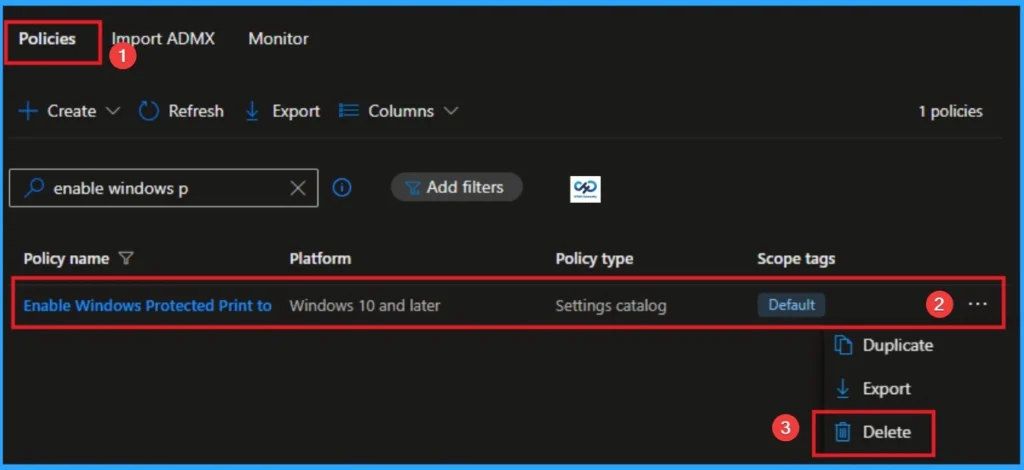
You can easily delete the Policy from the Intune Portal. From the Configuration section, you can delete the policy. It will completely remove it from the client devices.
For detailed information, you can refer to our previous post – How to Delete Allow Clipboard History Policy in Intune Step by Step Guide.
Windows CSP Details
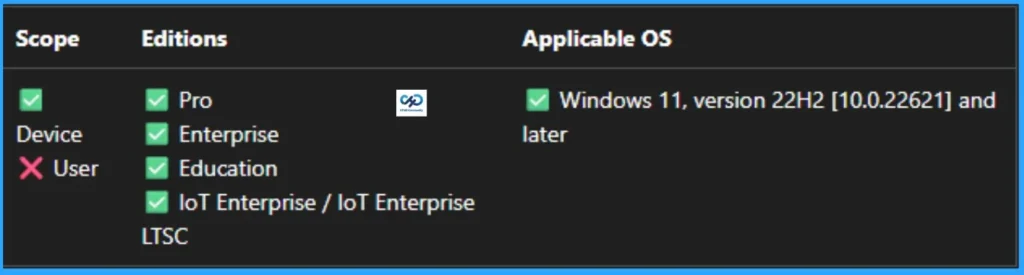
This policy Determines whether Windows protected print is enabled on this computer. By default, Windows protected print isn’t enabled and there aren’t any restrictions on the print drivers that can be installed or print functionality.
Need Further Assistance or Have Technical Questions?
Join the LinkedIn Page and Telegram group to get the step-by-step guides and news updates. Join our Meetup Page to participate in User group meetings. Also, Join the WhatsApp Community to get the latest news on Microsoft Technologies. We are there on Reddit as well.
Author
Anoop C Nair has been Microsoft MVP for 10 consecutive years from 2015 onwards. He is a Workplace Solution Architect with more than 22+ years of experience in Workplace technologies. He is a Blogger, Speaker, and Local User Group Community leader. His primary focus is on Device Management technologies like SCCM and Intune. He writes about technologies like Intune, SCCM, Windows, Cloud PC, Windows, Entra, Microsoft Security, Career, etc.