
key Takeaways
- The March 2026 Patch Tuesday updates ( KB5079473 KB5078883) focus on strengthening Windows 11 security and improving overall system stability.
- The updates resolve several security vulnerabilities, including zero-day issues, helping reduce potential risks to Windows devices.
- The March 2026 Windows update improves the overall camera experience in Windows 11
- Expanded Language Support – The Settings Agent now supports additional languages including German, Portuguese, Spanish, Korean, Japanese, Hindi, Italian, and Simplified Chinese.
The March 2026 Patch Tuesday updates for Windows 11 (KB5079473 KB5078883) deliver important security and reliability improvements to the operating system. These cumulative updates resolve several security vulnerabilities, including zero-day issues, while also introducing many fixes designed to enhance system stability and reduce potential risks. In addition to strengthening the security posture of Windows 11, the updates also refine the overall user experience by addressing bugs and improving platform reliability.
Table of Content
Table of Contents
2 Zero Day Security Vulnerabilities for March 2026
The March 10, 2026 security updates address multiple vulnerabilities affecting Microsoft technologies. One of the issues, CVE-2026-26127, is a .NET Denial of Service vulnerability that was publicly disclosed. Although it has not been actively exploited, Microsoft assesses the likelihood of exploitation as unlikely.
Another vulnerability, CVE-2026-21262, affects SQL Server and could allow an Elevation of Privilege if successfully exploited. This issue was also publicly disclosed but is currently considered less likely to be exploited. Both vulnerabilities are rated with Important severity, and the March 2026 updates include fixes to help protect affected systems.
- 46 Elevation of Privilege Vulnerabilities
- 18 Remote Code Execution Vulnerabilities
- 10 Information Disclosure Vulnerabilities
- 4 Spoofing Vulnerabilities
- 4 Denial of Service Vulnerabilities
- 2 Security Feature Bypass Vulnerabilities
| Release Date | CVE Number | CVE Title | Publicly disclosed | Exploitability assessment | Exploited |
|---|---|---|---|---|---|
| Mar 10, 2026 | CVE-2026-26127 | .NET Denial of Service Vulnerability | Yes | Exploitation Unlikely | No |
| Mar 10, 2026 | CVE-2026-21262 | SQL Server Elevation of Privilege Vulnerability | Yes | Exploitation Less Likely | No |

- Windows 11 Version Numbers Build Numbers Major Minor Build Rev
- Updated Windows 11 End-of-Life Dates
- Top 83 Windows 11 Desktop Admin Interview Questions
2026 March KB5079473 KB5078883 Windows 11 Patch | 2 Zero Day Vulnerabilities and 79 Flaws
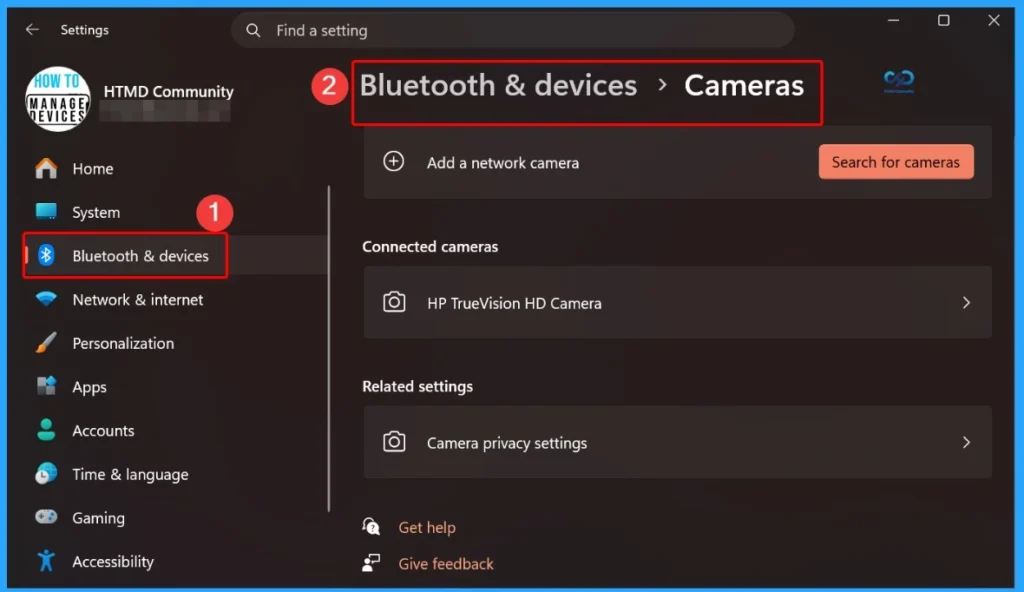
The March 2026 Windows update introduces an improvement to the Camera experience by allowing Windows Studio Effects to be used with additional cameras. Windows Studio Effects provides AI-powered enhancements such as background effects and visual adjustments, and it can now work with external devices like a USB webcam or a laptop’s built-in rear camera.

| Windows 11 26H2 | Windows 11 25H2 and 24H2 | Windows 11 23H2 |
|---|---|---|
| KB5079466 | KB5079473 | KB5078883 |
Updated Version of Windows 11 after Installing KB5079473 KB5078883 March 2026 Patch
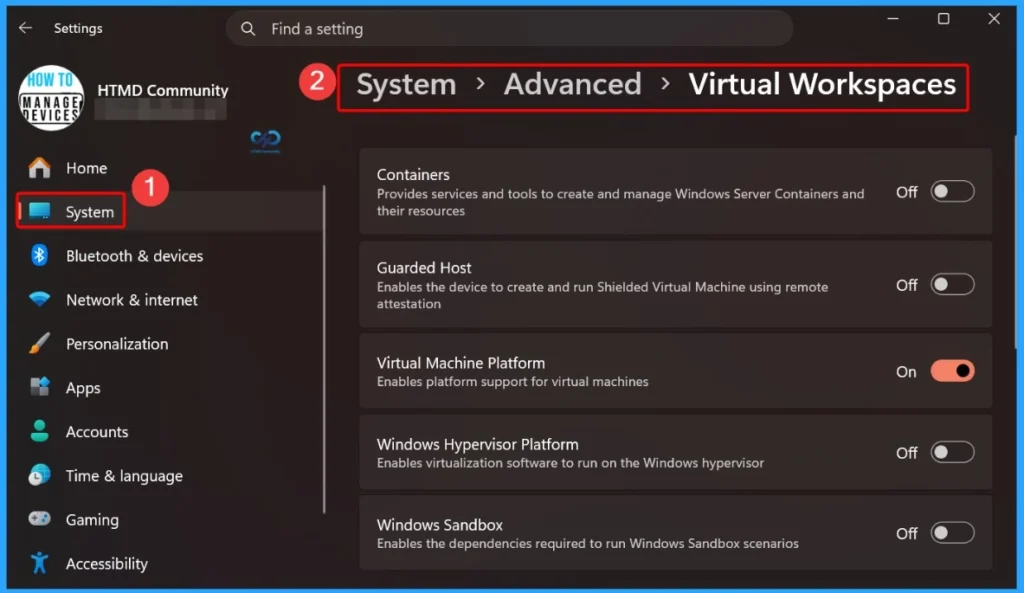
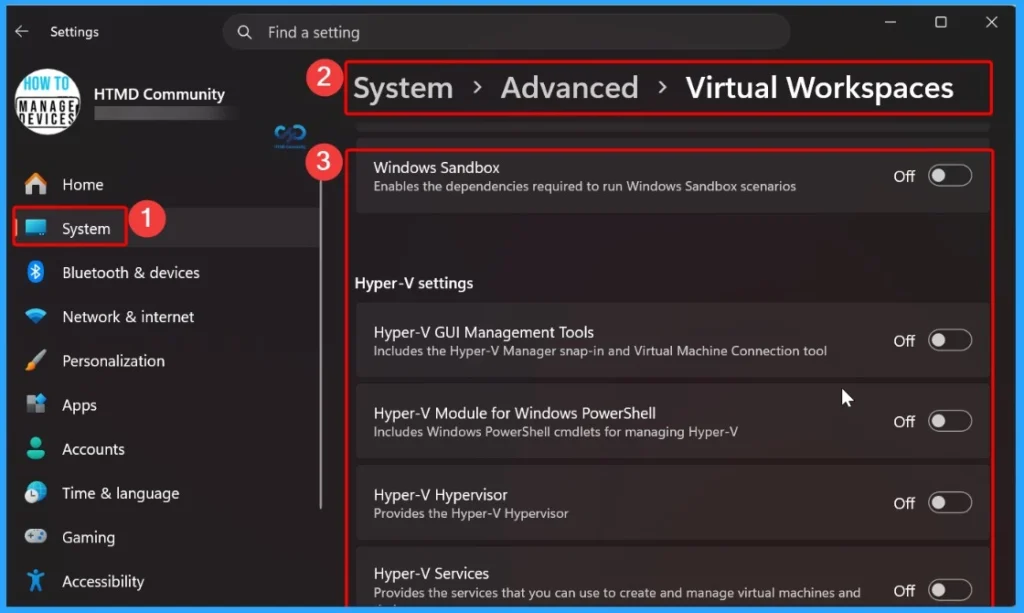
The Windows 11 March 2026 update introduces a new option in Advanced Settings called Virtual Workspaces. This feature allows users to easily enable or disable virtual environments such as Hyper-V and Windows Sandbox directly from the Settings app. By centralising these controls, Microsoft simplifies the management of virtualisation features for users and administrators.
To access this option, navigate to Settings > System > Advanced, where the Virtual Workspaces setting can be configured.
- Windows 11 version 25h2 and 24h2 – March 10, 2026—KB5079473 (OS Builds 26200.8037 and 26100.8037)
- More Details on Windows 11 version Numbers: Windows 11 Version Numbers Build Numbers Major Minor Build Rev.
- Windows 11 Version 23h2 – March 10, 2026—KB5078883 (OS Build 22631.6783)
- Windows 11 Version 26h1 – March 10, 2026—KB5079466 (OS Build 28000.1719)
Windows 11 Features and New Improvements – KB5079473 KB5078883
The Windows 11 March 2026 update includes improvements to the Windows Update experience, particularly when joining the Windows Insider Program. This update helps prevent situations where the enrollment process might get stuck when users attempt to join through Settings > Windows Update. With these improvements, users can now complete the Insider Program registration more smoothly and begin receiving preview builds without interruptions.
| New Improvements | Details |
|---|---|
| Expanded Language Support for Settings Agent – Agent in Settings | The Settings Agent now supports additional languages, including German, Portuguese, Spanish, Korean, Japanese, Hindi, Italian, and Simplified Chinese, making it easier for more users to interact with settings in their preferred language. |
| Agent in Settings – Improved Search Results Menu | The search results menu now displays more available results at once. A scroll bar is included so users can easily view and access all matching settings. |
| Recommended Settings with Inline Agent Option – Agent in Settings | Recommended settings now help users make changes faster by showing an inline agent option for settings that were recently modified. |
| Agent in Settings – Informational Dialog for Restricted Settings | When a setting cannot be adjusted further, a dialog appears explaining the reason and provides options to modify the setting if possible. |
| Streamlined Click to Do Context Menu | The Click to Do context menu now has a simplified design that makes it easier to access commonly used actions such as Copy, Save, Share, and Open, helping users quickly find and use the options they need. |
| Automatic Context Menu for Large Images or Tables | When a large image or table appears on the screen, the context menu automatically opens, allowing users to quickly access available actions and view results without additional steps. |
| Windows Studio Effects for Additional Cameras | You can now use Windows Studio Effects with additional cameras such as a USB webcam or a laptop’s built-in rear camera. To enable it, go to Settings > Bluetooth & devices > Cameras, select the connected camera, open Advanced camera options, and turn on Use Windows Studio Effects. |
| Updated File Explorer Search Box Placeholder | The placeholder text in the File Explorer search box has been updated to highlight the improved Windows Search experience. |
| File Explorer Home On-Hover Actions | File Explorer Home now supports on-hover actions for enterprise customers, allowing faster file management by providing quick actions when hovering over files. |
| Virtual Workspaces in Advanced Settings | A new Virtual Workspaces option is now available in Advanced Settings. This feature allows you to enable or disable virtual environments such as Hyper-V and Windows Sandbox. You can access it by navigating to Settings > System > Advanced. |
| Expanded Cross-Device Resume | The Cross-Device Resume feature has been expanded, allowing you to continue activities from your Android phone on your PC. This includes resuming Spotify playback, continuing work in Word, Excel, or PowerPoint, or picking up a browsing session where you left off. |
| Browser Resume for Vivo Devices | Users with Vivo Android phones can continue their browsing sessions from Vivo Browser on their PC. |
| Windows MIDI Services Enhancements | This update improves MIDI on Windows with enhanced support for MIDI 1.0 and MIDI 2.0. It includes full WinMM and WinRT MIDI 1.0 support with built-in translation, shared MIDI ports across apps, custom port names, loopback and app-to-app MIDI, along with performance improvements and bug fixes for a better experience for musicians. |
| Narrator Control Improvements | Narrator now gives users more control over how it announces on-screen controls. You can choose which details are spoken and adjust their order to match your navigation style, helping reduce unnecessary speech and making Narrator easier to follow across apps. |
| Voice Access Setup Experience | Voice Access now includes a streamlined setup experience that helps users quickly download the required speech model for their language, select the preferred microphone, and understand how Voice Access can be used on a Windows PC. |
| Voice Typing Wait Time Setting | Voice Typing now includes a Wait time before acting setting that allows users to adjust the delay before a voice command is executed. This helps accommodate different speaking speeds and improves recognition accuracy. |
| Windows Hello ESS Support for External Fingerprint Sensors | Windows Hello Enhanced Sign-in Security (ESS) now supports peripheral fingerprint sensors, extending secure sign-in beyond devices with built-in sensors to desktops and other Windows 11 PCs, including Copilot+ PCs. |
| Windows Update – Insider Program Experience | The update improves the process of joining the Windows Insider Program through Settings > Windows Update, helping prevent cases where the process could become stuck and allowing users to join more smoothly. |
| Lock Screen Reliability Improvements | This update includes underlying improvements that help resolve situations where the lock screen might become unresponsive, improving overall reliability. |
| Consistent Dark Mode Experience in File Explorer | File Explorer now provides a more consistent dark mode experience. Key actions such as copy, move, and delete dialogs have been updated in both default and expanded views. |
| Simplified File Explorer Context Menu | The File Explorer context menu has been simplified for easier navigation. Common actions like Share, Copy, and Move are now grouped in a single organized menu, reducing clutter and making commands easier to find when using a mouse, keyboard, or assistive technology. |
| Recommended Section in File Explorer Home | A new Recommended section on the File Explorer homepage helps users quickly access frequently used or recently downloaded files. You can enable it by turning on Show Recommended section in File Explorer > Options. |
| Improved Network Navigation Performance | Underlying improvements help increase File Explorer responsiveness when navigating network locations, making browsing shared folders smoother. |
| Improved Video Thumbnail Display | Fixes an issue where thumbnails might not appear for video files containing certain EXIF metadata, ensuring previews display correctly. |
| Improved Toolbar Consistency | File Explorer now prevents situations where a toolbar might appear unexpectedly, providing a more consistent interface experience. |
| Fixed Default App Icon Display | Fixes an issue where the app icon next to the Open option in the right-click menu might appear generic instead of showing the correct default application for that file type. |
| Logging into Your PC | Improved reliability where Explorer.exe might stop responding during the first sign-in if certain startup apps were configured, which could cause the taskbar not to appear. |
| Activation | Improved Windows license migration during upgrades. Fixes cases where a valid license might not migrate because the device couldn’t register its digital license. |
| Desktop Icons | Improved reliability when opening or renaming files on the desktop. Icons now stay in place instead of moving unexpectedly. |
| Input (Keyboard Settings) | Improved how keyboard character repeat delay labels appear in Settings > Bluetooth & Devices > Keyboard. |
| User Account Control (UAC) | Improved reliability when running Windows Terminal as administrator from a non-admin account, preventing the PC from becoming unresponsive. |
| Advanced Settings – Virtual Workspaces | New Virtual Workspaces option allows enabling or disabling virtual environments such as Hyper-V and Windows Sandbox from Settings > System > Advanced. |
| Desktop Spotlight | When Windows Spotlight is set as the desktop background, the context menu now includes “Learn more about this background” and “Next desktop background” options. |
| Gaming | Full Screen Experience The Full Screen Experience (FSE) is now available on more Windows 11 handheld devices, providing a console-style interface with the Xbox app and improved performance by minimizing background tasks. |
| Input – Haptic Feedback for Pens | Pens that support haptic feedback now provide small vibrations when interacting with Windows, such as hovering over the close button or snapping and resizing windows. |
| Improved Keyboard Backlight | Keyboard backlight performance is improved on supported HID-compliant keyboards, helping keys appear clearer in low-light environments while adjusting brightness to save power. |
| AltGr Support for Arabic 101 Layout | The AltGr layer is now enabled for the Arabic 101 keyboard layout. The right Alt key (AltGr) can be used to access extra symbols, including the Saudi Riyal currency symbol (AltGr + S). |
| Mobile Device Settings | You can now add and manage mobile devices in Settings > Bluetooth & Devices > Mobile Devices. From here, you can use your phone as a connected camera or access your device files in File Explorer. |
| OneDrive Icon in Settings | A new OneDrive icon now appears in Settings > Accounts > Homepage for easier access. |
| Keyboard Settings Moved to Settings | Keyboard settings for character repeat delay and rate and cursor blink rate have moved from Control Panel to Settings. They are now available under Settings > Accessibility > Keyboard and Settings > Accessibility > Text cursor. |
| Updated About Page in Settings | The About page in Settings now has a new layout that organizes device details and related options in one place, with quick access to features such as Storage settings. |
| Network & Internet Reliability | Improved reliability when navigating to Settings > Network & Internet, preventing the Settings app from becoming unresponsive. |
| Settings Search Bar Improvement | The Settings search bar is improved so it no longer overlaps with the Minimize and Maximize buttons in the title bar. |
Issues Fixed with Windows 11 March Patch 2026 – KB5079473 KB5078883
The Windows 11 March 2026 update includes a fix for an issue affecting Windows Sandbox. Previously, Windows Sandbox could become unresponsive during startup and display the error 0x800705b4, preventing the virtual environment from launching correctly. This update resolves the problem, improving the reliability of Windows Sandbox and ensuring it starts and runs more smoothly for users who rely on it for testing or secure application execution.
| Issues Fixed with Windows 11 March Patch | Description |
|---|---|
| Windows Sandbox | Fixed an issue that could cause Windows Sandbox to stop responding during startup and display error 0x800705b4. |
Known Issues from March Windows 11 Patch 2026
The Windows 11 March 2026 update also includes a known issue related to updates installed using Windows Update Standalone Installer (WUSA). In some cases, updates might fail when they are installed from a shared network folder. Microsoft has acknowledged this issue and is currently working on a fix. A resolution is expected to be released in a future Windows update.
| Summary | Originating Update | Status |
|---|---|---|
| Updates installed via WUSA might fail if installed from a shared folder | N/A | A resolution for this issue is planned for a future Windows update |
Intune Windows 11 KB5079473 KB5078883 Deployment
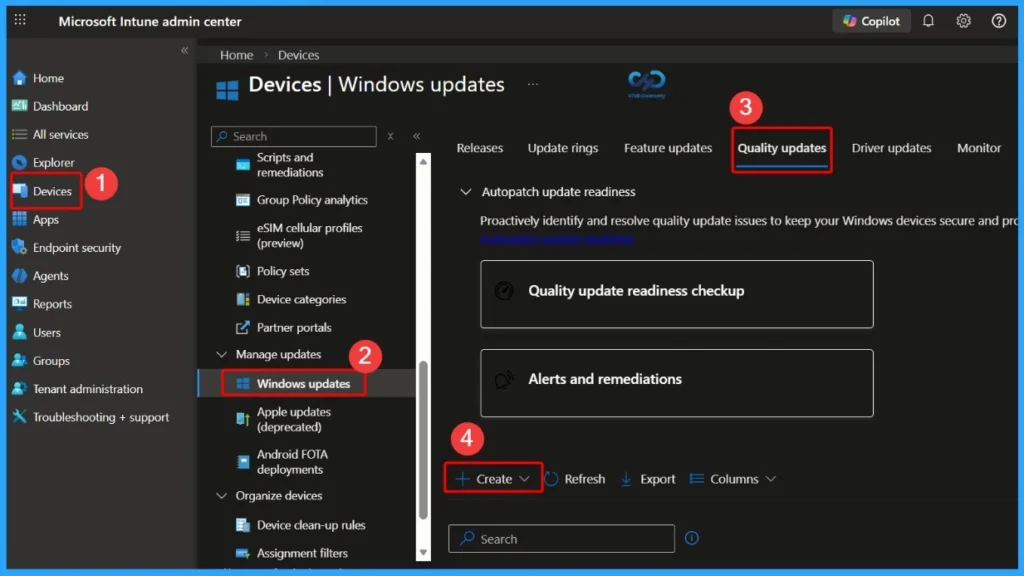
For the March 2026 Windows 11 patch, administrators can deploy the cumulative update using Microsoft Intune without creating a new patch policy. If some devices have not yet installed the March update, IT teams can use a Windows 11 Quality Update profile to accelerate the deployment.
- By creating an Expedited Quality Update profile in the Intune admin center, administrators can instruct devices to install the March 2026 cumulative update immediately instead of waiting for the regular update cycle.
- To configure this, go to the Intune admin center, navigate to Devices → Windows 10 and later → Quality updates, and click Create profile.
- Give the profile a name such as Windows 11 March 2026 LCU, enable expedite installation for devices that are behind the March update, and set restart enforcement to 1 day so devices restart and complete the update.
- This helps organizations improve patch compliance and ensure devices receive security updates faster.
Read More – Software Update Patching Options with Intune Setup Guide
More Details on Zero Day Out Of Band Patch Deployment Using Intune MEM Expedite Best Option and Intune Reporting Issue: Expedite Windows Security Patch Deployment.
SCCM Windows 11 KB5079473 KB5078883 Deployment
You can deploy the Windows 11 March 2026 Cumulative Updates using SCCM, WSUS, or Microsoft Intune. In the SCCM Console, navigate to Software Library > Overview > Software Updates > All Software Updates. From the All Software Updates node, start a WSUS synchronization by right-clicking and selecting Synchronize Software Updates.
- After the synchronization completes, search for the March 2026 cumulative update for Windows 11 using the relevant KB number or by using a broader search term such as March 2026 Cumulative Update for Windows 11.
- Once identified, you can select the update and deploy it to the required device collections to begin the installation process.
Direct Download Links of Windows 11 KB5079473 KB5078883
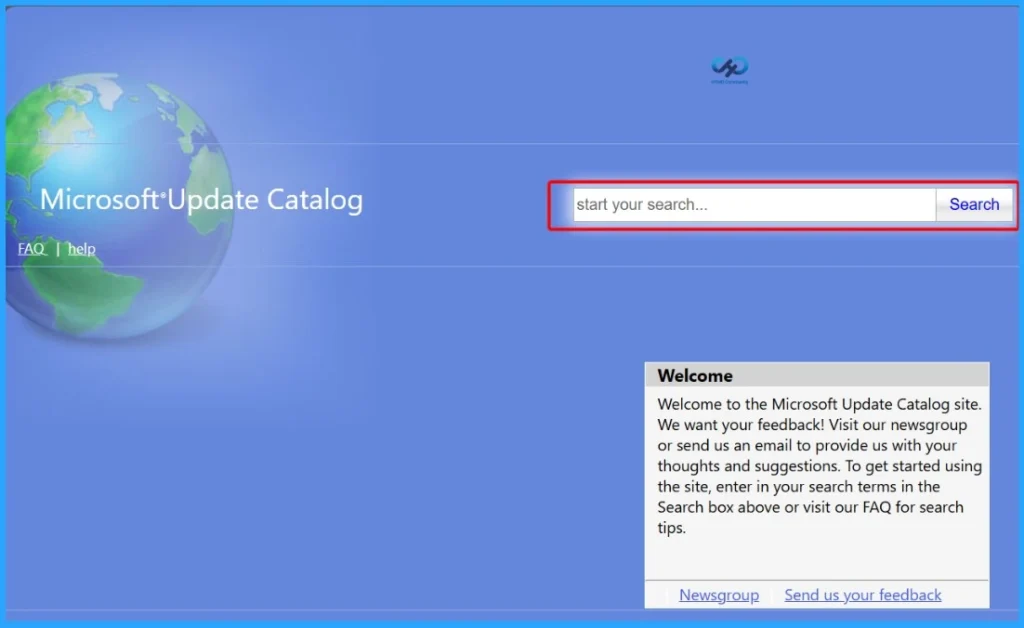
You can manually download the March 2026 Cumulative Updates for Windows 11 from the Microsoft Update Catalog. The catalog provides direct download links for the latest Windows 11 LCUs (Latest Cumulative Updates), allowing administrators to install updates manually or use them in offline or custom deployment scenarios.
To get the update, visit the Microsoft Update Catalog portal and search for the relevant March 2026 Windows 11 cumulative update KB number, then download the package that matches your device architecture. This method is useful for environments where updates need to be deployed manually or in restricted network setups.
| Cumulative Update for Windows 11 | Products | Size | Direct Download |
|---|---|---|---|
| 2026-01 Cumulative Update for Windows 11, version 25H2 for x64-based Systems(KB5079473) | Windows 11 25H2 | 4523.6 MB | Download |
| 2026-01 Cumulative Update for Windows 11 Version 24H2 for x64-based Systems (KB5079473) | Windows 11 24H2 | 4523.6 MB | Download |
| 2026-01 Cumulative Update for Windows 11 Version 23H2 fo2026 March KB5079473 KB5078883 Windows 11 Patch | 2 Zero Day Vulnerabilities and 79 Flaws – Table 5r x64-based Systems (KB5073455) (KB5078883) | Windows 11 23H2 | 1004.0 MB | Download |
Need Further Assistance or Have Technical Questions?
Join the LinkedIn Page and Telegram group to get the latest step-by-step guides and news updates. Join our Meetup Page to participate in User group meetings. Also, Join the WhatsApp Community to get the latest news on Microsoft Technologies. We are there on Reddit as well.
Author
Anoop C Nair has been Microsoft MVP for 10 consecutive years from 2015 onwards. He is a Workplace Solution Architect with more than 22+ years of experience in Workplace technologies. He is a Blogger, Speaker, and Local User Group Community leader. His primary focus is on Device Management technologies like SCCM and Intune. He writes about technologies like Intune, SCCM, Windows, Cloud PC, Windows, Entra, Microsoft Security, Career, etc.