
Let’s discuss how to Fix Office Update Error Code 30094-27 in Classic Outlook for Windows. When devices encounter Office update error code 30094-27, Outlook doesn’t receive the latest security patches, performance fixes, or new features.
This disruption impacted users in the preview and testing programs, who depend on timely updates to access new features, enhancements, and fixes before they are rolled out broadly. As a result, affected devices remained on outdated builds, missing out on the latest improvements and changes.
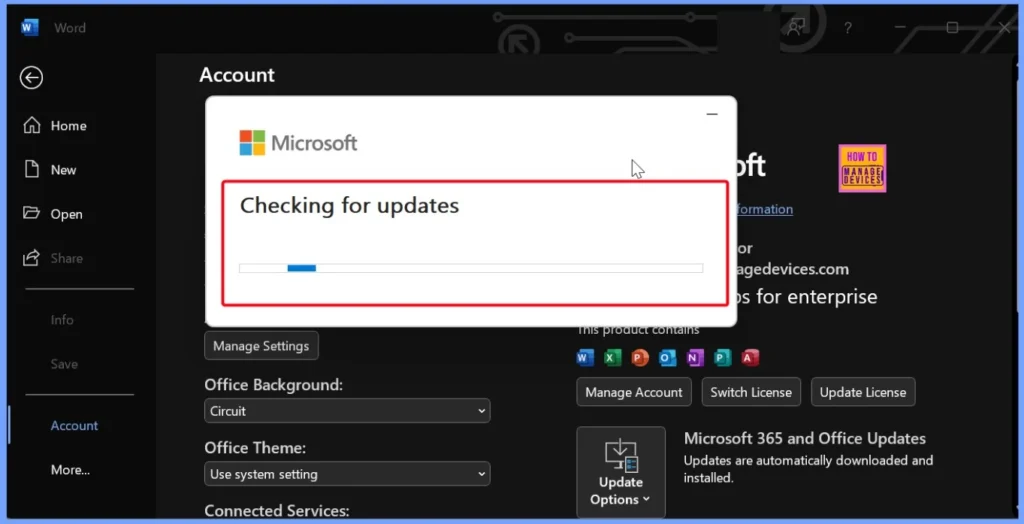
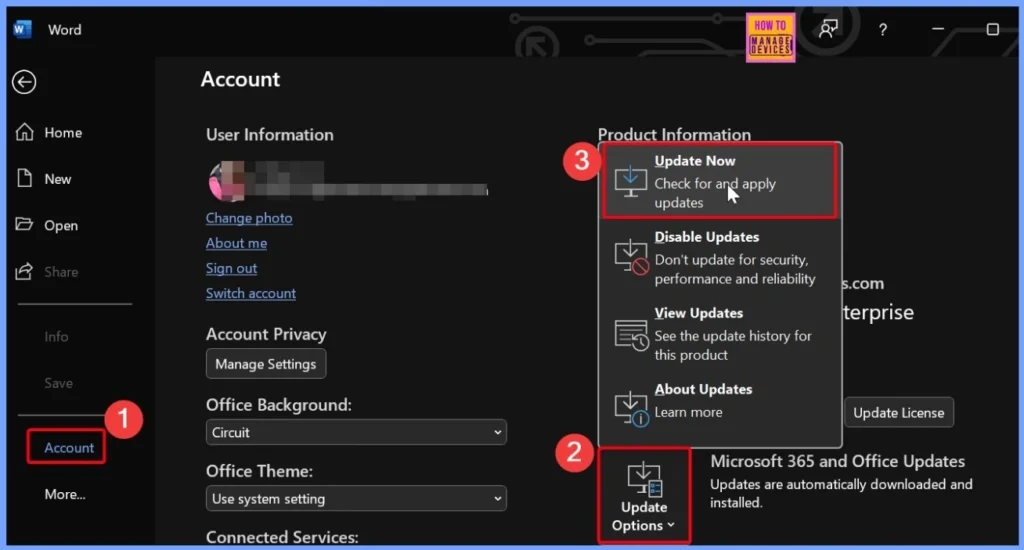
When users manually trigger an update through File > Account > Update Options > Update Now, the process often fails and displays the error code 30094-27. This error typically indicates a problem with the update service or corrupted update files, preventing Office from successfully downloading or applying the latest build.
The Devices that encounter Office update error code 30094-27 are unable to complete updates, leaving Outlook without the most recent fixes, security updates, and enhancements. For IT admins, this translates into several challenges. End-users may raise more support requests due to crashes, failed installations, or performance slowdowns.

| Error Code |
|---|
| 30094-27 |
Table of Contents
How to Fix Office Update Error Code 30094-27 in Classic Outlook for Windows
Outlook is a central place for daily business communication, and even brief interruptions can disrupt productivity, making it essential for IT teams to act quickly and restore normal operations while safeguarding security.
- How to Manage Outlook Out of Office Settings using Microsoft Graph API and PowerShell- A Complete Automation Guide
- Best way to Fix Classic Outlook Crashes using Intune PowerShell Remediation Script
- How to Fix Calendar Time Selection Issue in Outlook When Selecting Multiple Calendars and Timeslots
- Outlook for Mac Email Recall Tips for Resending and Fixing Email Errors
Workaround
Here we explain two different workarounds that can help resolve the issue. Each workaround is shown with clear steps so users can easily follow and apply the method that works best for their situation.
Restart Windows and Run a Manual Update
You can easily fix the Office update error code 30094-27 by restarting Windows and then manually checking for updates. After the restart, open Word, go to File > Account > Update Options > Update Now, and let Office search for updates. If the update has already been installed in the background, you’ll see the message “You’re up to date”. This ensures Outlook and other Office apps receive the latest patches and fixes.
Restarting the Click-to-Run Services that Handle Office Updates
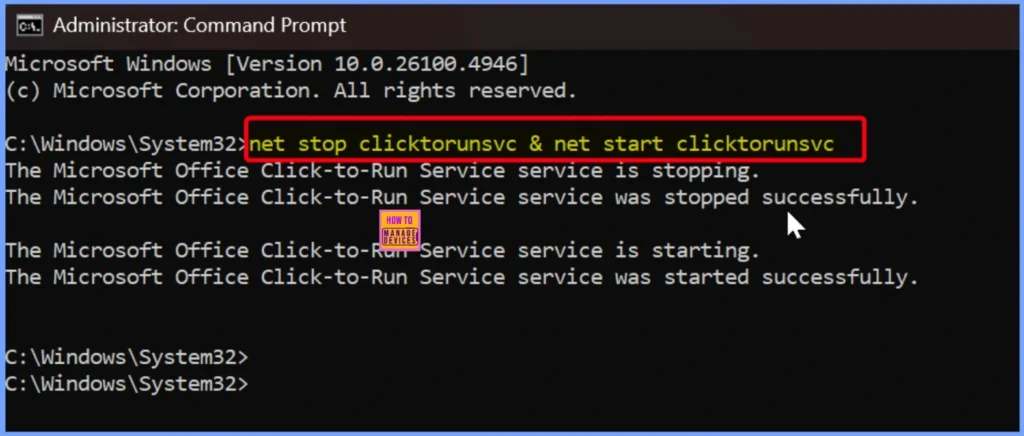
Another way to fix Office update error code 30094-27 is by restarting the Click-to-Run services responsible for managing Office updates. To do this, first close all Office applications and then open Command Prompt in Administrator mode.
Enter the command net stop clicktorunsvc & net start clicktorunsvc to stop and restart the service. After that, open Word, navigate to File > Account > Update Options > Update Now, and manually trigger the update. This process refreshes the update service and helps ensure that Office installs the latest patches and improvements successfully.
Need Further Assistance or Have Technical Questions?
Join the LinkedIn Page and Telegram group to get the latest step-by-step guides and news updates. Join our Meetup Page to participate in User group meetings. Also, join the WhatsApp Community to get the latest news on Microsoft Technologies. We are there on Reddit as well.
Author
Anoop C Nair has been Microsoft MVP for 10 consecutive years from 2015 onwards. He is a Workplace Solution Architect with more than 22+ years of experience in Workplace technologies. He is a Blogger, Speaker, and Local User Group Community leader. His primary focus is on Device Management technologies like SCCM and Intune. He writes about technologies like Intune, SCCM, Windows, Cloud PC, Windows, Entra, Microsoft Security, Career, etc.