
Today we are discussing the Enhance Security by Removing the Add New Programs Option using Intune Policy. This policy that removes the Add New Programs button from the Add or Remove Programs bar in Windows. As we all know that admins can control uses in the organization with strong setting catalog policies.
This policy is mainly used to prevent users from installing software on their own and to give administrators more control over the programs that are allowed within the organization. The Add New Programs option usually allows users to view and install applications that are assigned by the system administrator.
When the policy is enabled, the Add New Programs button is removed entirely from the Add or Remove Programs window. This means that users can no longer view, select, or install programs that were published by the administrator.
If the policy is disabled or left not configured, the Add New Programs button remains available for all users. In this case, users can install programs that have been published or assigned by their system administrator. it can create challenges in large organizations where maintaining software consistency is critical.

Table of Contents
What is the Purpose of the Remove Add New Programs Button from Add or Remove Programs Policy?
The main purpose of this policy is to stop users from installing applications on their own by removing the Add New Programs button in the Windows Add or Remove Programs bar. When this policy is enabled, users cannot view or install any published or assigned programs.
Enable Hide Add New Programs page using Intune Policy
The biggest security benefit is protection against unauthorized or malicious software. When users cannot freely install applications, it reduces the risk of downloading unsafe programs from the internet or using pirated software.
- How to Show or Hide Switch Account Option in Windows Start Menu using Intune Policy
- Enable or Disable Microsoft Account Connection Policy using Intune
- Intune Allow Microsoft Accounts to be Optional Policy
Real-World Scenario
In a office, employees may try to install personal apps like, free games, or download managers. These applications can cause system slowdowns or expose the network to viruses. By enabling this policy through Intune, the IT team can prevent such installations and ensure that employees only use authorized business tools such as Microsoft Office, Teams, or Adobe Acrobat.
Create a Profile
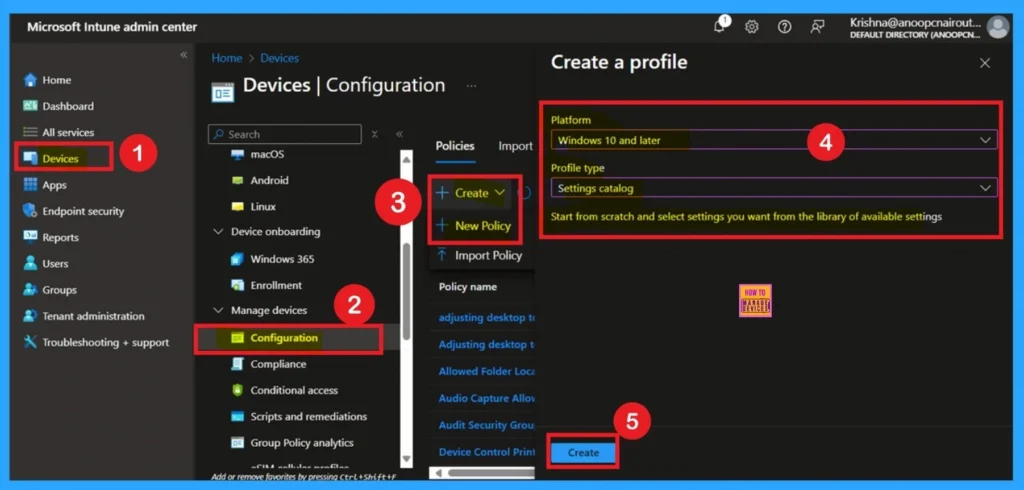
Using Intune, you can easily enable or disable the User Input from the Wireless Display Receiver. Sign in to the Microsoft Intune Admin Center using your administrator credentials. Go to Devices > Windows > Configuration > Create > +New Policy. Click +Create and then select +New Policy to begin configuring the required settings.choose Windows and later as Platform and Profile type as Settings catalog. Then click on the Next button.
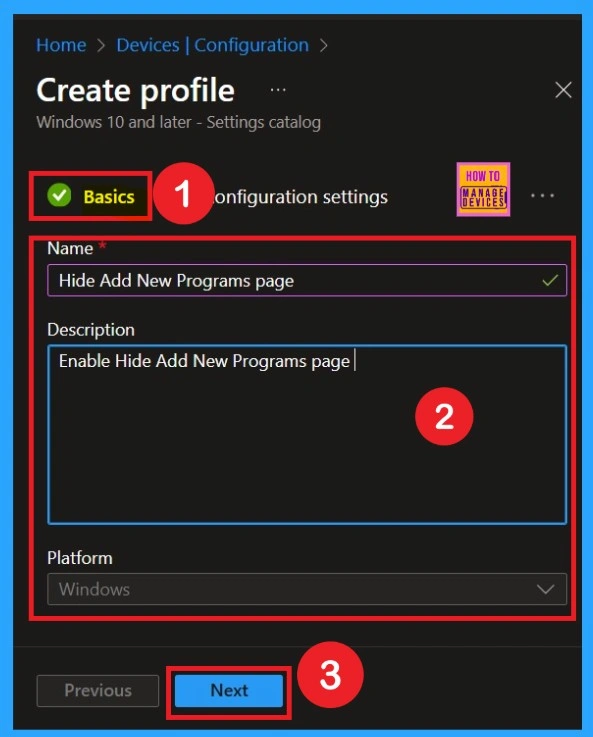
Basics
In the Basics tab, you need to enter the basic details about your policy. Here, you can give a policy name that clearly explains its purpose for example, Hide Add New Programs page Policy. You can also write a short description to mention what this policy does. Giving a clear name and description helps you and your team easily identify the policy later.
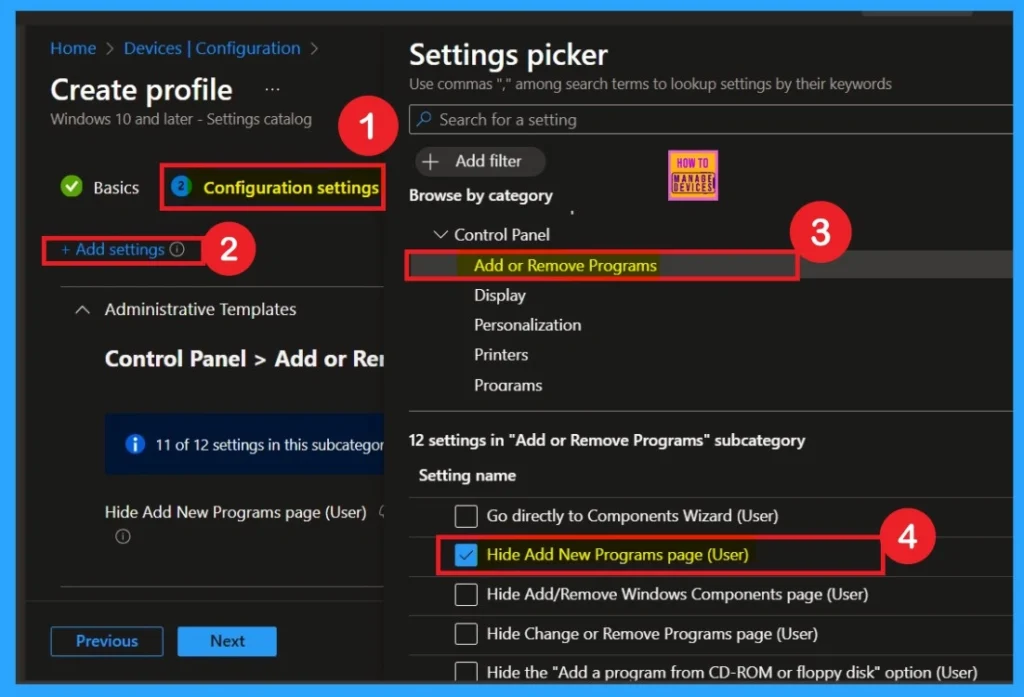
Add Settings in the Configuration Window
In the Configuration Settings tab, you have to set up the actual rule for this policy. Click on Add Settings, then go to Administrative Templates and select Control Panel >Add or Remove Programs. There you will find the setting called Remove Add New Programs page. Set this option to Enabled. By enabling it, you are removing the Add New Programs button from users’ computers, preventing them from installing applications on their own.
Disabled By Default
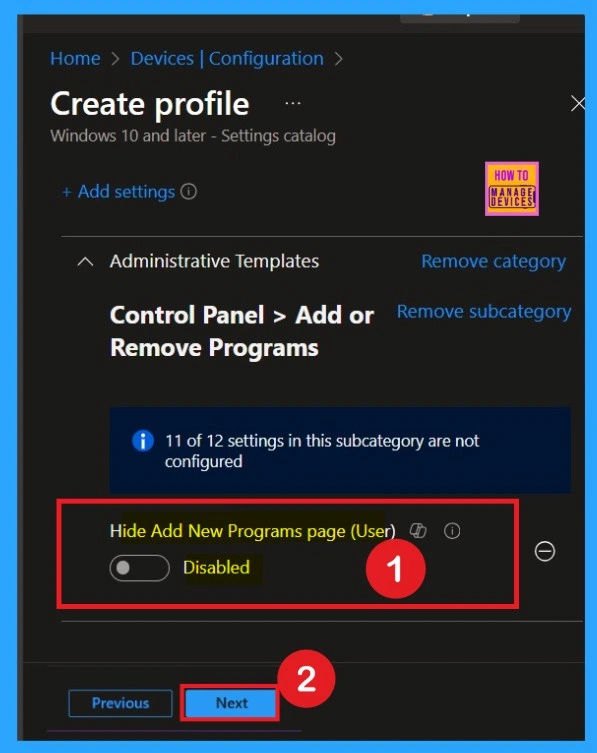
After selecting the settings, close the settings picker window. Now you are on the Configuration Settings main page. You will see that the policy has appeared on your screen. By default, this policy is disabled. If you want to continue with this default setting, you can click Next.
Enabled Mode
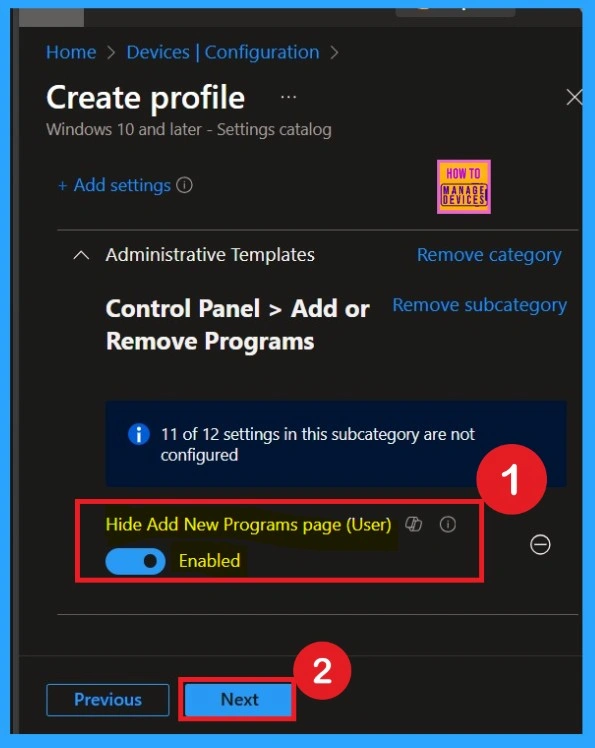
You can also enable a policy that is disabled by default. To do this, toggle the switch from left to right. Once enabled, the switch will turn blue and display the label Enabled. If you want to proceed without making any changes, simply click Next to continue.
Scope Tags
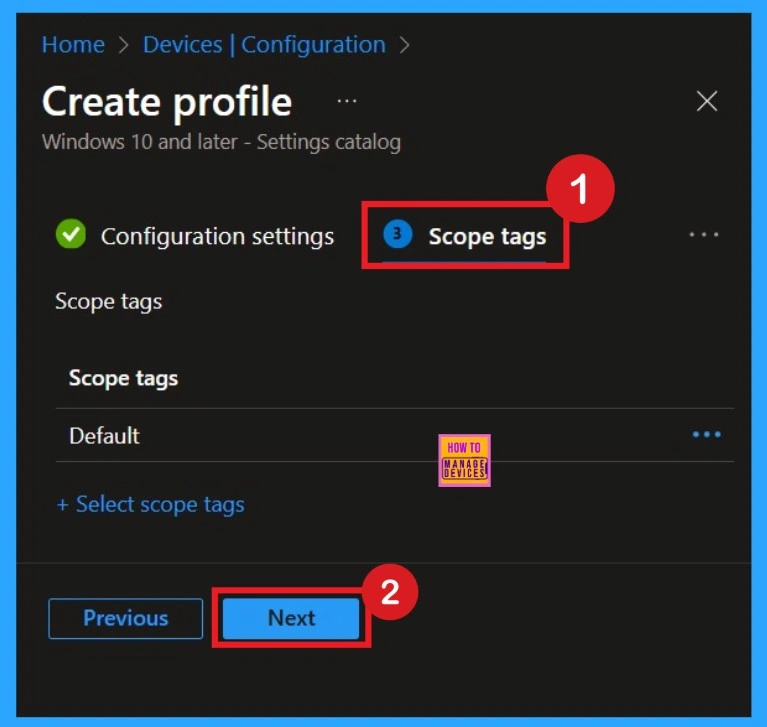
On the scope tag section, you can add the scope tag so simply skip this section. This is not a mandatory tab, and this is completely up to your choice. Here I skip this section. So, click on the Next button.
Assignments Tab
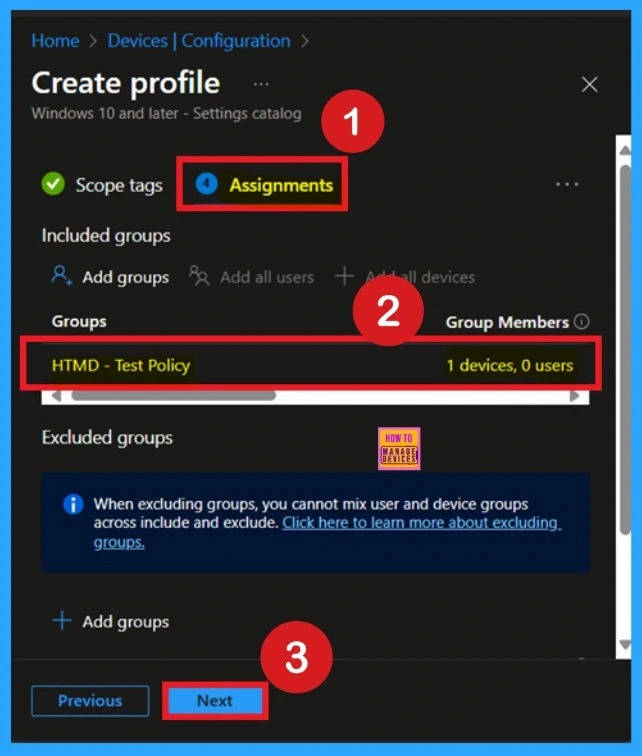
In the Assignments tab, you decide which users or devices should receive this policy. You can assign it to a specific group,Once the policy is assigned, Intune will automatically apply the configuration to those targeted devices when they sync with Intune. This helps ensure that only the right devices receive the policy settings.
Review + Create Tab
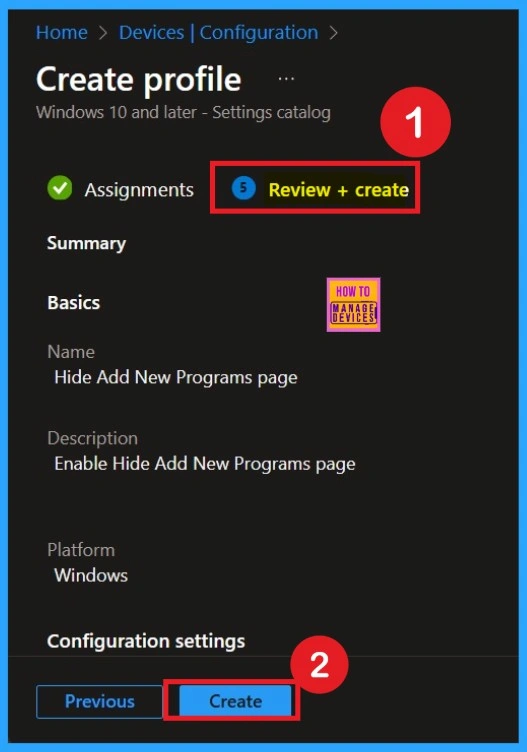
Finally, in the Review + Create tab, you can go through all the details you’ve entered and like the policy name, settings, scope tags, and assignments. If everything looks correct, click on Create to finish the setup. Once created, the policy will be deployed to the assigned devices, and the Add New Programs button will be removed automatically.
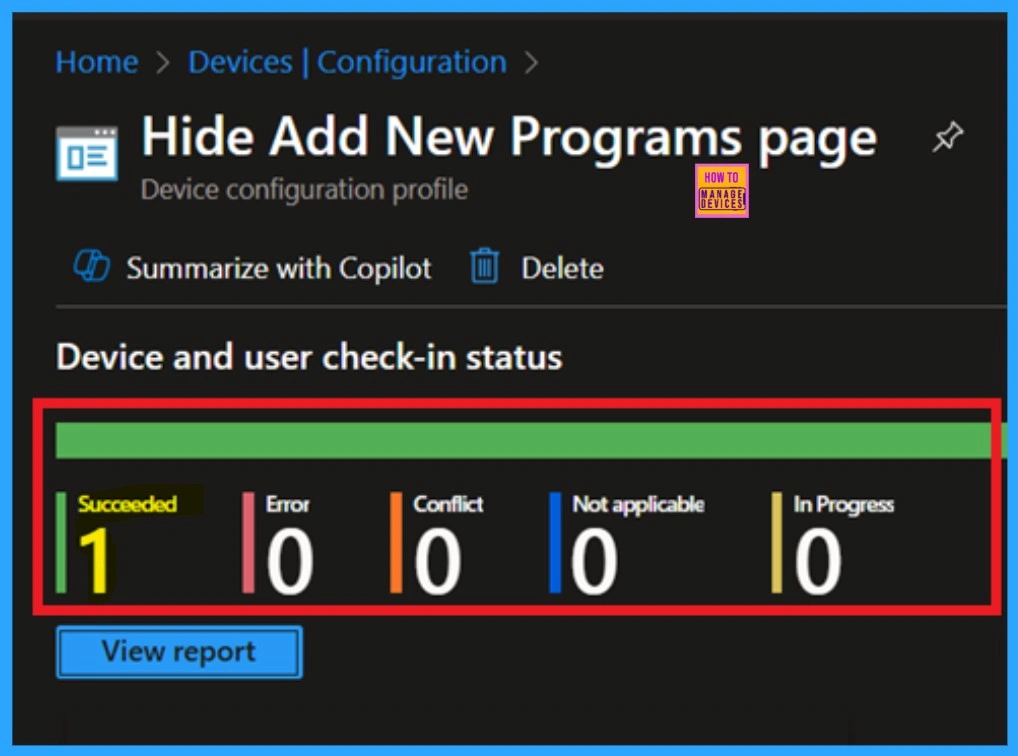
Monitoring Status
The Monitoring Status page shows whether the policy has succeeded or not. To quickly configure the policy and take advantage of the policy sync, the device on the Company Portal, Open the Intune Portal. Go to Devices > Configuration > Search for the Policy. Here, the policy shows as successful.
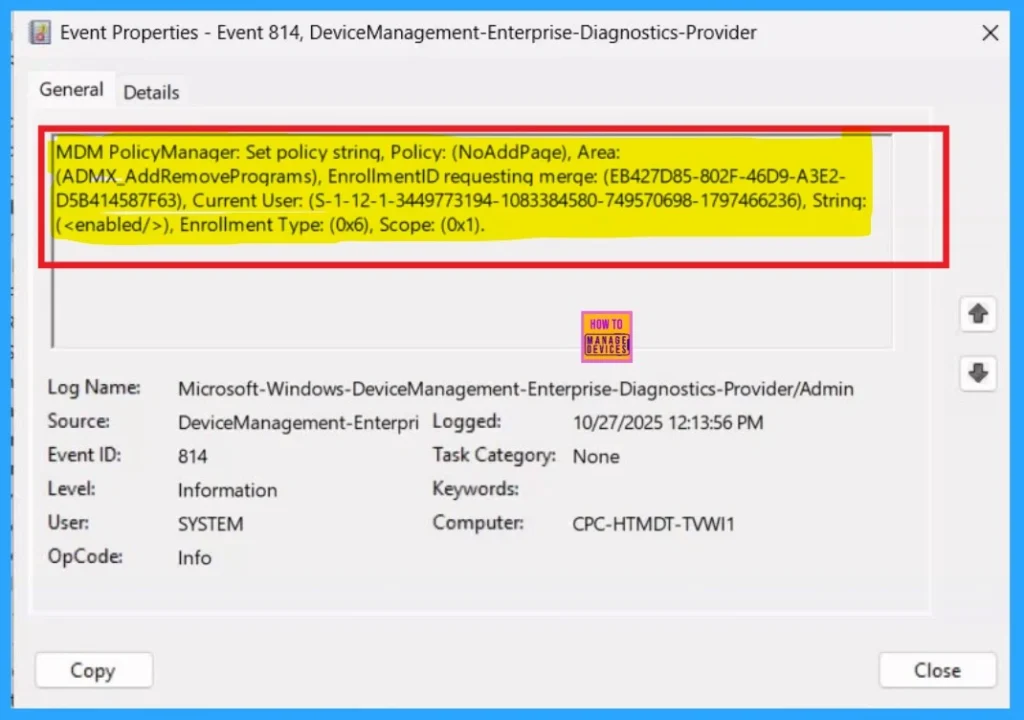
Event Viewer Results
It helps you check the client side and verify the policy status. Open the Client device and open the Event Viewer. Go to Start > Event Viewer. Navigate to Logs: In the left pane, go to Application and Services Logs > Microsoft > Windows> DeviceManagement-Enterprise-Diagnostics-Provider > Admin.
| Policy Info |
|---|
| MDM PolicyManager: Set policy string, Policy: (NoAddPaqe), Area: (ADMX_AddRemoveProqrams), EnrollmentID requesting merqe: (EB427D85-802F-46D9-A3E2- D5B414587F63), Current User: (S-1-12-1-3449773194-1083384580-749570698-1797466236), Strinq: (), Enrollment Type: (0x6), Scope: (0x1). |
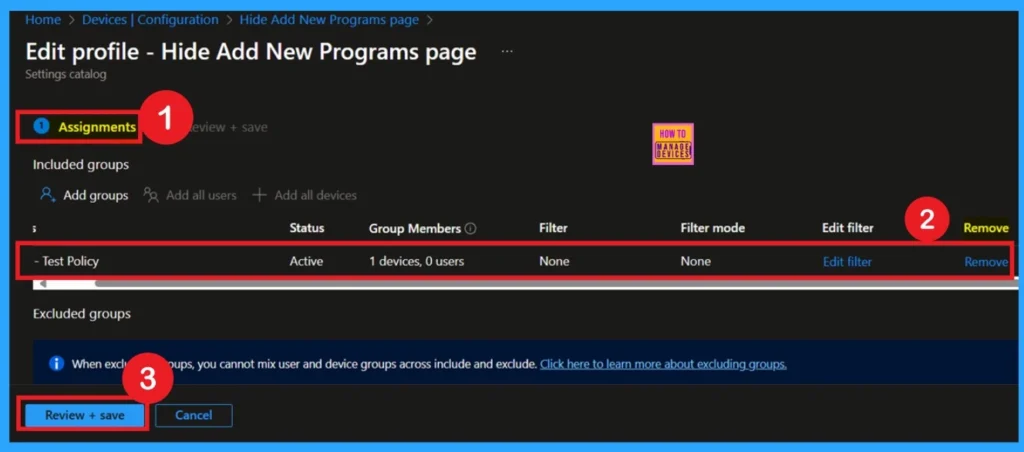
Removing the Assigned Group
If you want to remove the Assigned group from the policy, it is possible from the Intune Portal. To do this, open the Policy on Intune Portal and edit the Assignments tab and the Remove Policy.
To get more detailed information, you can refer to our previous post – Learn How to Delete or Remove App Assignment from Intune using by Step-by-Step Guide.
How to Delete the Policy that you created
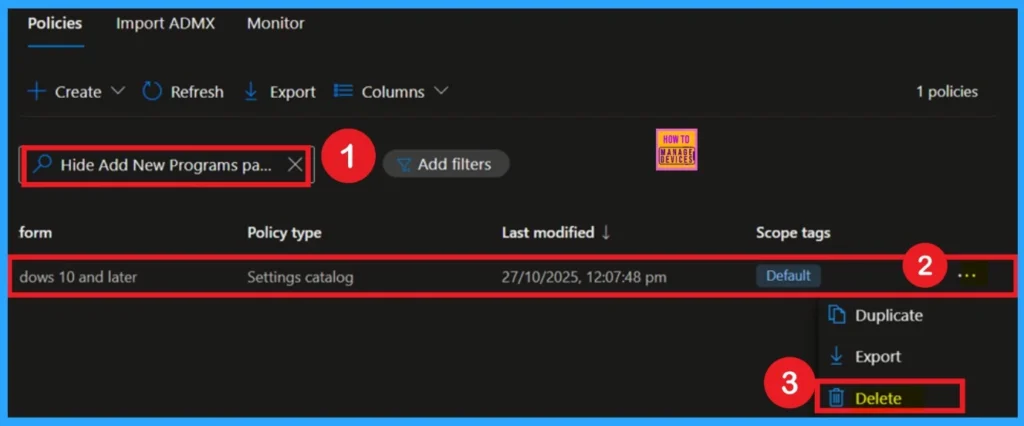
You can easily delete the Policy from the Intune Portal. From the Configuration section, you can delete the policy. It will completely remove it from the client devices. For that search the picy name in the configuration profiles. Locate and select the specific policy you want to remove. Once you’re on the policy details page, click the 3 -dot menu in the top right corner and choose Delete from the available options.
Need Further Assistance or Have Technical Questions?
Join the LinkedIn Page and Telegram group to get the latest step-by-step guides and news updates. Join our Meetup Page to participate in User group meetings. Also, Join the WhatsApp Community to get the latest news on Microsoft Technologies. We are there on Reddit as well.
Author
Anoop C Nair has been Microsoft MVP from 2015 onwards for 10 consecutive years! He is a Workplace Solution Architect with more than 22+ years of experience in Workplace technologies. He is also a Blogger, Speaker, and Local User Group Community leader. His primary focus is on Device Management technologies like SCCM and Intune. He writes about technologies like Intune, SCCM, Windows, Cloud PC, Windows, Entra, Microsoft Security, Career, etc.