
Block Malicious Code Creation in Word Excel and PowerPoint using Intune ASR Rule. Every organization has computers, apps, and networks that can be targeted by attackers all these entry points together are called the attack surface.
Microsoft Defender for Endpoint helps with this by using Attack Surface Reduction (ASR) rules. These rules watch for and block risky actions that attackers commonly use, such as running unknown files or scripts, downloading harmful content, or performing strange tasks that normal apps don’t usually do.
This rules helps you to strengthen security by preventing Office apps like Word, Excel, and PowerPoint from creating or running executable files that could contain malicious code. Normally, these apps are used for document editing or data processing, not for generating or executing code. However, attackers often exploit vulnerabilities or use macros within these apps to deliver harmful programs.
This rule helps IT admins by reducing the risk of malware spreading through Office files, which are common targets for attackers. It gives admins more control knowing that even if users open a suspicious Word, Excel, or PowerPoint file, it won’t be able to create or run harmful programs.

Table of Contents
Block Malicious Code Creation in Word Excel and PowerPoint using Intune ASR Rule
When this rule is enabled, it blocks any attempt by Office applications to write executable content to the disk. It is a common method used by malware to install itself on a device. For example, if a malicious macro tries to create and save an .exe file, this rule will stop the action before it can execute.
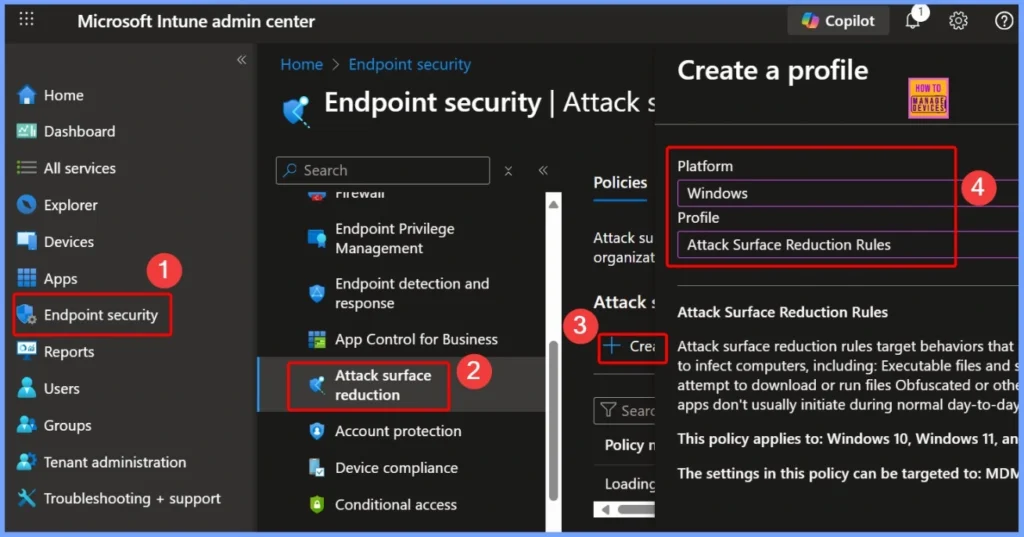
- Log in to the Microsoft Intune Admin Portal using your admin credentials.
- Go to Endpoint security in the left-hand menu.
- Select Attack surface reduction
- Click Create Policy to start configuring your desired security settings.
| Platform | Profile |
|---|---|
| Windows | Attack Surface Reduction Rules |
- Guide To Disabling The Erase All Content Option On Supervised Devices Using Intune
- Block Executable Files with Prevalence Age or Trusted List Criteria using Intune ASR Rules
- Microsoft Defender ASR Rules to Block Rebooting Machine in Safe Mode
- MDE Microsoft Defender for Endpoint Telemetry Issues
- Unable to Join Teams Meetings Using Links from Outlook Because of ASR Rules
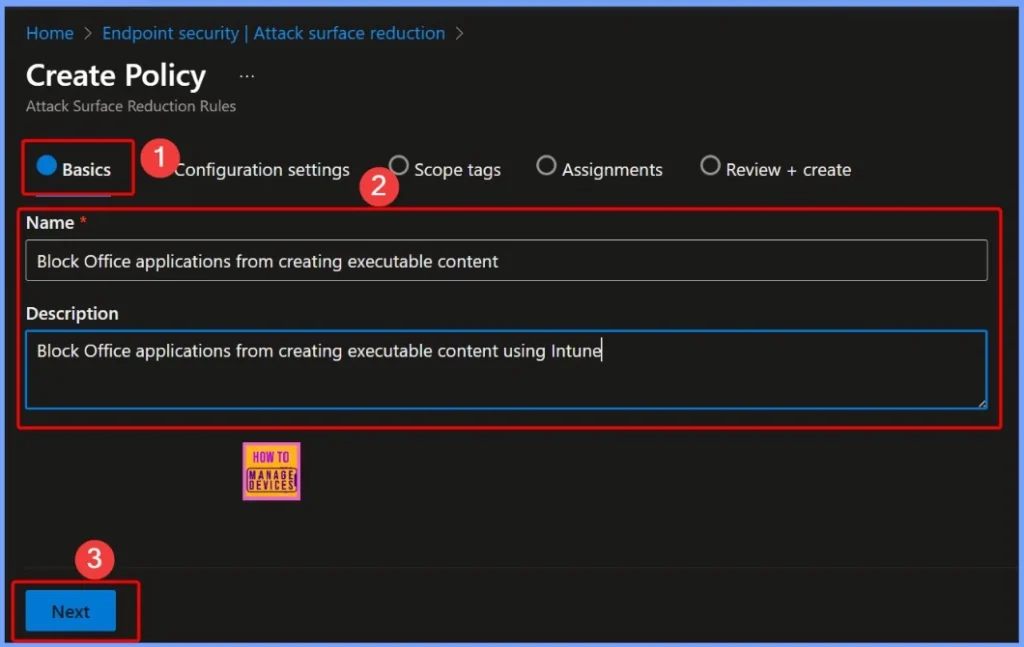
Configure Basics Details Name and Description
In the Basics settings tab, provide clear details to identify the policy. This step helps you to recognize the policy easily within Intune, ensuring that its purpose and function are clearly defined for future management and reference.
- Name: Block Office applications from creating executable content
- Description: Block Office applications from creating executable content using Intune.
Block Office Applications from Creating Executable Content
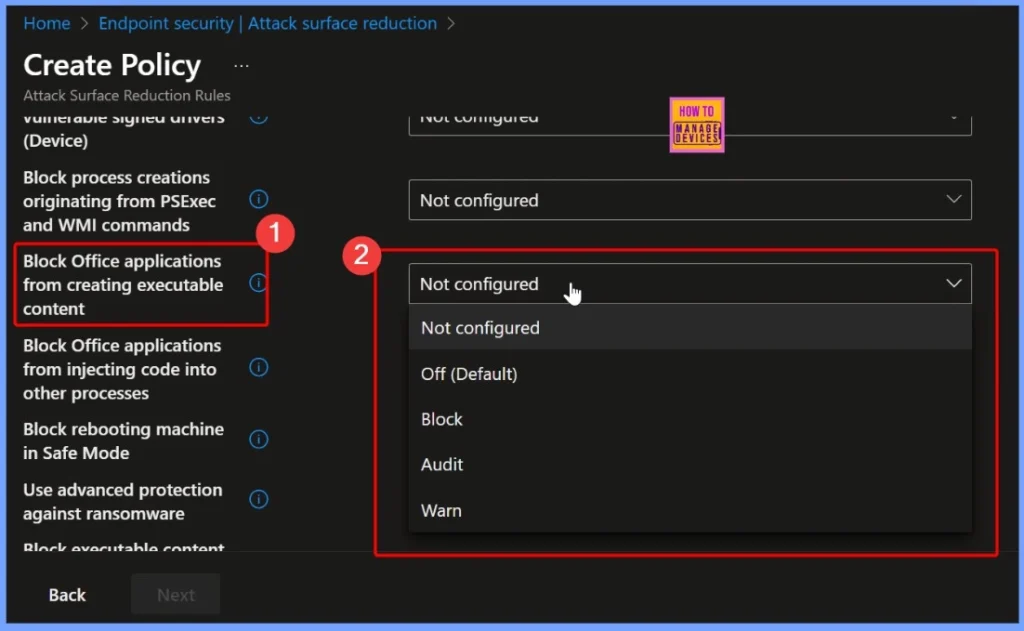
For the policy “Block Office applications from creating executable content,” Intune provides four configuration options: Not configured, Off (default), Block, Audit, and Warn. Not configured or Off (default): The rule is inactive.
- Block: Prevents Office apps from creating or running executable content
- Audit: Logs the activity without blocking it
- Warn: Displays a warning to the user before allowing the action
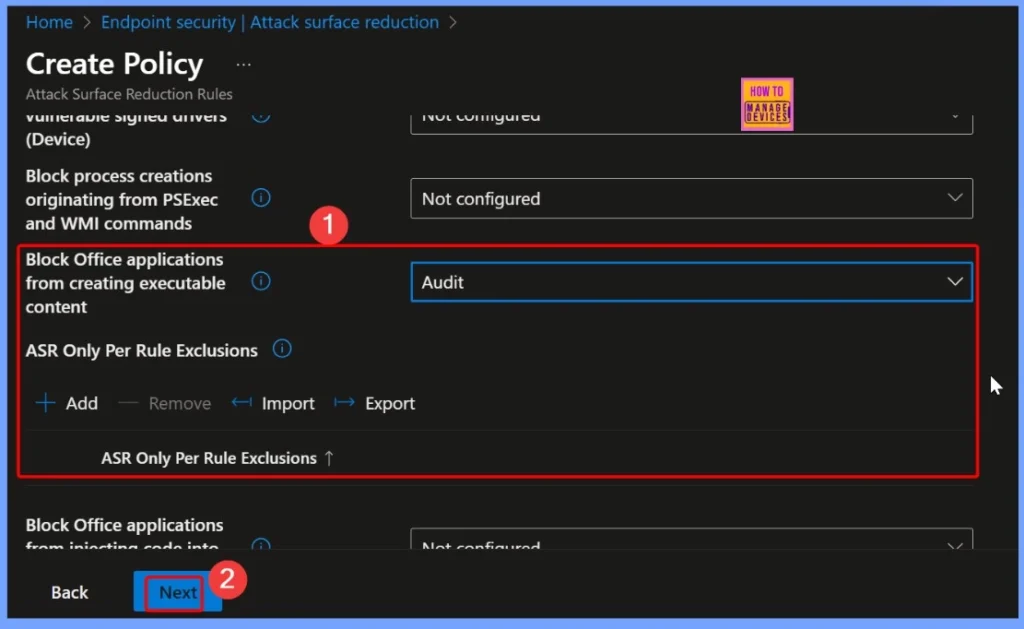
Monitor Office App Activity Safely with the Audit Mode Configuration
In this configuration, the Audit option is selected. It’s a useful approach for testing and understanding how often such activities occur in your environment before enforcing stricter controls like Block.
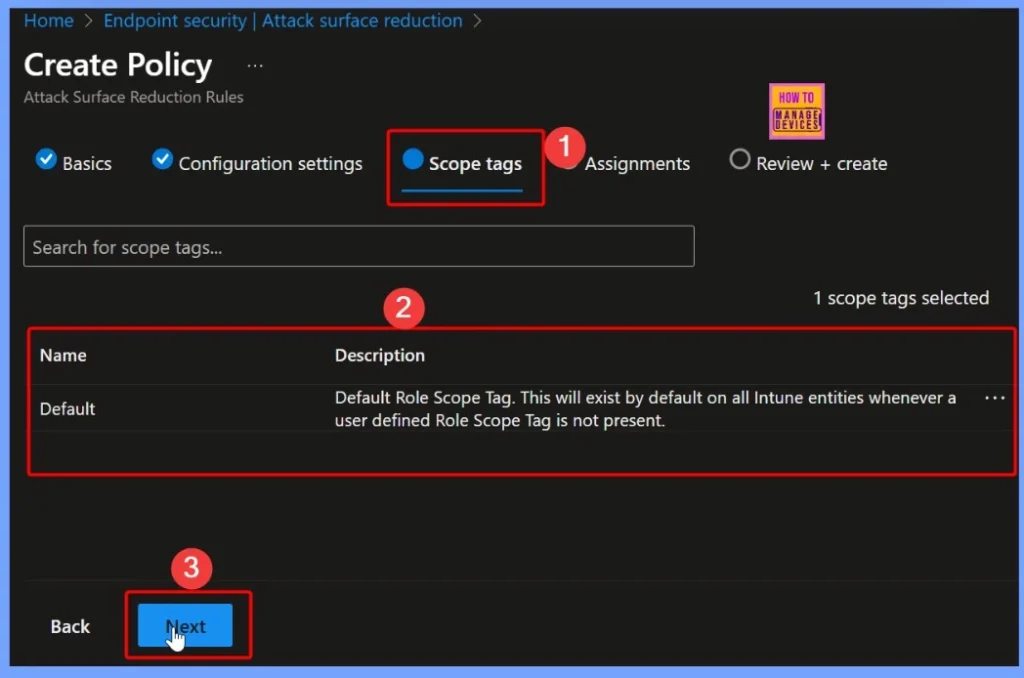
Assign Scope Tags to the Policy
In this step, you can assign scope tags to the policy. Scope tags help define which groups of administrators can view or manage this policy within Intune. Here i select the default scope tag.
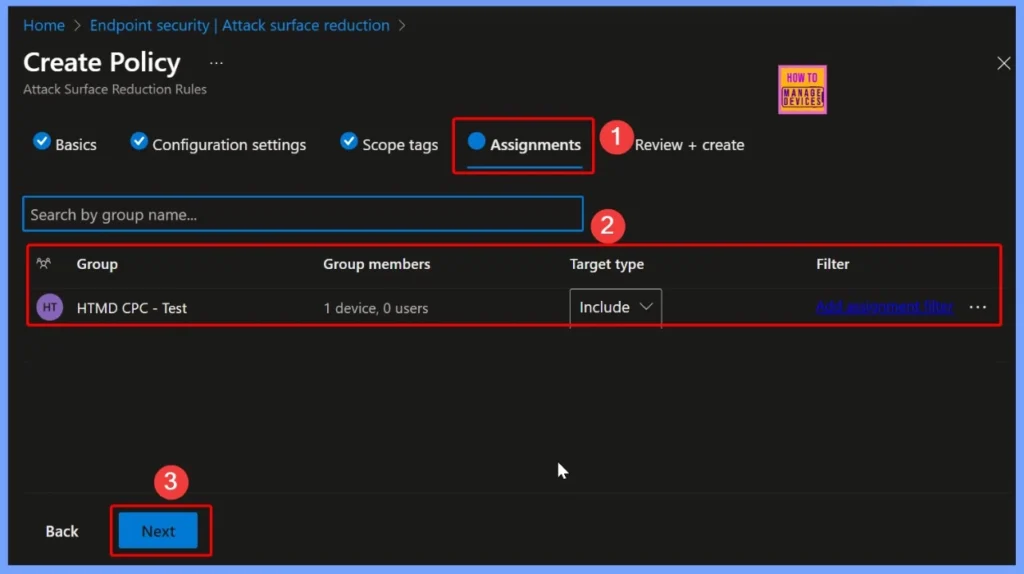
Assign the Policy to Device Groups
In the Assignments tab, the policy is targeted to a specific device group named HTMD CPC Test. Assigning the policy to a defined group ensures that only selected devices receive and apply the configured settings.
Review and Create the Policy
In the Review + Create step, verify all the configurations you’ve made, including the policy name, description, rule settings, scope tags, and assignments. This final review ensures that everything is accurate. After verification click the Save button.
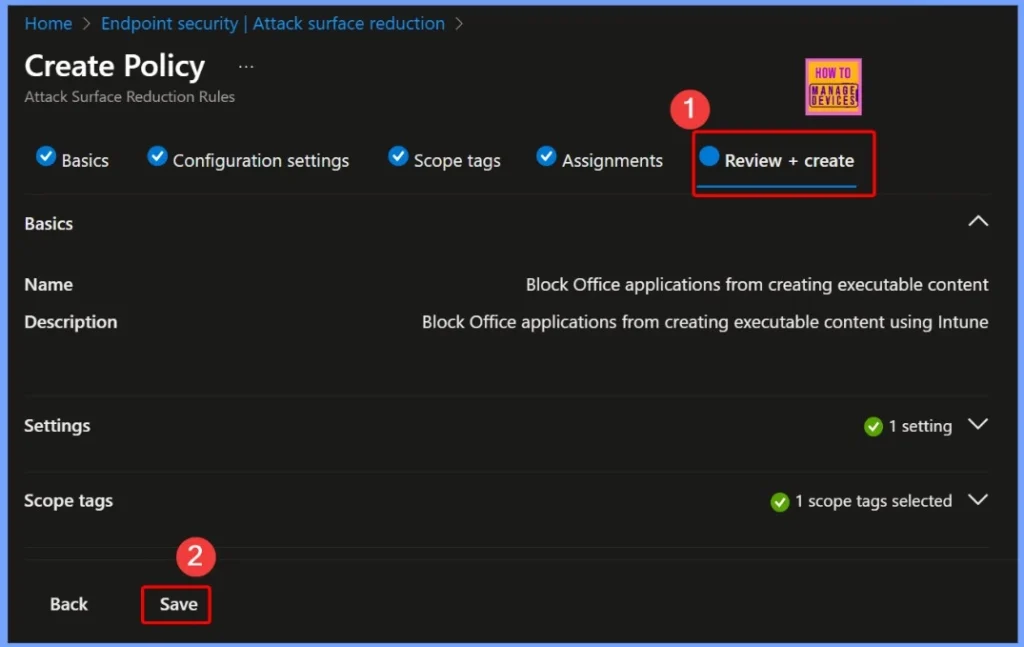
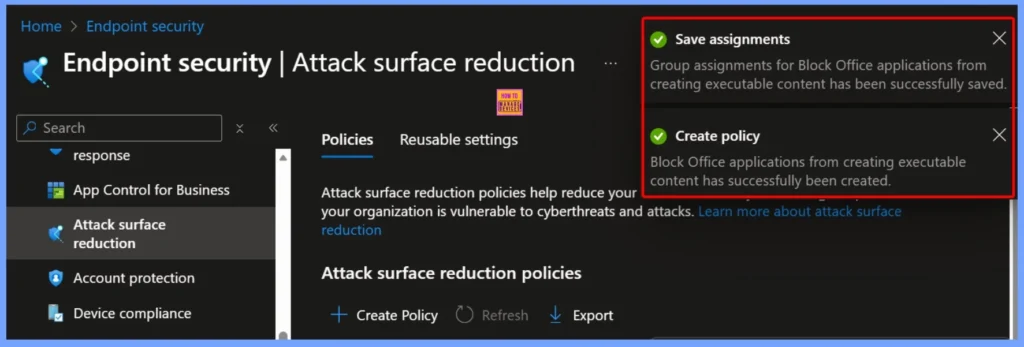
Policy Created Confirmation Message
After saving the assignments, the group assignments for Block Office applications from creating executable content are successfully applied. Once you click Create Policy, Intune confirms that the policy “Block Office applications from creating executable content” has been created successfully.
This indicates that the configuration is now active and ready to be deployed to the assigned device group, ensuring your organization’s Office applications are monitored or protected as per the selected settings.
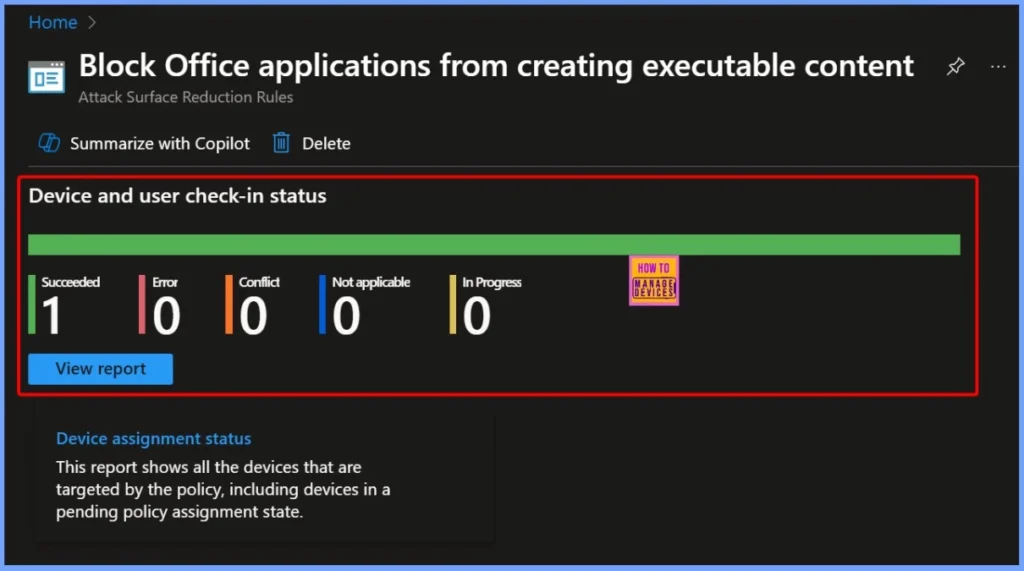
Device and User Check-In Status
Device and User Check-In Status shows the current implementation results. The report indicates Succeeded: 1, meaning one device has successfully received and applied the policy. More details are shown below.
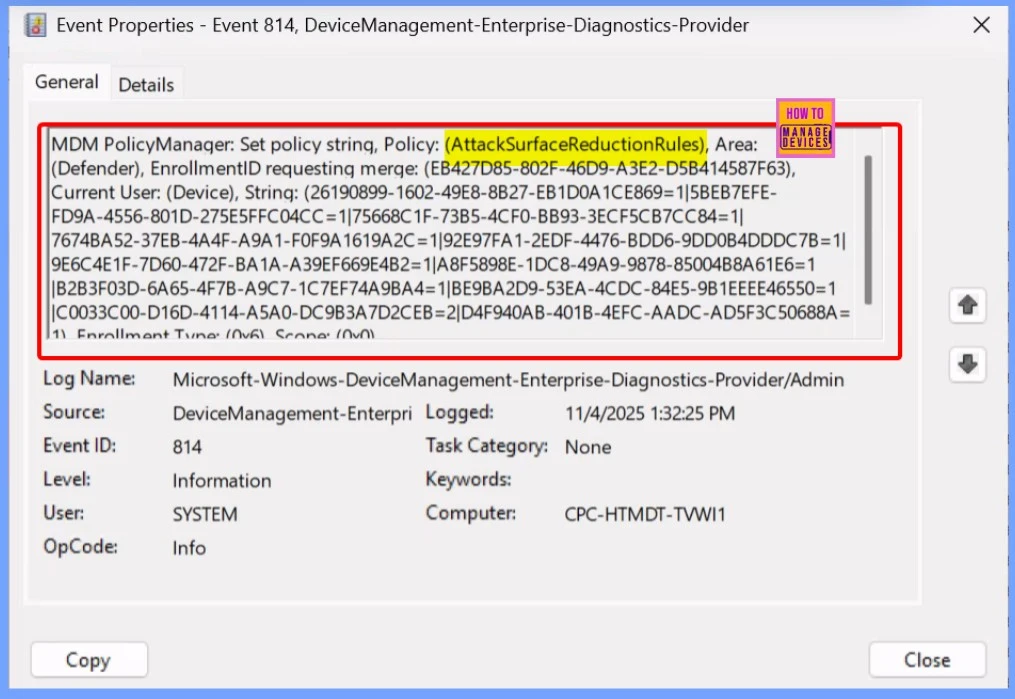
Client Side Verification
To verify that the Block Office applications from creating executable content policy has been applied successfully, you can use the Event Viewer on the target device. Open Event Viewer and navigate to the following path: Applications and Services Logs → Microsoft → Windows → DeviceManagement-Enterprise-Diagnostics-Provider → Admin.
- Here, you can view detailed logs that confirm whether the policy was received, processed, and enforced by the device, helping ensure that the configuration has been applied correctly.
Need Further Assistance or Have Technical Questions?
Join the LinkedIn Page and Telegram group to get the latest step-by-step guides and news updates. Join our Meetup Page to participate in User group meetings. Also, Join the WhatsApp Community to get the latest news on Microsoft Technologies. We are there on Reddit as well.
Author
Anoop C Nair has been Microsoft MVP from 2015 onwards for 10 consecutive years! He is a Workplace Solution Architect with more than 22+ years of experience in Workplace technologies. He is also a Blogger, Speaker, and Local User Group Community leader. His primary focus is on Device Management technologies like SCCM and Intune. He writes about technologies like Intune, SCCM, Windows, Cloud PC, Windows, Entra, Microsoft Security, Career, etc.