

Today we are discussing Enable File Hash Computation for Faster & Safer Malware Scanning using Intune Policy. This feature helps Microsoft Defender create a kind of digital signature for every file on your computer. This signature, called a file hash, helps Defender know whether a file has changed or stayed the same.
When this option is turned on, Defender can protect the system more effectively and spot problems early. One big benefit of this feature is that it makes future scans faster. If a file has the same hash as before, Defender knows nothing changed and does not need to scan it again.
This saves time, reduces extra work for the computer, and helps the device run smoothly during regular virus checks. Another important benefit is that file hashes can catch even very small changes in files. If a file’s hash suddenly changes, it might mean the file was infected by malware or changed without permission.
This setting is recommended to be Enabled because it helps Defender scan more accurately. By creating hashes, Defender builds a list of what safe files look like. Later, if a file looks different, Defender can easily compare it and decide if the change is safe or suspicious. Without this feature, Defender might miss some changes.

Table of Contents
Enable File Hash Computation for Faster & Safer Malware Scanning using Intune Policy
Organizations use this setting because it supports security and meets CIS requirements. CIS Controls recommend using strong, well-managed antivirus tools that can detect threats quickly and accurately. Enabling file hash computation helps meet these by improving how Defender identifies unsafe files and keeps systems protected.
Enable File Hash Computation brings many long-term security benefits. It helps Defender scan faster, find suspicious changes quickly, and protect the system. By giving every file a unique fingerprint, organizations get better security and users get smoother, safer performance.
Create a Profile
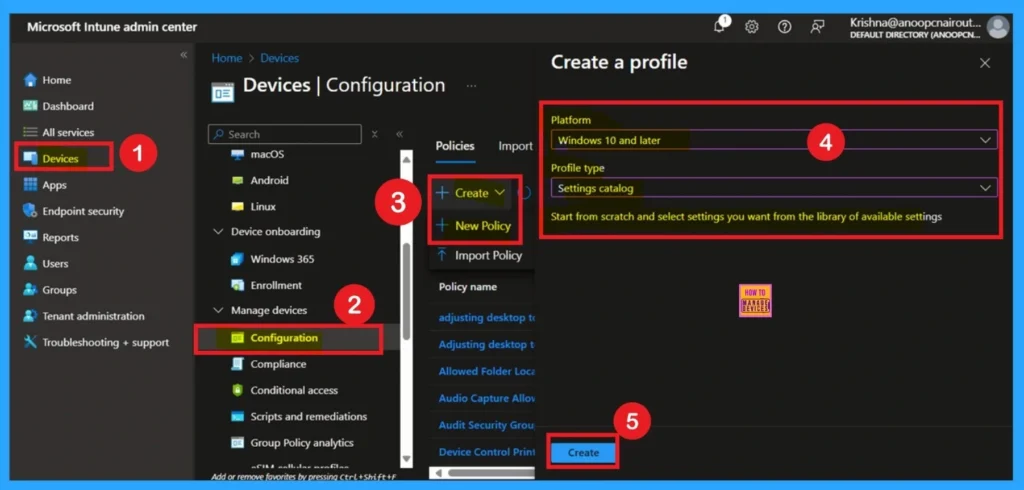
First, you need to configure this policy. Start by signing in to the Microsoft Intune Admin Center. Then, click on Devices. Under the Devices section, go to the Configuration tab, where you will find a + Create option. Click on it, and you will see 2 options, such as the new policy and the Import policy.
| Steps for File Creation |
|---|
| Select New policy, and this will open a new window titled Create a profile. |
| Here, you need to enter the Platform and Profile type details. |
| After that, click Create. |
- Block Executable Files with Prevalence Age or Trusted List Criteria using Intune ASR Rules
- Microsoft Defender ASR Rules to Block Rebooting Machine in Safe Mode
- MDE Microsoft Defender for Endpoint Telemetry Issues
Fill the Basics Section
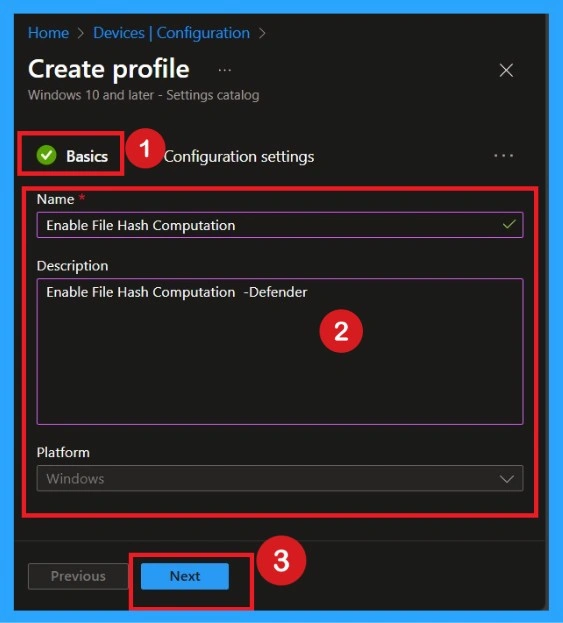
In the Basics section, you just need to enter a name and an optional description. Use a simple, clear name such as Enable File Hash Computation Policy so you can identify this policy easily later. You may also write a short description explaining what the policy does, such as This policy enables file hash generation in Microsoft Defender. This section helps administrators understand why this profile was created. After adding the name and description, click Next to proceed to the settings.
Configure the Setting in Settings Catalog
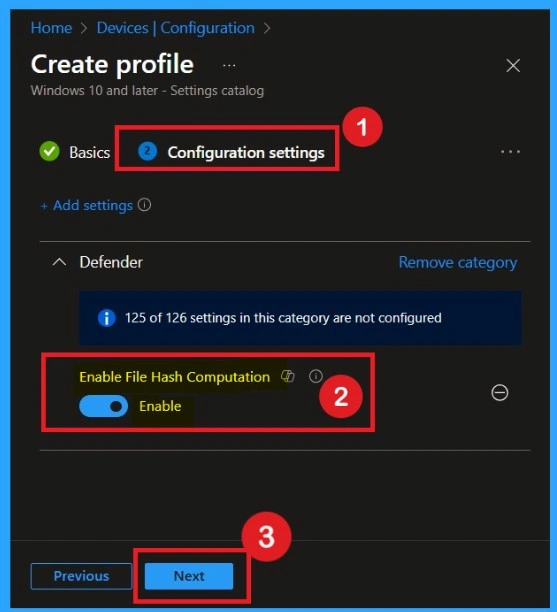
In this step, you’ll choose what setting to enable. Click Add settings, and a search bar will appear. Type “Defender or File Hash” into the search box to filter all Defender-related settings. Look for the setting named Enable File Hash Computation.

Enable Settings
After adding the setting, scroll down and find the configuration option. Change the toggle to Enable so Defender will start generating file hashes during scans. Once done, click Next. This ensures the setting is included and correctly configured before deployment to devices.
Scope Tags
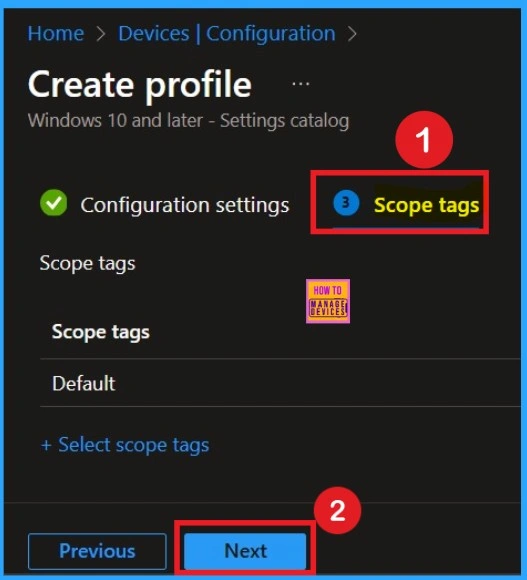
Scope tags are used in Intune to help organize policies inside the admin portal. They simply decide which IT teams or admins are allowed to view or manage a specific policy. If your company uses scope tags, you just select the tag so the right team can manage the policy later. If your company does not use them, you can leave this step as it is.
Assiggnments
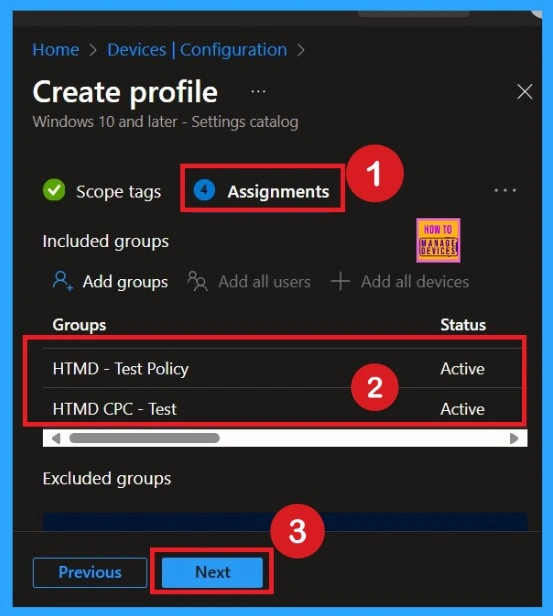
The next step is Assignments. In this section, you can specify which group the policy should be applied to. Our aim is to deploy this policy to a specific group; this step is essential. Look for the Add Groups option under the Include Groups section and click on it.
- After selecting the group, click Next to proceed to the next step.
- A list of available groups will appear and select the group you want to target.
Review + Create
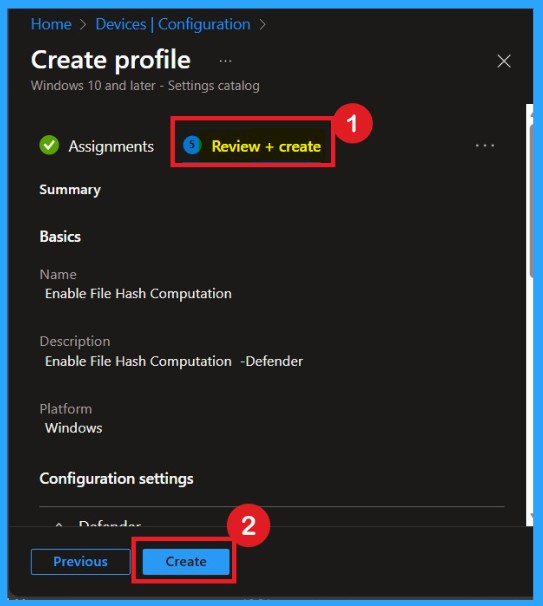
This final step lets you review everything before deploying. Carefully check the summary page to make sure the setting Enable File Hash Computation is Enabled appears correctly. Also verify the assignment groups, name, and platform selection. Reviewing helps ensure no mistakes happen before the policy is pushed to devices.
Monitoring Status
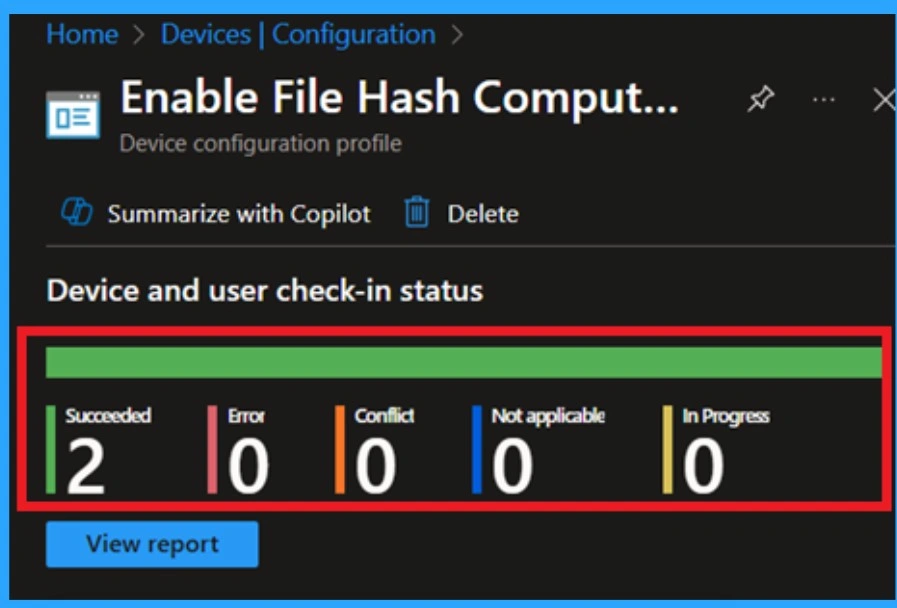
After the policy is deployed, go back to Devices > Configuration profiles and open your new profile. Here, you can see how many devices successfully received the policy. Under Device status, you can see results like Succeeded, Pending, or Error. Here it succeeded in groups.
Delete the Policy
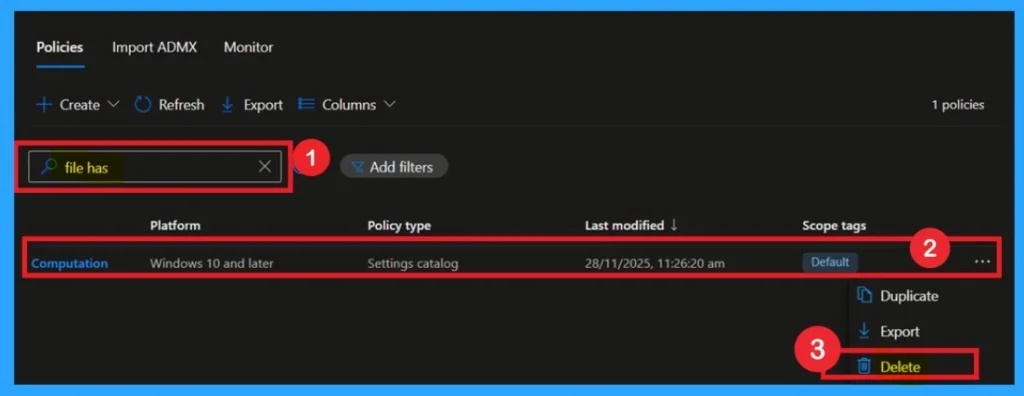
To delete a policy in Microsoft Intune, first sign in to the Microsoft Intune Admin Center. Navigate to Devices and then select Configuration. Locate and select the specific policy you want to remove. Once you’re on the policy details page, click the 3 -dot menu in the top right corner and choose Delete from the available options.
For more information, you can refer to our previous post – How to Delete Allow Clipboard History Policy in Intune Step by Step Guide.
Remove Assignment Group
Start by navigating to the Monitoring status page via Devices > Configuration. Search for the policy by name and click on it to open its monitoring details. Scroll down to the Assignments section and click Edit. This will take you back to the policy’s assignment settings.
For detailed information, you can refer to our previous post – Learn How to Delete or Remove App Assignment from Intune using by Step-by-Step Guide.

Need Further Assistance or Have Technical Questions?
Join the LinkedIn Page and Telegram group to get the latest step-by-step guides and news updates. Join our Meetup Page to participate in User group meetings. Also, Join the WhatsApp Community to get the latest news on Microsoft Technologies. We are there on Reddit as well.
Author
Anoop C Nair has been Microsoft MVP for 10 consecutive years from 2015 onwards. He is a Workplace Solution Architect with more than 22+ years of experience in Workplace technologies. He is a Blogger, Speaker, and Local User Group Community leader. His primary focus is on Device Management technologies like SCCM and Intune. He writes about technologies like Intune, SCCM, Windows, Cloud PC, Windows, Entra, Microsoft Security, Career, etc.