
Hey, let’s discuss about Control App Suggestions for Unknown File Types in Windows using Intune. This policy controls what Windows shows when a file has no app to open it. Windows normally allows users to search for an app in the Microsoft Store. The policy can remove or allow that option. It helps manage how users open unknown files.
Enabling the policy hides the Store search feature. Users must choose only from apps already installed on the device. This stops them from downloading new apps without approval. IT teams gain better control over software usage.
Disabling the policy keeps the Store search option visible. Users can easily find apps that support new or uncommon file types. The experience becomes more helpful and smooth. People can quickly open files they receive.
Not configuring the policy works the same as disabling it. The Store option stays available for all users. They can install apps when needed to open unknown files. It gives more freedom on the device.

Table of Contents
What are the Advantages of Enabling this Policy using Intune
When this policy is enabled, organizations get better control over which apps users can install. It blocks users from searching the Microsoft Store when they try to open unknown file types. This reduces the chances of downloading unapproved or risky apps. It keeps the device environment more secure and managed.
1. Prevents users from installing untrusted apps from the Store
2. Helps maintain strict software compliance and licensing rules
3. Reduces malware and security risks from unknown sources
4. Keeps devices more stable by limiting unnecessary app installations
5. Gives IT teams full control over approved applications
Control App Suggestions for Unknown File Types in Windows using Intune
Organizations benefit from more secure app control. This policy reduces the chance of unsafe apps being installed. It supports compliance with company rules. Schools and businesses can manage devices easily.
- Prevent Automatic Space After Text Suggestions for Accurate Typing using Intune Policy
- Control Microsoft Bing Trending Suggestions in the Address Bar Policy using Intune
- Enable Address Bar Search Suggestion to Optimizing User Experience for Google Chrome Using Intune
Create a Profile
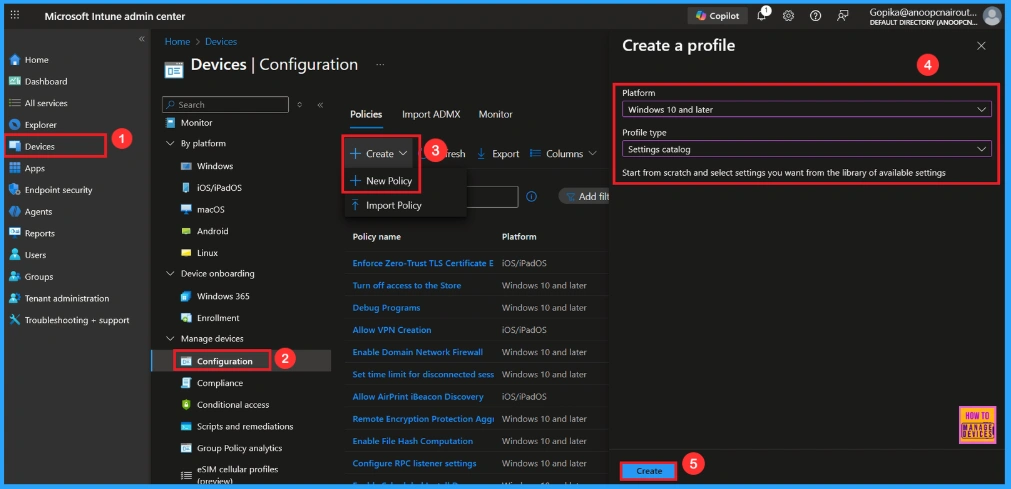
First, sign in to the Microsoft Intune admin center. Then, go to Devices > Configuration > Create > New policy. In the next window, select the platform and profile type. Then click Create to continue.
| Steps | Details |
|---|---|
| Platform | Windows 10 and later |
| Profile Type | Settings Catalog |
Control App Suggestions for Unknown File Types in Windows using Intune – Table 1
Basic Step
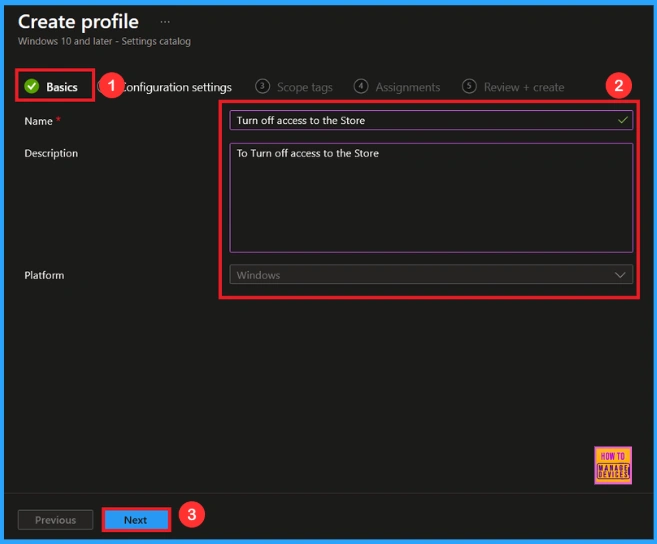
You need to enter some basic details, such as the name and a description. For example, I entered the name as Turn off access to the store. In the description, I enter To Turn off access to the store . After filling in the details, click Next to continue.
Configuration Settings
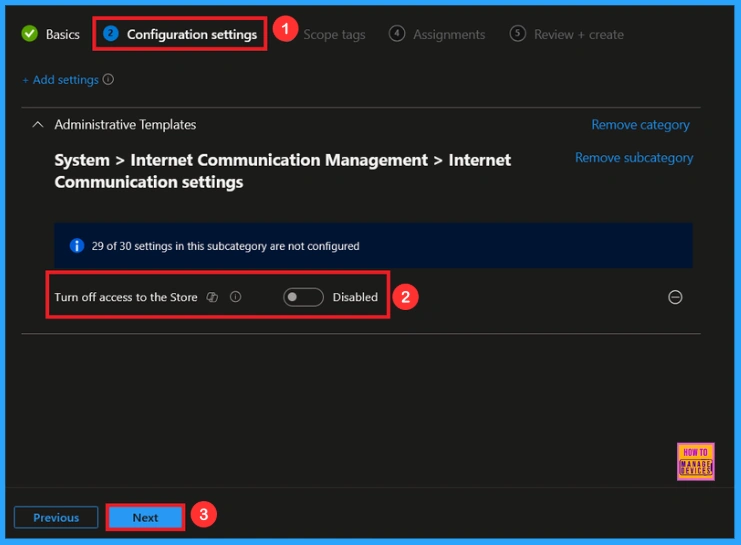
On this page, we click on the + Add Settings hyperlink. Then you will get a settings picker that will show different types of categories to select specific settings. Here, I choose to Administrative Templates\system\internet communication management\internet communication settings the category and select the Turn off access to the store.
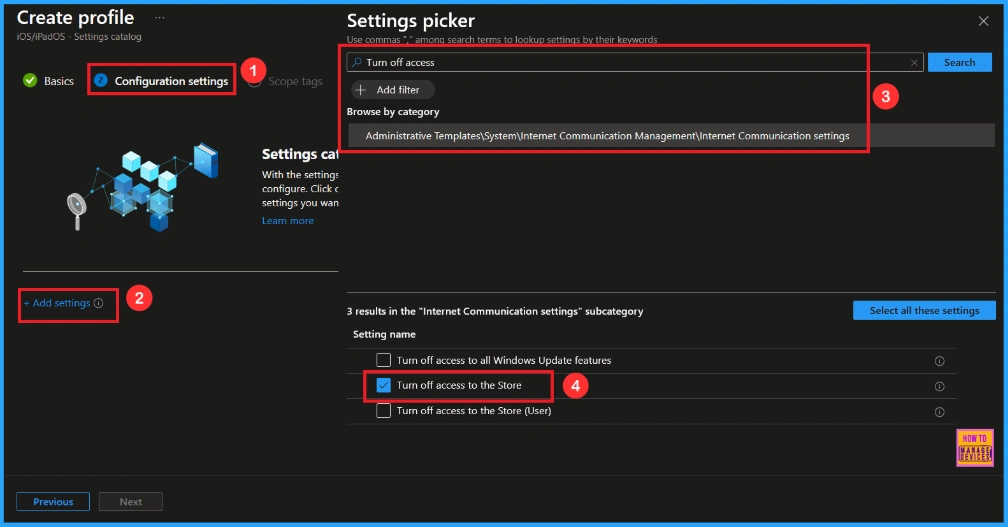
Once you have selected this settings and closed the Settings picker. You will see it on the Configuration page. Here we have only two settings: Enable or Disable. By default, it will be set to Disable. If you want to disable these settings, click on the Next button.
Enable this Policy
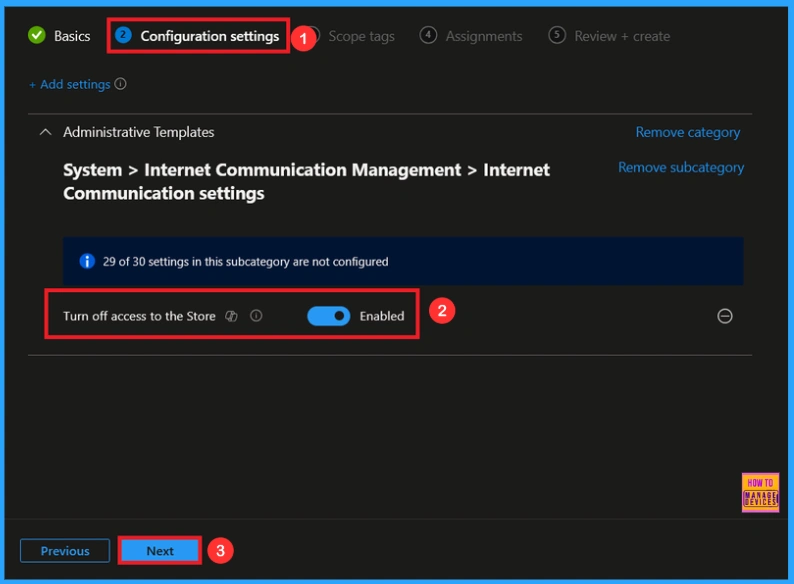
If you want to enable the policy, you can easily do that for that. You have to toggle the Pan left to the right then, it turns to be blue color and its labelled. Now enabled, then click on the next to continue with the procedure.
Scope Tags
The next step is Scope tags, which help you organize and manage access to the policy, such as for the department or location. This section is optional, so if you don’t want to apply the Scope tags, just click Next to continue.

Assignments
In this step, you have to decide which group you want to deploy the policy to. First, click on Add groups under the Include groups section, and select the group to which you want to apply the policy. Then, click Next to continue.

Final Step
You will reach this section after completing the Assignment step. This section acts like a summary page, showing all the steps, you have previously completed. If you notice any mistakes, this is your final chance to edit them. If everything looks correct, click on the Create button. Then you can see a notification “Turn off access to the store created successfully”.

Device and user Check in Status
We can check a policy’s status in the Intune Portal. Generally, it takes about 8 hours for policies to be created. Use the manual sync option to reduce the configuration delay in the Company Portal app on the device, then check the status again. Navigate to Devices> Configuration. Click on the Turn off access to the store.

How to Remove Assigned Groups from this Policy
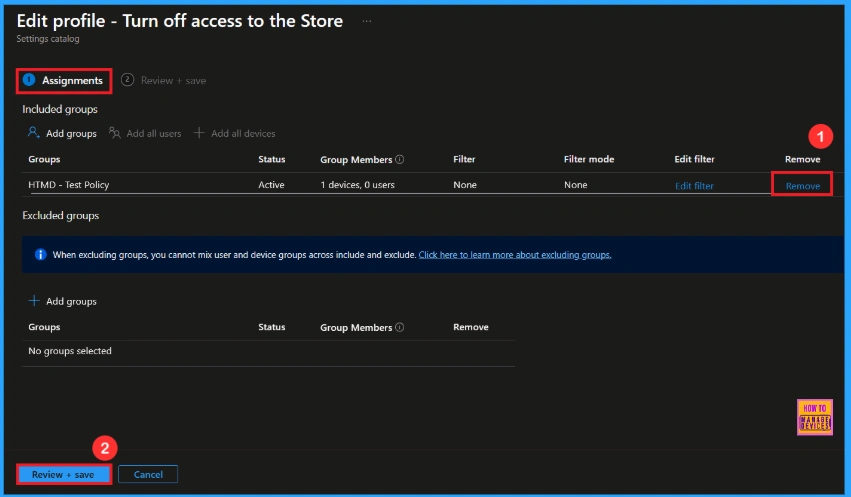
Sometimes, we need to remove a group from a policy assignment for security updates. Open the policy from the Configuration tab and click on the Edit button on the Assignment tab. Click on the Remove button on this section to remove the policy. Click Review + Save after making the change.
For detailed information, you can refer to our previous post – Learn How to Delete or Remove App Assignment from Intune using by Step-by-Step Guide.
How to Delete this Policy from Intune Portal
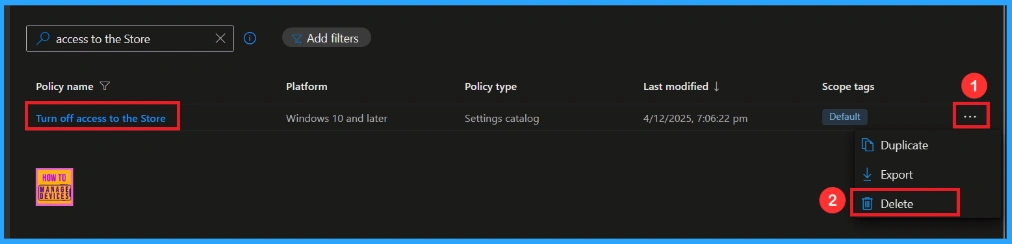
To delete an Intune policy for security or operational reasons. Search the Policy(Turn off access to the store). Click the three dots, then click the Delete option.
For detailed information, you can refer to our previous post – How to Delete Allow Clipboard History Policy in Intune Step by Step Guide.
Need Further Assistance or Have Technical Questions?
Join the LinkedIn Page and Telegram group to get the latest step-by-step guides and news updates. Join our Meetup Page to participate in User group meetings. Also, Join the WhatsApp Community to get the latest news on Microsoft Technologies. We are there on Reddit as well.
Author
Anoop C Nair has been Microsoft MVP from 2015 onwards for 10 consecutive years! He is a Workplace Solution Architect with more than 22+ years of experience in Workplace technologies. He is also a Blogger, Speaker, and Local User Group Community leader. His primary focus is on Device Management technologies like SCCM and Intune. He writes about technologies like Intune, SCCM, Windows, Cloud PC, Windows, Entra, Microsoft Security, Career, etc.