
Key Takeaways:
- Control which input methods (keyboard layouts, languages) are available on the Windows sign-in screen
- Organizations can eliminate confusion for users at sign-in, especially in multilingual environments.
- Useful for enterprises that Require a single language/keyboard layout for compliance.
- Helps IT teams reduce support tickets related to login issues and improves security posture
Let’s discuss Control Sign-in Input Methods to Login Screen for Standardize the Windows Sign-In Experience using Intune. Sign-in Input Methods policy in Intune says that, how Windows handles keyboard layouts and Input Method Editors (IMEs) at the pre-authentication stage (the Sign-in screen).
The main purpose of Sign-in Input Methods to Login Screen policy is to isolate the Windows sign-in screen’s keyboard and language settings from individual user preferences. Under normal conditions, Windows “mirrors” whatever keyboard layout a user last used (e.g., French AZERTY or Japanese IME) and applies it to the sign-in screen.
This policy breaks that link, forcing the sign-in screen to use only the input methods assigned to the System Account. By restricting third-party software components admins reduce the “attack surface” of the system account before a user is even authenticated.

There is a known Windows issue where the keyboard layout “drifts” or gets stuck in the wrong language (e.g., switching from US to UK English) at the login prompt. Enabling this policy forces the layout to remain constant, solving many “wrong password” support calls caused by keyboard mismatches.
Table of Contents
Control Sign-in Input Methods to Login Screen for Standardize the Windows Sign-In Experience using Intune
Let me explain the policy implementation with an example. In a bank’s trading floor, workstations are highly restricted. The IT team Enables this policy to ensure that no unauthorized or third-party IMEs can be loaded at the sign-in screen. This prevents potential exploits that could occur via “untrusted” input software that hasn’t been vetted for the system-level context.
- Enable or Disable the First Sign in Animation Policy on Windows11 to Skip Setup Prompts using Intune
- Enable Fast First Sign In Policy under Authentication in Intune Settings Catalog
- Allow Manual Start of Microsoft Account Sign In Assistant Using Intune Settings Catalog
Steps to Configure Policy
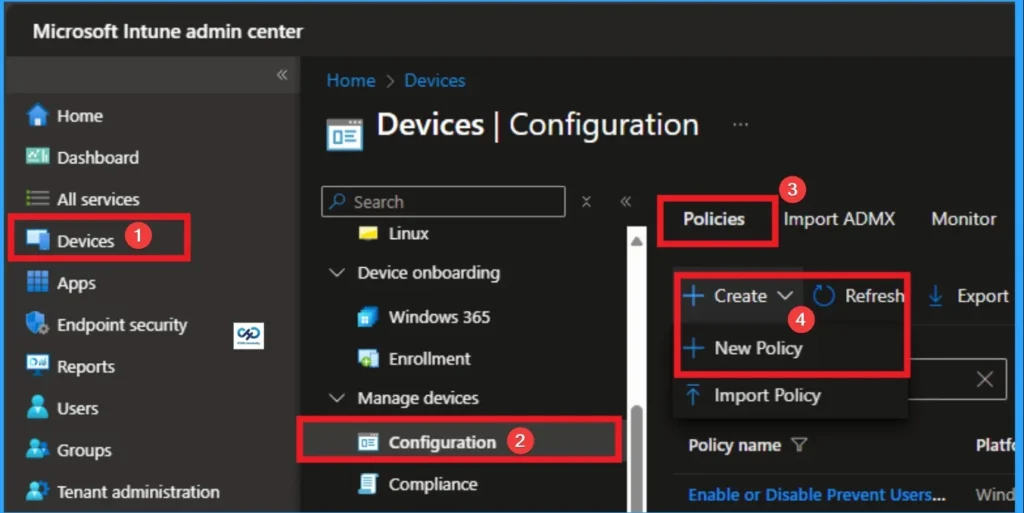
By sign in to Microsoft Intune Admin center you can easily configure Sign-in Input Methods to Login Screen policy. Go to the Intune Admin Center portal. Go to Devices > Windows > Configuration > Create > New Policy.
Profile Creation of Policy
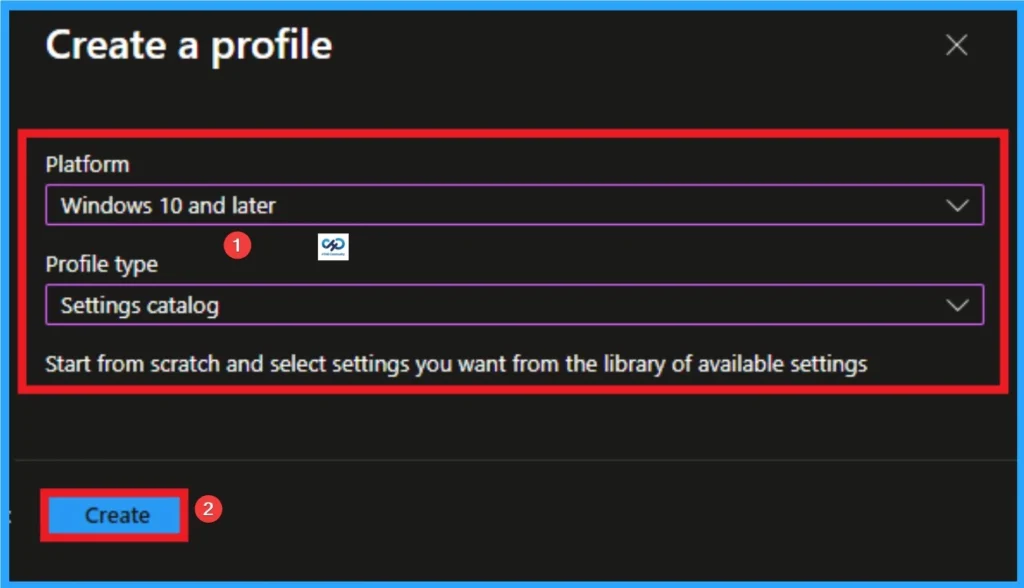
After that, you can Create a Profile for the policy which you want to configure. To create a profile you have to select platform and profile type. Here I selected Windows 10 and later as the Platform and Settings catalog as the profile type. Then click on the Create button.
Adding Basic Details
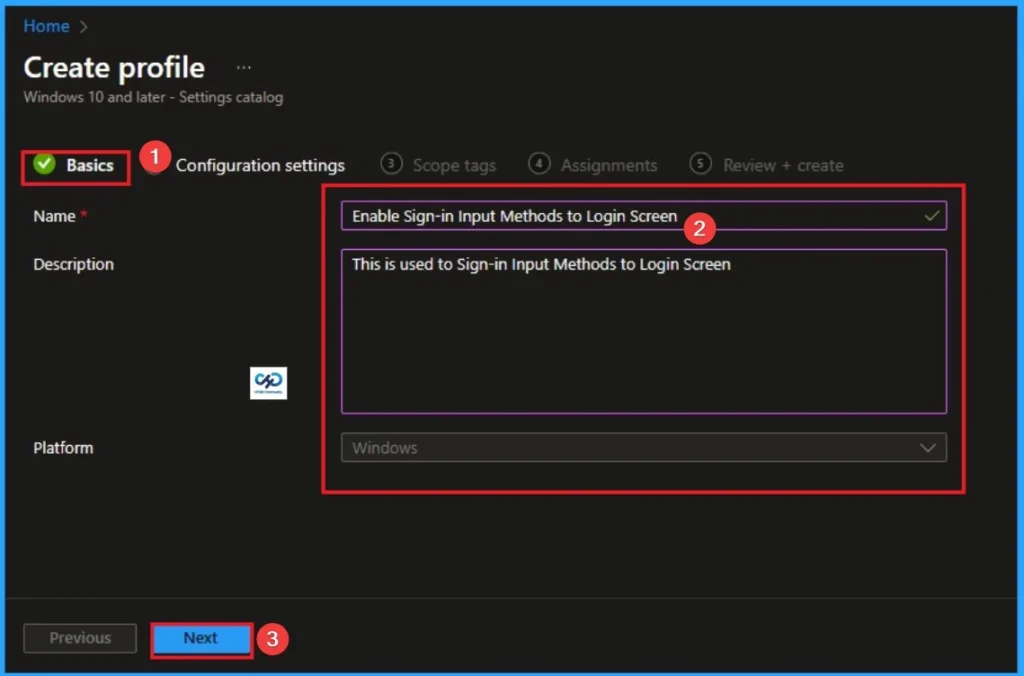
On the Basic tab you can add Name and Description for the policy for further reference. The Name field is necessary to identify the purpose of the policy and description shows more information. The Name is mandatory and if you like to add description you can add. Click on the Next Button.
Configure the Sign-in Input Methods to Login Screen
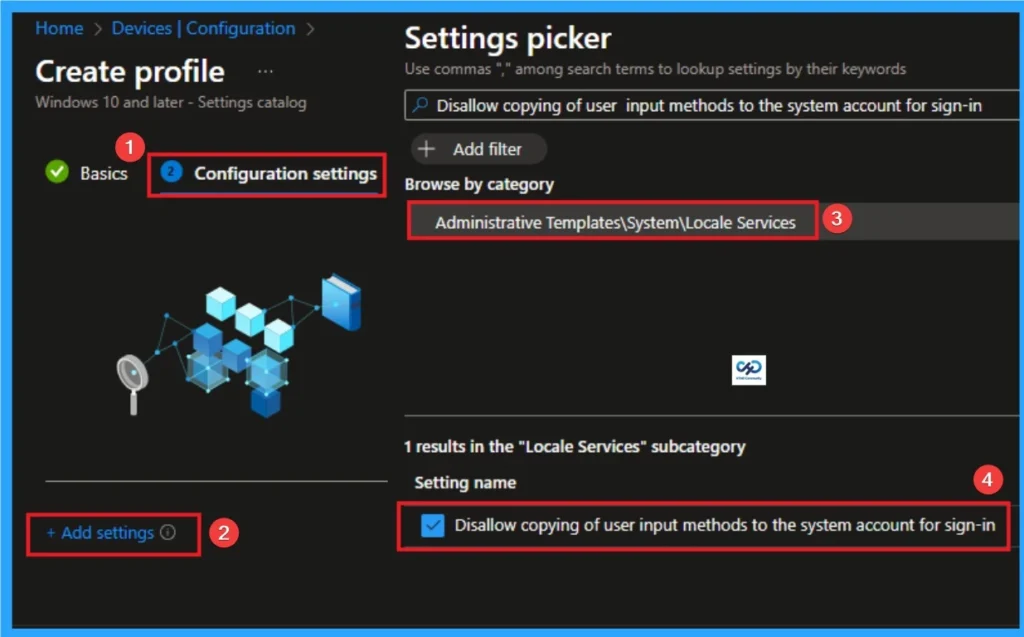
The Configuration settings page is provided to select the settings to create the policy. The Settings Catalog provides a huge number of settings. To select a settings click on the +Add settings hyperlink. Then you will get Settings Picker. Choose Administrative Templates\System\Locale Services\Disallow copying of user input methods to the system account for sign-in. Then I close the Settings Picker.
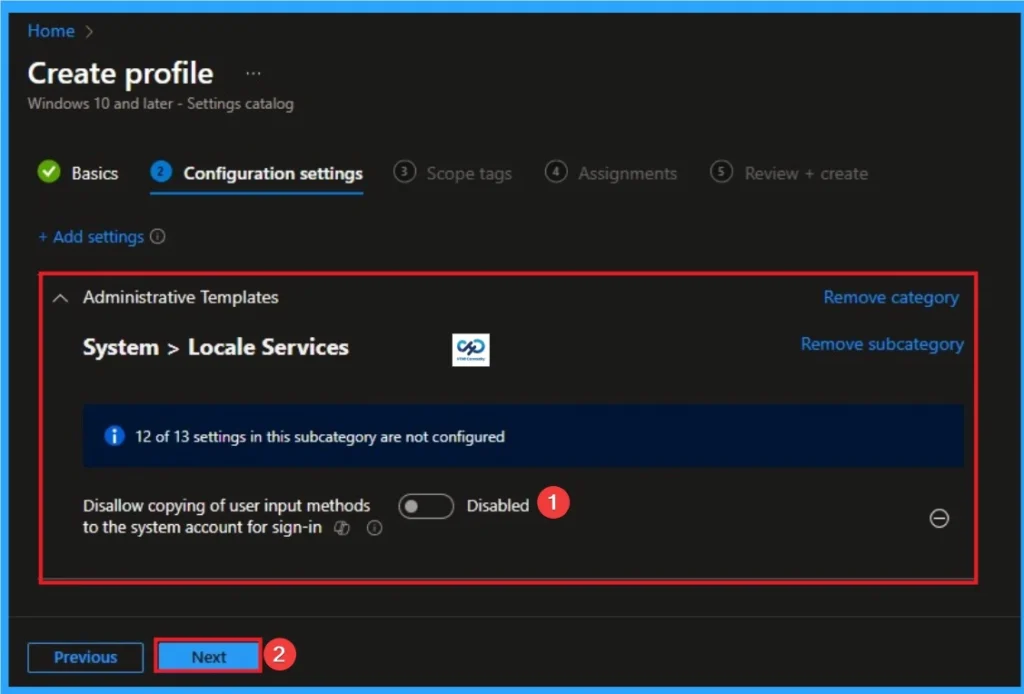
Disable Sign-in Input Methods to Login Screen
If the policy is Disabled or Not Configured, then the user will be able to use input methods enabled for their user account on the sign-in page. Click on the Next button to continue.
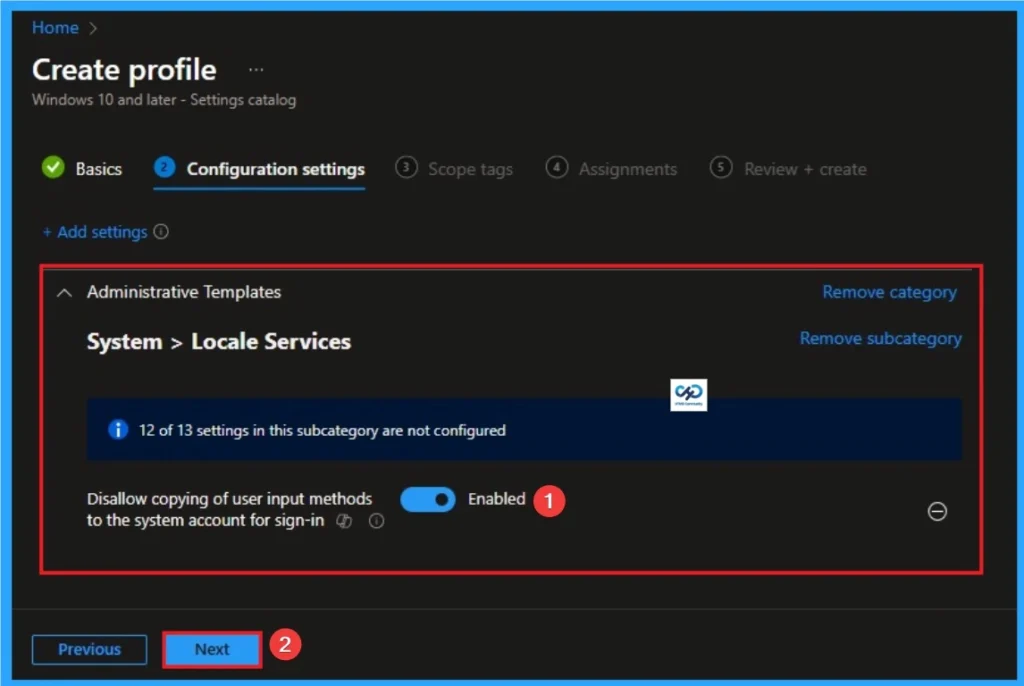
Enable Sign-in Input Methods to Login Screen
If the policy is Enabled, then the user will get input methods enabled for the system account on the sign-in page. Click on the Next button to continue.
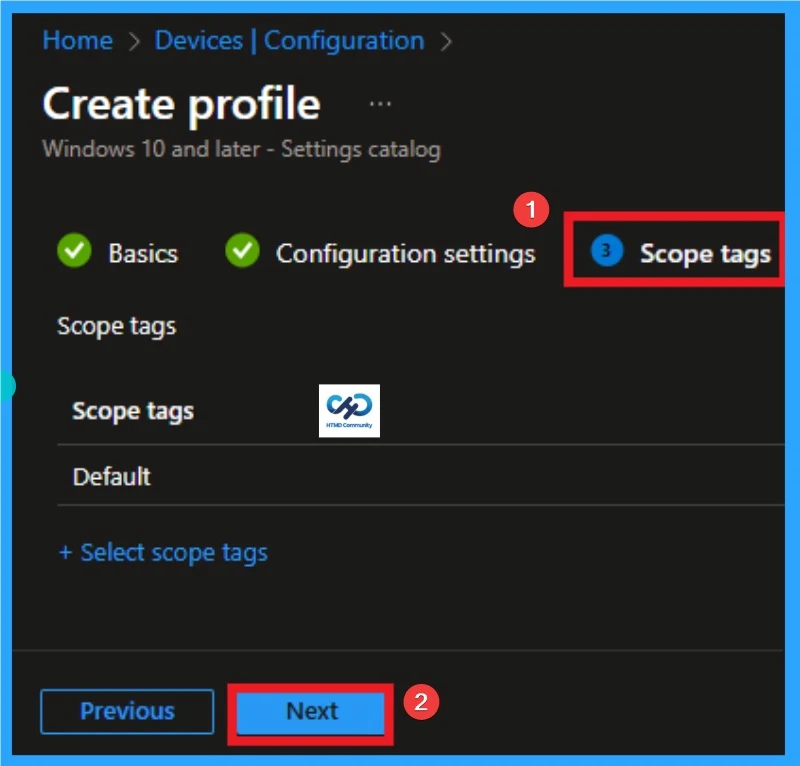
Scope Tags
By using scope tags you can restrict the visibility of Sign-in Input Methods to Login Screen Settings. It is helps to organize resources as well. Here I would like to skip this section, because it is not mandatory. Click on the Next button.
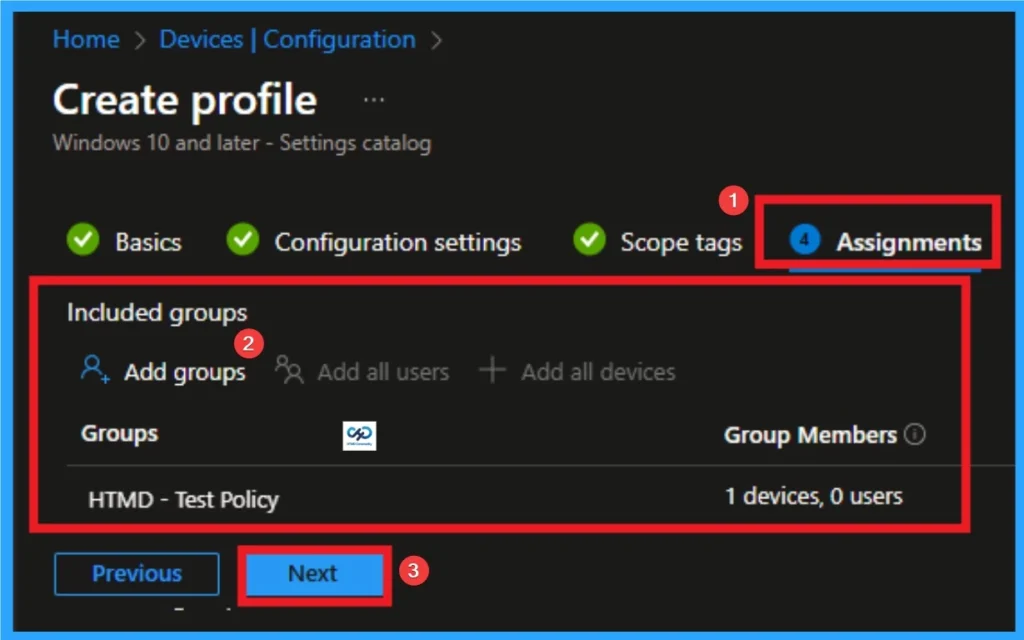
Assign this Policy to Specific Groups
To assign the policy to specific groups you can use Assignment Tab. Here I click, +Add groups option under Included groups. I choose a group from the list of group and Click on the Select button. Again I click on the Select button to continue.
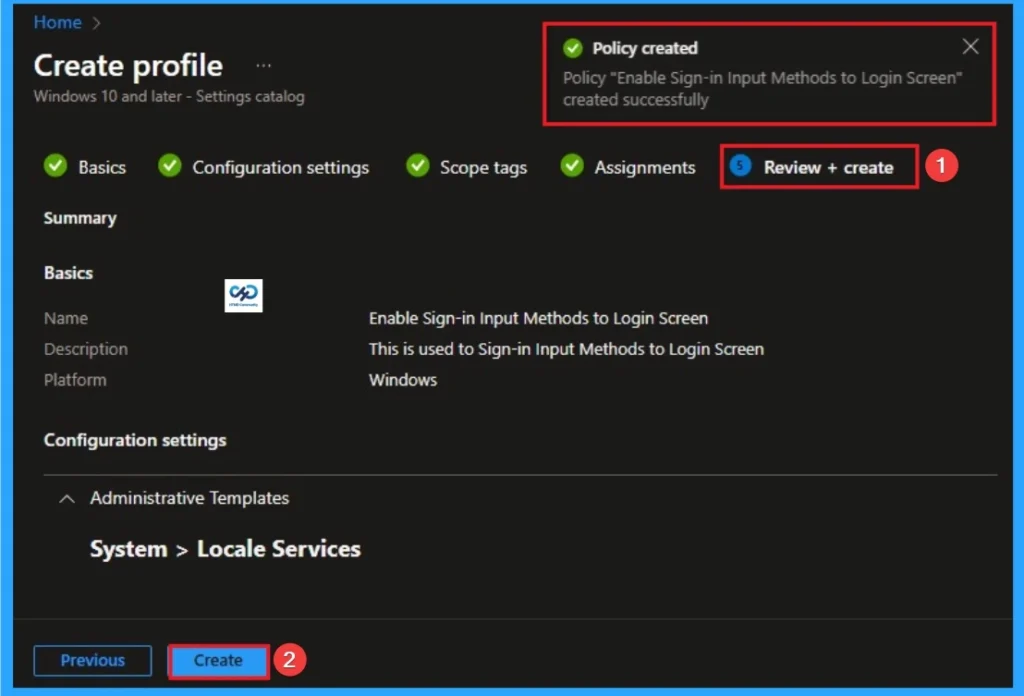
Final Step of Policy Creation
To complete the policy creation you can review all the policy details on the Review + create tab. It helps to avoid mistakes and successfully configure the policy. After verifying all the details click on the Create Button. After creating the policy you will get success message.
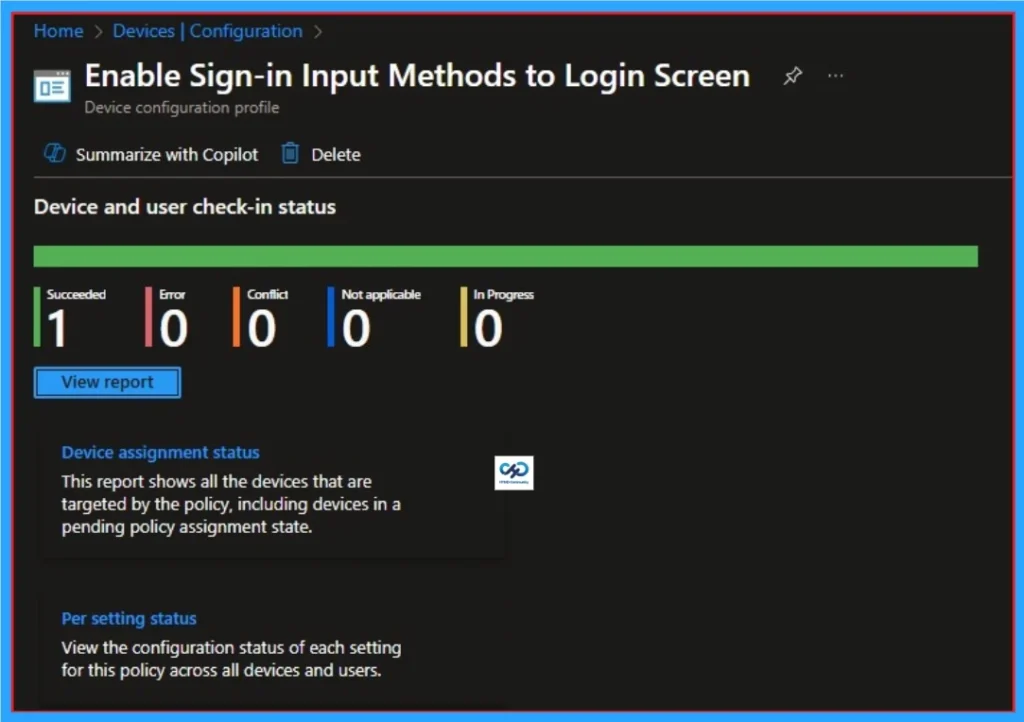
Monitoring Status
The Monitoring Status page shows whether the policy has succeeded or not. To quickly configure the policy and take advantage of the policy sync, the device on the Company Portal, Open the Intune Portal. Go to Devices > Configuration > Search for the Policy. Here, the policy shows as successful.
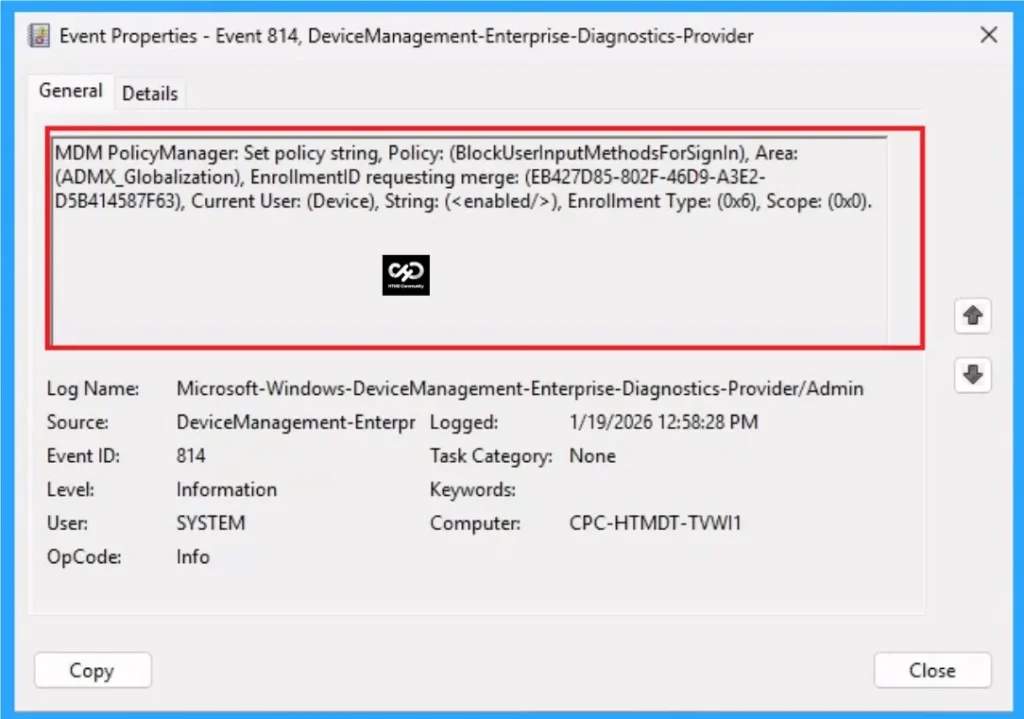
Client Side Verification with Event Viewer
If you get success message, that doesn’t means you will get the policy advantages. To verify the policy successfully configured to client device check the Event Viewer.
- Open Event Viewer: Go to Start > Event Viewer.
- Navigate to Logs: In the left pane, go to Application and Services Logs > Microsoft> Windows > DeviceManagement-Enterprise-Diagnostics-Provider > Admin.
- Filter for Event ID 814: This will help you quickly find the relevant logs.
| Event ID Details |
|---|
| MDM PolicyManager: Set policy string, Policy: (BlockUserlnputMethodsForSignln), Area: (ADMX_Globalization), EnrollmentID requesting merge: (EB427D85-802F-46D9-A3E2- D5B414587F63), Current User: (Device), String: (), Enrollment Type: (0x6), Scope: (0x0). |
Removing the Assigned Group from Sign-in Input Methods to Login Screen
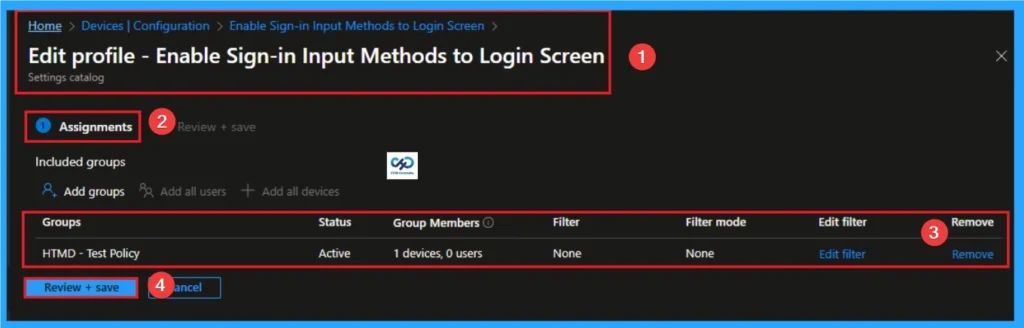
If you want to remove the Assigned group from the policy, it is possible from Intune Portal. To do this open the Policy on Intune Portal and Edit the Assignments tab and Remove the Policy
To get more detailed information, you can refer to our previous post – Learn How to Delete or Remove App Assignment from Intune using by Step-by-Step Guide.
How to Delete Sign-in Input Methods to Login Screen
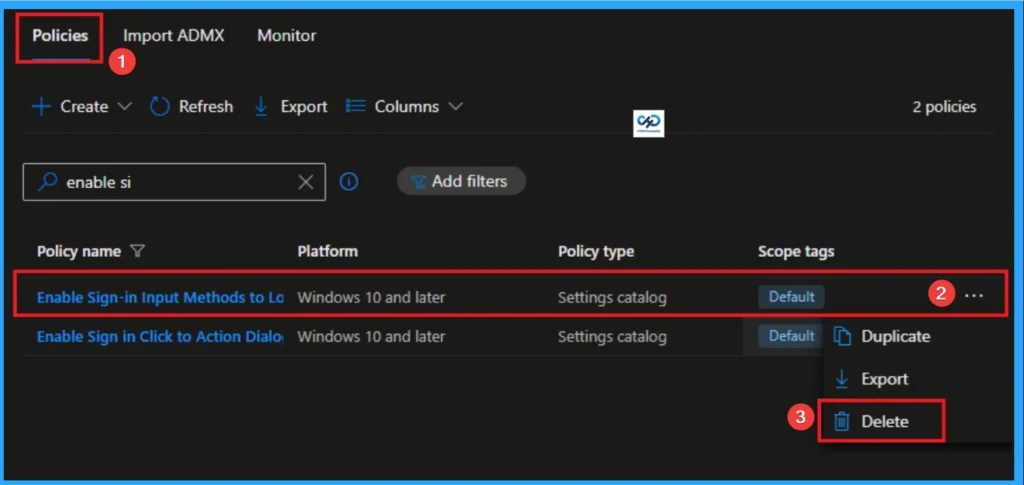
You can easily delete the Policy from Intune Portal From the Configuration section you can delete the policy. It will completely remove from the client devices.
For detailed information, you can refer to our previous post – How to Delete Allow Clipboard History Policy in Intune Step by Step Guide.
Windows CSP Details
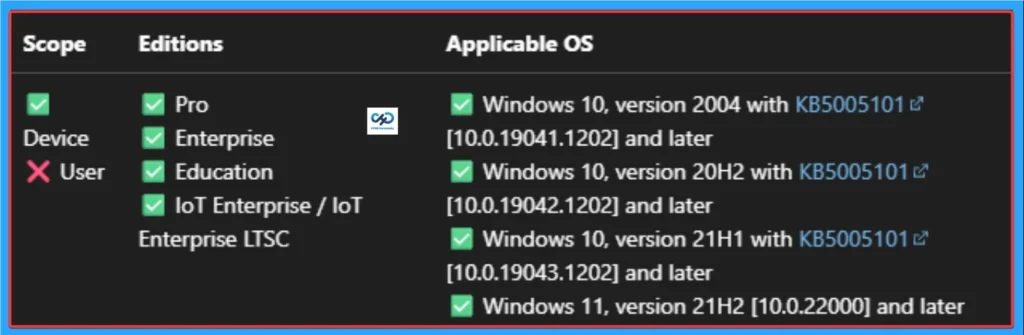
This policy prevents automatic copying of user input methods to the system account for use on the sign-in screen. The user is restricted to the set of input methods that are enabled in the system account. The following are the ADMX mapping of Sign-in Input Methods to Login Screen policy.
| Name | Value |
|---|---|
| Name | BlockUserInputMethodsForSignIn |
| Friendly Name | Disallow copying of user input methods to the system account for sign-in |
| Location | Computer Configuration |
| Path | System > Locale Services |
| Registry Key Name | Software\Policies\Microsoft\Control Panel\International |
| Registry Value Name | BlockUserInputMethodsForSignIn |
| ADMX File Name | Globalization.admx |
Need Further Assistance or Have Technical Questions?
Join the LinkedIn Page and Telegram group to get the step-by-step guides and news updates. Join our Meetup Page to participate in User group meetings. Also, Join the WhatsApp Community to get the latest news on Microsoft Technologies. We are there on Reddit as well.
Author
Anoop C Nair has been Microsoft MVP for 10 consecutive years from 2015 onwards. He is a Workplace Solution Architect with more than 22+ years of experience in Workplace technologies. He is a Blogger, Speaker, and Local User Group Community leader. His primary focus is on Device Management technologies like SCCM and Intune. He writes about technologies like Intune, SCCM, Windows, Cloud PC, Entra, Microsoft Security, Career, etc