
Keay Takeaways
- Reduces the chance of network outages and DoS attacks.
- Turns off an outdated and risky network feature (IRDP).
- Keeps default gateway settings under admin control only.
- Improves network security with no real impact on users.
- Follows CIS Level 2 security best practices.
In this article we are discussing, Disabling Internet Router Discovery for Better Network Safety using Intune Policy. This setting controls how a Windows computer finds its internet or network route. Normally, a computer needs a default gateway to send data outside its local network.
Some older systems use a method called Internet Router Discovery Protocol (IRDP) to automatically find this gateway. In modern office networks, this method is usually not needed because network settings are already provided in safer ways. Nowadays, most organizations use managed networks where all devices are configured in a planned and controlled manner.
Network information like the gateway address is normally given through set by IT teams. Allowing computers to automatically discover routers on their own can make the network behavior unpredictable and harder to control.
The main risk with IRDP is that a hacker on the same network could pretend to be a real router. If a computer trusts this fake router, it may start sending its data through the attacker’s system. This can lead to data being watched, changed, or the network becoming slow or unavailable.

Table of Contents
Disabling Internet Router Discovery for Better Network Safety Using Intune Policy
Using Intune to apply this setting makes it easy for the organization to manage. IT teams can apply the rule to many devices at once and check whether devices are following it. This saves time and avoids manual mistakes. this policy is an important security step because it prevents a possible attack before it happens. It protects company data, keeps the network safe.
- How to Prevent Mapping of Client Printers in Remote Desktop Services Sessions using Intune
- Control Least Privilege App Container Sandbox for Printing Services in Edge Browser using Intune
- Enable Restrict Background Graphics Printing Mode for MS Edge using Intune Policy
Create Profile
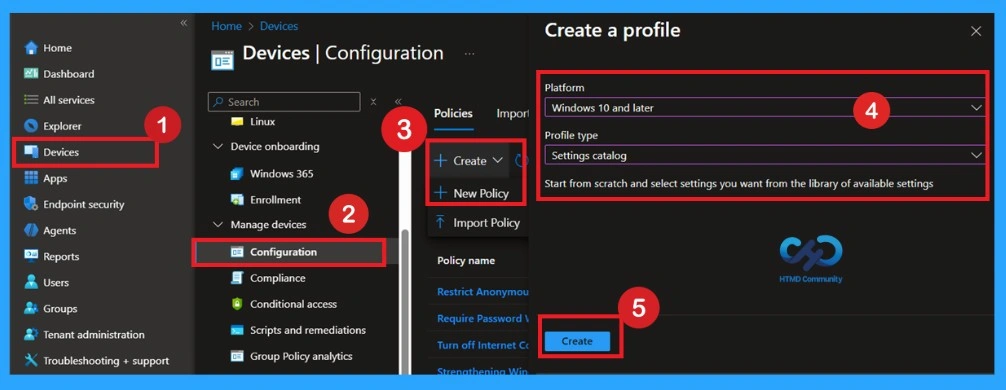
Now, let’s go through the steps to deploy this policy in Intune. First, sign in to the Microsoft Intune Admin Center with your credentials. Then, navigate to Devices > Configuration > Policies and click on Create Policy. Next, you will see the Create a Profile window. Here, you need to set up a profile for your deployment. Select Platform as Windows 10 and later and choose Profile type as Settings Catalog.
- After that, click on Create to continue.
Basics the Identification Process of a Policy
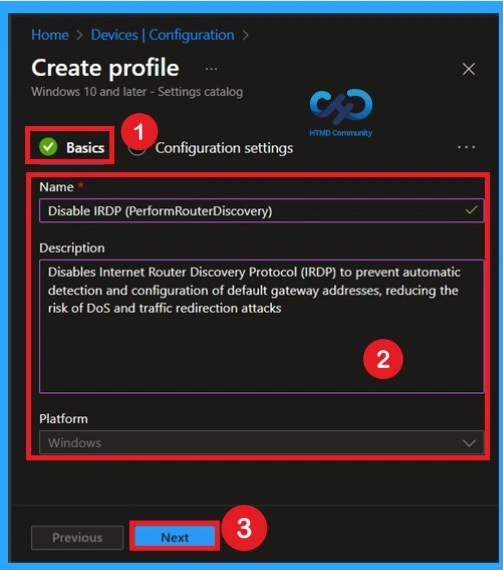
The first step is the Basics tab, where you need to enter the essential details for the policy, such as the Name, Description, and Platform information. The platform will already be set to Windows by default. Simply provide a meaningful name and brief description for the policy, then click Next to proceed.
Configuration Settings
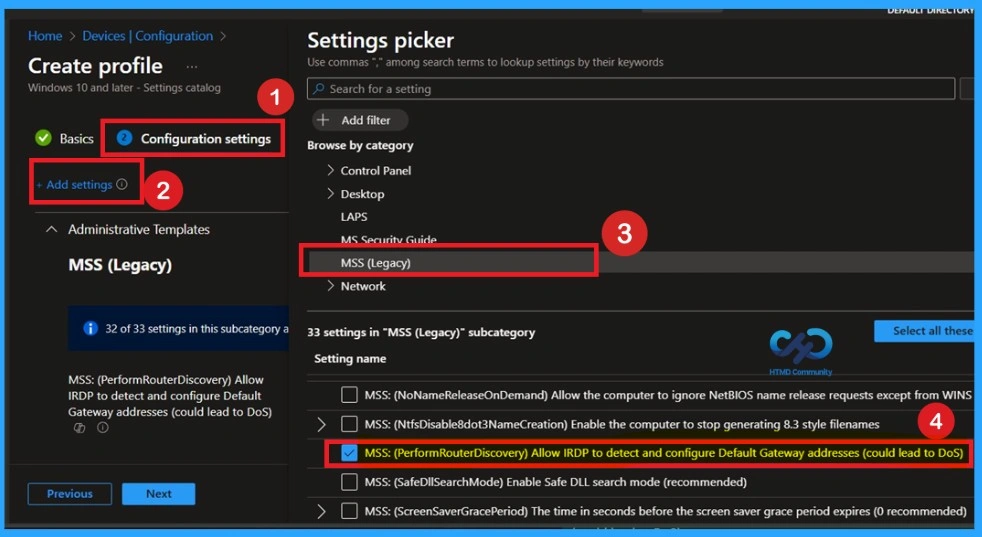
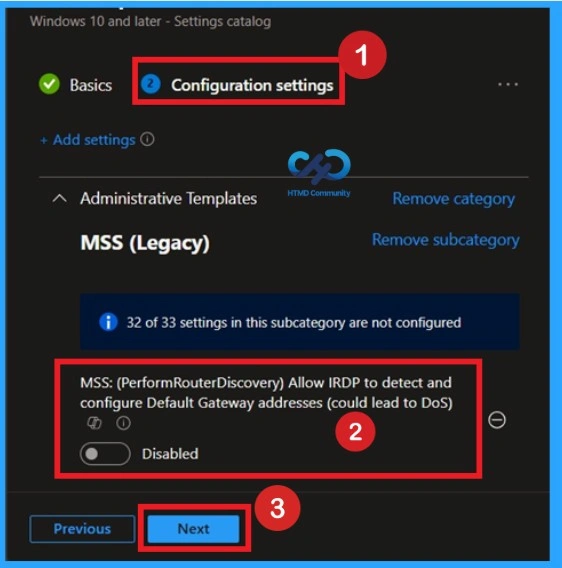
In the Configuration Settings Select the +Add Settings then you will get the settings picker window for setting category selection. In the Settings pane, search for Administrative Templates. Select Administrative Templates, then navigate to the MSS (Legacy) category. Under MSS (Legacy), you will find multiple policy settings. From the list, select IRDP (Perform Router Discovery) Policy.
This policy is used to detect and automatically configure the default gateway address on the device. After selecting the policy, configure it as required, then close the Settings picker to proceed with configuring the next policy.
Understanding the Default State
If you want to disable the policy, drag the toggle from right to left. In this mode, the toggle will turn gray, and the status will show as Disabled. This means the policy will not be applied to users. You can then click on Next to continue in the disabled mode.
Activating the Policy on Devices
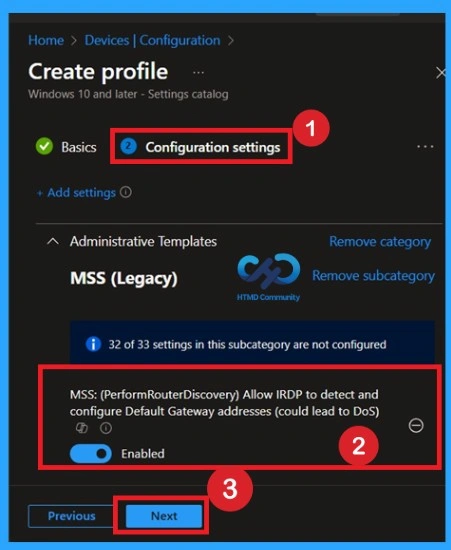
You can also enable a policy that is disabled by default. To do this, toggle the switch from left to right. Once enabled, the switch will turn blue and display the label Enabled.
Importance of Scope Tags
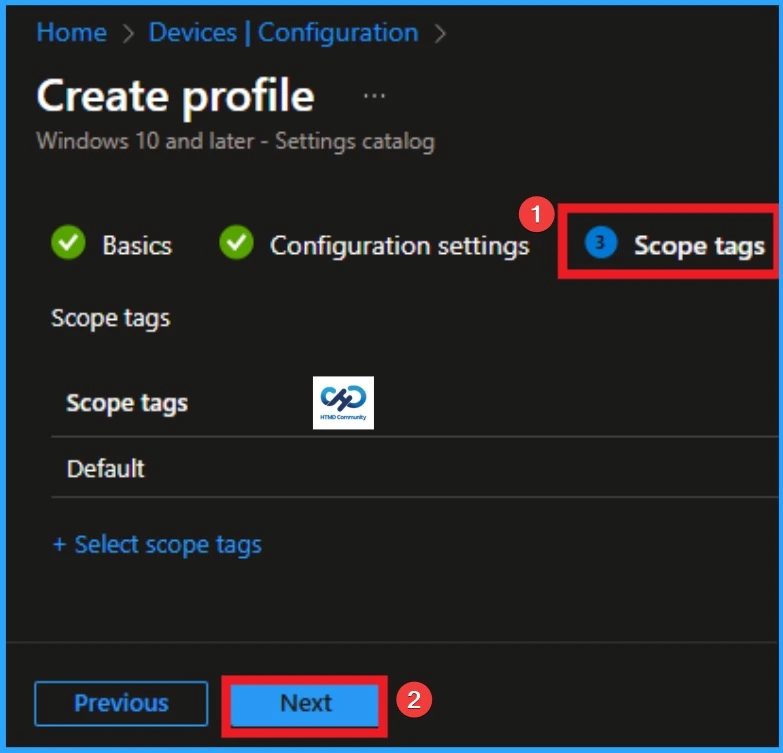
Now you are on the Scope tags section. Scope tags are used to assign policies to specific admin groups for better management and filtering. If needed, you can add a scope tag here. However, for this policy, I chose to skip this section.
What are Assignments?
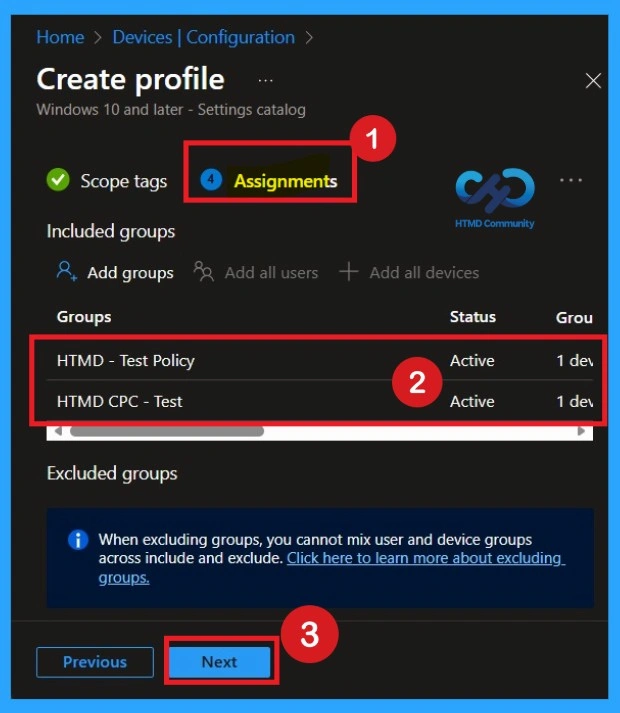
To assign the policy to specific groups, you can use the Assignment Tab. Here I click, +Add groups option under Included groups. I choose a group from the list of groups and click on the Select button. Again, I click on the Select button to continue.
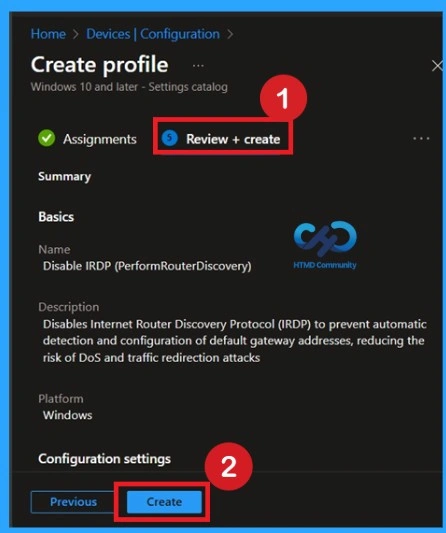
Review + Create
Before completing the policy creation, you can review each tab to avoid misconfiguration or policy frailer. This is very easy step but be careful to read all the steps before clicking on the Review+ Create. After creating the policy, you will get a success message.
Monitoring Status
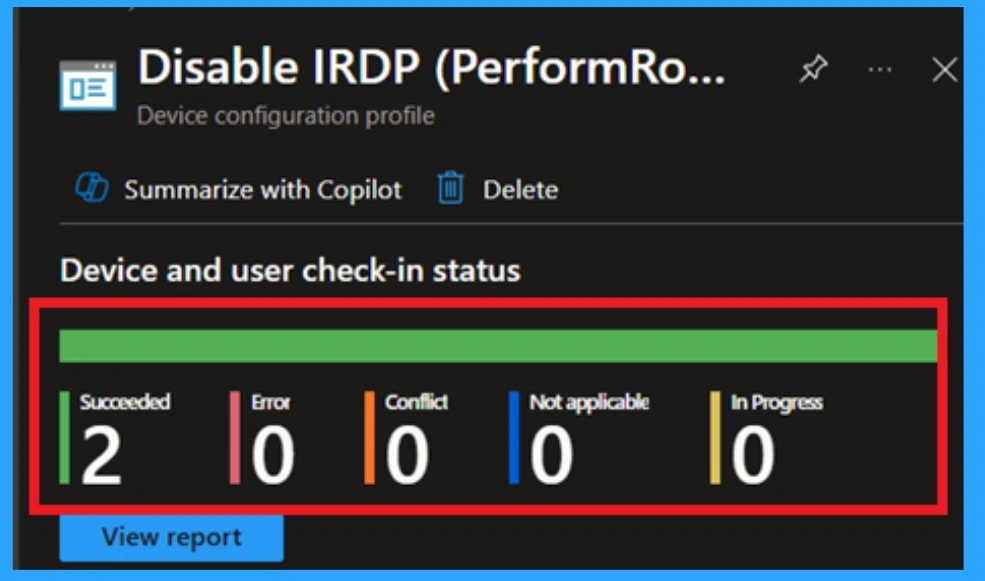
The Monitoring Status page shows if the policy is succeeded or not. o quickly configures the policy and takes advantage of the policy sync the assigned device on Company Portal. Open the Intune Portal. Go to Devices > Configuration > Search for the Policy. Here, the policy shows as succeeded.
Client-Side Verification through Event Viewer
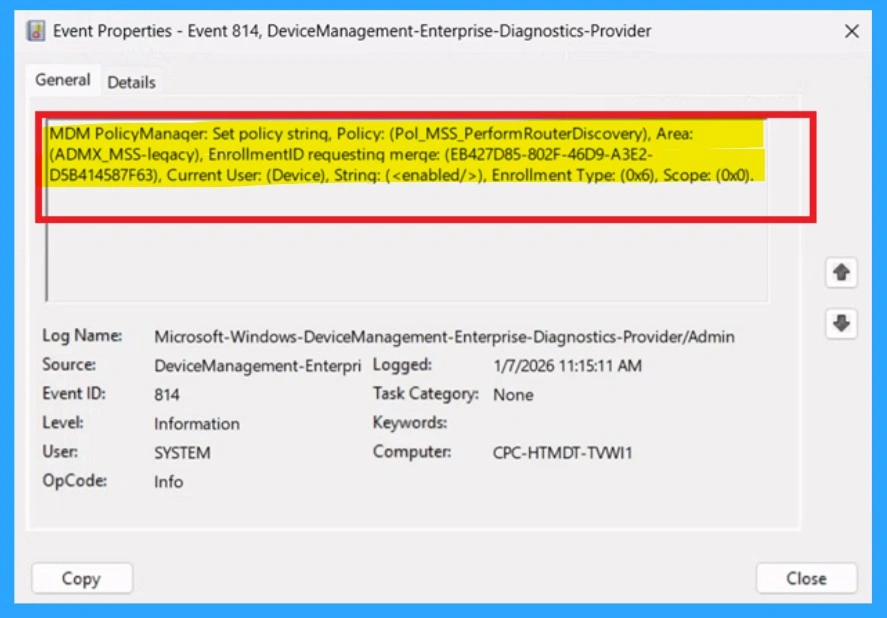
You know to confirm the policy is successful or not, you can use the Event Viewer. First, open Event Viewer and navigate to Applications and Services Logs > Microsoft > Windows > Device Management > Enterprise Diagnostic Provider > Admin. Look for Event IDs 813 or 814, as these typically policy-related information. In the below screenshot the policy details were found under Event ID 814.
- You can use the Filter Current Log option in the right-hand pane to get the results easily.
| Policy Info |
|---|
| MDM PolicyManaqer: Set policy strinq, Policy: (Pol_MSS_PerformRouterDiscovery), Area: (ADMX_MSS-leqacy), EnrollmentID requesting merqe: (EB427D85-802F-46D9-A3E2- D5B414587F63), Current User: (Device), Strinq: (), Enrollment Type: (0x6), Scope: (0x0). |
Removing the Assigned Group from this Settings
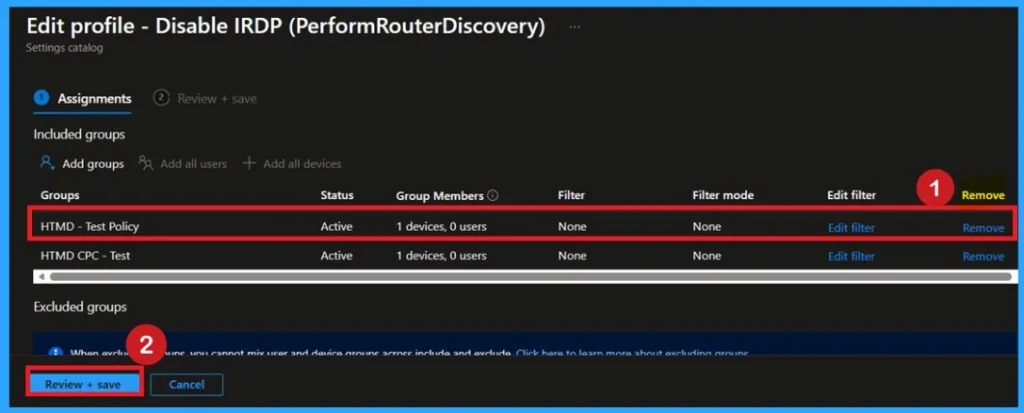
If you want to remove the Assigned group from the policy in Intune, it is possible from the Intune Portal. This is an easy step but always do it carefully. To do this, open the Policy on Intune Portal and edit the Assignments tab and the Remove Policy.
For detailed information, you can refer to our previous post – Learn How to Delete or Remove App Assignment from Intune using by Step-by-Step Guide.
How to Delete the Policy that you Created
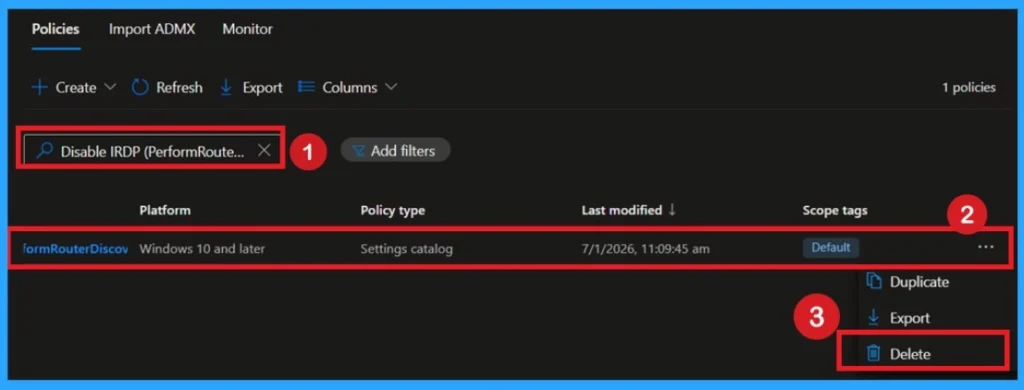
To delete a policy in Microsoft Intune, first sign in to the Microsoft Intune Admin Center. Navigate to Devices and then select Configuration. Locate and select the specific policy you want to remove. Once you’re on the policy details page, click the 3 -dot menu in the top right corner and choose Delete from the available options.
Windows CSP Details
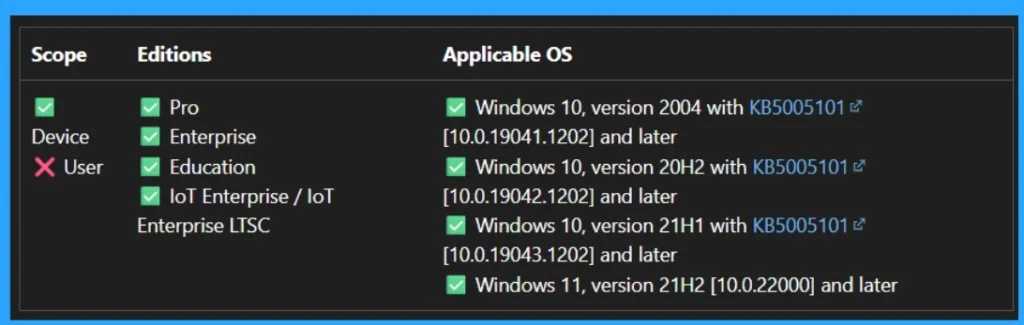
The Pol_MSS_PerformRouterDiscovery policy controls whether Internet Router Discovery Protocol (IRDP) is used to detect and configure Default Gateway addresses. This policy applies exclusively to device-level configuration. It is supported across a wide range of Windows editions, including Pro, Enterprise, Education, IoT Enterprise, and Enterprise LTSC.
- The below path is used for Intune Settings Catalog or custom configuration profiles to deploy the policy via Mobile Device Management.
./Device/Vendor/MSFT/Policy/Config/ADMX_MSS-legacy/Pol_MSS_PerformRouterDiscovery
To get more detailed information, you can refer to our previous post – Learn How to Delete or Remove App Assignment from Intune using by Step-by-Step Guide.
Author
Anoop C Nair has been Microsoft MVP for 10 consecutive years from 2015 onwards. He is a Workplace Solution Architect with more than 22+ years of experience in Workplace technologies. He is a Blogger, Speaker, and Local User Group Community leader. His primary focus is on Device Management technologies like SCCM and Intune. He writes about technologies like Intune, SCCM, Windows, Cloud PC, Windows, Entra, Microsoft Security, Career, etc