
Key Takeaways
- The legacy Jamf–Intune connector is no longer supported and can become stuck in Intune
- A stuck legacy connector can block the new Jamf–Intune integration, even if it is configured correctly
- The Terminate button may fail with an InternalServerError, which is expected in this scenario
- Microsoft Graph API workaround to remove the orphaned connector
- If the Graph API deletion fails, Microsoft backend support is required to clean up the legacy connector
- Once the legacy connector is removed, Mac devices should appear in Intune and compliance checks should work normally
How to Fix a Stuck Legacy Jamf Connector to Restore New Jamf Intune Integration and Mac Device Sync. Organizations using Microsoft Intune and Jamf Pro are experiencing issues with legacy connectors that are now unsupported.
Following outdated Microsoft documentation, many admins initially set up the old connection method, only to discover that Jamf no longer supports it. As a result, the Intune connector becomes stuck, cannot connect to Jamf, and cannot be removed.
Attempts to terminate the connector trigger internal server errors, leaving it in limbo. While some organizations have successfully set up the new Jamf integration, managed Macs still fail to appear in Intune, potentially affecting compliance monitoring and Conditional Access policies.
The organization switched to the new, supported way of connecting Jamf Pro with Intune. This method follows all the current rules and best practices, so it’s the correct setup. Even after setting up the new connection, the Mac computers are still not showing up in Intune. The reason is that the old, stuck connector from the previous setup is blocking the new connection, so Intune cannot see or sync the Mac devices.

Table of Contents
How to Fix a Stuck Legacy Jamf Connector to Restore New Jamf Intune Integration and Mac Device Sync
The old Jamf connector that was set up earlier is now stuck and no longer working. It cannot connect to Jamf, cannot sync any data, and serves no useful purpose, but it remains in Intune and causes ongoing issues. The “Terminate” button simply produces the following error.
“{“error”:{“code”:”InternalServerError“,”message”:”{\r\n \”_version\”: 3,\r\n \”Message\”: \”An internal server error has occurred – Operation ID (for customer support): 00000000-0000-0000-0000-000000000000 – Activity ID: f0416542-74a3-4876-a3a3-d27cc6a9bb31 – Url: https://proxy.msub02.manage.microsoft.com/StatelessOnboardingService/deviceManagement/deviceManagementPartners(‘007d2fff-e0dd-4b28-8595-cec005efe5cd’)/microsoft.management.services.api.terminate?api-version=5025-03-20\”,\r\n \”CustomApiErrorPhrase\”: \”\”,\r\n \”RetryAfter\”: null,\r\n \”ErrorSourceService\”: \”\”,\r\n \”HttpHeaders\”: \”{}\”\r\n}”,”innerError”:{“date”:”2025-11-20T08:33:25″,”request-id”:”11b3ecb3-6b3c-40a1-a2ef-1259682cc5f7″,”client-request-id”:”f0416542-74a3-4876-a3a3-d27cc6a9bb31″}}}”
- Troubleshooting the Intune Device Limit Issue on macOS
- MacOS Users drop out from Teams Meetings intermittently Issue
- Fix macOS Error 100001 SSO Error while using Intune
Remove Legacy Jamf Connector to Fix Intune macOS Sync Issues
We need to remove the unsupported legacy Jamf connector from Intune, as it is no longer functional and cannot be deleted by administrators. Clearing this stuck connector is necessary to prevent conflicts within the Intune environment.
Once the old connector is removed, the new Jamf–Intune integration should function correctly, allowing Mac devices to appear in Intune and enabling proper compliance checks and device visibility.
Workaround
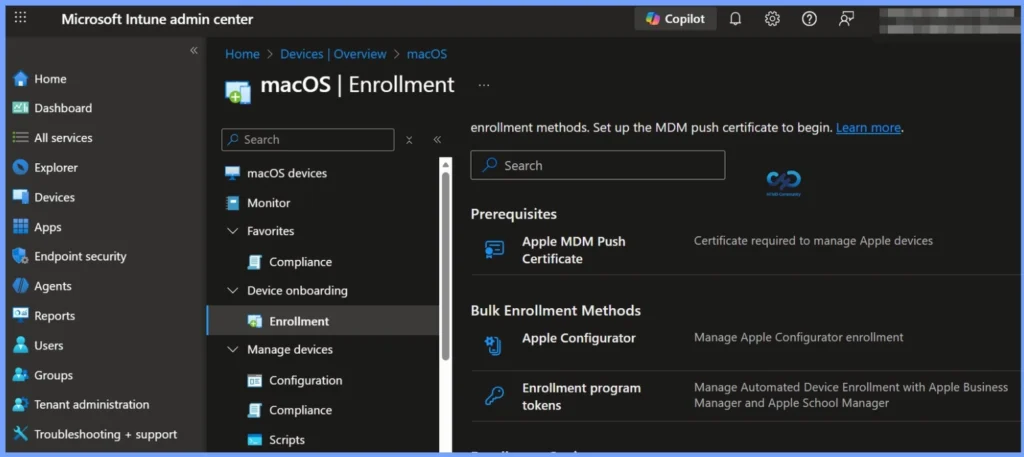
This problem happens because Jamf stopped supporting the old way of connecting to Intune. When that support was removed, Intune lost the ability to properly close or delete the old connection. That’s why clicking Terminate shows an Internal Server Error this behavior is normal in this situation.
Even though the new Jamf connection is set up correctly, the old broken connector is still sitting in Intune. That old connector can block the new one from working, which is why Mac devices do not appear in Intune.
Steps to Remove the Legacy Connector Using Graph API
Let’s walk through the steps to remove the legacy Jamf connector using Microsoft Graph API. The following list provides a clear and detailed view of how to identify and delete the stuck connector so that it no longer blocks the new Jamf–Intune integration.
- Open Microsoft Graph Explorer
- URL: https://developer.microsoft.com/graph/graph-explorer
- Sign in with an account that has:
- Global Administrator or Intune Administrator permissions
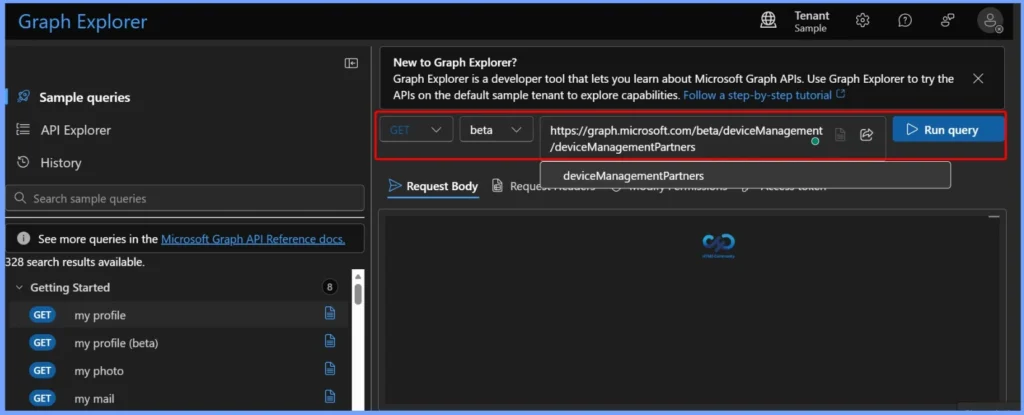
- Run the following GET request to list device management partners
- GET request:
- https://graph.microsoft.com/beta/deviceManagement/deviceManagementPartner
- Find the entry showing “partnerState”: “unavailable” and copy its “id”
Delete the Legacy Jamf Connector Using Graph API
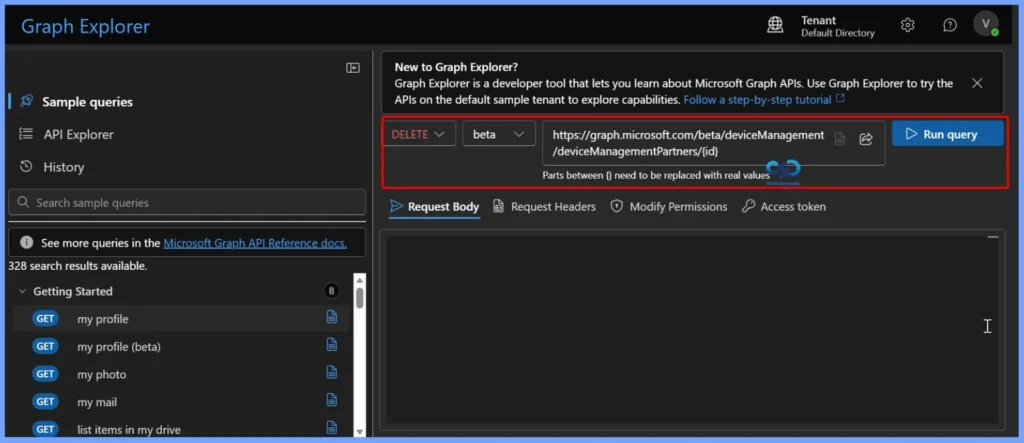
After identifying the legacy Jamf connector ID, send a DELETE request to Microsoft Graph to remove the orphaned connector from Intune. This action attempts to permanently delete the unsupported device Management Partner object that is stuck and blocking the new Jamf–Intune integration.
- DELETE request
- https://graph.microsoft.com/beta/deviceManagement/deviceManagementPartners/{id}
- Replace {id} with the actual ID of the legacy Jamf connector. If the request succeeds, the old connector will be removed and macOS devices should start syncing correctly in Intune.
Need Further Assistance or Have Technical Questions?
Join the LinkedIn Page and Telegram group to get the latest step-by-step guides and news updates. Join our Meetup Page to participate in User group meetings. Also, Join the WhatsApp Community to get the latest news on Microsoft Technologies. We are there on Reddit as well.
Author
Anoop C Nair has been Microsoft MVP for 10 consecutive years from 2015 onwards. He is a Workplace Solution Architect with more than 22+ years of experience in Workplace technologies. He is a Blogger, Speaker, and Local User Group Community leader. His primary focus is on Device Management technologies like SCCM and Intune. He writes about technologies like Intune, SCCM, Windows, Cloud PC, Windows, Entra, Microsoft Security, Career, etc.