
Key Takeaways
- Limits how many times IPv6 data is resent when no reply is received
- Reduces unnecessary system and network load
- Setting the value to 3 improves security and performance
- Helps protect devices from resource exhaustion attacks
- Supports CIS Level 2 security compliance
Today we are discussing Securing TCP IPv6 Communications by Limiting Retransmissions Using Intune Policy. This is a important policy comes under the administrative templates. This policy focuses on controlling how many times a Windows device using IPv6 will try to resend data when it does not get a reply from the receiving system.
Table of Contents
Table of Contents
Securing TCP IPv6 Communications by Limiting Retransmissions using Intune Policy
This policy helps protect systems from misuse. Attackers can avoid sending reply to messages, forcing a device to keep resending data. By limiting retries to 3, the connection ends, lowering the chance of system resources being overused and helping maintain system stability.
In network communication, TCP waits for a confirmation message that tells it the data was received. If no reply comes back, the system assumes the data did not reach its destination and tries to send it again. This process is important for better communication but allowing too many retry attempts can be lead for extra load on the system and the network.
- Enable or Disable the First Sign in Animation Policy on Windows11 to Skip Setup Prompts using Intune
- Enable Fast First Sign In Policy under Authentication in Intune Settings Catalog
- Allow Manual Start of Microsoft Account Sign In Assistant Using Intune Settings Catalog
Create a Profile
This policy also improves network performance. When devices stop retrying failed connections earlier, unnecessary network traffic is reduced. This helps keep the network clean and responsive, especially in large organizations with many connected systems. From an operational view, the setting improves system better and smooth.

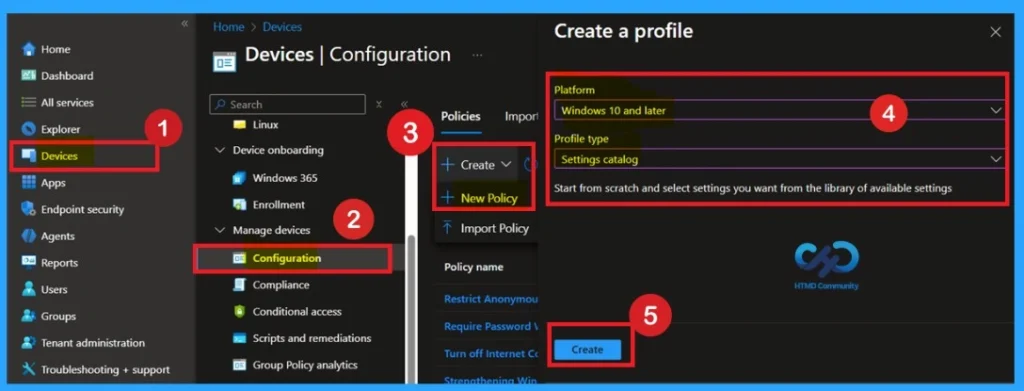
For deploying the Intune policy, we need to create a profile first. Then log in to the Microsoft Intune admin center with our credentials. Then, we need to navigate the Devices section, click Configurations, and create a new policy.
- When we click the New Policy option, the Create Profile window will open.
- Here, we need to select the platform as Windows 10 and later, and the profile type is Settings Catalog from the list.
- Finally, click the Create option to continue.
What is a Basic Tab
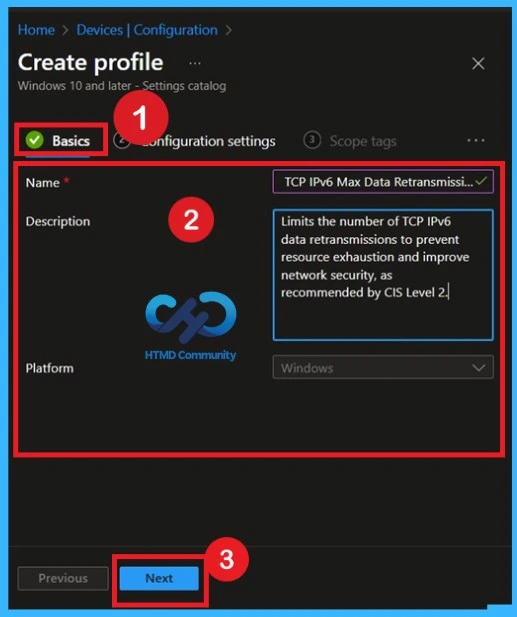
The Basics tab is the quickest step. Here, you need to enter the basic details such as the Name, Description, and Platform information. Since the platform is already set to Windows, you only need to provide a specific name and description for the policy, then click Next.
Configuration Settings
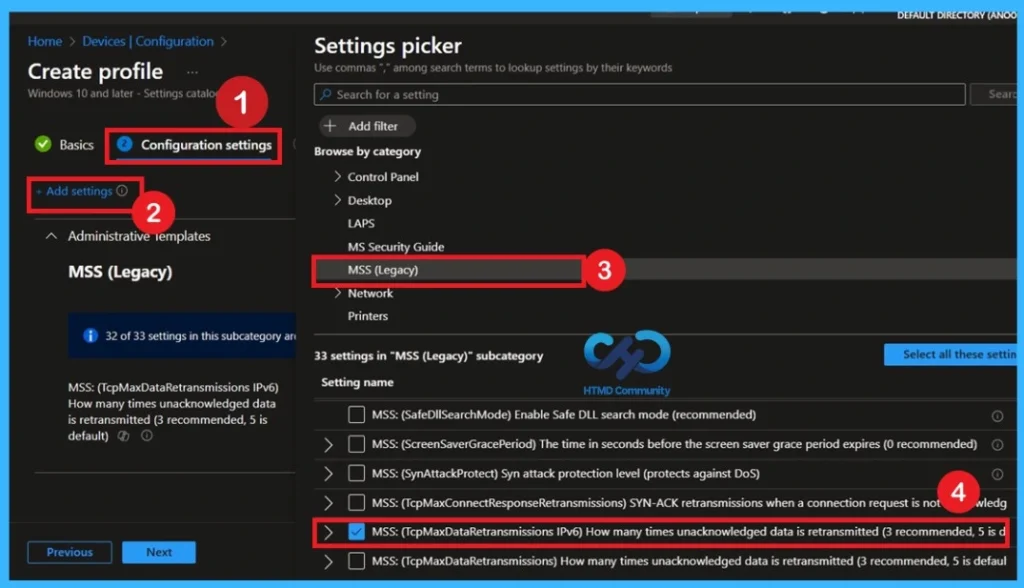
The next step is to configure the settings. Navigate to Step 2 and click on it to proceed. This action opens the Settings Picker window, where you can view different categories of policies. From the list, select Administrative Templates, then locate and click on MSS Legacy. Within this section, you will see multiple policy options available.
- Select TCP Max Data Retransmissions for IPv6, and once the policy is selected, close the Settings Picker window to continue with the configuration process.
Disabled Settings
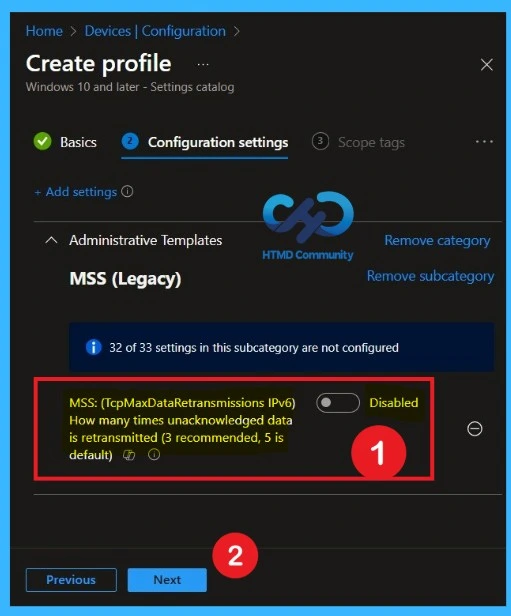
After closing the Settings Picker window, you will return to the Configuration Settings page. Here, you can see that the selected policy is now displayed on the configuration page. By default, this policy is set to Disabled, which represents the default state of the setting. If you want to continue with this default configuration, simply click Next to proceed.
Enable the Policy
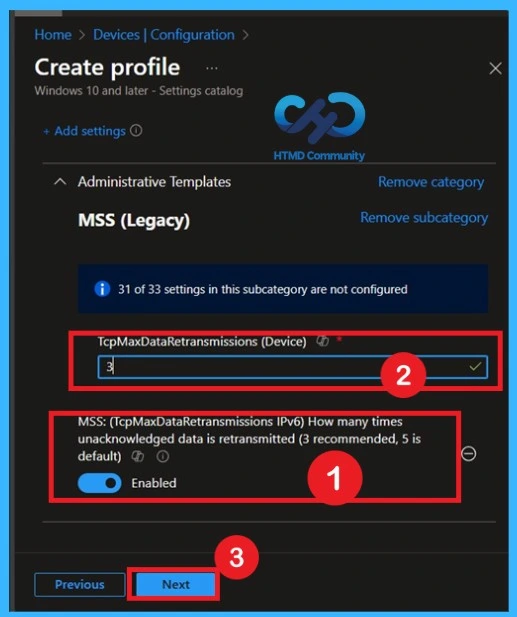
By default, this toggle is set to Disabled. To activate the policy, you just drag the toggle from left to right. Once enabled, the toggle will turn blue and change to Enabled. Then click Next to continue.
What is the Scope Tags
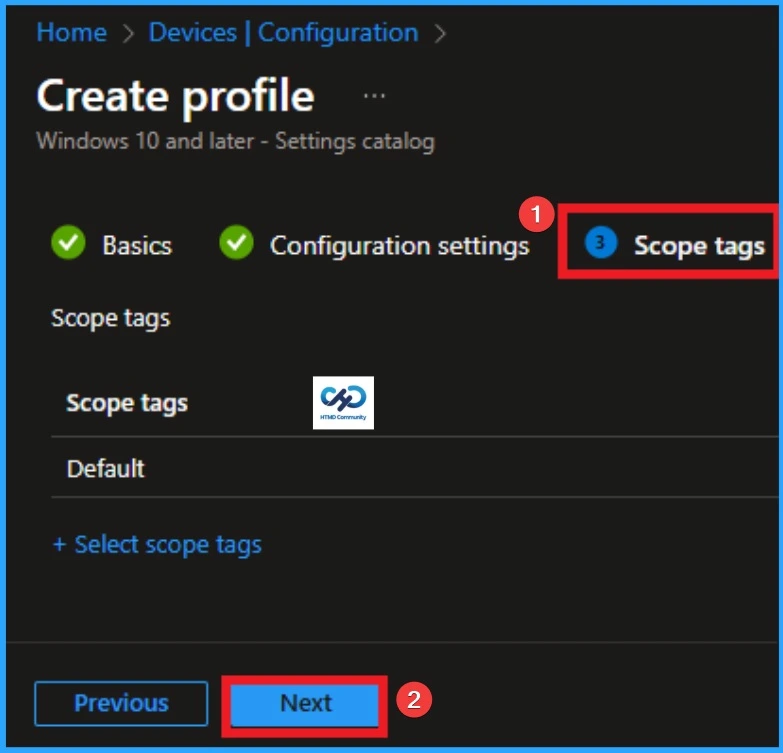
The next section is the scope tag and which is not a compulsory step. Scope Tags are used in Intune to filter and control which IT admins can see and manage a policy. Here, I skip the section and click on the next button. If you want to add Scope tags, click on the +Select Scope tags option. Otherwise, you can continue.
Assign this Policy to Specific Groups
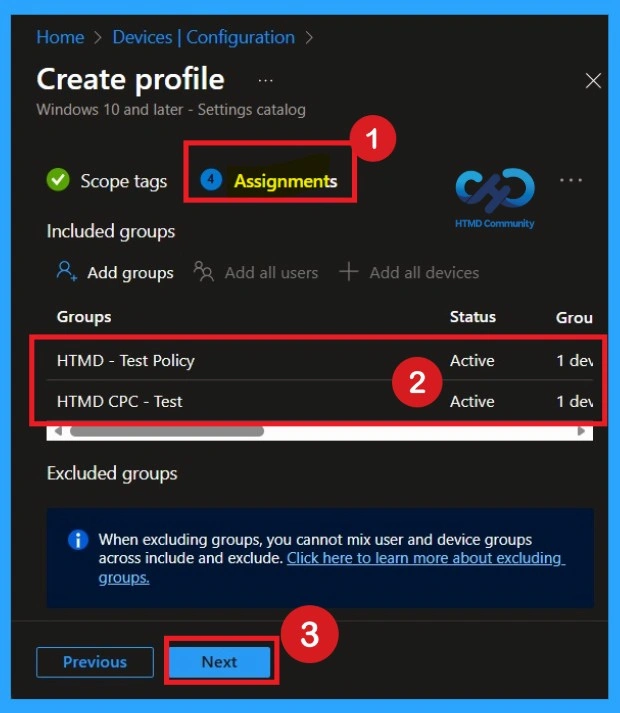
To assign the policy to specific groups you can use Assignment Tab. Here I click, +Add groups option under Included groups. I choose a group from the list of groups and Click on the Select button. Again, I click on the Select button to continue.
Final Step of Policy Creation
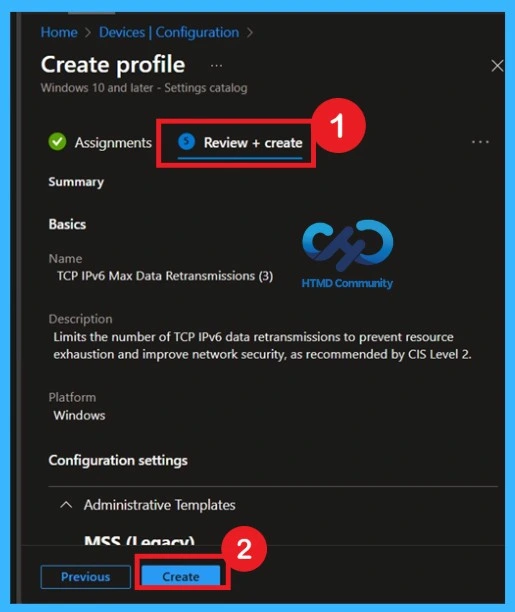
To complete the policy creation you can review all the policy details on the Review + create tab. It helps to avoid mistakes and successfully configure the policy. After varifying all the details click on the Create Button. After creating the policy you will get success message.
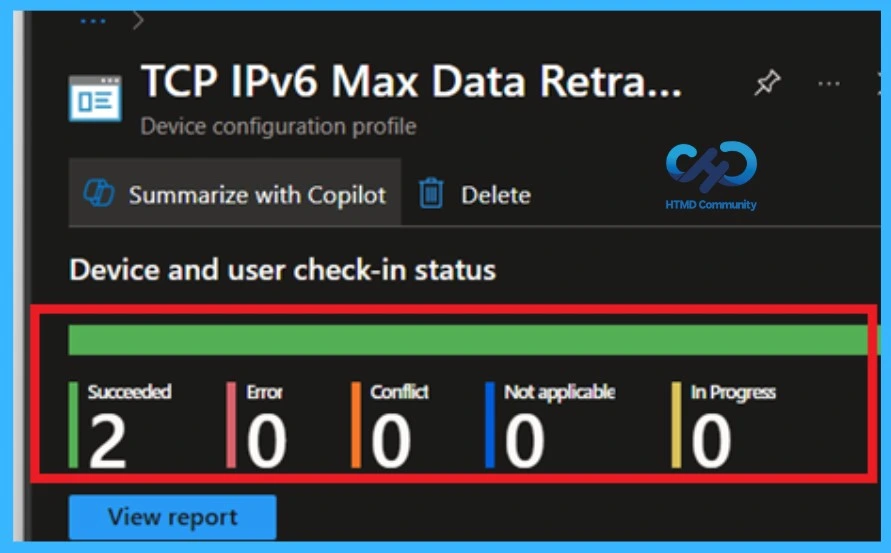
Device Checking Status
To quickly configure the policy and take advantage of the policy sync the assigned device on Company Portal. Open the Intune Portal. Go to Devices > Configuration > Search for the Policy. Here the policy shows as succeeded.
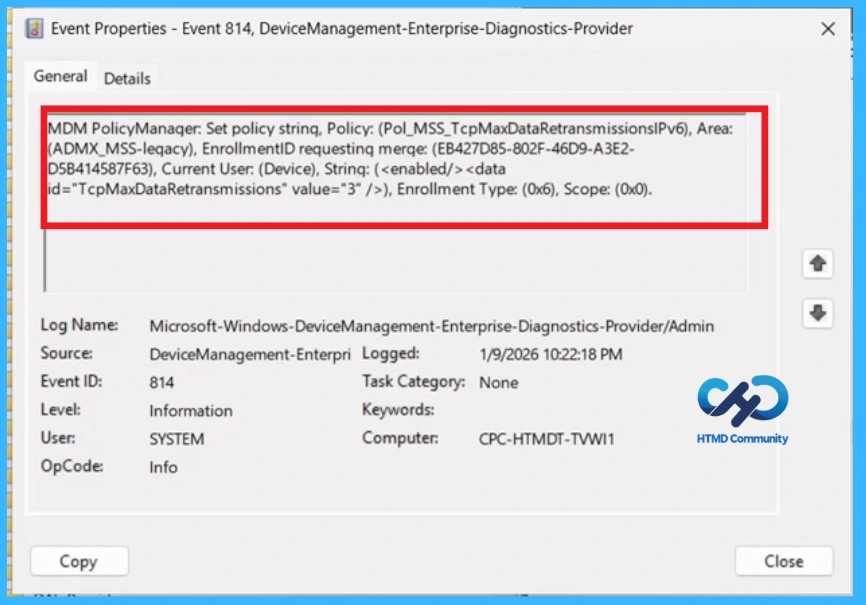
Client Side Verification with Event Viewer
If you get success message, that doesn’t mean you will get the policy advantages. To verify the policy successfully configured to client device check the Event Viewer. Open Event Viewer: Go to Start > Event Viewer. Navigate to Logs: In the left pane, go to Application and Services Logs > Microsoft > Windows > DeviceManagement-Enterprise-Diagnostics-Provider > Admin.
- Filter for Event ID 813 or 814: This will help you quickly find the relevant logs.
| Policy Details |
|---|
| MDM PolicyManaqer: Set policy strinq, Policy: (Pol_MSS_TcpMaxDataRetransmissionsIPv6), Area: (ADMX_MSS-leqacy), EnrollmentID requestinq merqe: (EB427D85-802F-46D9-A3E2- D5B414587F63), Current User: (Device), Strinq: (), Enrollment Type: (0x6), Scope: (0x0). |
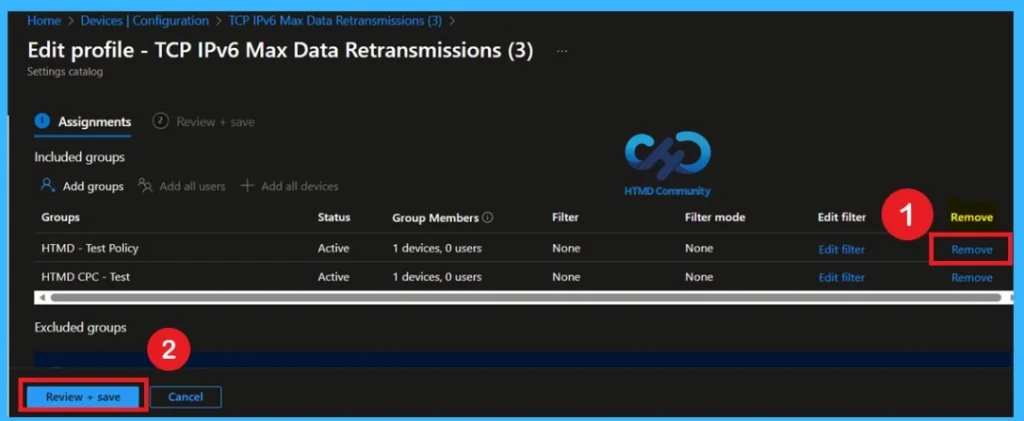
Removing the Assigned Group
If you want to remove the Assigned group from the policy, it is possible from Intune Portal. To do this open the Policy on Intune Portal and Edit the Assignments tab and Remove the Policy.
Delete the Policy Permanantly from your Tenant
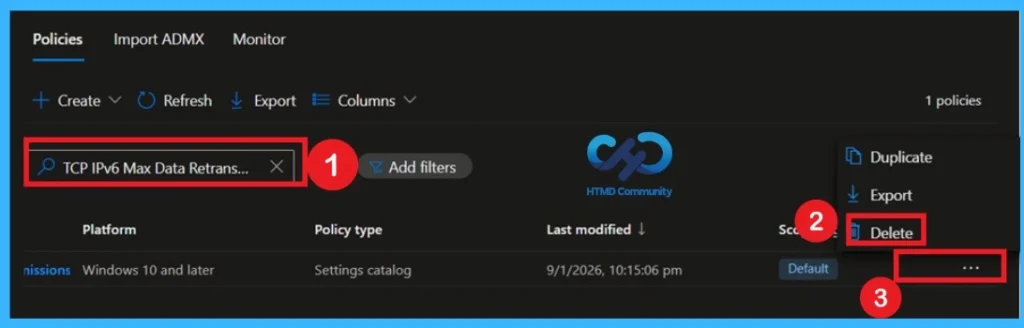
If you want to permanently delete a policy from deployment, you can do so easily. First, go to Device Configuration Profiles in Intune and search for the policy by its name. Once you locate the policy, click on the 3 dots (More options) next to it. You will see a list of options and select Delete.
- Confirm the action, and the policy will be completely removed from your organization, ensuring it is no longer deployed to any devices
Need Further Assistance or Have Technical Questions?
Join the LinkedIn Page and Telegram group to get the step-by-step guides and news updates. Join our Meetup Page to participate in User group meetings. Also, Join the WhatsApp Community to get the latest news on Microsoft Technologies. We are there on Reddit as well.
Author
Anoop C Nair has been Microsoft MVP for 10 consecutive years from 2015 onwards. He is a Workplace Solution Architect with more than 22+ years of experience in Workplace technologies. He is a Blogger, Speaker, and Local User Group Community leader. His primary focus is on Device Management technologies like SCCM and Intune. He writes about technologies like Intune, SCCM, Windows, Cloud PC, Windows, Entra, Microsoft Security, Career, etc.