
Key Takeaways
- The January 2026 patch updates (KB5074109, KB5073455) address multiple vulnerabilities, including zero-day issues, helping reduce overall system risk.
- Microsoft released security updates for 114 vulnerabilities, including 1 actively exploited and 2 publicly disclosed zero-day vulnerabilities.
- The update fixes 8 Critical vulnerabilities, consisting of: 6 Remote Code Execution (RCE) flaws and 2 Elevation of Privilege (EoP) flaws
- The January 13, 2026 Patch Tuesday fixes three zero-day vulnerabilities that were publicly disclosed before the update release.
The January 2026 Patch Tuesday updates for Windows 11 KB5074109 and KB5073455 focus on strengthening platform security, improving reliability, and refining the overall user experience. These cumulative updates address multiple security vulnerabilities, including zero-day issues, along with dozens of additional fixes aimed at reducing system risk and improving stability.
The January 2026 update introduces two improvements to Click to Do, focused on faster access and better usability. The Click to Do context menu now features a more streamlined design, making it easier to quickly access commonly used actions such as Copy, Save, Share, and Open without extra clicks.
In addition, when a large image or table appears on the screen, the context menu automatically opens, allowing users to immediately view available actions and results, improving efficiency and overall workflow. The January 2026 update fixes an issue with Copilot integration, where Ask Copilot did not reliably activate the Click to Do window.
With this patch, the Click to Do window now correctly opens in the foreground whenever data is shared with Copilot, ensuring a smoother and more consistent user experience. Windows patching is the process of installing updates for Windows and other Microsoft software to fix security issues, correct bugs, and improve system performance. Regular patching helps keep devices secure, stable, and up to date with the latest features and improvements.

Table of Contents
3 Zero Day Security Vulnerabilities for January 2026
The January 13, 2026 Patch Tuesday addresses three zero-day vulnerabilities that were publicly disclosed prior to the release. These include an information disclosure vulnerability in the Desktop Window Manager (CVE-2026-20805) with active exploitation detected, a Secure Boot certificate expiration security feature bypass vulnerability (CVE-2026-21265), and a Windows Agere Soft Modem Driver elevation of privilege vulnerability (CVE-2023-31096).
While only one of these zero-days was confirmed as actively exploited, Microsoft rated the others as either more likely or less likely to be exploited, highlighting the importance of applying the January updates promptly.
| Release Date | CVE Number | CVE Title | Publicly disclosed | Exploitability assessment | Exploited |
|---|---|---|---|---|---|
| Jan 13, 2026 | CVE-2026-20805 | Desktop Window Manager Information Disclosure Vulnerability | No | Exploitation Detected | Yes |
| Jan 13, 2026 | CVE-2026-21265 | Secure Boot Certificate Expiration Security Feature Bypass Vulnerability | Yes | Exploitation Less Likely | No |
| Jan 13, 2026 | CVE-2023-31096 | MITRE: CVE-2023-31096 Windows Agere Soft Modem Driver Elevation of Privilege Vulnerability | yes | Exploitation More Likely | No |

- Windows 11 Version Numbers Build Numbers Major Minor Build Rev
- Updated Windows 11 End-of-Life Dates
- Top 83 Windows 11 Desktop Admin Interview Questions
2026 January KB5074109 KB5073455 Windows 11 Patch | 3 Zero Day Vulnerabilities and 114 Flaws
In this patch, Microsoft has updated the AppX Deployment Service (Appxsvc) by changing its startup type to Automatic. This improvement helps enhance reliability in certain isolated or restricted scenarios, ensuring that app deployment and update processes work more consistently without manual intervention.
| Windows 11 25H2 and 24H2 | Windows 11 23H2 |
|---|---|
| KB5074109 | KB5073455 |
Updated Version of Windows 11 after Installing KB5074109 KB5073455 January 2026 Patch
Microsoft regularly delivers updates across all supported Windows 11 versions to improve security, stability, and functionality, ensuring a consistent and reliable experience for users and IT administrators. The list helps you to show the Windows 11 versions, and you will get more details on Windows 11 version numbers from the link below.
- Windows 11 version 25H2 and 24H2 – KB5074109 (OS Builds 26200.7623 and 26100.7623)
- Windows 11 Version 23H2 – KB5073455 (OS Build 22631.6491)
- More Details on Windows 11 version Numbers: Windows 11 Version Numbers Build Numbers Major Minor Build Rev.
Windows 11 Features and New Improvements – KB5074109 KB5073455
This patch introduces a new Camera feature in Windows 11 that expands support for Windows Studio Effects. Users can now apply AI-powered camera enhancements to additional cameras, such as a USB webcam or a laptop’s rear camera.
Once enabled through the camera settings, Studio Effects can be easily adjusted either from the camera settings page or directly from the Quick Settings menu on the taskbar, making it more convenient to manage camera enhancements during meetings or recordings.
| New Improvements | Details |
|---|---|
| PowerShell 5.1 – Invoke-WebRequest | Added a confirmation prompt with a security warning when executing web-based scripts. Users can now choose to continue or cancel the request. This change is related to CVE-2025-54100 and KB5074596 to reduce script execution risks. |
| System Components – AppX Deployment Service | The AppX Deployment Service (Appxsvc) startup type has been changed to Automatic to improve reliability in certain isolated environments. |
| Recommended settings – inline agent option | Recently changed settings show an inline agent option for faster adjustments. |
| Dialog for unmodifiable settings | Shows a dialog explaining why a setting cannot be changed and provides an option to modify as needed. |
| Automatic context menu for large objects – Click to Do – New Enhancements | When a large image or table appears, the context menu opens automatically to help you quickly take action and view results. |
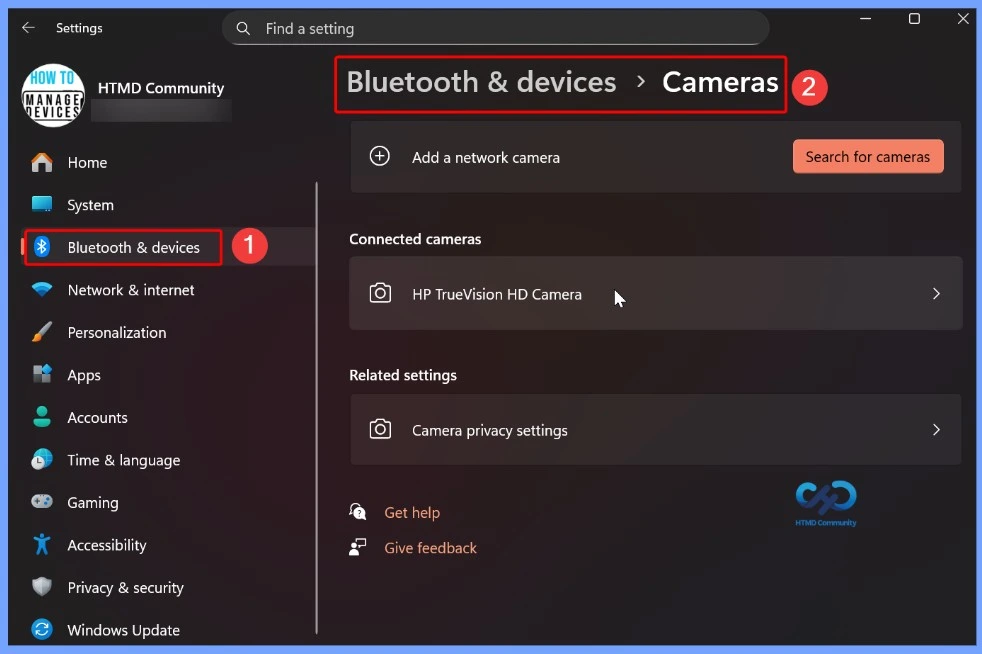
| Camera – New Windows Studio Effects Support – AI-powered Studio Effects on more cameras | Windows Studio Effects can now be used on additional cameras like USB webcams or the built-in rear camera on laptops.Go to Settings > Bluetooth & devices > Cameras → select a connected camera → open Advanced camera options → turn on Use Windows Studio Effects. Studio Effects can be adjusted from the camera settings page or the quick settings menu in the taskbar. |
| Home page on-hover actions | On-hover quick actions on File Explorer Home improve file management speed and are now available for enterprise customers (previously released in KB5067036). |
| Windows Search – New Enhancement – Semantic search for AI-categorized photos | You can now search and find AI-categorized photos from the Microsoft Photos app directly using Windows Search with semantic search technology. |
| Advanced Settings – Virtual Workspaces toggle | You can now enable or disable Virtual Workspaces such as Hyper-V and Windows Sandbox via Settings > System > Advanced. |
| Unified dark mode visuals – File Explorer | Dialogs for copying, moving, and deleting files now blend seamlessly with dark mode across standard and expanded layouts. Progress indicators, charts, confirmation prompts (such as Skip or Replace), and various error messages have been redesigned for a cleaner and more readable dark theme experience. |
| Cleaner and more accessible context menu – File Explorer | The File Explorer right-click menu has been simplified to group popular actions — Share, Copy, Move, and more — into a single, easy-to-locate menu. This improves accessibility for all users, whether using a mouse, keyboard, or assistive tools. This update will first roll out to a limited number of devices for evaluation. |
| Input (Pen) – Haptic pen feedback | Pens with haptic support now provide vibration feedback when interacting with the interface (e.g., hover over close button, snap windows). |
| Keyboard – Improved backlit keyboard behavior | Better backlight visibility on supported HID-compliant keyboards, with power-saving adjustments. |
| OneDrive – New icon location | Updated OneDrive icon now appears in Settings > Accounts > Homepage. |
| Recovery – Quick Machine Recovery improvements | QMR performs a one-time scan to detect fixes and provides the best recovery guidance if immediate solutions are not available. |
| Updated About page layout | The About page now organises device info and related options more clearly, providing quicker access to features such as Storage settings. |
| New Feature – Updated app group animations | Hovering over taskbar app groups now shows improved preview transitions as you slide between open apps. |
| Widgets – New Enhancements – Default dashboard selection | You can now set a default dashboard in Widget Board settings. When live weather is displayed, Widgets will open the first dashboard in the navigation bar instead of the most recently accessed one. Adjust this by rearranging dashboards in Widget Settings. |
| Windows Share – New Enhancements – Improved drag tray for sharing | The drag tray now supports multi-file sharing, displays more relevant apps, and allows quick movement of files to a chosen folder. |
| Windows Share – New Enhancements – Share OneDrive files via other apps | OneDrive files can be shared through more apps using options under Share using after selecting Copy link (Microsoft account sign-in required). |
| Display & Graphics – Improvements – Improved | Monitor mode query performance Reduced stuttering on very high-resolution monitors when apps request supported display modes, improving smoothness and responsiveness. |
| Improved – Start menu search panel | The Windows Search panel now aligns in size with the new Start menu, providing a smoother transition when searching. |
Issues Fixed with Windows 11 January Patch 2026 – KB5074109 KB5073455
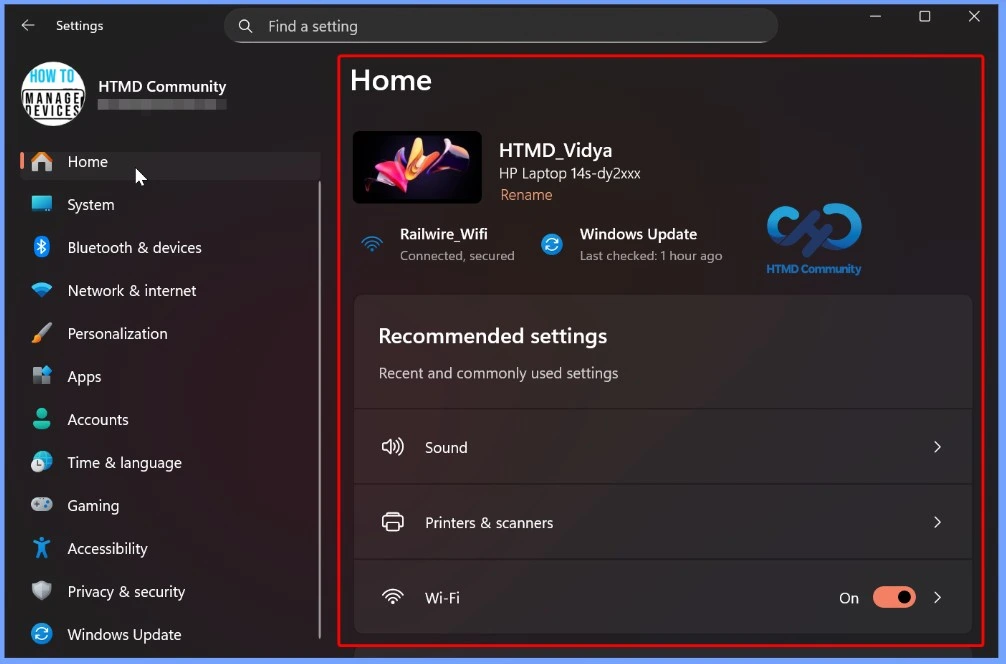
This patch resolves multiple Settings app stability issues in Windows 11. It fixes a problem where the Settings app could become unresponsive when navigating to the Network & Internet section. In addition, it addresses a layout issue where the Settings search bar overlapped with the minimize and maximize buttons in the title bar, improving usability and overall interface consistency.
| Issues Fixed with Windows 11 January Patch | Description |
|---|---|
| Copilot – Click to Do Window | Fixed an issue where Ask Copilot did not bring the Click to Do window to the foreground. The window now opens correctly when data is shared with Copilot. |
| File Explorer (Known Issue) | Resolved a problem where File Explorer briefly flashed a white screen when navigating between pages. This issue was observed after installing KB5070311. |
| Networking (Virtual Switches) | Fixed an issue where external virtual switches lost their physical NIC bindings after a host restart. Previously, this caused switches to revert to internal mode, resulting in VM network outages and disrupted server operations. |
| Generic app icon in context menu – – File Explorer – Fixes | When right-clicking a file, the icon beside the Open option will now correctly show the default app icon instead of a generic placeholder. |
| Settings freeze issue – Fixed Issue | Settings will no longer become unresponsive when navigating to Network & Internet. |
| Fixed Issue – Taskbar auto-hide issue | The Automatically hide the taskbar setting will no longer turn off unexpectedly after a toolbar warning. |
| Fixed Issue – Voice access interaction | Voice Access now works properly with taskbar items, ensuring correct number-based selection. |
| Fixed – Brightness slider issue on AIO PCs | Brightness slider now maintains the selected brightness and no longer reverts to the previous level unexpectedly. |
| Fixed – Incorrect graphics card warnings in games | Certain games will no longer show Unsupported graphics card detected when a supported GPU is being used. |
| Fixed – Memory leak with slideshow lock screen | When the lock screen is set to slideshow, memory leaks have been resolved, preventing potential performance or reliability issues over time. |
Known Issues from January Windows 11 Patch 2026
In the January 2026 Windows update, Microsoft acknowledged an issue where updates installed using WUSA can fail when launched from a shared network folder. This problem does not affect all environments but may impact certain deployment scenarios. At this time, a permanent fix is not included in the January patch, and Microsoft has confirmed that a resolution is planned for a future Windows update.
| Summary | Originating Update | Status |
|---|---|---|
| Updates installed via WUSA might fail if installed from a shared folder | N/A | A resolution for this issue is planned for a future Windows update |
Intune Windows 11 KB5074109 KB5073455 Deployment
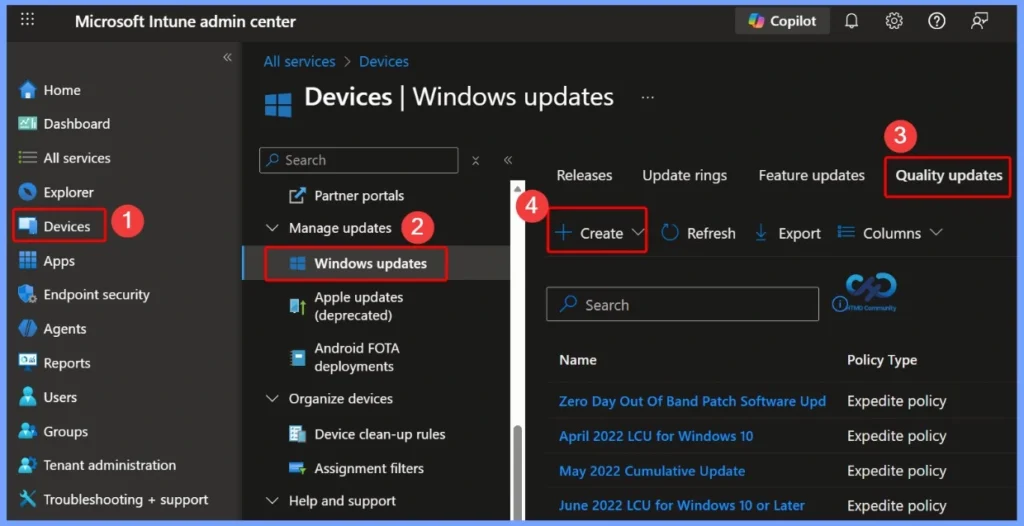
For the January 2026 Windows 11 patch, administrators can use Microsoft Intune to deploy the cumulative update without creating a new patch policy. If some devices have not yet installed the January update, a Windows 11 Quality Update profile can be used to speed up deployment.
- By configuring this profile in the Intune admin center, IT teams can accelerate installation on older devices and enforce timely restarts, helping ensure faster patch compliance across managed endpoints.
- Instead of waiting for devices to update on their own, you create an Expedited Quality Update profile in Intune. This profile tells the device: “Install the January 2026 update immediately.”
- In simple steps:
- Go to the Intune admin center
- Navigate to Devices → Windows 10 and later → Quality updates (preview)
- Click Create profile
- Give it a name like Windows 11 January 2026 LCU
- Turn on expedite installation for devices that are behind the January 2026 update
- Set restart enforcement to 1 day, so devices restart and complete the update
Read More – Software Update Patching Options with Intune Setup Guide
More Details on Zero Day Out Of Band Patch Deployment Using Intune MEM Expedite Best Option and Intune Reporting Issue: Expedite Windows Security Patch Deployment.
SCCM Windows 11 KB5072033 KB5071417 Deployment
You can deploy the Windows 11 January 2026 Cumulative Updates (KB5074109 and KB5073455) using SCCM, WSUS, or Microsoft Intune. In the SCCM Console, navigate to: Software Library > Overview > Software Updates > All Software Updates.
From the All Software Updates node, initiate a WSUS sync by right-clicking and selecting Synchronize Software Updates. Once the sync is complete, search using the KB numbers KB5074109 and KB5073455, or use a broader search such as January 2026 Cumulative Update for Windows 11 to identify and deploy the required updates.
Direct Download Links of Windows 11 KB5074109 KB5073455
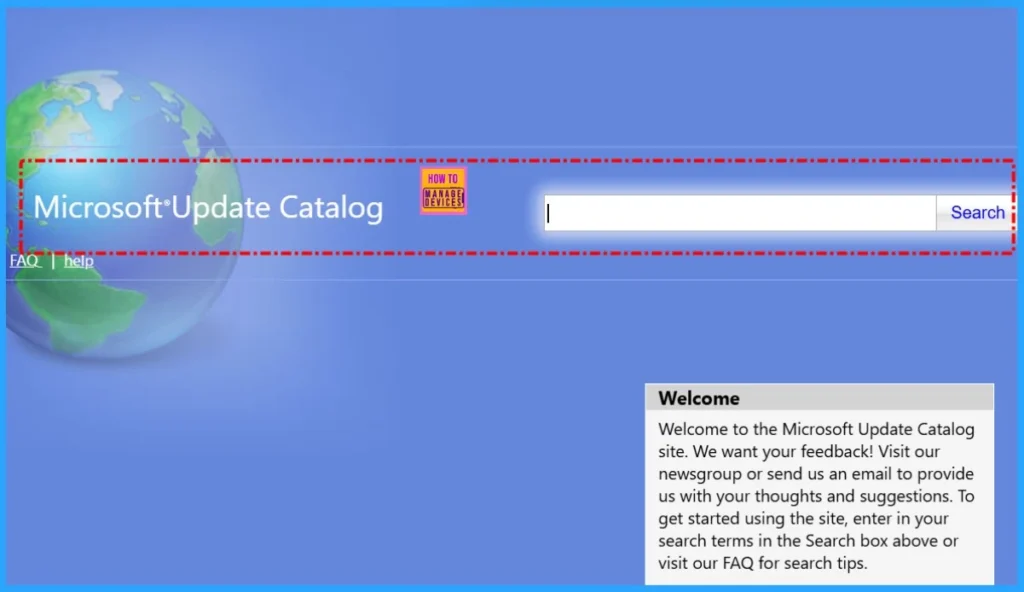
You can manually download the January 2026 Cumulative Updates for Windows 11 (KB5074109 KB5073455) from the Microsoft Update Catalog. The catalog provides direct download links for the latest Windows 11 LCUs, allowing administrators to install updates manually or use them in offline and custom deployment scenarios. To access the updates, visit the Microsoft Update Catalog portal and search for the relevant January 2026 Windows 11 cumulative updates.
| Cumulative Update for Windows 11 | Products | Size | Direct Download |
|---|---|---|---|
| 2026-01 Cumulative Update for Windows 11, version 25H2 for x64-based Systems(KB5074109) | Windows 11 25H2 | 4270.5 MB | Download |
| 2026-01 Cumulative Update for Windows 11 Version 24H2 for x64-based Systems (KB5074109) | Windows 11 24H2 | 4270.5 MB | Download |
| 2026-01 Cumulative Update for Windows 11 Version 23H2 for x64-based Systems (KB5073455) (KB5073455) | Windows 11 23H2 | 952.6 MB | Download |
Need Further Assistance or Have Technical Questions?
Join the LinkedIn Page and Telegram group to get the latest step-by-step guides and news updates. Join our Meetup Page to participate in User group meetings. Also, Join the WhatsApp Community to get the latest news on Microsoft Technologies. We are there on Reddit as well.
Author
Anoop C Nair has been Microsoft MVP for 10 consecutive years from 2015 onwards. He is a Workplace Solution Architect with more than 22+ years of experience in Workplace technologies. He is a Blogger, Speaker, and Local User Group Community leader. His primary focus is on Device Management technologies like SCCM and Intune. He writes about technologies like Intune, SCCM, Windows, Cloud PC, Windows, Entra, Microsoft Security, Career, etc.