
Key Takeaways
- Prevents users from manually switching Offline Files to offline mode.
- Removes the “Work offline” option from File Explorer when enabled.
- Provides better administrative control over Offline Files behavior.
- Helps maintain consistent access to network-hosted files.
In this post we are discussing Remove Work Offline option from File Explorer using Intune Policy to Prevent Manual Offline File Switching. This policy setting removes the Work offline command from Explorer, preventing users from manually changing whether Offline Files is in online mode or offline mode. If you enable this policy setting, the Work offline command is not displayed in File Explorer. If you disable or do not configure this policy setting, the “Work offline” command is displayed in File Explorer.
Table of Contents
Table of Contents
Remove Work Offline option from File Explorer using Intune Policy to Prevent Manual Offline File Switching
By controlling this setting through Intune, IT administrators ensure that devices remain connected to live network resources whenever connectivity is available, reducing the risk of users working on unsynchronized or cached copies of files.
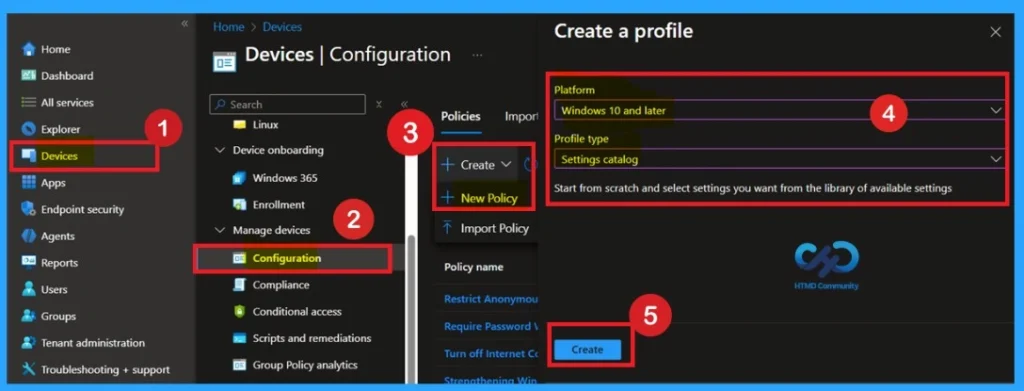
- Fo policy creation in Intune, First, sign in to the Microsoft Intune admin center.
- Then navigate to Devices > Configuration > + Create. You will see a window titled Create a Profile.
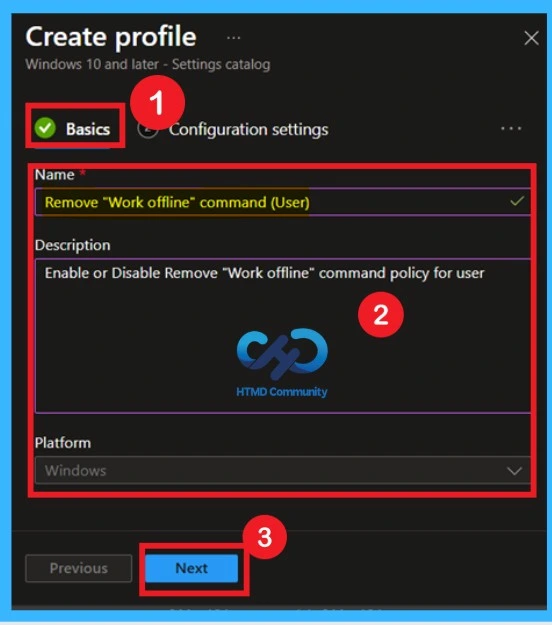
Basics the Identification Process of a Policy
Provide a meaningful name for the policy, such as “Remove Work Offline Command Policy,” along with a clear description explaining its purpose. Click Next to proceed to the configuration settings section.
| Basics Details | Info |
|---|---|
| Name | Remove “Work offline” command (User) |
| Description | Enable or Disable Remove “Work offline” command policy for user |
| Platform | Windows |
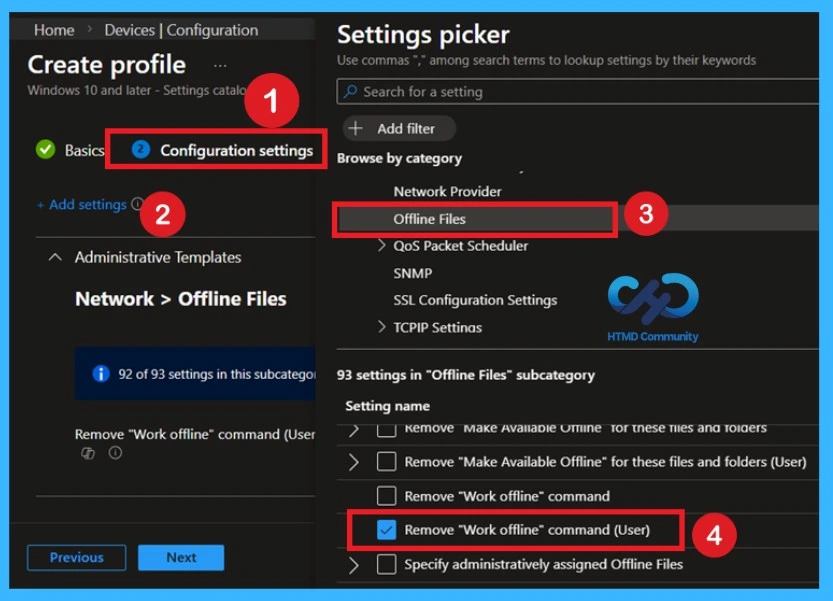
Configure Work Offline Policy
In the Configuration settings section, click on the + Add settings option. In the Settings picker window, use the search bar to find Offline Files. From the available categories, expand the relevant settings and locate the policy “Remove ‘Work Offline’ command” under the user settings. Select the checkbox next to this setting, then click Close to add it to the policy configuration screen.

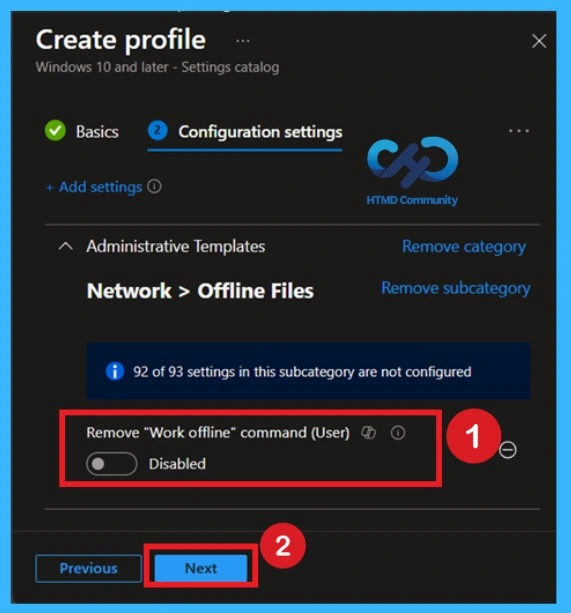
Disabled State of Policy
After selecting the policy and closing the Settings picker window, the selected setting will now appear on the Configuration settings page of the profile. Here, you can see that the policy state is set to Not configured (or disabled by default). If you want to keep the default behavior and allow users to continue accessing the “Work offline” option, you can leave the setting unchanged and click Next to proceed with the remaining configuration steps.
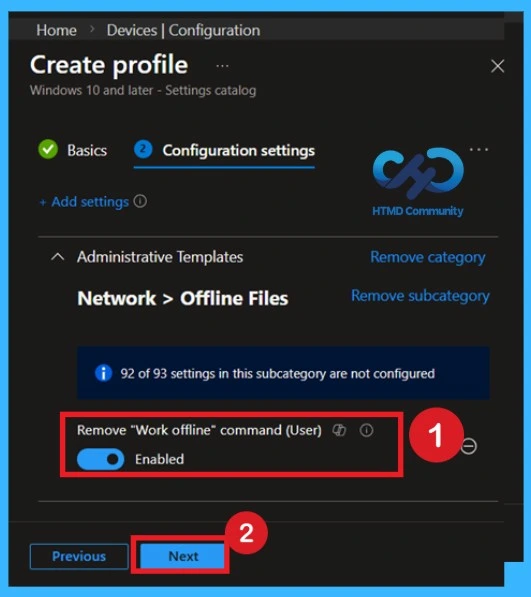
Enabled State of the Policy
To restrict users from manually switching modes, set the policy to Enabled. When enabled, the “Work offline” option is removed from File Explorer, preventing users from forcing the device into offline mode. This ensures devices stay connected to network resources whenever connectivity is available and supports centralized control over file access behavior. After enabling the setting, click Next to continue
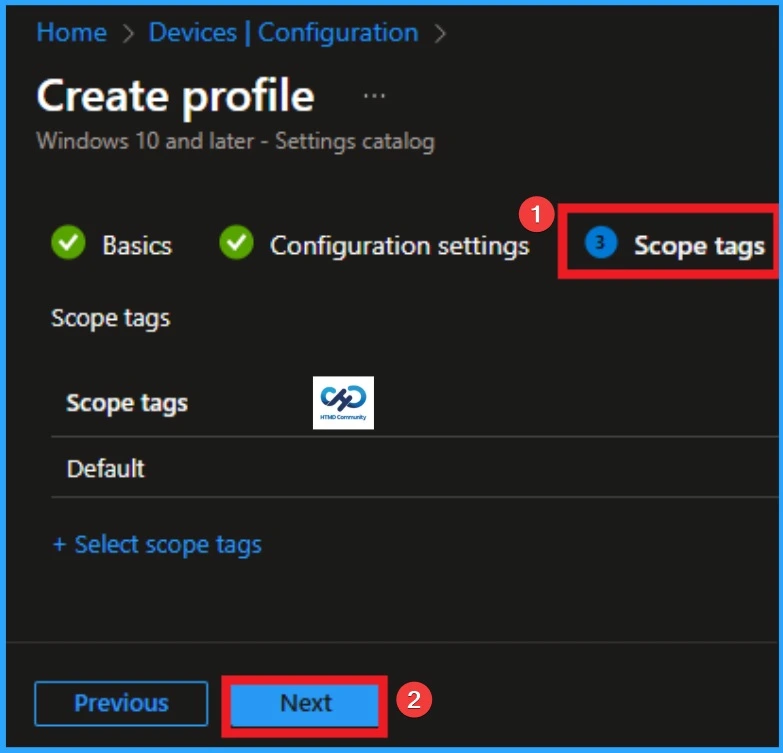
Scope Tags
The Scope tags page helps control who can see or manage this policy in Intune. If your organization uses scope tags, select the appropriate tag based on your admin role or department. Scope tags are useful in large environments with multiple IT teams. If your organization does not use scope tags, you can leave this section. Here I skip this section.
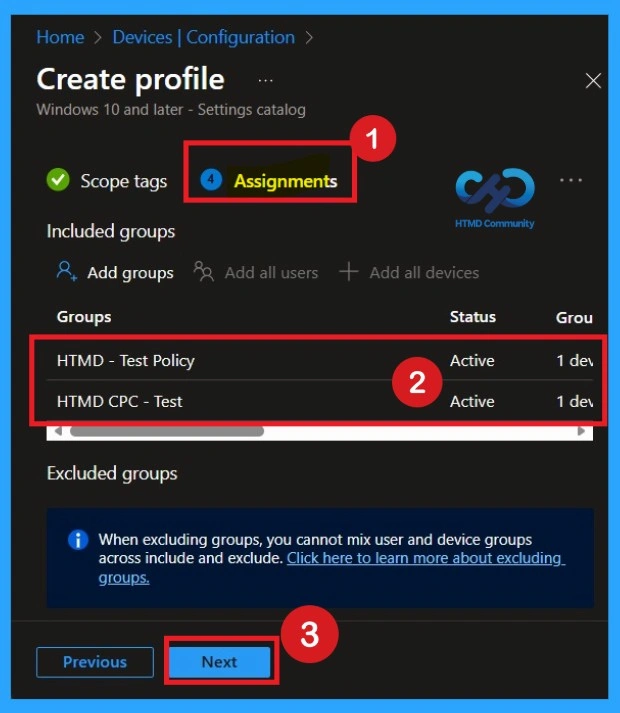
Importance of Assignments
To assign the policy to specific groups, you can use the Assignment Tab. Here I click, +Add groups option under Included groups. I choose a group from the list of groups and click on the Select button. Again, I click on the Select button to continue.
Review + Create
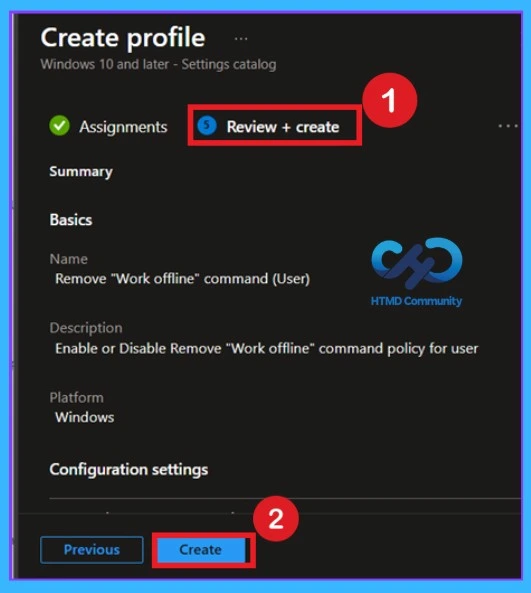
In the Review + create section, verify all configured settings, assignments, and scope tags. Ensure the policy state is correctly set to Enabled if the goal is to remove the “Work offline” command. Once confirmed, click Create to deploy the policy. The configuration will then apply to targeted devices
Monitoring Status After the Policy Creation
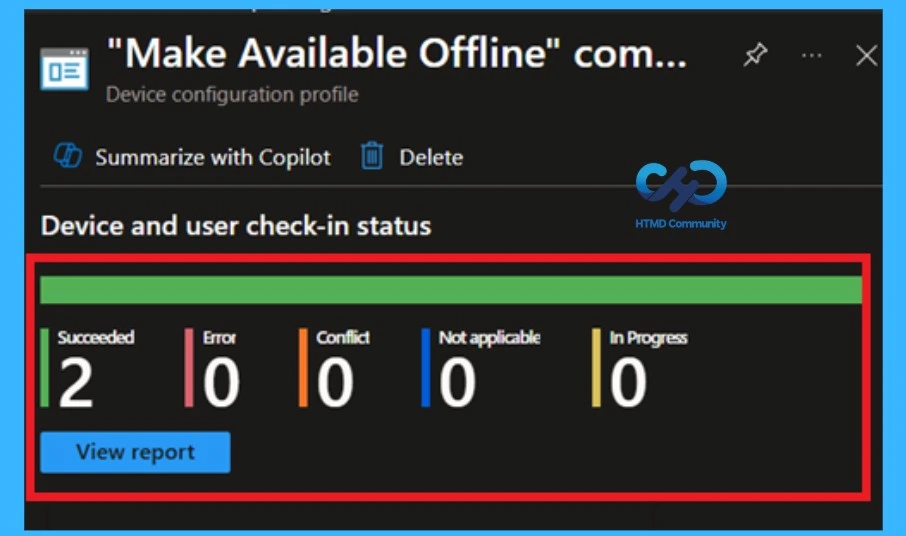
After creating the policy, it is very important to check whether it is working as expected. The main goal is to make sure the policy is correctly applied to the devices or user groups where it was deployed. Intune Provides
a feature called Monitoring status to help with this. This option shows the current deployment status of the policy and whether it was successfully applied.
- You can do this by going to Devices > Configuration profiles, searching for the policy name, and opening it.
- The monitoring status shows whether the policy deployment is successful, failed, or not applicable.
- If the policy is assigned to one group, you will see the result based on that group.
Client-Side Verification Through Event Viewer
Always Remember, receiving a success message during policy deployment doesn’t necessarily confirm that the policy is actively applied or functioning as intended on the client device. To ensure the policy has been successfully configured, it’s important to verify through the Event Viewer. You can do this by filtering for Event ID 813 or 814, which will help you quickly locate logs.
Delete an Intune Policy Completely
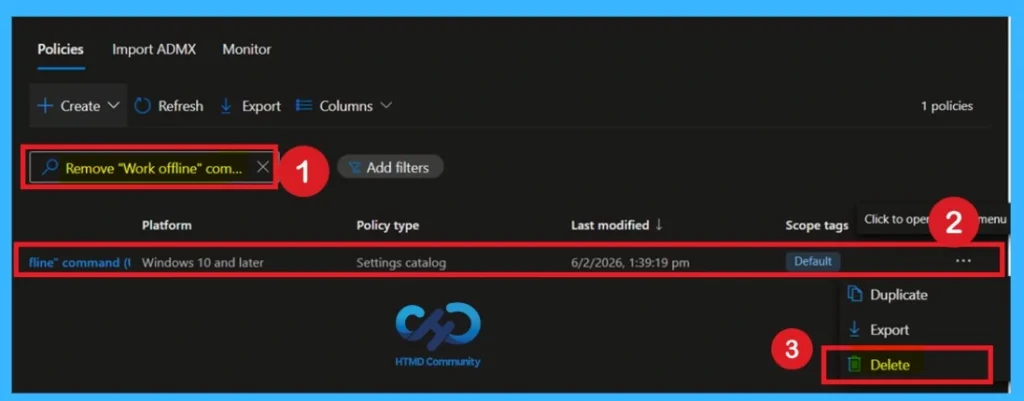
If the policy is no longer needed, you can delete it fully from Intune. Sign in to the Microsoft Intune Admin Center and go to Devices > Configuration profiles. Locate the policy you want to remove and open (Remove Work offline Command) it. Click the three-dot menu in the top corner and select Delete. The policy is now permanently removed and will not affect any devices.
For detailed information, you can refer to our previous post – How to Delete Allow Clipboard History Policy in Intune Step by Step Guide.
Remove a Group from an Intune Policy
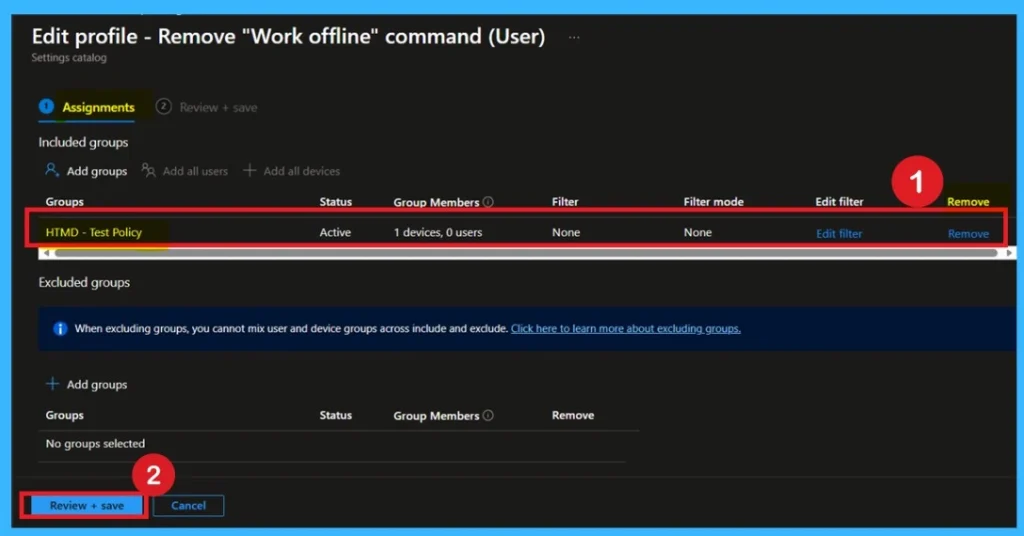
To remove a group from a policy, first open the Microsoft Intune Admin Center and sign in. From the left menu, go to Devices and then open Configuration profiles. Find the policy you want to change and click on it. Open the Assignments section and choose Edit. Remove the group that should no longer receive this policy and save the changes. After this, the policy will stop applying to devices.
- Removing a group only stops the policy for that group, but the policy still exists.
To get more detailed information, you can refer to our previous post – Learn How to Delete or Remove App Assignment from Intune using by Step-by-Step Guide.
Need Further Assistance or Have Technical Questions?
Join the LinkedIn Page and Telegram group to get the step-by-step guides and news updates. Join our Meetup Page to participate in User group meetings. Also, Join the WhatsApp Community and WhatsApp Channel to get the latest news on Microsoft Technologies. We are there on Reddit as well.
Author
Anoop C Nair has been Microsoft MVP for 10 consecutive years from 2015 onwards. He is a Workplace Solution Architect with more than 22+ years of experience in Workplace technologies. He is a Blogger, Speaker, and Local User Group Community leader. His primary focus is on Device Management technologies like SCCM and Intune. He writes about technologies like Intune, SCCM, Windows, Cloud PC, Windows, Entra, Microsoft Security, Career, etc.