
Key Takeaways
- Stanford has started a pilot deployment of Microsoft Intune for device management.
- The rollout currently focuses on Windows device enrollment.
- Users are required to complete the authentication setup before enrollment.
- Security controls are applied correctly without disrupting users.
Today, we are discussing the New Manual Enrollment Method for Personal Windows Devices in Intune | Pilot Status and Rollout Explained. According to official sources, report that manual enrollment of personal Windows devices into Intune is currently in a pilot program. That means this program is not generally available and it’s being tested in a pilot program with a limited group of users.
Table of Contents
Table of Contents
New Manual Enrollment Method for Personal Windows Devices in Intune | Pilot Status and Rollout Explained
This Intune service is currently in a pilot and is only for Entra ID and Intune pilot participants. After this trial, it will be generally available for users. This will help the user with security controls. Before starting, you must set up Microsoft Authenticator on your mobile phone. This is a required first step to use your new Microsoft login.
- Microsoft Introduces New Windows Enrollment Attestation Feature in Intune
- Troubleshoot MDM Enrollment Error Code 80180004
- Windows 10 Intune Enrollment Process BYOD Scenario
| Before you begin you may carefull about: | Info |
|---|---|
| You have to check the OS Version | make sure your windows device is running supported OS |
| Set up Authenticator | Install and set up Microsoft Authenticator on your mobile phone (required). |
| Network connection: | A strong Wi‑Fi or wired connection is recommended to avoid interruptions during the enrollment process. |
| Save your work | before you start, close applications and save any work before. Sometime the enrollment may require restarts or system changes. |
How to Manually Enroll in Intune
To manually enroll your personal Windows device into Intune during the pilot, you need to connect your work account through your settings. device to the Intune device management system. During enrollment, you will sign in with your work email and may be asked to set up additional security like Windows Hello.
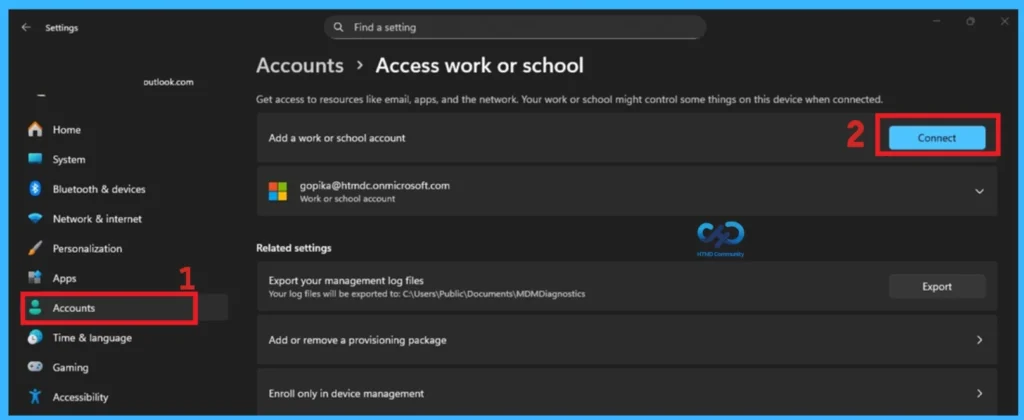
- First, open the Windows settings through Win+I
- Then, Click Accounts. Select Access work or school.
- Now you can click the Connect button.
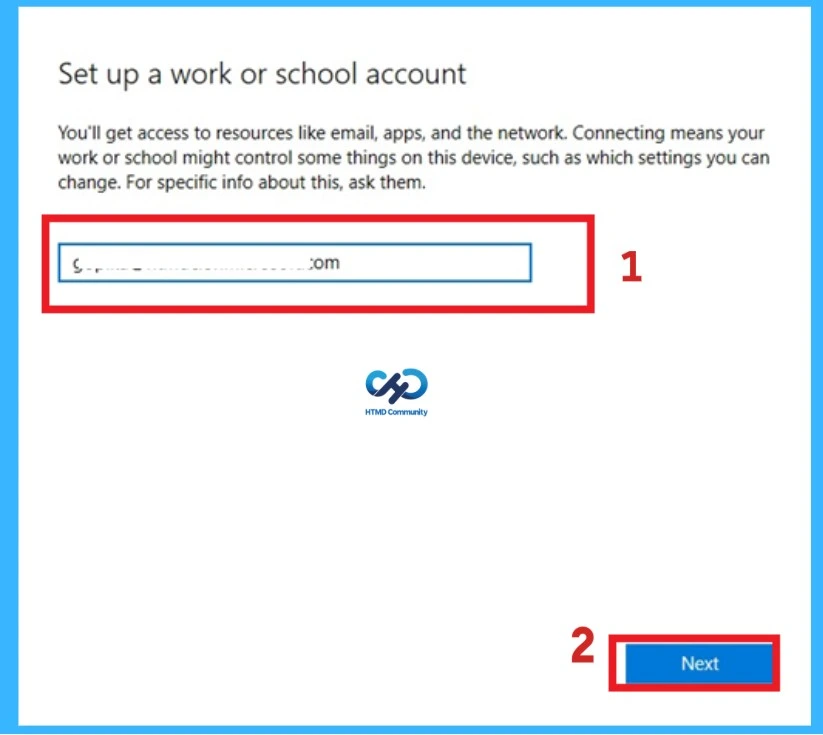
After clicking on the connect now you will get a window there, enter your work email address under “Set up a work or school account.” (You’ll get access to resources like email, apps, and the network. Connecting means your work or school might control some things on this device, such as which settings you can change. For specific info about this, ask them).

- You have to complete the sign-in process
- If prompted, set up Windows Hello (this may include biometrics and creating a device-specific PIN).
Need Further Assistance or Have Technical Questions?
Join the LinkedIn Page and Telegram group to get the step-by-step guides and news updates. Join our Meetup Page to participate in User group meetings. Also, Join the WhatsApp Community and WhatsApp Channel to get the latest news on Microsoft Technologies. We are there on Reddit as well.
Author
Anoop C Nair has been Microsoft MVP for 10 consecutive years from 2015 onwards. He is a Workplace Solution Architect with more than 22+ years of experience in Workplace technologies. He is a Blogger, Speaker, and Local User Group Community leader. His primary focus is on Device Management technologies like SCCM and Intune. He writes about technologies like Intune, SCCM, Windows, Cloud PC, Windows, Entra, Microsoft Security, Career, etc.