
Key Takeaways:
- Issue arises during Windows MDM enrollment in Intune
- Triggering error code 80180014
- Devices cannot be enrolled successfully
- Fixes for enrollment Issue
Let’s discuss about, How to Fix Windows MDM Enrollment Error 80180014 in Intune Device Restriction Issue. Intune users affected an issue with Device Restriction and getting server error code 80180014. The error message shows that, this feature is not supported.
Table of Contents
Table of Contents
How to Fix Windows MDM Enrollment Error 80180014 in Intune Device Restriction Issue
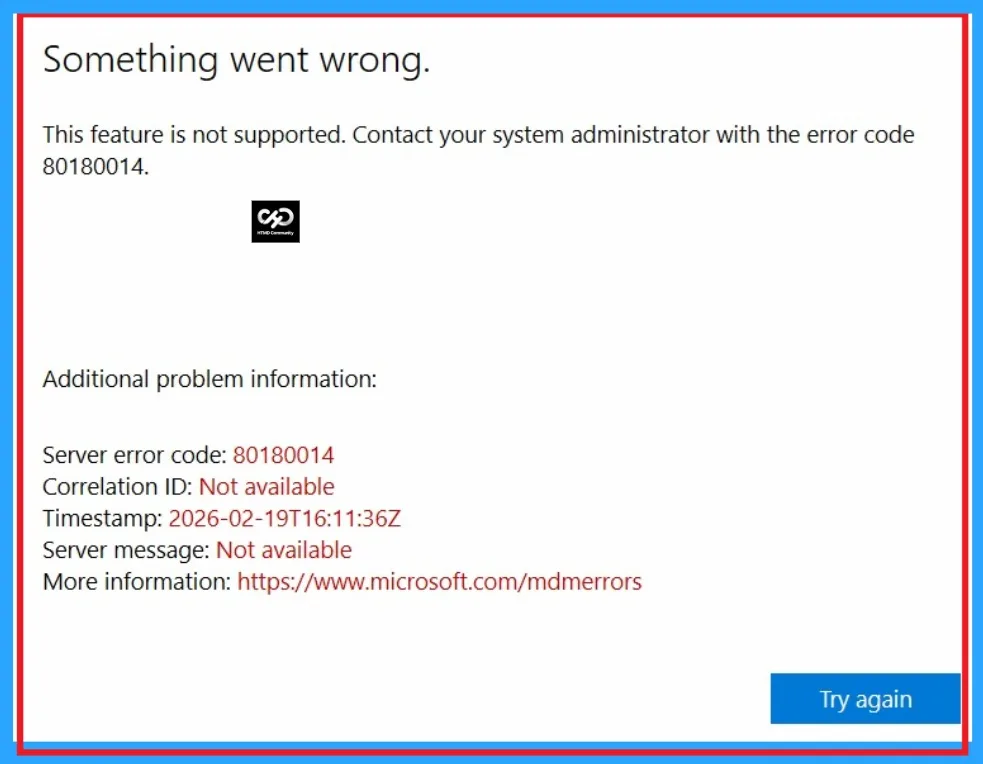
The error message also shows that, Contact your system administrator with the error code 80180014. This error code is a classic Microsoft Intune enrollment issue. The issue occurred is due to the Windows enrollment is blocked or restricted here, devices will fail to enroll with that error code.
| Informations | Details |
|---|---|
| Server error code | 80180014 |
| Correlation ID | Not available |
| Timestamp | 2026-02-19T16:11:36Z |
| Server message | Not available |
- FIX Windows Autopilot Device Import Error 806 808
- FIX Intune Enrollment Something went wrong Error 801c0003
- FIX Intune Windows Enrollment Invalid_Client Error
Impact of this Issue
Due to this issue, Users cannot enroll their Windows devices into Intune. And users also unable to access corporate resources, may be locked out of corporate apps or data.
Fix for Windows MDM Enrollment Error 80180014
As an Admin you can fix this issue with Microsoft Intune Portal. The error code 80180014 indicates a device is blocked from enrolling. The following are the steps to fix this issue.

- Login to Microsoft Intune Admin Center
- Go to Devices > Enrollment > Device platform restriction > Open All users under Windows Restrictions.
- Click on the Properties > Click on the edit button near platform settings.
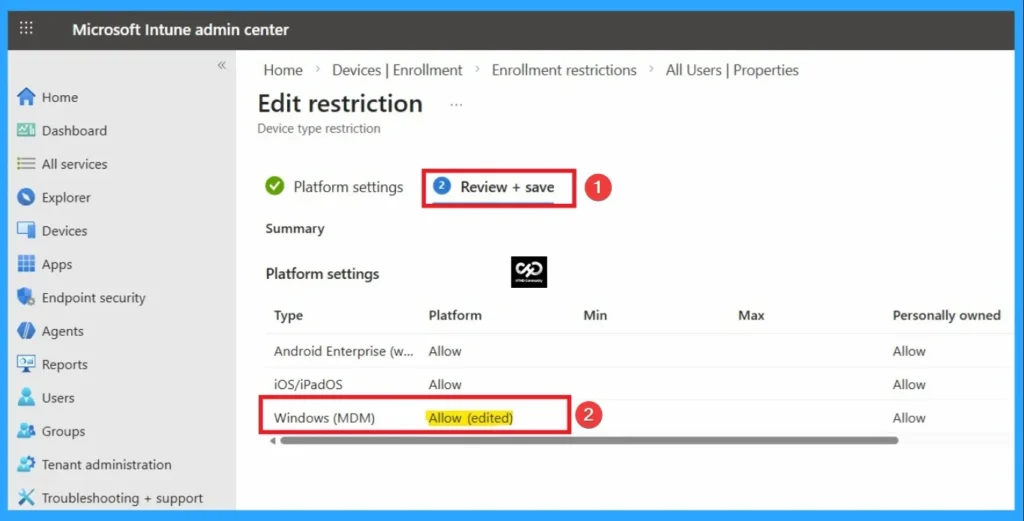
- Here you can see Windows (MDM)
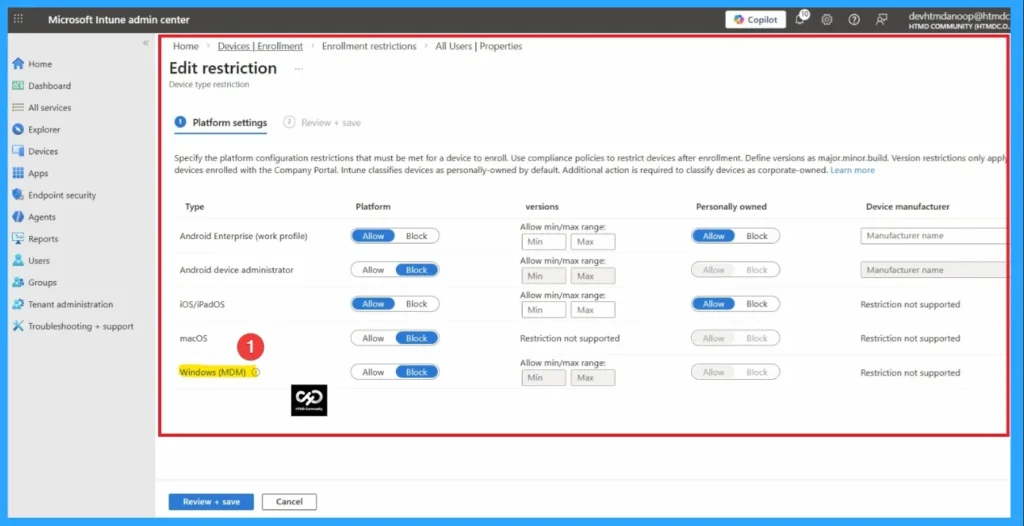
To fix the issue, allow the Windows (MDM) under platform settings. With this restricts enrollment through Mobile Device Management. Does not restrict PC agent installation. Only Windows 10 and Windows 11 versions are supported. Leave versions blank to allow Windows 8.1.
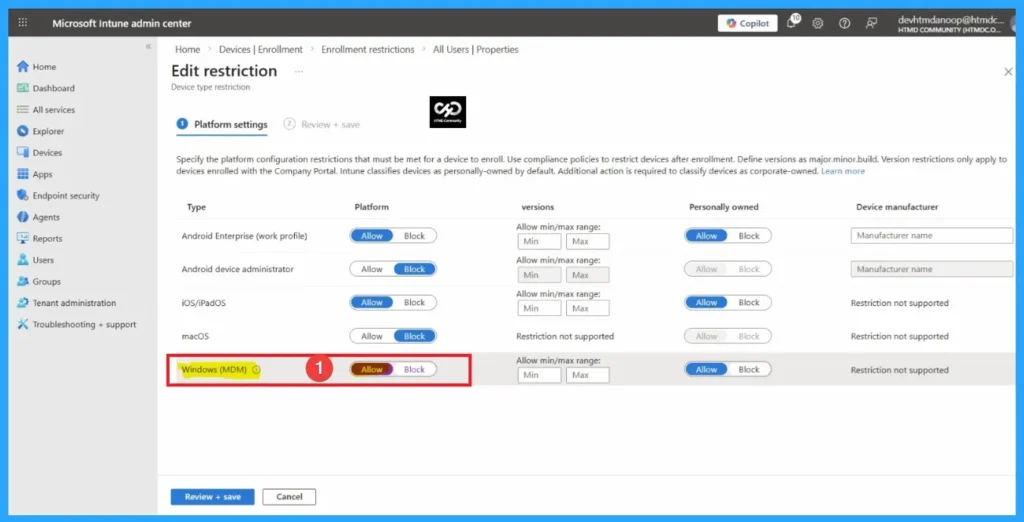
Then click on the Save button to get the changes. Then you can sync the device on company portal. It helps you to get the changes fastly in your tenant. Look at the below screenshot.
Need Further Assistance or Have Technical Questions?
Join the LinkedIn Page and Telegram group to get the step-by-step guides and news updates. Join our Meetup Page to participate in User group meetings. Also, Join the WhatsApp Community and WhatsApp Channel to get the latest news on Microsoft Technologies. We are there on Reddit as well.
Author
Anoop C Nair has been Microsoft MVP for 10 consecutive years from 2015 onwards. He is a Workplace Solution Architect with more than 22+ years of experience in Workplace technologies. He is a Blogger, Speaker, and Local User Group Community leader. His primary focus is on Device Management technologies like SCCM and Intune. He writes about technologies like Intune, SCCM, Windows, Cloud PC, Windows, Entra, Microsoft Security, Career, etc.