
Key Takeaways
- Windows Cloud Input Protection (part of Windows 365/AVD)
- It requires the Windows Cloud IO Protect MSI installed on host devices
- The endpoint must be a physical Windows 11 device with TPM 2.0. Virtual machines are not supported.
- Installing the Windows Cloud IO Protect MSI requires local administrator privileges
In this blog post, I will explain a straightforward method for deploying the Windows Cloud Input Protection Driver Setup using Microsoft Intune. In my previous article, I discussed how to configure Windows Cloud Keyboard Input Protection on Entra Joined devices.
Table of Content
Table of Contents
Download the Windows Cloud Input Protection Driver Setup App for Windows
Windows 365 Cloud PCs already secure sessions with encryption and MFA to protect against hijacking and man-in-the-middle attacks, but endpoint-resident threats like keyloggers can still put sensitive data at risk. Windows Cloud IO Protection closes this gap by using a kernel-level driver and system-level encryption to securely route keystrokes directly from trusted physical endpoints to the Cloud PC or Azure Virtual Desktop session host, bypassing vulnerable OS layers. Connections are allowed only from protected devices with the Windows Cloud IO Protect MSI installed, and blocked otherwise, ensuring uncompromised input security and stronger compliance.
The latest version of Windows Cloud Input Protect Driver Setup is now available for download. You can download it from the Microsoft official link below.
| App Property | Description |
|---|---|
| Name | Windows Cloud IO Protection driver |
| Platform | Windows |
| Size | 3.65 MiB |
| MAM Enabled | No |
| Execution Context | Per-Machine |
- How to Configure New Windows App Settings for Windows 365 using Intune
- How to Setup Windows 365 Cloud PCs with Autopilot Device Preparation
- Windows 365 Cloud PC Top 5 Features Admins are Looking for in 2026
- Explore the Windows 365 Cloud PC Overview Reports in Intune
Create Windows Cloud Input Protection Driver Setup Line of Business App
To create a LOB for Windows Cloud Input Protection Driver Setup. Sign in to the Microsoft Intune Admin Center using your administrator credentials.

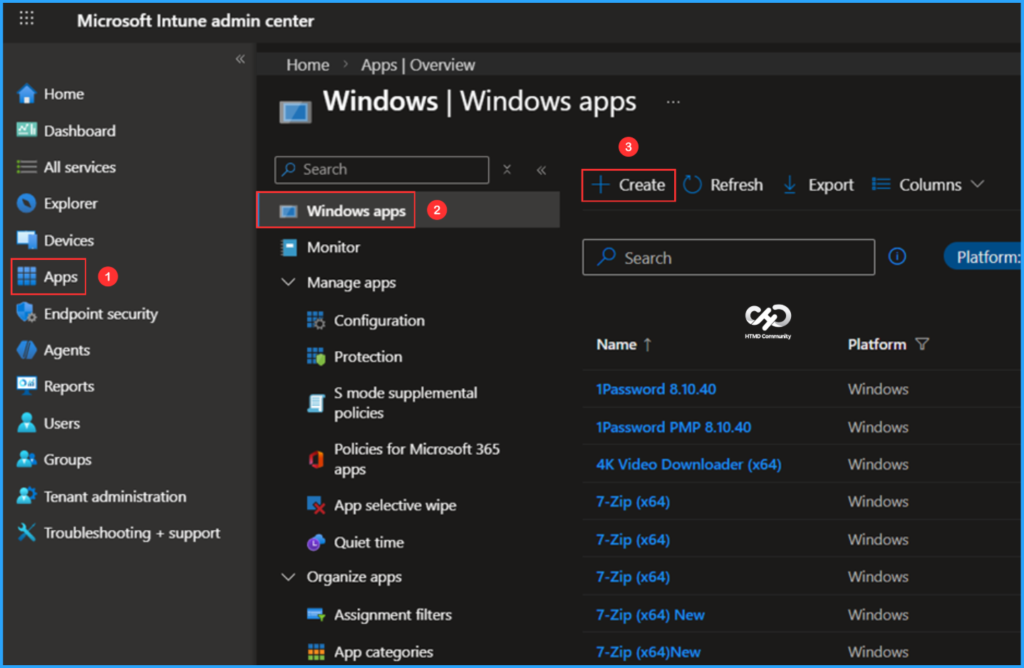
- Navigate to Apps > Windows > click on +Create
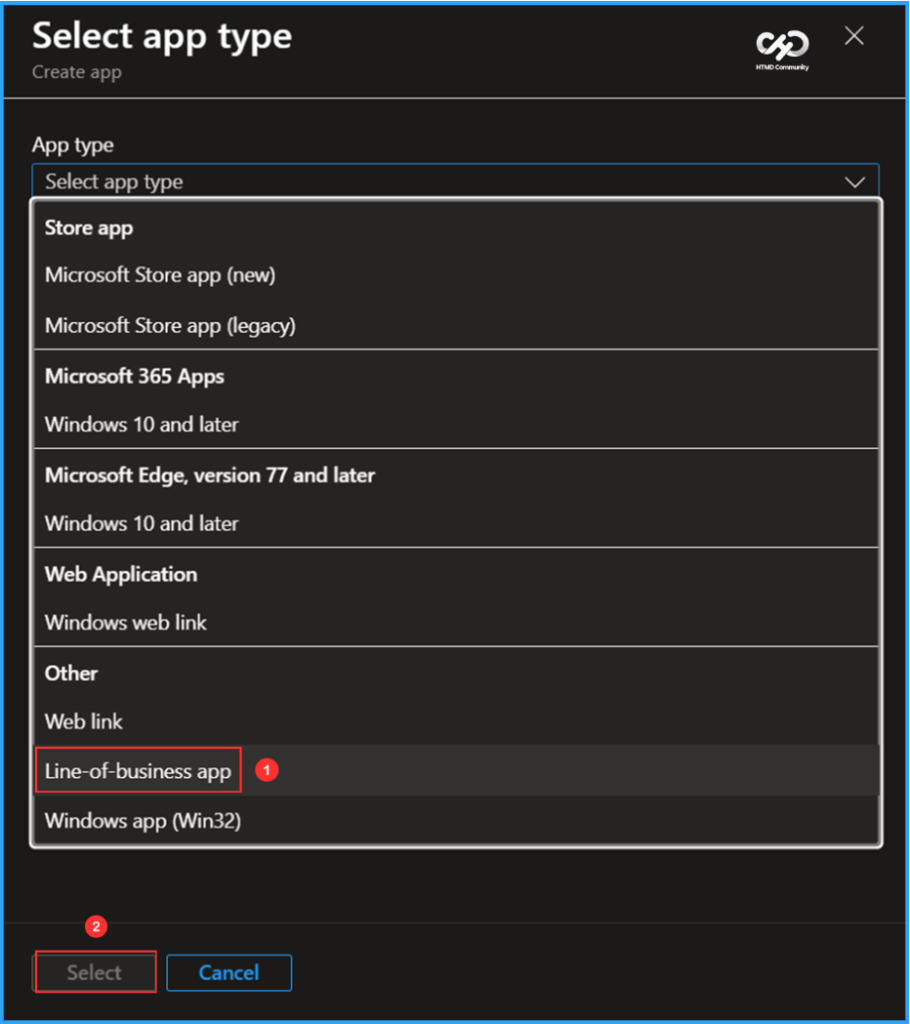
In the Select app type section, we can see various app types available in Intune that are supported for the Windows platform. Here, we need to choose the Line-of-business app.
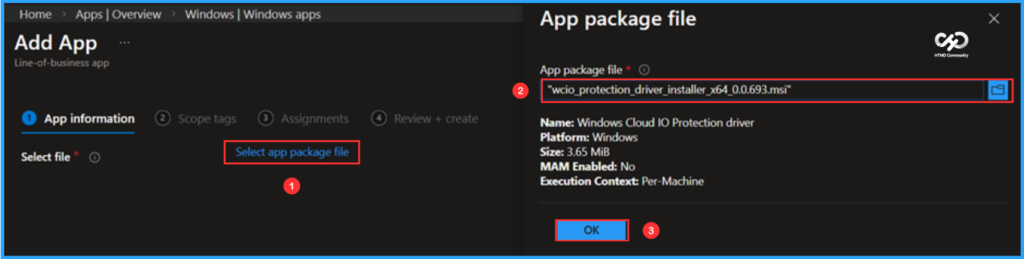
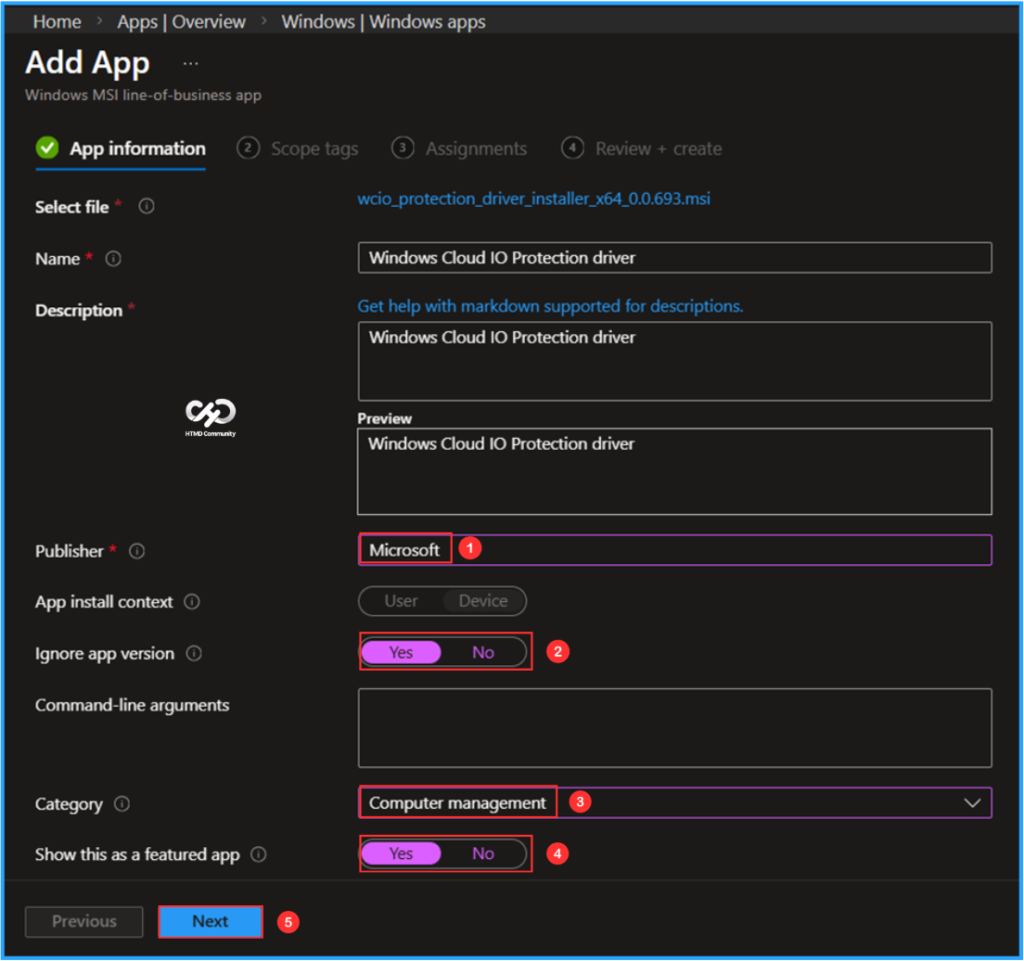
We’ll get an option to choose our app package file on the App information page. Here, we can select the downloaded MSI file for our App. Click on Select app package file and choose Windows Cloud Input Protection Driver Setup MSI File. i.e, “wcio_protection_driver_installer_x64_0.0.693”. The information below will be auto-populated; click OK.
The Windows Cloud Input Protection Driver Setup App has now been added as a Windows .msi line-of-business app. Most of the mandatory details have been auto-filled by default. If you need to make any changes, do so accordingly and click on Next. Here am changing the below-mentioned values.
- Publisher: Microsoft
- Ignore app version: Yes
- Category: Computer management
- Show this as a featured app: Yes
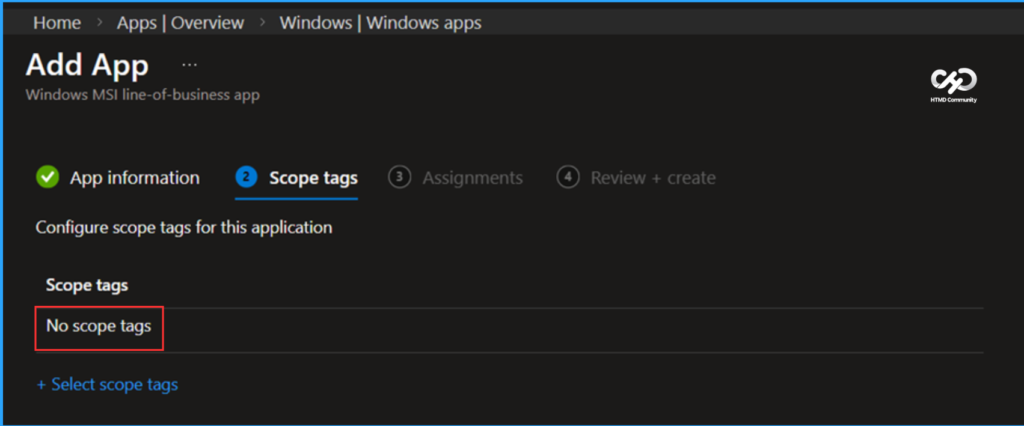
On the next page, click on +Select Scope tags and select Default or leave it blank. If you have any custom scope tags available, you can select them based on your requirements for this deployment.
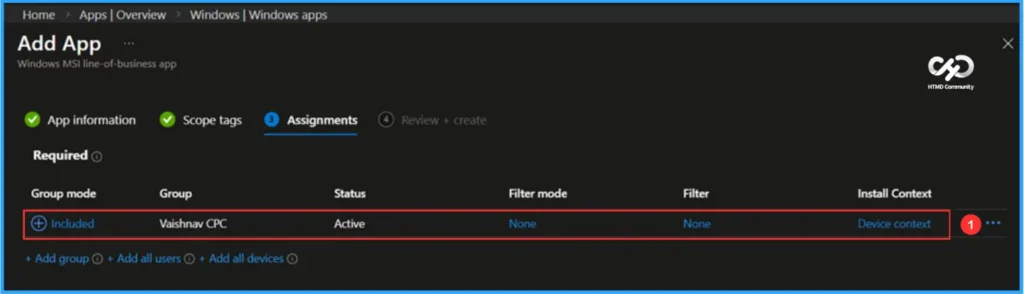
I am assigning the Windows Cloud Input Protection Driver Setup LOB app to the Vaishnav CPC device group. In the Required section, click on Add group and select the appropriate device group. Additionally, ensure that the Install Context is set to Device context.
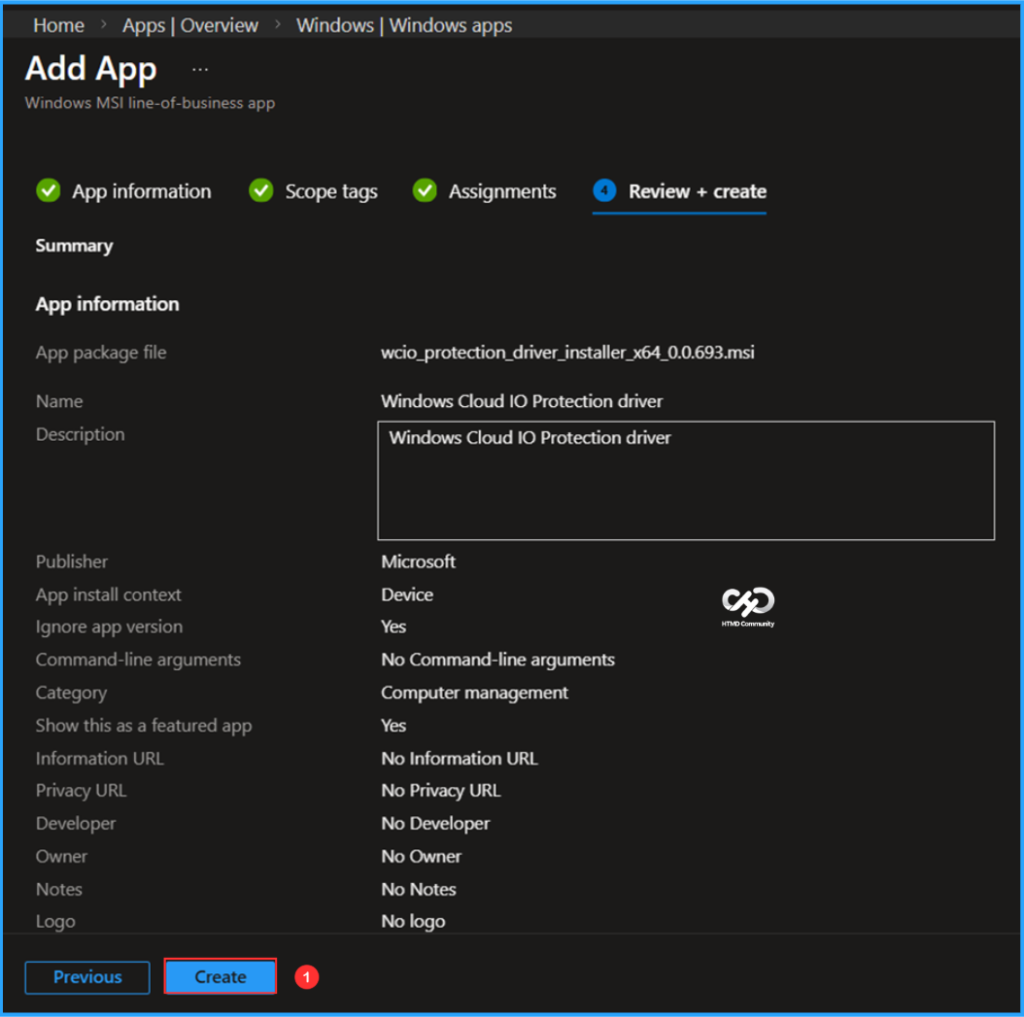
On the Review + Create page, carefully review all the settings you’ve defined for the Windows Cloud Input Protection Driver Setup App deployment. Select Create to implement the changes once you’ve confirmed everything is correct.
- Seamless Provisioning of Windows 365 Cloud PCs for External Identities with Intune
- Zero-Touch Deployment and Instant Cloud PC Access with Windows 365 Boot and Reserve using Intune
- Easy Way to Update New Multi-Region Selection in Windows 365
Monitor the Deployment of the Windows Cloud Input Protection Driver Setup App
This app has been deployed to the Microsoft Entra ID group (Vaishnav CPC). The deployment will take effect as soon as possible once the device is synced. To monitor the deployment status from the Intune Portal, follow the steps below.
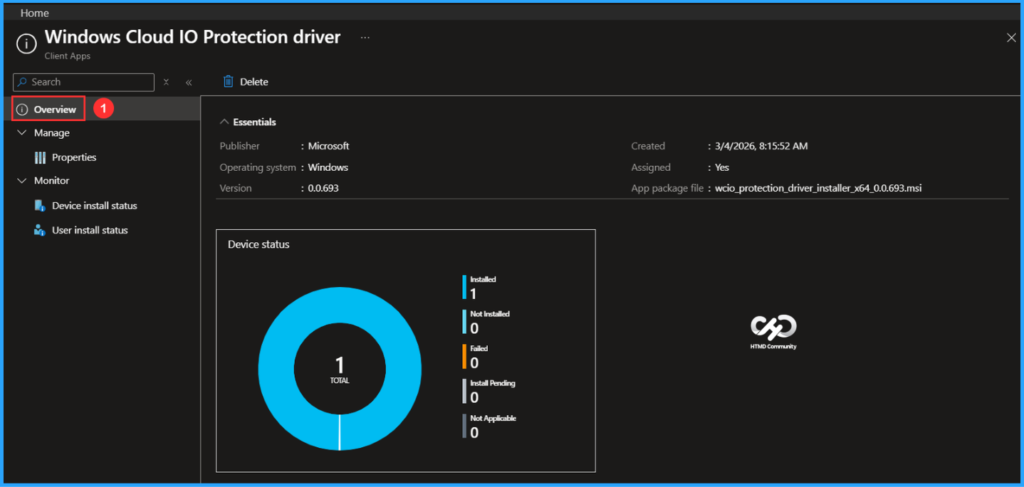
- Navigate to Apps > Windows > Search for the “Windows Cloud IO Protection driver” LOB App.
- Under the Overview status, you can see the deployment status for both Device & User.
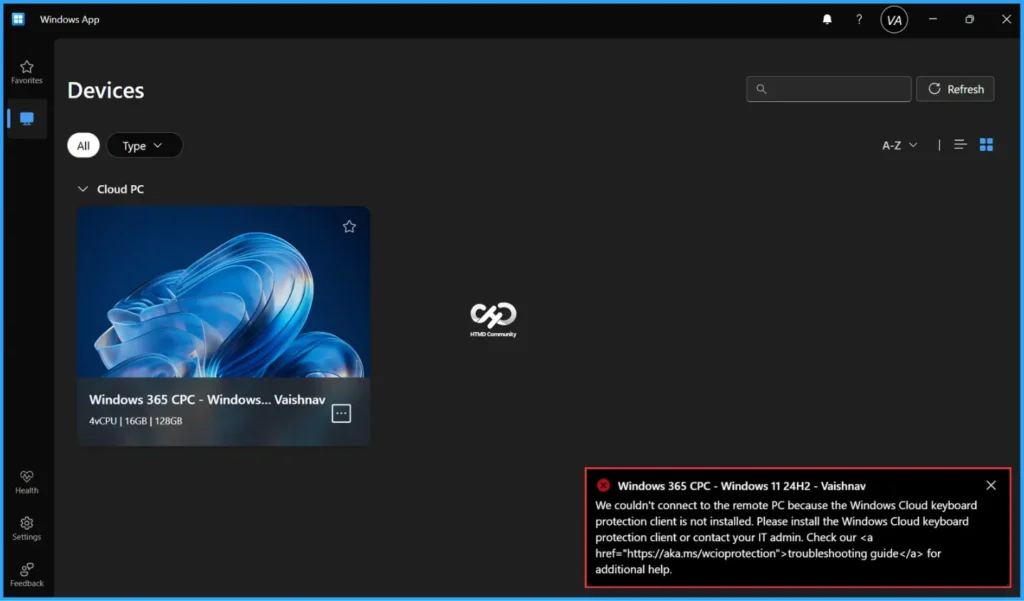
End User Experience – Before Deployment
Here is the image for the Windows App before the Windows Cloud Input Protection Driver Setup. You can see a clear message when I am trying to connect my Cloud PC. It’s saying that “We couldn’t connect to the remote PC because the Windows Cloud keyboard protection client is not installed. Please install the Windows Cloud keyboard protection client or contact your IT admin“.
End User Experience – After Deployment
We can now evaluate the Windows App Experience following the deployment of the Windows Cloud Input Protection Driver Setup. There are no errors, and the Cloud PC connects without issues. This confirms that our deployment has worked as expected. Don’t forget to add the fWCIOKeyboardInputProtection registry key before this MSI deployment. If you’re unsure how to add it to Entra Joined devices, check out my previous blog post linked at the beginning of this article.

Need Further Assistance or Have Technical Questions?
Join the LinkedIn Page and Telegram group to get the latest step-by-step guides and news updates. Join our Meetup Page to participate in User group meetings. Also, join the WhatsApp Community to get the latest news on Microsoft Technologies. We are there on Reddit as well.
Author
Vaishnav K has over 12 years of experience in SCCM, Intune, Modern Device Management, and Automation Solutions. He writes and shares knowledge about Microsoft Intune, Windows 365, Azure, Entra, PowerShell Scripting, and Automation. Check out his profile on LinkedIn.