
Key Takeaways
- This policy decides if Generative Fill can be used in Paint.
- If the policy is turned on, Generative Fill is not available. If it is turned off or not set, users can use it.
- Generative Fill allows users to add AI-created content to parts of an image by typing a short description.
- It helps users edit and improve images while staying in control of the final result.
Hey, let’s discuss about how to Managing Generative Fill in Windows Paint using Intune. This policy setting lets you decide whether the generative fill feature is available in the Windows Paint app. If the policy is enabled, the generative fill option will be turned off and users will not be able to access it. If the policy is disabled or not configured, the feature will remain available for users to use as part of their editing tools.
Table of Contents
Table of Contents
Managing Generative Fill in Windows Paint using Intune
Generative Fill in Microsoft Paint lets you bring your ideas to life by adding AI-created elements directly into selected parts of your image. Instead of carefully drawing every detail yourself, you can simply describe what you want in a few words, and the tool blends it naturally into your artwork while keeping the same style and look. Generative Fill makes the creative process easier and more flexible. It gives you helpful AI support without taking over your work, so you stay in control while exploring new possibilities and refining your vision.
- How to Enable or Disable Energy Saver Always-on Mode in Intune Settings Catalog
- New Exciting Features in Copilot+ PCs and Windows 11
- New Windows AI Settings in Intune Allow Recall Enablement Disable AI Data Analysis and More
How to Create a Policy
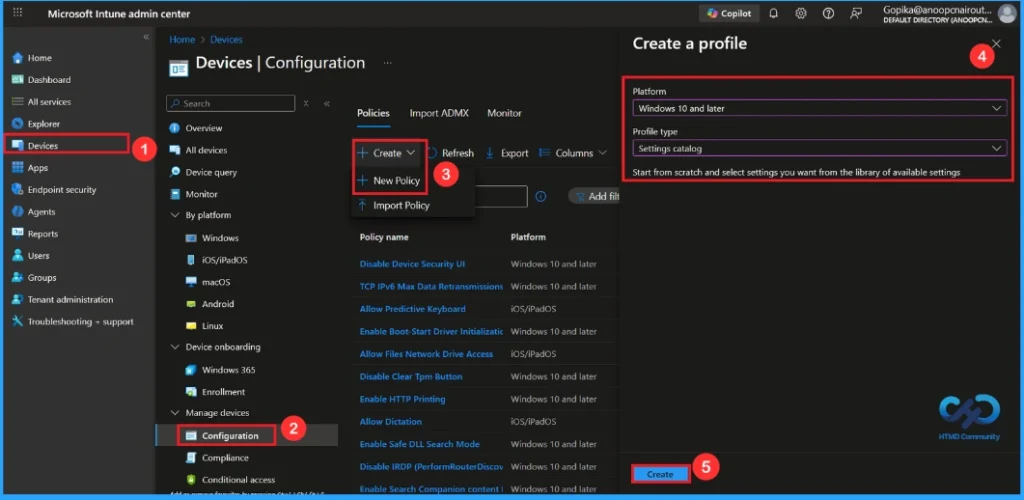
Begin by logging into the Microsoft Intune admin center. Subsequently, proceed to Devices . Within the Devices section, select Configuration. In the Configuration area, you will find an option to generate a New Policy. Click on it.
A fresh window will emerge, labeled Create Profile. Within this particular section, you are required to specify the platform as Windows 10 and later, and then select the Profile Type as Settings Catalog. Following this, click Create to continue

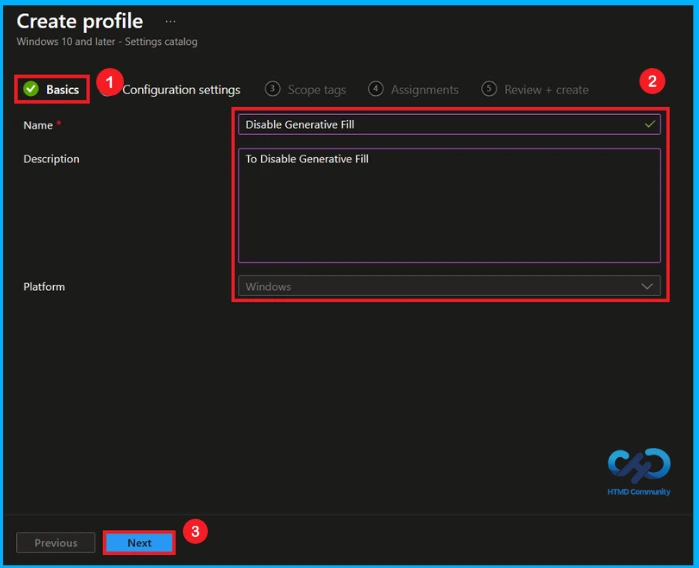
Basic Step for Name and description
After creating profile, the subsequent action is to input the basic details. This typically involves providing the name, description, and platform information. We can specify the name (Disable Generative Fill) of the policy and offer a concise description. To proceed, click Next.
Configure Generative Fill Policy
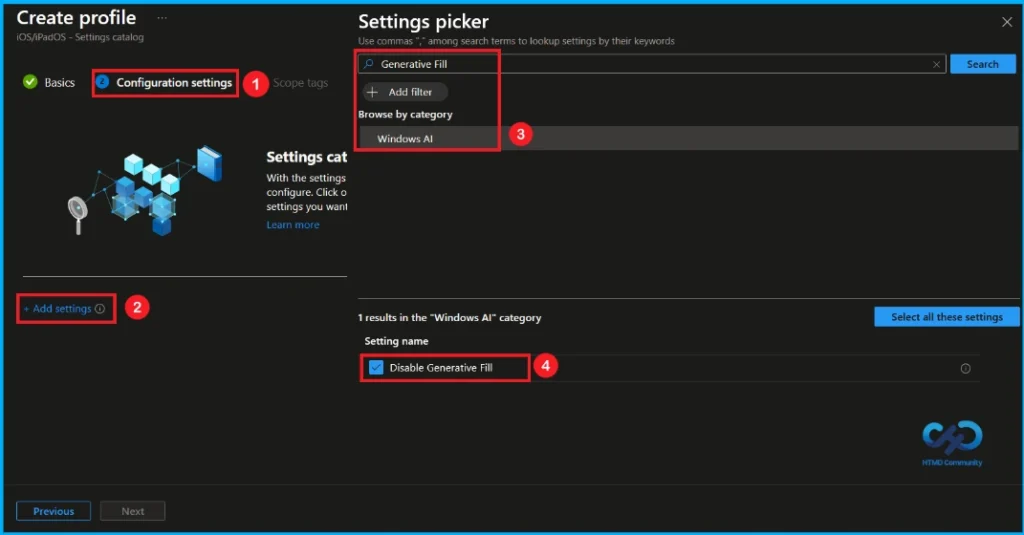
Within this tab, you will find an option to Add Settings. Proceed to click on it. Upon clicking, a new window, referred to as Settings Picker, will emerge. Within the Settings Picker window, you are required to choose the category and setting.
| Category | Setting |
|---|---|
| Windows AI | Disable Generative Fill |
You are now able to close the Settings Picker window. After closing it, you will be directed back to the Configuration Settings page. On this page, you will observe that the policy is configured to Enable or Disable. By default this Policy is enabled. Then click Next to continue.
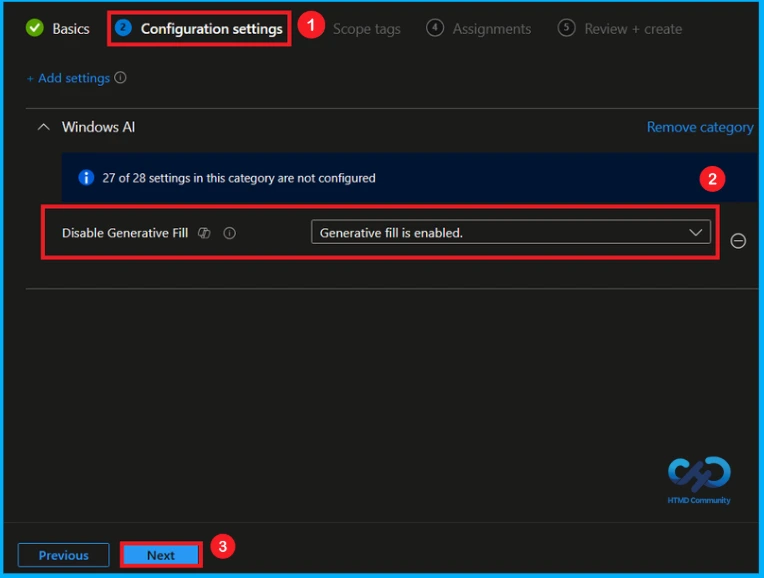
Disable Generative Fill
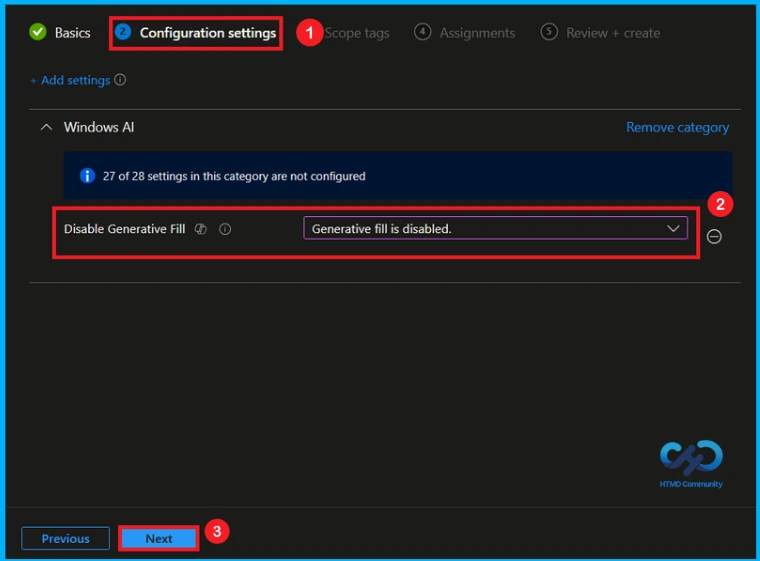
If we disable or not configure this policy, you can disable the generative fill policy by clicking the drop down menu and select generative fill is disabled. Then, you can click the Next button to proceed.
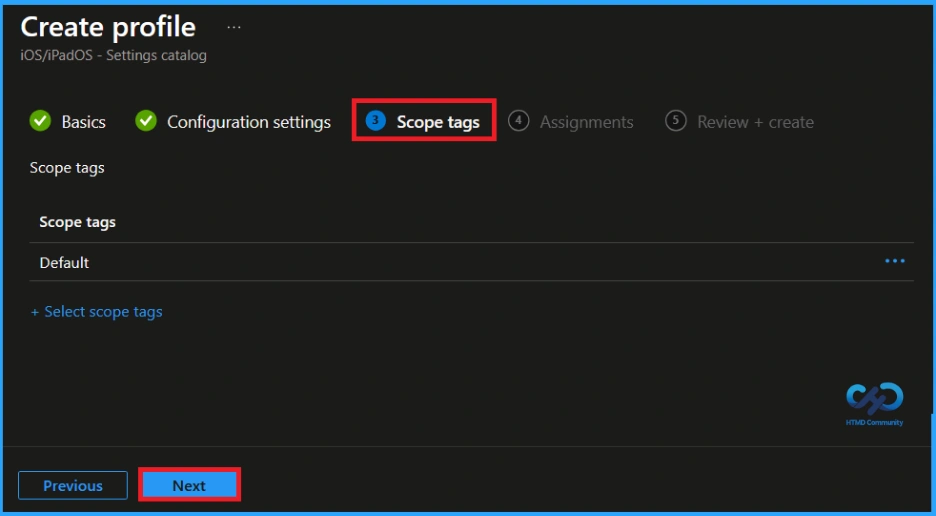
What is Scope Tag
The scope tag is not mandatory, so you can skip this section. It functions as a tool for organisation and access management, but assigning it is optional. Click Next if they’re not required for your setup.
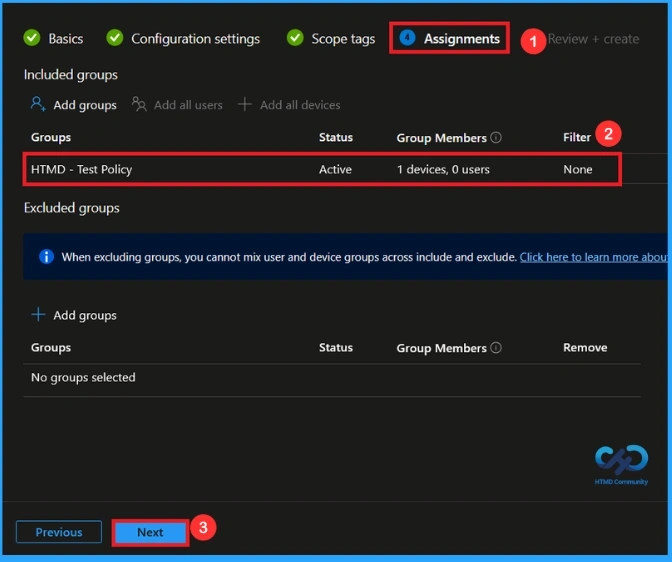
Assignments Tab for Selecting Group
In the Assignments tab, you choose the users or devices that will receive the policy by clicking Add Group under Include Group, select the group that you want to target(e.g HTMD – Test Policy) and then click Next to continue.
Review + Create Tab
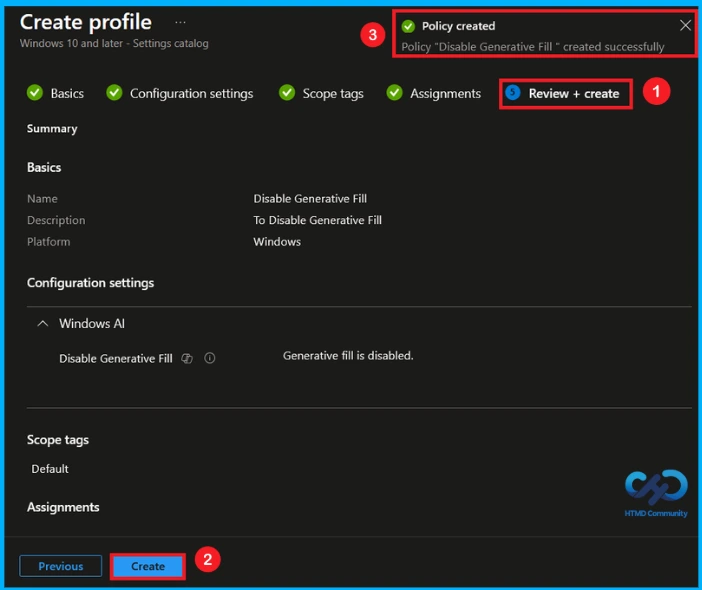
In this section, you will find a summary encompassing all the information you provided in the preceding steps, including basic details, configuration settings, assignment details. We click Create to finish, and a notification confirms that the Disable Generative Fill created successfully.
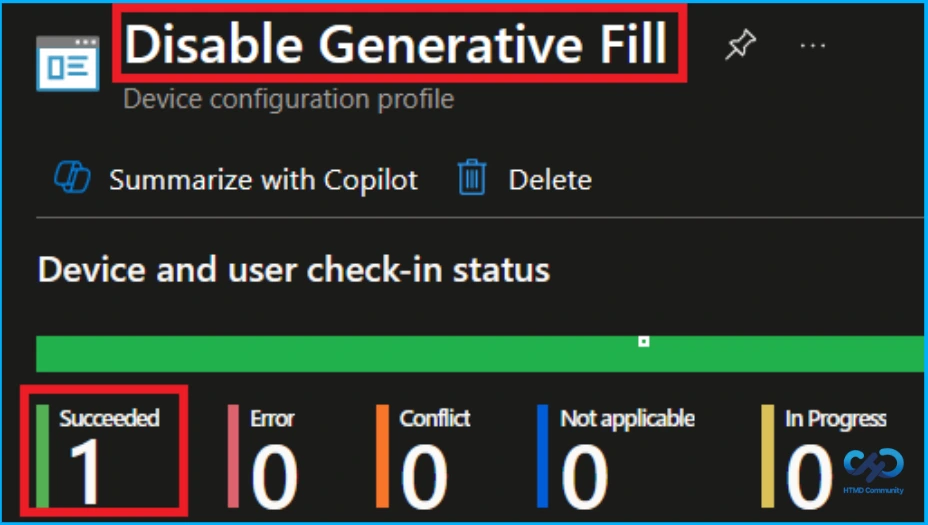
Device and User Check-in Status
To ascertain the status of a policy, navigate to Devices > Configuration within the Intune portal. Then, choose the relevant policy (such as Disable Generative Fill), and confirm that its status indicates Succeeded (1). For a quicker process, utilize manual sync in the Company Portal.
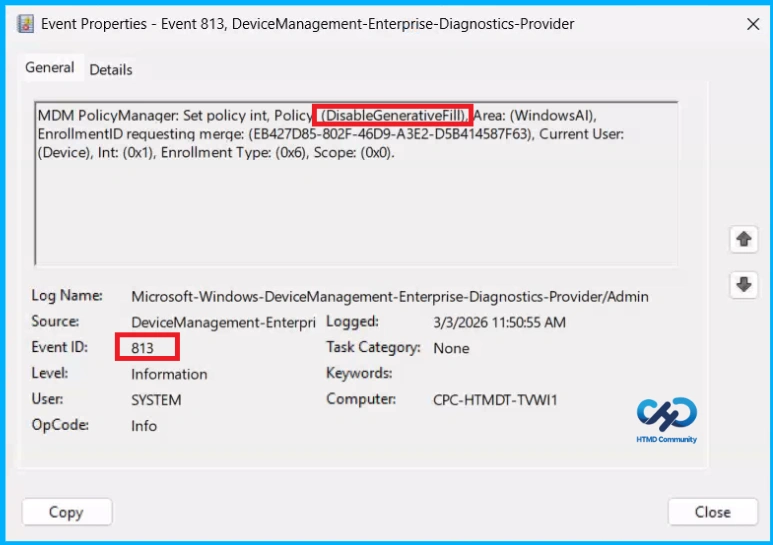
Client Side Verification
To confirm if a policy has been applied, use the Event Viewer on the client device. Go to Applications and Services Logs > Microsoft > Windows > Device Management > Enterprise Diagnostic Provider > Admin. From the list of policies, use the Filter Current Log option and search for Intune event 813.
MDM PolicyManager: Set policy int, Policy [(DisableGenerativeFill) Area: (WindowsAI),
EnrollmentID requesting merqe: (EB427D85-802F-46D9-A3E2-D5B414587F63), Current User:
(Device), Int: (0x1), Enrollment Type: (0x6), Scope: (0x0).
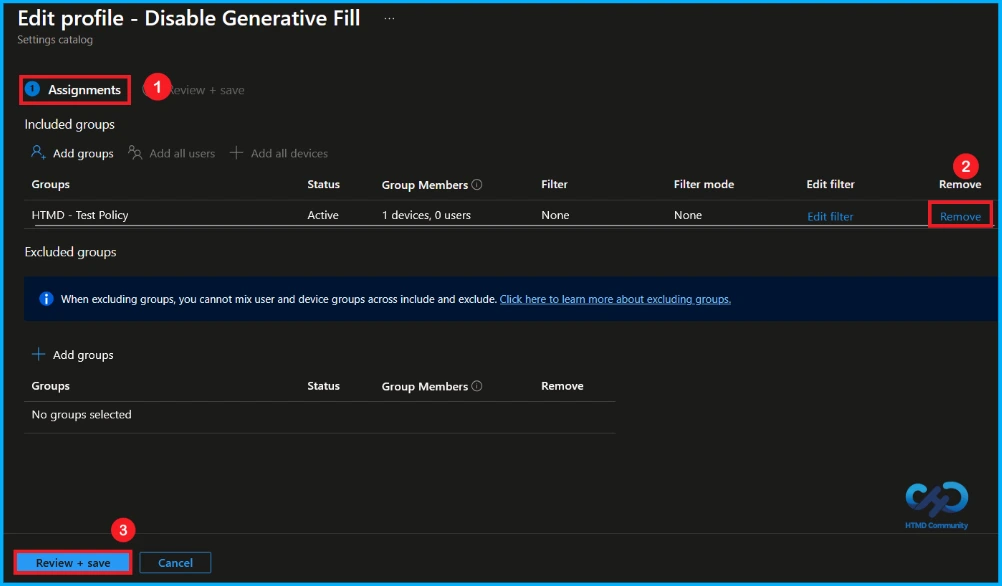
How to Remove Assigned Group from Generative Fill Policy
If you want to remove the specific group that you previously selected, you can easily do that. First, go to Devices > Configuration policies. In the Configuration policy section, search and select the policy. In the Assignment section, you will find an Edit option and click Remove option. Then, click the Review+ Save option.
For detailed information, you can refer to our previous post – Learn How to Delete or Remove App Assignment from Intune using by Step-by-Step Guide.
How to Delete Generative Fill Policy from Intune
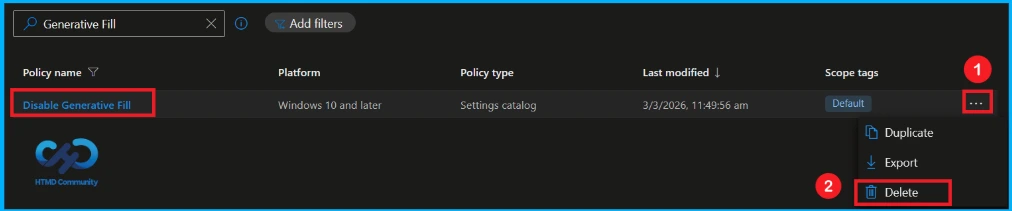
First, search for the policy name(Disable Generative Fill) in the configuration section. When you find the policy name, you will see a 3-dot menu next to it. Click on the 3 dots, then click the Delete button.
For detailed information, you can refer to our previous post – How to Delete Allow Clipboard History Policy in Intune Step by Step Guide.
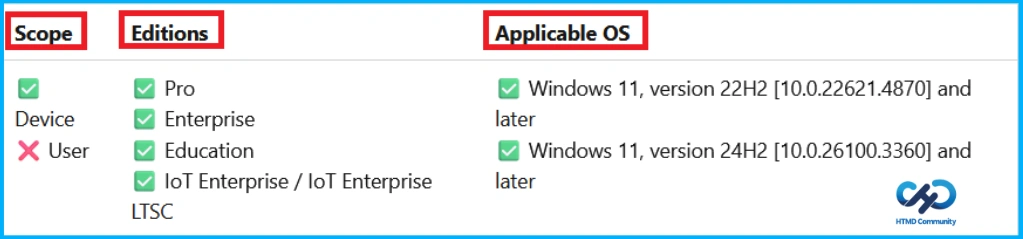
Windows Configuration Service Provider (CSP)
The Policy Configuration Service Provider (CSP) is a feature used by organisations to manage and control settings on Windows 10 and 11 devices.
| Value | Description |
|---|---|
| 0(Default) | Generative Fill will enabled. |
| 1 | Generative Fill will disabled. |
Description framework properties
- Format – Int
- Access type – Add, Delete, Get, Replace
- Default value – 0
Group Policy Mapping
| Name | Value |
|---|---|
| Name | DisableGenerativeFill |
| Friendly Name | Disable generative fill |
| Location | Computer Configuration |
| Path | Windows Components > Paint |
| Registry Key Name | Software\Microsoft\Windows\CurrentVersion\Policies\Paint |
| Registry Value Name | DisableGenerativeFill |
| ADMX File Name | WindowsCopilot.admx |
Need Further Assistance or Have Technical Questions?
Join the LinkedIn Page and Telegram group to get the step-by-step guides and news updates. Join our Meetup Page to participate in User group meetings. Also, Join the WhatsApp Community and WhatsApp Channel to get the latest news on Microsoft Technologies. We are there on Reddit as well.
Author
Anoop C Nair has been Microsoft MVP for 10 consecutive years from 2015 onwards. He is a Workplace Solution Architect with more than 22+ years of experience in Workplace technologies. He is a Blogger, Speaker, and Local User Group Community leader. His primary focus is on Device Management technologies like SCCM and Intune. He writes about technologies like Intune, SCCM, Windows, Cloud PC, Windows, Entra, Microsoft Security, Career, etc.