
Key Takeaways
- Intune manages all Android devices in one platform.
- It keeps company data safe and secure.
- Devices can be set up for each job or role.
- It helps employees work efficiently.
Hey, let’s discuss about Secure Android Management for Healthcare Emergency and Warehouse Teams with Microsoft Intune. Microsoft Intune provides a unified platform for managing Android devices across various industries. It enables organizations to efficiently provision, secure, and configure both corporate-owned and shared devices, ensuring employees in sectors like retail, healthcare, and finance can work productively and securely. The platform offers tailored enrollment, management, and support features designed to meet the unique needs of different work environments.
Table of Contents
Table of Contents
Secure Android Management for Healthcare Emergency and Warehouse Teams with Microsoft Intune
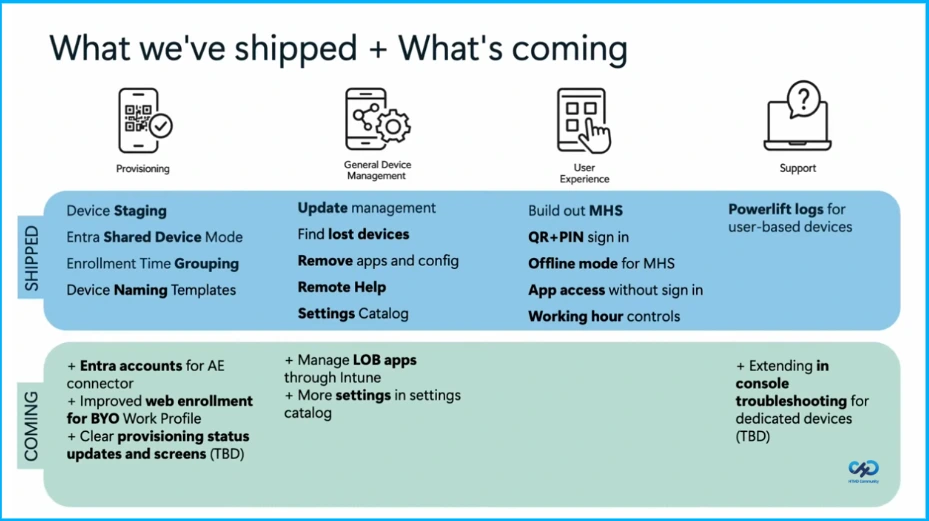
The platform already includes features like device staging, shared device mode, app removal, remote help, and easy sign-in options such as QR + PIN. It also supports finding lost devices, managing updates, and controlling work hours. Coming soon are improved account integration, better web enrollment, more app management, and enhanced troubleshooting tools for dedicated devices.
- Understanding Android Management with Intune | Android Enterprise
- Microsoft Edge for Business Expands Policy Management to macOS iOS Android and Windows
- Known Issue with Android 14 Management Settings
Healthcare Industry
In healthcare settings, nurses often share devices because of shift-based work. Each user must sign in with their own credentials to verify access and maintain security. At the same time, the sign-in process should be quick and seamless so nurses can easily access the applications they need.
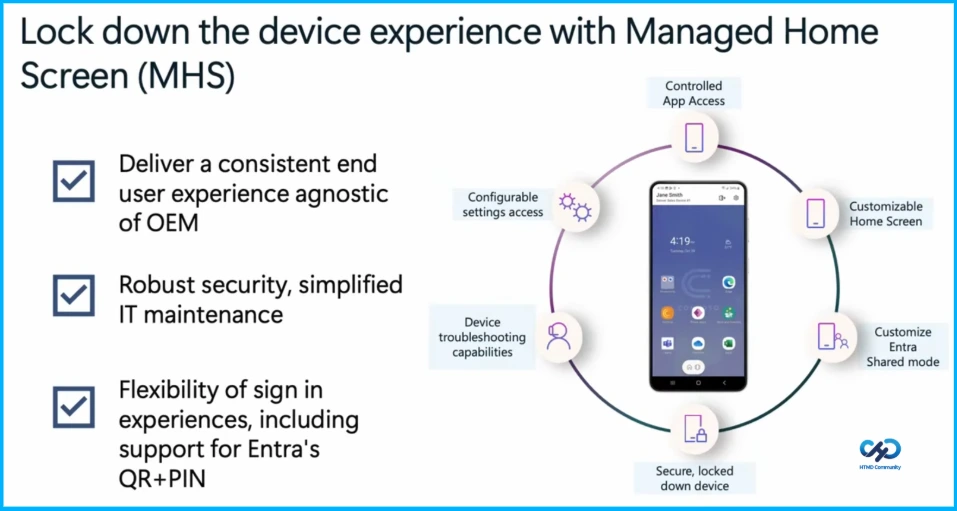
Lock down the device experience with Managed HomeScreen
Managed Home Screen (MHS) helps organizations lock down Android devices to provide a secure and consistent user experience. It allows IT teams to control which apps users can access, customize the home screen, and manage device settings. MHS also supports flexible sign-in options like QR code and PIN through Entra shared mode, while offering troubleshooting capabilities and strong security to simplify device management.

Emergency Services
Devices should be assigned to a specific police station, department, or region to ensure proper management and accountability. The enrollment process must be simple and quick, especially in high-stakes environments where devices need to be ready for immediate use. Additionally, IT administrators should have the ability to remotely locate devices.
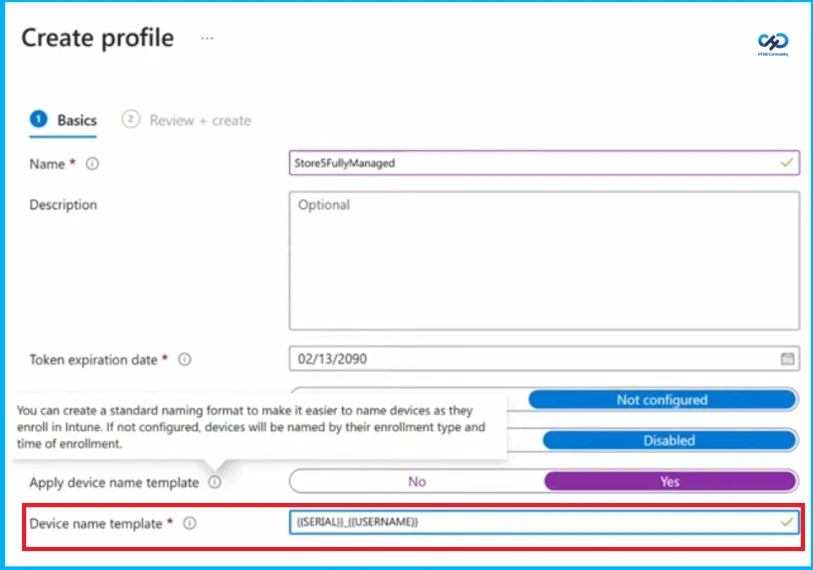
Custom Naming Template for Devices
Organizations can create a custom naming template for devices during the enrollment process to ensure consistent device identification. This helps automatically align device names with business requirements and organizational structure. The template can also include device-specific values such as{{SERIAL}}, {{SERIALNUMBERLAST4DIGITS}}, {{DEVICETYPE}}, and {{ENROLLEDDATETIME}}.
Stage Devices for Faster and Easier Setup
Device staging allows technicians to partially set up devices in advance so that end users can quickly complete the remaining setup when they receive the device. This approach improves productivity, reduces setup time and costs, and minimizes help desk calls by ensuring a more consistent setup process. It is supported on Android devices in fully managed and corporate-owned work profile modes.
Warehouse Industry
Workers can scan items on devices without signing in, allowing faster and more efficient work on the floor. The devices are also configured so users cannot change the volume, ensuring the walkie talkie function always remains active for communication. In addition, OEM specific features on ruggedized devices used by floor workers can be configured
Simplify sign in on MHS
Managed Home Screen (MHS) provides offline mode, allowing users to access apps from the sign-in screen when they cannot sign in due to network issues. App access without sign-in allows certain apps to be available directly from the MHS sign in screen.
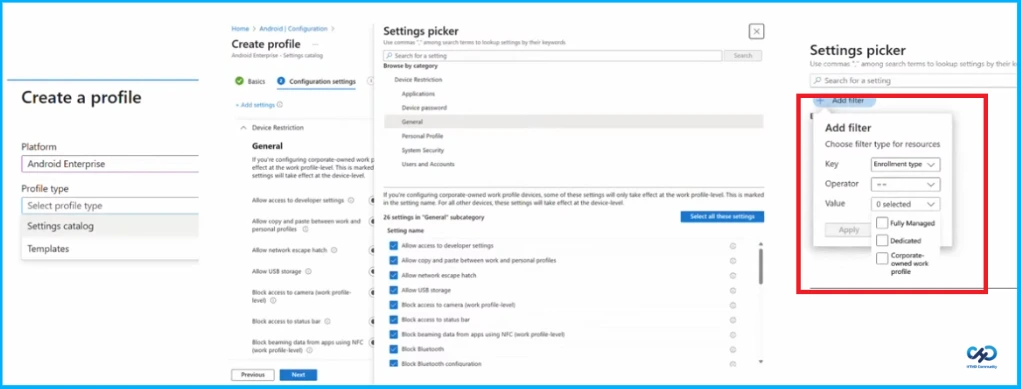
Configure a Device Via Settings Catalog
To configure Device Restriction settings in Microsoft Intune, go to Devices > Configuration profiles > Create profile, choose Platform as Android Enterprise and Profile type as Settings catalog. Then click Add settings, select General and choose the required options such as allow developer settings, allow USB storage, block camera, block Bluetooth, block status bar. The settings can also be filtered based on the enrollment type such as Fully Managed, Dedicated, or Corporate-Owned Work Profile devices.
Need Further Assistance or Have Technical Questions?
Join the LinkedIn Page and Telegram group to get the latest step-by-step guides and news updates. Join our Meetup Page to participate in User group meetings. Also, Join the WhatsApp Community and Whatsapp channel to get the latest news on Microsoft Technologies. We are there on Reddit as well.
Author
Anoop C Nair has been Microsoft MVP from 2015 onwards for 10 consecutive years! He is a Workplace Solution Architect with more than 22+ years of experience in Workplace technologies. He is also a Blogger, Speaker, and Local User Group Community leader. His primary focus is on Device Management technologies like SCCM and Intune. He writes about technologies like Intune, SCCM, Windows, Cloud PC, Windows, Entra, Microsoft Security, Career, etc.