
Key Takeaways
- One license supports multiple users (non-concurrently), reducing overall Cloud PC costs.
- Ideal for employees who need temporary or shared access (e.g., retail, support, healthcare).
- The Cloud PC resets after each user signs out, ensuring a clean environment every time.
- Users can securely access their Cloud PC from any device using the Windows 365 service.
- Easily provision, manage, and monitor via Microsoft Intune.
In this article, I am going to explain how to create a Windows 365 Frontline shared Cloud PC using Microsoft Intune. Windows 365 Frontline in shared mode enables organizations to deliver Cloud PCs to shift-based workers efficiently or task workers without assigning a dedicated device to each user. The number of active sessions is strictly tied to the number of Frontline licenses assigned to a group. For example, 5 licenses allow 5 Cloud PCs to be provisioned, with only one user connected to each Cloud PC at a time.
Table of Contents
What is Windows 365 Frontline in Shared Mode?
Once a user signs out, all session data is wiped, and the Cloud PC becomes immediately available for the next user, ensuring a clean and secure experience. Unlike dedicated setups, shared mode has no concurrency buffer, making license planning critical. Using Intune, admins can deploy and manage these shared Cloud PCs seamlessly, and even choose to deliver Cloud Apps instead of a full desktop, offering a more lightweight and flexible experience for users.
Windows 365 Frontline in shared mode is a cost-effective Cloud PC solution for shift or occasional users. One license provides one shared Cloud PC. It is non-persistent and resets after sign-out. No dedicated device is needed. This reduces cost and keeps user data secure. Here’s a simple table explaining Windows 365 Frontline in Shared Mode.
| Feature | Description |
|---|---|
| Definition | A shared, non-persistent Cloud PC solution designed for shift or task-based workers |
| License Model | One license = one Cloud PC session at a time |
| User Access | Multiple users can use the same Cloud PC, but only one at a time |
| Persistence | Non-persistent (data is deleted after sign-out), if you not configured user experience sync |
| Data Security | Ensures a clean state for every new session |
| Concurrency | Limited to the number of licenses assigned (no buffer) |
| Use Case | Ideal for shift workers, frontline staff, or temporary access needs |
| Device Requirement | No dedicated physical device required |
| Experience Options | Full desktop or Cloud Apps only |
- How to Setup Windows 365 Cloud PCs with Autopilot Device Preparation
- Easy Way to Update New Multi-Region Selection in Windows 365
- Seamless Provisioning of Windows 365 Cloud PCs for External Identities with Intune
- How to Fix Windows 365 Inactive Azure Network Connection in Intune
Create a Windows 365 Cloud PC Provisioning Policy for Frontline Shared
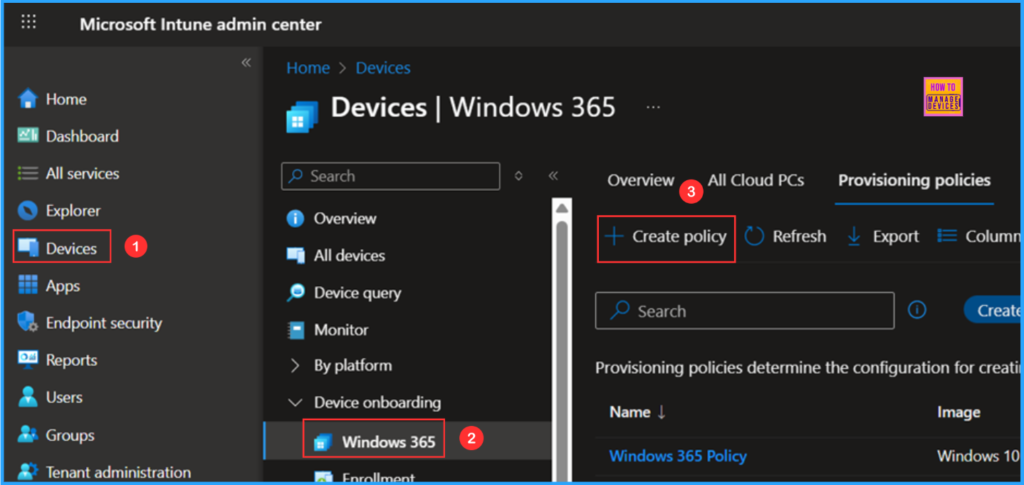
To create a Windows 365 Provisioning Policy for Frontline Shared Cloud PC, login to the Microsoft Intune Admin Center using your administrator credentials.

- Navigate to > Devices > Device onboarding > Windows 365
- Click on Provisioning policies > +Create policy
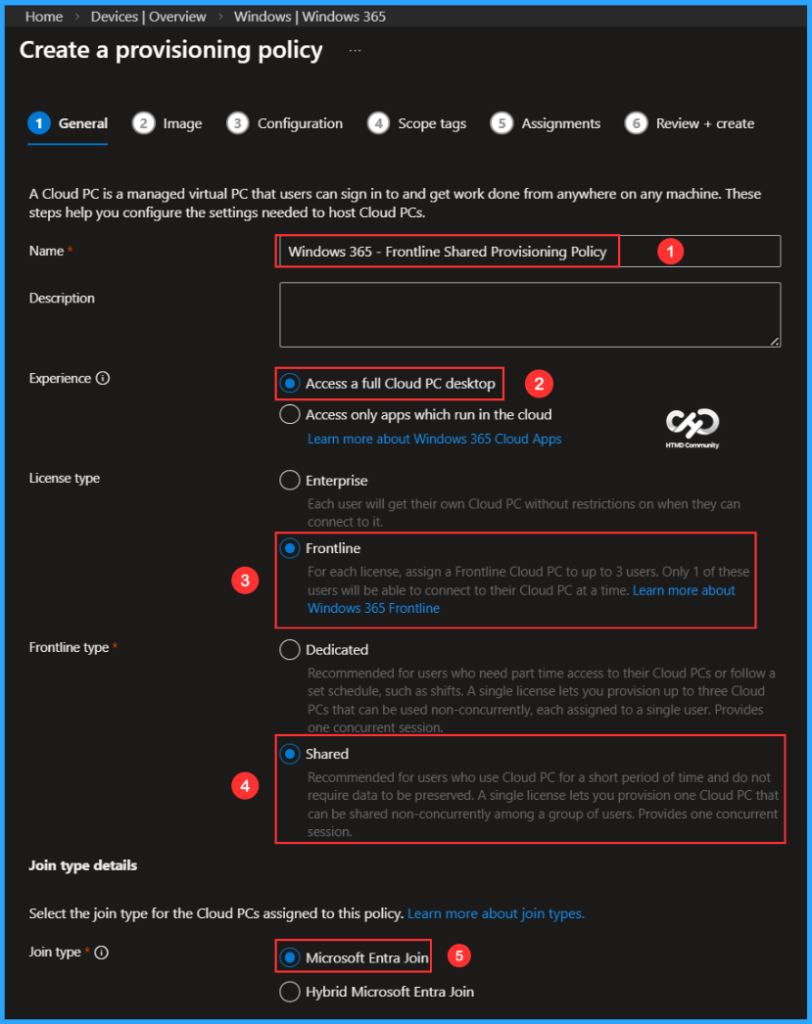
In the General tab, you can now add the following settings. Remember, a Cloud PC is a managed virtual PC that allows users to sign in and work from anywhere on any device. These steps will help you configure the necessary settings for hosting Cloud PCs.
Note: Windows 365 Frontline (Shared mode) provisioning policies now support up to 5,000 Cloud PCs per policy, enabling better scalability. This reduces the need for multiple policies and simplifies management as Frontline deployments grow.
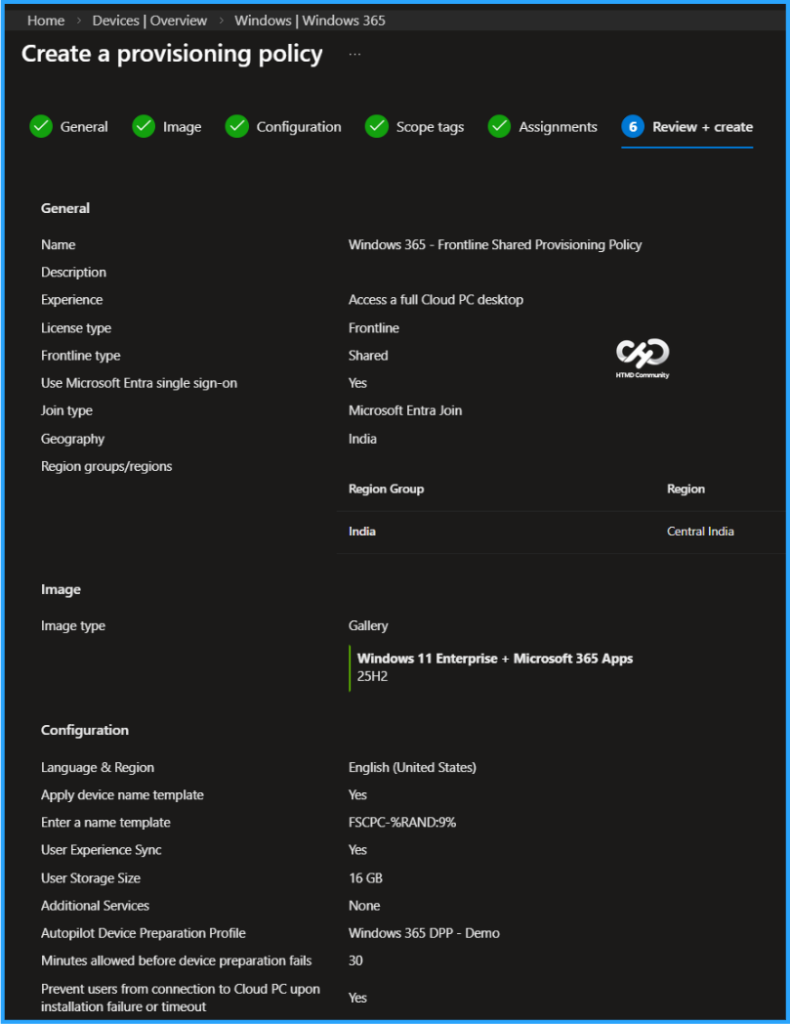
- Name: Windows 365 – Frontline Shared Provisioning Policy
- Description: Optional
- Experience: Access a full Cloud PC desktop
- License type: Frontline
- Frontline type: Shared
- Join type: Microsoft Entra Join
- Network: Microsoft hosted network
- Geography: India
- Region groups/regions: India/Central India
- Use Microsoft Entra single sign-on: Yes (Check the box)
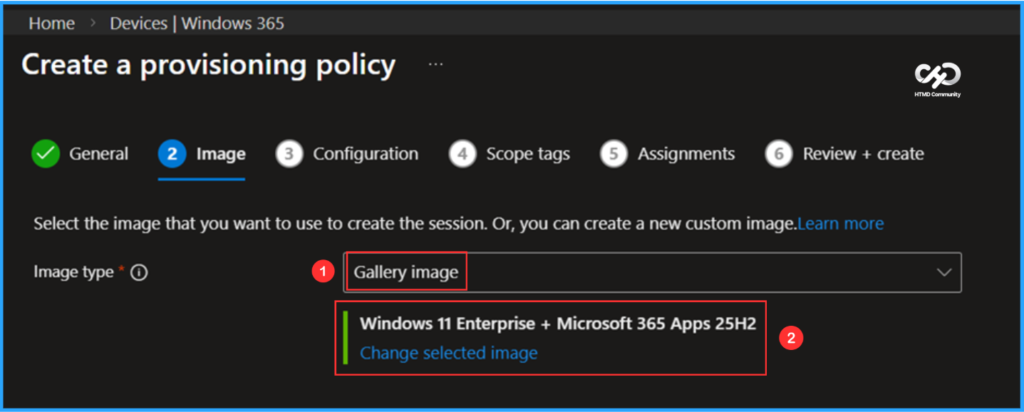
You can choose an existing image to create the session or create a new custom image if available. I will select the latest available Gallery image, which is Windows 11 Enterprise + Microsoft 365 Apps 25H2.
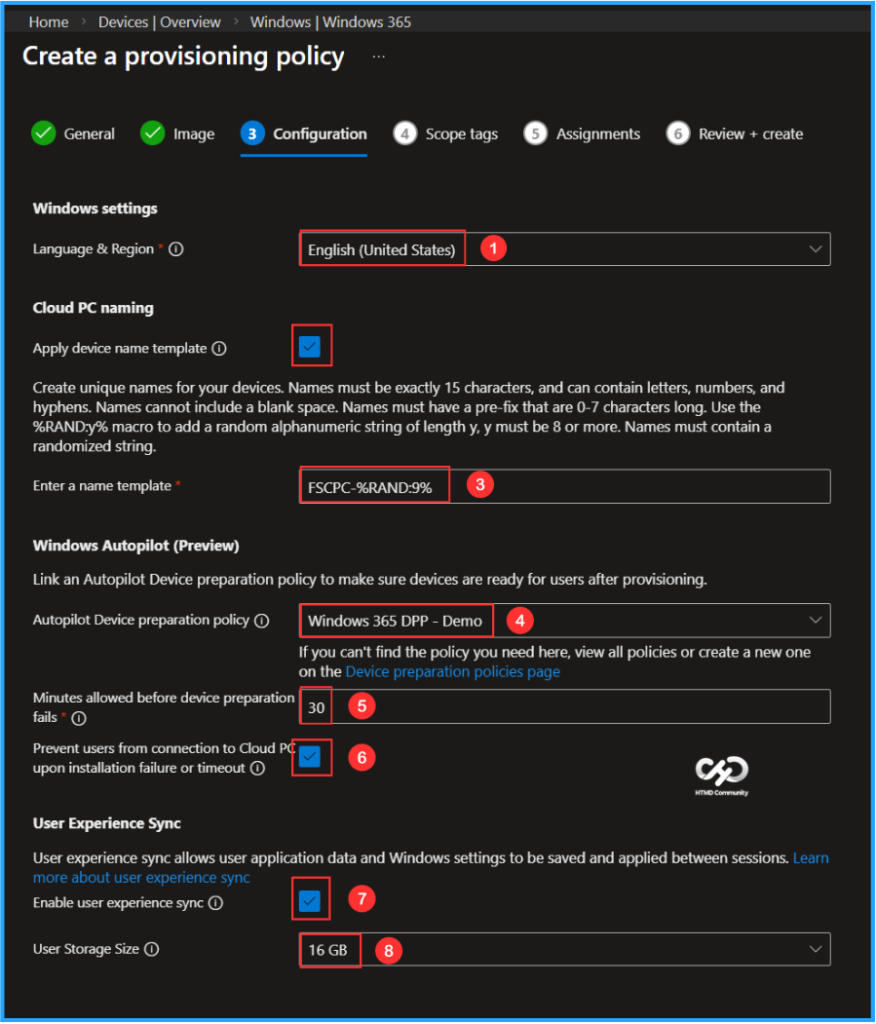
The next tab focuses on Windows settings, Cloud PC naming, Windows Autopilot (Preview) and User Experience Sync configuration. You can select the options listed below.
- Language & Region: English (United States)
- Apply device name template: Yes (Check the box)
- Enter a name template: FSCPC-%RAND:9%
- Autopilot Device Preparation Policy: Windows Autopilot DPP – Demo (If available)
- Minutes allowed before device preparation fails – 30
- Prevent users from connection to Cloud PC upon installation failure or timeout – Yes (Check the box – If required)
- Enable user experience sync – Yes (Check the box)
- User Storage Size: 16GB
Note: If user experience sync is enabled, Windows 365 will automatically save any user-specific application data in a central cloud storage location and reconnect the user to that storage upon each connection to shared devices within this provisioning policy. Storage of user data is shared across all users, and limits apply.
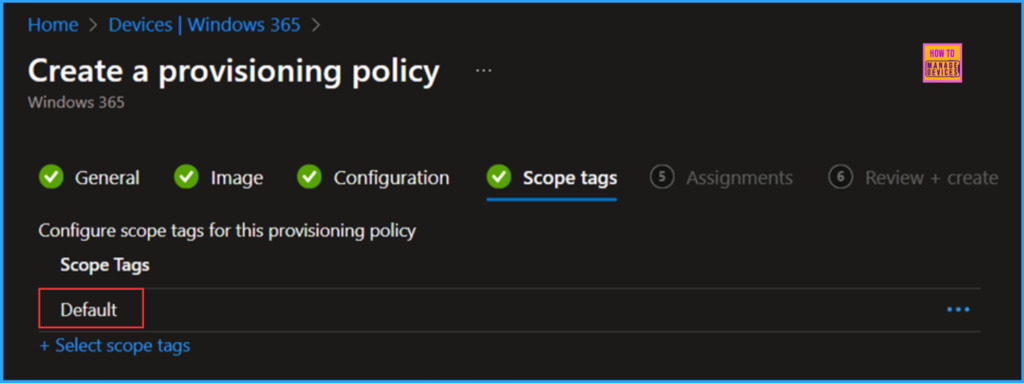
On the next page, keep the Scope tags set to Default. If your tenant has custom scope tags, select them based on your policy needs, and then click Next.
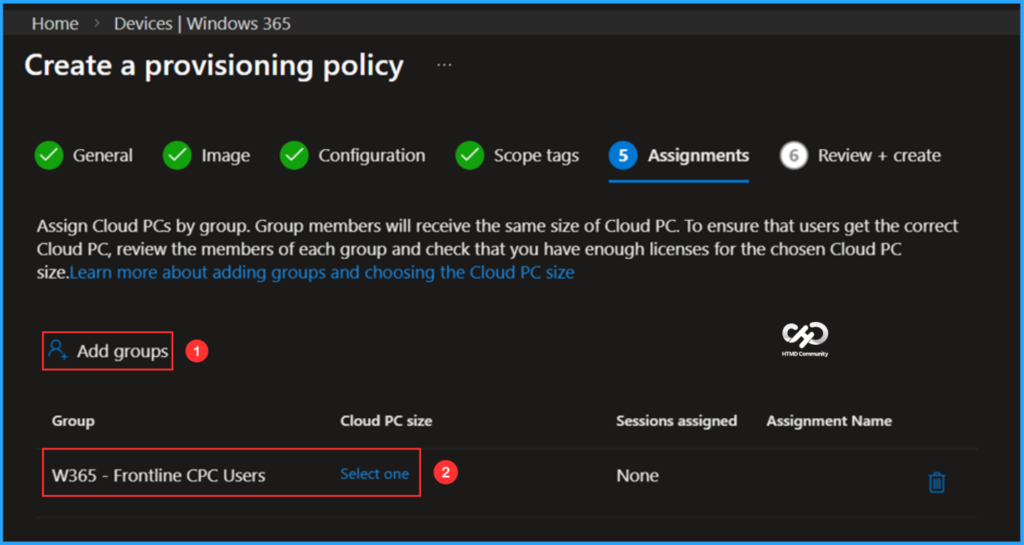
In this section, select the group that will receive the Cloud PCs. I will assign the policy to the W365 – Frontline CPC Users group, which includes three different users within my organization. There is no user limit in Frontline Shared mode. To proceed, click on Add groups and choose the appropriate user group. Then, to set the Cloud PC size, click on the Select one hyperlink.
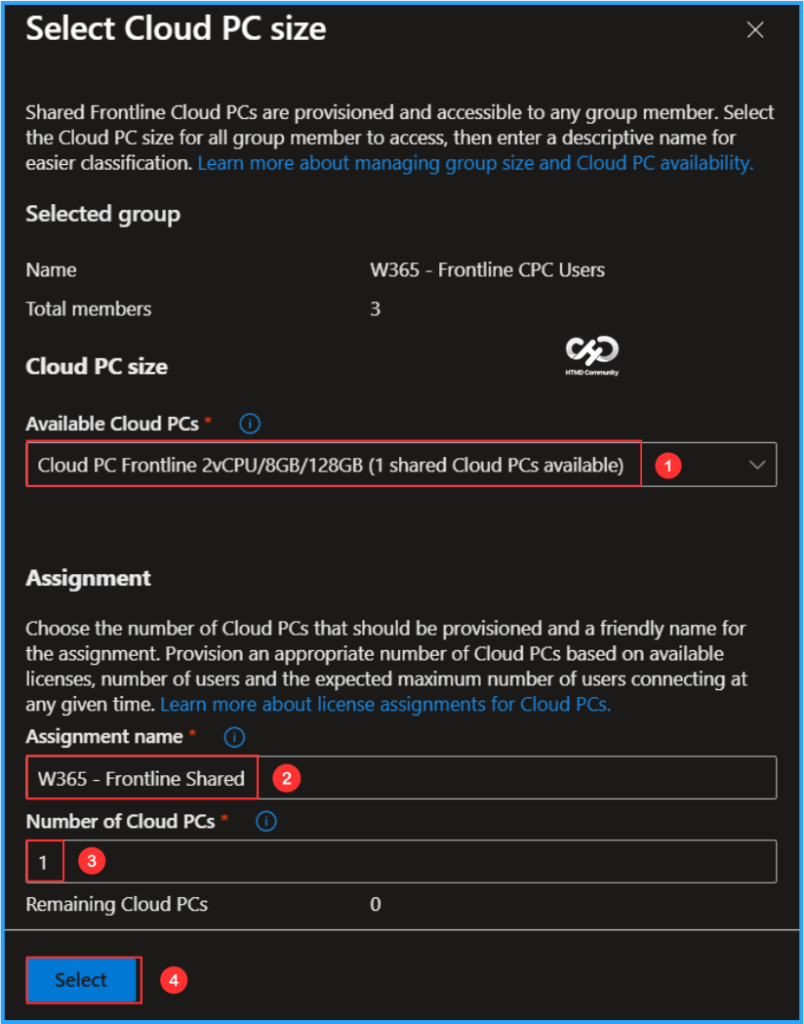
Now it will open the Select Cloud PC Size pane. Choose the Cloud PC size; you can find the available sizes in the drop-down menu based on your Windows 365 Frontline license. Here, I am selecting the following options.
- Available sizes: Cloud PC Frontline 2vCPU/8GB/128GB (1 shared Cloud PCs available)
- Assignment name: W365 – Frontline Shared
- Number of Cloud PCs: 1
On the Review + create page, review all settings for the Windows 365 – Frontline Shared Provisioning Policy. After confirming, click Create to deploy the policy.
- How to List all Windows 365 Cloud PCs in your Tenant using Microsoft Graph API
- Best Method to Enable and Disable Windows 365 Cloud PCs Redirections using Intune
- How to use New Multi-Monitor and Display Features in Windows 365 Link
Monitor the Windows 365 – Frontline Shared Provisioning Policy Deployment
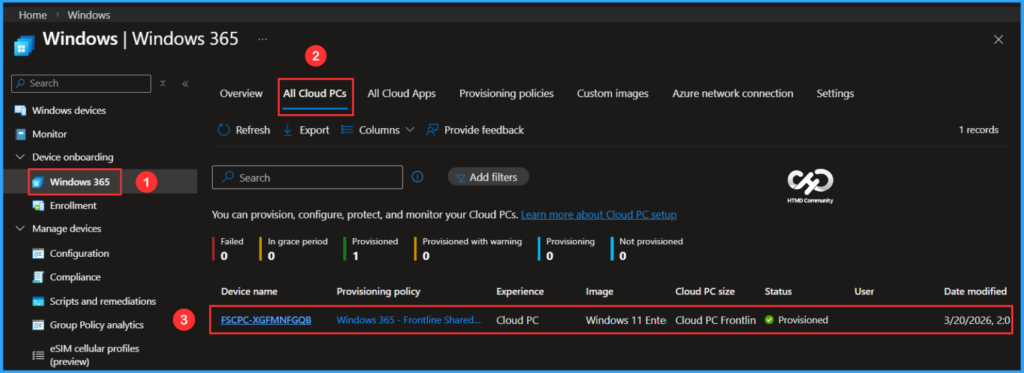
The newly created Windows 365 – Frontline Shared Provisioning Policy has been deployed to the W365 – Frontline CPC Users. Please allow some time, around 10-15 minutes, for the policy to provision Windows 365 Frontline Cloud PC in shared mode. To monitor the status of the policy deployment, follow the steps outlined below in the Intune Portal.
- Navigate to Devices > Windows 365 > All Cloud PCs > Find the “Windows 365 – Frontline Shared Provisioning Policy”.
According to our configuration, one Frontline Cloud PC with the device name FSCPC-XGFMNFGQB has been successfully provisioned and assigned to three different users in the targeted group. It can be seen that there is no user limitation for the Frontline Cloud PC in shared mode.
End User Experience of Windows 365 Frontline Shared Cloud PC with Windows App
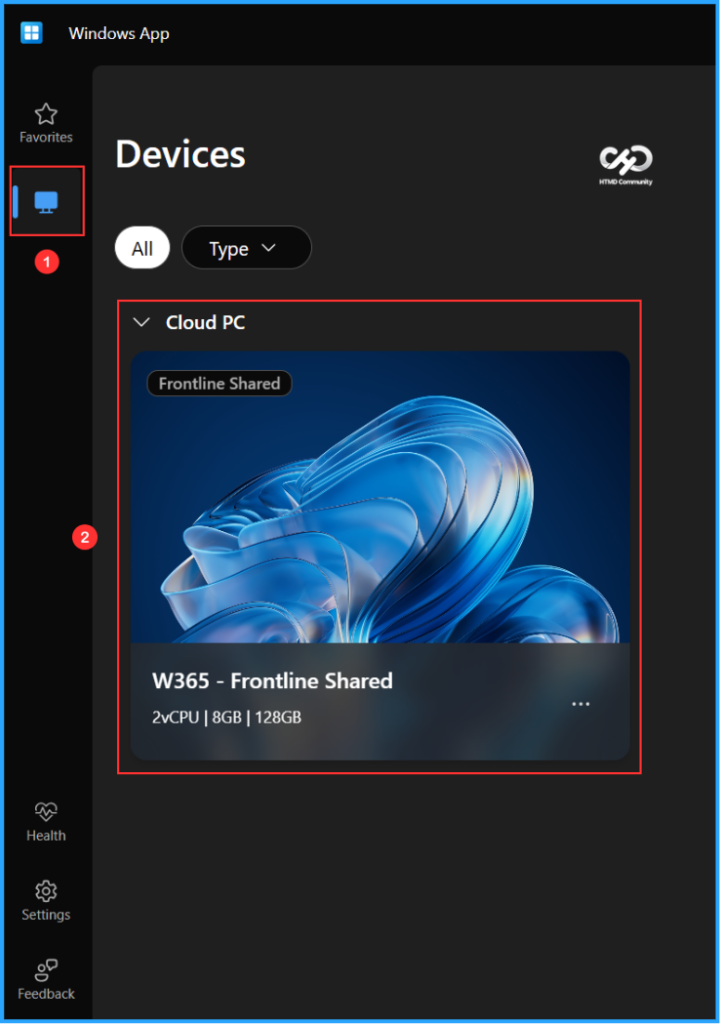
It’s time to evaluate the end-user experience of the newly provisioned Windows 365 Frontline Cloud PC in shared mode. Start by opening the Windows App and signing in using the credentials assigned to the Cloud PC user. In the left pane, click on Devices. The assigned Cloud PC should appear in the list. Double-click on the Frontline Shared Cloud PC. This will launch your brand new Windows 365 Frontline Shared Cloud PC, and it’s ready to use.
Need Further Assistance or Have Technical Questions?
Join the LinkedIn Page and Telegram group to get the latest step-by-step guides and news updates. Join our Meetup Page to participate in User group meetings. Also, join the WhatsApp Community to get the latest news on Microsoft Technologies. We are there on Reddit as well.
Author
Vaishnav K has over 12 years of experience in SCCM, Intune, Modern Device Management, and Automation Solutions. He writes and shares knowledge about Microsoft Intune, Windows 365, Azure, Entra, PowerShell Scripting, and Automation. Check out his profile on LinkedIn.