
Key Takeaways
- Gradually deploy apps and policies through multiple rings instead of targeting all devices at once.
- Reusable deployment plans help organizations follow a consistent and approved rollout structure.
- Administrators don’t need to manually recreate multiple ring assignments for every deployment.
- Organizations can start with smaller pilot groups and gradually expand the deployment after the initial stage.
In this post we are discussing Microsoft Intune Introduces Staged Deployment Plans for Apps and Policies. Microsoft Intune Introduces Staged Deployment Plans for Apps and Policies. Microsoft Intune now supports deployment plans, a new way for administrators to roll out apps and device configuration policies in controlled stages instead of deploying them to all targeted devices at once. The feature is available through the new Deployments experience in the Intune admin center and uses deployment rings to gradually deliver an Intune payload across device groups.
Table of Contents
Table of Contents
Microsoft Intune Introduces Staged Deployment Plans for Apps and Policies
Deployment plans allow administrators to create a reusable rollout structure that defines the deployment rings, group assignments, assignment filters, exclusions, and the waiting time between each ring. This helps organizations follow a consistent rollout process without manually recreating the same staged deployment configuration for every app or policy.
A deployment plan defines how a rollout should happen, while a deployment is responsible for delivering the selected app or policy. Administrators can use an existing deployment plan when creating a deployment or manually configure the rings and rollout schedule for a specific deployment.
- Deploy Driver Updates from WSUS Instead of Windows Update using Intune to Test Approve and Schedule Deployments
- Configure Unattended Remote Help for Windows Devices using Intune to Simplify Remote Troubleshooting
- Configure Operating System Version-Based Assignment Filters in Microsoft Intune
What’s New
Microsoft Intune introduces deployment plans to make app and policy rollouts more controlled. Instead of deploying a payload to all targeted devices at once, administrators can gradually roll it out through multiple rings. Each ring can target specific groups and include a defined waiting period before the next stage begins. Administrators can define groups, filters, scope tags, in the plan, and then reuse that structure when creating deployments. This helps reduce administrative effort while providing better control over how and when changes reach devices across the organization. The deployments feature has two key components:

- Deployment plans: Reusable templates that define a standardized rollout pattern.
- Deployments: The execution mechanism that delivers a specific Intune payload to devices.
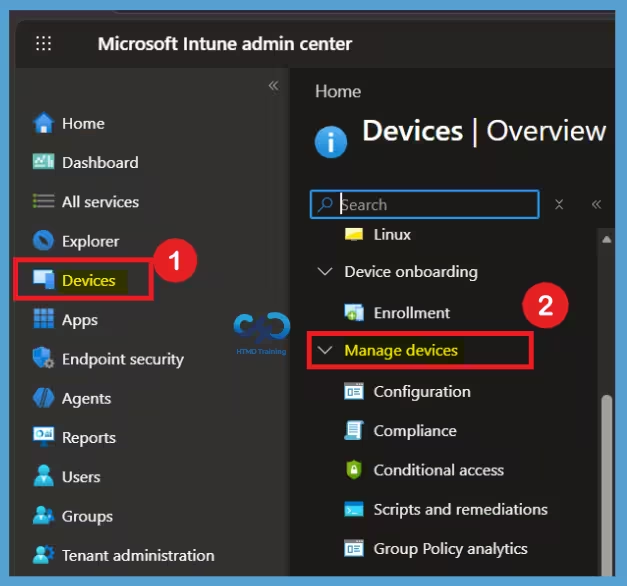
- You can access deployments in the Microsoft Intune admin center under Devices > Manage devices > Deployments.
| Deployment plans | Description |
|---|---|
| Device platform | Defines which platform the plan applies to. Choosing All platforms allows reuse across payloads; assignment filters are configured later during deployment. |
| Rings | Structured rollout stages with group assignments and assignment filters. |
| Exclude groups | Applied consistently across all rings in the plan. |
| Virtual groups | All users or All devices can be used as the final ring. Cannot be combined with Entra security groups in the same ring. |
| Payload | payloads are added later during deployment creation. |
| Scope tags | Supported for delegated administration and visibility control. |
| modification | Can be modified after creation. |
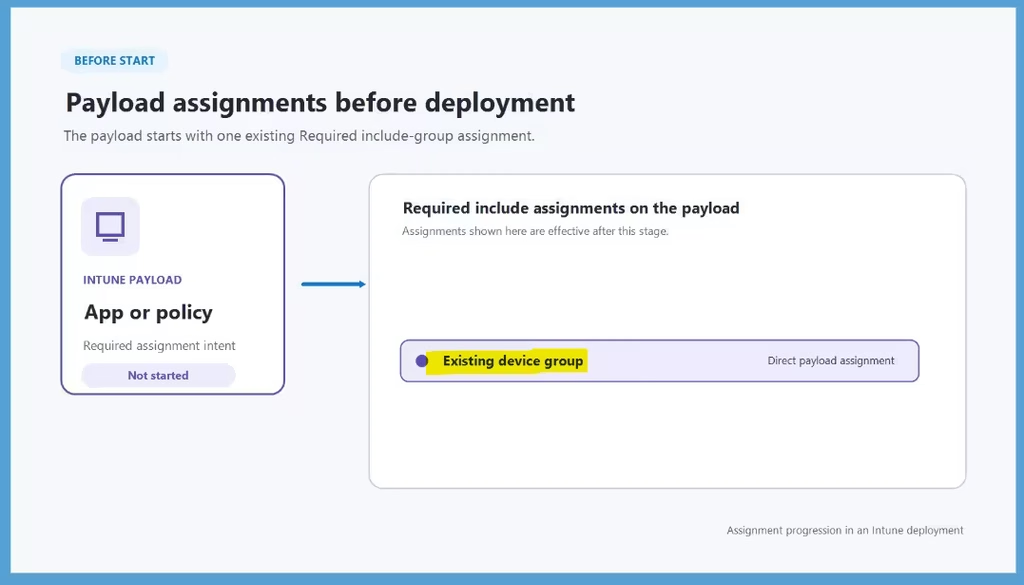
How Payload Assignments Change as Rings Deploy
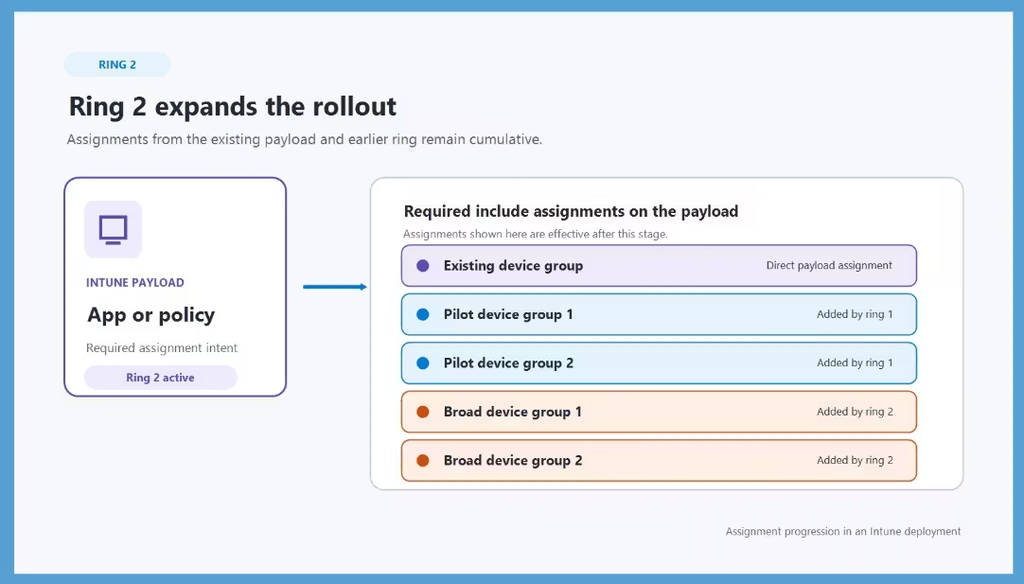
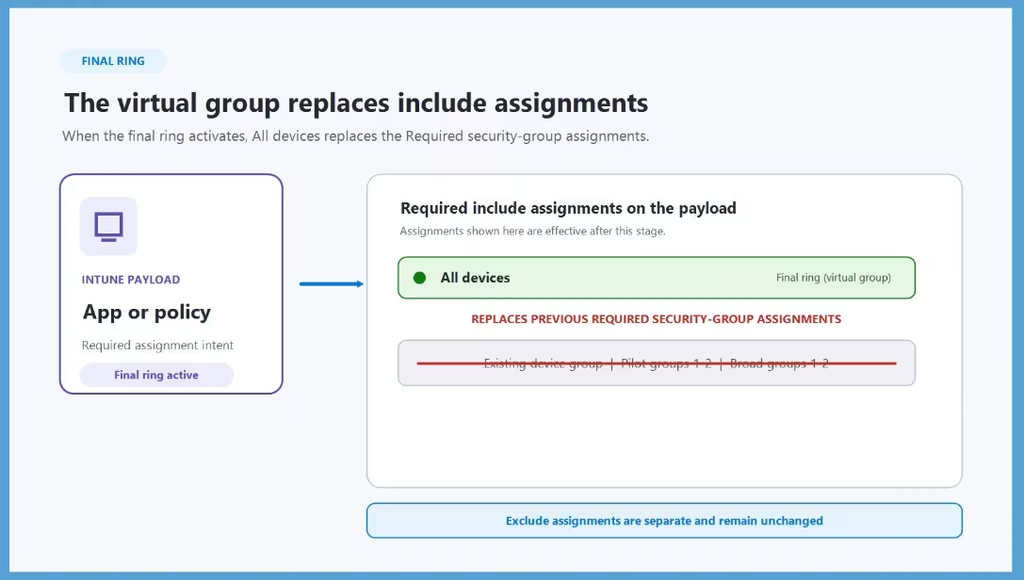
When the deployment starts, the payload keeps its existing Required assignment. As each ring becomes active, the groups from that ring are added to the payload. This allows the app or policy to reach more devices step by step. Such as he first ring adds the pilot groups, and the next ring adds the broader groups. The earlier assignments remain in place as the deployment moves forward. This makes it easier to see how the rollout expands from a small group to a larger group.
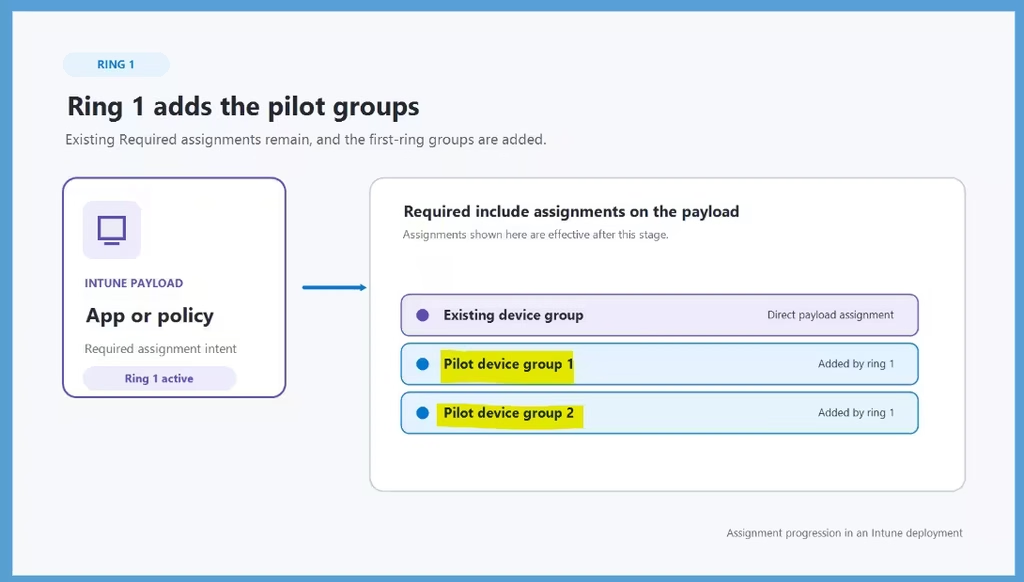
Ring 1 – Adds the Pilot Groups
When Ring 1 becomes active, the existing Required assignment remains on the payload, while the two pilot device groups are added to the Required include assignments. This allows the app or policy to reach a smaller set of pilot devices first, helping administrators validate the deployment before expanding it further.
Ring 2 Expands the Rollout
When Ring 2 becomes active, the assignments from the existing payload and Ring 1 remain in place, and the two broader device groups are added. This expands the rollout to a larger group of devices while maintaining the assignments from the earlier stages.
Final Ring Replaces Existing Required Assignments
When the final ring becomes active, the virtual group is applied as the Required assignment for the Intune app or policy. At this stage, the All devices virtual group replaces the previously configured required security group assignments, allowing the payload to reach all applicable devices through the final ring.
Need Further Assistance or Have Technical Questions?
Join the LinkedIn Page and Telegram group to get the latest step-by-step guides and news updates. Join our Meetup Page to participate in User group meetings. Also, join the WhatsApp Community and the Whatsapp channel to get the latest news on Microsoft Technologies. We are there on Reddit as well.
Author
Anoop C Nair is Workplace Technology solution architect with 25+ years of experience in global enterprise organizations such as JP Morgan, Capgemini, etc. He is Microsoft Certified Trainer. Microsoft MVP from 2015 onwards for consecutive 11 years! He also conducts Intune and modern workplace tech training for enterprise organizations. He is Blogger, Speaker, and Founder of HTMD Community and HTMD Conference. His focus is on Device Management technologies such as Intune, Windows, Cloud PC. He writes about technologies like Intune, SCCM, Windows, Cloud PC, Windows, Entra, Microsoft Security.