
Key Takeaways
- Company Portal branding applies to the Company Portal apps, Company Portal website, and the Intune app on Android.
- You can create custom branding policies and assign them to user groups (device groups are not supported).
- A custom branding policy always overrides the default branding policy for assigned users.
- If a user is assigned multiple branding policies, Intune applies only one — the first policy that was created.
- Branding policies are not merged; precedence is based on policy creation order.
- You can create up to 25 custom branding policies (updated limit from the earlier 10).
Intune Company Portal Branding Customisation allows you to change how the Company Portal looks for users. These branding settings apply to the Company Portal app, Company Portal website, and the Intune app on Android. You can create different branding policies and assign them to user groups so that different users can see different branding if needed. By default, Intune has a default branding policy that applies to everyone. When you create a custom branding policy and assign it to a user group, that custom policy replace the default one for those users. This means users in that group will see the custom logo, colours, and organisation details instead of the default branding.
Table of Content
Table of Contents
Intune Company Portal Branding Customisation Options
If a user is part of more than one group that has a branding policy assigned, Intune does not merge the policies. Instead, the user will get only one policy. Intune applies the first branding policy that was created among the ones assigned to that user. Earlier, Intune allowed you to create only 10 custom branding policies. With the latest Microsoft updates, you can now create up to 25 custom branding policies. These policies can be assigned only to user groups, not device groups, giving you more flexibility to manage branding across different teams or departments.
- Troubleshoot and Fix Company Portal Enrollment Your Device Is Already Connected Error
- New Company Portal Experience Monitor App Installation Progress and Compliance Status Reporting
- MS Intune Stop Supporting User Enrollment with Company Portal for iOS iPadOS
- New Appearance for Intune Company Portal App for Windows
Intune Company Portal Branding Customization Options
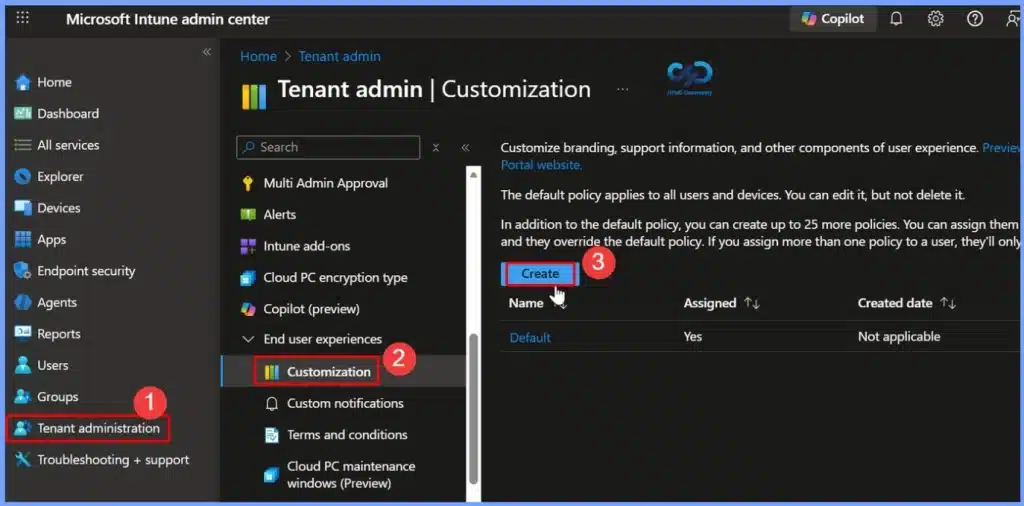
To create a custom Company Portal branding policy, sign in to the Microsoft Intune admin center at https://intune.microsoft.com/. From the left navigation pane, select Tenant administration, then choose Customization. On the Customization page, click + Create to start creating a new custom branding policy.
NOTE – I don’t recommend editing the default policy.

Intune Company Portal Branding – Basics Settings
The Basics section of the Intune Company Portal Branding Customization defines the identity of the branding policy. In this example, the Name is set to HTMD Branding, which helps administrators easily identify the policy in the Intune admin center.
The Description, Custom HTMD Branding Policy, clearly explains the purpose of the policy, making it easier to manage and differentiate from other branding policies when multiple customizations are configured across the tenant.

Branding of Company Portal
The Settings for Branding of Company Portal. You can set your Organization name (e.g., HTMD) to display throughout the Company Portal experience. This name appears in messages and can be shown in the header according to your selection. The maximum length is 40 characters.
You choose a Theme color using a hex code (like #ffffff) or pick one of the provided standard colors. The portal automatically adjusts header text color (black/white) so it’s readable on your chosen background.
- The Show in header setting lets you control whether the header shows:
- Organization logo and name
- Organization logo only
- Organization name only
- This affects the top bar in the Company Portal UI.
- Logo & Image Uploads (Current Requirements)
- Microsoft’s documentation confirms these file settings for logos and brand images:
- Upload logo for theme color background
- Recommended image height: greater than 72 px
- Max file size: 750 KB
- Acceptable formats: PNG, JPG, JPEG
- Best practice: Use a logo with a transparent background so it displays cleanly on your selected theme color.
- Upload logo for white or light background
- Same limits as above: 750 KB max and PNG/JPG/JPEG formats.
- This logo is used on light surfaces to ensure good visibility against lighter backgrounds.
- Upload brand image
- Recommended width: greater than 1125 px
- Max file size: 1.3 MB
- Formats: PNG, JPG, JPEG
- This image shows on the user’s profile page across iOS, Windows, web portal, and Android Intune app.

Support Information in Intune Company Portal
In the Create customization policy page, you can fill in support-related details such as the contact name, phone number, email address, website name, website URL, and additional information. The window shown below helps you display these support details clearly. Enter the Support information in Intune Company Portal
- Contact name – IT Support HelpDesk for HTMD
- Phone number – 100
- Email address – an@htmd.com
- Website name – htmdforum.com
- Website URL – http://htmdforum.com
- Additional information – Raise a ticket

Select Apps Displayed in Company Portal
In the App Sources section, you can choose which additional application sources are displayed in the Company Portal. This setting allows admins to control app visibility by enabling sources such as Microsoft Entra enterprise applications, Office Online applications, and Configuration Manager applications. By selecting the required sources, users get a unified and consistent app discovery experience within the Company Portal.
- App Sources
- Choose which additional app sources will be shown in Company Portal.
- Microsoft Entra enterprise applications – Show
- Office Online Applications – Show
- Configuration Manager Applications – Show
- Choose which additional app sources will be shown in Company Portal.

Resources
- How to customize the Intune Company Portal apps, Company Portal website, and Intune app
- Intune Company Portal Setup for Personal Windows 10 Device Intune Enrollment Options
Need Further Assistance or Have Technical Questions?
Join the LinkedIn Page and Telegram group to get the latest step-by-step guides and news updates. Join our Meetup Page to participate in User group meetings. Also, join the WhatsApp Community to get the latest news on Microsoft Technologies. We are there on Reddit as well.
Author
Anoop C Nair is Workplace Technology solution architect with 25+ years of experience in global enterprise organizations such as JP Morgan, Capgemini, etc. He is Microsoft Certified Trainer. Microsoft MVP from 2015 onwards for consecutive 11 years! He also conducts Intune and modern workplace tech training for enterprise organizations. He is Blogger, Speaker, and Founder of HTMD Community and HTMD Conference. His focus is on Device Management technologies such as Intune, Windows, Cloud PC. He writes about technologies like Intune, SCCM, Windows, Cloud PC, Windows, Entra, Microsoft Security.