
Key Takeaways
- New OOBE controls allow administrators to customize different parts of the Windows setup experience.
- Device naming templates allow administrators to create a standard naming pattern for devices during enrollment.
- These configuration options help organizations maintain a more consistent Windows device setup process.
- The new naming option helps organizations reduce the need to manually rename devices after the enrollment process.
In this post, we are discussing Microsoft Intune Adds New Device Naming Options to Windows Autopilot Device Preparation. Microsoft Intune now provides additional configuration options in Windows Autopilot device preparation. These options give administrators more control over how Windows devices are configured during the setup process. One of the new options is Apply device name template. This allows administrators to create a naming pattern for Windows devices during enrollment.
Table of Contents
Table of Contents
Microsoft Intune Adds New Device Naming Options to Windows Autopilot Device Preparation
Device naming is also an important part of managing a large number of Windows devices. With the latest configuration update, Windows Autopilot device preparation now includes the Apply device name template option. When enabled, administrators can use the Enter a name field to define a naming pattern that can be applied to devices during the setup process.
- Windows 365 Enterprise Now Supports Intune Autopilot Device Preparation Before User Sign-In
- How Autopilot Device Preparation Improves Windows 365 Cloud PC Readiness
- How to Create Autopilot Device Preparation Policy for Windows 365 Frontline Devices using Intune
What’s New
Intune Recently add some configuration settings under the Windows Out of Box Experience (OOBE). Microsoft has added the Apply device name template setting to Windows Autopilot device preparation in Intune. This setting allows administrators to configure a device naming template as part of the device preparation process.
Configure the Device Name Template using Intune
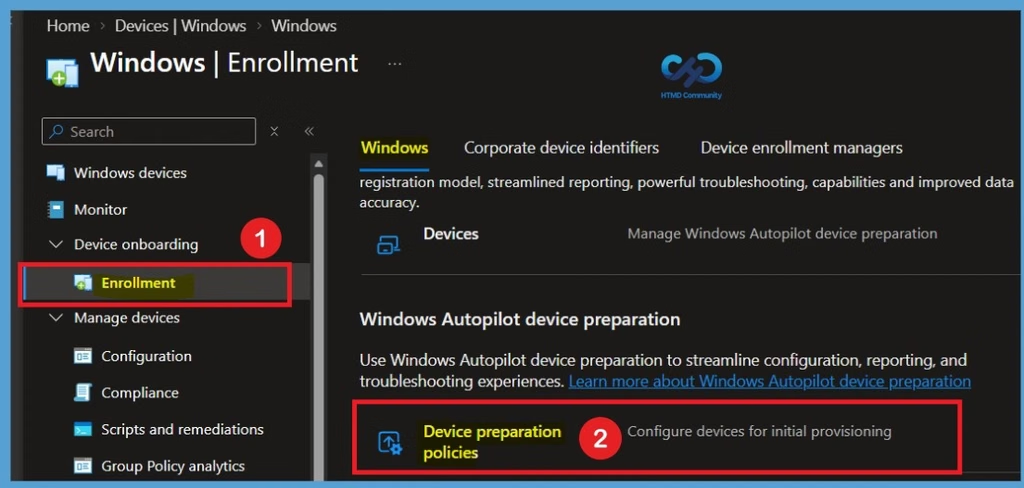
To configure the device name template, sign in to the Microsoft Intune admin center and navigate to Devices > Windows > Windows enrollment > Windows Autopilot device preparation. From here, you can create a new device preparation policy or edit an existing policy to configure the device naming option.

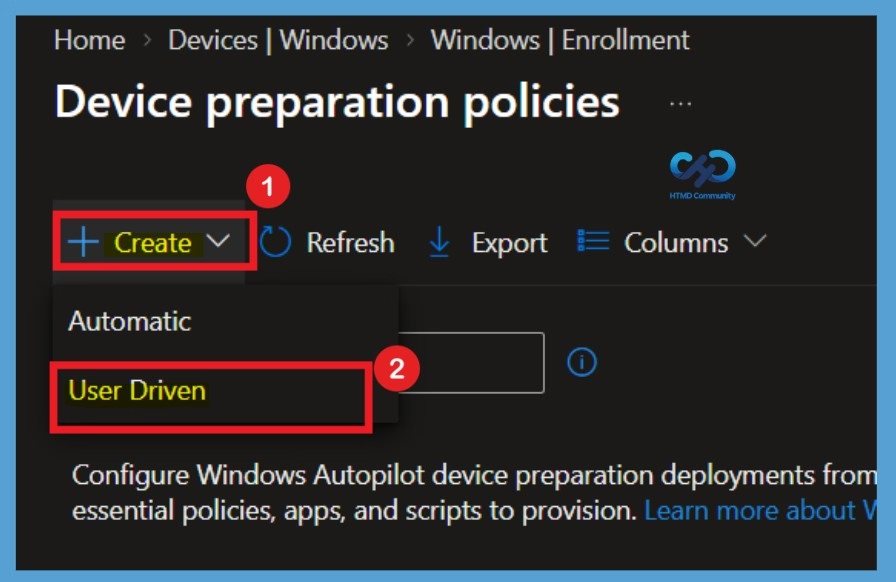
Under Device preparation policies, select +Create to create a new policy. You will then see 2 options such as Automatic and User-driven. Select User-driven to continue with the device preparation policy configuration.
Configure the Device Preparation Settings
After selecting User-driven, you will be taken to the Autopilot device preparation settings page. Go through the available sections, including Introduction, Basics, and Device group, and enter the required details in each section. Next, you will reach the Configuration settings page. Here, expand the Out-of-box experience settings section by clicking the drop-down arrow to view the available configuration options.
- By default, the Apply device name template option is set to No.
- To configure a custom naming pattern for the devices, this option needs to be enabled.
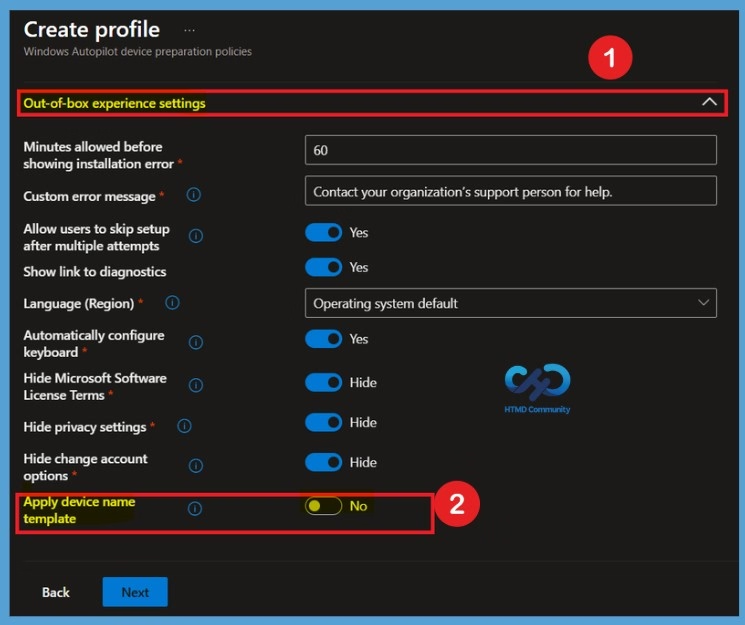
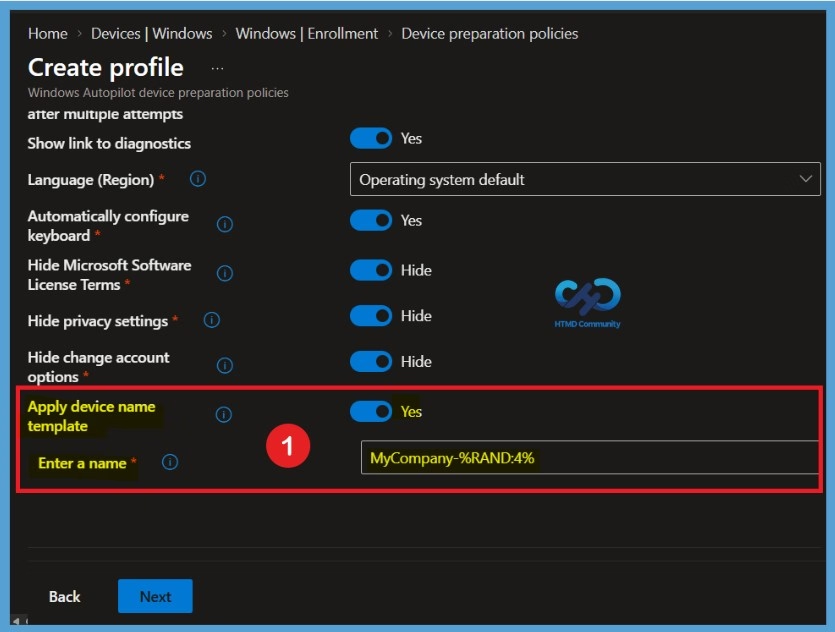
The Apply device name template setting allows administrators to create a naming template that can be used to assign names to devices during enrollment. This helps organizations maintain a consistent name for enrolled devices. To enable this setting, change Apply device name template from No to Yes. Once enabled, the Enter a Name field appears below the setting.
- In the Enter a name field, enter the desired device naming pattern. Here, it showing MyCompany-%RAND:4%
| Out-of-box Experience Settings | Info |
|---|---|
| Automatically configure keyboard | If true, skip the keyboard selection page if Language is set. |
| Hide Microsoft Software License Terms | Specify whether to show the end-user license agreement to users. |
| Hide privacy settings | Specify whether to show privacy settings to users. |
| Hide change account options | Options to change account and start over with a different account appear, respectively, during initial device setup on the company sign-in page, and on the domain error page. To hide these options, you must configure company branding in Microsoft Entra ID |
| Apply device name template | Create a naming template to add names to your devices during enrollment. |
| Enter a name | Create a unique name for your devices. Names must be 63 characters or less once macros are expanded, and can contain letters (a-z, A-Z), numbers (0-9), and hyphens. Names must not contain only numbers. Names cannot include a blank space. Use the %SERIAL% macro to add a hardware-specific serial number. Alternatively, use the %RAND:x% macro to add a random string of numbers, where x equals the number of digits to add. |
Need Further Assistance or Have Technical Questions?
Join the LinkedIn Page and Telegram group to get the latest step-by-step guides and news updates. Join our Meetup Page to participate in User group meetings. Also, join the WhatsApp Community and the Whatsapp channel to get the latest news on Microsoft Technologies. We are there on Reddit as well.
Author
Anoop C Nair is Workplace Technology solution architect with 25+ years of experience in global enterprise organizations such as JP Morgan, Capgemini, etc. He is Microsoft Certified Trainer. Microsoft MVP from 2015 onwards for consecutive 11 years! He also conducts Intune and modern workplace tech training for enterprise organizations. He is Blogger, Speaker, and Founder of HTMD Community and HTMD Conference. His focus is on Device Management technologies such as Intune, Windows, Cloud PC. He writes about technologies like Intune, SCCM, Windows, Cloud PC, Windows, Entra, Microsoft Security.