
Key Takeaways
- 1 Zero-Day Vulnerability: November 2026 Patch Tuesday addresses one zero-day vulnerability.
- CVE-2026-85880: Windows Advanced Local Procedure Call (ALPC) Elevation of Privilege vulnerability.
- Microsoft fixed a record 1,235 security issues.
- One actively exploited zero-day vulnerability in Microsoft Outlook was reported.
- 66 security issues were rated Critical.
- 536 issues could allow attackers to gain higher access.
Windows 11 KB5132061 KB5131087 November 2026 Patch and 1 Zero-Day Vulnerability and 1235 Flaws! Microsoft’s November 2026 Patch Tuesday addresses 1,235 security issues, including one actively exploited zero-day vulnerability in Microsoft Outlook. Out of these, 66 are rated Critical. The issues include security risks that could allow attackers to gain higher access, run harmful code, steal information, or affect system performance. Around 639 vulnerabilities affect Windows and its components, while 142 are related to Microsoft Edge.
Table of Content
Table of Contents
Windows 11 KB5132061 KB5131087 November 2026 Patch and 1 Zero-Day Vulnerability and 1235 Flaws
The November 2026 Windows Update introduces an improved File Explorer context menu, offering a faster, simpler, and more customizable right-click experience. Users can now personalise the menu by enabling or disabling built-in commands such as Send to and Create shortcut, adding commands like Print, and managing app extensions.
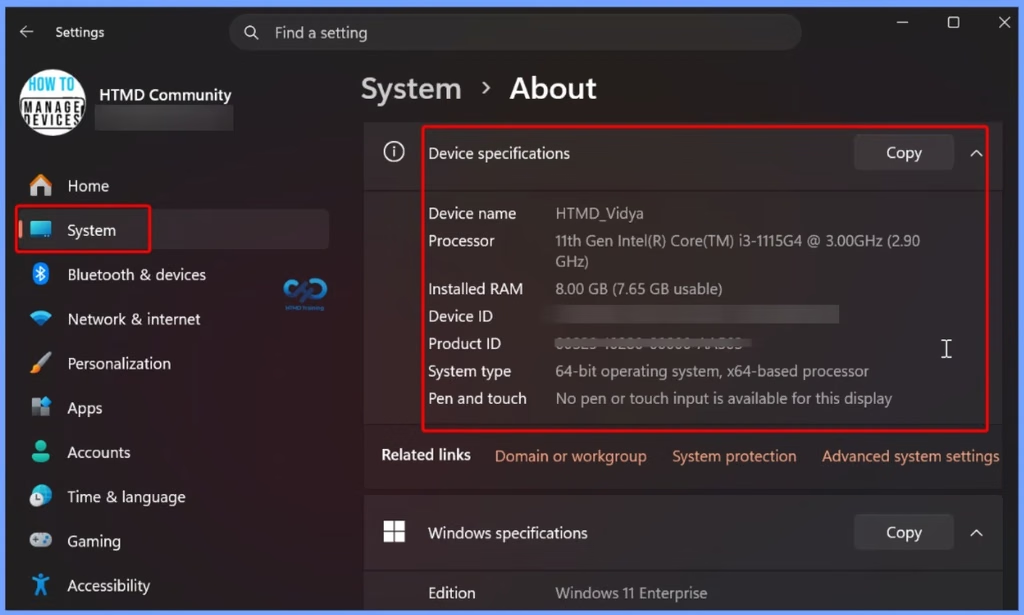
The November 2026 Windows Update expands the Device Info card on the Settings Home page to more regions. Users signed in with a Microsoft account can quickly view their PC specifications and usage details. For more detailed information, go to Settings > System > About.
- Windows 11 Version Numbers Build Numbers Major Minor Build Rev
- Updated Windows 11 End-of-Life Dates
- Top 83 Windows 11 Desktop Admin Interview Questions
2 Zero Day Vulnerabilities and 973 Flaws
The November 2026 Patch Tuesday update addresses one zero-day vulnerability in Windows, identified as CVE-2026-85880, a Windows Advanced Local Procedure Call (ALPC) Elevation of Privilege vulnerability. This security issue could allow an attacker to gain higher privileges on an affected Windows system. Microsoft has rated the vulnerability as Important. The update helps protect Windows devices against this security risk.

| Release Date | CVE Number | CVE Title | Publicly disclosed | Exploited |
|---|---|---|---|---|
| Nov 10, 2026 | CVE-2026-124194 | Microsoft Outlook Spoofing Vulnerability | No | Yes |

- How to Check Your Windows 11 Edition
- Easy Methods to Know the Version of Installed Apps in Windows 11
Windows 11 KB5132061 KB5131087 November 2026 Patch
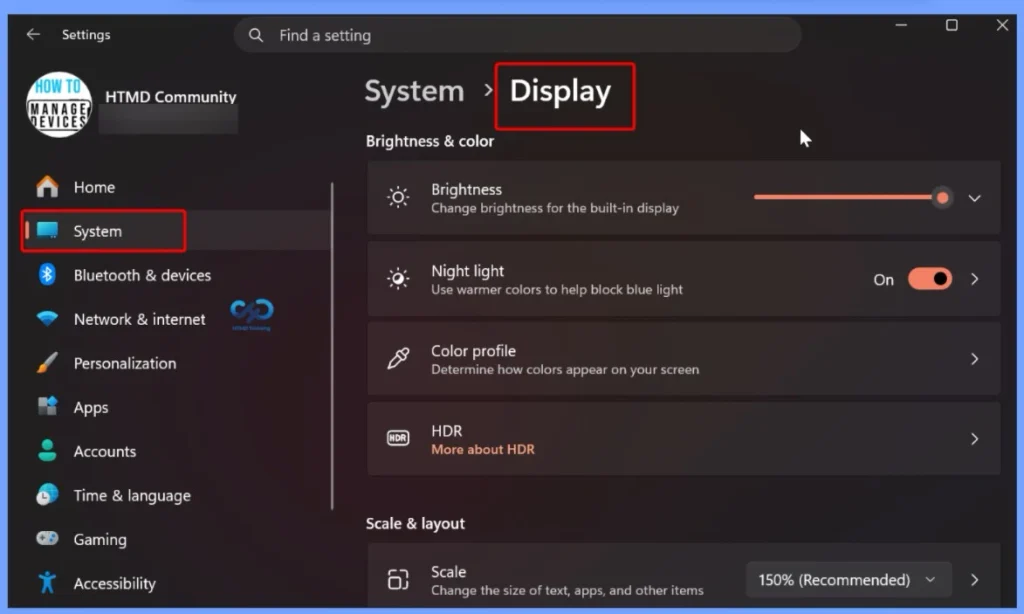
The November 2026 Windows Update introduces per-monitor zoom support in Magnifier. This feature lets users set different zoom levels for each connected display while keeping the magnified view on that screen. To use this feature, set your displays to Extend under Settings > System > Display. You can adjust the zoom using Windows + Plus (+) or Windows + Minus (-), or use the Magnifier toolbar. This feature is enabled by default, and users can manage it under Settings > Accessibility > Magnifier.
| Windows 11 26H2 | Windows 11 26H1 | Windows 11 25H2 and 24H2 | Windows 11 23H2 |
|---|---|---|---|
| KB5132061 | KB5132059 | KB5132061 | KB5131087 |
Updated Version of Windows 11 after Installing KB5132061 KB5131087 November 2025 Patch
Microsoft released the November 10, 2026, security updates for multiple Windows 11 versions. Windows 11 versions 26H2, 25H2, and 24H2 received update KB5132061, with OS Builds 26300.9974, 26200.9974, and 26100.9974. Version 23H2 received KB5131087 (OS Build 22631.7711), while version 26H1 received KB5132059 (OS Build 28000.3501).
- Windows 11 version 26h2, 25h2 and 24h2 – November 10, 2026—KB5132061 (OS Builds 26300.9974, 26200.9974 and 26100.9974)
- More Details on Windows 11 version Numbers: Windows 11 Version Numbers Build Numbers Major Minor Build Rev.
- Windows 11 Version 23h2 – November 10, 2026—KB5131087 (OS Build 22631.7711)
- Windows 11 Version 26h1 – November 10, 2026 — KB5132059 (OS Build 28000.3501)
Windows 11 Features and New Improvements – KB5132061 KB5131087
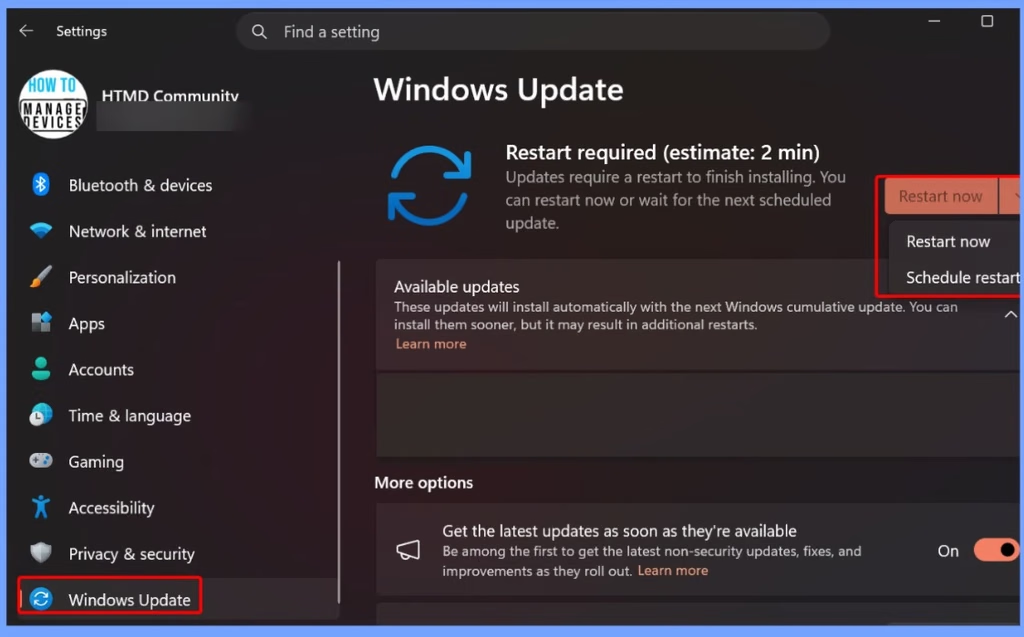
The November Windows update introduces Cloud Rebuild, a new Windows 11 recovery option that allows users to reinstall Windows using an image and device drivers downloaded directly from Windows Update, even when Windows cannot start. It eliminates the need for USB installation media or custom images. All the other new features are shown in the table below.
| New Improvements | Details |
|---|---|
| Updated Context Menu in File Explorer | Opens more quickly, reduces clutter, and provides a simpler right-click experience. |
| Customize Menu | Select Customize menu at the bottom of the context menu to open its Settings page. |
| Windows Commands | Turn built-in commands such as Send to and Create shortcut on or off. |
| Add Commands | Add commands such as Print to the context menu. |
| App Extensions | Choose which app extensions appear in the main menu or submenu, or hide the app extensions submenu. |
| Common Actions | Display Cut, Copy, Paste, Rename, Delete, and Share directly in the menu instead of as a row of icons. |
| Improved Display Settings | Responds better to text scaling and display settings. |
| AutoPlay Notifications | AutoPlay notifications are now available in Notification Center for easier access. |
| File Explorer Search Results | Key file information, including name, location, and date, now appears in a consistent layout, making search results easier to scan. |
| Address Bar Navigation | Supports the ~ character to quickly navigate to the user profile folder and its subfolders. Example: ~\AppData. |
| Properties Option | Move Properties to the bottom of the context menu. |
| More Options | Hold down Shift and right-click on your desktop to see more options. |
| Default Settings | No action is required if you prefer the default configuration. |
| Modernized AutoPlay Experience | Updates the AutoPlay dialog that appears when connecting devices such as phones, cameras, or removable drives to a PC. |
| Dark Mode Support | The updated AutoPlay dialog supports dark mode. |
| Folder Options Dark Mode | Adds dark mode support to the Folder Options dialog in File Explorer. |
| Xbox Mode – Gaming Task View | Introduces a refreshed Gaming Task View experience in Xbox mode with a new navigation bar. |
| Quick System Actions | Provides quick access to Exit to Desktop and Power Options, making system actions easier while gaming. |
| Privacy & Security Page | Improves the Privacy & Security page by grouping related Camera, Microphone, and Location privacy controls. |
| Privacy Usage Information | Displays usage information from linked pages directly on the main Privacy & Security page. |
| Device Info Card | Expands the Device Info card on the Settings Home page to additional markets. Available to users signed in with a Microsoft account. |
| Device Specifications | Provides a quick view of key PC specifications and usage. More detailed information is available under Settings > System > About. |
| Temporary Files Section | Introduces minor visual refinements to the Temporary Files section under Settings > System > Storage. |
| Taskbar Animations | Improves animations when hovering over app icons in the taskbar to preview open windows. |
| Multiple Monitor Settings | Improves the persistence of taskbar settings across monitor connections and disconnections. |
| Magnifier – Contrast Theme | Introduces a contrast theme toggle to reduce screen glare while preserving original colours in photos, videos, and charts. |
| Dark Contrast Theme | Applies a dark contrast theme by default. Available from the Magnifier toolbar. |
| Contrast Theme Settings | Choose a different contrast theme under Settings > Accessibility > Magnifier. Colour inversion remains available as a separate option. |
| Per-Monitor Zoom | Allows each display to use its own zoom level while keeping the magnified view within that display. |
| Enable Per-Monitor Zoom | Set displays to Extend under Settings > System > Display. Per-monitor zoom is enabled by default. |
| Adjust Zoom Level | Move the pointer to the required display and use Windows + Plus (+) or Windows + Minus (-). You can also use Ctrl + Alt + Mouse Wheel or the Magnifier toolbar controls. |
| Configure Per-Monitor Zoom | Turn the feature on or off and adjust individual zoom levels from the Magnifier toolbar or under Settings > Accessibility > Magnifier. |
| Viewport Locking | Supports locking the magnified view on one display while moving the pointer to another display. The locked display remains interactive. |
| Lock or Unlock Display | Point to a display and press Ctrl + Windows + K to lock or unlock its magnified view. |
| Release All Locked Displays | Press Windows + Esc to release all locked displays. |
| Change Lock Shortcut | Change the lock shortcut to Ctrl + Alt + P under Settings > Accessibility > Magnifier. |
| Live Captions | Introduces a new Include screen reader audio setting, which is turned off by default. When disabled, Live Captions will not transcribe audio from screen readers such as Narrator, JAWS, and NVDA. |
| Live Captions Settings | Enable this option under Settings > Accessibility > Captions to include screen reader audio in captions. |
| Narrator – Math Navigation | Supports reading and navigating mathematical equations in supported Microsoft 365 apps, including Word and PowerPoint, Microsoft Edge, and Google Chrome. |
| Math Navigation Shortcut | Press Narrator key + Alt + N to enable math navigation. Use the arrow keys to explore equation components and press Esc to exit. |
| Math Reading Languages | Supports English (US), English (UK), Traditional Chinese, Finnish, German, and Spanish. Configure preferences under Settings > Accessibility > Narrator > Math reading. |
| Family Safety | Improves notifications and messaging when applications are blocked due to age-restricted parental controls. |
| Windows Recovery Environment (WinRE) | Automatically reuses eligible Wi-Fi profiles already saved in Windows, including supported certificate-based networks, allowing devices to connect to the internet during recovery. |
| WinRE Network Configuration | This capability is enabled by default. IT administrators can disable it. |
| Cloud Rebuild | Introduces a new recovery option that reinstalls Windows 11 using Windows images and device drivers downloaded from Windows Update, even when Windows cannot start. No USB media or custom image is required. |
| Cloud Rebuild – Drive Sanitization | Allows users to remove files or securely erase data using the storage hardware’s erase capability before reinstalling Windows. Sanitization is irreversible. |
| Cloud Rebuild – Remote Management | IT administrators can remotely configure and start Cloud rebuild through the Recovery CSP using the currently installed build or a specified target build. |
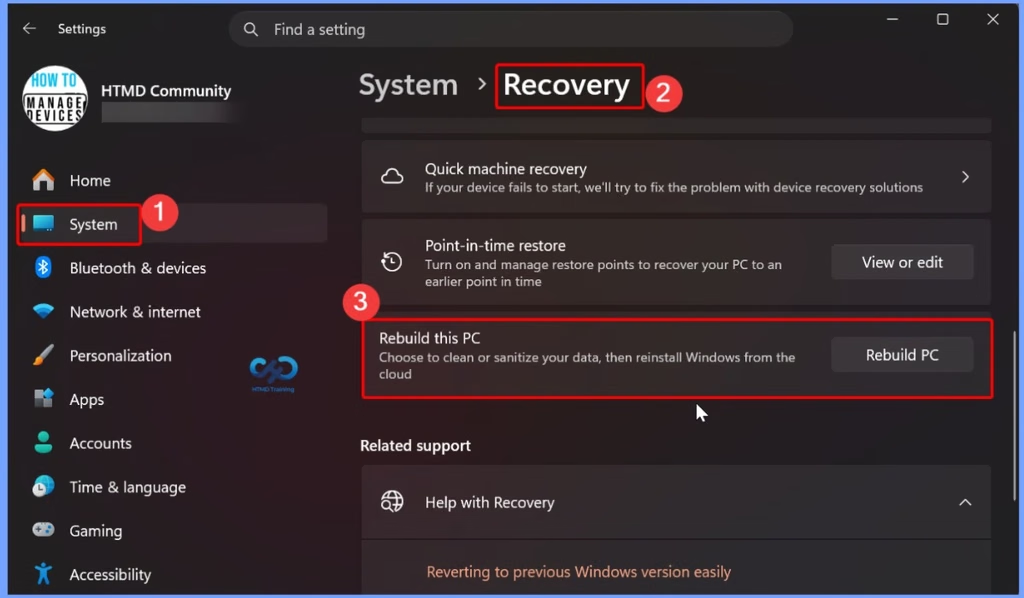
| Cloud Rebuild – From Windows | Navigate to Settings > System > Recovery and select Rebuild PC. The device restarts into WinRE and starts Cloud rebuild. |
| Cloud Rebuild – From WinRE | If Windows cannot start, access Troubleshoot > Recovery and uninstall > Cloud rebuild in WinRE after repeated boot failures. |
| Cloud Rebuild – Network Requirements | Connect to a wired Ethernet or Wi-Fi network before starting the rebuild. |
| Cloud Rebuild – Confirmation | Review the target Windows build, edition, and language. Confirm the data loss warning and choose whether to remove files or remove and sanitize files before reinstalling Windows. |
| Windows Settings Backup and Restore | Introduces a Restore Summary after restoring a backup profile to a new device. |
| Restore Summary | Provides an overview of successfully restored Windows settings and the list of Microsoft Store apps, helping users validate restore results during device transitions. |
| Adaptive Hibernate Policy | Improves Modern Standby resume performance while helping preserve battery life when the battery charge is low. |
| Adaptive Hibernate Behaviour | Reduces hibernation when battery levels are above 80% and triggers hibernation sooner when battery levels fall below 10%. |
| Security – Memory Integrity (HVCI) | Expands memory integrity protection across eligible devices. Supported PCs may have HVCI enabled during updates to improve security and prepare for advanced Windows security features, while respecting existing user and IT administrator choices. |
| Windows IPv6 Networking Support | Introduces IPv6 CLAT support for Wi-Fi and Ethernet interfaces, enabling client-side 464XLAT translation so IPv4-only applications can access IPv4 services on IPv6-only networks. |
| IPv6 – Prefix Discovery | Discovers PREF64 through Router Advertisements (RA) by default, with DNS ipv4only.arpa available as a fallback. |
| IPv6 – Requirements | Requires SLAAC-based IPv6 addressing. DHCPv6 Prefix Delegation and Windows Subsystem for Linux (WSL) are not currently supported. |
| IPv6 – Configuration | Enable CLAT using netsh interface clat set global permit=enabled pref64fromdns=enabled pref64fromra=enabled or Group Policy under Network > TCPIP Settings > IPv6 Transition Technologies. |
| Data Protection API (DPAPI) | Adds a warning before prompt-based protect and unprotect operations, notifying users that this experience will be retired in April 2027. |
| DPAPI – Required Action | Stop creating new prompt-protected data, move to supported non-interactive protection flows, and decrypt or migrate existing prompt-protected data before retirement. Non-prompt-based DPAPI operations are not affected. |
| Windows Spotlight | Introduces underlying platform improvements to enhance Windows Spotlight reliability on the lock screen. |
| Unicode 17.0 Support | Adds Windows text shaping support for Unicode 17.0, improving the display and shaping of newly encoded characters and scripts. |
| Unicode – New Characters | Supports 4,803 newly added characters, including four new scripts: Beria Erfe, Sidetic, Tai Yo, and Tolong Siki. |
Intune Windows 11 KB5132061 KB5131087 Deployment
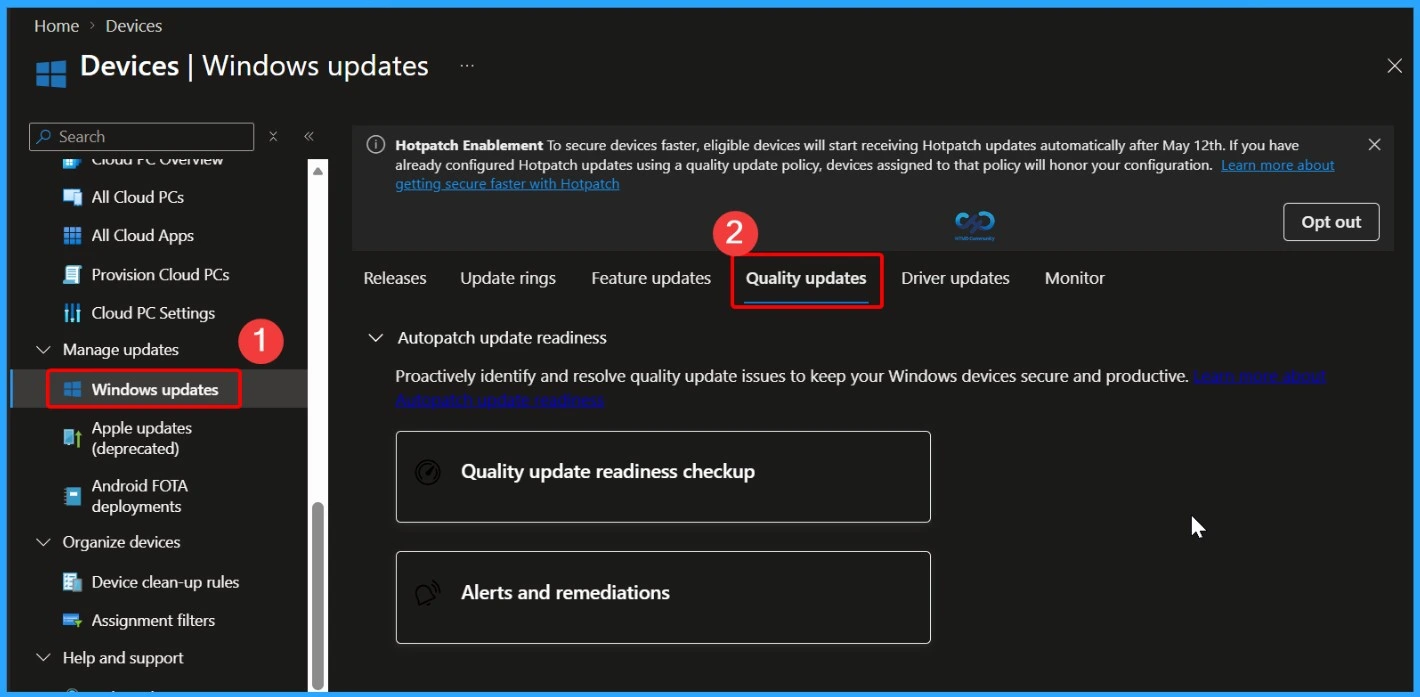
You can deploy the November 2026 Windows cumulative update using Microsoft Intune without creating a new update policy every month. Intune uses existing Windows Quality Update policies to manage monthly updates. If some devices have not received the November 2026 update, you can speed up the deployment by creating or updating a Windows Quality Update profile in the Intune admin center.
- To manage the update deployment, go to Devices > Manage Updates > Windows Updates > Quality Updates in the Intune admin center.
Read More – Software Update Patching Options with Intune Setup Guide
More Details on Zero Day Out Of Band Patch Deployment Using Intune MEM Expedite Best Option and Intune Reporting Issue: Expedite Windows Security Patch Deployment.
SCCM Windows 11 KB5132061 KB5131087 Deployment
You can deploy the November 2026 Windows 11 cumulative update using SCCM, Windows Server Update Services (WSUS), or Microsoft Intune. In SCCM, start a WSUS synchronization from the Software Library to retrieve the latest updates.
After the sync completes, search for the November 2026 cumulative update using its KB number or by searching for “11-2026 Cumulative Update for Windows 11“. Once identified, deploy the update through your standard monthly patching process to ensure all managed devices receive the latest security and quality improvements.
Direct Download Links for Windows 11 KB5132061 KB5131087
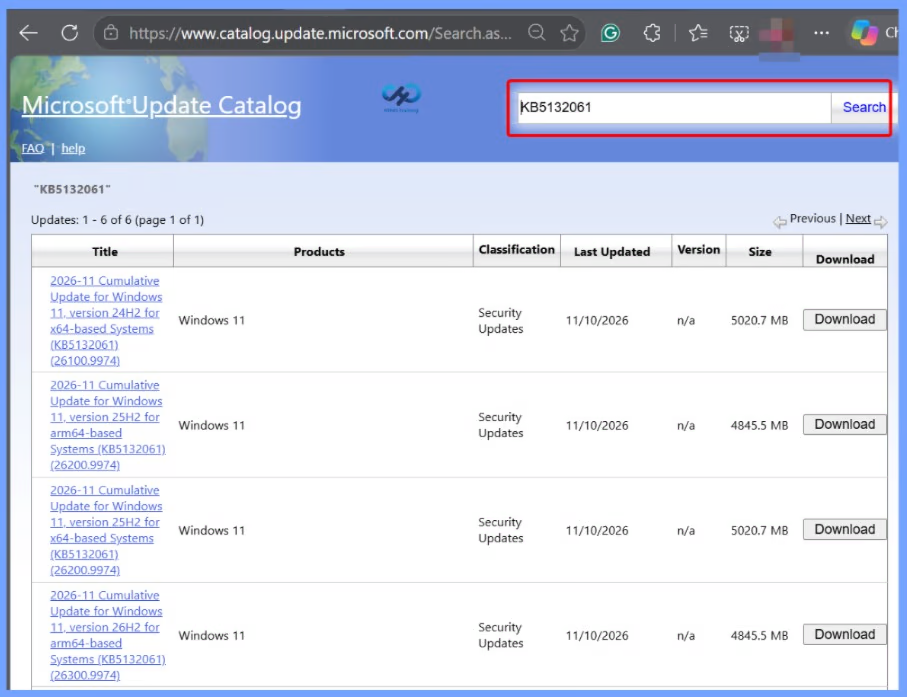
You can manually download the November 2026 Windows 11 cumulative update from the Microsoft Update Catalog. Search for the November 2026 update or its KB number and download the correct package for your Windows version. This is useful when you want to install the update manually on individual devices or on devices that are not managed by Intune, SCCM, or WSUS.
| Cumulative Update for Windows 11 | Products | Size | Direct Download |
|---|---|---|---|
| 2026-01 Cumulative Update for Windows 11, version 26H2 for x64-based Systems(KB5132061) | Windows 11 26H2 | 5062.9 MB | Download |
| 2026-01 Cumulative Update for Windows 11, version 25H2 for x64-based Systems(KB5132061) | Windows 11 25H2 | 5062.9 MB | Download |
| 2026-01 Cumulative Update for Windows 11 Version 24H2 for x64-based Systems (KB5132061) | Windows 11 24H2 | 5062.9 MBMB | Download |
| 2026-01 Cumulative Update for Windows 11 Version 23H2 for x64-based Systems (KB5131087) | Windows 11 23H2 | 1166.3 MB | Download |
Resources
November 10, 2026—KB5132061 (OS Builds 26300.9974, 26200.9974 and 26100.9974) | Microsoft Support
Need Further Assistance or Have Technical Questions?
Join the LinkedIn Page and Telegram group to get the latest step-by-step guides and news updates. Join our Meetup Page to participate in User group meetings. Also, join the WhatsApp Community and the Whatsapp channel to get the latest news on Microsoft Technologies. We are there on Reddit as well.
Author
Anoop C Nair is Workplace Technology solution architect with 25+ years of experience in global enterprise organizations such as JP Morgan, Capgemini, etc. He is Microsoft Certified Trainer. Microsoft MVP from 2015 onwards for consecutive 11 years! He also conducts Intune and modern workplace tech training for enterprise organizations. He is Blogger, Speaker, and Founder of HTMD Community and HTMD Conference. His focus is on Device Management technologies such as Intune, Windows, Cloud PC. He writes about technologies like Intune, SCCM, Windows, Cloud PC, Windows, Entra, Microsoft Security.