
Key Takeaways:
- Block Microsoft Account and Backup Prompts on Windows 11
- Enable Account Notification Policy with Intune
- Helps to manage cloud storage quotas
- Allows to Manage their Microsoft 365 or XBOX subscription
Let’s discuss Block Microsoft Account and Backup Prompts on Windows 11 with Intune Account Notification Policy. Microsoft Intune introduce a new policy to stop annoying negs on Windows Start Menu. With Account Notification Policy you can easily prevent Windows from displaying notifications to Microsoft account (MSA) and local users in Start (user tile).
Table of Contents
Table of Contents
Block Microsoft Account and Backup Prompts on Windows 11 with Intune Account Notification Policy
With this policy, enforce a strict boundary between a corporate IT environment and Microsoft’s consumer ecosystem within the Windows Start menu. As you know Start menu user tile as a channel to nudge users toward personal Microsoft services. This policy gives IT administrators to silence those consumer-focused prompts on managed machines.
- Enable MPR Notifications for System to Easily Sync Passwords using Intune
- How to Control App Access Notifications Policy for Windows using Intune
- How to Configure Display Options for Windows Update Notifications in Intune
Impact of Account Notification Policy
In Windows 11, clicking the user profile icon in the Start menu opens a user tile flyout. Microsoft frequently uses this area to surface prompts that encourage users. Look at the below table.
| Policy Usage |
|---|
| Re-authenticate their Microsoft Account due to expired tokens. |
| Complete Windows backup setups or configure OneDrive cloud storage. |
| Address cloud storage quota warnings (e.g., “Your OneDrive is full”). |
| Manage consumer subscriptions like Microsoft 365 Family/Personal or Xbox Game Pass. |
Configure Account Notification Policy
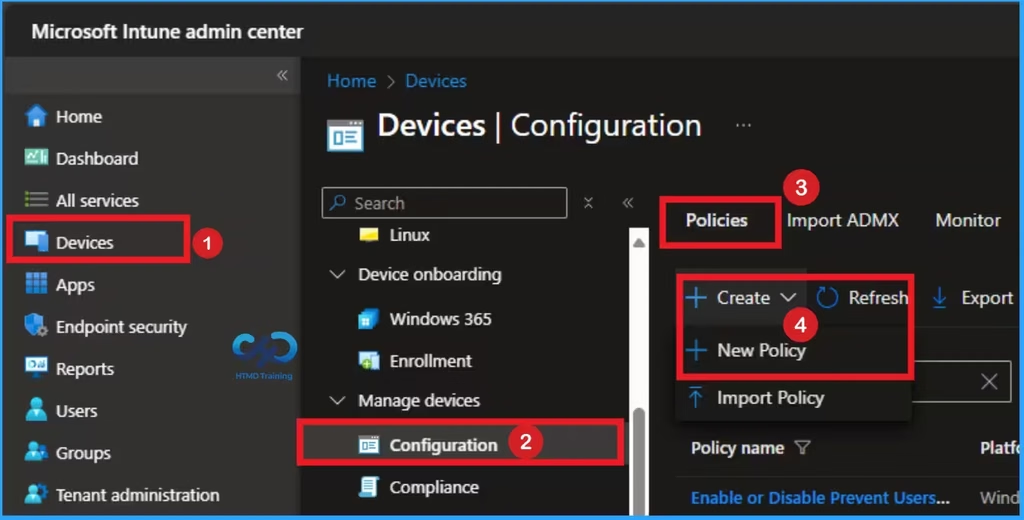
Using Microsoft Intune you can quickly configure Account Notification Policy. Sign in Intune Admin Center portal. Go to Devices > Windows > Configuration > Create > New Policy.
Choosing Profile and Platform
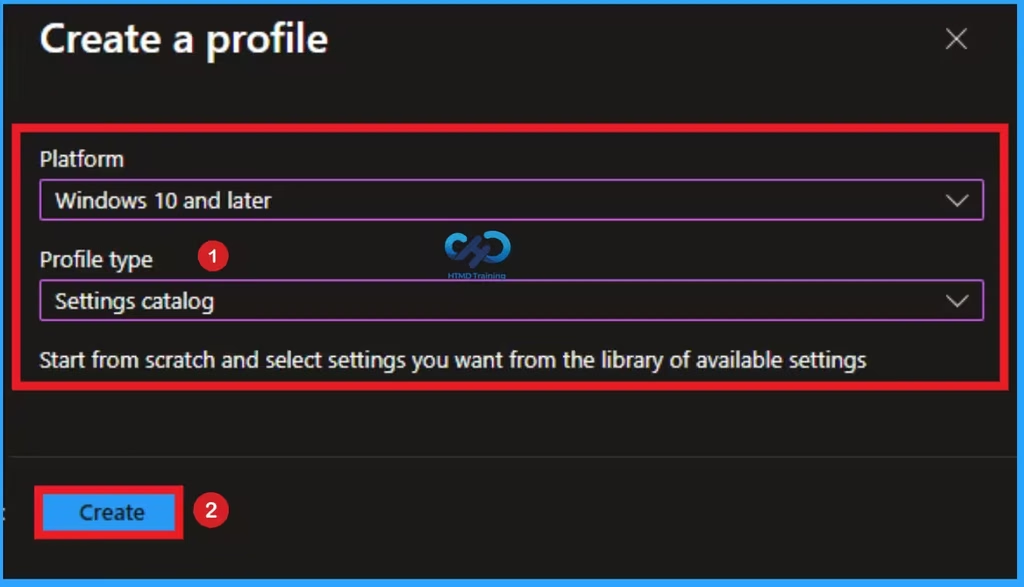
After that, you can Create a Profile for the policy which you want to configure. To create a profile you have to select platform and profile type. Here I selected Windows 10 and later as the Platform and Settings catalog as the profile type. Then click on the Create button.
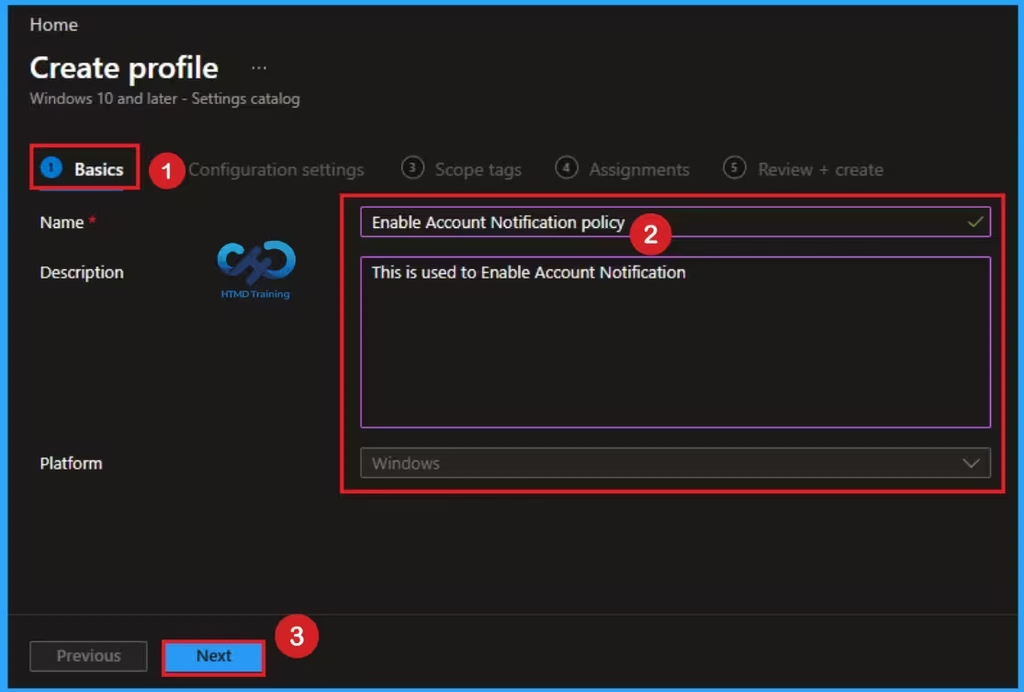
Basic Tab for Naming Policy
Basic Tab is used to give an identity for the policy by adding name and description. Here Name is Mandatory and Description is optional. After adding these details click on the Next button.
Configure Account Notifications
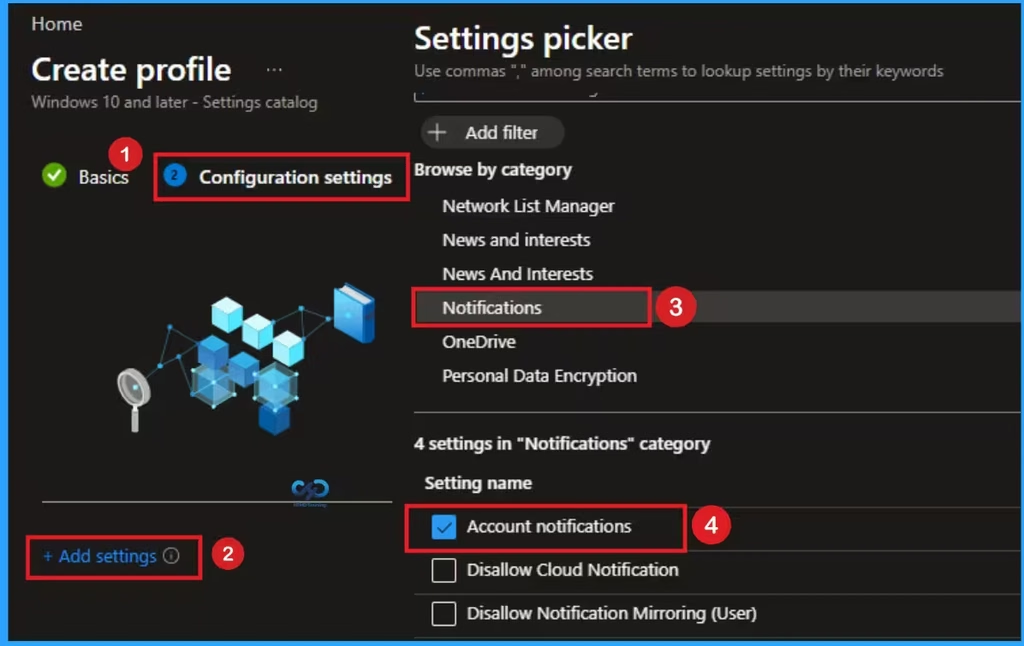
The Configuration settings page is helps to select specific settings to create the policy. The Settings Catalog provides a huge number of settings. To select a settings click on the +Add settings hyperlink. Then you will get Settings Picker. Choose Notification > Disable Account Notifications. Then I close the Settings Picker.
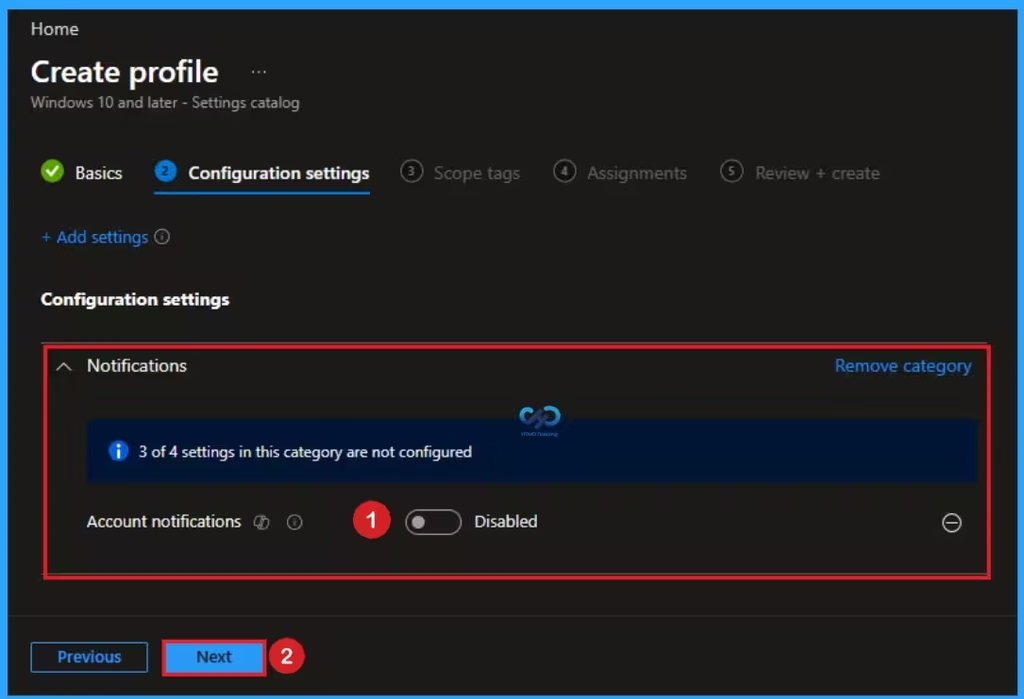
Disable Account Notifications
If you disable this policy setting, Windows will send account related notifications for local and MSA users to the user tile in Start. Disable is the default value of this policy. If you like to go with this value, click on the Next button.
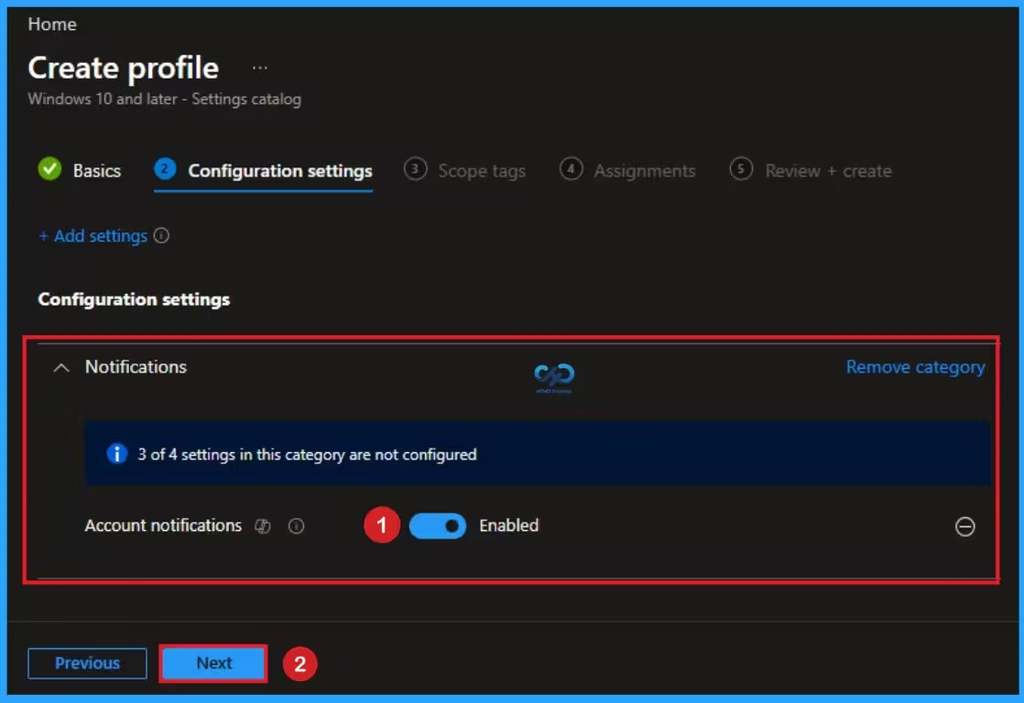
Enable Account Notifications
Users frequently get confused by prompts asking them to “reauthenticate” or “fix account issues,” mistaking them for critical company security alerts. Suppressing these notifications prevents unnecessary support tickets being filed with corporate IT. If you enable this policy setting, Windows won’t send account related notifications for local and MSA users to the user tile in Start.
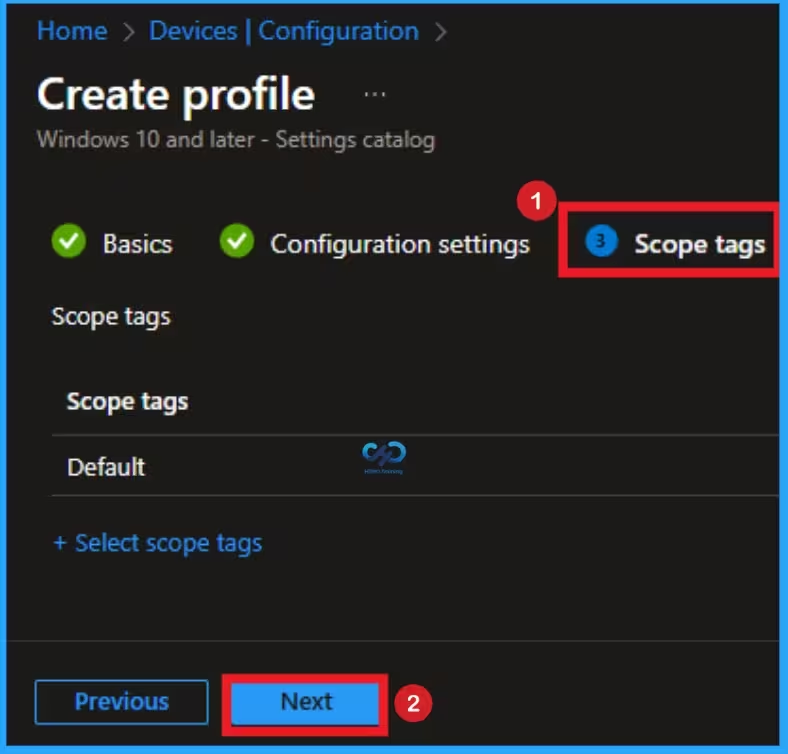
Scope Tags
By using scope tags you can restrict the visiblity of Account Notification. It is helps to organize resources as well. Here I would like to skip this section, because it is not mandatory. Click on the Next button.
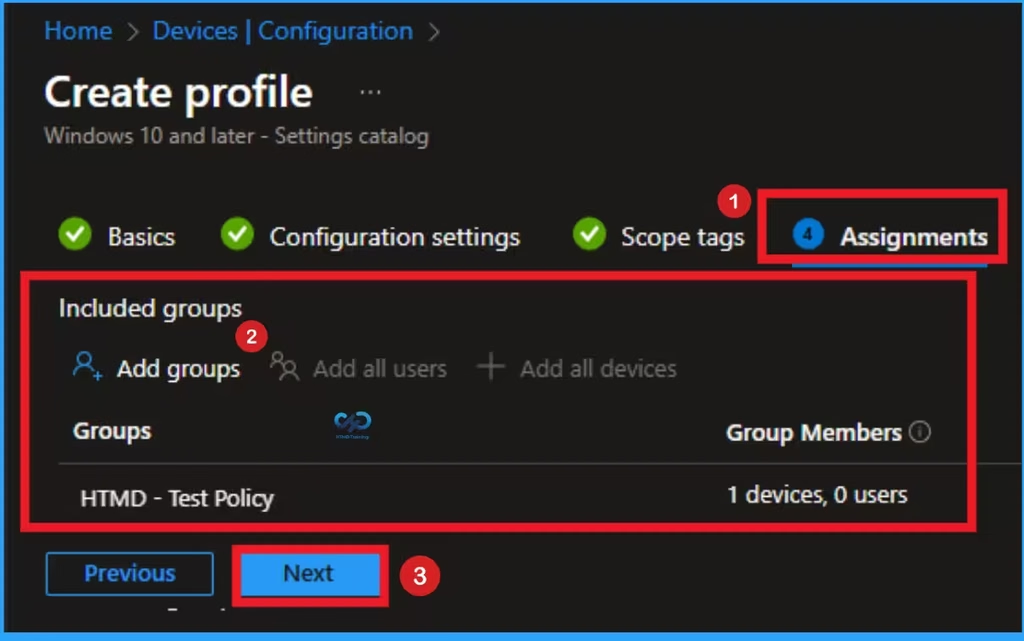
Assign this Policy to Specific Groups
To assign the policy to specific groups you can use Assignment Tab. Here I click, +Add groups option under Included groups. I choose a group from the list of group and Click on the Select button. Again I click on the Select button to continue.
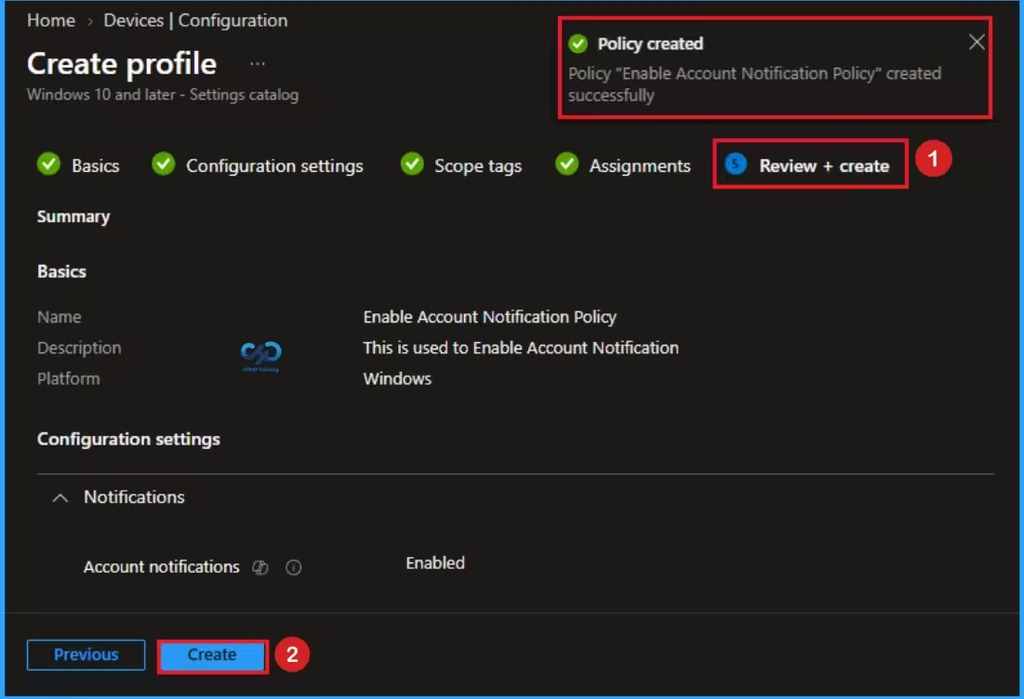
Review Step of Policy Creation
To complete the policy creation you can review all the policy details on the Review + create tab. It helps to avoid mistakes and successfully configure the policy. After varifying all the details click on the Create Button. After creating the policy you will get success message.
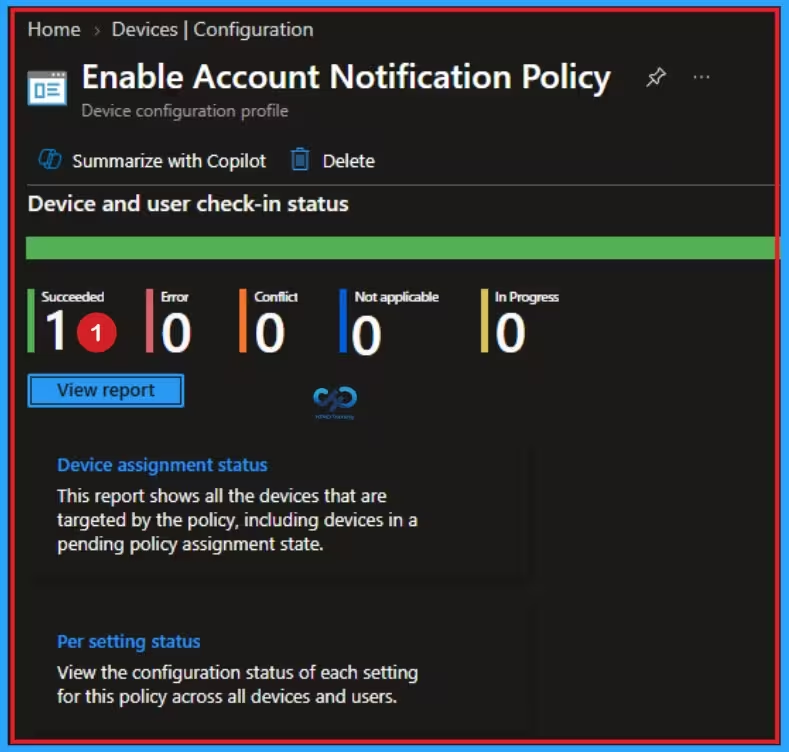
Monitoring Status
The Monitoring Status page shows whether the policy has succeeded or not. To quickly configure the policy and take advantage of the policy sync, the device on the Company Portal, Open the Intune Portal. Go to Devices > Configuration > Search for the Policy. Here, the policy shows as successful.
Client Side Verification with Event Viewer
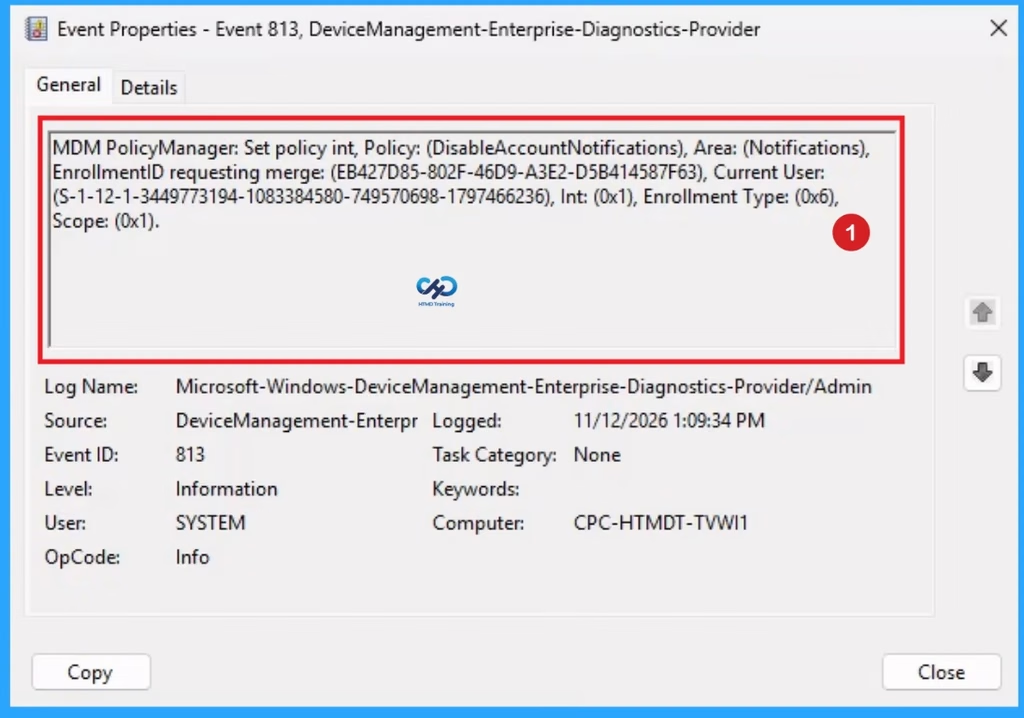
If you get success message, that doesn’t means you will get the policy advanatges. To varify the policy successfully configured to client device check the Event Viwer.
- Open Event Viewer: Go to Start > Event Viewer.
- Navigate to Logs: In the left pane, go to Application and Services Logs > Microsoft > Windows > DeviceManagement-Enterprise-Diagnostics-Provider > Admin.
- Filter for Event ID 814: This will help you quickly find the relevant logs.
| Event ID Details |
|---|
| MDM PolicyManager: Set policy int, Policy: (DisableAccountNotifications), Area: (Notifications), EnrollmentID requesting merge: (EB427D85-802F-46D9-A3E2-D5B414587F63), Current User: (S-1-12-1-3449773194-1083384580-749570698-1797466236), Int: (0x1), Enrollment Type: (0x6), Scope: (0x1). |
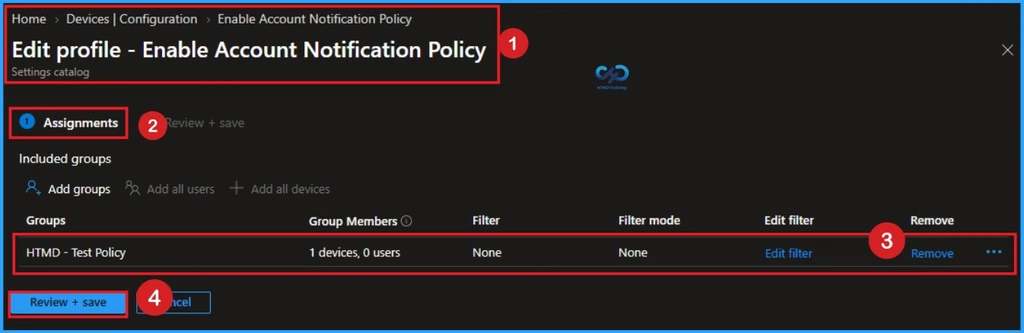
Removing the Assigned Group from this Policy
Removing policy is necessary for some situation. If you want to remove the Assigned group from the policy, it is possible from Intune Portal. To do this open the Policy on Intune Portal and Edit the Assignments tab and Remove the Policy.
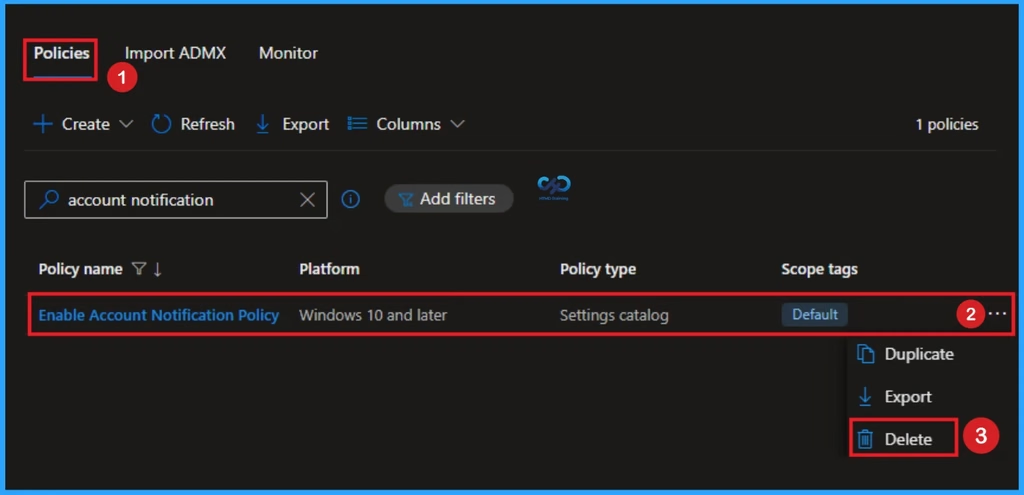
How to Delete Account Notification
You can easily delete the Policy from Intune Portal. From the Configuration section you can delete the policy. It will completely remove from the client devices.
Need Further Assistance or Have Technical Questions?
Join the LinkedIn Page and Telegram group to get the latest step-by-step guides and news updates. Join our Meetup Page to participate in User group meetings. Also, join the WhatsApp Community and the Whatsapp channel to get the latest news on Microsoft Technologies. We are there on Reddit as well.
Author
Anoop C Nair is Workplace Technology solution architect with 25+ years of experience in global enterprise organizations such as JP Morgan, Capgemini, etc. He is Microsoft Certified Trainer. Microsoft MVP from 2015 onwards for consecutive 11 years! He also conducts Intune and modern workplace tech training for enterprise organizations. He is Blogger, Speaker, and Founder of HTMD Community and HTMD Conference. His focus is on Device Management technologies such as Intune, Windows, Cloud PC. He writes about technologies like Intune, SCCM, Windows, Cloud PC, Windows, Entra, Microsoft Security.