

Key Takeaways
- Microsoft introduces Agent Containment Policies in Intune to govern AI agents using MXC containment technology.
- Agent Containment Policies are currently in private preview for MXC Process Isolation.
- IT administrators can apply policies to all known MXC-enabled agents or target specific known agents.
- Administrators can configure folder access permissions, including Deny, Read-only, and Read-write.
In this post we are discussing MXC Containment Policies to Control AI Agent Permissions and Access using Microsoft Intune. Microsoft is introducing new agent containment capabilities in Microsoft Intune to help organizations manage and govern AI agents across enterprise environments. As AI agents become more integrated into workplace operations, organizations need better control over the resources these agents can access and the actions they can perform. AI agents can interact with corporate resources, access files, retrieve emails, and perform tasks on behalf of users.
Table of Contents
Table of Contents
MXC Containment Policies to Control AI Agent Permissions and Access using Microsoft Intune
For example, even when a Conditional Access policy prevents a user from accessing corporate resources because their device is not compliant, the user might ask an AI agent to retrieve information from their inbox, potentially bypassing the restrictions. To address these challenges, Microsoft is introducing additional controls for managing different types of AI agents. These include MXC agents, which integrate with MXC containment technology, and unwanted agents that organizations need to restrict using compliance and other security controls. Microsoft Intune is extending its endpoint management capabilities with Agent Containment Policies, currently available in private preview for MXC Process Isolation.
- Security Copilot Included in Microsoft 365 E5 and E7 with Integrated Security Agents
- Deploy Azure Virtual Desktop Agents for Remote Help using Intune
- Microsoft 365 E7 has Arrived with E5 Security Copilot Agent 365 Entra ID Suite Defender and Intune
Create an Agent Containment Policy in Intune
To create an agent containment policy, sign in to the Microsoft Intune admin center and navigate to Endpoint security. Select Agent containment (Preview) and create a new policy. Under the Basics section, enter Development default as the policy name and provide a description if required. Once the basic details are completed, proceed to the Configuration settings page.
The Configuration settings page allows administrators to define how Windows handles requests from compatible AI agents to use Microsoft Execution Container (MXC) containers. These settings determine whether an agent can use an MXC container and what resources it can access within the defined containment boundaries.

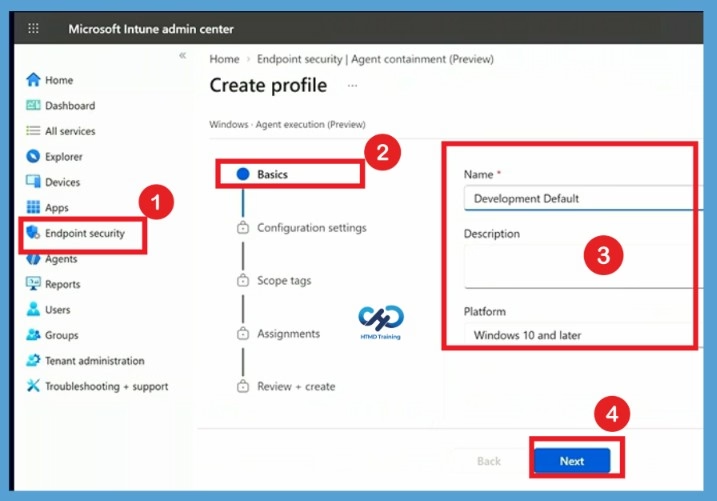
Configuration Settings
The Configuration settings page allows administrators to define how Windows handles requests from compatible AI agents to use Microsoft Execution Container (MXC) containers. These settings determine whether an agent can use an MXC container and what resources it can access within the defined containment boundaries.
- Select a Specific MXC-Capable Agent
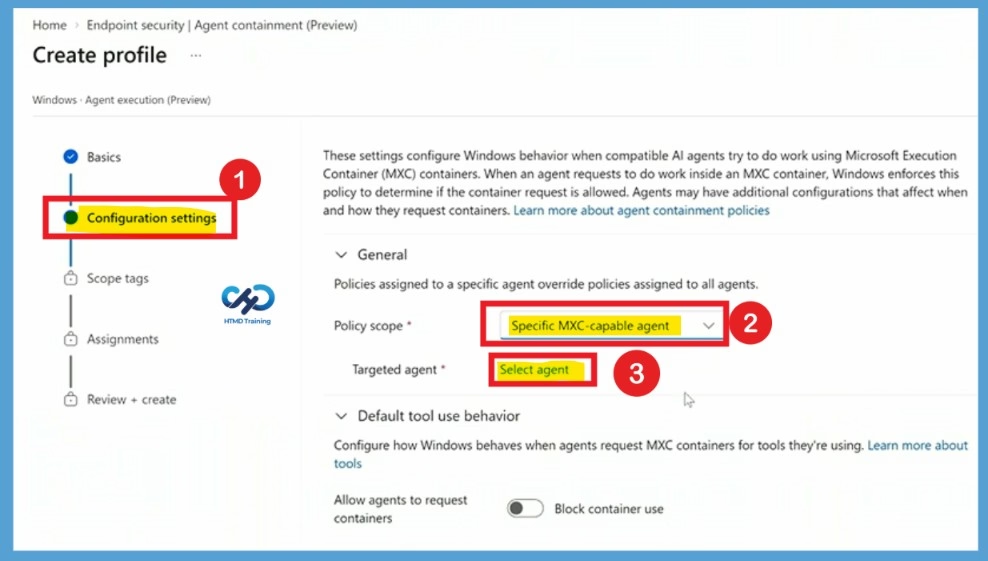
Next, select agent under Targeted agent. A selection window appears with supported agent options, including GitHub Copilot CLI, Codex CLI, and Custom agent. For this demonstration, select GitHub Copilot CLI and click Select. The selected agent will now appear under Targeted agent in the policy configuration.
- Under Targeted agent, click Select agent.
- In the Select agent window, choose GitHub Copilot CLI from the available options.
- Other available options include Codex CLI and Custom agent.
- Click Select to confirm your selection.
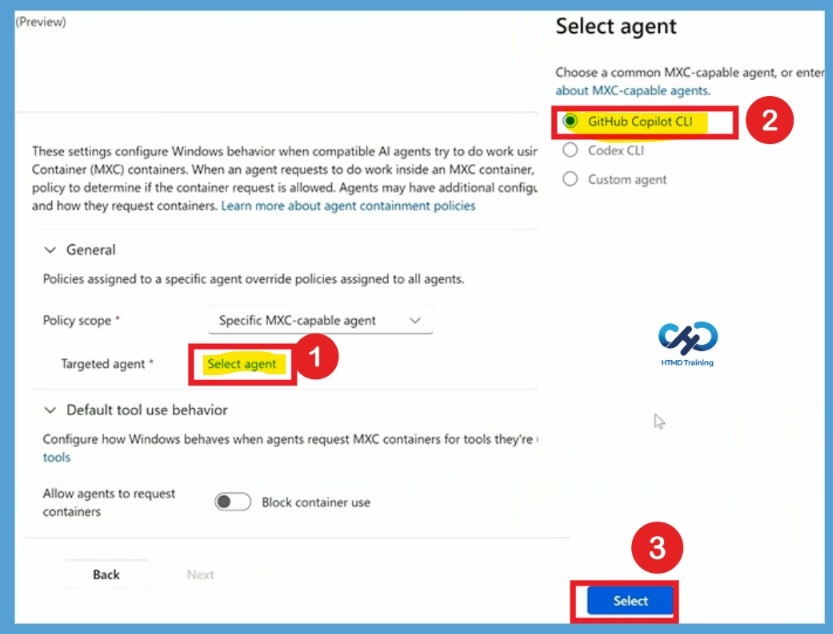
Configure Default Tool Use Behavior and Create Containment Boundaries
Under Default tool use behavior, configure how Windows should respond when the selected agent requests access to MXC containers. Enable Allow agents to request containers and turn on Enforce containment boundaries. These settings allow the agent to request container usage while ensuring that its access remains within the configured boundaries.
Next, select Choose settings under Containment boundaries to create or select a reusable boundary configuration. For this demonstration, a new containment boundary is created to provide read/write access to the agent workspace, read-only access to the system drive, and deny access to the corporate OneDrive directory. This approach allows the agent to perform development tasks while restricting access to confidential organizational information.
- Under Allowed filesystem directories, click Add and configure the following directory paths and access levels:
- Directory: %SYSTEMDRIVE%\AgentWorkspace
Access level: Select Read/Write from the dropdown. - Directory: %SYSTEMDRIVE%
Access level: Select Read from the dropdown. - Directory: %USERPROFILE%\OneDrive
Access level: Select Deny from the dropdown. - These settings provide the agent with read/write access to its workspace, read-only access to the system drive, and no access to the corporate OneDrive directory.
- This allows the agent to perform development activities within its approved workspace while restricting access to confidential organizational information.
- Under Allow network access, turn on the toggle to select Enabled. Next, under Block permissive mode, turn on the toggle and select Block.
- After configuring the required filesystem directories and network settings, click Save to create the containment boundary.
| Directory | |
|---|---|
| %SYSTEMDRIVE%\AgentWorkspace | Select Read/Write |
| %SYSTEMDRIVE% | Select Read |
| %USERPROFILE%\OneDrive | Select Deny |
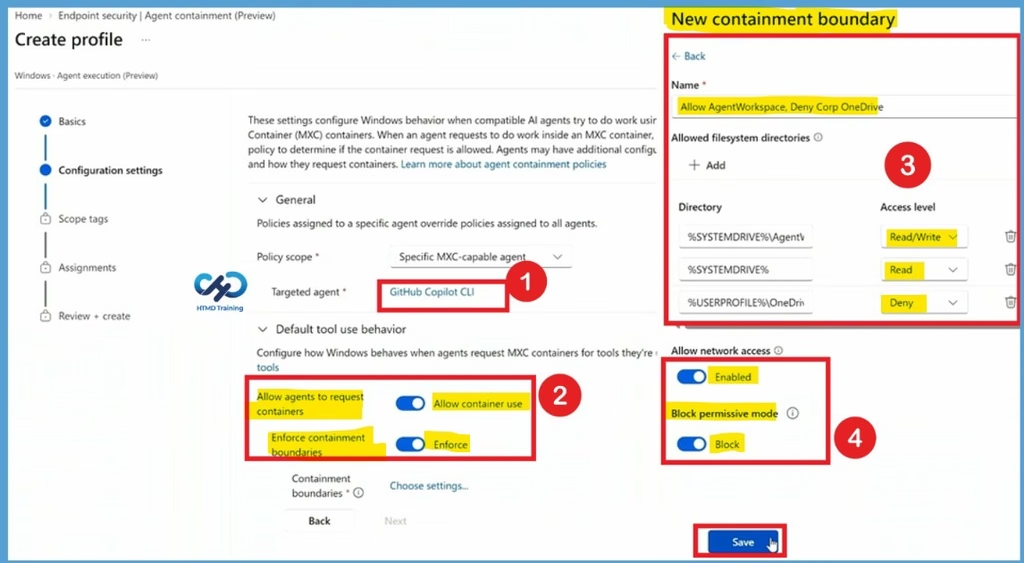
Apply the Reusable Containment Boundary to the Policy
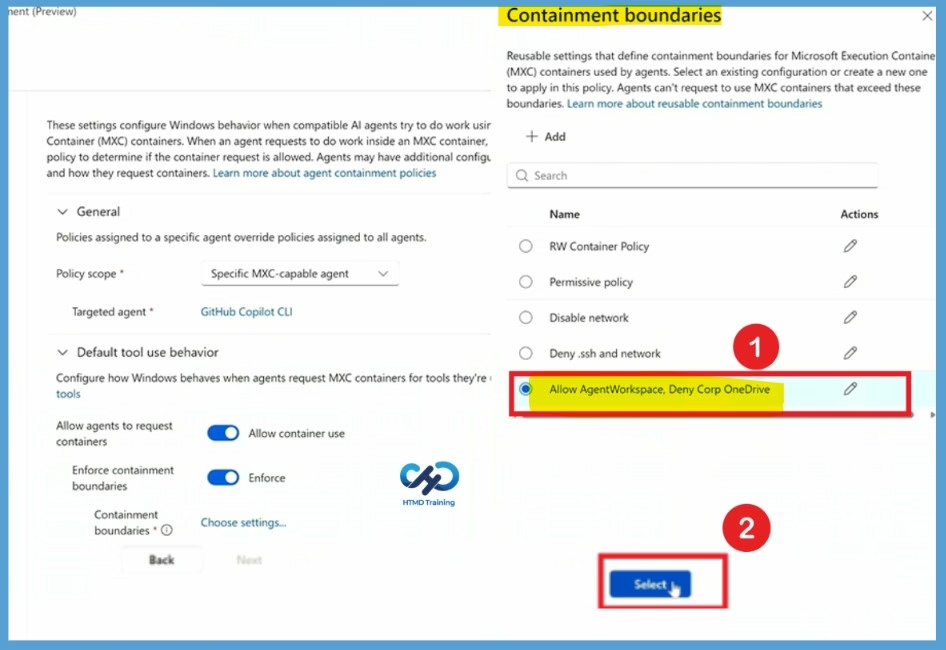
After saving the new containment boundary, return to the Containment boundaries selection window. The newly created configuration, Allow AgentWorkspace, Deny Corp OneDrive, will appear in the list of available reusable containment boundaries.
- Locate Allow AgentWorkspace, Deny Corp OneDrive in the list.
- Click Select to apply the boundary to the agent containment policy.
Verify Agent Containment Behavior on the Windows Device
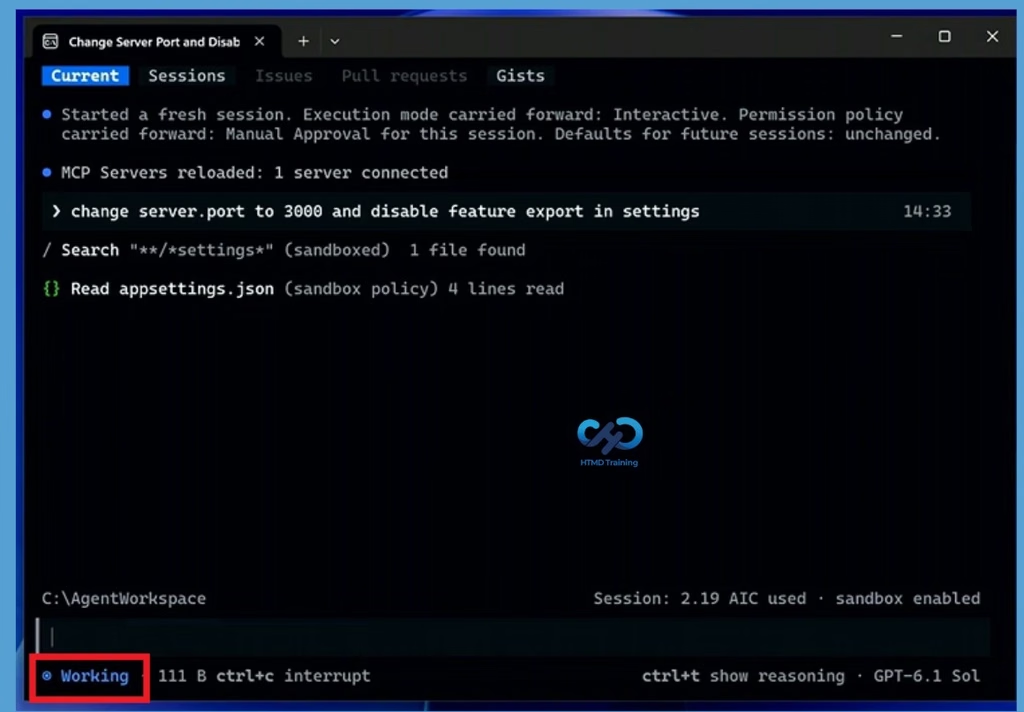
After deploying the policy, administrators can verify how the containment boundaries affect the selected AI agent on the Windows device. In the Ignite demonstration, the GitHub Copilot CLI agent is working from the C:\AgentWorkspace directory, which has been granted read/write access. The terminal displays the Working status while the agent operates within the approved workspace. This allows the developer to interact with files and perform normal development activities within the configured directory.
Additional AI Agent Security Settings
Apart from MXC containment policies, administrators can also use Microsoft Intune to manage additional enterprise settings supported by individual AI agents. For example, some agents, such as Claude, provide registry-based settings that organizations can use to prevent employees from signing in with personal accounts and restrict sign-in to enterprise accounts. These settings complement MXC by providing additional control over how AI agents are configured and used within the organization.
Need Further Assistance or Have Technical Questions?
Join the LinkedIn Page and Telegram group to get the latest step-by-step guides and news updates. Join our Meetup Page to participate in User group meetings. Also, join the WhatsApp Community and the Whatsapp channel to get the latest news on Microsoft Technologies. We are there on Reddit as well.
Author
Anoop C Nair is Workplace Technology solution architect with 25+ years of experience in global enterprise organizations such as JP Morgan, Capgemini, etc. He is Microsoft Certified Trainer. Microsoft MVP from 2015 onwards for consecutive 11 years! He also conducts Intune and modern workplace tech training for enterprise organizations. He is Blogger, Speaker, and Founder of HTMD Community and HTMD Conference. His focus is on Device Management technologies such as Intune, Windows, Cloud PC. He writes about technologies like Intune, SCCM, Windows, Cloud PC, Windows, Entra, Microsoft Security.