
Key Takeaways
- The MSS (AutoShareWks) policy enables hidden administrative shares that are essential for effective remote system management in Windows environments.
- Enabling this setting supports centralized administration by allowing authorized IT personnel to securely access system resources when required.
- The policy is recommended for most enterprise environments and should only be disabled in highly secure or isolated systems where remote access is intentionally restricted.
- When enforced using Intune policy, administrative share configuration remains consistent across all managed devices.
Manage Administrative Shares on Windows Workstations Using Intune ADMX_MSS Legacy Policy! Today we are discussing, Implementing Recommended Administrative Share Settings Using Intune Policy. These shares have been part of Windows for many years and are only accessible by users with administrative privileges, so standard users cannot see or access them. Using Intune to enforce this policy ensures that all managed devices follow the same configuration, making administration easier and more consistent.
Table of Contents
Table of Contents
Implementing Recommended Administrative Share Settings Using Intune Policy
This policy balances ease of management with risk control. While it is not recommended for highly secure or isolated environments, it works well in standard corporate networks when combined with firewall protections, endpoint security, and monitoring. Administrative shares are an important part of IT management in most organizations.
They make tasks such as troubleshooting issues, transferring files for maintenance, deploying software, and checking system health much simpler and faster. Because these shares are protected by administrator access and built-in Windows security features, they are generally safe when combined with strong passwords, proper network security, and least-privilege access.
- Enable or Disable the First Sign in Animation Policy on Windows11 to Skip Setup Prompts using Intune
- Enable Fast First Sign In Policy under Authentication in Intune Settings Catalog
- Allow Manual Start of Microsoft Account Sign In Assistant Using Intune Settings Catalog
Create Profile
This policy is particularly useful in organizations where IT teams manage a large number of devices centrally. Enabling AutoShareWks ensures that administrators can access devices quickly without manually configuring each system. If this setting is disabled, automated management tools and scripts may not work properly, which increases manual effort and slows down IT operations.

Now, let’s see how this policy can be deployed through the Microsoft Intune Admin Center. First, go to the Devices section. In Devices, select Configurations. In Configurations, click on the + Create policy option. Next, fill in the Platform and Profile type details in the Create profile window. Set Platform to Windows 10 and later and set Profile type to Settings catalog.
Then click Create

Basics the Identification Process of a Policy
The Basic details are very important here you have to enter the basic details such as name and description. The Description is mandatory, but you can enter the description to understand the policy later. The platform is already selected as Windows, so you don’t need to do anything. Click on the Next.

How to Deal with Configurations Settings Picker
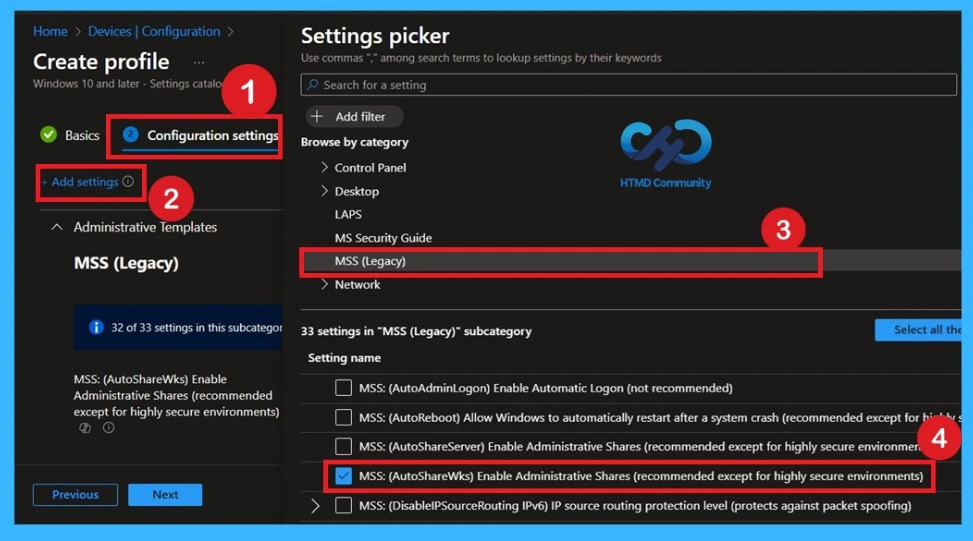
The next step is to configure the settings, which is the most important part of the configuration policy. Click on the + Add settings option to open the settings window. There, you will see different policy categories. From the list, select Administrative Templates, then choose the MSS (Legacy) category. Once you select this category, the required policy will appear. Select the policy and close the settings window to complete this step.
Understanding the Default State Before Changing (Default Settings)
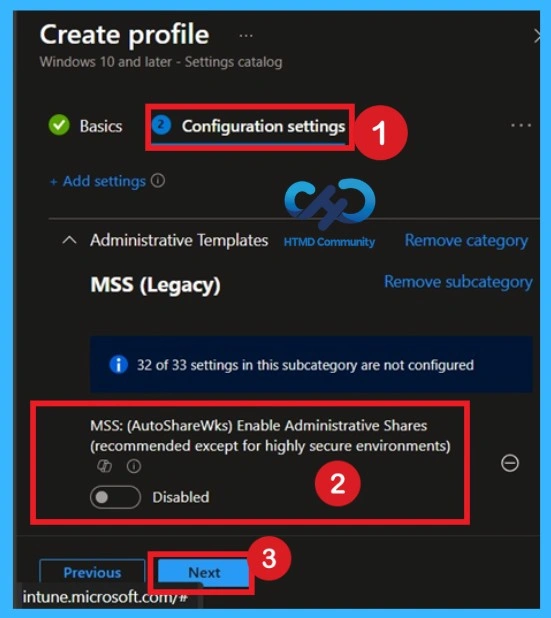
By default, you should understand that a policy can be either enabled or disabled. In this case, the policy is disabled by default. If you want to keep it in the disabled mode, you have to click Next to continue.
Enable the Policy
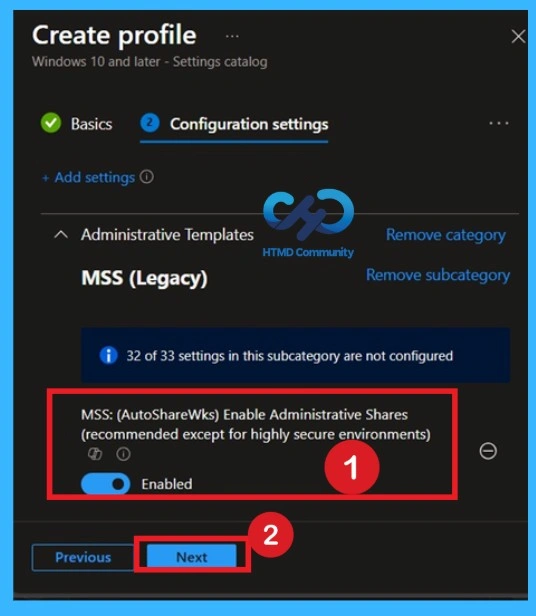
To enable the policy, simply move the toggle button from left to right. Once enabled, the toggle will turn blue, indicating that the policy is active. After confirming your selection, click Next to proceed. The policy will then be configured as Enabled.
What is Scope Tag
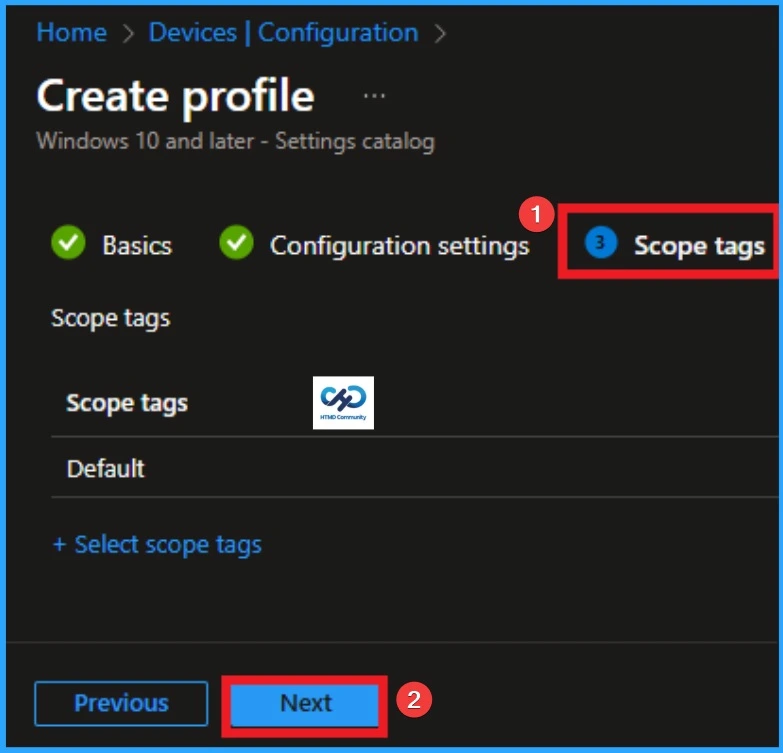
Now you are on the Scope tags section. Scope tags are used to assign policies to specific admin groups for better management and filtering. If needed, you can add a scope tag here. However, for this policy, I chose to skip this section.
Assignments Tab for Selecting Group
To assign the policy to specific groups, you can use the Assignment Tab. Here I click, +Add groups option under Included groups. I choose a group from the list of groups and click on the Select button. Again, I click on the Select button to continue.

Final Step of Policy Creation
To complete the policy creation, you can review all the policy details on the Review + create tab. It helps to avoid mistakes and successfully configure the policy. After verifying all the details click on the Create Button. After creating the policy, you will get success message.

Monitoring Status
The Monitoring Status page shows whether the policy has succeeded or not. To quickly configure the policy and take advantage of the policy sync the assigned device on Company Portal. Open the Intune Portal. Go to Devices > Configuration > Search for the Policy. Here, the policy shows as successful.

Event Viewer Details
Event Viewer helps you check the client side and verify the policy status. Open the Client device and open the Event Viewer. Go to Start > Event Viewer. Navigate to Logs: In the left pane, go to Application and Services Logs > Microsoft >Windows > DeviceManagement-Enterprise-Diagnostics-Provider > Admin.

How to Remove Policy Group
Start by navigating to the Monitoring status page via Devices > Configuration. Search for the policy by name and click on it to open its monitoring details. Scroll down to the Assignments section and click Edit. This will take you back to the policy’s assignment settings

Delete the Policy Permanantly

Need Further Assistance or Have Technical Questions?
Join the LinkedIn Page and Telegram group to get the latest step-by-step guides and news updates. Join our Meetup Page to participate in User group meetings. Also, join the WhatsApp Community to get the latest news on Microsoft Technologies. We are there on Reddit as well.
Author
Anoop C Nair has been Microsoft MVP for 10 consecutive years from 2015 onwards. He is a Workplace Solution Architect with more than 22+ years of experience in Workplace technologies. He is a Blogger, Speaker, and Local User Group Community leader. His primary focus is on Device Management technologies like SCCM and Intune. He writes about technologies like Intune, SCCM, Windows, Cloud PC, Windows, Entra, Microsoft Security, Career, etc.