

Key Takeaways
- This policy determines whether Windows and apps can publish user activities to the Windows Activity Feed.
- The default value is 1 (Enabled), allowing the operating system and apps to publish user activities.
- Setting the value to 0 (Disabled) prevents apps and the OS from publishing user activities, helping improve user privacy.
- Any modification to this policy takes effect immediately after the policy is applied to the device.
- Administrators can configure this setting through Microsoft Intune or Group Policy using the PublishUserActivities policy located under System > OS Policies.
Allow or Block Apps from Sharing User Activity to Activity Feed using Intune! The Publish User Activities policy in Intune controls whether Windows and apps can send user activity information to the Windows Activity Feed. User activities may include opening apps, working on documents, or browsing websites. When the policy is enabled, Windows and apps can publish these activities. When it is disabled, they cannot publish user activities.
Table of Content
Table of Contents
What are the Advantages of publishing a user activity policy?
Activities can be tracked and stored across multiple devices, ensuring a smooth transition between workstations. Employees can pick up where they left off, reducing disruptions and improving efficiency.
Enable Disable Apps or System to Publish User Activities to Activity Feed Policy using Intune
This policy enables apps to create and publish user activities, which can be resumed later, even on different devices. This feature is useful for maintaining continuity in workflows. According to the organisation’s preferences, you can choose available values.
- Allow Or Block Apps From Sharing User Activity To Activity Feed Using Intune
- How to Allow or Block Browser History Saving Policy using Intune
- How to Enable or Disable Users From Turning on Browser Syncing Policy using Intune
- Enable or Disable Internet Sharing Using Intune Security Policy
Steps to Configure Publish User Activity
You can easily create Publish User Activity policy using Intune. The Publish User Activity Policy is a setting that allows Windows to track and store user activities across devices. To start configuring this policy, open Microsoft Intune admin center.

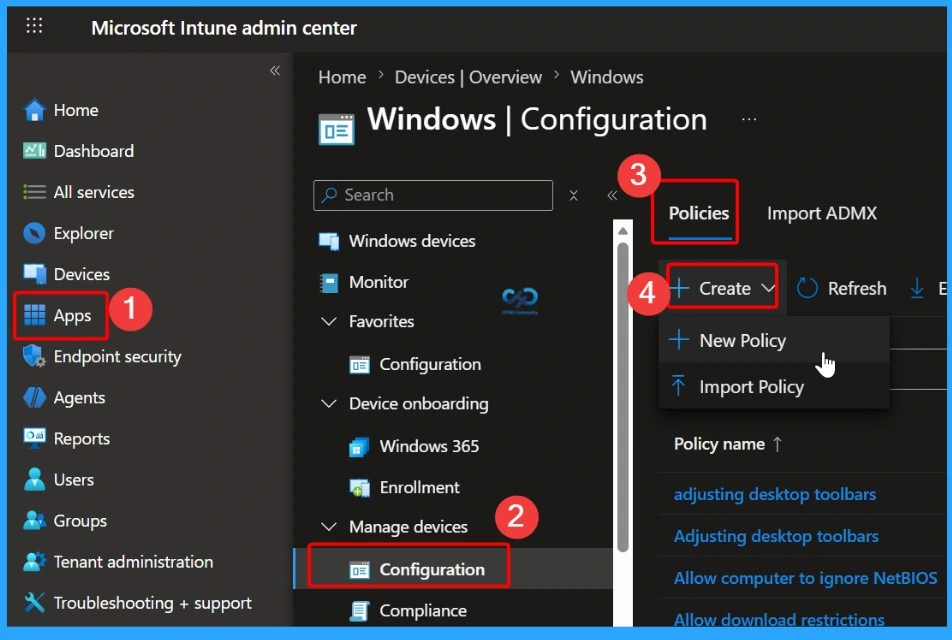
- Go to Devices > Windows > Configuration
- From Policies, click on the + Create button and select +New Policy
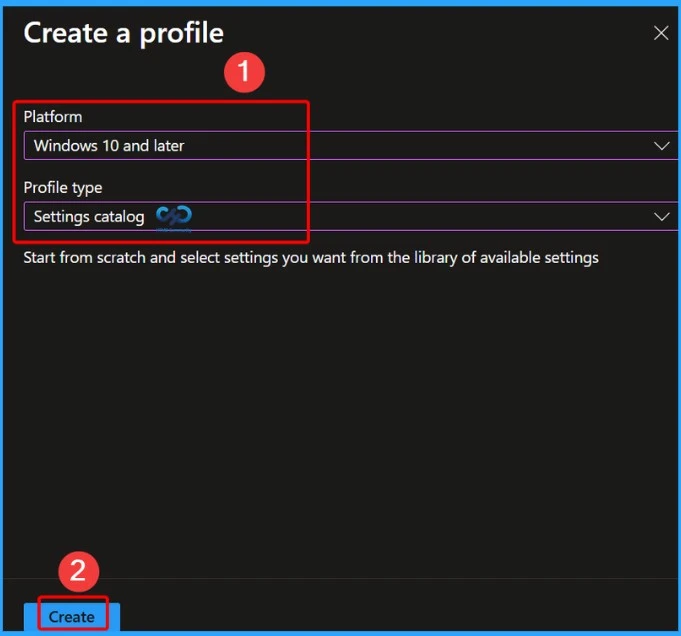
Then, you can create a profile by selecting Platform and Profile type. Here, I chose Windows 10 and later as the Platform and Profile type as Settings catalog. Then click on the Next button.
Basic Tab
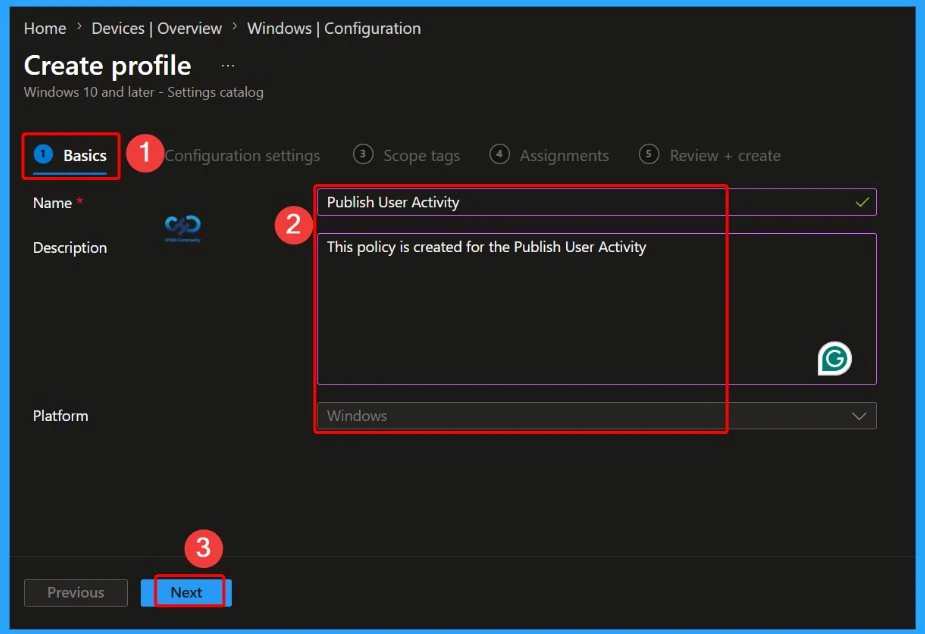
On the Basic tab, you can add the Name and Description for the policy that you want to create. The Name is the Mandatory file, and you must enter the Name here. The Description is optional, and it is better to give the Description.
- Name – Publish User Activity
- Description – This policy is created for the Publish User Activity
- Click on the Next button
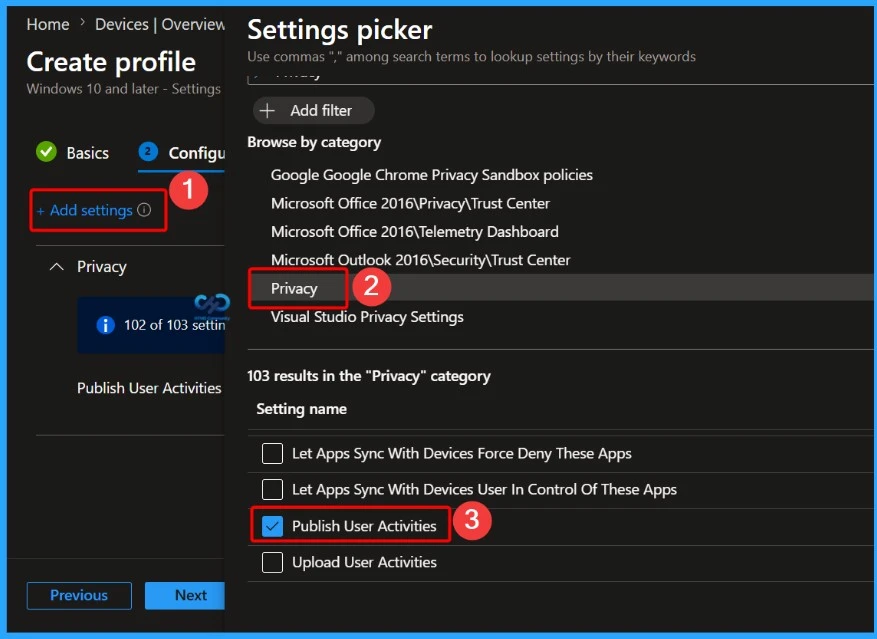
The Configuration tab is very crucial, as it helps you to select a specific setting. On the Configuration tab, click on the +Add settings hyperlink, and then you will get the Settings Picker. From the Settings Picker, you can choose settings quickly by browsing by category or using the search bar.
- Choose the Privacy as category
- Select Publish User Activity
- Then close the Settings Picker window
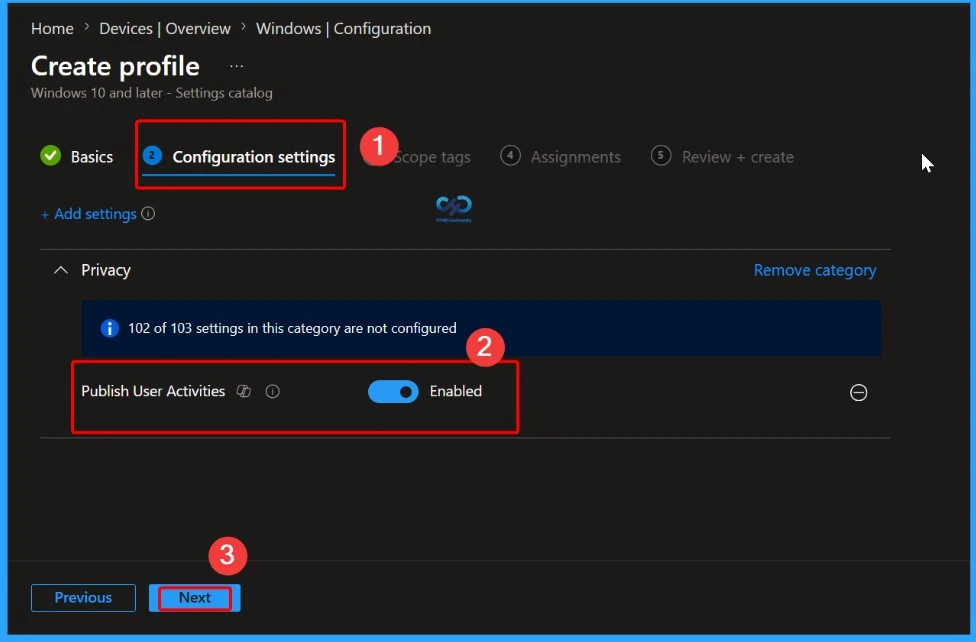
After choosing the policy, the settings will be shown on the Configuration Settings tab. By default, this policy is enabled. If you want to allow these settings, continue with the default value. Then click on the Next button.
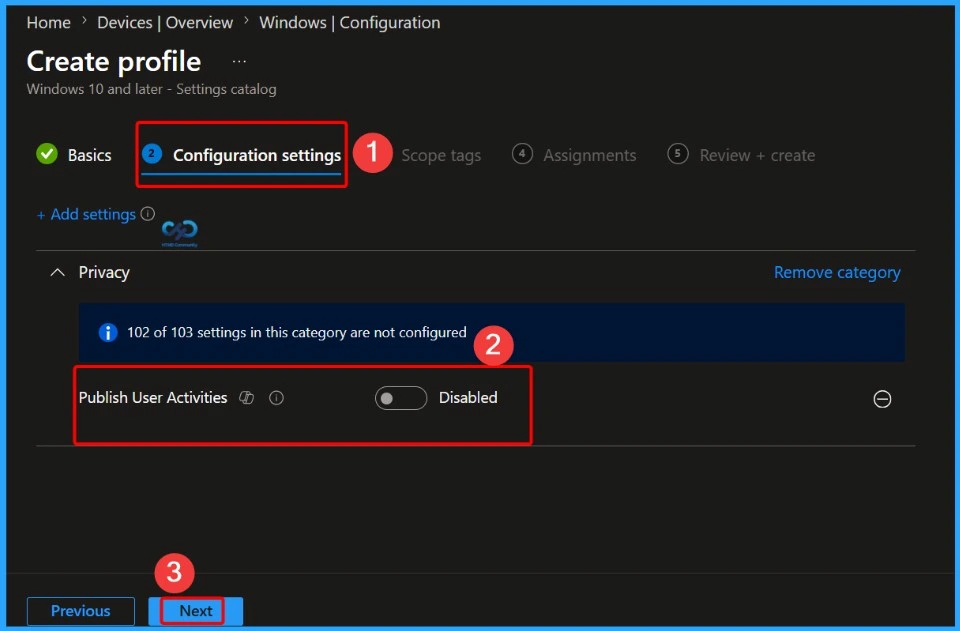
Here, I am going to disable this policy, so I toggle the pane to the left to Disable Publish User Activity. By disabling this policy setting, activities of type User Activity are not allowed to be published. Click on the Next button.
Scope Tags
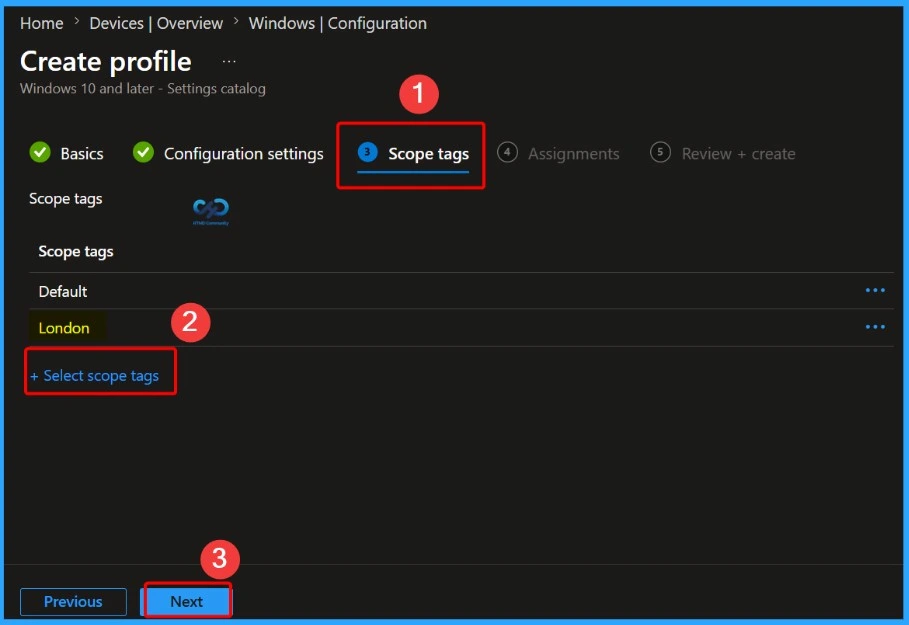
On the Scope tags page, you can choose scope tags for the policy. Scope tags help administrators control who can view and manage the policy in the Intune admin center. Click + Select scope tags and choose the required tag, such as London, based on your organisation’s needs. After selecting the appropriate scope tag, click Next to continue with the policy configuration.
Assignments
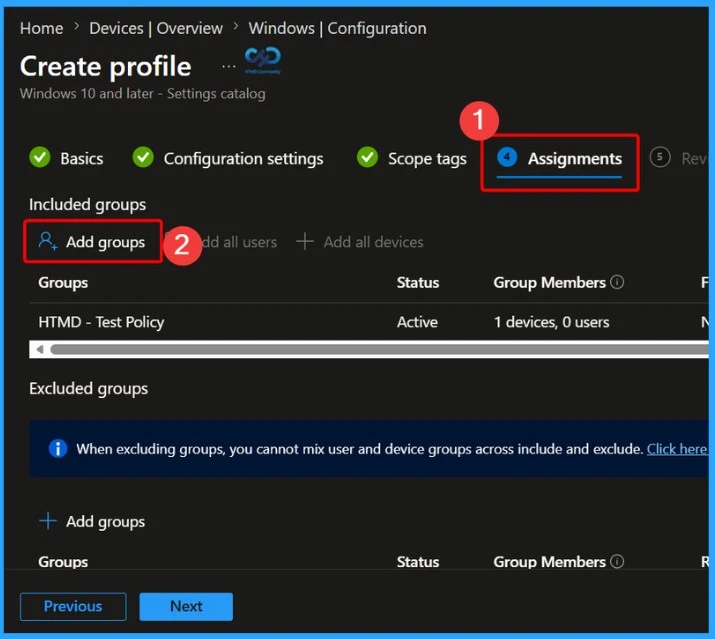
The Assignment tab is a very important section that determines which groups can be chosen to assign the Internet Sharing Policy. Click on the +Add groups option under Included groups. Select the group from the list of groups and click on the Select button. Then the selected group is shown on the Assignment tab.
- Click on the Next button
Review + Create
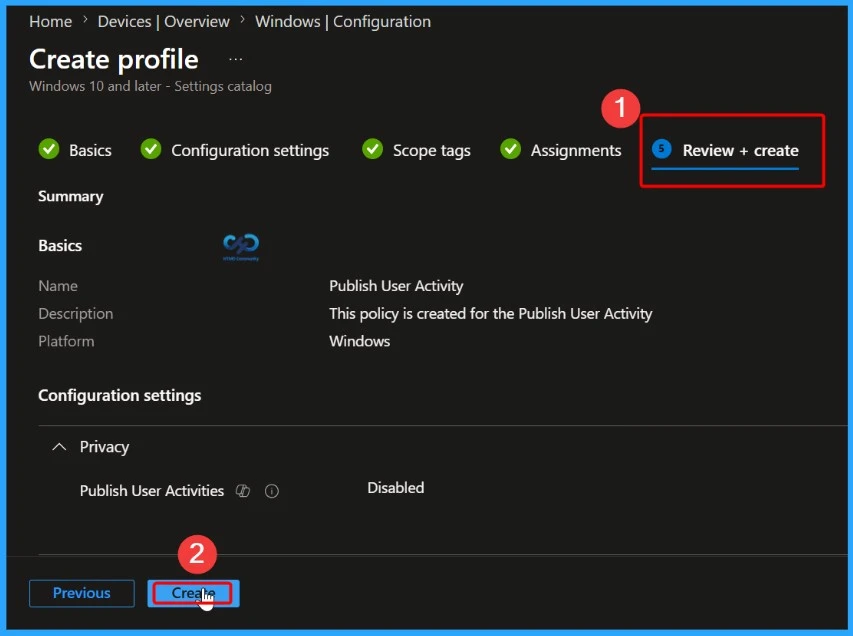
The Review + Create tab is the final step to complete the policy creation. On this tab, you can verify the details and continue. If you want to make any changes, click on the previous button. Otherwise, click on the Create button. Then you will get the success notification.
Monitoring Status
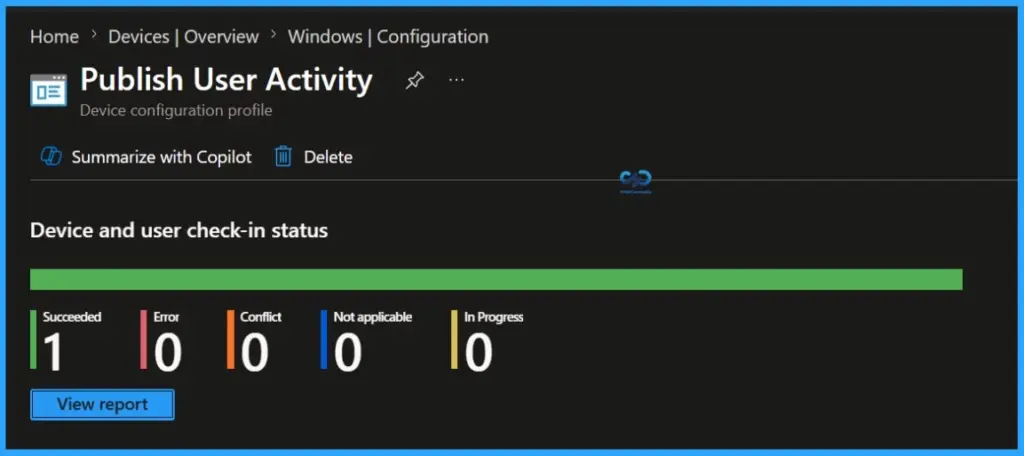
After the policy is created successfully, you can sync the device on the Company portal for faster deployment. After syncing is completed, you can check the status on the Intune Portal. Go to Devices > Configuration and search for the policy.
Client Side Verification – Event Viewer
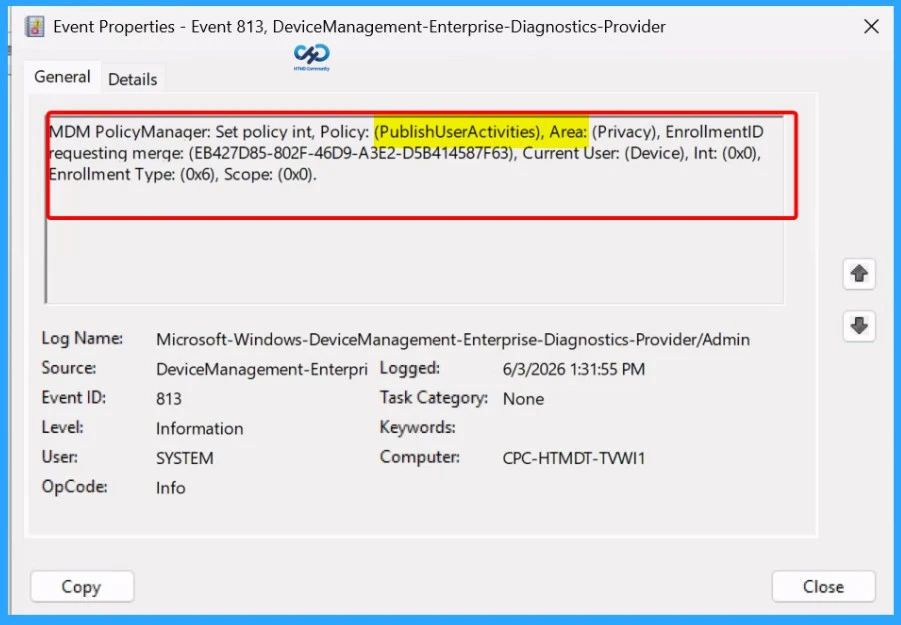
To check the Client Side verification, you can access the Event Viewer. Open the Event Viewer on the assigned device. Go to Applications and Services Logs > Microsoft > Windows > Devicemanagement-Enterprise-Diagnostics-Provider > Admin to open it. Here you can see the success event ID in 813.
MDM PolicyManager: Set policy int, Policy: (PublishUserActivities), Area: (Privacy), EnrollmentID
requesting merge: (EB427D85-802F-46D9-A3E2-D5B414587F63), Current User: (Device), Int: (0x0),
Enrollment Type: (0x6), Scope: (0x0).
Remove Publish User Activity Policy
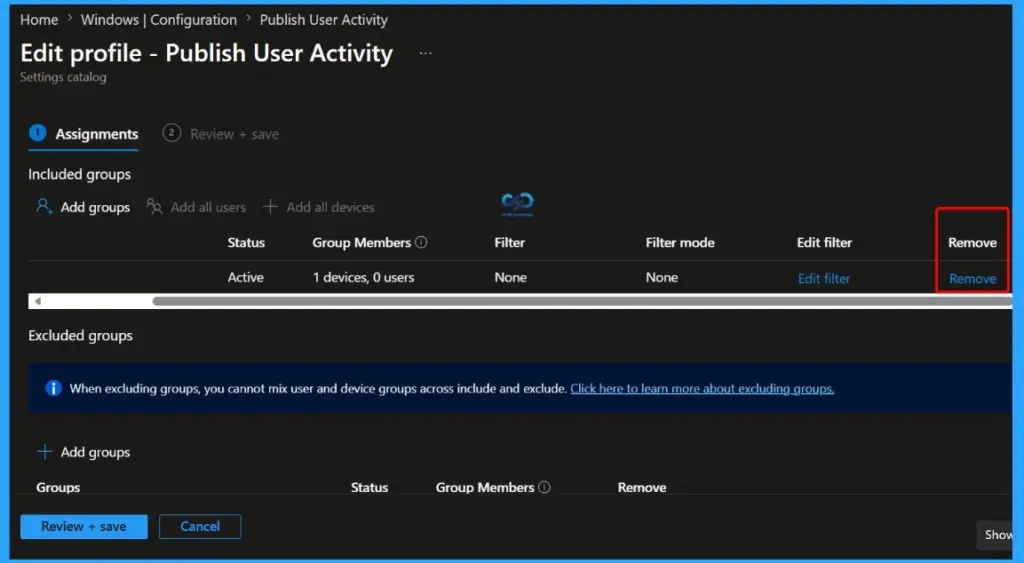
If you want to remove Publish User Activity from the Intune portal, it is very easy. To do this, open the policy from the Configuration tab., and click on the Edit button on the Assignment tab. Click on the Remove button in this section to remove the policy.
Delete Publish User Activity Policy
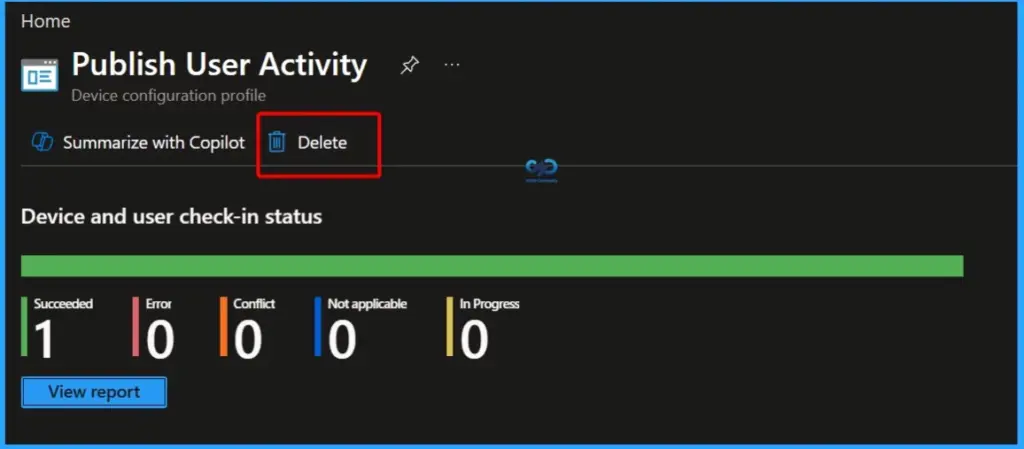
If your organisation face any security issues due to configuring this policy, you can easily delete this policy from Intune. To search for this policy on the Intune admin center. Click on the 3-dot option and then click on the Delete button.
For detailed information, you can refer to our previous post – How to Delete Allow Clipboard History Policy in Intune Step by Step Guide.
Windows CSP Details
Using this policy, you can determine whether a user’s activity is published or not. By checking the CSP details, you can successfully configure the policy on applicable devices. You can check the screenshot to know the Applicable OS, scope, and editions.
Framework Properties
The table below shows the technical attributes and behaviour of the Publish User Activity. It includes Property Name and Property Value.
| Property Name | Property Value |
|---|---|
| Format | int |
| Access Type | Add, Delete, Get, Replace |
| Default Value | 1 |
Allowed Values
These values help organisations determine which value is suitable for each device. You can refer to the following table to understand the values.
| Name | Value |
|---|---|
| 0 | Disabled. Apps/OS can’t publish the user activities. |
| 1 (Default) | Enabled. Apps/OS can publish the user activities. |
Need Further Assistance or Have Technical Questions?
Join the LinkedIn Page and Telegram group to get the latest step-by-step guides and news updates. Join our Meetup Page to participate in User group meetings. Also, join the WhatsApp Community and the Whatsapp channel to get the latest news on Microsoft Technologies. We are there on Reddit as well.
Author
Anoop C Nair is a Workplace Technology solution architect with 25+ years of experience. Microsoft Certified Trainer. Microsoft MVP from 2015 onwards for consecutive 11+ years! He is a blogger, Speaker, and Founder of HTMD Community and HTMD Conference. His main focus is on Device Management technologies like Intune, Windows, and Cloud PC. He writes about technologies like Intune, SCCM, Windows, Cloud PC, Entra, and Microsoft Security.