
Key Takeaways
- You can assign Microsoft Entra ID roles directly to Entra ID groups, rather than to individual users.
- Assigning roles to groups saves time and effort, especially in environments with large user bases or frequent role changes.
- Group-based role assignment ensures only authorised users can perform privileged actions, reducing the risk of accidental or malicious access.
- Privileged Identity Management (PIM), part of Microsoft Entra, allows you to manage just-in-time role assignments for both Entra ID roles and Azure roles.
How to Assign Entra ID Roles to Entra ID Groups for Effective Role-Based Access Control! This can save a significant amount of time and effort, especially in organisations with a large number of users or frequent changes. Assigning Entra ID Roles to Entra ID Groups is a powerful way to streamline access management and improve security within your organisation.
Table of Content
Table of Contents
Assign Entra ID Roles to Entra ID Groups for Effective Role-Based Access Control
Let’s follow the steps below to create a role-assignable group in Entra ID. To create an Entra ID group, you must have Global Administrator or Privileged Role Administrator permissions in Entra ID. Creating groups with specific roles and responsibilities allows you to easily assign and manage access to resources and applications in Entra admin center.
- By assigning roles to groups rather than individual users, you can ensure that only those with the appropriate level of access can perform certain actions or access sensitive data.
- This helps to mitigate the risk of accidental or malicious breaches and can help your organization meet compliance requirements.
- You can only assign a role to a group created with Entra ID. Roles can be assigned to the group turned on or created with the ‘isAssignableToRole’ property set to True.
- This group attribute makes the group one that can be assigned to a role in Entra ID.
- You can manage just-in-time assignments to all Entra ID roles and all Azure roles using Privileged Identity Management (PIM) in Entra ID, that also part of Microsoft Entra.
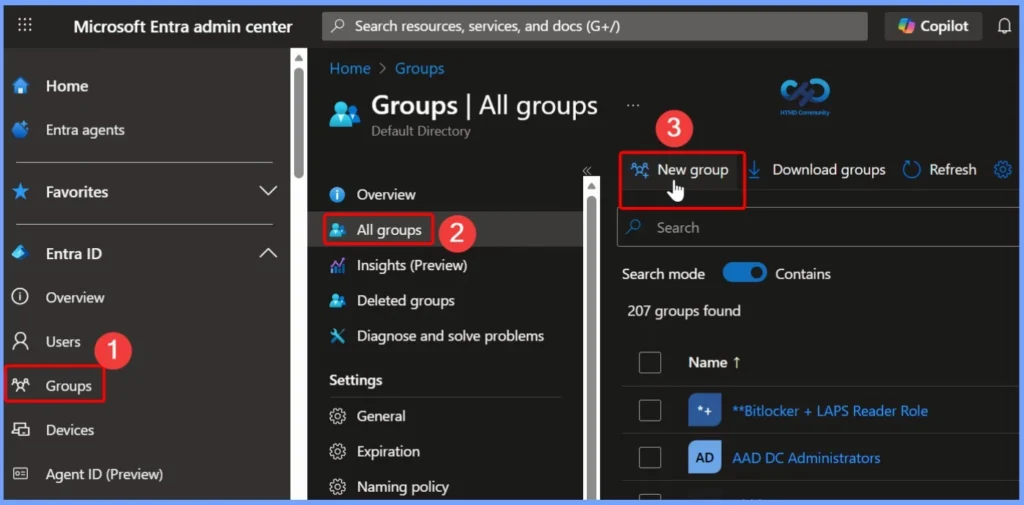
- Sign in to the Entra Admin center
- Select Groups > All groups > New group.
- Assign Azure AD Roles Using Privileged Identity Management PIM
- Configure Multiple Admin Approvals In Intune For Apps And Scripts
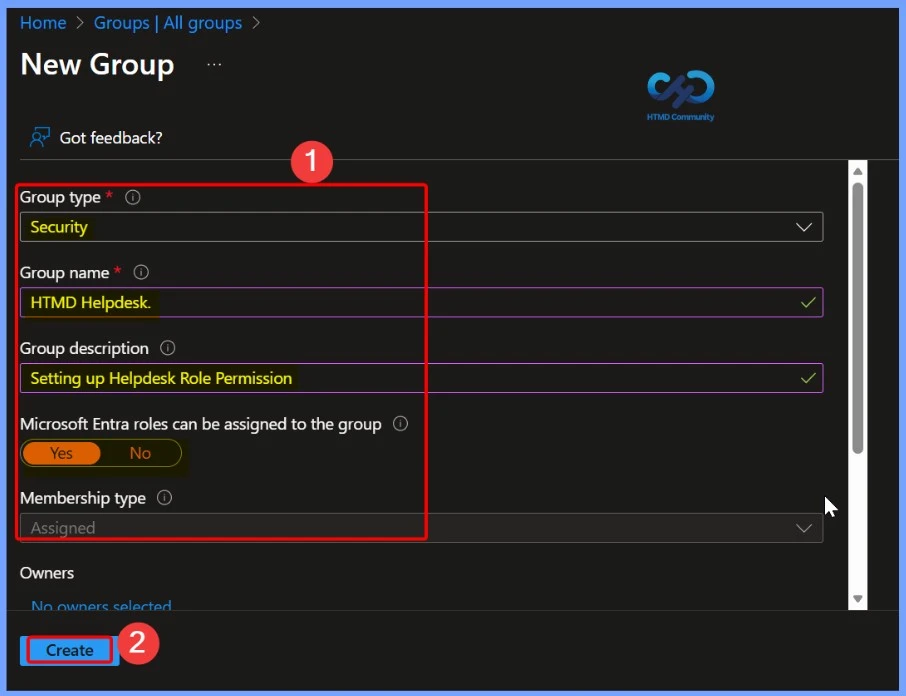
On the New Group tab, provide the group type, name, and description. Turn on Entra ID roles that can be assigned to the group. This switch is visible only to Privileged Role Administrators and Global Administrators because these are the only two roles that can set the switch.
| Group type | Group name | Group description | Microsoft Entra roles can be assigned to the group |
|---|---|---|---|
| Security | HTMD Helpdesk | Setting up Helpdesk Role Permission | Yes |
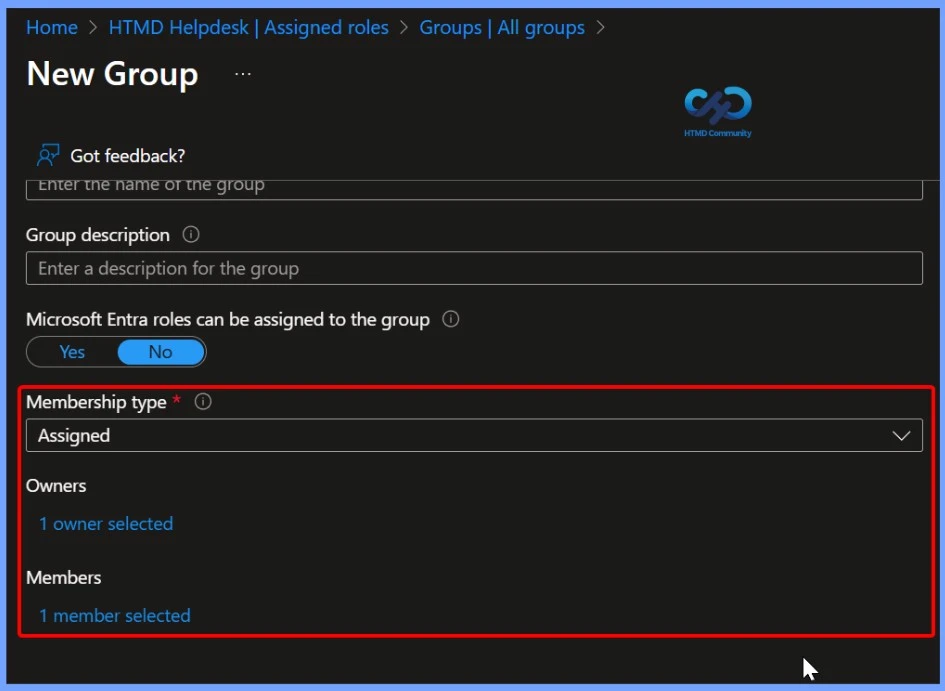
Select the members and owners of the group. You also have the option to assign roles to the group; you can assign them later. Here we select 1 owner and 1 member. After the members and owners are specified, select Create. The group is created with any roles you might have assigned to it.

Role-Assignable Group Confirmation Prompt
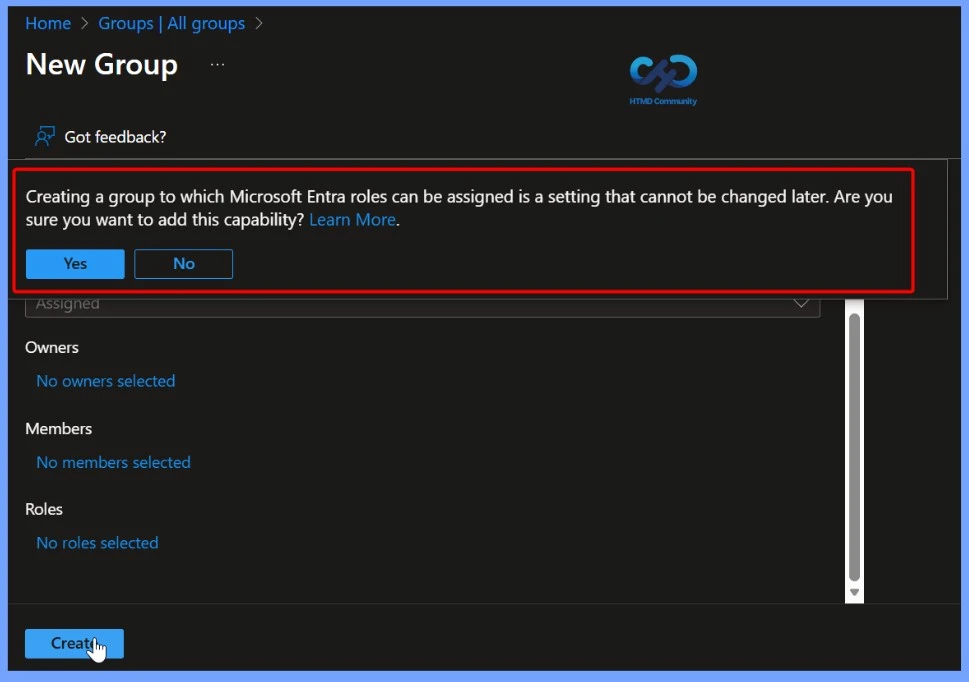
When you enable the option “Create a group to which Azure AD roles can be assigned”, a confirmation popup appears at the top of the page. This setting is permanent and cannot be changed later. To proceed with creating a role-assignable group, review the message carefully and click Yes to confirm.
Group Creation Success Notification
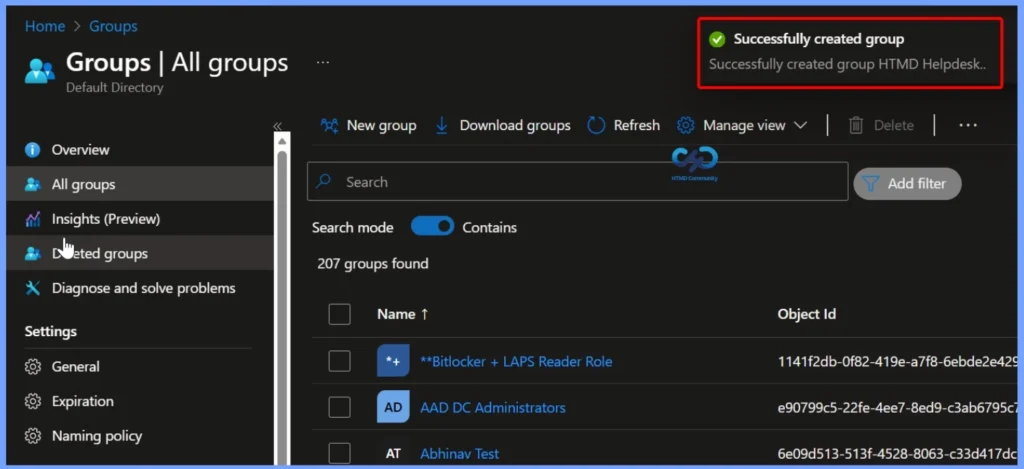
A notification will appear automatically in the top right-hand corner with a message. Here you can see, Successfully created group HTMD Helpdesk. Click the Refresh button at the top to quickly see the roles. You will see the HTMD Helpdesk group created.
Assign Entra ID Roles Using Privileged Identity Management
Let’s follow the steps to assign Azure AD roles using PIM. With Azure Active Directory, a Global administrator can make permanent Azure AD admin role assignments.
- Sign in to the Entra Admin center
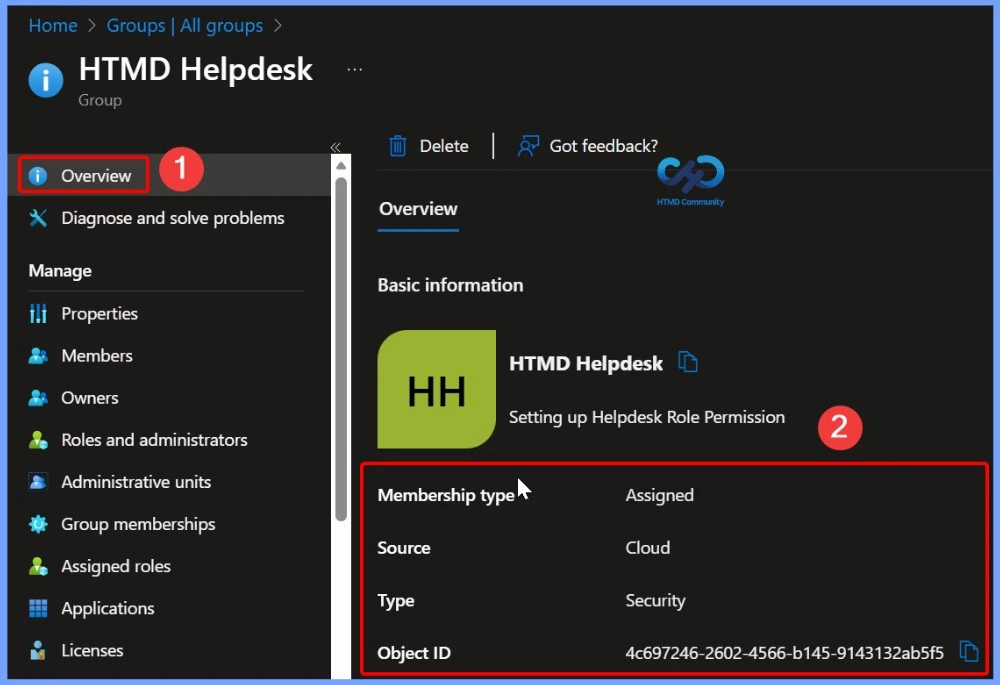
- In Entra ID Group, Select your group for roles assignment and click on Assigned roles. In the overview page you can see the basic informations shown in the below table.
| Membership Type | Source | Type | Object ID |
|---|---|---|---|
| Assigned | Cloud | Security | 4c697246-2602-4566-b145-9143132ab5f5 |
Add Role Assignment in Assigned Roles
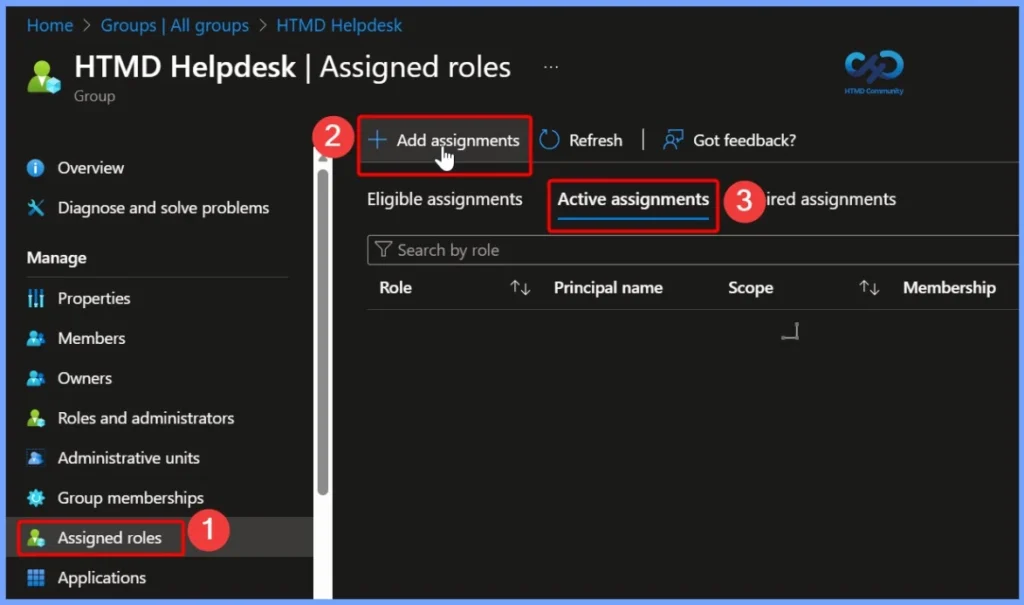
Under Assigned roles, click Add assignment to manage role access for the group. The Assigned roles section is divided into 3 assignment types: Eligible assignments, Active assignments, and Expired assignments, helping you track and control role access status effectively.
Select Entra ID Roles for Assignment
Select Roles to view the list of available Microsoft Entra ID permissions. From this list, choose the required role for assignment. For example, you can select the BitLocker Reader custom role to grant appropriate access.
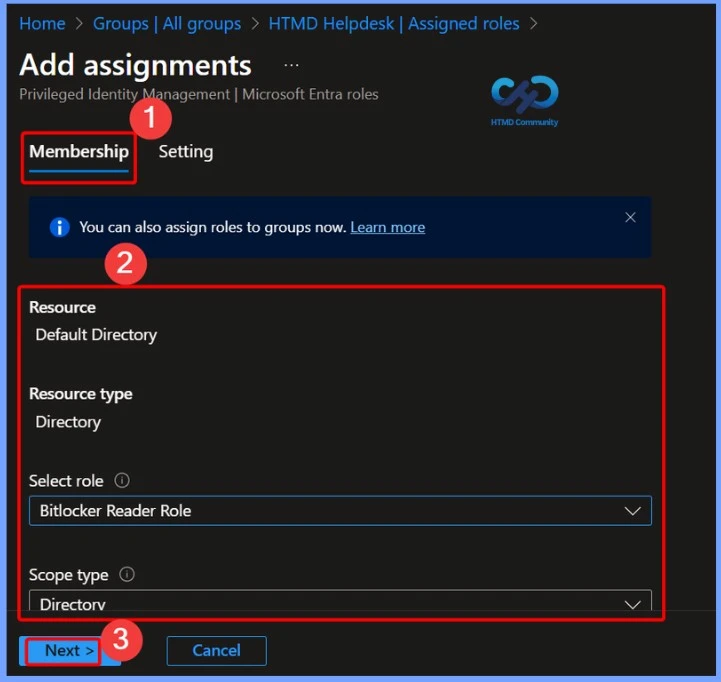
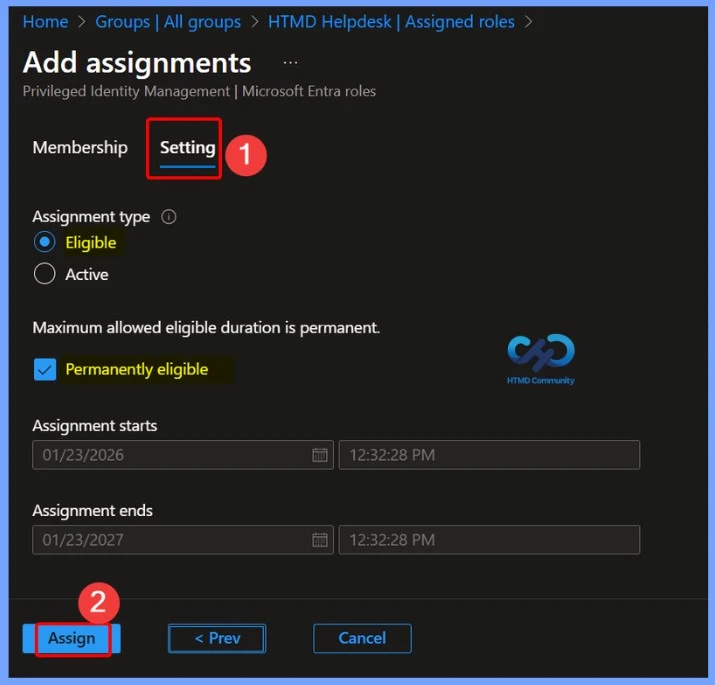
Choose Assignment Type (Eligible or Active)
Eligible assignments require the member of the role to perform an action to use the role. Actions might include performing a multi-factor authentication (MFA) check, providing a business justification, or requesting approval from designated approvers.
Active assignments don’t require the member to perform any action to use the role. Members assigned as active have the privileges assigned to the role at all times.
- Add start and end date and time boxes to specify a specific assignment duration.
- When finished, select Assign to create the new role assignment.
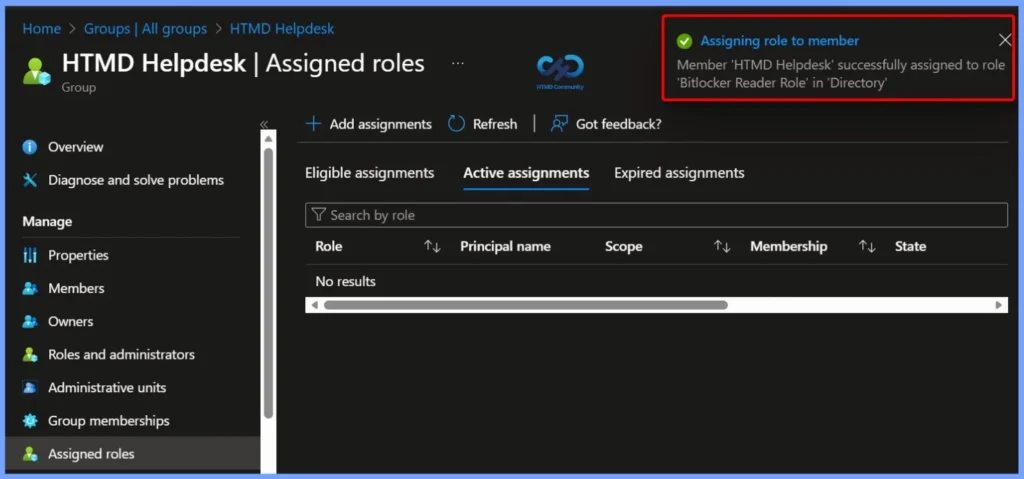
Role Assignment Success Notification
After the role is assigned, an assignment status notification is displayed confirming the action. The message indicates that the HTMD Helpdesk group has been successfully assigned to the BitLocker Reader Role in the Directory, verifying that the role assignment is complete.
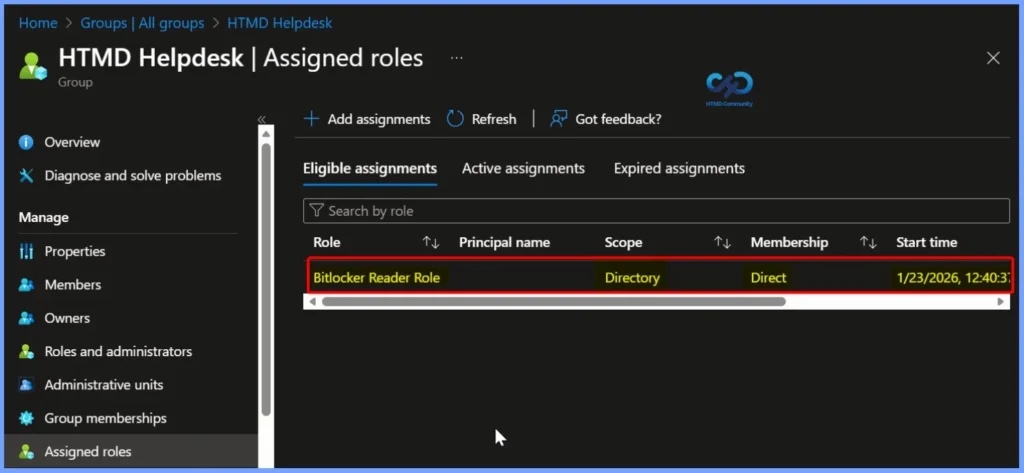
Eligible Entra ID Role Assignment Details
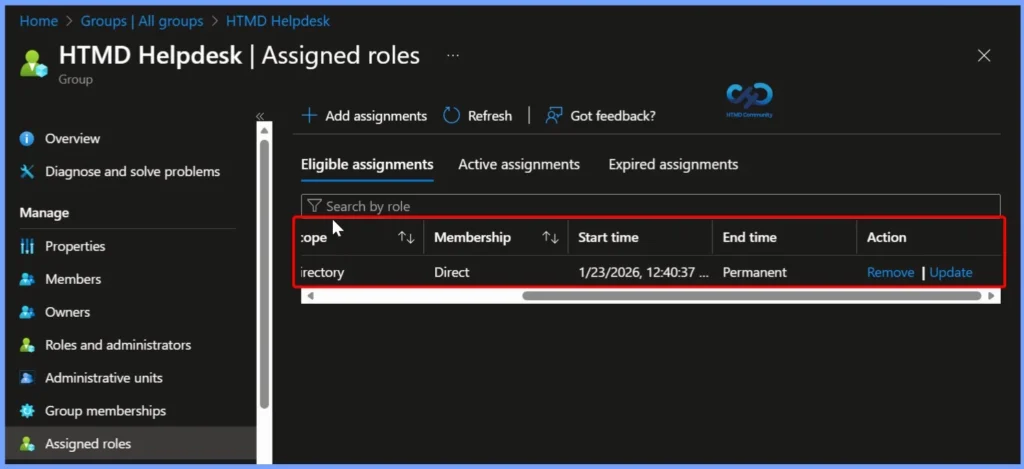
Here you can see that the Microsoft Entra ID role has been added to your Eligible roles list. The assignment shows the Directory scope, Direct membership type, and the Start time as 23/01/2026, confirming the eligibility configuration.
How to Update and Remove the Role
Under Eligible assignments section you can see the role and the Action tab you can see 2 options such as the Remote and Update. The Remove tab is used to Delete the Role and the Update tab is used to update the role.
Need Further Assistance or Have Technical Questions?
Join the LinkedIn Page and Telegram group to get the latest step-by-step guides and news updates. Join our Meetup Page to participate in User group meetings. Also, join the WhatsApp Community to get the latest news on Microsoft Technologies. We are there on Reddit as well.
Author
About Author – Jitesh, Microsoft MVP, has over six years of working experience in the IT Industry. He writes and shares his experiences related to Microsoft device management technologies and IT Infrastructure management. His primary focus is Windows 10/11 Deployment solution with Configuration Manager, Microsoft Deployment Toolkit (MDT), and Microsoft Intune.