
Key Takeaways
- Assignment filters help IT admins target apps, policies, and profiles more accurately in Microsoft Intune.
- Filters ensure that only relevant devices or users receive specific configurations.
- Admins can apply rules based on device type, OS version, ownership, or other properties.
- This approach reduces misconfigurations and prevents unnecessary deployments.
- It improves management efficiency, security, and the end-user experience.
Assignment filters help IT admins and organizations apply the right policies and apps to the right devices or users without creating multiple policies. Instead of targeting everyone, admins canfilter assignments based on conditions like device ownership, OS version, or enrollment type. This reduces configuration errors, improves security, and saves time by keeping Intune policies clean and easy to manage.
Table of Content
Table of Contents
How Intune Filters Work – Architecture
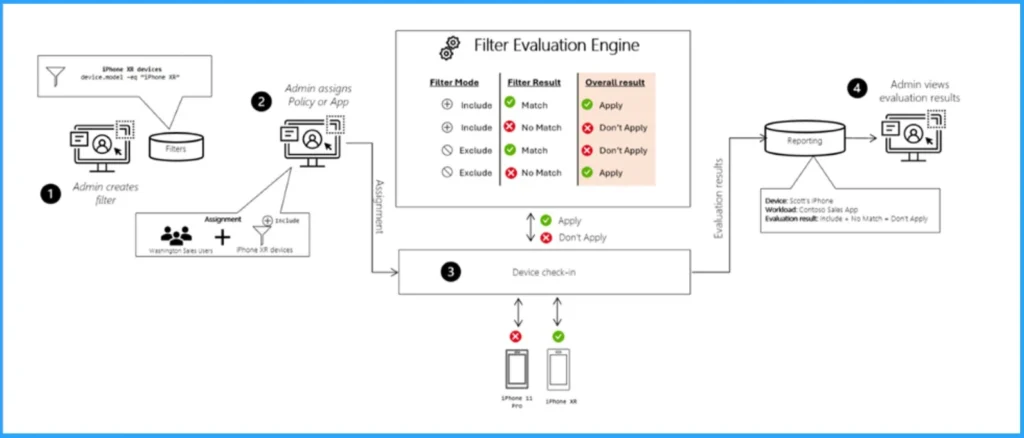
Assignment filters are rules that Intune checks before applying a policy or app. First, you create a filter based on device or app properties, such as device model or OS version. Then, when you assign a policy to a group, you attach the filter in Include or Exclude mode.
Intune automatically evaluates the filter whenever a device enrolls, checks in, or when the policy is re-evaluated. Based on this evaluation, Intune decides whether the policy or app should apply or be skipped, ensuring that only the right devices receive the correct settings.
- Intune Filters for Azure Virtual Desktop VMs
- MEM Intune: Create Assignment Filters for Azure Virtual Desktop Single Session Windows 10 | AVD
- Create A Filter Rule For Windows 365 Cloud PCs Using Intune
Features and Benefits
Filters include the following features and benefits:

- Improve flexibility and granularity when assigning Intune policies and apps.
- Filters are used when assigning apps, policies, and profiles. They dynamically target devices based on the device properties you enter.
- Filters can include or exclude devices in a specific group based on the criteria you enter.
- Create a query of device properties based on the platform, including Android, iOS/iPad, macOS, and Windows 10.
- Filters can be used and reused in multiple scenarios in “Include” or “Exclude” mode.
Prerequisites
Your account must have the Intune Service Administrator (also known as Intune Administrator) permission to enable or disable filters for your tenant.
How to Use Assignment Filters for Apps Policies and Profiles in Microsoft Intune
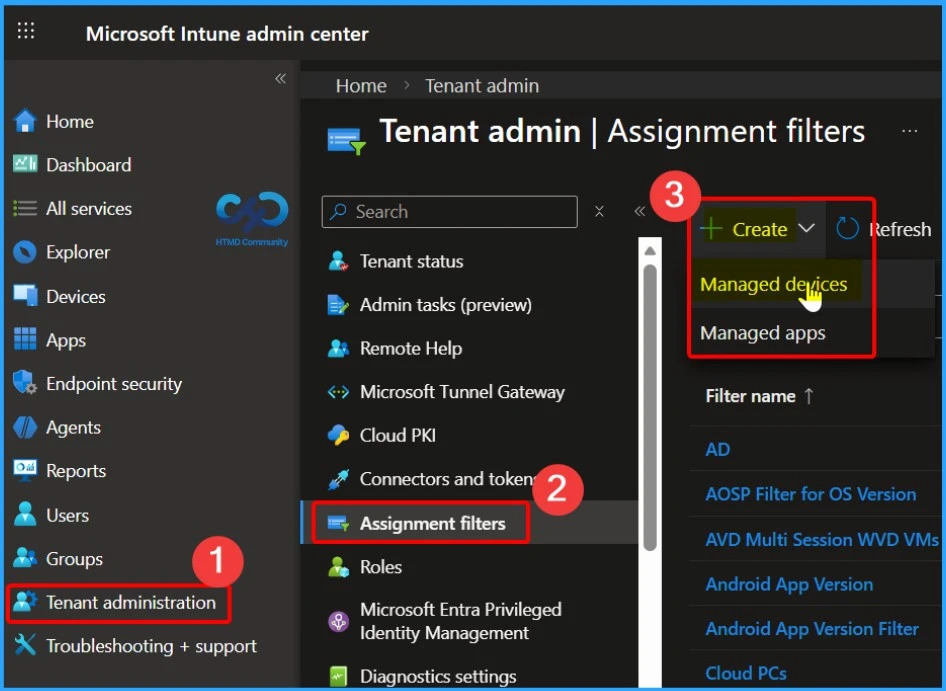
When you sign in to the Microsoft Intune admin center, go to Tenant administration > Assignment filters > Create to create a new assignment filter. You can also create assignment filters from Devices > Organize devices > Assignment filters or Apps > Organize devices > Assignment filters.
- In the create button there are 2 options available that the Managed Devices and Managed Apps
- Here we select the Managed Devices
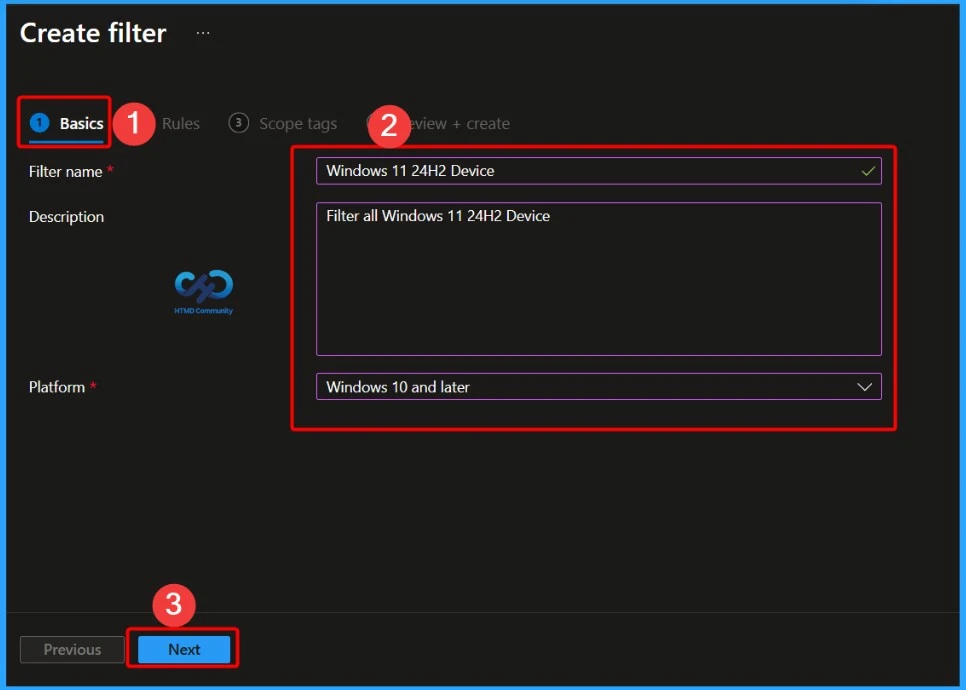
Provide Filter Name Description and Platform Details
In the Basics settings tab, you need to provide the essential information required to create the assignment filter. This includes the Filter name and Description, which help identify the purpose of the filter. For example, you can use “Windows 11 24H2 Device” as the filter name and “Filter all Windows 11 24H2 Devices is a description.
Rules – Define Conditions for Assignment Filters in Microsoft Intune
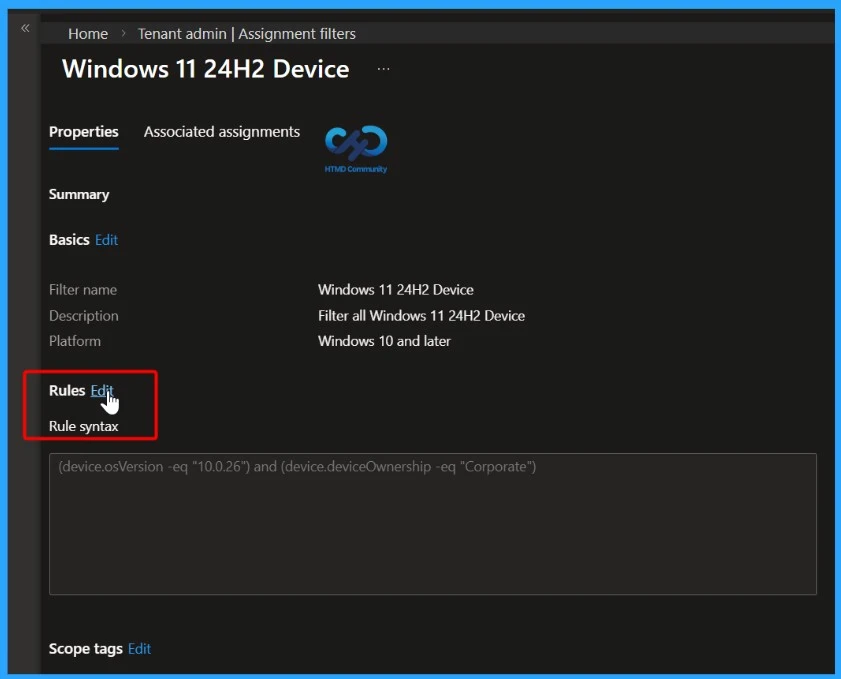
In the Rules settings, you need to define the conditions that the device must meet. First, add a rule where the property is OS version, the operator is set to Equals, and the value is 10.0.26. Then add a second rule with the property as Device ownership, the operator set to Equals, and the value as Corporate.
- Together, these rules ensure that the assignment filter targets only corporate-owned devices running OS version 10.0.26.
- There are two ways to create a rule in Rules: Use the rule builder or the rule syntax.
- The expression you made with the rule builder is automatically added to the rule syntax editor.
- Rule syntax – You can manually enter your rule expression and write your rules in the rule syntax editor. In Rule syntax, select Edit:
Rule builder:

And/Or: After you add an expression, you can add to the expression using the and or or options.
Property: Select a property for your rule, such as device or operating system SKU.
Operator: Select the operator from the list, such as equals or contains.
Value: Enter the value in your expression. For example, enter 10.0.18362 for the OS version, or Microsoft for the manufacturer.
Add expression: After you add the property, operator, and value, select Add expression: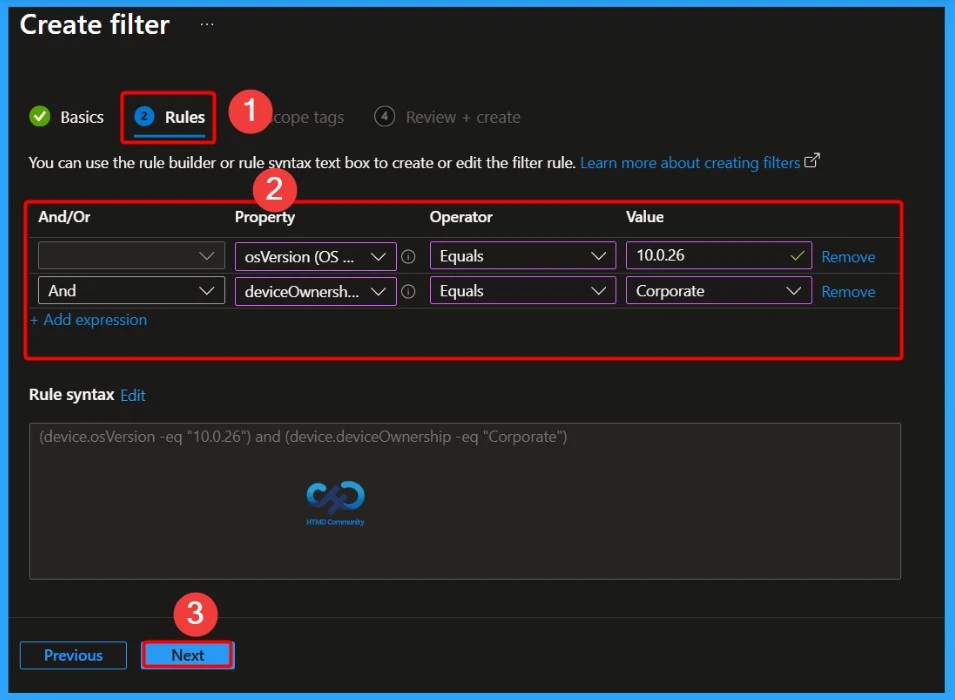
Filter Preview – Verify Devices That Match the Assignment Filter
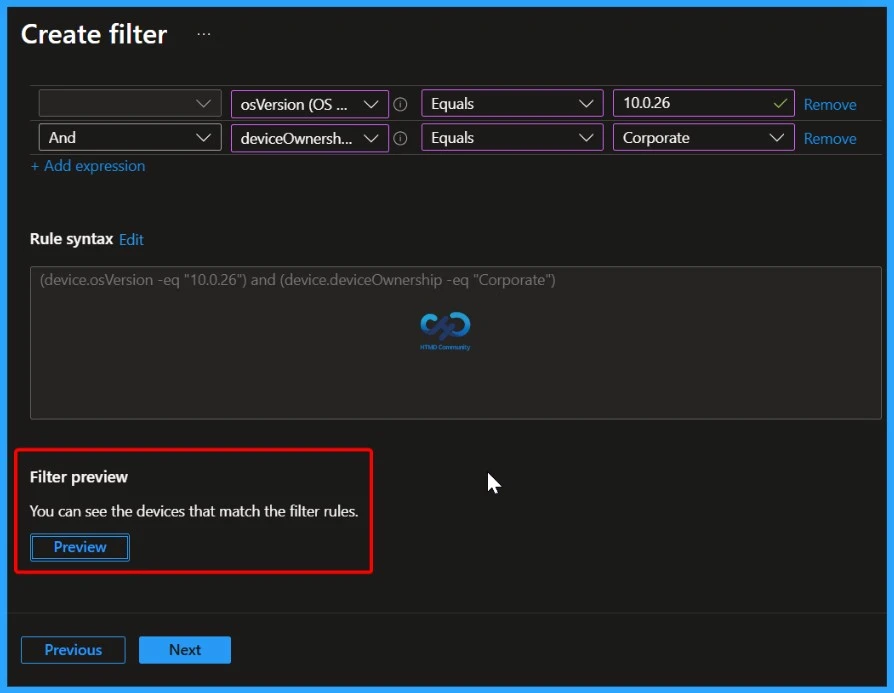
The Filter preview option helps you confirm whether your assignment filter is working as expected. It shows a list of devices that match the filter rules you configured, based on properties like OS version and device ownership. By using Filter preview, IT admins can quickly validate the filter before assigning it to apps or policies, reducing mistakes and ensuring that only the intended devices are targeted.
- You have a new Preview Devices option to check whether the Intune filter rules are correctly configured or not.
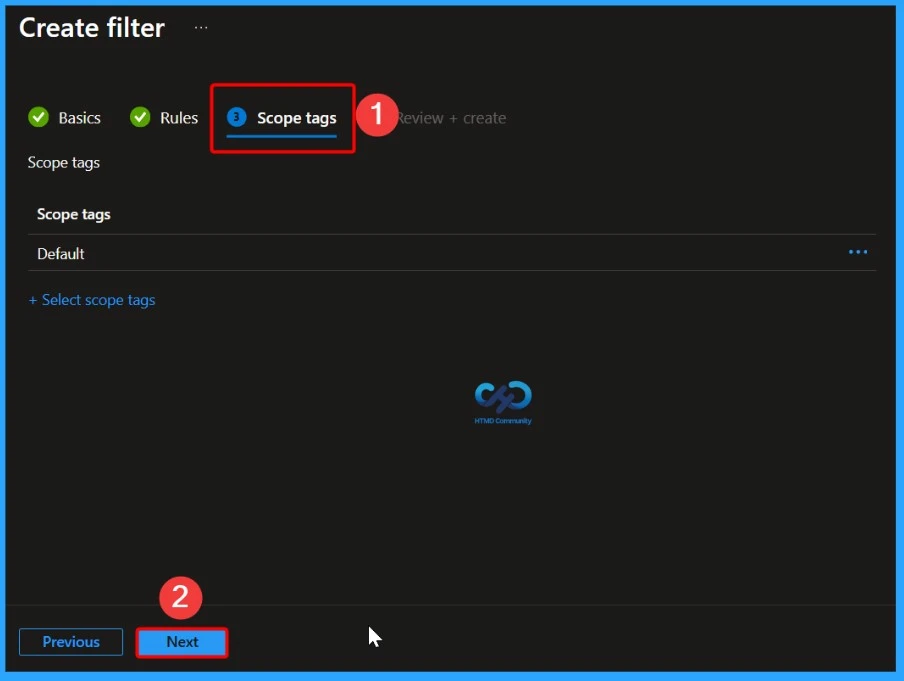
What is a Scope Tag in Microsoft Intune?
Scope tag is useful in large organizations to maintain role-based access control (RBAC) and prevent admins from accessing resources outside their responsibility. Here we select the Default scope tag.
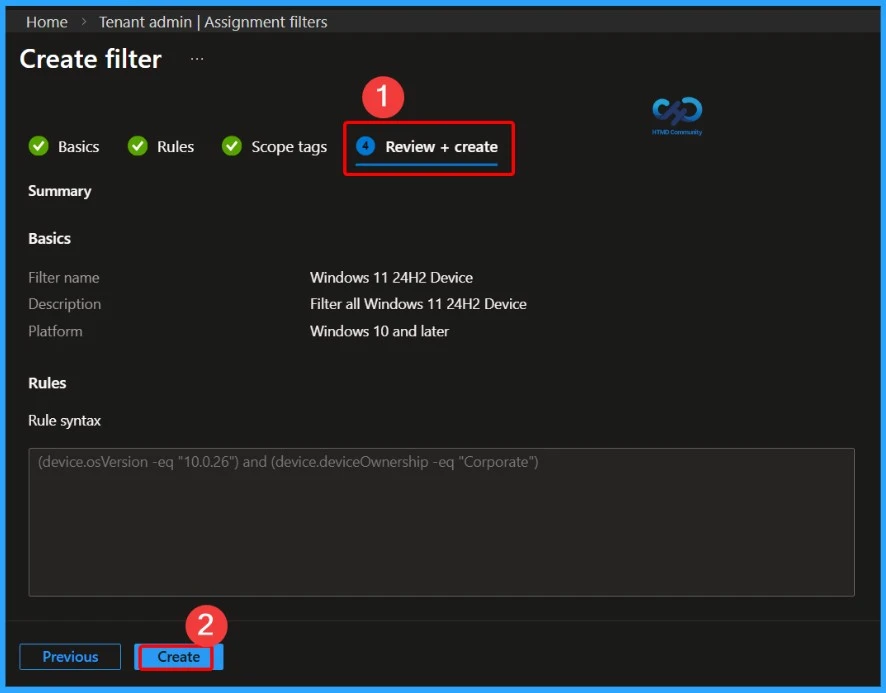
Final Step Before Creating the Assignment Filter
The Review + Create step lets you verify all the settings you configured for the assignment filter before it is created. Here, you can review the filter name, description, platform, rules, and scope tags to make sure everything is correct.
- Review your settings in Review + Create. When you select Create, your changes are saved. The filter is created and ready to be used. It is also shown in the filters list.
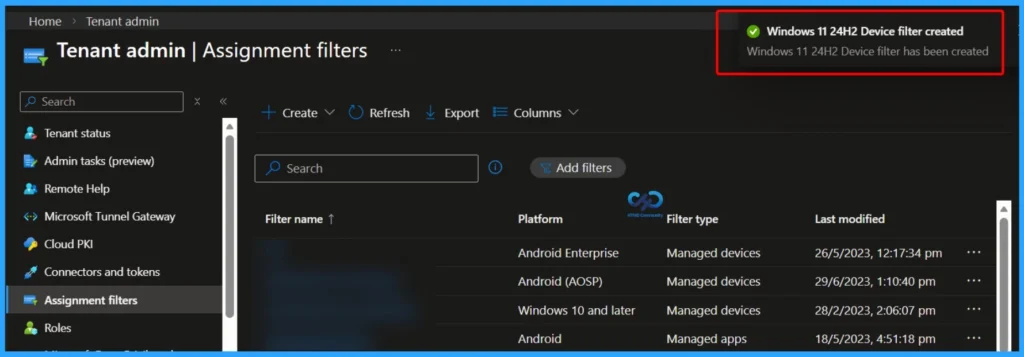
Notification message confirming that the assignment filter was created successfully
Here you can see a notification message confirming that the assignment filter was created successfully. The message shows that the Windows 11 24H2 device filter has been created without any errors and is now available for use. You can use this filter while assigning apps, policies, or profiles in Include or Exclude mode in Microsoft Intune.
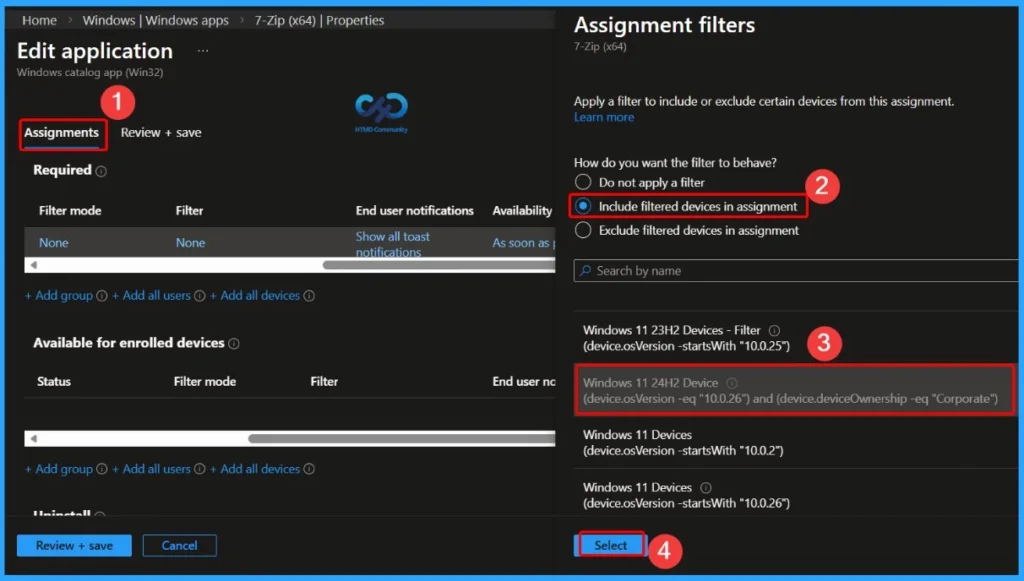
Apply an Assignment Filter While Assigning an App in Microsoft Intune
You can easily apply an assignment filter while assigning an app in Microsoft Intune. First, go to Apps > Windows apps and select the app you want to assign here, we selected the 7-Zip app. Open the app Properties page and click Edit under the Assignments section. In the assignment settings, you will see the Assignment filter option. Choose Include filtered devices in assignment, then select the filter rule Windows 11 24H2 Device in this example.
- Finally, click Select and save the changes. This ensures the app is deployed only to devices that match the selected filter.
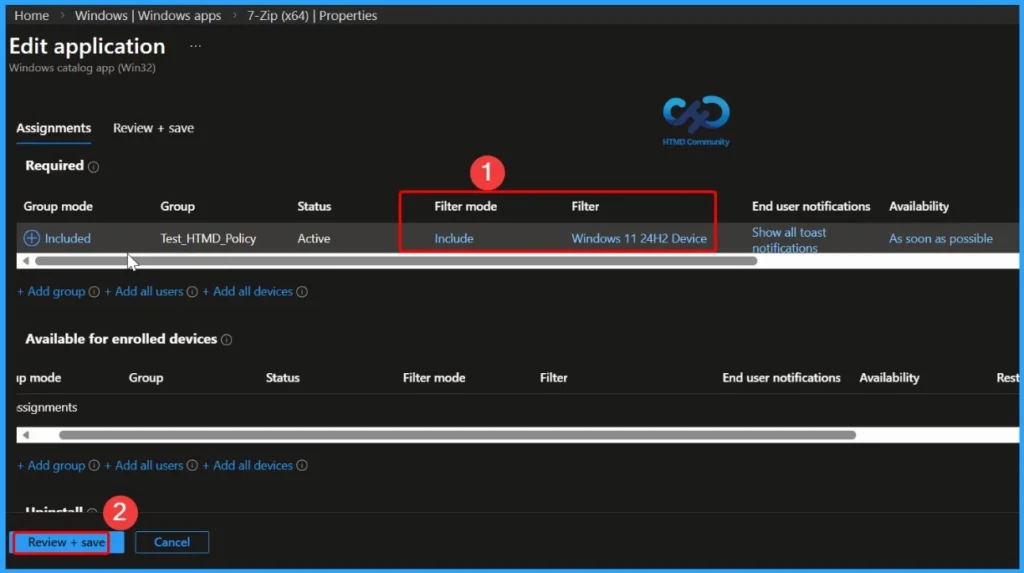
Assignment Filter Successfully Applied to the App
In the Edit application window, you can see that the assignment filter is successfully activated. The Filter mode is set to Include, and the selected filter is Windows 11 24H2 Device. This confirms that the app will be deployed only to devices that match the filter criteria, ensuring accurate and targeted app assignment in Microsoft Intune.
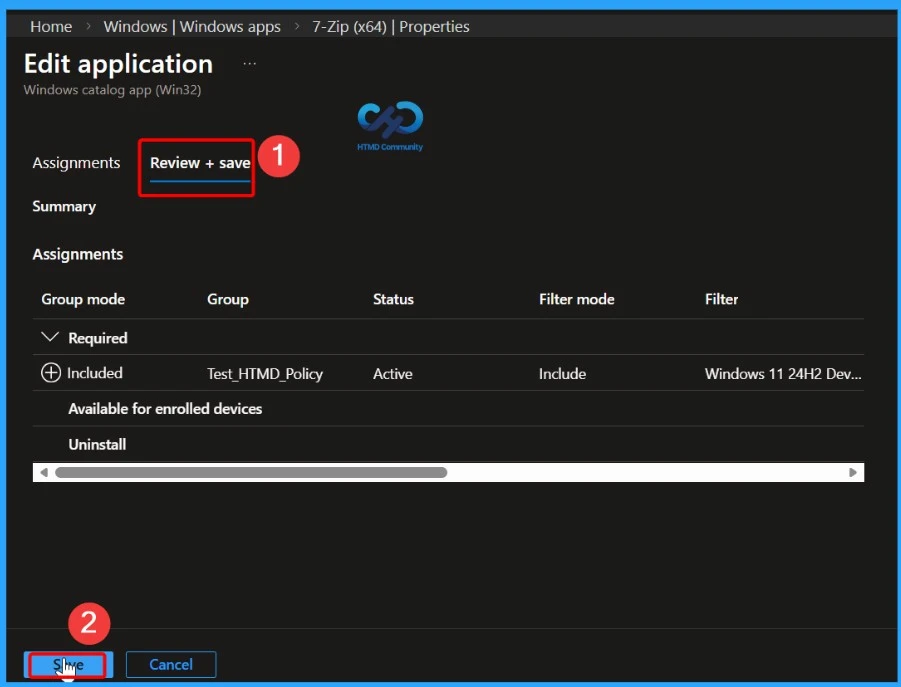
Confirm Assignment Filter Settings Before Saving
In the Review + Create window, you can verify all the assignment filter details before saving the app assignment. This confirmation ensures that the app will be deployed only to devices that meet the filter criteria, helping deliver accurate and targeted app assignments in Microsoft Intune.
Update an Existing Assignment Filter in Microsoft Intune
In the Intune admin center, go to Tenant administration > Assignment filters to view the list of all available assignment filters. You can also manage filters from Devices > Organize devices > Assignment filters or Apps > Assignment filters. To update an existing filter, select the filter you want to modify, open the Rules section, click Edit, and make the required changes.
- Once saved, the updated filter will be applied wherever it is used.
Delete Assignment Filters in Microsoft Intune
In Microsoft Intune, assignment filters allow you to include or exclude devices or users from a policy based on specific criteria. To manage these filters, you can view, modify, or delete them from the Intune admin center.
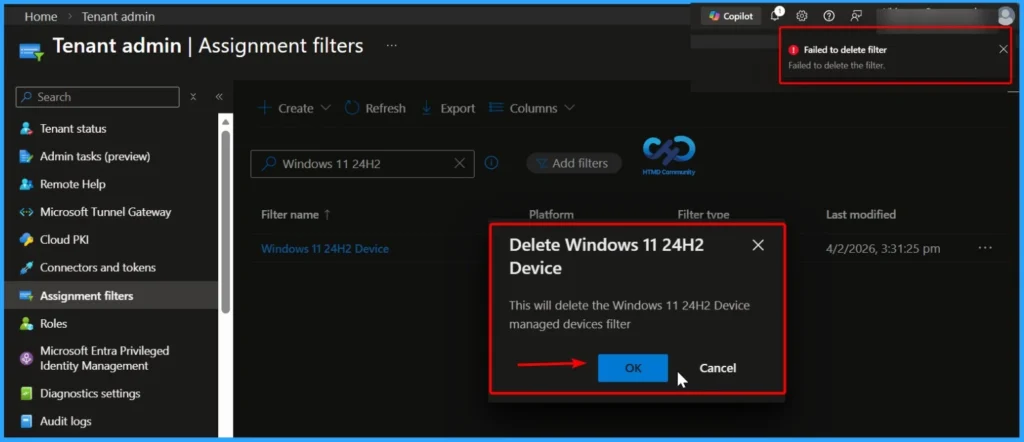
You can delete a filter only if it is not currently assigned to any policy. If a filter is still in use, you must first remove it from all policy assignments before deleting it.
| Delete Assignment Filters – Steps |
|---|
| Go to Tenant administration > Assignment filters to see all filters. |
| Ensure it is not assigned to any policy. |
| Next to the filter, select the ellipses (…) and choose Delete. |
| You can also manage filters via Devices > Organize devices > Assignment filters or Apps > Assignment filters. |
| Once removed from all assignments, you can successfully delete the filter. |
Video – Intune Assignment Filters Decoded
This video will teach you about Intune Assignment Filters Decoded | Associated Assignments | AAD Groups Vs Filters | Supported Workloads and All.
Need Further Assistance or Have Technical Questions?
Join the LinkedIn Page and Telegram group to get the latest step-by-step guides and news updates. Join our Meetup Page to participate in User group meetings. Also, join the WhatsApp Community and the Whatsapp channel to get the latest news on Microsoft Technologies. We are there on Reddit as well.
Author
Anoop C Nair has been Microsoft MVP for 10 consecutive years from 2015 onwards. He is a Workplace Solution Architect with more than 22+ years of experience in Workplace technologies. He is a Blogger, Speaker, and Local User Group Community leader. His primary focus is on Device Management technologies like SCCM and Intune. He writes about technologies like Intune, SCCM, Windows, Cloud PC, Windows, Entra, Microsoft Security, Career, etc.
Hi Anoop,
I have one question on this new feature.
I would like to know whom has enable this option “Enable Filters Public Preview” from Intune console for any tenant. I mean from any Admin logs can we get something or answers only from Microsoft ?
Hi Yogesh,
Ensure you’re Signed in to MEM Admin Portal as an Intune administrator to enable the new feature for the tenant.