
Key takeaways
- This policy ensures consistent security across all managed devices
- Stolen devices have a higher risk of data exposure without this policy
- After enabling, devices must follow secure BitLocker startup rules
- Before enabling, devices may not have strong startup protection
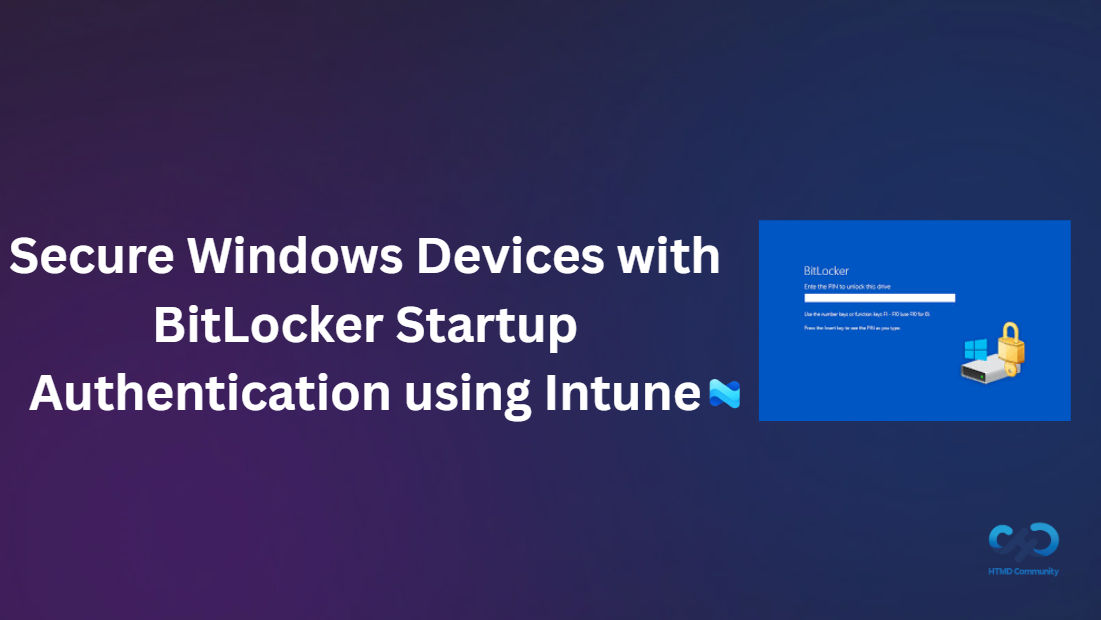
Hey, let’s discuss about How to Secure Windows Devices with BitLocker Startup Authentication using Intune. This policy controls how BitLocker protects a Windows device when it starts. It decides whether a device uses TPM, TPM with PIN, or a startup key for authentication. By setting this policy using intune, administrators can make sure devices follow the same security rules before Windows even loads.
The policy is important because it protects data if a device is lost or stolen. Without proper startup authentication, someone could try to access the hard drive directly. This policy makes sure only authorized users can start the device and access the encrypted data.
By enforcing startup authentication, the policy adds an extra security layer before Windows starts. Even if someone removes the hard drive and connects it to another computer, the data stays encrypted. This reduces the risk of data leaks and unauthorized access.
For organizations, this policy ensures all managed devices meet security standards. It helps IT teams control how BitLocker works across many devices without manual configuration. This saves time and ensures consistent protection for company data.

Table of Contents
What are the Advantages of Enabling this Policy using Intune?
Enabling this policy strengthens device security from the moment the device starts. It ensures BitLocker uses the correct startup authentication method, helping protect data if a device is lost, stolen, or tampered with. This policy also gives IT teams better control and consistency across all managed devices.
1. Protects data before Windows loads
2. Prevents unauthorized access to the hard drive
3. Enforces consistent BitLocker settings across devices
4. Reduces risk if a device is lost or stolen
5. Simplifies security management through Intune
Secure Windows Devices with BitLocker Startup Authentication using Intune
This policy makes sure devices are locked and protected from the moment they turn on. It keeps sensitive data safe, supports compliance needs, and gives administrators confidence that devices are secure from startup to shutdown.
- How to Fix Conditional Access Misconfiguration Causing Edge Authentication Loop in Intune
- How to Set Up White Dark Theme Sign-In Experience Passkeys and Enhanced Authentication
- Enable or Disable Hotspot Authentication in Networks using Intune Policy
Create a Profile
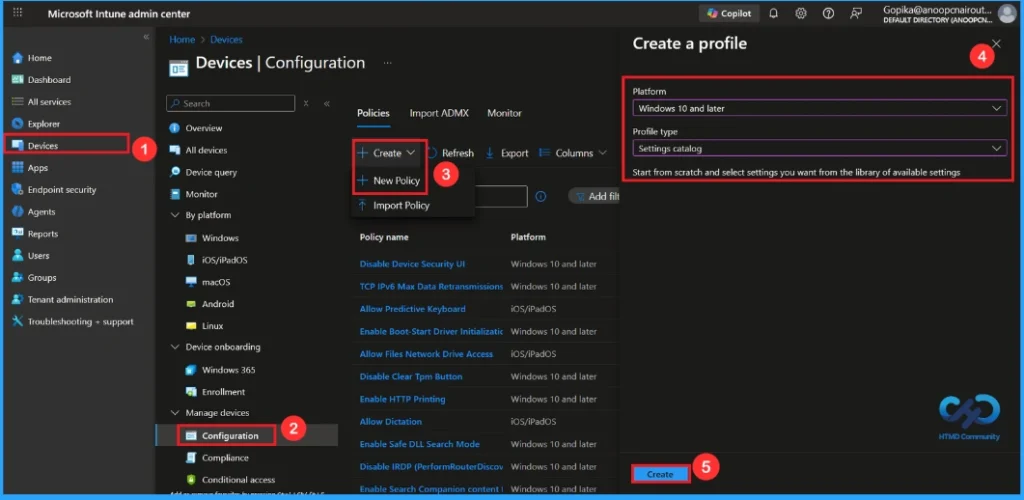
To start deploying a policy in Intune, sign in to the Microsoft Intune Admin Center. Then go to Devices> Configuration under the Manage devices> Policies> Create> New policy. In the create a profile window, add the platform Windows and later, profile type is Settings Catalog. Then click the create button.
Basic Step
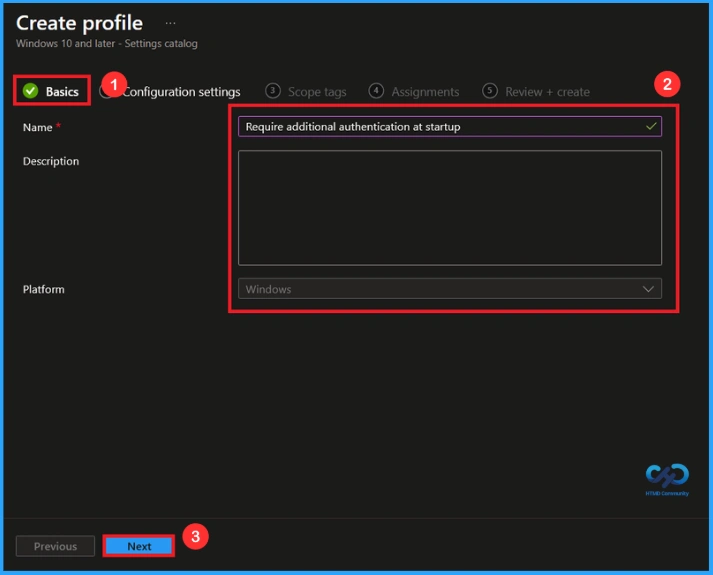
To configure a policy in Intune, start with the Basics step, where you enter the policy name (e.g Require additional authentication at startup), provide a short description (not mandatory) and the platform is Windows. Click Next to continue.
Configuration Settings
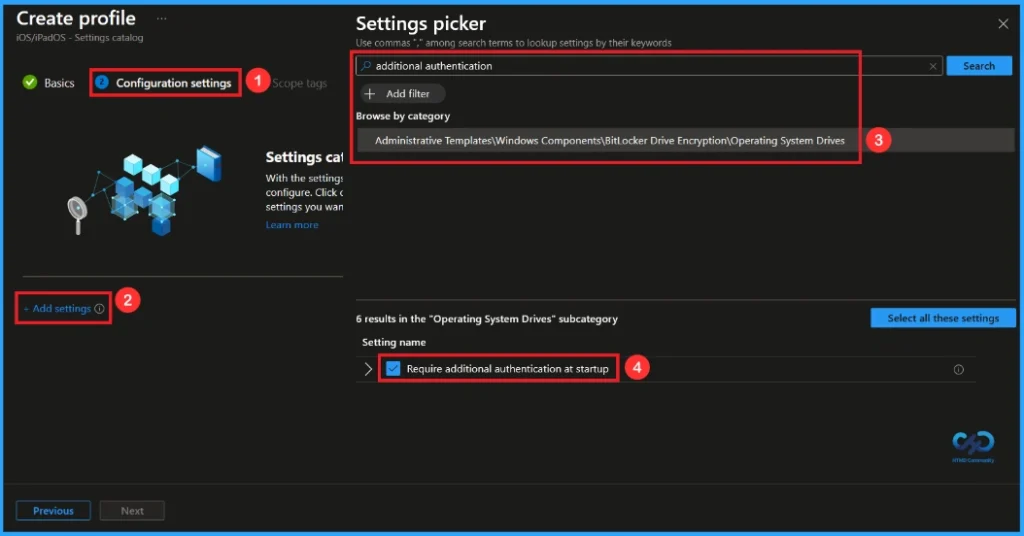
In the Configuration settings, you can see the Add settings button. Click the Add Settings to browse or search the catalog for the settings you want to configure. In the Settings picker, you can search for the Settings quickly. Here, I choose the Administrative Templates\windows components\bitlocker drive encryption\operating system drives category and select Require additional authentication at startup.
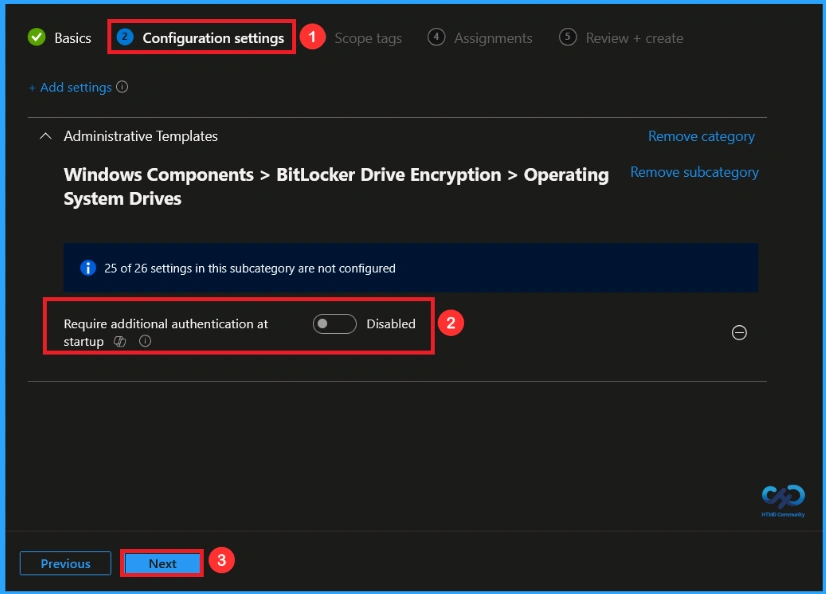
Once you have selected this policy and closed the Settings picker. You will see it on the Configuration page. Here we have only two settings: Enable or Disable. By default, it will be set to Disable. If you want to disable these settings, click on theNext button.
Enable this Policy
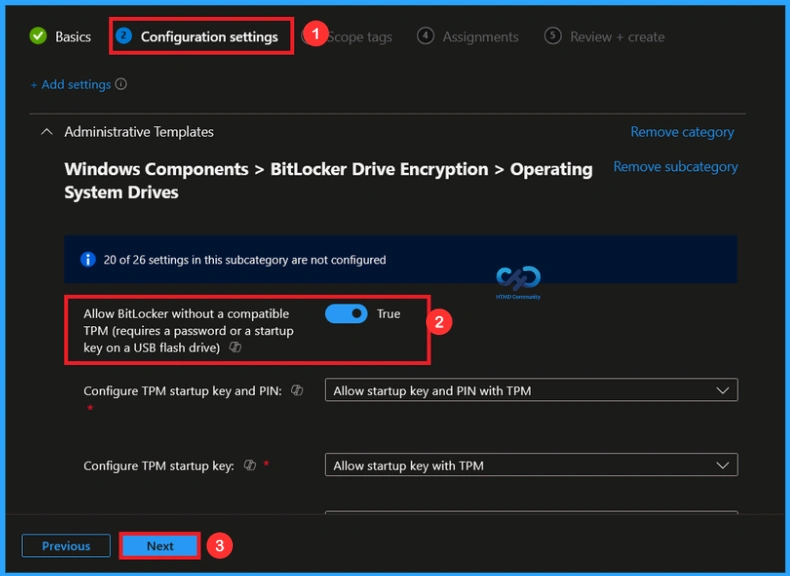
If we enable or configure this policy, you can enable the additional authentication at startup policy by toggling the switch. After reviewing or adding more settings, you can click the Next button to proceed.
Scope Tag
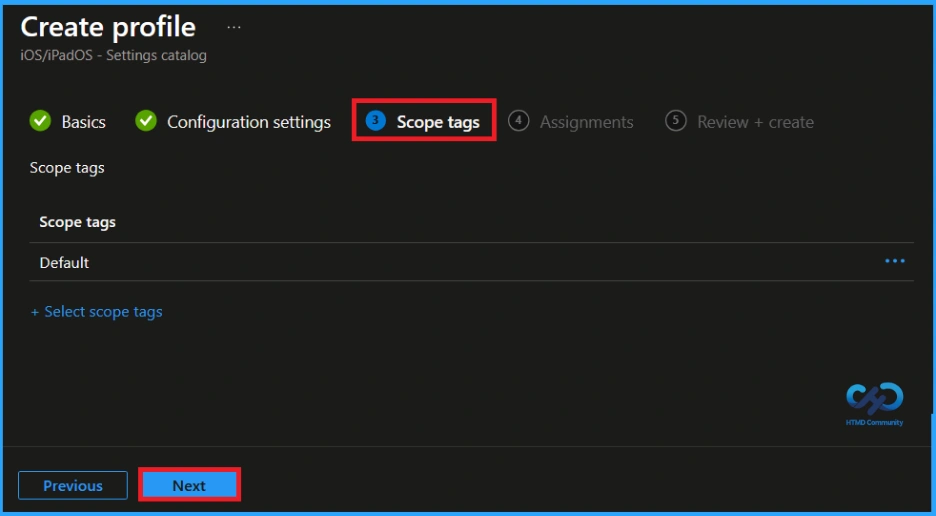
In Intune, Scope Tags are used to control who can view and modify a policy. The scope tag is not mandatory, so you can skip this section. It functions as a tool for organisation and access management, but assigning it is optional. Click Next if they’re not required for your setup.
Assignments
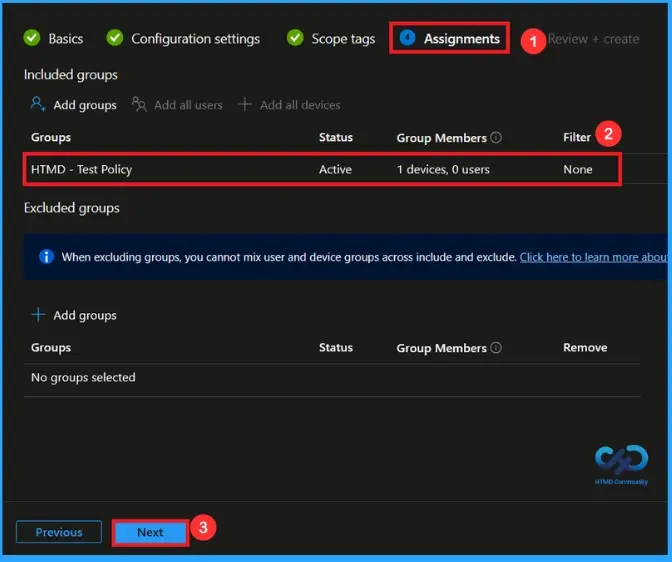
In the Assignments tab, you choose the users or devices that will receive the policy by clicking Add Group under Include Group, select the group that you want to target (e.g HTMD – Test Policy) and then click Next to continue.
Final Step
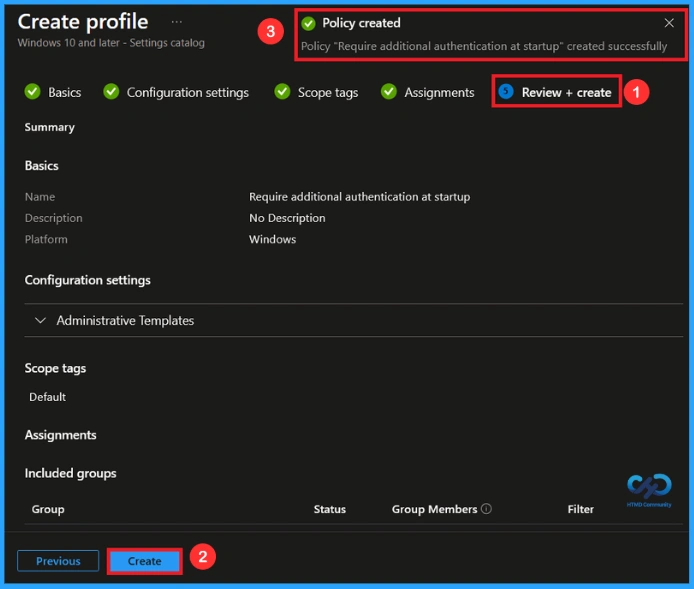
At the final Review + Create step, we see a summary of all configured settings for the new profile; after reviewing the details and making any necessary changes by clicking Previous. We click Create to finish, and a notification confirms that the “Require additional authentication at startup created successfully”.
Monitoring Status
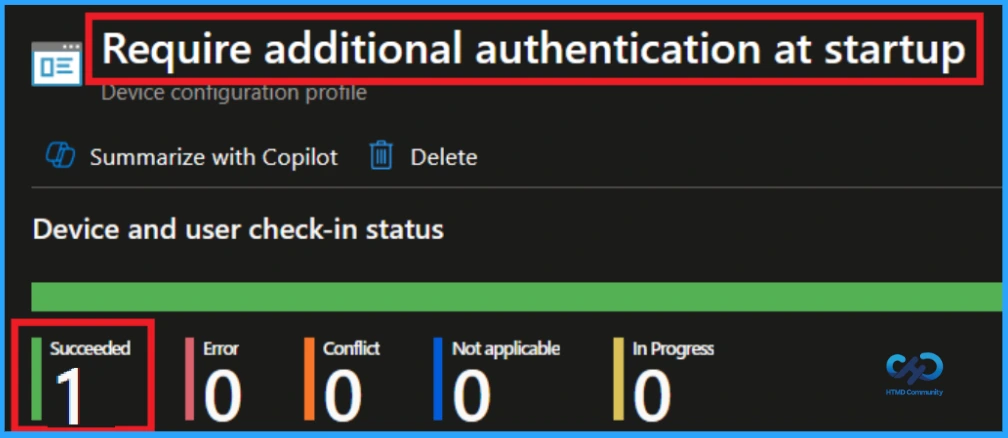
To view a policy’s status, go to Devices > Configuration in the Intune portal, select the policy (Require additional authentication at startup), and check that the status shows Succeeded. Use manual sync in the Company Portal to speed up the process.
How to Remove Assigned Group from this Policy
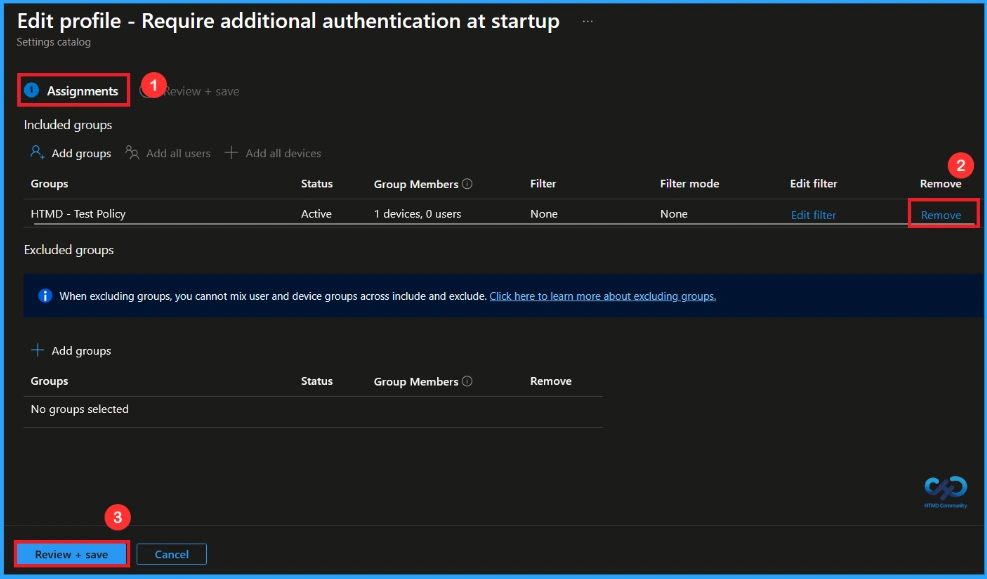
After creating the policy, if you want to remove the specific group that you previously selected, you can easily do that. First, go to Devices > Configuration policies. In the Configuration policy section, search and select the policy. In the Assignment section, you will find an Edit option and click on it. Then, click the Remove option and Review+ save button.
For detailed information, you can refer to our previous post – Learn How to Delete or Remove App Assignment from Intune using by Step-by-Step Guide.
How to Delete this Policy from Intune Portal
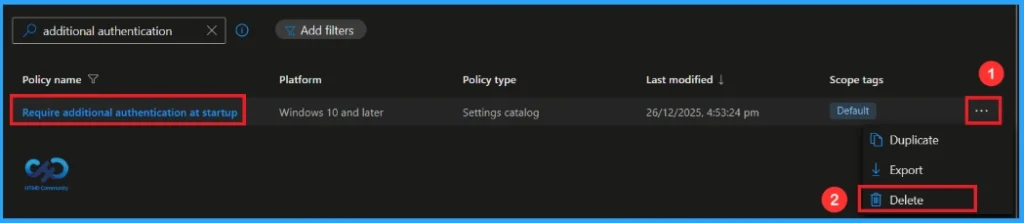
If you want to delete this policy for any reason, you can easily do so. First, search for the policy name in the configuration section. When you find the policy name, you will see a 3-dot menu next to it. Click on the 3 dots, then click the Delete button.
For detailed information, you can refer to our previous post – How to Delete Allow Clipboard History Policy in Intune Step by Step Guide.
Need Further Assistance or Have Technical Questions?
Join the LinkedIn Page and Telegram group to get the latest step-by-step guides and news updates. Join our Meetup Page to participate in User group meetings. Also, Join the WhatsApp Community to get the latest news on Microsoft Technologies. We are there on Reddit as well.
Author
Anoop C Nair has been Microsoft MVP from 2015 onwards for 10 consecutive years! He is a Workplace Solution Architect with more than 22+ years of experience in Workplace technologies. He is also a Blogger, Speaker, and Local User Group Community leader. His primary focus is on Device Management technologies like SCCM and Intune. He writes about technologies like Intune, SCCM, Windows, Cloud PC, Windows, Entra, Microsoft Security, Career, etc.