
Key Takeaways
- Restrict personal email synchronization on corporate Windows devices.
- Improve data privacy and reduce the risk of data leakage.
- Prevent users from adding and syncing personal email accounts.
- Enforce organizational security and compliance requirements.
Let us learn about Restrict Personal Email Sync on Windows Devices. Intune has an out of box option to set up an email profile. Obtaining control over data privacy is one excellent advantage of turning off sync. Protection yourself from security violations and limit external entities’ access to your private data. Additionally, inactivating Microsoft Sync helps correct device performance and enhance battery existence.
Table of Contents
Table of Contents
How to Block Personal Email Synchronization on Windows Devices with Intune
The Domain Names for Email Sync setting in Windows 10 is helps you to control which email domains are allowed to synchronize on managed devices. By defining specific domains, IT administrators can restrict users from adding and syncing personal email accounts while still allowing corporate accounts. This setting helps organizations maintain better control over data flow and ensures that only approved domains are used for business email access.
- How to Completely Lockdown OneDrive File Sync with Intune Policy
- How to Enable OneDrive Files On-Demand using Intune Policy to Improve Storage Efficiency
- Start OneDrive Automatically when Signing in to Windows for OneDrive using Intune Policy
Create Policy
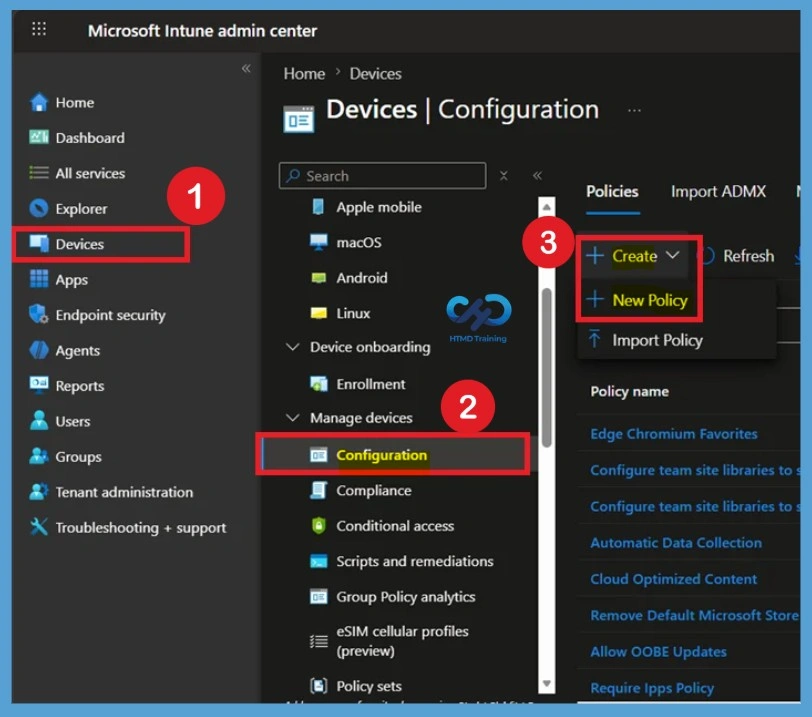
Begin by signing in to the Microsoft Intune admin center with an account that has the required administrative permissions. Once signed in, navigate to Devices > Windows > Configuration and select Create > New Policy. For clear view steps are given below.
- Open the Microsoft Intune admin center.
- Navigate to Devices > Configuration policies.
- Click + Create and select + New policy.
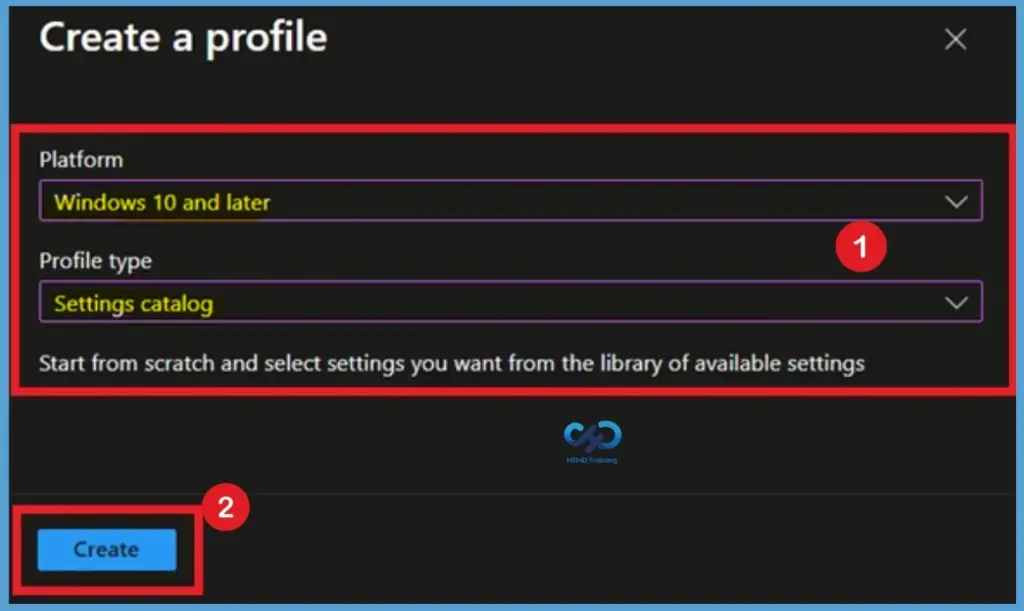
On the Create a profile page, select Windows 10 and later as the platform. For the profile type, choose Settings Catalog, and then click Create to continue.

- In the Create a profile window:
- Platform > Select Windows 10 and later
- Profile type > Choose Settings catalog
- Click Next to continue.
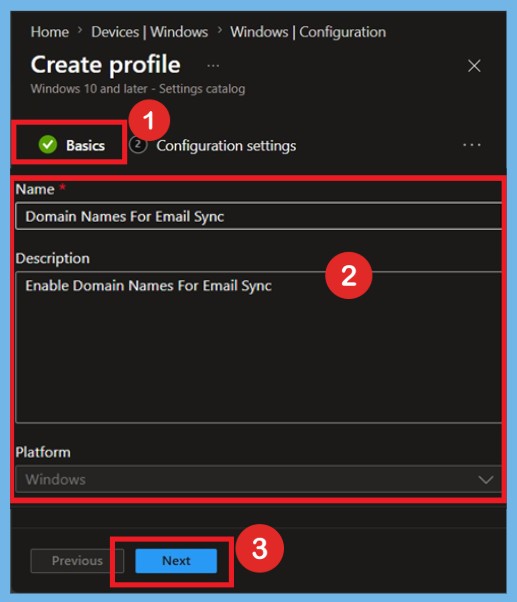
- Under the Basics tab, provide a Name and Description for the policy.
Basic Step
On the Basics page, provide a meaningful policy name such as Restrict Personal Email Sync on Windows Devices and add an optional description explaining the purpose of the configuration.
Configuration Process
The primary purpose of the policy is to enhance security by blocking personal accounts like Gmail or Yahoo from syncing. This prevents corporate data from being mixed with personal accounts and ensures compliance with organizational policies. Essentially, it serves as a safeguard against data leakage while simplifying management of corporate email on Windows devices.
On the Configuration settings page, click Add settings to open the Settings Picker. In the search box, type Email and click Search. Browse to the Accounts category and select Domain Names For Email Sync. Click Select to add the setting to the profile.
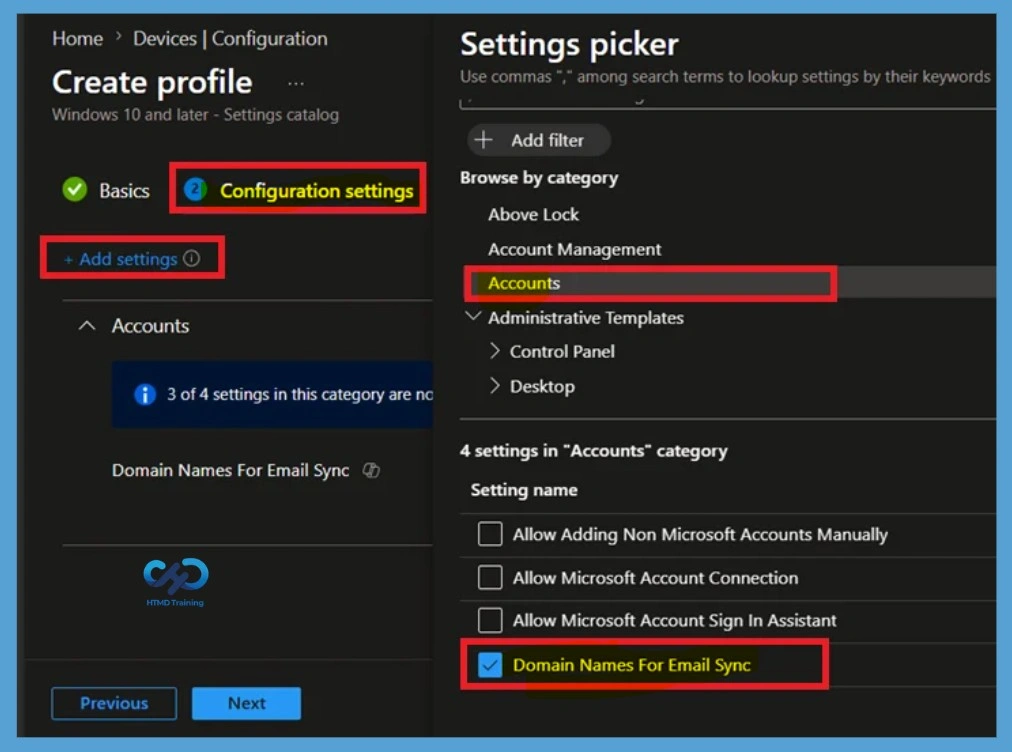
Configure Domain Names for Email Sync
On the Configuration settings page, the Domain Names for Email Sync setting is displayed under the Accounts category. This setting allows administrators to define the approved email domains that users can synchronize on managed Windows devices. Only email accounts that match the specified domains will be permitted to sync, helping organizations restrict personal email usage on corporate devices.
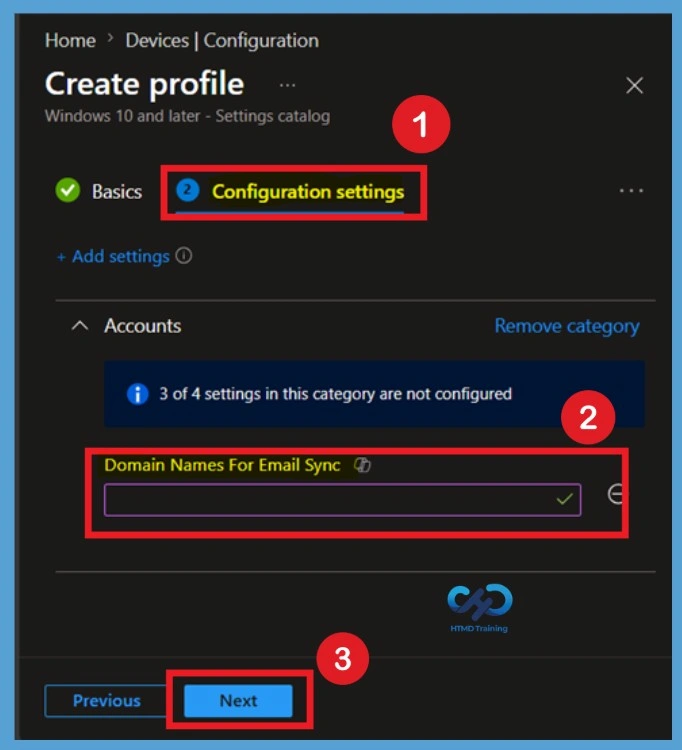
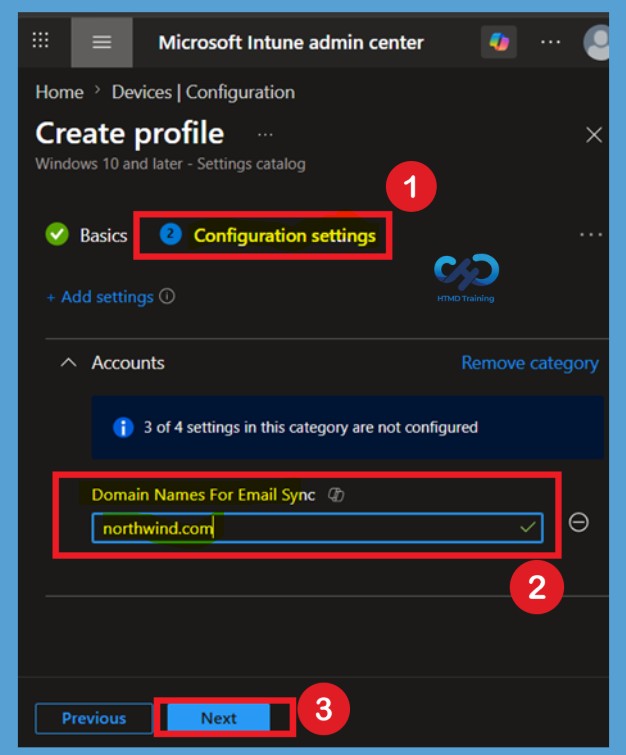
Enter Approved Email Domains
In the Domain Names for Email Sync field, enter the organization’s approved email domain name, such as northwind.com. You can specify one or more corporate domains based on your business requirements. By configuring approved domains, Intune ensures that users can only synchronize email accounts associated with those domains while blocking personal email synchronization.
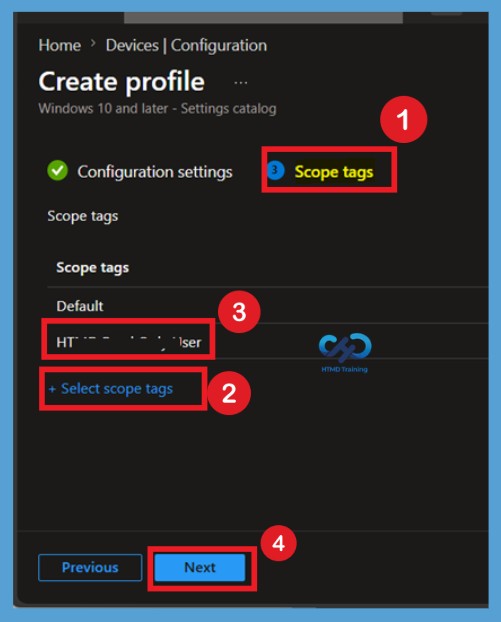
Scope Tags Page
Use Scope Tags if your organization follows role-based administration. Scope tags help delegate policy management responsibilities and limit visibility to specific administrators. If scope tags are not required, you can leave the default configuration and continue.
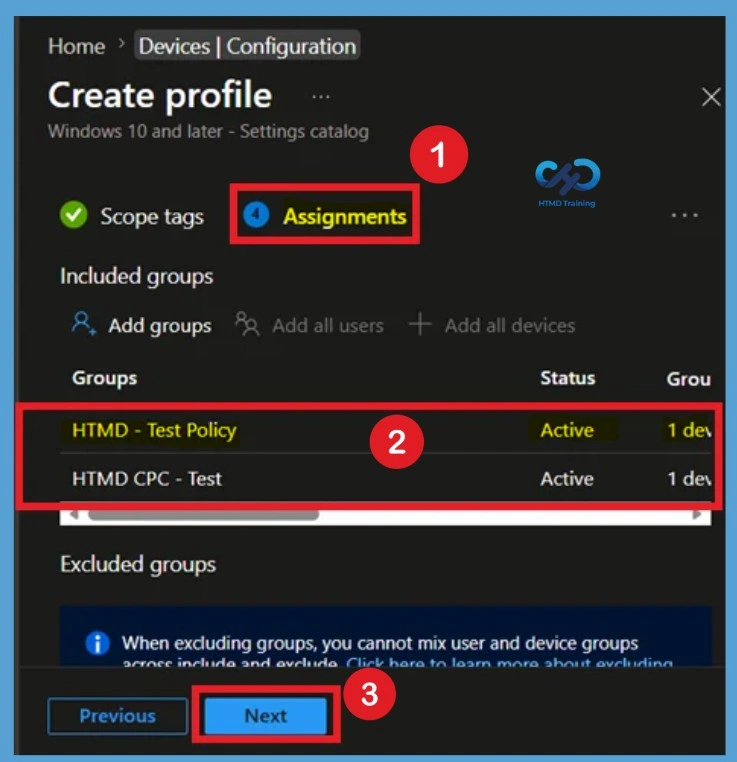
Assignments Page
On the Assignments page, select the device groups that should receive the policy. You can include multiple groups based on your deployment requirements. Carefully review the targeted groups before proceeding to avoid applying the restriction to unintended users or devices.
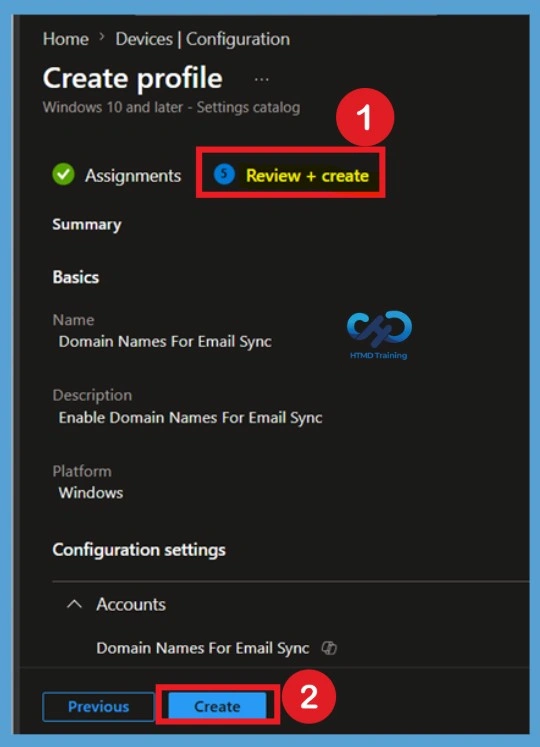
Review + Create Section
After configuring the required settings, review all policy details including the profile name, selected settings, assignments, and scope tags. Verify that the approved email domains are entered correctly and ensure the policy aligns with your organization’s security requirements. Click Create to deploy the policy to the selected groups.
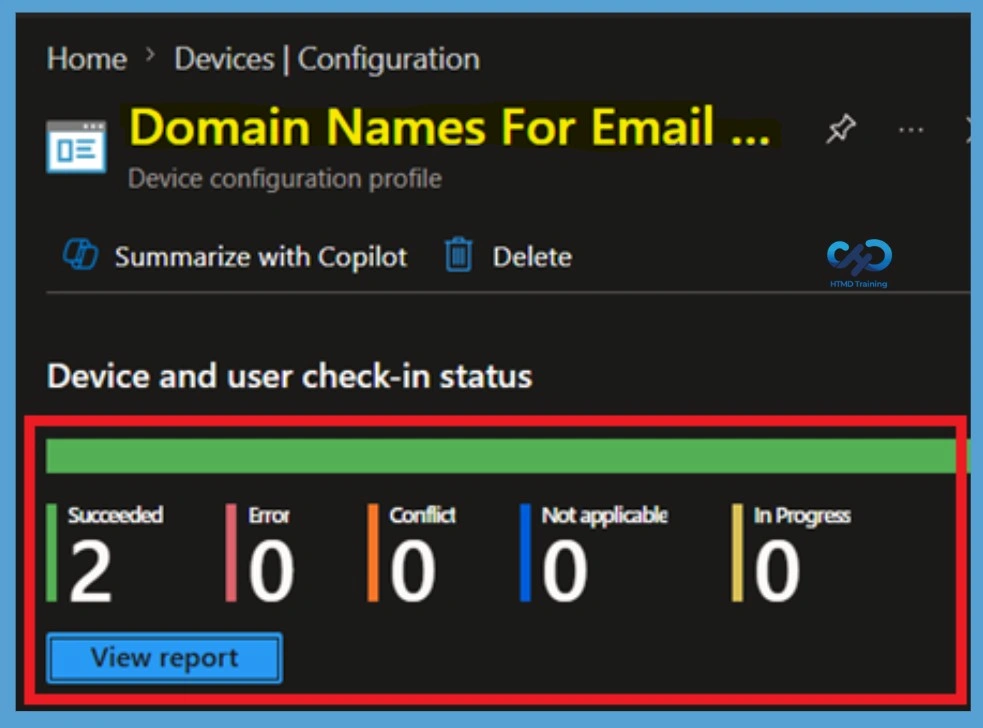
Monitoring Policy Deployment
Once the policy is created, navigate to Devices > Windows > Configuration and select the policy. The monitoring section provides deployment statistics including Succeeded, Pending, Error, and Conflict states. These reports help administrators verify that the policy has been successfully delivered to targeted devices.
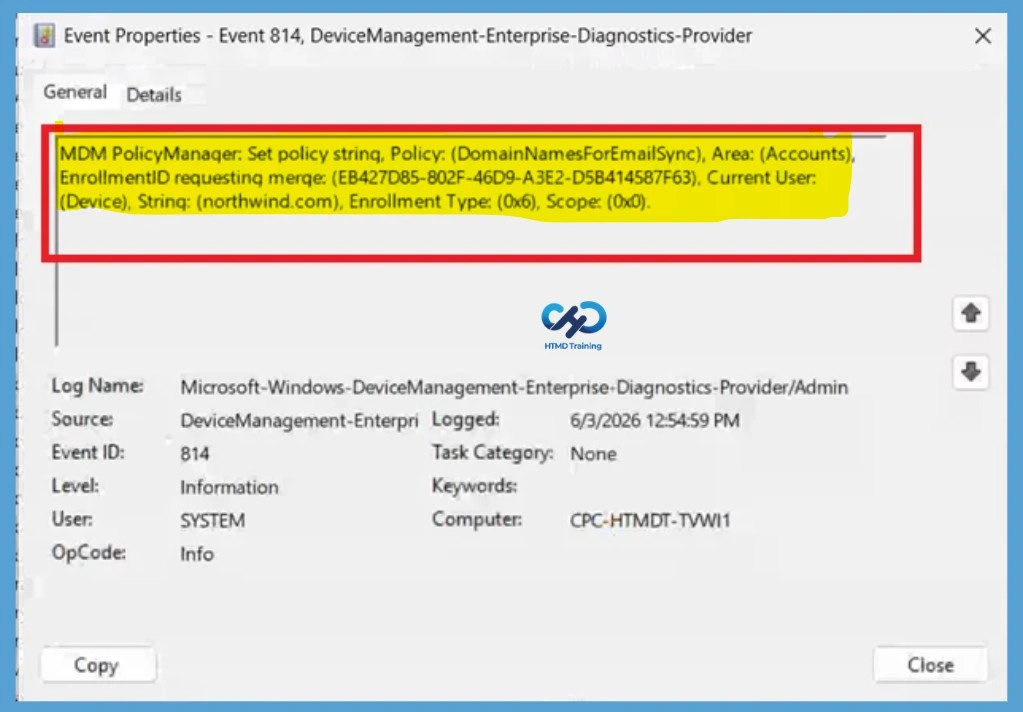
Event Log – Restrict Personal Email Sync
You can confirm whether a custom CSP policy is applied on Windows CYOD devices by checking the event logs. Disable Email Sync Corp Device with Intune policy. Event Logs:> Microsoft->Windows->DeviceManagement-> Enterprise-Diagnostics-Provider/Admin
| Policy Details |
|---|
| MDM PolicyManager: Set policy strinq, Policy: (DomainNamesForEmailSync), Area: (Accounts), EnrollmentID requesting merqe: (EB427D85-802F-46D9-A3E2-D5B414587F63). Current User: (Device), Strinq: (northwind.com), Enrollment Type: (0x6), Scope: (0x0). |
Delete the Restrict Personal Email Sync Policy
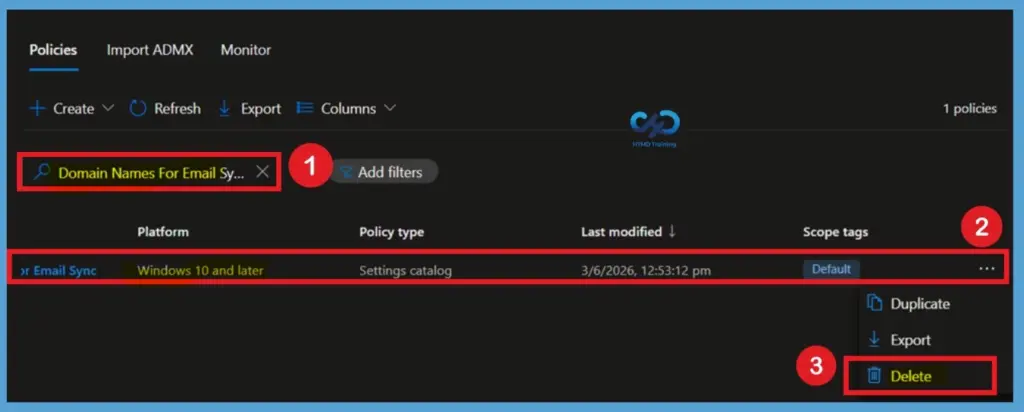
If the policy is no longer required, you can permanently delete it from the Intune admin center. Navigate to Devices > Windows > Configuration, select the Restrict Personal Email Sync policy, and click Delete. Confirm the deletion when prompted. Once deleted, Intune stops managing the setting on targeted devices.
Remove Assigned Groups from the Policy
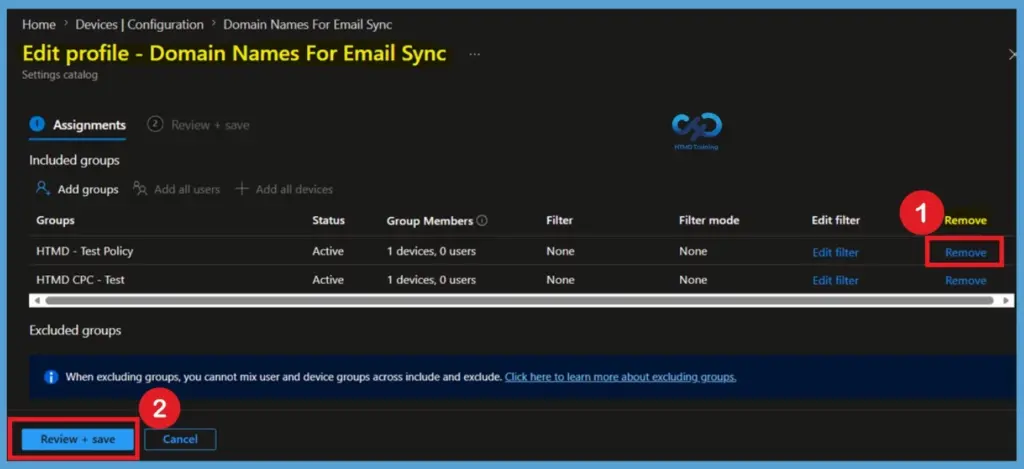
If you want to stop deploying the policy without deleting it, you can remove the assigned groups. Open the policy in the Intune admin center, navigate to the Assignments section, and remove the user or device groups listed under Included Groups. After removing the required groups, click Review + Save to apply the changes. Once the policy is no longer assigned, Intune stops targeting new devices in those groups, and the policy will no longer be enforced for them after the next policy refresh cycle.
Video Tutorial – Restrict Disable Personal Email Sync
The following video is a tutorial of How to create a device configuration profile with a custom CSP Policy.
Resource
We are on WhatsApp. To get the latest step-by-step guides and news updates, Join our Channel. Click here –HTMD WhatsApp.
Author
Anoop C Nair is Microsoft MVP! He is a Device Management Admin with more than 20 years of experience (calculation done in 2021) in IT. He is a Blogger, Speaker, and Local User Group HTMD Community leader. His primary focus is Device Management technologies like SCCM 2012, Current Branch, and Intune. He writes about ConfigMgr, Windows 11, Windows 10, Azure AD, Microsoft Intune, Windows 365, AVD, etc.
This post is really helpful. One point I am not clear on: Does this prevent/restrict synchronizing non-corporate email accounts in Outlook or does this only regulate the Windows mail client?
Thanks for the post.
This is aint working
No, its not working
Not working